How to Use Local MCP
The local endpoint of the Pixso MCP server is: http://127.0.0.1:3667/mcp
Usage notes
- Local address and port: The default port is
3667, but it is not always fixed. When configuring your IDE / Agent, use the address actually shown in the Pixso client. If you open both the Pixso IDE plugin and the Pixso desktop client, port conflicts may change the port. If connection fails, check the current address in the client first, then update your MCP config. Prefer keeping only one side providing local MCP to avoid conflicts. - Keep the service available: While using Local MCP, keep the Pixso desktop client (or Pixso IDE plugin) open and signed in. If it is closed, the IDE can no longer call tools.
- Keep the target file active: Keep the target design file open, and keep its tab active. Switching to another file tab or closing the file may cause calls based on the current file / selection to fail.
- Selection dependency: If a prompt depends on the “currently selected layer”, select the target layer on the canvas first (prefer a single container). You can also locate layers with a link that includes
item-id. See Step 3 below. - Seats and permissions: Tool calls also require the right account seat and file permissions (for example Full-function / Developer seat; write tools need edit permission). See the permission notes in Tools & Commands.
- Client version: Local MCP requires Pixso desktop version 2.2.0 or later.
Transport protocol
Local Pixso MCP only supports HTTP / Streamable HTTP, and does not support SSE.
Step 1: Enable Local MCP in Pixso Desktop
- Install and sign in to Pixso desktop (version
>= 2.2.0) - Create or open a design file in Pixso desktop
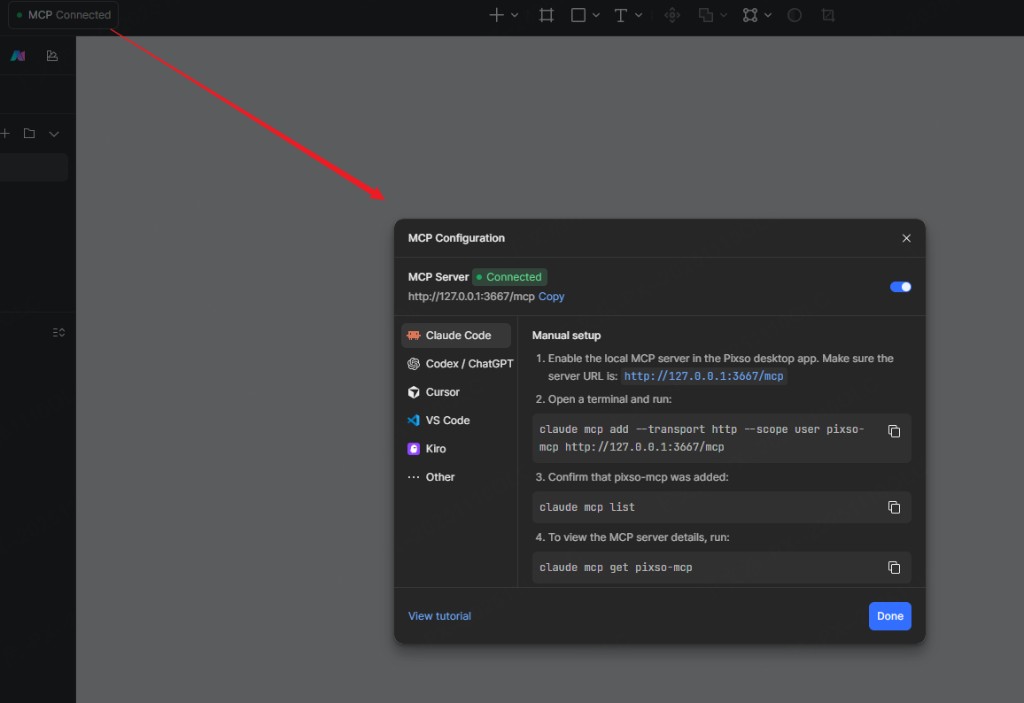
- Click the MCP configuration entry in the top-left of the design file top bar, then turn on the switch
Using D2C+
The D2C+ mode toggle in the client has been removed. You no longer need a switch. To use D2C+, trigger it directly with prompts in chat (for example, clearly ask to use D2C+ during design-to-code).
Only files in a Pixso enterprise space support D2C+; non-enterprise-space files cannot use it. For more details, see D2C+.
Step 2: Configure Pixso MCP in Your IDE
Find your IDE / Agent below and follow the corresponding instructions.
Compatibility
Any IDE or Agent that supports Streamable HTTP can connect to Pixso MCP, not only the products listed below.
Claude Code (CLI)
Run this command in terminal:
claude mcp add --transport http pixso-desktop http://127.0.0.1:3667/mcpCodex / ChatGPT
Manual setup
- Enable Local MCP in the Pixso client first
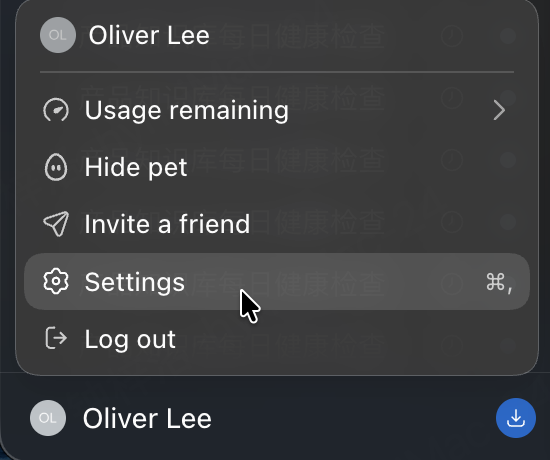
- Open the Codex account menu in the bottom-left corner, then open Settings:
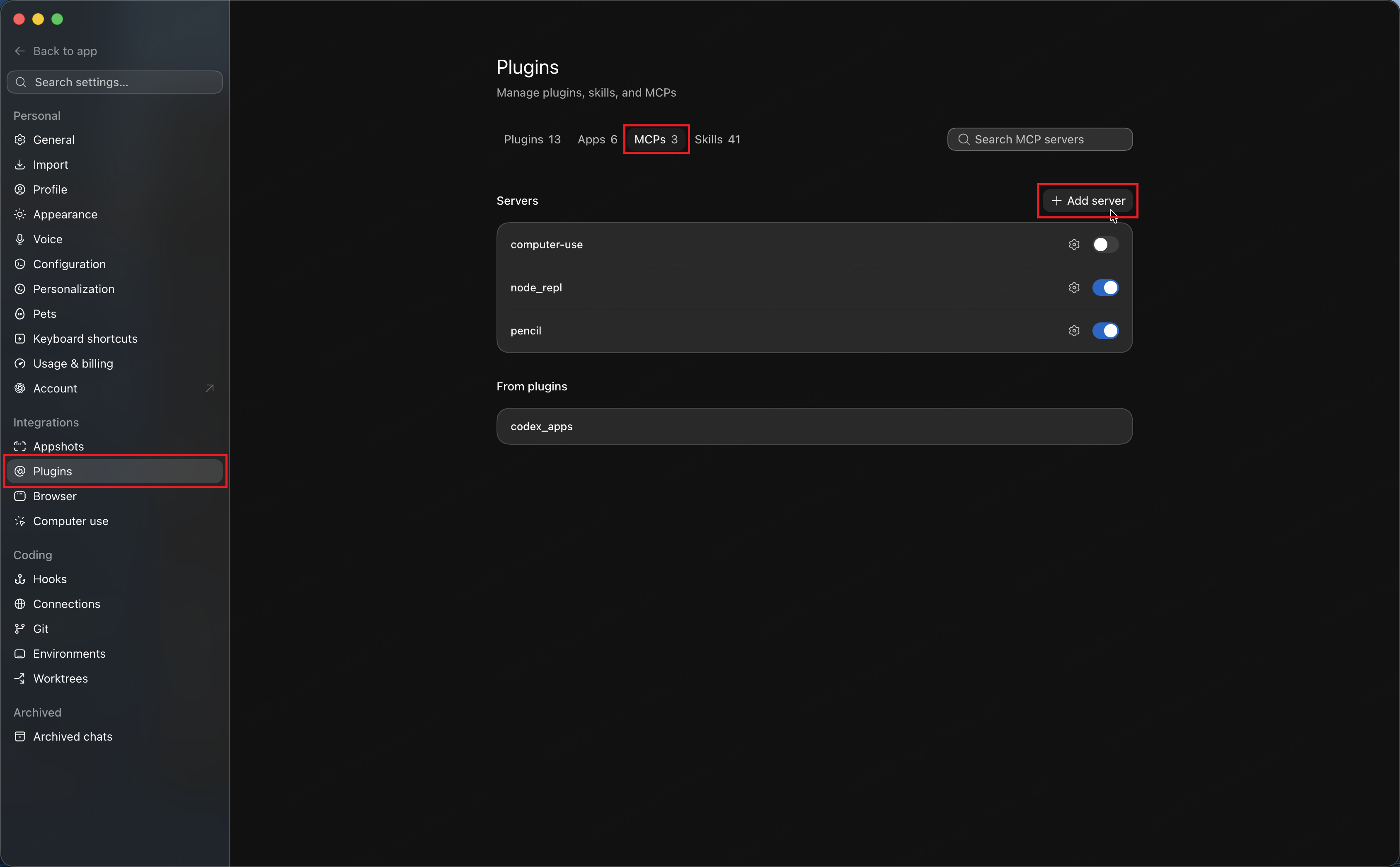
- Under Integrations → Plugins, switch to MCP, then click + Add server:
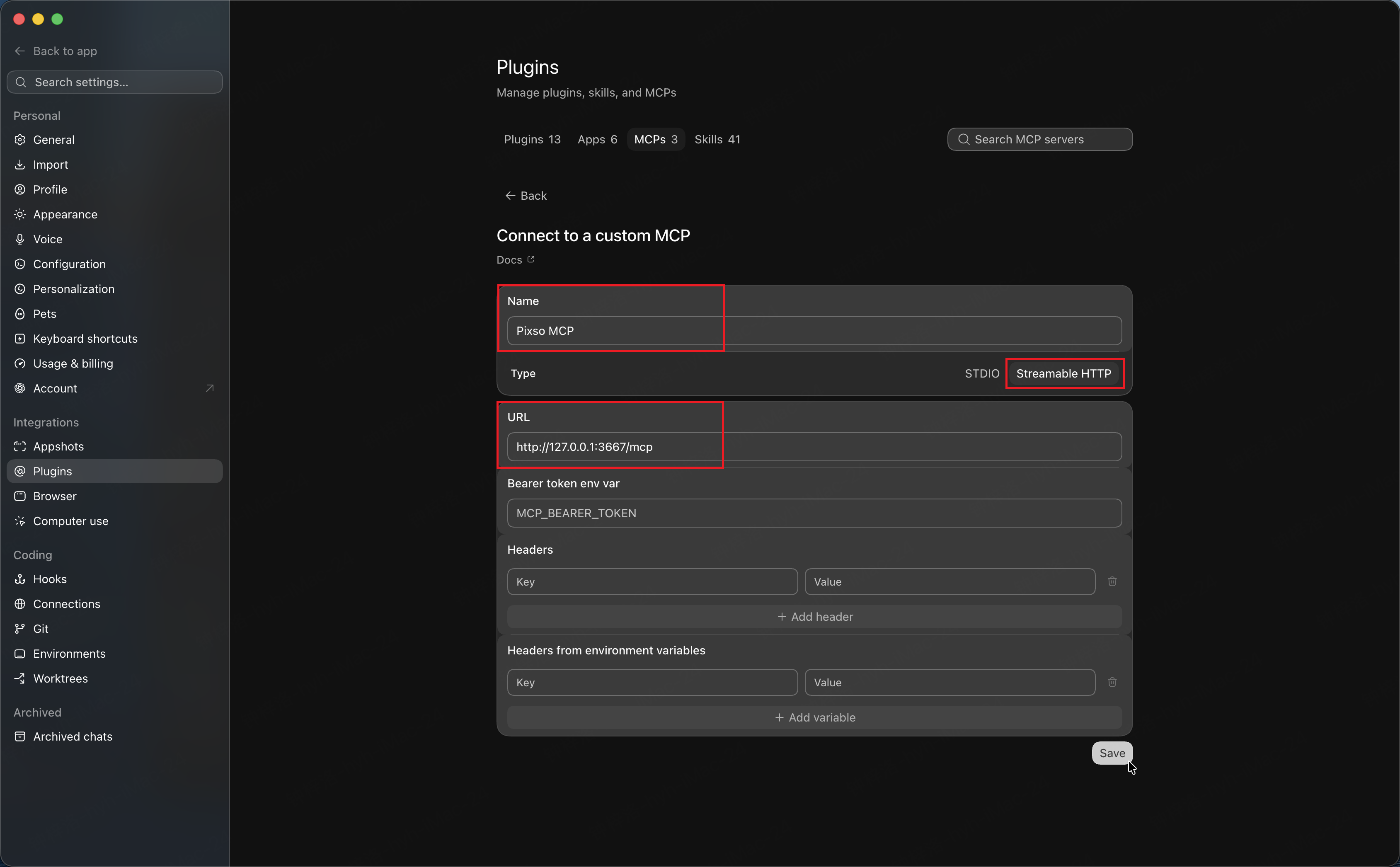
- Choose Streamable HTTP, enter a name and the local URL
http://127.0.0.1:3667/mcp, then save:
Cursor
- Open Cursor -> Cursor Settings -> MCP & Integrations
- In MCP Tools, click New MCP Server
- Use any name (for example
Pixso MCP), selecthttp, and set URL tohttp://127.0.0.1:3667/mcp - Or edit
mcp.jsondirectly:json{ "mcpServers": { "Pixso MCP": { "url": "http://127.0.0.1:3667/mcp", "headers": {} } } } - Save and click start in the settings panel
VS Code
VS Code's native MCP configuration uses a different structure from other IDEs: it uses the servers field instead of mcpServers.
- Open the MCP configuration file in VS Code (user-level or workspace
.vscode/mcp.json). - Add the following content and save:json
{ "servers": { "pixso": { "url": "http://127.0.0.1:3667/mcp", "type": "http" } } } - Reload VS Code or refresh in the MCP panel. Once connected, you can use Pixso MCP in chat.
CodeBuddy
CodeBuddy IDE supports MCP server configuration to extend Agent capabilities.
- In the top-right corner of the chat sidebar, open CodeBuddy Settings and switch to the MCP tab.
- Click Add MCP on the right, then add the following content to the JSON configuration file and save:json
{ "mcpServers": { "pixso": { "type": "http", "url": "http://127.0.0.1:3667/mcp" } } } - After saving, a green status on the MCP server means connected. You can also use Pixso MCP tools directly in Craft Agent.
You can also add the server via config files: user-level ~/.codebuddy/.mcp.json, or project-level .mcp.json.
Qoder
Qoder IDE extends Agent capabilities through MCP and supports STDIO, SSE, and Streamable HTTP. For local Pixso MCP, HTTP is sufficient.
- Click the user icon in the top-right corner of Qoder IDE, or use
Ctrl + Shift + ,(Windows) /⌘ + Shift + ,(macOS) to open Qoder Settings. - Select MCP in the left navigation pane, then open the My Servers tab.
- Click Add in the top-right corner, add the following content to the JSON configuration file, and save:json
{ "mcpServers": { "pixso": { "type": "http", "url": "http://127.0.0.1:3667/mcp" } } } - After saving, a link icon next to the server entry means connected. Expand the entry to view available tools.
You can also add the server via config files: user-level ~/.qoder/settings.json, project-local ${project}/.qoder/settings.local.json, or project-level ${project}/.mcp.json.
Cline plugin
Cline is a popular AI coding plugin. To connect Pixso MCP to Cline:
- In the Cline sidebar top navigation, click the MCP Servers icon (or click "Configure MCP Servers" under the Configure tab).
- This opens
cline_mcp_settings.json. - Add a Streamable HTTP MCP server config:json
{ "mcpServers": { "pixso-mcp": { "type": "streamableHttp", "url": "http://127.0.0.1:3667/mcp" } } } - Save the file. Cline will connect automatically, and you can use Pixso MCP in Cline chat after a successful connection.
Trae IDE
Trae v1.3.0+ supports MCP natively.
- Open Trae Settings and go to the MCP configuration panel; or edit the config file directly: project-level
.trae/mcp.json, or global~/.cursor/mcp.json(Trae-compatible Cursor config directory). - Add an MCP service:json
{ "mcpServers": { "pixso": { "url": "http://127.0.0.1:3667/mcp" } } } - Restart Trae, or click refresh in the MCP panel to connect.
Kiro
Kiro also supports connecting external tools via MCP:
- Open Kiro config: global
~/.kiro/settings/mcp.jsonor workspace.kiro/settings/mcp.json - Add Pixso MCP config:json
{ "mcpServers": { "pixso-mcp": { "url": "http://127.0.0.1:3667/mcp" } } } - (Optional) Add
"autoApprove": ["getCode", "getNodeDSL"]to reduce permission prompts, then reload Kiro
Windsurf
- Open Windsurf settings -> MCP Servers -> Manage MCPs
- Click View raw config to open
mcp_config.json - Add config:json
{ "mcpServers": { "pixso": { "serverUrl": "http://127.0.0.1:3667/mcp" } } } - Refresh in settings panel; a green status means connected
TIP
After connecting MCP, we recommend installing the Pixso MCP Skill plugin for a better Agent experience. See Pixso MCP Skill.
Step 3: Chat in MCP Client
After your MCP client is connected to the Pixso MCP server, you can start using it in conversations.
Pixso MCP supports two ways to get design data:
Copy Layer Link
Notes
The layer link is not a file share link and not a page link.
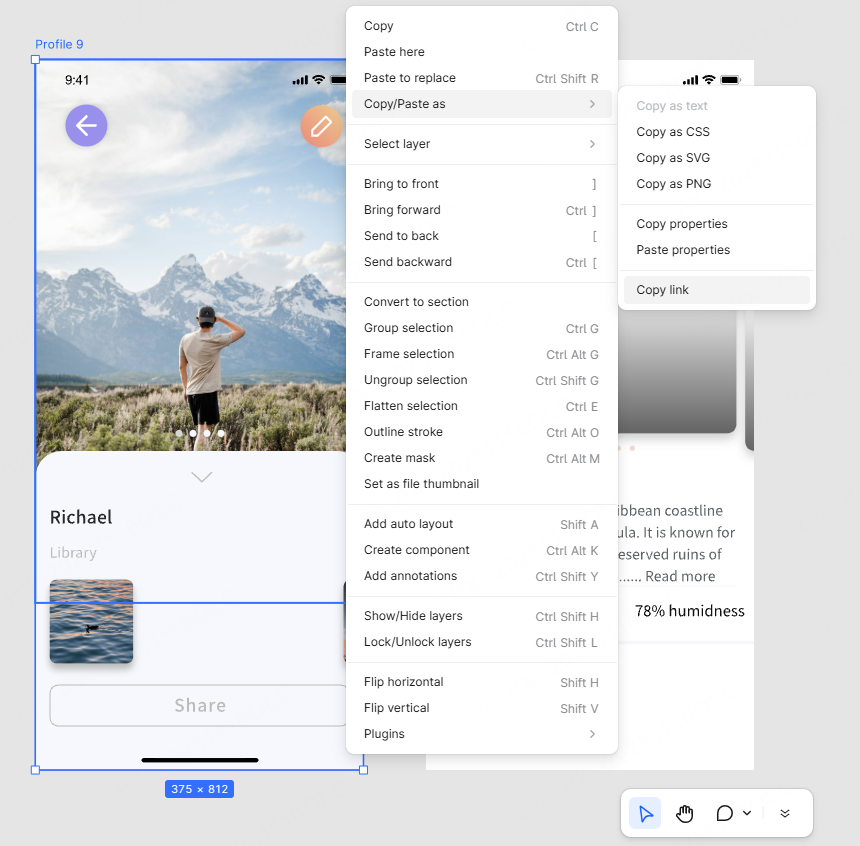
The item-id in the link helps the agent locate the exact target layer.
- Open a design file in Pixso desktop
- Select a container layer and copy its layer link
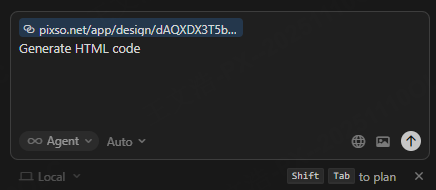
- In your IDE client (such as Cursor), paste the link in chat and provide instructions (for example: generate HTML code)
Paste the link into the agent chat box.
Select Container on Canvas
- Open a design file in Pixso desktop
- Select a single container layer on the canvas
- In your IDE client (such as Cursor), start chatting (for example: generate HTML code)
Notes
To keep the MCP connection stable:
- Keep Pixso desktop open
- Keep the design file tab containing the selected container active