How to Use Remote MCP
Remote MCP has been upgraded
This document describes the new Remote MCP. Service capabilities and tool coverage have been expanded. See the configuration steps below.
Compatibility: If you still use an older connection config, you can continue using the new Remote MCP after completing OAuth authorization.
Prefer the setup in this document (OAuth 2.1) to get full capabilities and future updates. For tool coverage changes, also see Tools & Commands.
Remote MCP runs on Pixso cloud servers and can be used without opening Pixso Web. Authenticate with OAuth 2.1 (recommended) or an access token to integrate Pixso Remote MCP into Agent tools.
The Pixso Remote MCP server address is: https://pixso.net/mcp
Availability
The Remote MCP address in this document is for public-cloud users only.
On-premises (private deployment) users must contact their account manager before enabling Remote MCP. Use your environment's intranet domain as the server URL, not the public address above.
Step 1: Configuration
Remote MCP supports two configuration methods. Prefer Method 1: OAuth 2.1; use an access token when needed.
Compatibility
Any IDE or Agent that supports Streamable HTTP can connect to Pixso Remote MCP, not only the products listed below.
Method 1: OAuth 2.1 (recommended)
Provide only the server URL. The client will guide you through authorization, and you do not need to enter a token manually:
{
  "mcpServers": {
    "pixso-oauth-mcp": {
      "url": "https://pixso.net/mcp"
    }
  }
}
Method 2: Access token
First get a personal access token:
- In the Pixso workspace, click the user avatar on the right, open User Center, and find Personal Access Token.
- Click Generate Token, copy the token once, and store it securely.
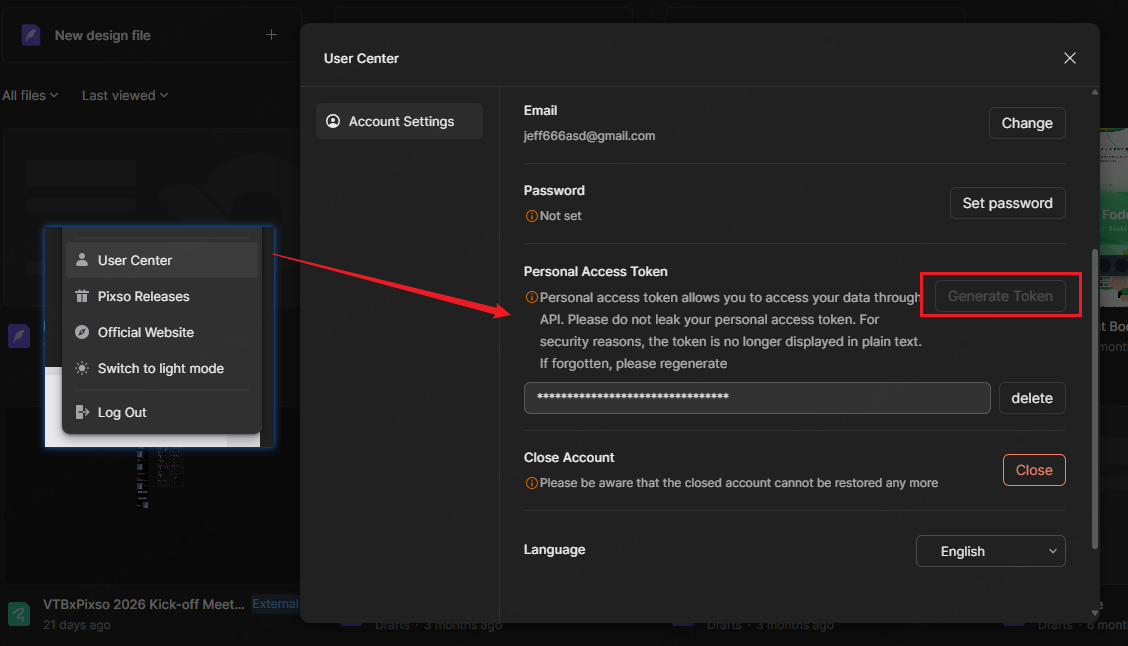
Then provide the server URL and your personal access token:
{
  "mcpServers": {
    "pixso-oauth-mcp": {
      "url": "https://pixso.net/mcp",
      "token": "xxxx"
    }
  }
}
Note
The access token is your credential for Pixso Remote MCP. Keep it safe. If it is leaked, regenerate it promptly.
The full token can only be copied when it is first generated. If you lose it, regenerate a new one.
Claude Code (CLI)
Run one of the following commands in the terminal:
OAuth 2.1 (recommended):
claude mcp add --transport http pixso-oauth-mcp https://pixso.net/mcpAccess token:
claude mcp add --transport http pixso-oauth-mcp https://pixso.net/mcp --header "Token:your_access_token"Codex / ChatGPT
Manual setup
OAuth 2.1 authorization (recommended)
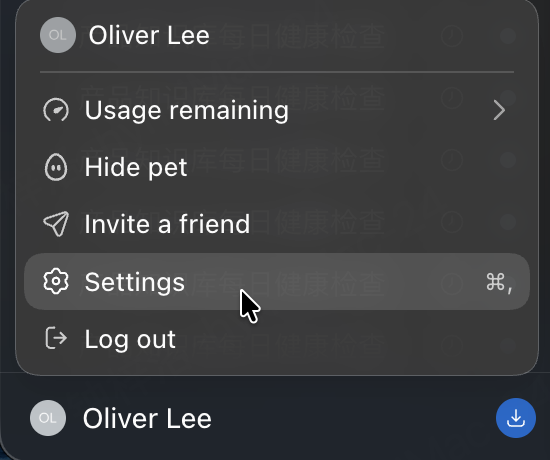
- Open the Codex account menu in the bottom-left corner, then open Settings:
- Under Integrations → Plugins, switch to MCP, then click + Add server:
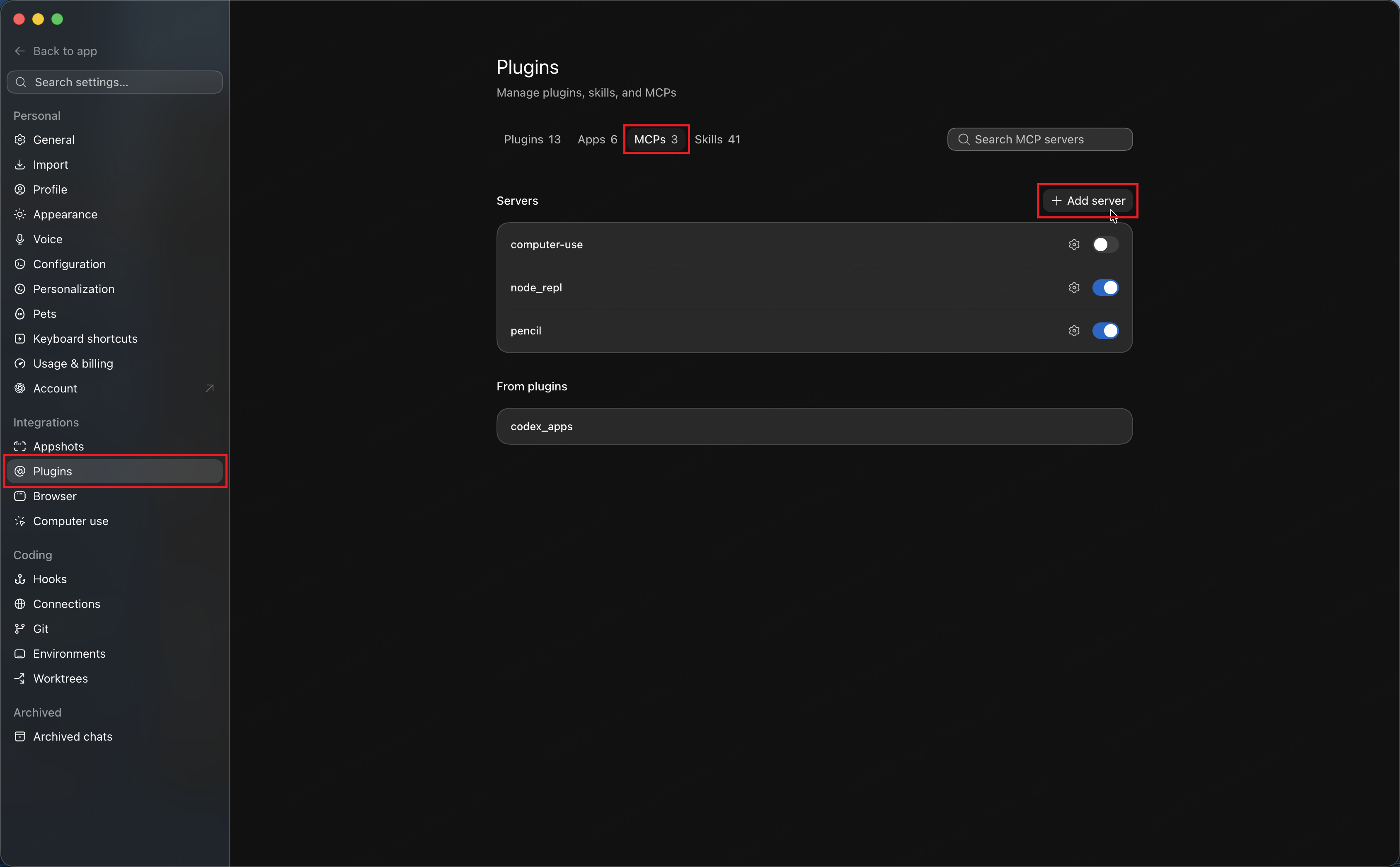
- Choose Streamable HTTP, enter a name, set the URL to
https://pixso.net/mcp, then save:
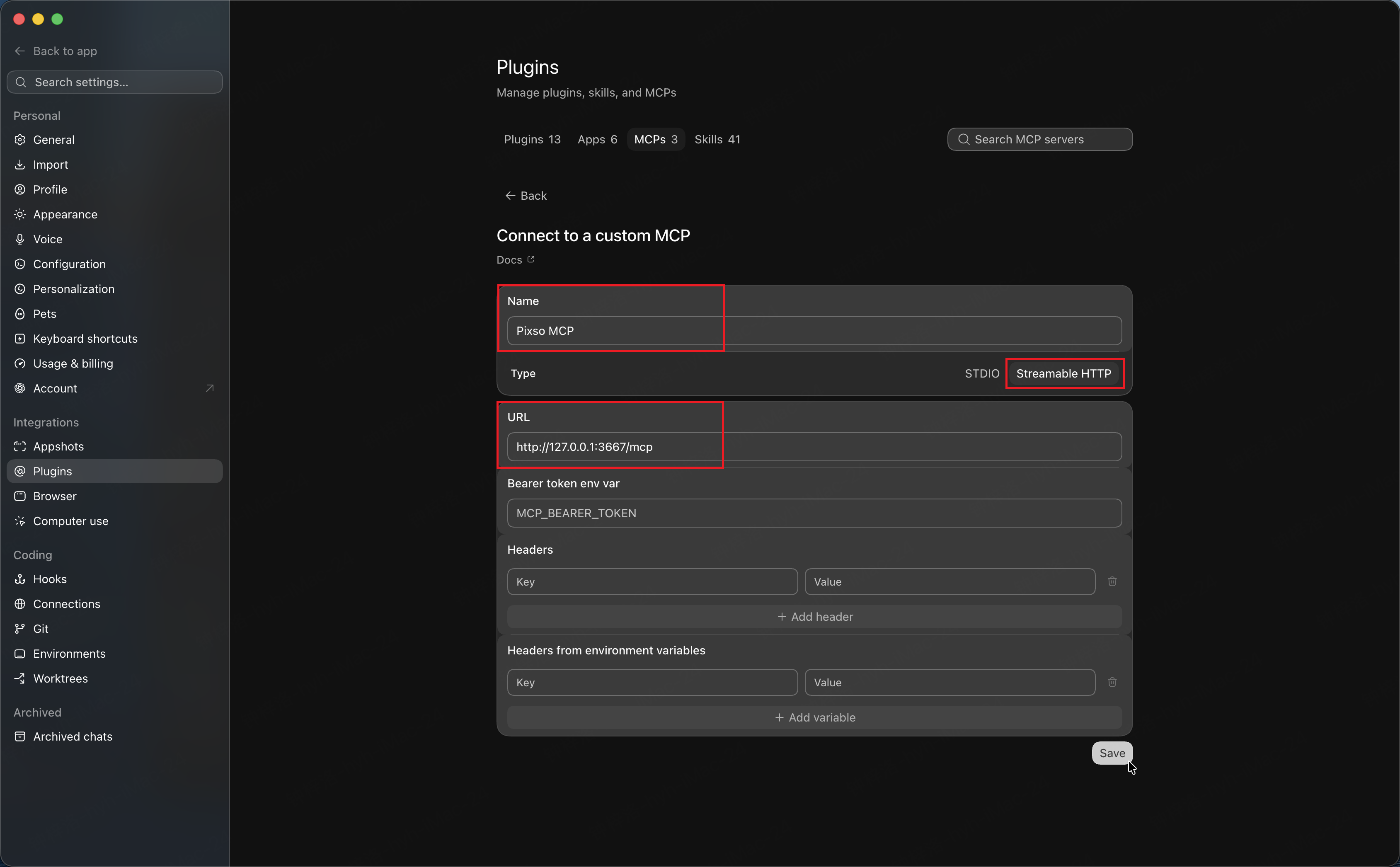
- After saving, the MCP server will show that authentication is required. Click connect / authenticate, complete the authorization flow, then you can use Pixso Remote MCP.
NOTE
The form screenshot is illustrative. For Remote MCP, set the URL to https://pixso.net/mcp (do not use the local address shown in the sample).
Cursor
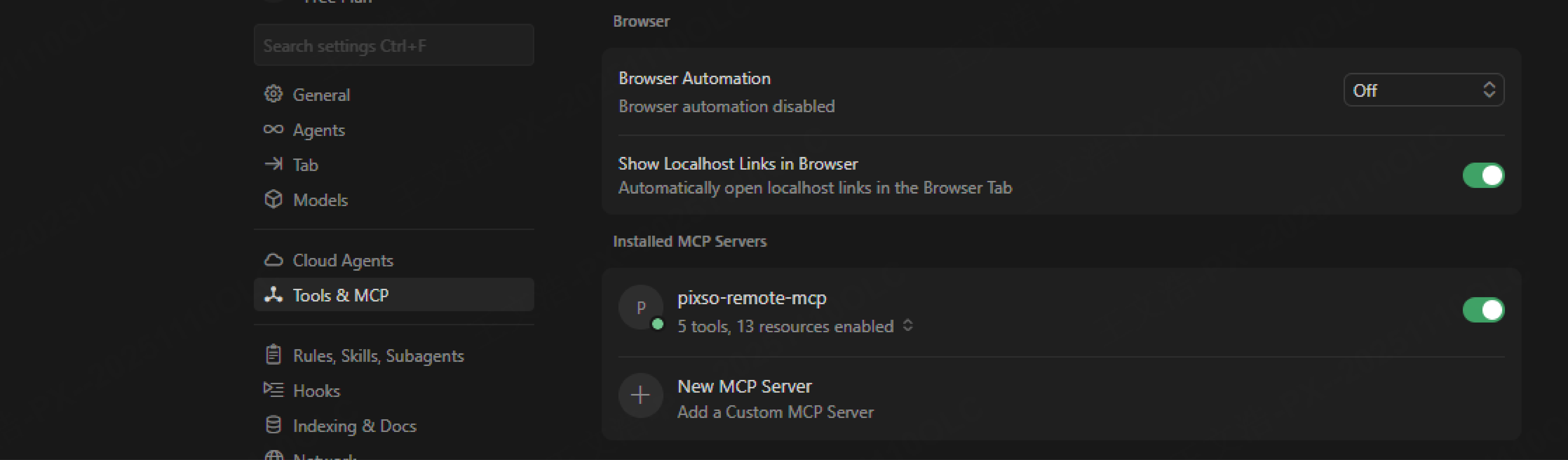
Open Cursor -> Settings -> MCP Tools.
Click New MCP Server.
You can customize the name (e.g.,
pixso-oauth-mcp).Edit the
mcp.jsonfile and add one of the following configurations:OAuth 2.1 (recommended):
json{ "mcpServers": { "pixso-oauth-mcp": { "url": "https://pixso.net/mcp" } } }Access token:
json{ "mcpServers": { "pixso-oauth-mcp": { "url": "https://pixso.net/mcp", "token": "your_access_token" } } }After saving, when the
pixso-oauth-mcpstatus is green, it indicates a successful connection; red indicates a failure and it is unavailable. If you use OAuth 2.1, complete the authorization prompt on first connect.
VS Code
VS Code's native MCP configuration uses a different structure from other IDEs: it uses the servers field instead of mcpServers. Remote MCP supports either of the following methods.
Manual setup
Method 1: OAuth 2.1 authorization (recommended)
- Open VS Code -> Manage -> Profiles -> double-click MCP Servers
- Add the following content and save:
{
  "servers": {
    "pixso-oauth-mcp": {
      "url": "https://pixso.net/mcp"
    }
  }
}
Method 2: Access token
- In the Pixso workspace, click the user avatar on the right, open User Center, and find Personal Access Token.
- Click Generate Token, copy the token once, and store it securely.
- Open VS Code -> Manage -> Profiles -> double-click MCP Servers
- Add the following content and save:
{
  "servers": {
    "pixso-oauth-mcp": {
      "url": "https://pixso.net/mcp",
      "token": "your_access_token"
    }
  }
}
After saving, start MCP. If you use OAuth 2.1, the client will guide you through authorization. After confirming authorization, you can use Pixso Remote MCP.
Trae IDE
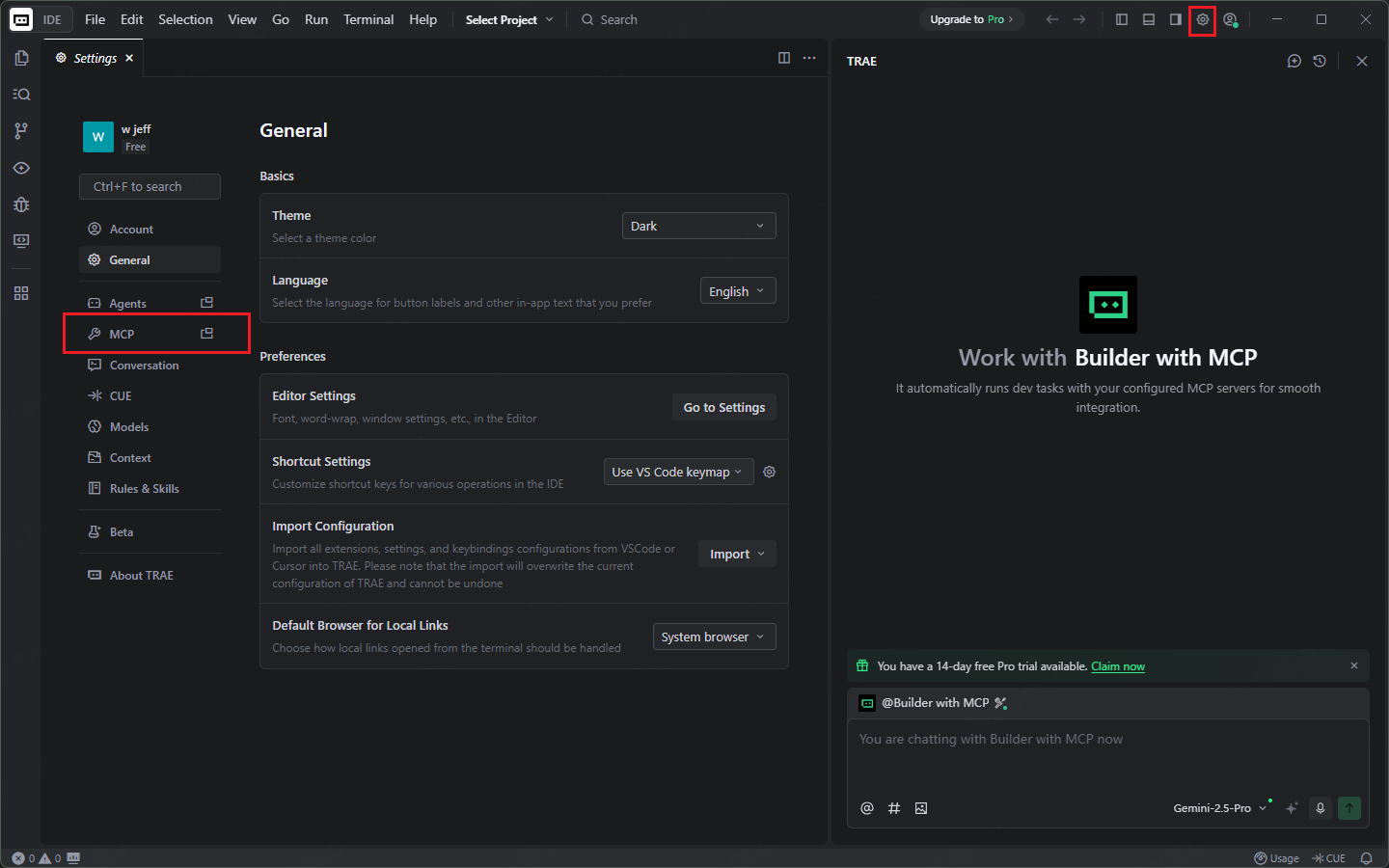
Trae v1.3.0 and above natively supports MCP.
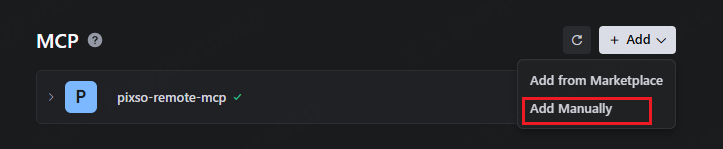
- Open Trae -> Settings -> MCP -> Add Manually.
Add one of the following configurations in the configuration file:
OAuth 2.1 (recommended):
json{ "mcpServers": { "pixso-oauth-mcp": { "url": "https://pixso.net/mcp" } } }Access token:
json{ "mcpServers": { "pixso-oauth-mcp": { "url": "https://pixso.net/mcp", "token": "your_access_token" } } }Save the file. After a successful connection, you can use it in Trae conversations.
Kiro
Kiro also supports connecting external tools via MCP:
- Open Kiro, and open a folder (any folder, even an empty folder works).
- Click
settings, search forMCP. - Click
Open User MCP Config (JSON).
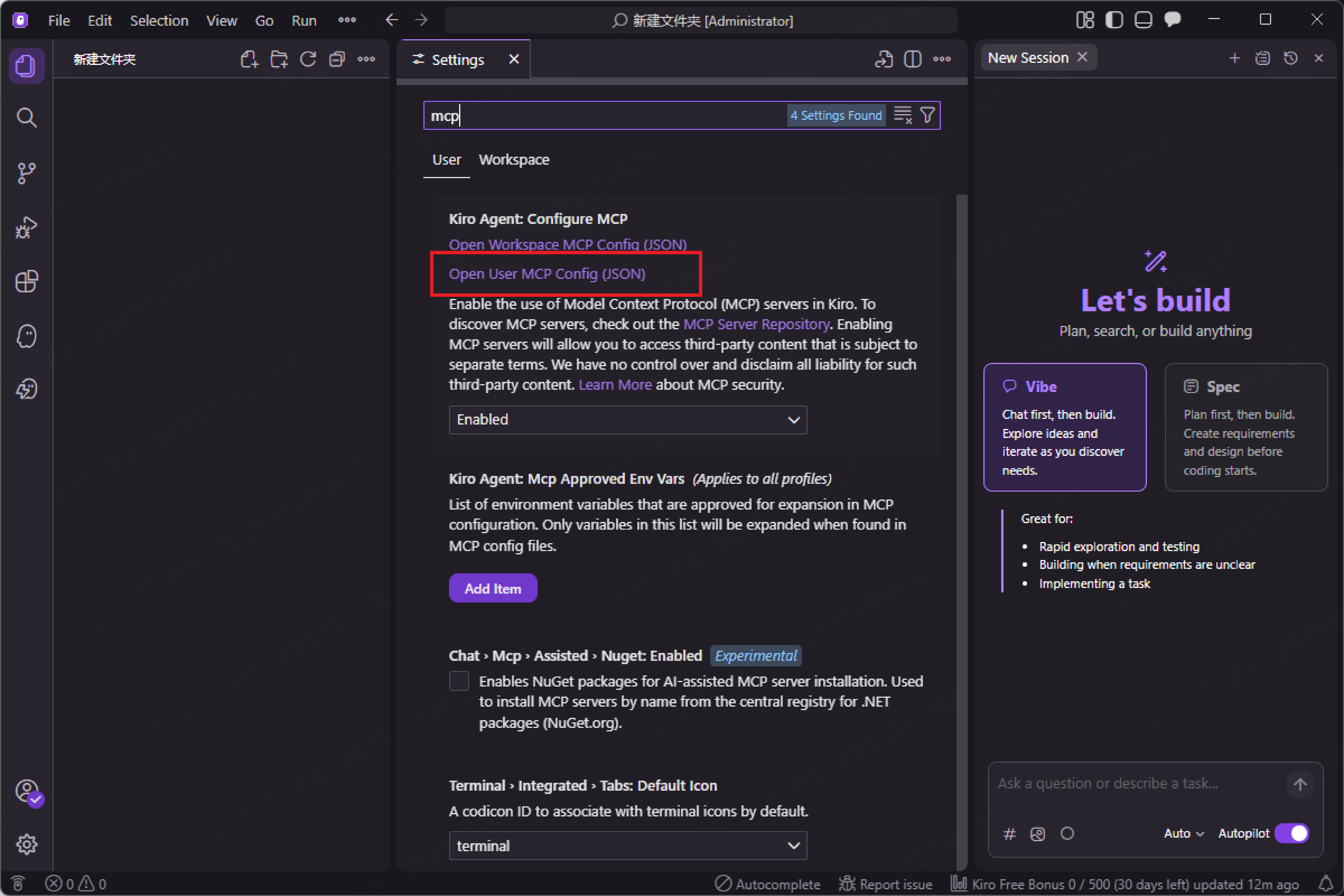
Paste one of the following configurations and save.
OAuth 2.1 (recommended):
json{ "mcpServers": { "pixso-oauth-mcp": { "url": "https://pixso.net/mcp" } } }Access token:
json{ "mcpServers": { "pixso-oauth-mcp": { "url": "https://pixso.net/mcp", "token": "your_access_token" } } }(Optional) If you don't want to be frequently asked whether to allow Pixso tool calls, you can add parameters like
"autoApprove": ["getCode", "getNodeDSL"]in the configuration. Save and reload Kiro to apply.
Windsurf
Open
Windsurf Settings, go to theMCP Serverspanel, and clickManage MCPs.Click
View raw configto openmcp_config.json.Add one of the following configurations and save:
OAuth 2.1 (recommended):
json{ "mcpServers": { "pixso-oauth-mcp": { "serverUrl": "https://pixso.net/mcp" } } }Access token:
json{ "mcpServers": { "pixso-oauth-mcp": { "serverUrl": "https://pixso.net/mcp", "token": "your_access_token" } } }Return to the configuration page and click refresh. A green status display indicates a successful connection. If you use OAuth 2.1, complete the authorization prompt on first connect.
Step 2: Chat in Agent Client
After successfully connecting to the Pixso Remote MCP server, you can fetch Pixso design data via layer links and chat with LLMs.
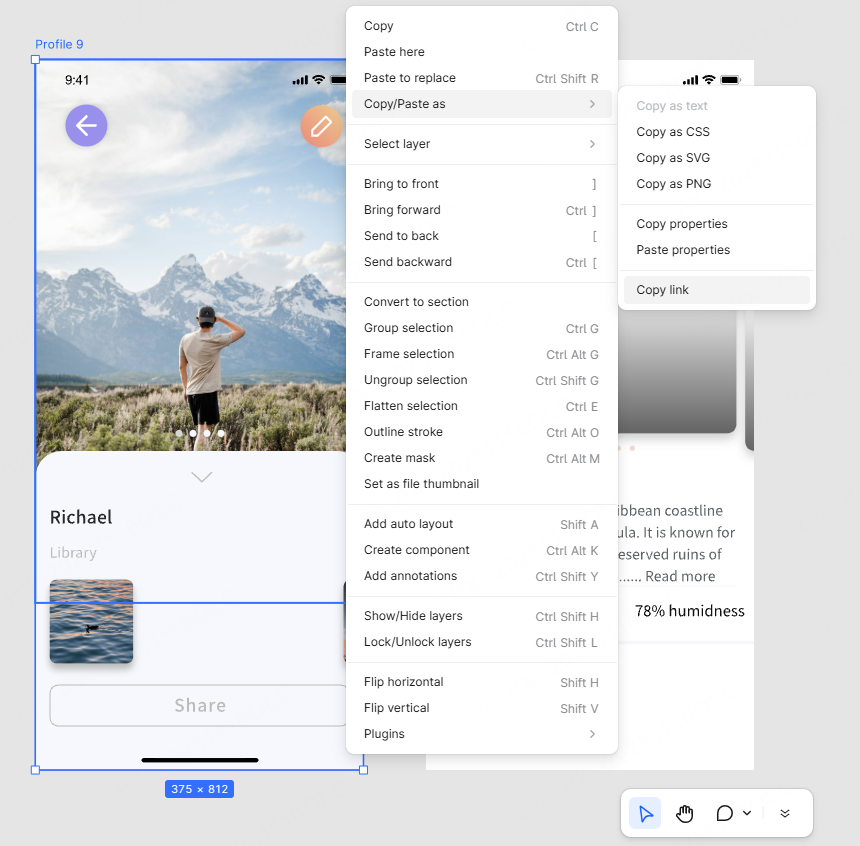
Copy File Link
- Open the design file in the Pixso workspace.
- Right-click to copy the link of the frame layer.
Notes
Get the layer link by right-clicking the layer and choosing “Copy link”.
The layer link is neither the file share link nor the page link.
The item-id in the link helps the Agent locate the target layer.
Tips
Remote MCP does not require Pixso Web to stay open; you only need valid authentication (OAuth authorization or an access token) and a valid layer link.
Prefer advanced models (such as Claude-4.6-sonnet).
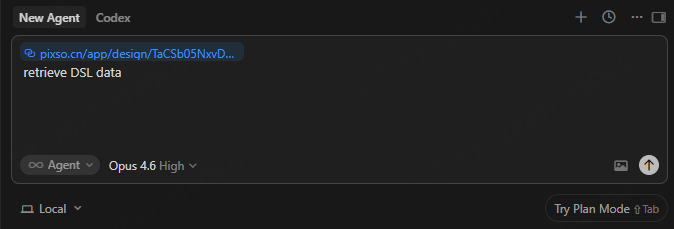
- Open chat in your IDE client (such as Cursor), paste the frame link, and give instructions such as: get design DSL data.