Quick Start
D2C Plus (hereinafter D2C⁺) is the design-to-code capability in Enterprise Dev View: select a page, component, or layer to generate production-ready frontend code.
D2C⁺ provides the following capabilities:
- High-fidelity output: Generate code from the design structure, layout, and styles. If you do not bind a codebase, no configuration is required.
- Multi-framework output: Supports React, Vue, and Flutter.
- Design-system mapping: When needed, use component parsers in DSM to map design component instances to component tags and properties in your project.
Besides generating code directly in Pixso client Dev View, you can also call design_to_code through Local MCP or Remote MCP to get the same D2C⁺ output. See Tools & Commands for tool details.
Prerequisites
- Requires an Enterprise Full-feature Seat or Dev Seat.
- D2C⁺ is supported only for files in an enterprise space. Files in an enterprise space (including personal drafts in that space) can use it; files outside an enterprise space cannot.
Enable Dev View
Open the target design file in an enterprise space, then click the Dev View toggle in the top right corner to enter Dev View.
Select D2C⁺ and Generate Code
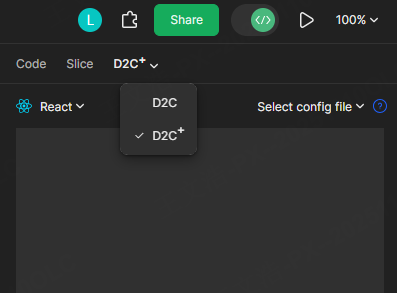
In Dev View, click the D2C option dropdown menu in the right panel and select D2C⁺. Then select any design or element to generate the corresponding code.
Tip
If you do not need to bind the component instances in the design with a codebase, you don't need to write any configuration files.
Parsing and Mapping
To map design components to your project component library (for example, output Button as el-button), you need a component parser config. If you do not need this binding, skip this section.
You can get the config in either of these ways:
- Auto-generate from a component library file with MCP (recommended): Open the corresponding Pixso component library file, then use Local MCP or Remote MCP to let the Agent read the components and generate a config, and paste it into DSM. After you specify the target code component library (a local path, or an open-source library name / docs), you can ask the Agent to generate the mapping directly. See
read_component_config_data. - Configure manually in DSM: Follow the steps below to open DSM, then write JSON by referring to Component Parsers.
Open DSM
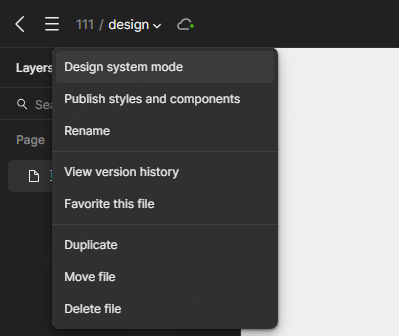
Click the dropdown menu in the top bar to open the DSM panel.
Tip
DSM can only be opened in design mode, and edit configuration requires edit permissions.
Create/Edit Configuration File
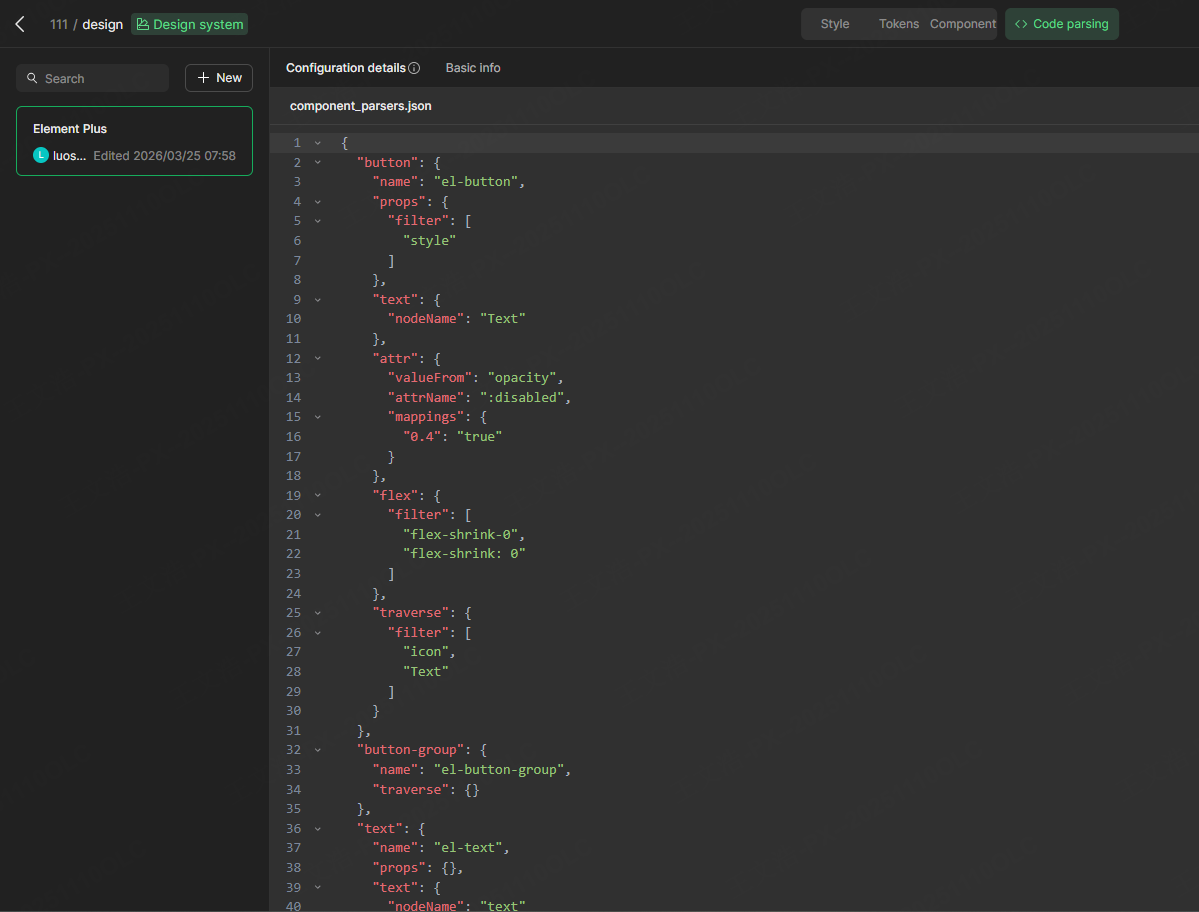
The following is a minimal example that maps Button in the design to el-button (see Component Parsers for the full fields):
{
  "Button": {
    "name": "el-button",
    "props": { "filter": ["md", "default"] },
    "text": { "nodeName": "_text" },
    "icon": {
      "nodeName": { "name": "icon", "deepFind": true },
      "attrName": "icon"
    }
  }
}
Next steps
- DSM: Design system entry points, aliases, and code-parsing config
- Component Parsers: Full component-mapping configuration
- Local MCP / Remote MCP: Use D2C⁺ in an IDE via
design_to_code