PIXSO WHITEBOARD
Online whiteboard for product and design teams
Bring research, ideas and plans onto one shared canvas. Work through a problem with sticky notes, mind maps and diagrams, and give your team a clear picture of what to build next.
Work in your browser. Invite your team to contribute.
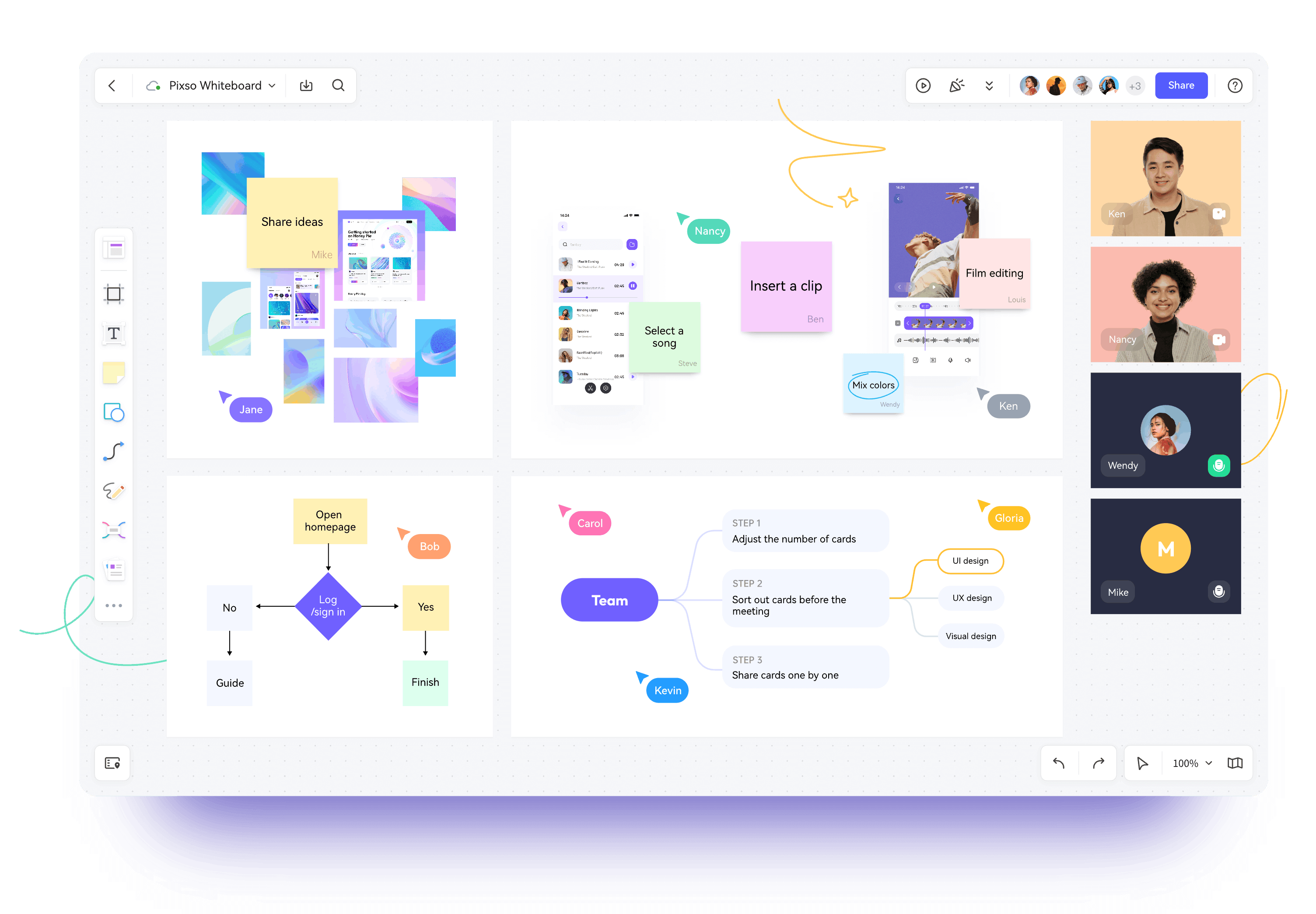
More ways to explain an idea
Combine notes, images, shapes and sketches on the canvas.
A board your team can shape
Edit together, present the work and share access by link.
Part of your design workspace
Plan in Whiteboard, then develop the interface in Pixso.
MAKE THE THINKING VISIBLE
Keep the idea and the context together
A research note makes more sense beside the screen it describes. Bring images, observations and questions onto a board, then move them into groups your team can discuss.
Capture contributions as they happen
Add sticky notes, text or a quick sketch. Notes can show their author's name, so a useful observation stays connected to the person who contributed it.
Make room for the evidence
Upload reference images and place them beside your notes. Resize and arrange the material to compare directions, collect feedback or prepare a design review.
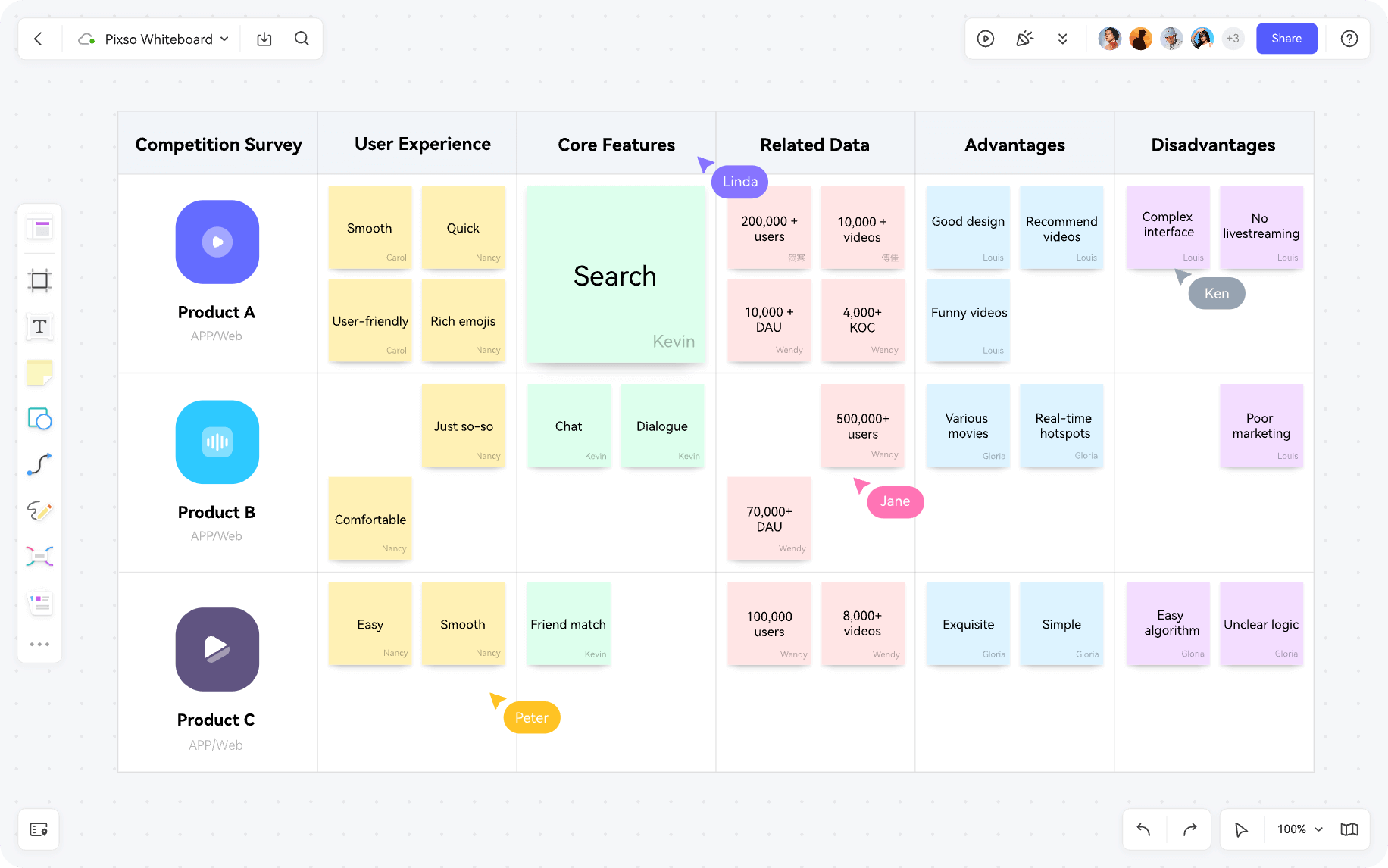
FROM SCATTERED IDEAS TO A SHARED PICTURE
Make connections your team can follow
Turn a broad question into a mind map, or use shapes and connectors to explain a flow. Keep alternatives visible while you decide how the product should work.
Expand an idea without losing its structure
Build a mind map from a central topic and add branches as the discussion develops. Group related needs, explore feature areas or lay out the scope of a release.
Show the path and the decision points
Connect shapes to map user journeys, process steps or product flows. Put unanswered questions beside the relevant step so the team can resolve them before designing screens.
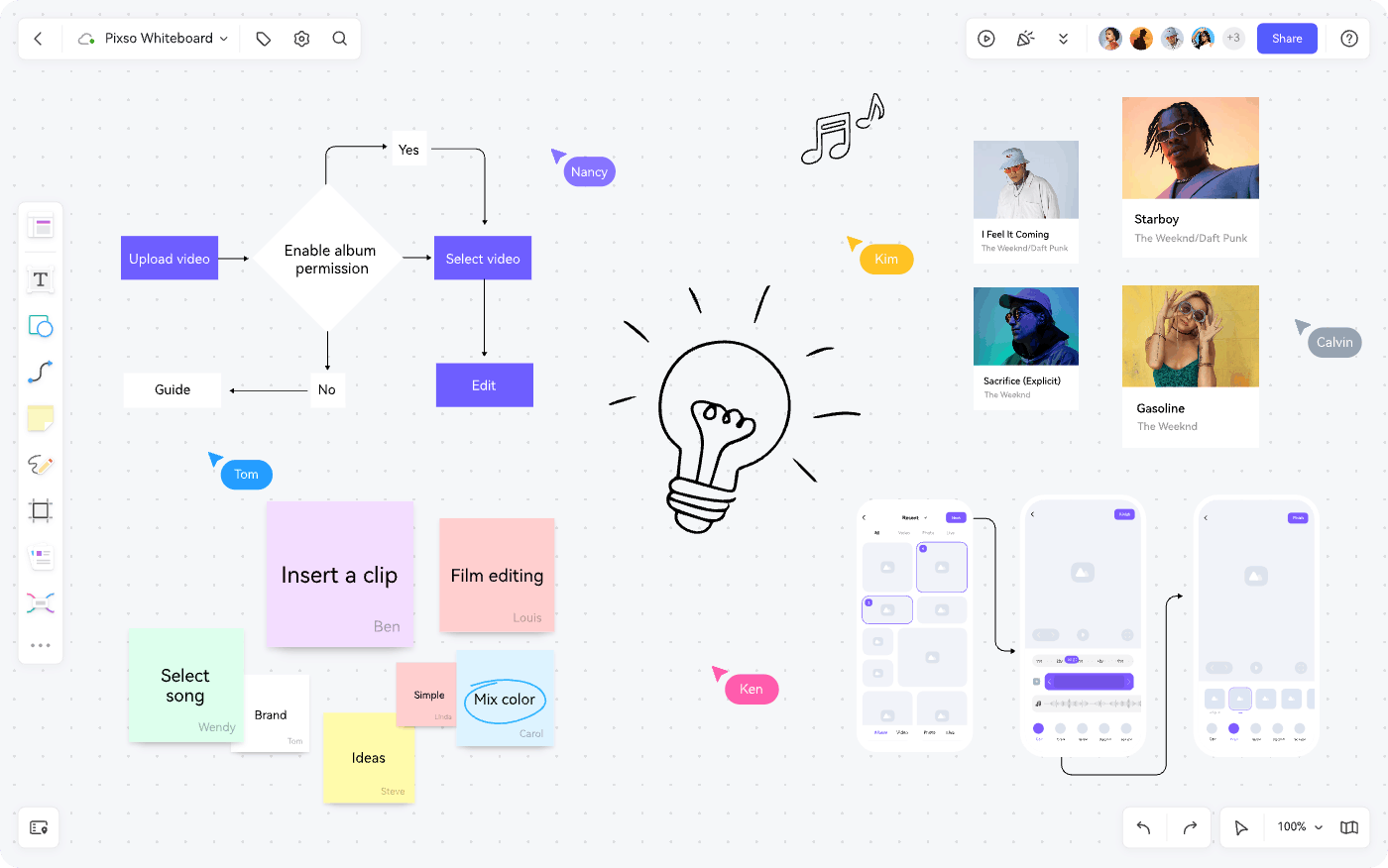
WORK THROUGH IT TOGETHER
Bring everyone into the same discussion
Invite teammates to edit the board in real time. Present the relevant area, keep a timer visible and collect reactions while the work is still in front of everyone.
Guide the session without rebuilding the content
Use presentation mode to walk through the board. Teammates can follow your view, and the pointer helps draw attention to the detail you are discussing.
Give contributors the access they need
Share a link with viewing or editing permissions. Use the timer to keep a discussion focused and reactions or stickers to gather lightweight feedback on ideas.
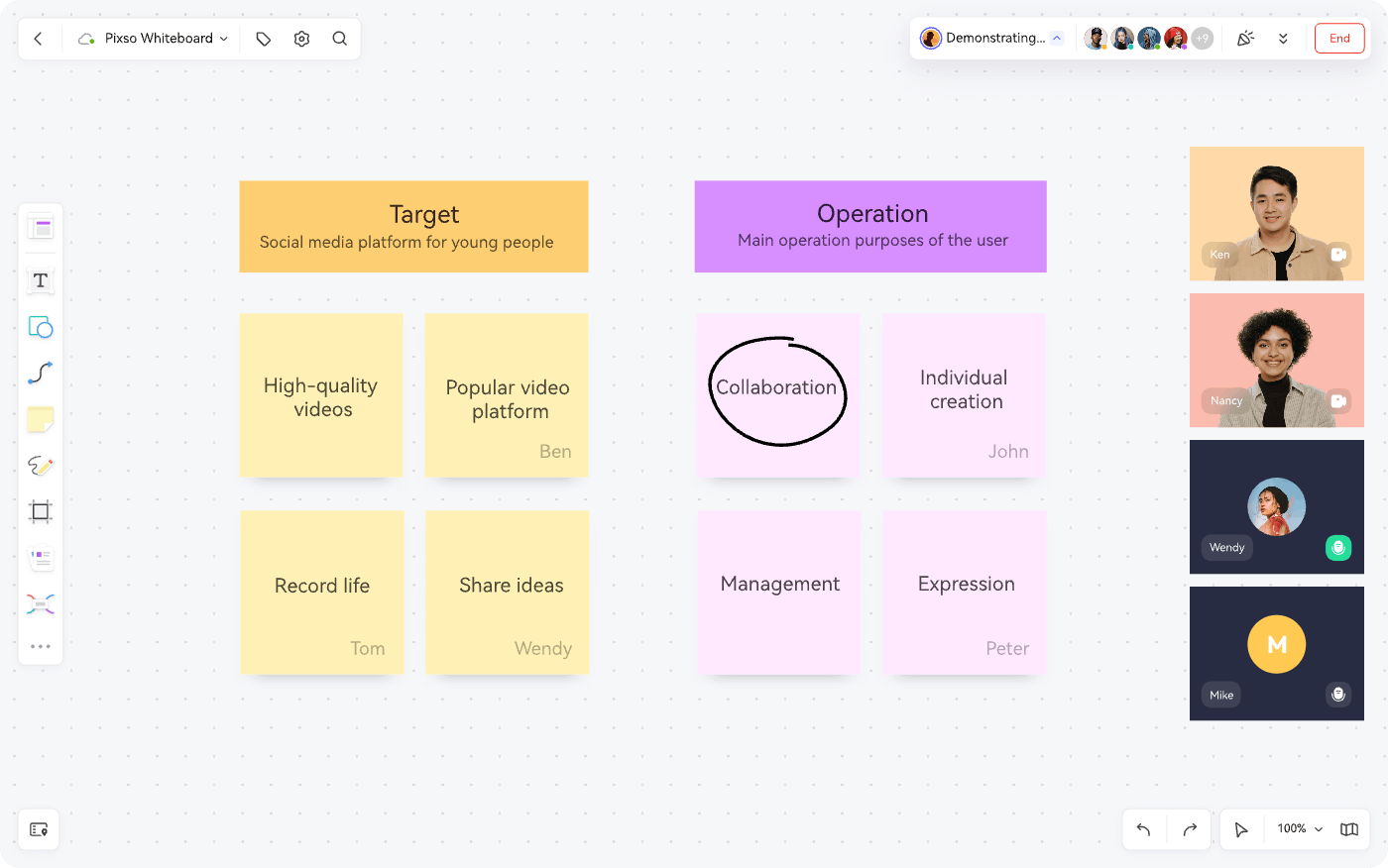
SEE THE WHOLE EXPERIENCE
Find the gaps between what users need and what happens
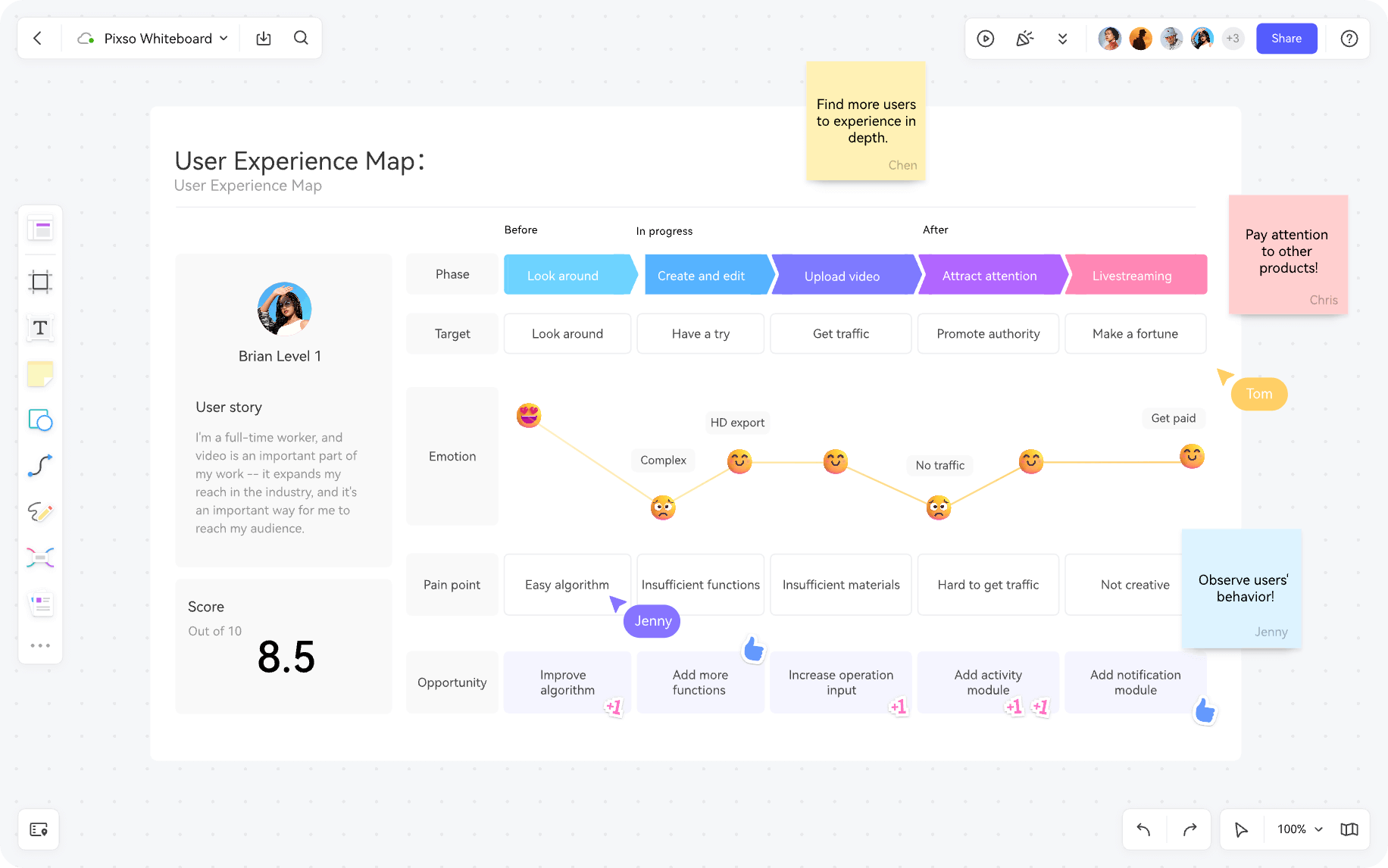
Lay out a journey across its stages, actions and pain points. A shared visual map helps product and design teams compare the experience they are creating with the problems they need to solve.
Start from a framework, make it your own
Insert a journey-map or planning template, then replace the sample content with your research. Add notes and references where the team needs evidence or a closer look.
MADE FOR PRODUCT CONVERSATIONS
One board, different perspectives
Product managers
Compare requirements, map feature areas and explain priorities with the source material in view.
Designers
Gather references, group research observations and explore the flow before committing to a screen design.
Cross-functional teams
Bring product, design and engineering into a workshop, then leave with a shared record of decisions and questions.
Working with Pixso Whiteboard
What can I do with Pixso Whiteboard?
Can my team work on the board at the same time?
Can I bring reference images onto the canvas?
How is Whiteboard different from the Pixso design editor?
Where can I check plans and whiteboard access?
Bring your next idea to the board
Start a shared space for the questions, references and possibilities behind your next product decision.
Try Pixso Whiteboard