Craft High-Fidelity UI Design with Precision

Smart Pen Tool
Break free from traditional paths. Connect points on the canvas to draw custom shapes and refine interface details.

Versatile Vector Shapes
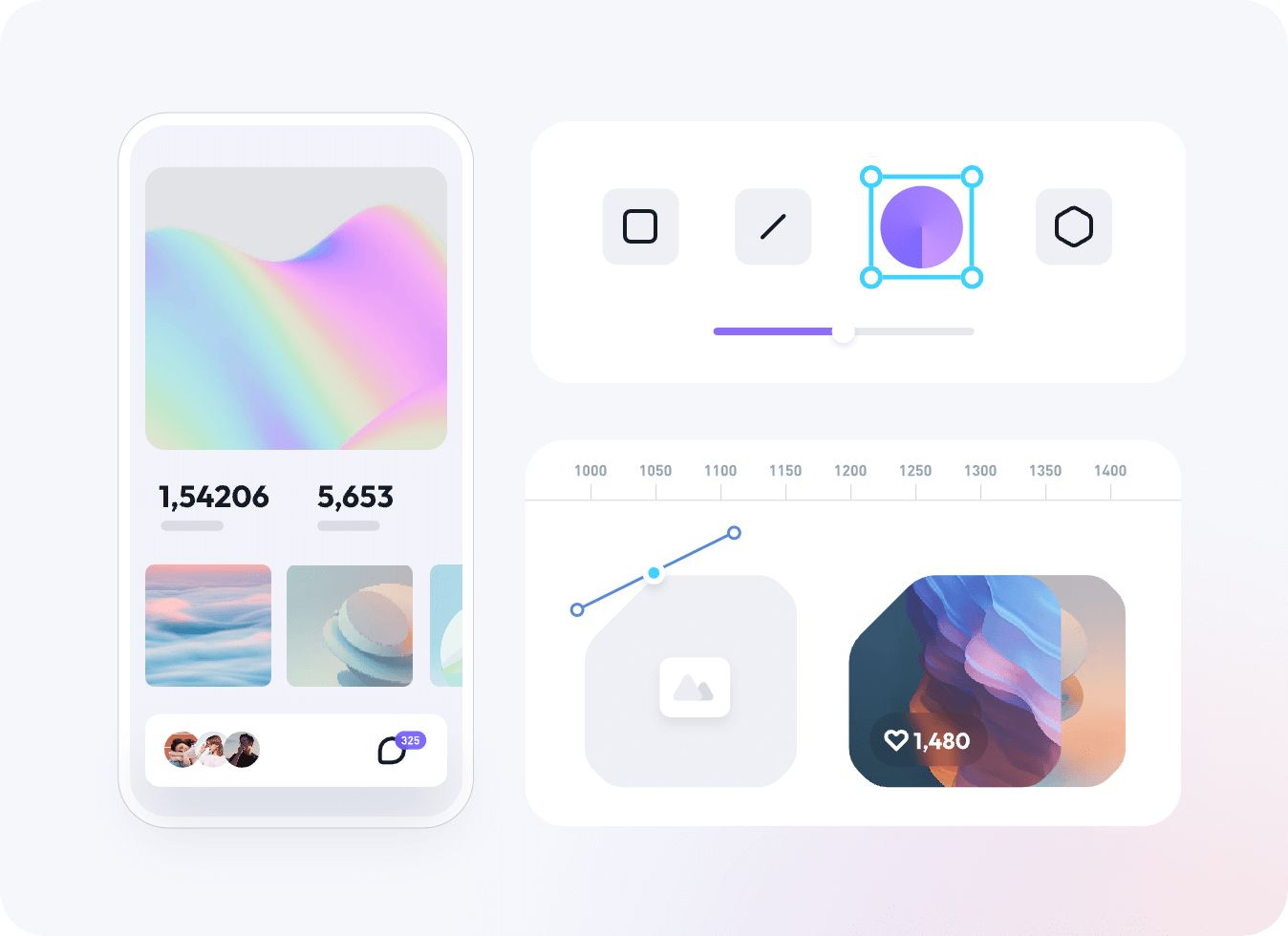
Create rectangles, lines, ellipses, polygons, and stars directly on the canvas for common interface elements.

Powerful Mask Tool
Use masks to combine layers, control visible areas, and build interface graphics.
Auto Layout for Responsive User Interface Design

Auto Layout
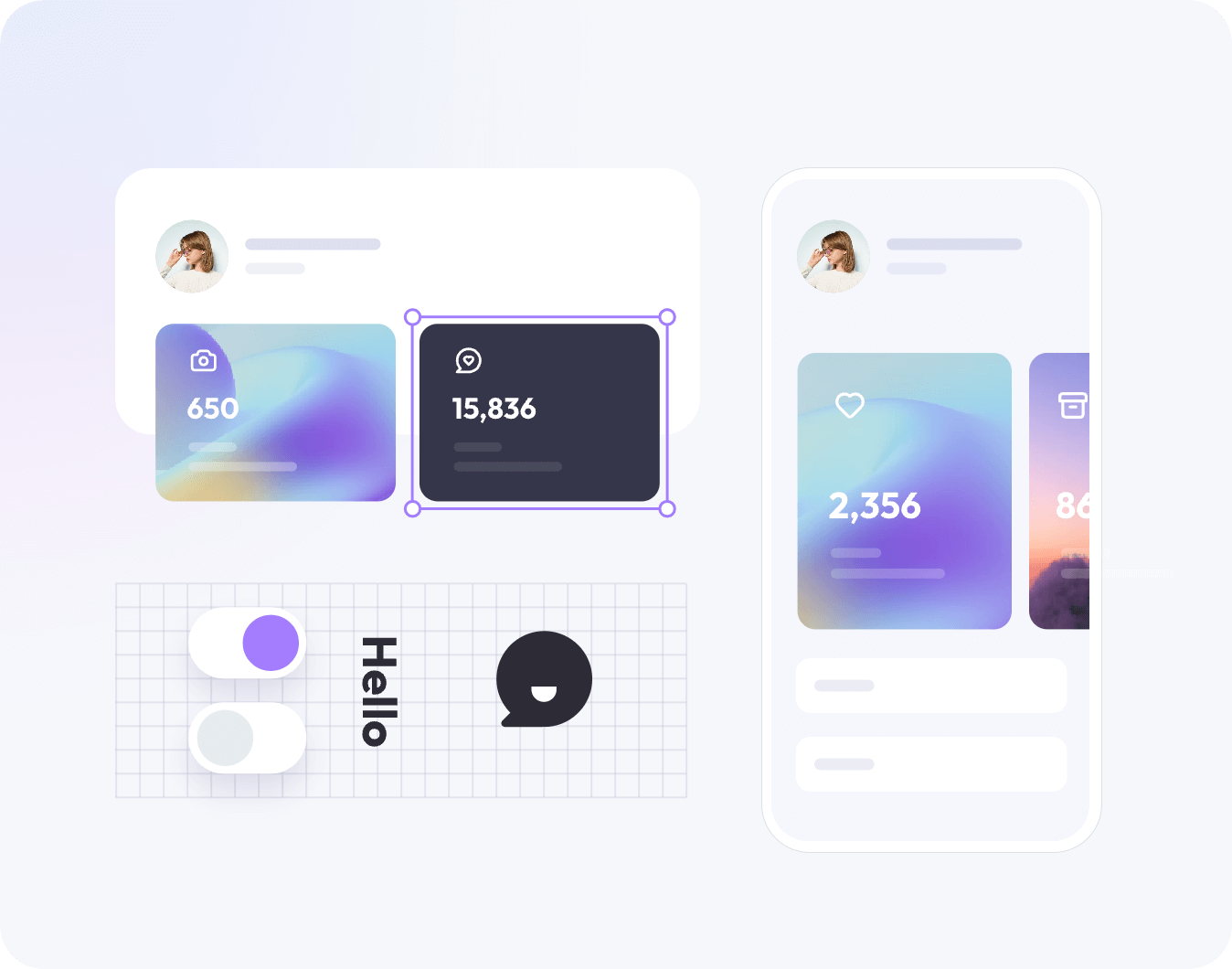
Place layers or objects in an auto layout to keep spacing and sizing consistent as content changes. Check the result at the breakpoints used by your project. Example: map a mobile onboarding flow with Auto Layout, then preview content-length changes before handoff.

Component Variants
Group related components and switch between documented states while building a reusable design system.

Custom Styles
Define shared text, color, and effect styles. Update a source style when a design change needs to reach connected layers.

Boolean Operations
Craft complex icons and graphics using standard Boolean combinations: Union, Subtract, Intersect, Exclude, and Divide.
Manage UI Components and Team Feedback

Team Management
Invite collaborators and assign viewer or editor roles according to each project’s needs.

Real-time Collaboration
Collaborators can edit the same canvas and review changes in one file. Sync behavior depends on connection, permissions, and the file setup.

Contextual Comments
Leave comments directly on design elements. Quick, contextual feedback streamlines remote brainstorming and design reviews.

Shared Design Libraries
Publish approved styles and components to a team library so designers can reuse the same source assets. Example: publish a button component and its states to a shared library, then assign a viewer role for review.
Developer Handoff for UI Design
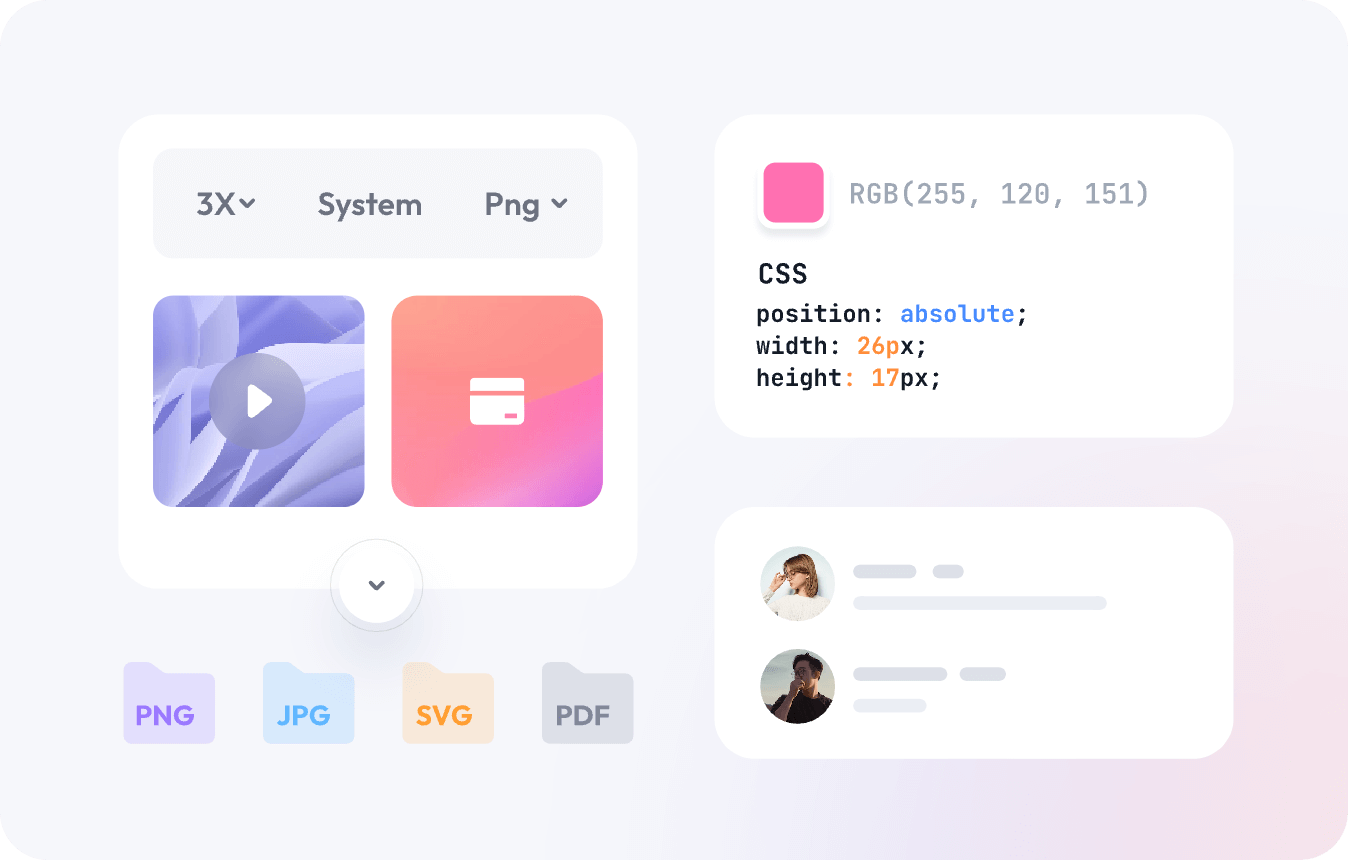

Automated Asset Export
Export PNG, JPG, SVG, and PDF assets in batches at the scales available in the file.

Inspect & Copy Code
Use the inspect panel to view CSS, iOS, and Android snippets for supported layers. Developers should verify the generated values against the production code.

Contextual Annotations
Add specific notes and specs directly onto the canvas, helping developers clearly understand product details and interaction logic.
More UI Design Features
Cover common product-design work—from mobile and web interfaces to wireframes and icons—in one workspace. Choose the workflow and export settings that fit your team. Continue with UI design examples and the UI design process guide.
Try for Free

File Compatibility
Import supported Figma, Sketch, Axure, and SVG files. Review unsupported features and fonts after import before continuing the project. Example: import a supported Figma file, compare key frames with the source, and note any unsupported features before editing.

Smart Selection
Quickly align and tidy up multiple selected objects into neat rows and columns with equal spacing.

Use Local Fonts
Use the fonts available in Pixso, or upload a local font when your project and account settings support it.

Batch Export/Import
Boost workflow efficiency by importing or exporting multiple design files and assets simultaneously.

Version History
Version history lets you create, name, and restore previous file states when the feature is available for the file.

Advanced Access Control
Set precise viewer or editor permissions. Enterprise settings provide configurable access and deployment options according to the selected plan.

Guest Mode
Share a file link with the access level configured for the project; whether a visitor needs an account depends on that setting.

Custom File Thumbnails
Pixso sets the first page as the default thumbnail, or users can customize any frame to be the cover for easier organization.
Versatile Solutions for Every Team

UX & UI Design
Turn concepts into interactive prototypes in your browser. Demonstrate the flow, transitions and feedback a person will encounter while using the interface.
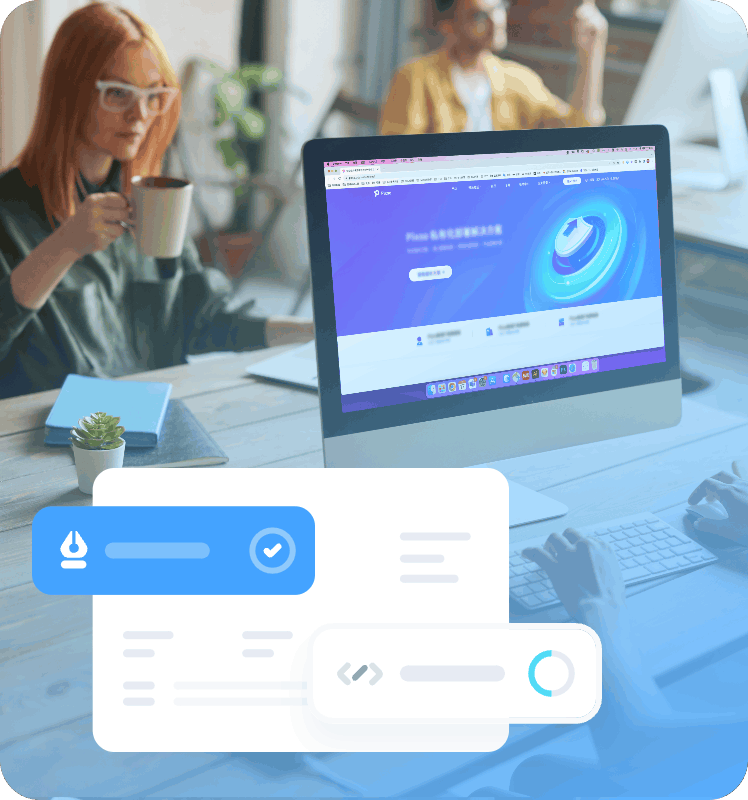
Enterprise Security
Explore private deployment options and discuss access controls, infrastructure, and data-management requirements with Pixso.

Team Brainstorming
Use the shared whiteboard to map user flows, organize ideas, and discuss interface requirements with your team.
Senior UI Designer @Daisy
"Choosing the right user interface collaboration platform is crucial for our team. It dictates our workflow efficiency and ultimately determines whether we deliver a superior product."