Scott
Use SVG for suitable vector icons and logos, compare lossless PNG or WebP for screenshots with small text, and test WebP or AVIF for photographs. The best image format depends on the actual asset, its displayed size and the systems that must accept it. A new extension does not rescue an oversized image, a poor crop or unreadable text.
Make this choice during your web-design workflow, while the image is still next to its heading, background and controls. The useful deliverable is an asset that looks right in the page and has an appropriate file size—not a rule that every image must use the same format.
1. Separate the design source from the delivery asset
Keep the editable source for future changes. A photograph, vector icon and complete design file serve different purposes from the optimized files a browser downloads. Converting a screenshot to SVG does not recover its text layers or turn its pixels into editable vector artwork.
In Pixso, prepare the crop, dimensions and surrounding layout before exporting. The UI design and handoff page documents PNG, JPG, SVG and PDF export at available scales. An image-processing tool or delivery pipeline can then produce other formats when needed. Do not assume that the editor automatically creates WebP/AVIF files, responsive markup or CDN fallbacks for a website.
For a small product landing page, separate three assets: a vector logo, a screenshot showing the product's controls, and a photographic banner. Keep the original source of each. Give the final files names that identify their role and crop, so a developer does not accidentally use the full-size banner in a small card.
2. What SVG, PNG and WebP preserve
SVG: vector structure and scalable contours
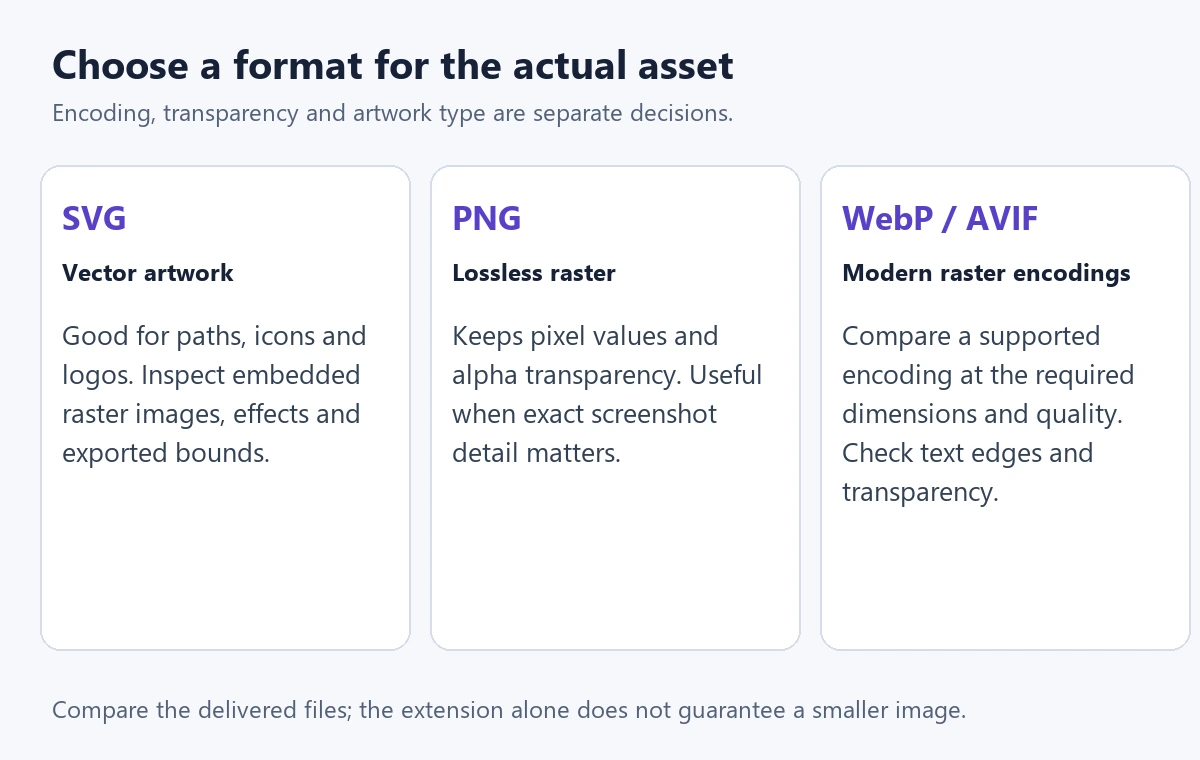
SVG describes graphics using elements such as paths, shapes and text. It is a strong starting point for vector icons, logos and diagrams that need clear contours at different sizes. It can also contain embedded raster images, so an SVG file is not necessarily entirely vector or small.
Inspect the actual output: complex paths, filters, fonts and embedded resources can affect its appearance and cost. Keep meaningful bounds around an icon, and compare the exported result at its smallest intended size. A sharp contour does not automatically make a tiny icon recognizable.
PNG: compressed, lossless raster data
PNG uses lossless compression and supports transparency; it is not an uncompressed format. The W3C PNG specification defines the format. PNG is useful when preserving sharp raster edges or exact source pixels matters, including some screenshots and transparent graphics.
Lossless encoding does not restore detail that was absent from the source. A 400 px screenshot remains a 400 px screenshot after it is saved as PNG. Likewise, exporting a huge PNG for a small card can waste data even when the format is appropriate.
WebP: choose lossy or lossless encoding
WebP supports both lossy and lossless modes. Lossy encoding can be useful for photos; lossless encoding is worth comparing for sharp UI content and transparency. Google's WebP lossless specification describes reconstruction of the original pixel values.
The mode and settings matter. Saving a screenshot as lossy WebP can add visible artifacts around letters, even if the photograph beside it looks fine with the same setting. Compare the actual files; a format name is not a guarantee of a particular reduction or invisible quality loss.
Where AVIF and JPEG fit
AVIF is another option for raster delivery, especially photographs. JPEG remains a practical photo format in workflows that require it. Choose around the target browser, CMS and processing pipeline rather than converting every asset simply because another format is newer. The MDN image-format guide summarizes format capabilities and compatibility.
3. Choose by the asset's job
| Asset | First candidates | What decides the result |
|---|---|---|
| Vector logo or navigation icon | SVG | Contours, bounds, effects and the target environment's SVG support |
| Screenshot with small labels | PNG and lossless WebP | Text readability at display size, dimensions and resulting bytes |
| Photographic banner | WebP or AVIF; JPEG where needed | Crop, fine detail, gradients, acceptable artifacts and delivery support |
| Raster cutout with transparent edges | PNG or WebP with alpha | Edge quality on the actual light and dark backgrounds |
| Complex illustration | SVG or a raster export | Whether the source is vector, how complex the output becomes, and how it renders |
For the landing-page example, start with the logo's vector source rather than a screenshot of it. Export the product screenshot large enough for its role, then compare PNG with lossless WebP at those same dimensions. For the banner, choose the crop before comparing photo encodings; a smaller, well-chosen crop may save more than an aggressive quality setting.
Inspect each candidate beside the content it supports. Check the screenshot's smallest important label, the logo's thin strokes and the banner's smooth gradients. A full-screen comparison at 400% zoom can help locate artifacts, but the decision must also include the size at which people will actually see the image.
Run a fair comparison
- Start from one trusted source image, not a previously compressed copy.
- Use the same crop and pixel dimensions for the competing raster formats.
- Choose settings that preserve the details needed for this asset's purpose.
- Record the output dimensions, encoding mode and file size.
- Place the preferred result in the page and inspect it on a narrow screen before discarding the alternatives.
Keep the editable source separately. The delivery file should be reproducible, but it does not need to carry every layer, unused object or metadata field from the working design.
4. Responsive images still need suitable dimensions
WebP and AVIF do not remove the need to choose image dimensions. A large bitmap can still be unnecessarily expensive in a small slot; a small bitmap can still blur when enlarged. Pixel density and the rendered dimensions matter regardless of the raster format.
As a simple planning example, a screenshot displayed at 600 CSS px wide may need a 1200 px-wide candidate for a 2× display. A 300 CSS px card may use a smaller candidate. Choose only the sizes the layout actually needs.
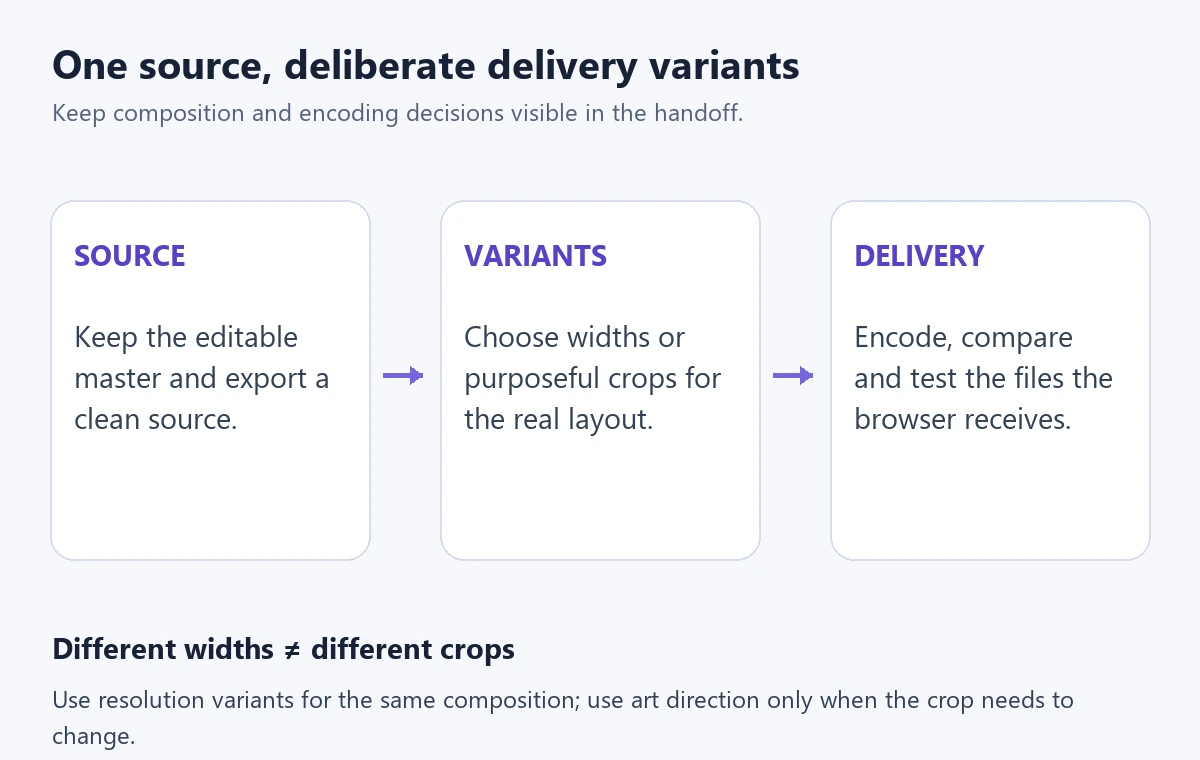
Developers can use srcset and sizes to offer resolution candidates, and picture when formats or crops need to differ. The browser chooses from the supplied options; it does not invent a missing crop or a smaller source file. MDN's responsive-images guide separates resolution switching from art direction.
For the photographic banner, the mobile layout may need a closer crop so the subject remains visible behind the heading. For a product screenshot, cropping away the control being explained would defeat the image's purpose. Decide whether to show a targeted detail, allow an enlarged view, or rearrange the surrounding content instead.
Record the intrinsic dimensions with the asset so the implementation can reserve the appropriate space before it loads. Then inspect the delivered file in the real page: correct export settings do not prove that the CMS or CDN is serving the intended version.
5. Agree on fallbacks and handoff before delivery
Provide fallbacks when the supported environment needs them. A photo fallback may be JPEG; an image that needs transparency may need PNG. Do not create redundant versions by habit, and do not assume that a format working in your browser will be accepted by every downstream CMS, email tool or export process.
Give the developer a small asset handoff that answers concrete questions:
- Role and crop: Is this the wide banner, the card thumbnail or the product detail?
- Source: Where is the editable master, and which version produced the export?
- Dimensions and background: At what sizes will it appear, and does it require transparency?
- Output: Which format and encoding were selected, and what fallback is actually required?
- Meaning: What information does the image add, and what concise alternative text communicates that purpose?
In Pixso, keep the three example assets beside their intended page sections and annotate the crop and display requirements. Export the relevant layers at the agreed scales, then pass those outputs into the site's image-processing workflow. Review the final published assets with the same headings and backgrounds rather than treating the raw design export as the finished delivery.
Optimize the image people actually receive
Choose a format by the asset's content, then refine its crop, dimensions and encoding. Preserve the source, compare alternatives fairly and check the delivered page. SVG, PNG, WebP and AVIF each have useful roles; none replaces the design decision about what the reader needs to see.