Scott
A dark theme needs readable text, distinct controls and clear relationships between surfaces. Changing a white background to black is only the starting point. This guide explains how to choose color roles and reuse them across light and dark designs.
Part 1. The pure black mistake and the science of contrast
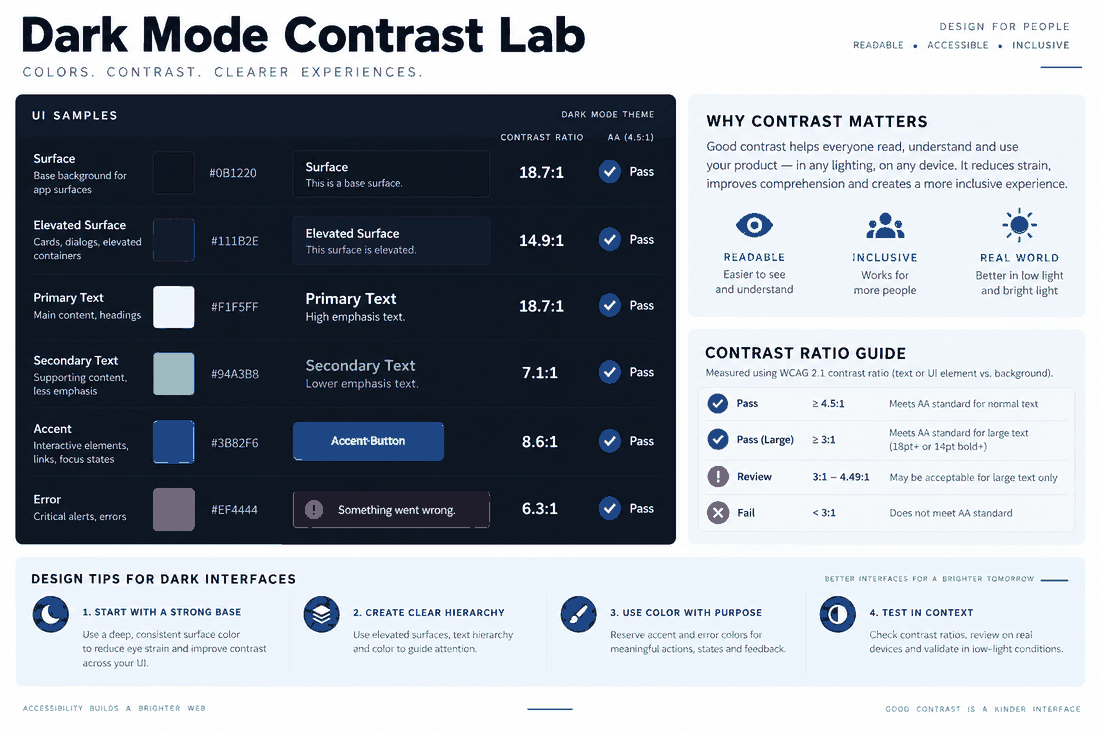
When designers tackle dark mode for the first time, they usually make one massive mistake. They set the background canvas to pure absolute black (#000000) and change all their paragraph text to pure absolute white (#FFFFFF).
On paper, this sounds logical. In practice, it destroys usability.
Staring at pure white text on a pure black screen causes a visual optical illusion known as halation. The intense white light essentially bleeds outward into the surrounding black space. This makes the typography look blurry, forces the user to squint, and causes severe eye strain very quickly.
If you want to master dark mode design, your baseline canvas should never be pure black. The industry standard is a deep, muted gray, typically hovering around #121212. This specific shade of dark gray is incredibly important. It is dark enough to give off that sleek night aesthetic, but it is light enough to prevent halation. More importantly, using a dark gray canvas gives you room to express elevation and depth, which we will get to shortly. Your text should follow a similar rule. Instead of glaring white, build a hierarchy of light grays to guide the reader's eye comfortably down the page.
Part 2. Taming your brand identity for night viewing
Another massive hurdle is figuring out what to do with your brand colors. Let's say your primary brand identity relies on a vibrant, highly saturated neon blue. It looks fantastic and energetic against a clean white background. But if you drop that exact same hex code onto a #121212 background, it will visually vibrate. It becomes harsh and aggressive.
You cannot use your daytime brand palette in a night setting without adjustments. You have to create dedicated, desaturated versions of your primary colors. By pulling back the saturation and slightly tweaking the lightness, the color remains legible and retains its brand identity without screaming at the user.
You should also heavily limit how often you use these accent colors. In a daytime interface, you might use your brand blue for headers, icons, and backgrounds. In a dark environment, use it sparingly. Reserve it strictly for primary call-to-action buttons or critical active states. You might even need to design a dual version of your company logo if the original one relies on dark, heavy lettering that gets lost against a dark gray canvas.
Part 3. Why your tool dictates your success
Before we get into the technical weeds of setting up tokens, we need to talk about your software. In the past, managing a dual theme was an absolute nightmare. Designers had to physically duplicate every single file. You had a "Dashboard_Light" file and a "Dashboard_Dark" file. If a product manager asked you to change the corner radius of a single button, you had to manually find and update that button in two completely different places.
This workflow creates an unsustainable amount of design debt. If you are serious about managing complex themes, you need an integrated platform built for modern product teams. This is exactly where Pixso completely changes the game.
Pixso is a collaborative platform that outshines older legacy software because it handles theme management natively. You do not need to stitch together buggy third-party plugins to make themes work. Pixso has built-in mode switching and advanced variable token panels right out of the box. You build one single interface, and the software handles the logic of switching the visual properties.
For enterprise environments, this native capability is a lifesaver. Pixso provides automated documentation, strict version tracking, and full file auditing. You can apply sweeping theme changes in bulk, automatically detect style conflicts across your team, and maintain a perfectly clean workspace. It entirely removes the anxiety of managing multiple UI versions, meaning you spend your time actually designing rather than acting as a file janitor.
Part 4. Building semantic token architectures
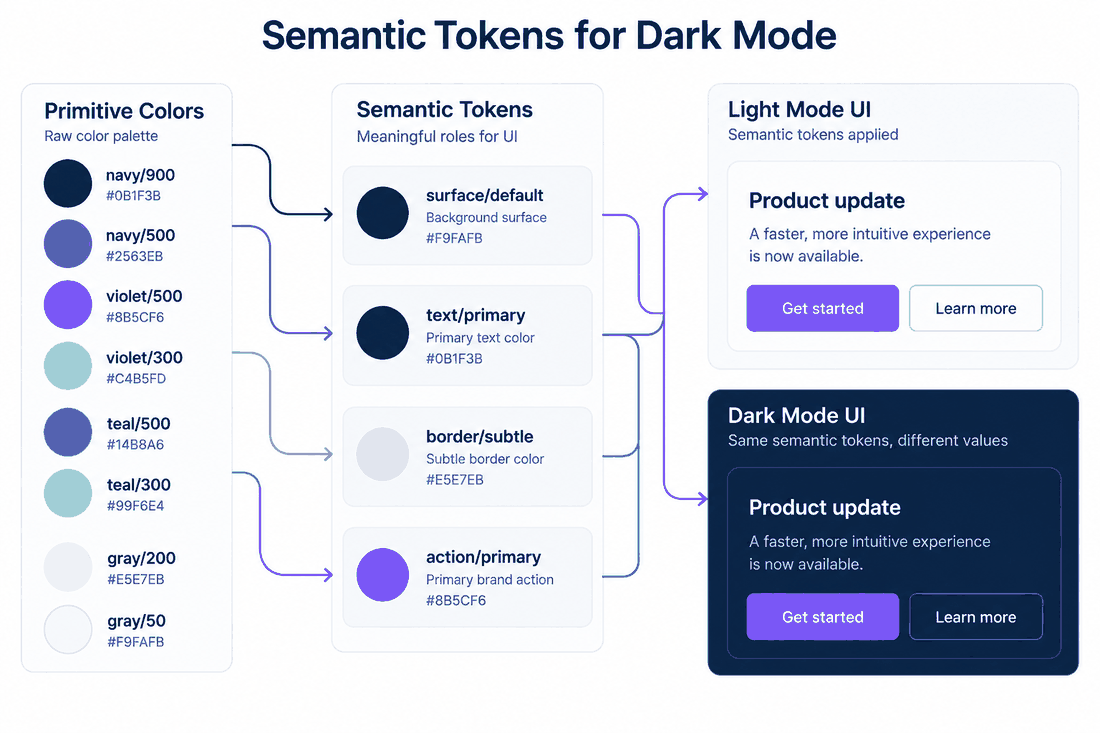
To successfully execute a flawless dark mode ui, you need a strict, scalable architecture. You cannot just pick colors visually from a color picker and hope for the best. The most bulletproof way to manage this is through a three-tier semantic token setup. Pixso’s native Color Styles make this structure incredibly easy to implement and maintain.
Think of tokens as containers for your colors. The first tier consists of your Core Tokens. These are just raw, descriptive values. You might name a color "Blue-500" or "Gray-900". These tokens don't do any actual work on your canvas; they are just your raw inventory of acceptable colors.
The second tier is the Semantic Tokens. This is where the magic happens. Here, you give the color a specific job description. Instead of calling it "Gray-900", you name it "Background-Primary".
The third tier represents your Component Tokens. These are hyper-specific containers tied to exact elements, such as "Button-Background-Hover" or "Input-Border-Active".
In Pixso, you bind these dual modes together seamlessly. You create that semantic token called "Background-Primary". Then, using Pixso's native variable panel, you define a rule: in the light theme, "Background-Primary" equals your white core token. In the dark theme, it equals your #121212 core token.
Because these robust color systems are natively bound within the platform, your workflow speeds up exponentially. You can design an entire massive dashboard in the light aesthetic, hit a single toggle switch inside the Pixso interface, and watch the entire layout instantly and flawlessly translate into the night aesthetic. No duplicating artboards. No manual tweaking. Just instant global synchronization.
The next implementation step is to use design tokens for theme switching, keeping the meaning of each color consistent while its value changes between modes.
Part 5. Creating interface depth without drop shadows
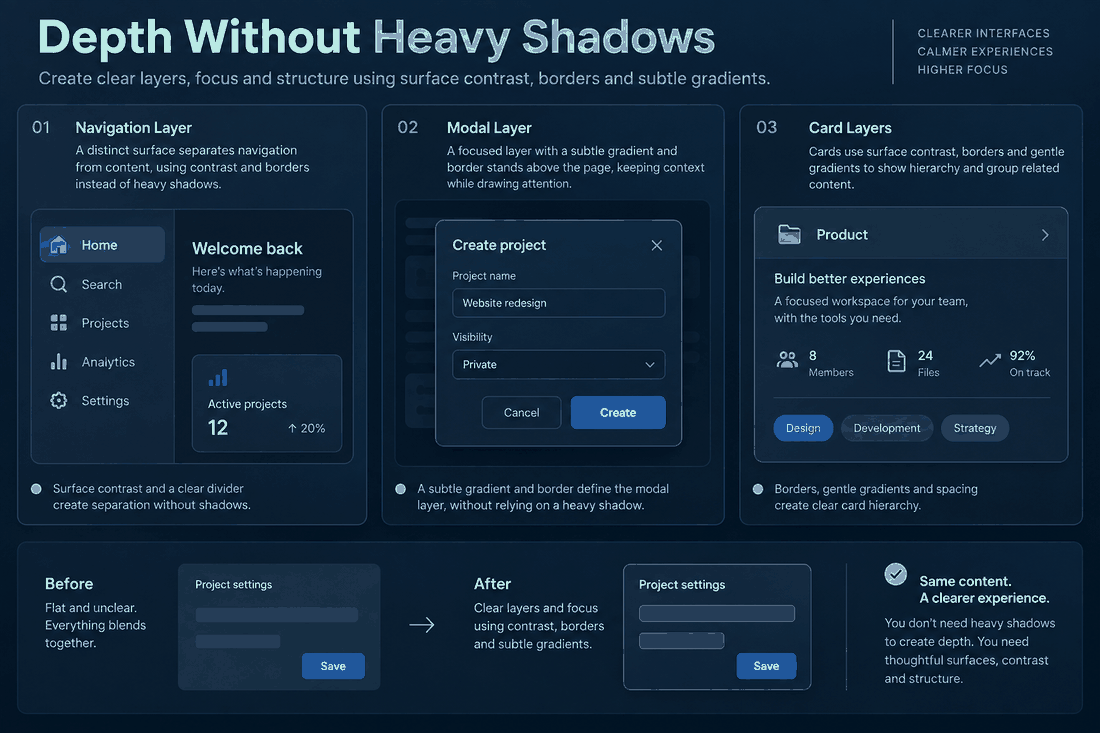
One of the trickiest parts of a dark mode design is figuring out spatial logic. In traditional light interfaces, we rely heavily on drop shadows to show depth. If a modal popup sits on top of a page, we give it a heavy shadow to prove it is floating.
In a dark environment, drop shadows are virtually useless. You cannot cast a dark shadow on a dark gray background; nobody will see it. So, how do you show the user which elements sit on top of others?
You have to reverse your thinking. Instead of using darkness behind an element to push it forward, you use lightness on the element itself. The closer a surface is to the user, the lighter gray it should become. If your base app background is #121212, a data card sitting on top of that background might be colored #1E1E1E. If a dropdown menu floats above that card, it gets elevated to an even lighter #2C2C2C. This progressive lightness creates a highly intuitive, clear visual hierarchy.
Additionally, when two dark components overlap, contrast gets tricky. To define those edges, you should utilize micro-borders. Adding a crisp 1px semi-transparent white border (maybe white set to 10% opacity) around a floating menu instantly separates it from the background without ruining the moody aesthetic. Pixso handles these stacked layer properties beautifully, allowing you to save these specific border and fill combinations as reusable variables.
Part 6. Component adaptation and strict accessibility
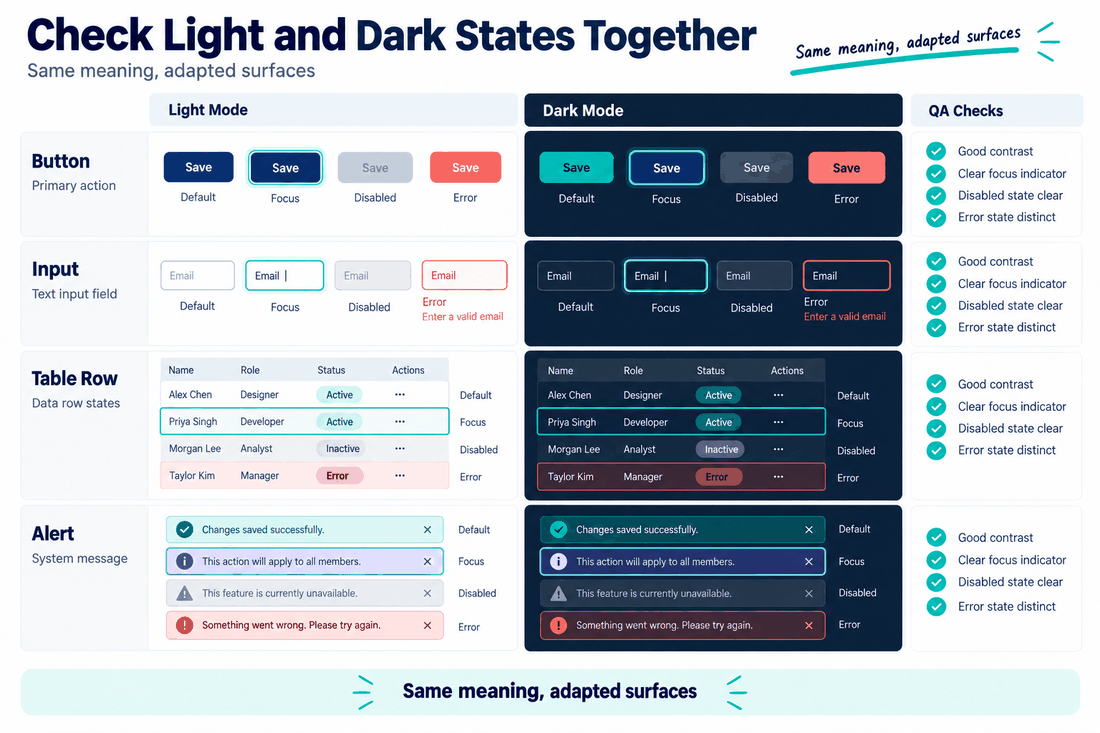
A high-quality dark mode ui must adapt every single component in your library. You cannot just change the background color of your main frame and call it a day. You have to systematically audit your buttons, input form fields, data tables, and dialogue popups. Every single one of these needs to look correct when resting, when a mouse hovers over them, when they are actively clicked, or when they are disabled.
During this exhausting audit process, accessibility cannot be treated as an afterthought. Adhering to WCAG guidelines is an absolute, non-negotiable necessity. The contrast ratio between your typography and its background must hit at least 4.5:1 for standard text. If you fail to hit this ratio, users with vision impairments simply will not be able to read your app.
This is another scenario where designing inside Pixso gives you a massive tactical advantage. You do not have to guess if your newly desaturated brand blue is legible against a dark gray card. You can use real-time contrast checking tools directly within your canvas to verify that every single interactive state is fully compliant. Furthermore, running your interface through color blindness preview modes ensures that your error states and success messages are actually communicating clearly. Relying purely on red and green hues is a recipe for disaster; you must use contrast and iconography to tell the story. Building inclusive color systems means designing for every single pair of eyes. Having a platform that enforces these rules natively prevents you from having to do costly, embarrassing redesigns right before launch.
Part 7. Closing the loop with developers
We have to look beyond the design canvas. How does the user actually interact with this feature? A truly premium dark mode ui offers a seamless system-level experience. Users hate having to dig through four layers of settings menus to flip a manual switch. By default, your application should natively listen to the user's operating system settings. If their phone automatically switches to a night theme at sunset, your app should smoothly transition right alongside it without them lifting a finger.
Give developers the color roles for both themes, the behavior of the theme switch and the agreed design version. In Pixso, keep these details beside the relevant screens. Shared token names make the design easier to map to code; developers still need to apply them to the application.
A useful dark theme needs clear text, recognizable controls and consistent states. Start with a small set of color roles, then apply them to a representative screen. In Pixso, shared styles and variables help you reuse those choices across the design.
![[NEW] How to transfer photo styles with an AI photo editor](https://pixso.net/assets/media/ai-image-style-transfer-9fe25f62d2130e50414c-b771b1704762f9a3.webp)