On this page

Elodia
Design system management connects reusable design resources with the names and decisions a team uses to build a product. In Pixso DSM, teams can inspect published styles, tokens, and components, define aliases where design and code use different names, and prepare resources for development. The useful outcome is a mapping that both teams understand—not an assumption that every design edit automatically updates a running application.
If you are organizing a shared library, Pixso's design system tools provide the components and styles that DSM works with. Start with one published library and one representative component. A primary action button is a manageable first example: its name, properties, colors, and states must mean the same thing in the design and the implementation.
What is design system management?
DSM is a place to publish, inspect, and maintain design specifications. It helps designers and developers agree on which resources are reusable and how they should be identified. A team still needs to decide who can publish changes, how consumers adopt them, and who maintains the corresponding code.
The resources have different roles:
Styles collect reusable visual settings, such as text or effects. A style should communicate a purpose that a teammate can recognize, rather than being another anonymous collection of values.
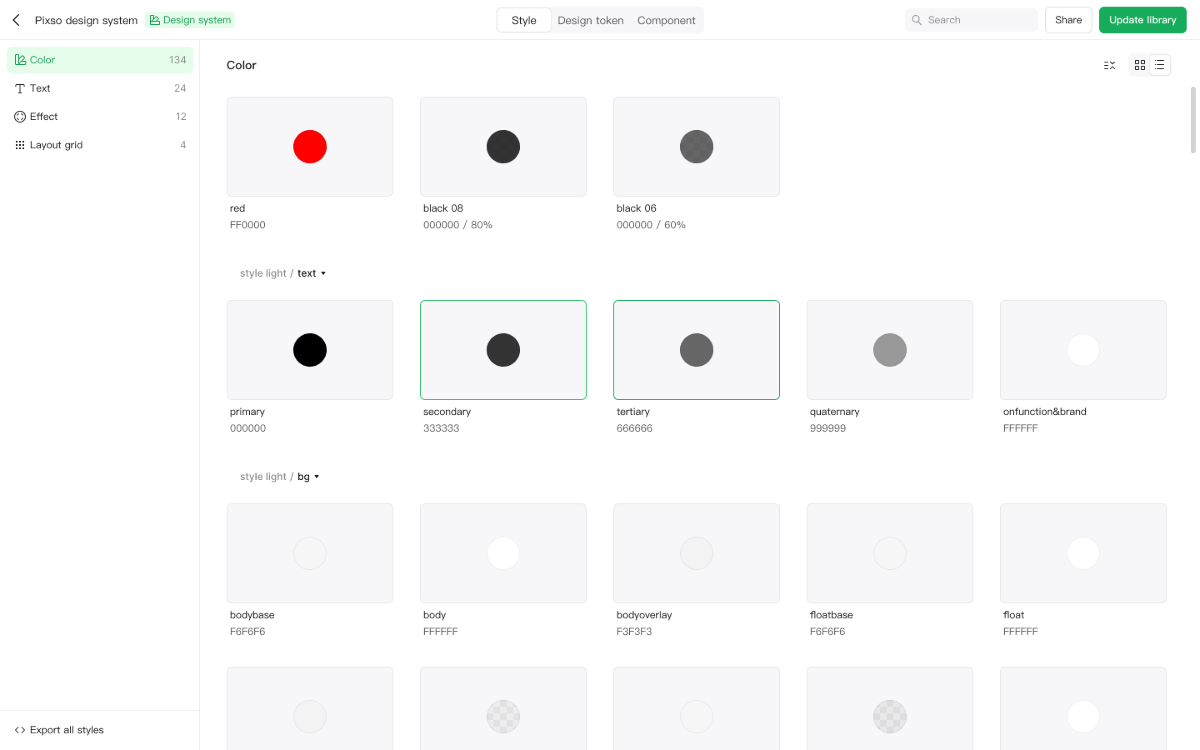
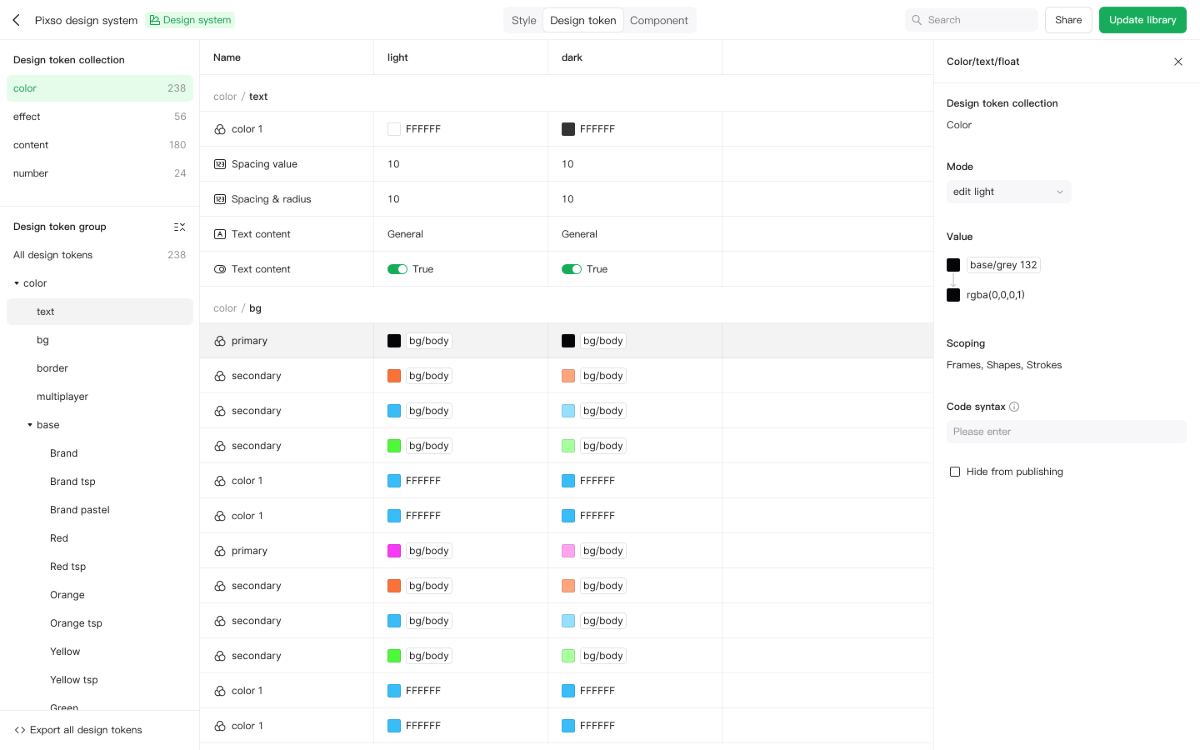
Design tokens give design values names that can be discussed and reused. A semantic name such as a primary-action color explains its role better than a name that describes only its current shade.
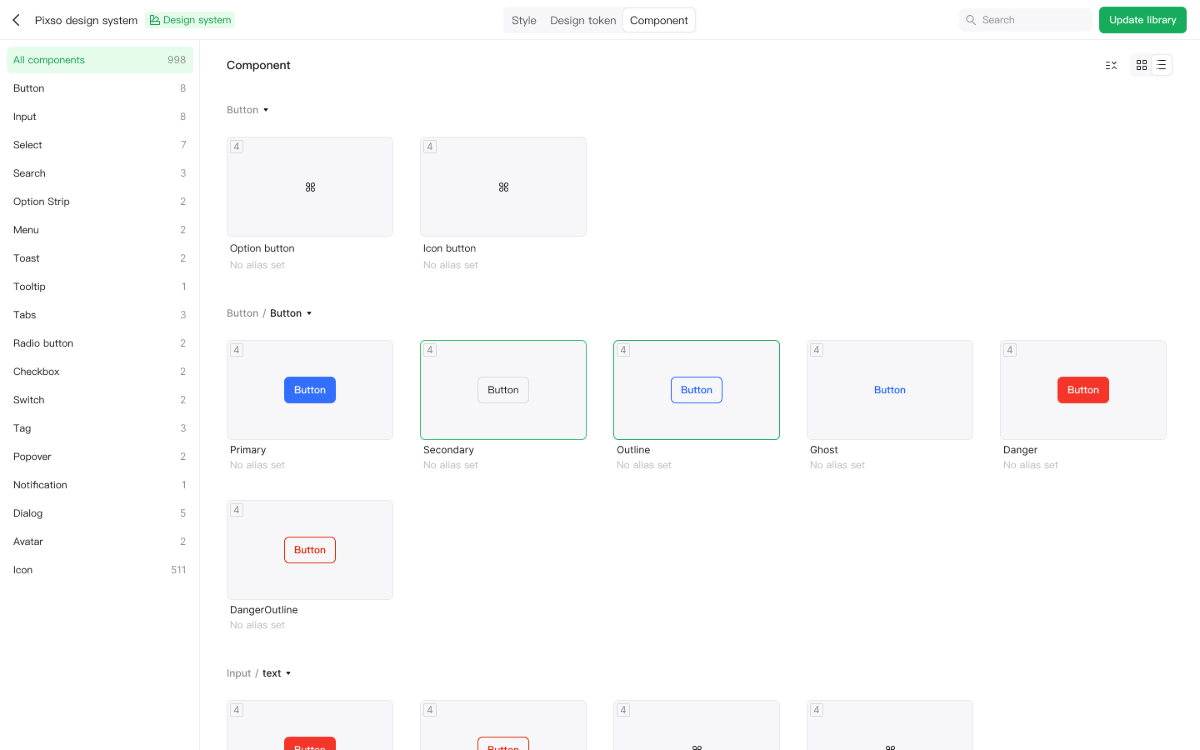
Components combine structure, content, and states into reusable interface elements. Their property names and values need an agreed meaning if developers are to connect them to existing code components.
A shared source of specifications reduces the number of conflicting references. It does not remove the distinction between a design library, generated output, and the code deployed in a product. Treat those as related artifacts with an explicit handoff.
Open DSM from a published library
Choose a library file that has already published resources. The Pixso developer documentation, under D2C⁺ and DSM, describes three entry points.
1. Use the filename menu in the editor
Open the library in design mode, expand the filename dropdown, and choose Design system mode.
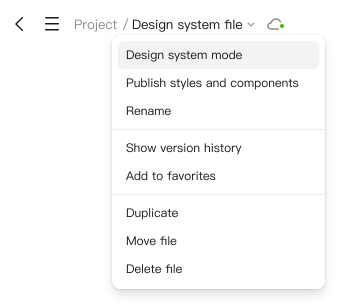
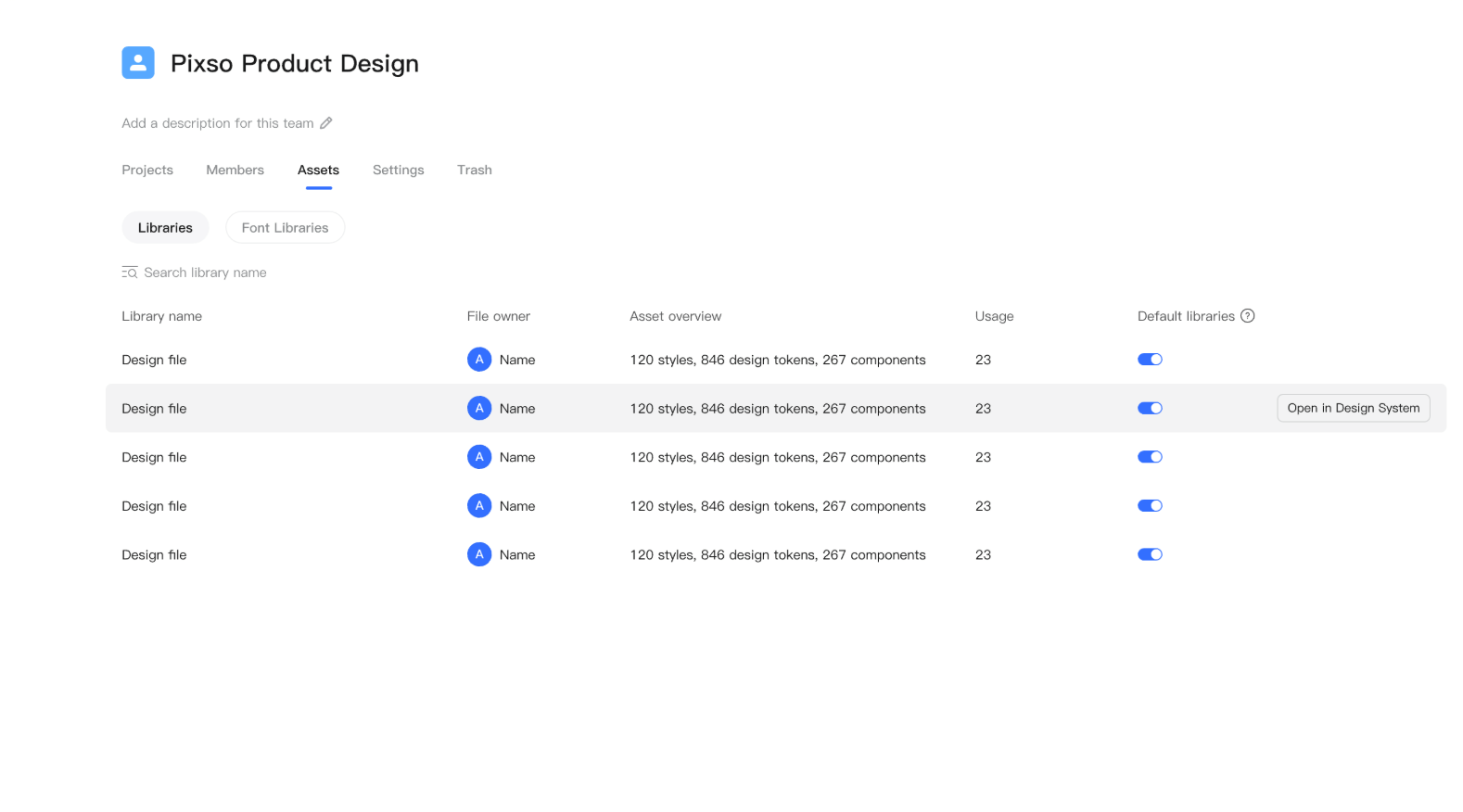
2. Open it from the team's resources
On the team dashboard, open the resources or assets area, locate the library, and choose Open in Design System.
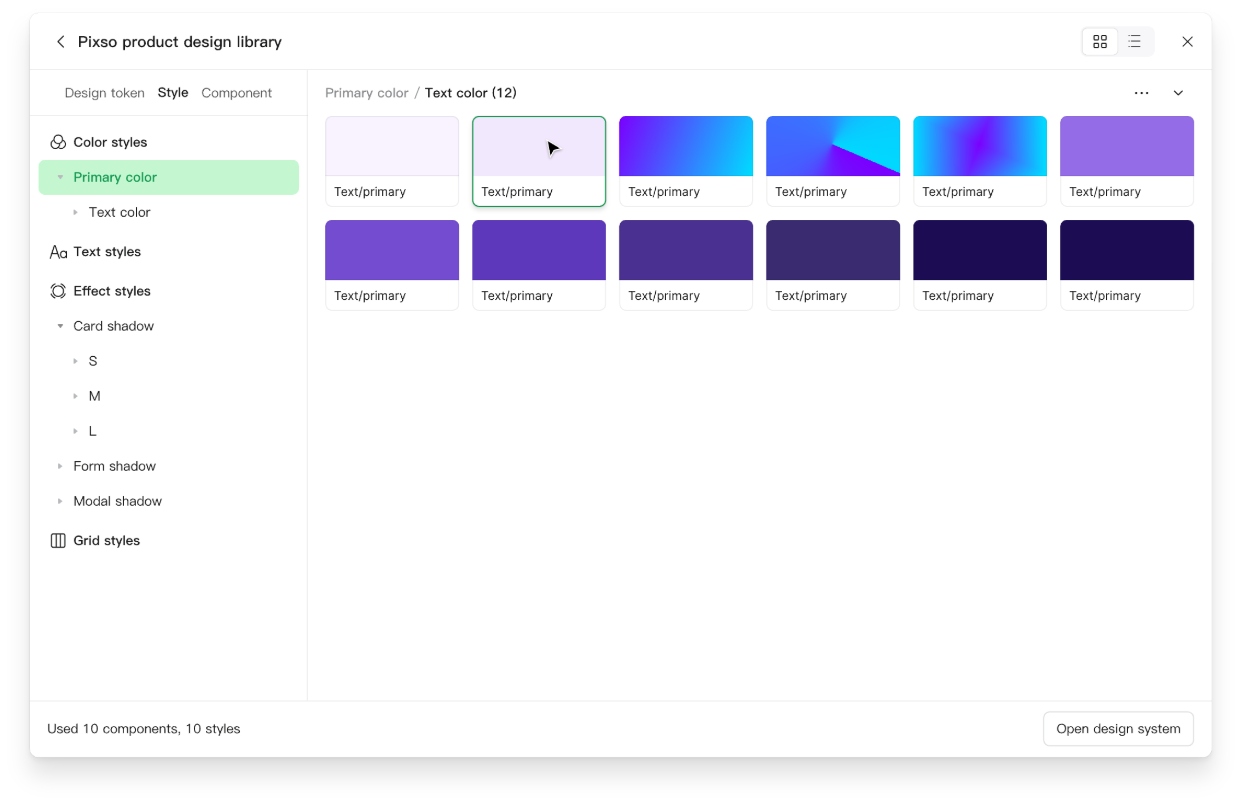
3. Use the library list in the editor
Open the library list, select the library you need, and choose Open design system. Check the library name before changing aliases, especially when several teams maintain similar components.
Set aliases that match the implementation
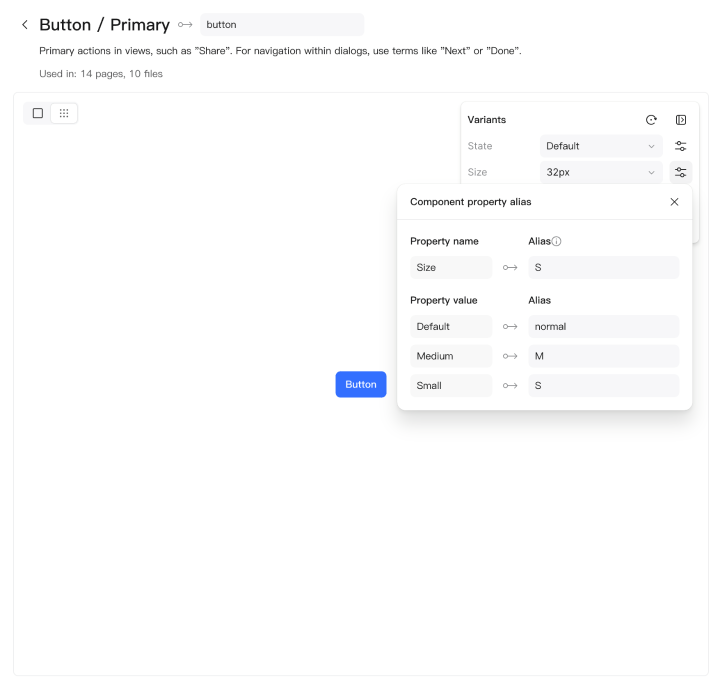
Aliases are a deliberate mapping between design resources and the names used in code. Designers and developers set that correspondence; DSM does not discover the intended meaning of every resource automatically. If component names and properties already match the frontend components, additional aliases are not required.
Consider a team whose design component is called Button / Primary, while the codebase exposes ActionButton with an intent property. Before entering aliases, agree on the following relationship:
| Design resource | Agreed code name | Meaning to preserve |
|---|---|---|
| Button component | ActionButton | The existing reusable button, not a new component for each screen |
| Variant property: emphasis | intent | The button's role in the interface |
| Variant value: primary | primary | The main action within the current task |
| Primary-action fill token | actionPrimary | The semantic color used by primary actions |
These names are a team convention, not required Pixso identifiers. Use the names your project already understands. A primary button's disabled appearance should not become a separate business action simply because it has a different fill color. Map component properties and token purposes independently, then check them together.
- Find the resource in DSM. Select the style, token, or component you intend to map, and inspect its current name and values.
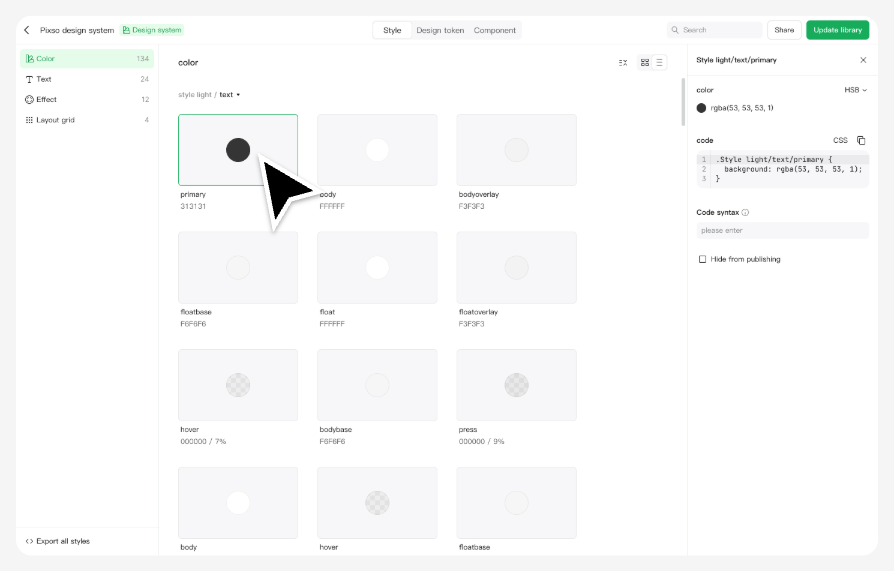
- Enter the agreed alias manually. Check component properties and their values as well as the component's name. Use the field's validation rules and avoid conflicting names within the relevant resource or component set.
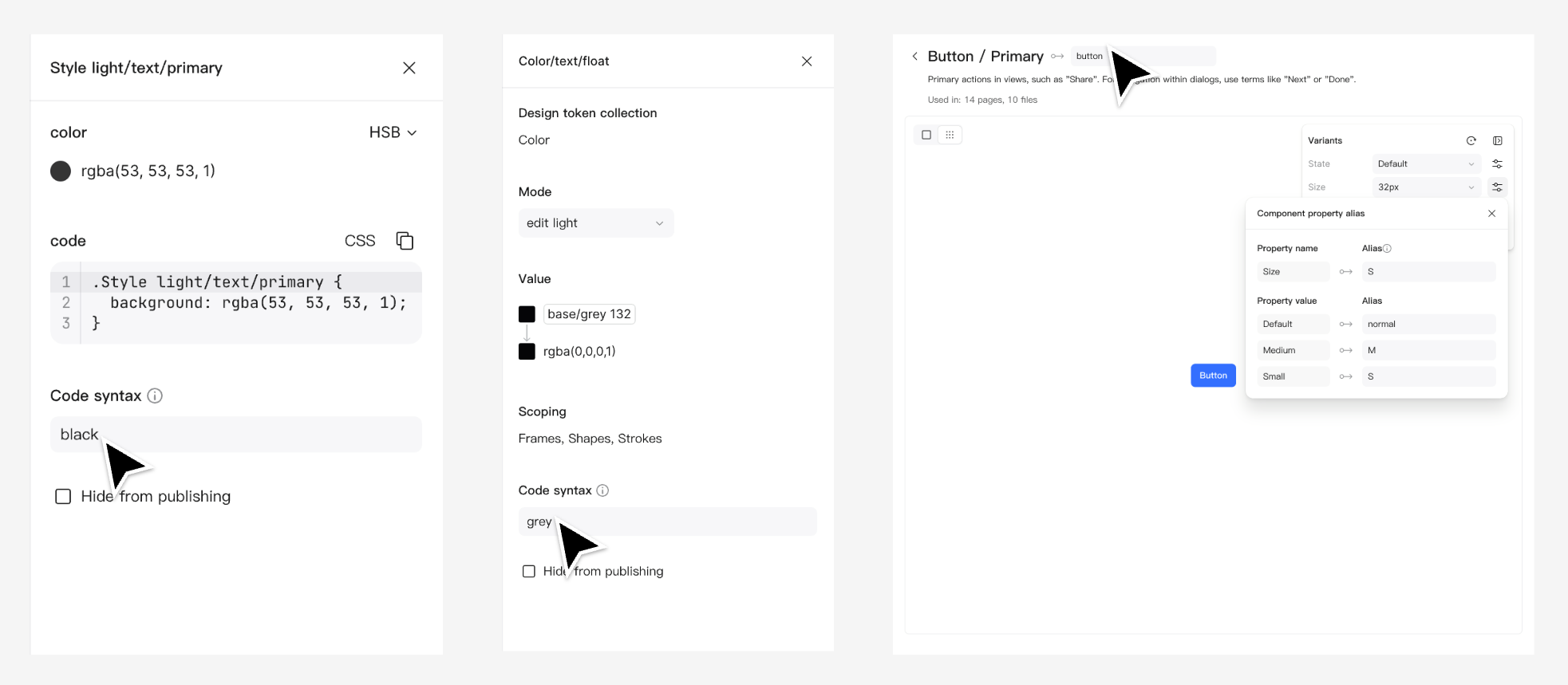
- Review and publish the library update. Describe what changed so teammates can distinguish a renamed resource from a visual or behavioral change.
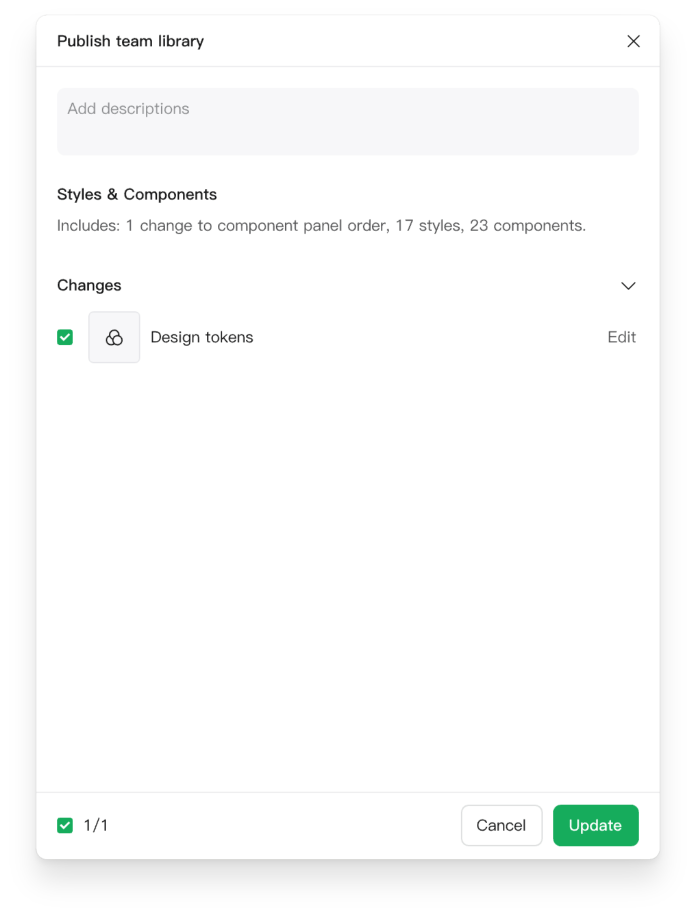
Separate publishing from adoption
Suppose the team changes the primary-action color and renames its alias. The library owner should identify both changes in the release notes. A designer then checks affected screens when adopting the library update; a developer reviews the corresponding token or component change in the codebase. Publishing the library is not the same as committing code or deploying the application.
For a small pilot, compare the primary, disabled, and loading versions of the same button. Confirm that labels, property names, and semantic colors still map as intended. If the change breaks an existing consumer, agree on the migration or restore the previous resource before expanding the rollout.
Use component code without losing project conventions
After setting aliases, inspect the code preview for a representative component. The alias and property names should express the mapping you agreed with the developer. Compare the preview with the actual component API rather than assuming that similar-looking names are interchangeable.
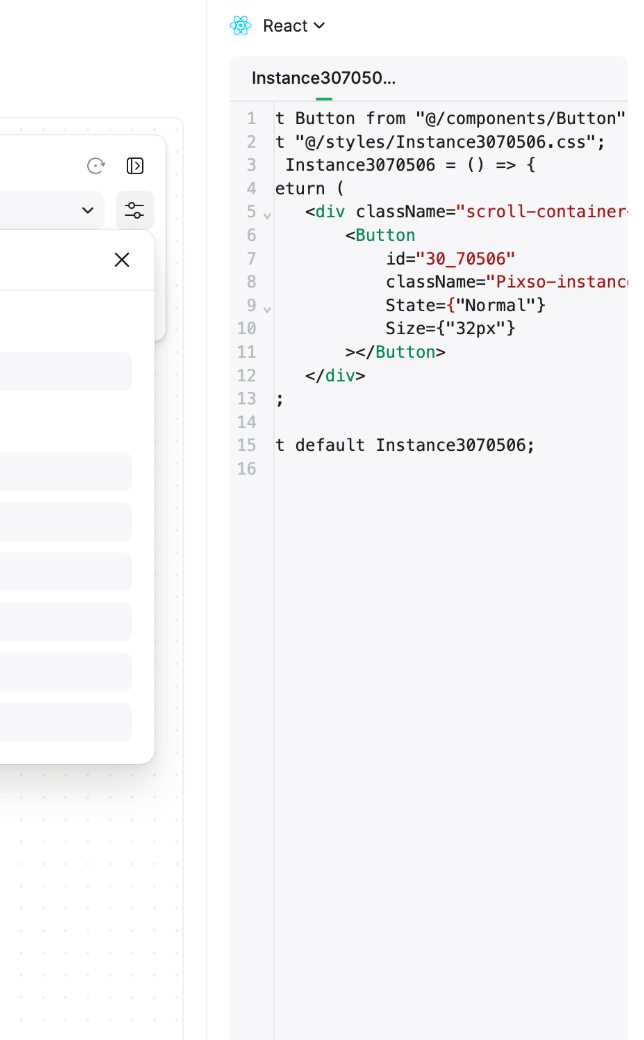
Copy the relevant output into a development branch, then check imports, supported properties, style dependencies, and behavior. For the primary button, a correct appearance does not prove that submitting, disabling, or showing a loading indicator works correctly. Those behaviors belong to the application's implementation.
When D2C⁺ and component parsers are relevant
D2C⁺ supports React, Vue, and Flutter output. It requires an Enterprise Full-feature Seat or Dev Seat and a file in an enterprise space. In Dev View, choose D2C⁺ and select the design or element to generate code. These access requirements apply to D2C⁺; do not assume that simply opening DSM grants them.
A component parser configuration is relevant when you want design instances to map to a particular code component library. It is optional when that binding is not needed. An alias identifies a resource; a parser can describe how an instance maps to a component tag and properties. Review that configuration with someone who knows the target codebase before using it across many screens.
Export styles and design tokens, then review the changes
The style and token export view lets you choose resources and generate a code preview. The screenshots below show a CSS export. Select the format and resource scope offered by the export panel for the task at hand; you do not need to export the entire library for a change to one group of styles.
- Select the resources. Choose the relevant categories and items. For a primary-button color change, identify which token is used by the button and whether other components share it.
- Generate and inspect the preview. Check names, values, and references. Look for duplicate identifiers, missing dependencies, or a renamed value that the application still references under its previous name.
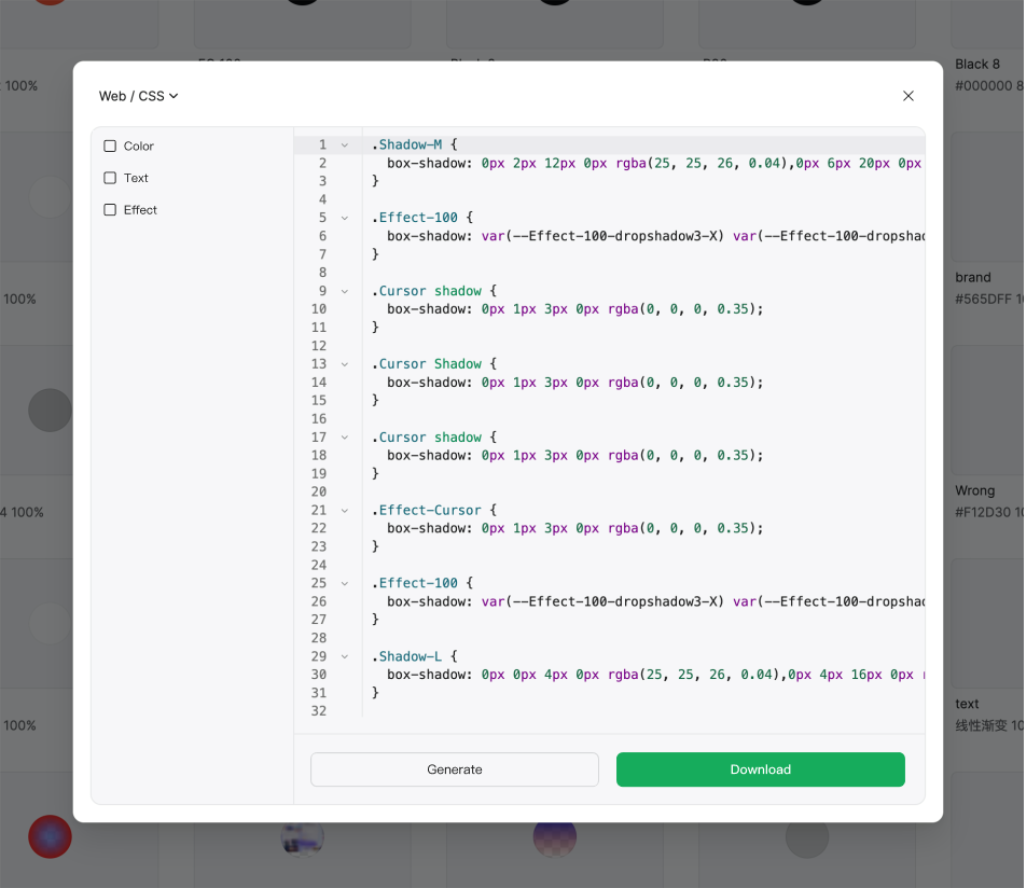
- Download the output and compare it with the project. Review the difference in your code editor, integrate the intended changes, and run the project's existing checks.
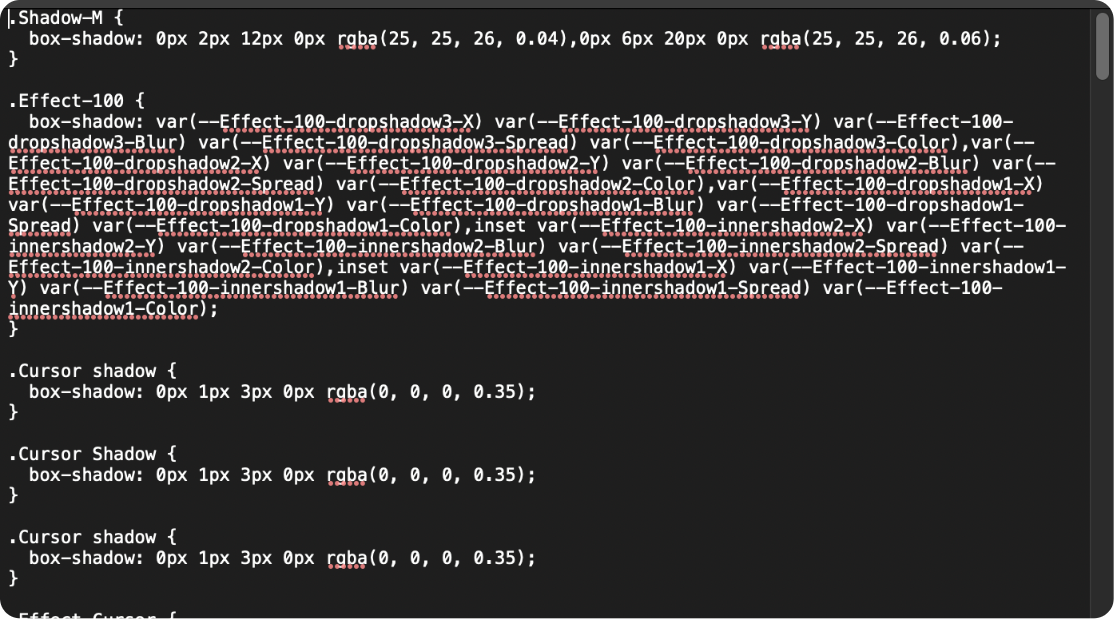
Keep the connection between the library release and the implementation change visible to the team. A short note such as “Primary-action color updated; alias retained; button and dialog actions reviewed” is more useful than “design system synced.” It tells consumers what changed and what they need to adopt.
Begin with one button, a few semantic tokens, and one consuming screen. Once the names, publication process, and code adoption work together, extend the same approach to the rest of the library.
![[Detailed Guide] Map UI Design](https://pixso.net/assets/editorial/20261007/map-ui-design/hero-en-b33ffdb59caa5913.webp)