Scott
Finding the exact visual assets for a digital product is usually a massive, frustrating time sink. You sketch a beautiful layout but get stuck scouring generic stock sites or wrestling with an external text-to-image AI tool that spits out weird, unusable graphics. It completely destroys your creative momentum. You should not have to leave your canvas just to get a decent placeholder or a custom illustration. In this comprehensive guide, we are diving into a much smarter, highly integrated workflow. We will show you exactly how to generate images from text descriptions without ever switching tabs, focusing on modern platforms that natively embed these tools right into your UI process to keep your daily design velocity moving forward.
Part 1: The broken reality of sourcing UI assets
Let us talk honestly about the friction of traditional asset sourcing in product design. When you need a specific 3D icon for a fintech dashboard or a cohesive set of friendly, empty-state illustrations for an onboarding flow, the traditional methods fail miserably. If you decide to use a standalone text-to-image generator, you already know the painful drill. You type in a prompt on a separate website, wait for the generation, download a flat, compressed JPEG, and import it into your design tool. Immediately, you realize the background is not truly transparent, the lighting is completely off, or the colors clash horribly with your established brand palette.
Then comes the endless, tedious tweaking. You have to mask out backgrounds manually, run the file through another background-removal plugin, and apply color overlays just to make it blend in. By the time the asset is actually usable on your mockup, you have wasted an hour on a single icon. This disjointed, fragmented workflow is exactly what kills design efficiency. External tools just do not understand the highly specific constraints of user interface design. They do not care about your grid systems, your auto-layout rules, your padding, or your component library. They just spit out pixels. The industry desperately needs a solution that understands the context of the canvas.
Part 2: Why native generation changes everything
This massive gap in the workflow is exactly where modern, cloud-based collaborative design platforms are stepping up. Pixso is currently leading the charge in this specific arena. If you are not familiar with the landscape, Pixso is a robust, enterprise-grade UI/UX design tool that competes directly with legacy platforms like Sketch, Adobe XD, and Figma. But where this platform truly separates itself from the pack is its deep, native integration of generative features directly into the workspace.
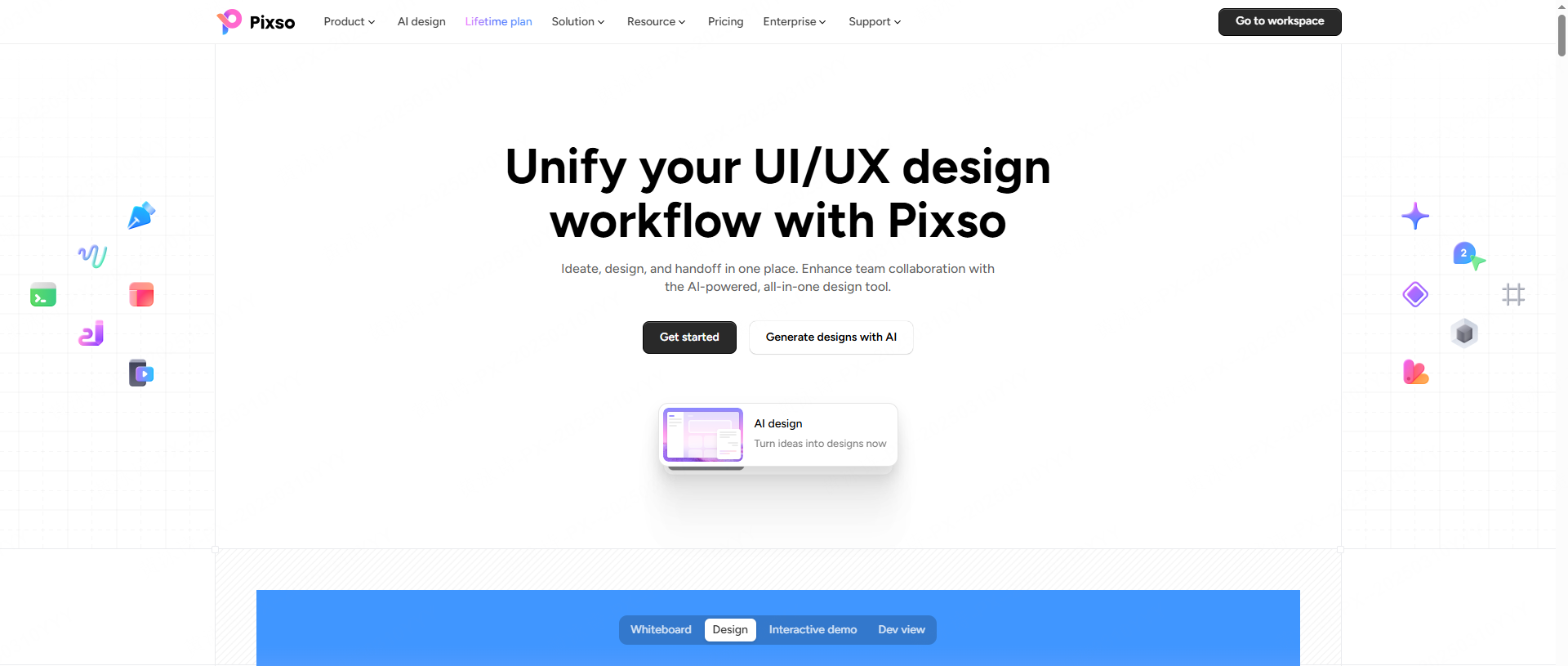
Instead of treating generative art as a separate, gimmicky novelty, the platform embeds a powerful text-to-image engine right into your active file. When you use this built-in capability, the assets you create drop directly onto your artboard. Better yet, because it is built for designers, the platform automatically layers the output and keeps it editable. You do not have to switch contexts or constantly manage a chaotic folder of downloaded assets on your local hard drive. You stay locked in your creative flow, seamlessly generating graphics that instantly blend into your low-fidelity wireframes and high-fidelity mockups without missing a beat.
Part 3: The exact steps: how to generate images from text descriptions
Let us walk through the actual interface, step by step, because the user experience here is remarkably intuitive. If you are staring at a blank frame and need a custom asset immediately, here is exactly how to generate images from text descriptions right inside the Pixso editor.
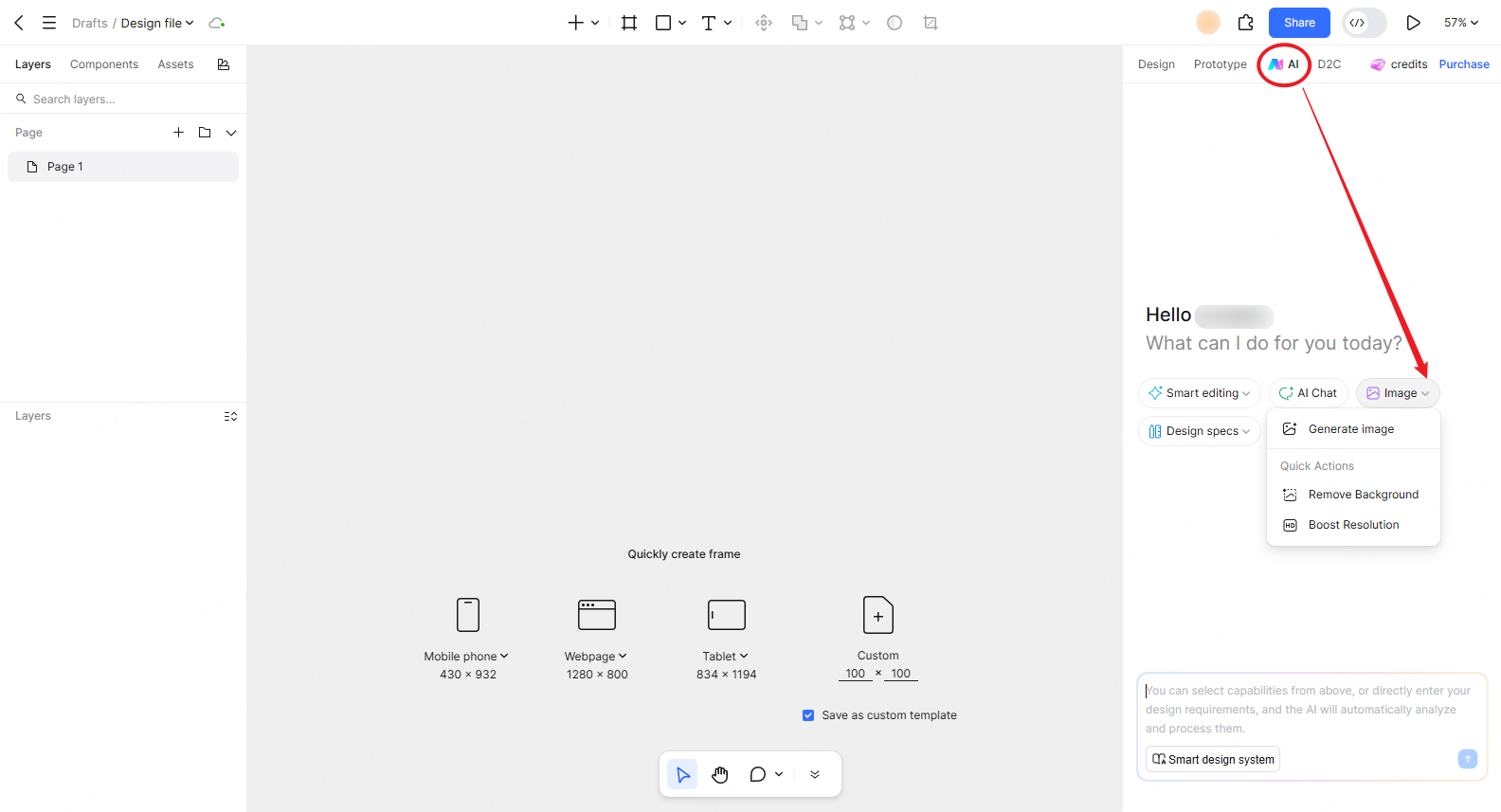
First, shift your attention to the top navigation bar of your workspace. Right next to your standard Design and Prototype menus, you will spot a dedicated tab labeled AI. Clicking this tab opens up your smart assistant panel on the side of your screen. The assistant greets you with a friendly "Hello, What can I do for you today?" and presents a clean array of core functions, including Smart editing, AI Chat, and Image.
To create a visual asset, you want to click on the Image dropdown menu. This action reveals a few quick actions, such as Remove Background and Boost Resolution, but you want to click on the primary Generate image button.
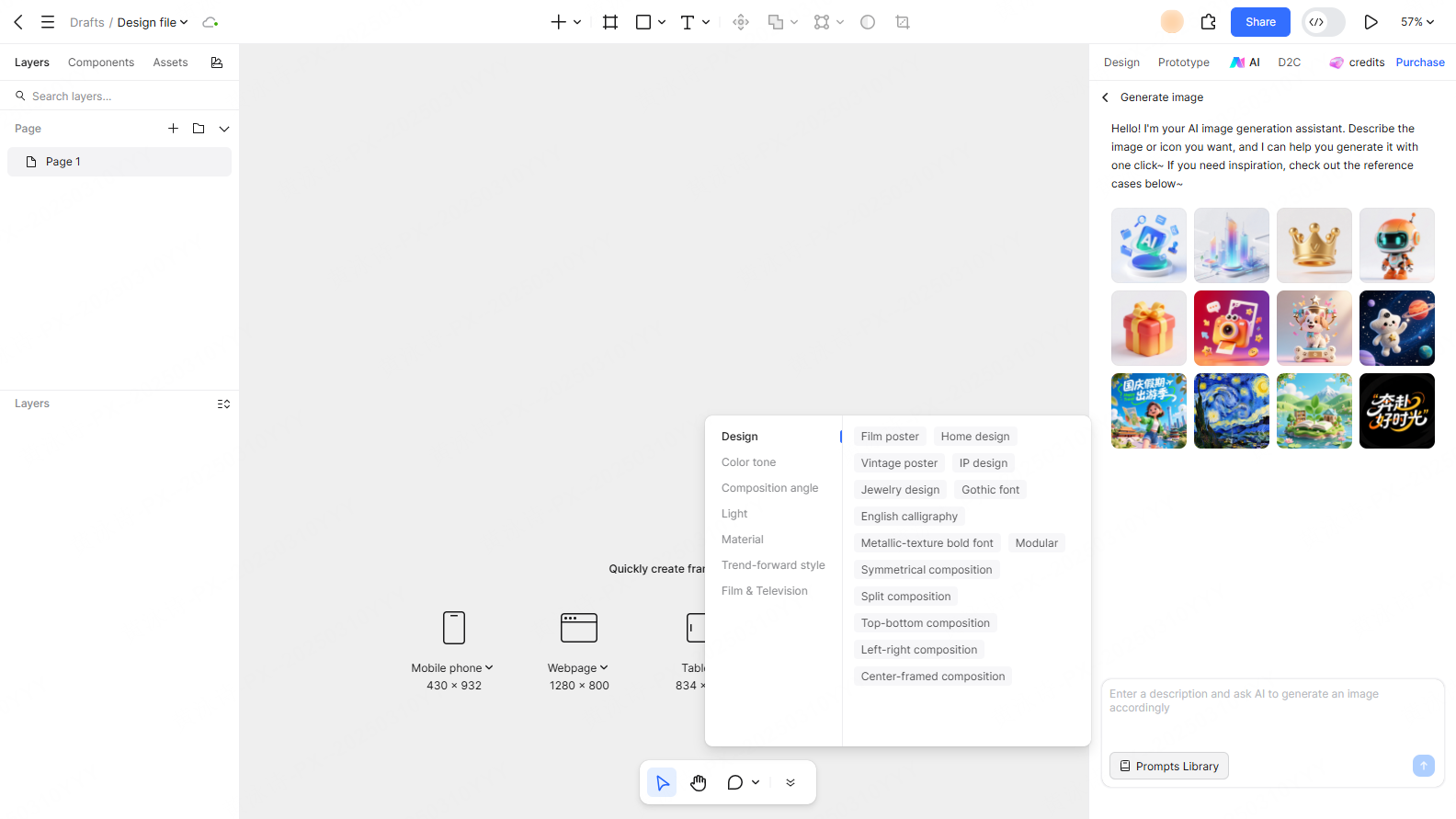
Instantly, your sidebar transforms into a dedicated text-to-image AI tool studio. The interface is highly visual, presenting a grid of inspiration cases right off the bat—showing everything from a metallic 3D crown and a friendly robot mascot to rich, painted landscapes. At the very bottom of this panel, you will find your command center: a clean text input box that says "Enter a description and ask AI to generate an image accordingly." You simply type your idea into this field, hit the generate button, and watch as the customized asset renders and appears directly inside your design file. No downloading, no dragging, no dropping.
Part 4: Beating the blank page with smart prompts and UI templates
Writing highly effective prompts is a completely separate skill that takes months to master. A lot of UI designers stare at the empty text box of a standard text-to-image generator and completely freeze. You might type something simple like "blue shopping cart icon" and get a messy, hyper-realistic blob that looks terrible next to your clean typography.
Pixso solves this intimidating blank canvas syndrome with an incredibly smart, built-in English prompt optimizer. You can type a basic, lazy description, and the smart assistant will automatically expand it into a highly detailed, professional set of keywords optimized specifically for UI assets. Furthermore, if you look to the left of the text input box, there is a dedicated Prompts Library button. This allows you to explore proven formulas and save your own refined prompts to reuse later, ensuring you can replicate successful styles across entirely different projects.
Beyond just fixing your words, the platform offers scenario-specific templates tailored exactly for what product designers actually need on a daily basis. We are not trying to win fine art competitions here; we need highly functional UI graphics. The system includes pre-configured parameters for high-frequency assets. Whether you need flat vector icons, isometric business illustrations, realistic product hero shots, or those quirky empty-state graphics every mobile app needs, the templates handle the heavy lifting. This drastically lowers the barrier to entry, letting you produce agency-quality visuals consistently, even if you have zero background in traditional illustration.
Part 5: Nailing brand consistency and high-fidelity output
Perhaps the biggest and most valid complaint about any generic text-to-image AI tool is that the output looks entirely random and disjointed. If you are building a healthcare application with a very specific, soft blue and green pastel palette, you simply cannot have a harsh, neon cyberpunk illustration suddenly pop up on your dashboard. Brand consistency is everything in product design.
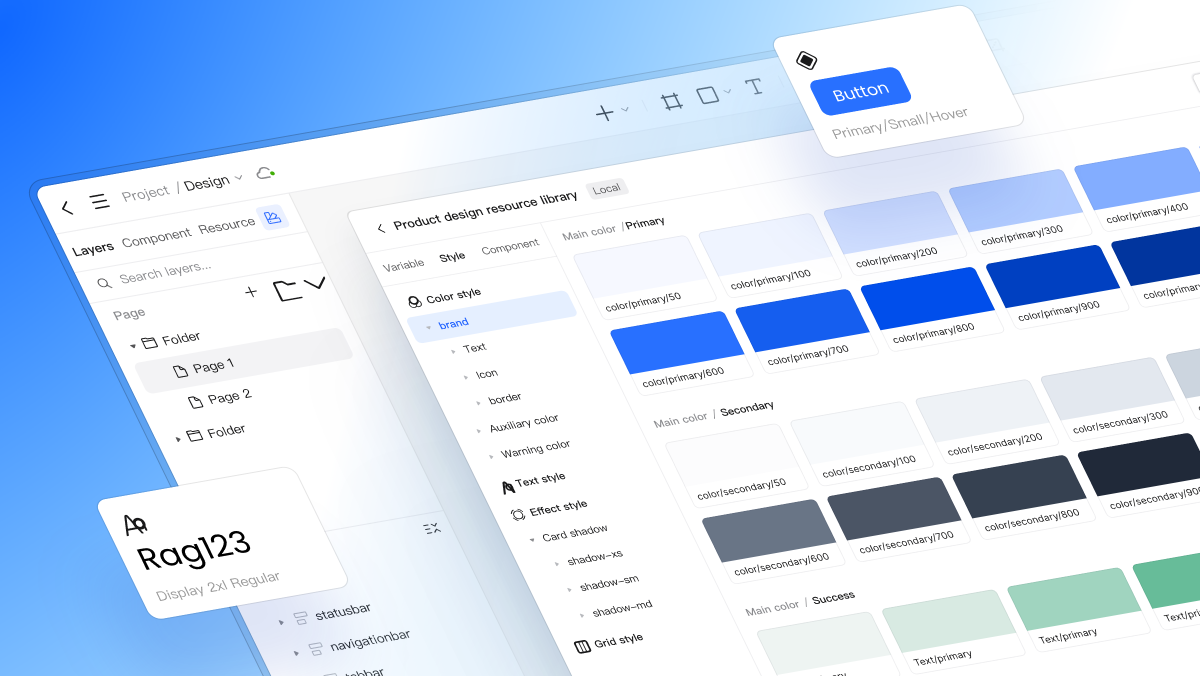
Because this generator lives natively inside your design tool, it bridges this stylistic gap beautifully. You can actually bind the generation parameters directly to your existing design system. The engine is smart enough to adapt to your specific brand colors, stylistic guidelines, and established UI presets. This ensures that every single generated asset feels like it belongs to the exact same visual family, maintaining a cohesive aesthetic from the login screen all the way to the checkout page.
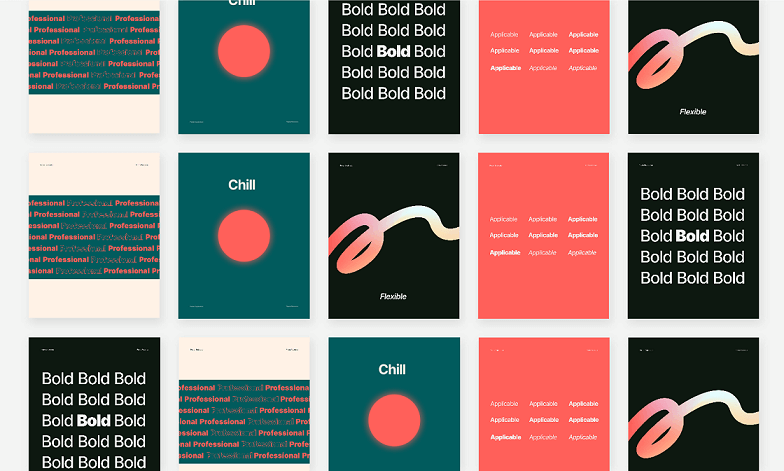
Furthermore, the output quality is strictly geared toward real-world product delivery. The engine prioritizes clean, vector-friendly structures and high-resolution fidelity, so you can scale these assets up for massive desktop displays without suffering from aggressive pixelation. If you already have a specific style in mind, you can utilize the platform's reference image feature to strictly guide the output. The tool generates multiple versions of an asset side-by-side, allowing you to run quick visual A/B comparisons on your canvas, pick the absolute best winner, and reduce your overall trial-and-error time significantly.
If a generated asset needs to sit cleanly within your layout, the next step may be to remove an image background in Pixso before checking its edges at the final display size.
Part 6: Legal compliance and seamless team collaboration
Let us pivot to talk about the corporate reality of design work. If you are working for a major agency or an enterprise-level client, you cannot just pull graphics from a random, unverified text-to-image website. The copyright risks are an absolute nightmare. You have no idea what proprietary data those external models were trained on, and you definitely do not want to trigger a massive lawsuit over a placeholder image you used on a landing page.
When you integrate Pixso AI into your daily workflow, you are operating within a commercially safe, highly regulated environment. The assets you generate are entirely original and come with the necessary commercial use protections. This approach completely aligns with strict legal frameworks and privacy laws like GDPR and CCPA, which is incredibly important for companies operating in English-speaking markets. This critical feature gives your internal legal team and your clients serious peace of mind.
Finally, this native approach completely transforms how your entire product team collaborates. When a senior designer crafts the perfect prompt or generates a flawless, cohesive set of custom icons, they do not have to zip up a folder and email it to the junior designers. Because the entire platform operates in the cloud, those generated graphics and saved text prompts can be pushed to a shared team asset library with a single click. Everyone in the department pulls from the exact same dynamic pool of resources. This ensures that your entire organization stays visually consistent, eliminates redundant work, and allows your team to move incredibly fast.
Conclusion
Relying on scattered stock websites and clunky external tools is a workflow that can disrupt creative momentum. By bringing generative capabilities directly onto the design canvas, you completely eliminate workflow friction and keep your focus exactly where it belongs—on crafting exceptional, user-centric experiences. Now that you understand how to generate images from text descriptions natively, you can finally stop hunting for mediocre assets and start creating perfect ones on demand. Give Pixso AI a spin on your next major wireframe project, leverage those smart UI templates, and watch your daily design efficiency and output quality completely transform.