|
|
|
|
|
|
|
|
|
|

Scott
Ever spent hours updating the same color or spacing across dozens of design elements? Pixso 2.0’s Variable System ends that hassle. These smart, reusable design tokens let you set colors, numbers, text, and more once—then sync them everywhere.
What Are Variables?
Variables (also known as Design Tokens) are powerful tools to streamline workflows, boost design efficiency, ensure consistency, enhance collaboration, and build adaptable, interactive designs—all while improving scalability and overall design quality.
Key Advantages of Variables
Reusable: Assign properties like colors, numbers, text, and booleans to elements.
Flexible switching: Seamlessly toggle between different themes.
Dynamic updates: Automatically sync changes across all instances where variables are applied, saving time and effort when updating design systems.

Use Cases of Variables
- Switch between light/dark modes or other themes
- Adjust layouts
- Toggle languages
- Apply to typography
Supported Variable Types
Pixso offers 4 variable types to cover diverse design needs: colors, numbers, text, and Boolean values.
Color variables can be applied to an object's fill or stroke.
Numeric variables can be used to define dimensions such as layer width and height, spacing, and corner radius.
Text variables can be applied to text layers, making them more efficient for repeating content and localization.
Boolean variables can be used to toggle layer visibility.
How to Apply Variables?
Variables are accessible in different sections of the design panel based on their type. Here’s how to use them:
1. Applying Variables to Objects
Select a layer on the canvas, then use the right sidebar. For color variables: Click the Style icon.
For number, text, or boolean variables: Click the Variable icon (hexagon) or open the dropdown menu in text/number input fields
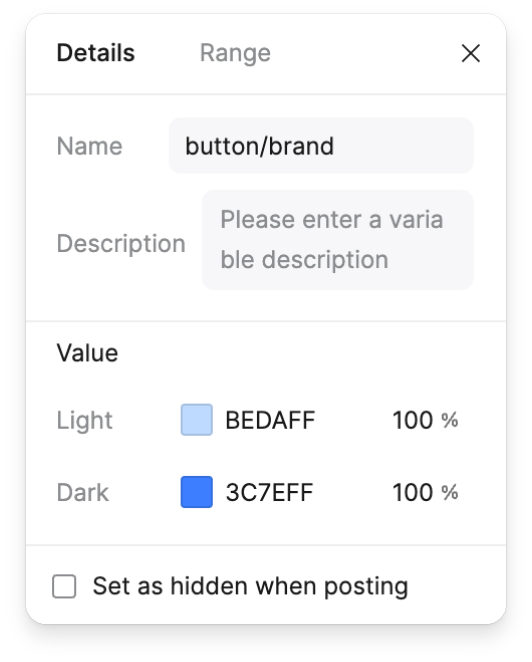
2. Variables in Components
Shape components using variable sets like "Colors" and "Spacing". Select an element, then pick color variables from the "Colors" collection.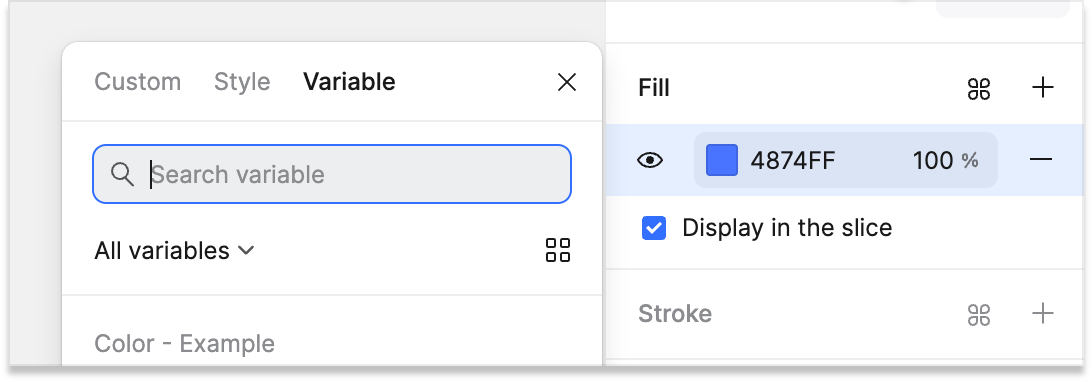
Apply number variables from the "Spacing" set to auto-layout padding and spacing values in cards.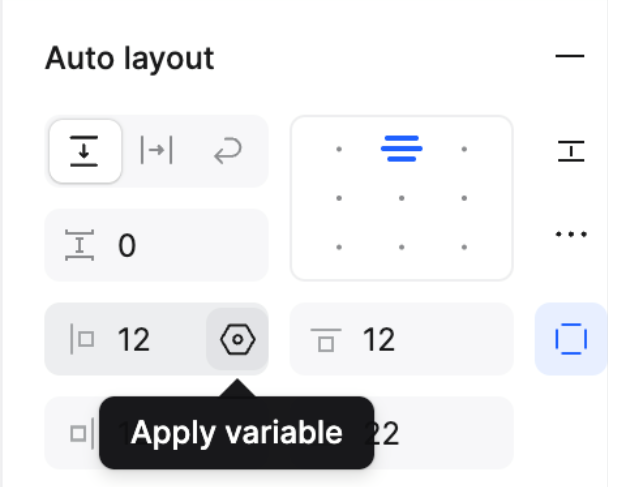
3. Using Variables in Text
Bind text variables to text layers for centralized content management (e.g., updating repeated text across designs).Use text variables for typography settings like font family or weight.
Select text, apply text variables via the panel—changes will sync across all bound instances.
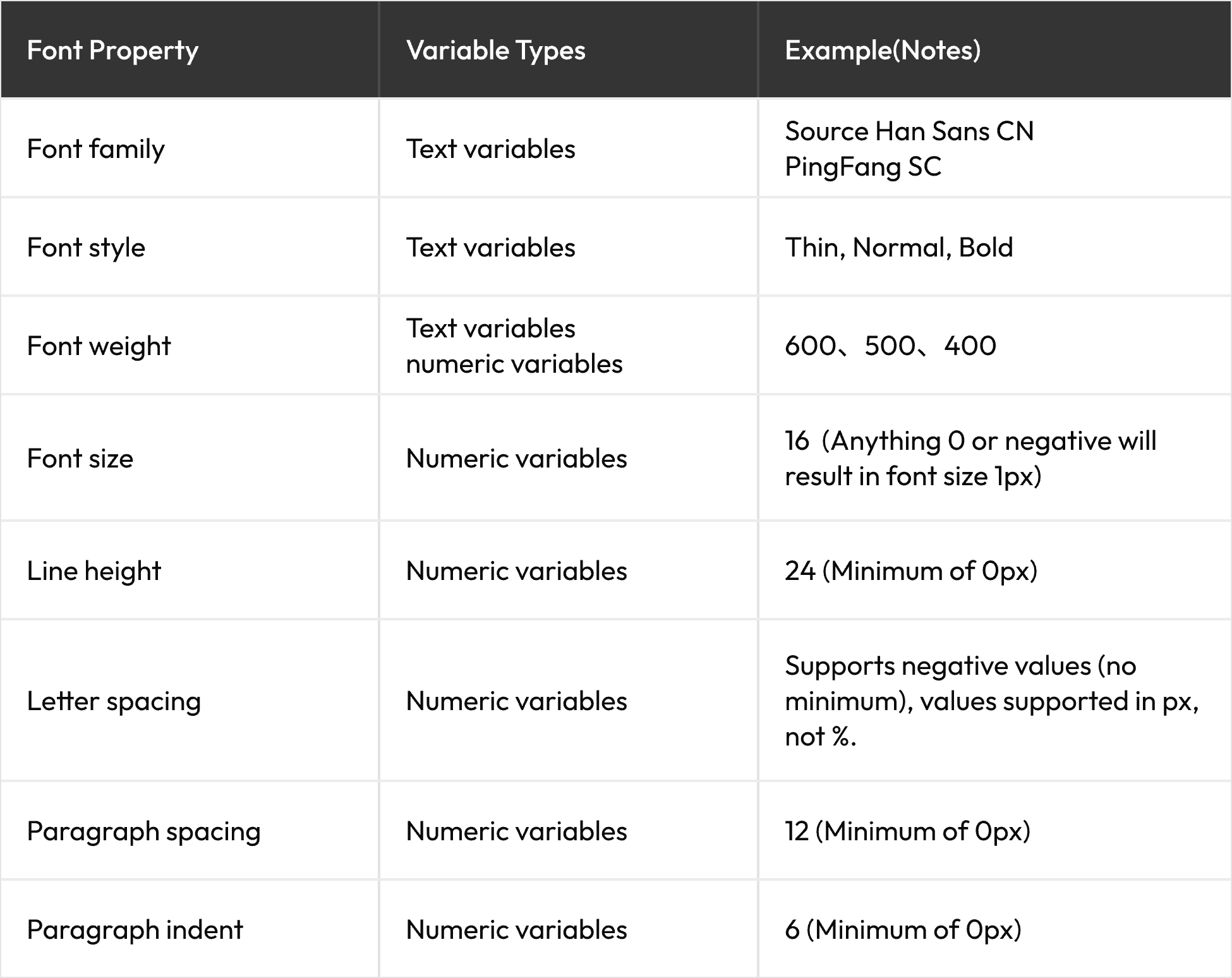
4. Typography Variables
Text variables (e.g., font family) and number variables (e.g., font weight, size) can be combined to standardize typography systems.
5. Variables in Grids
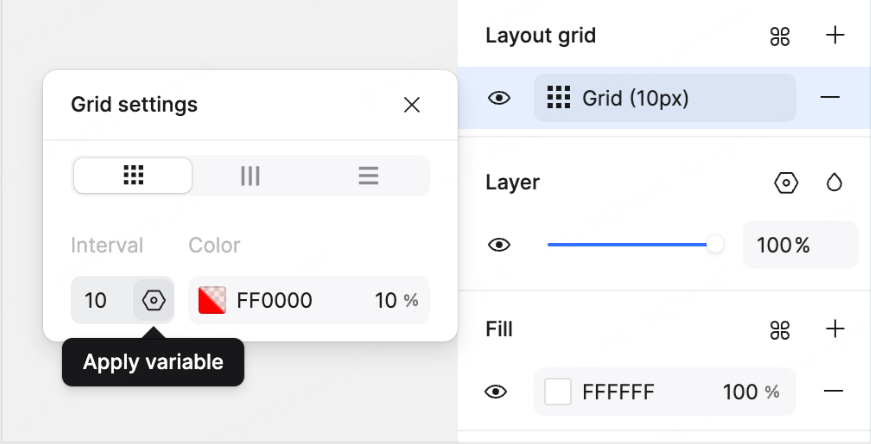
Select an frame, then use variables to adjust layout grid parameters dynamically.
6. Variables in Effects
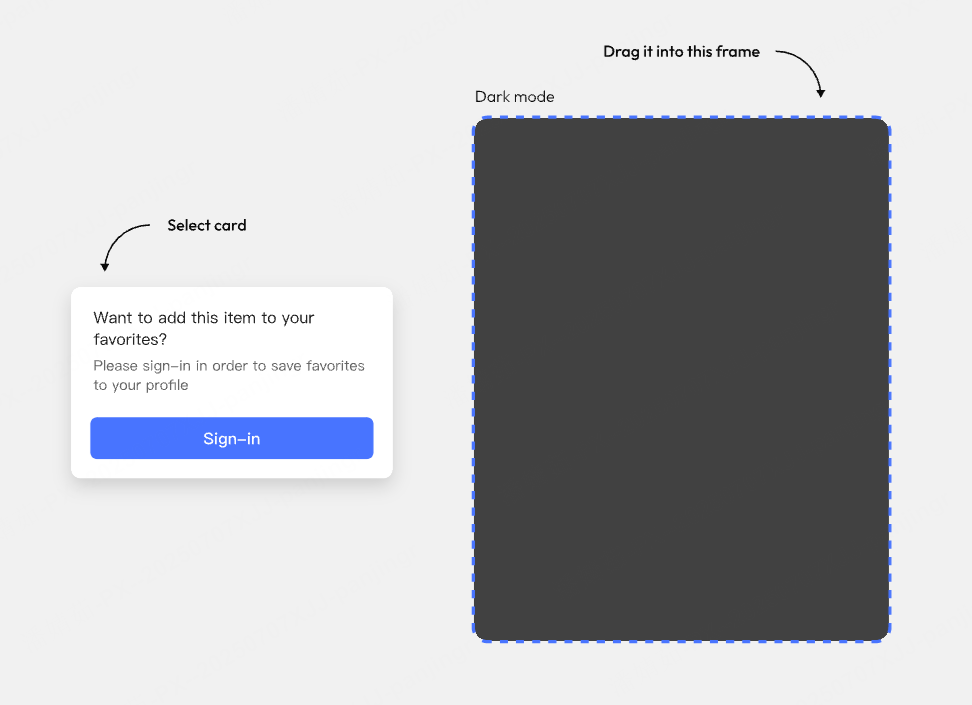
Bind variables to effect properties. For example, link shadow values to variables. Drag a card with shadow-bound variables into another container, and the shadow may disappear (if variables are set to only apply in light mode).
7. Variables in Gradients
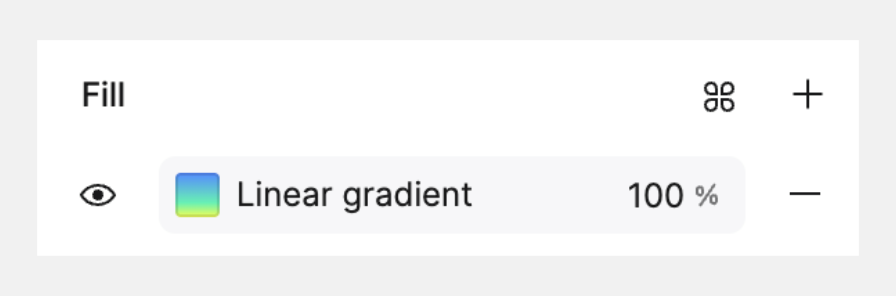
You can also bind color variables to individual gradient nodes:
1) Select the layer, open the "Fill" setting panel, and select the gradient's starting point.
2) Switch to the "Variables" tab, search for "Gradient," and select "gradient starting point" to apply it.
With Pixso 2.0’s variable system, maintaining design consistency and adapting to changes has never been easier—streamline your workflow and build more robust design systems today.