Scott
Photoshop and XD are both Adobe products; however, natively, the XD to PSD conversion isn't supported. Initially, you may assume this is doable since you can import PSD files in XD; while it won't work the other way around.
If you are one of the people who want to achieve this conversion for some reasons. Read on to find numerous approaches that enable you to convert XD to PSD.
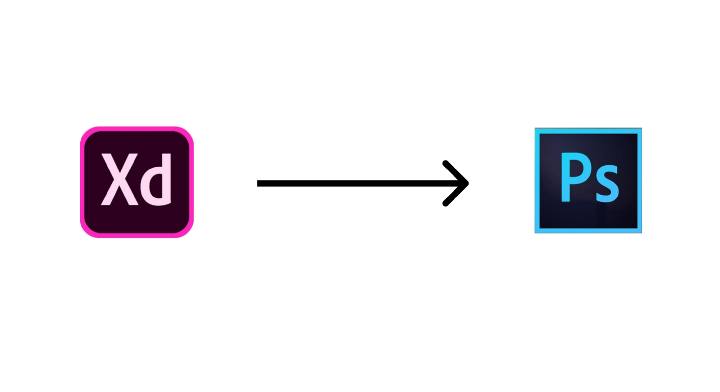
Convert XD to PSD via Illustrator
This approach is instead a hack utilizing SVG and Illustrator. Your SVGs take a journey via Illustrator, but the benefit of this procedure is it generates a Photoshop file with layers.
Yes, it will damage your layer structure and flattens most of your forms, but it isn't entirely flat. There are still layers, and I think it's theoretically feasible to turn this back into a functional design document.
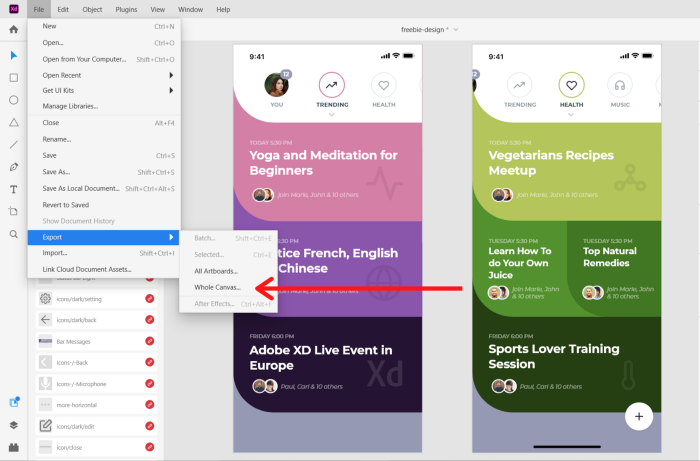
- Export your XD canvas as an SVG.
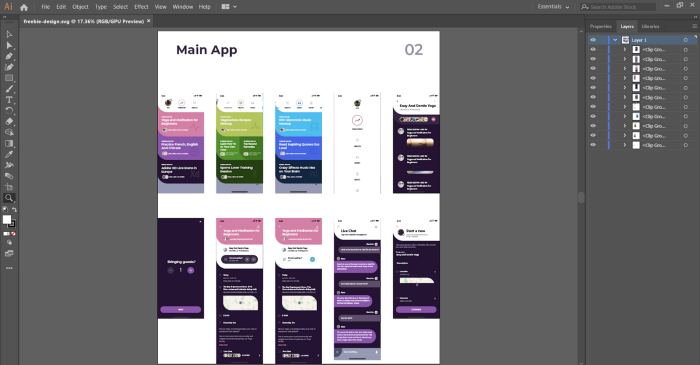
- Open the SVG file in Adobe Illustrator. Notice how you've kept your layers as clip groups? For some reasons, Photoshop can't accomplish this, which is why we're using Illustrator.
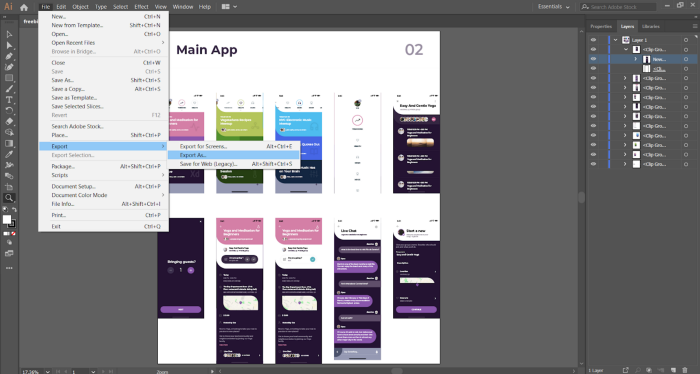
- Export the file from Illustrator as a PSD document.
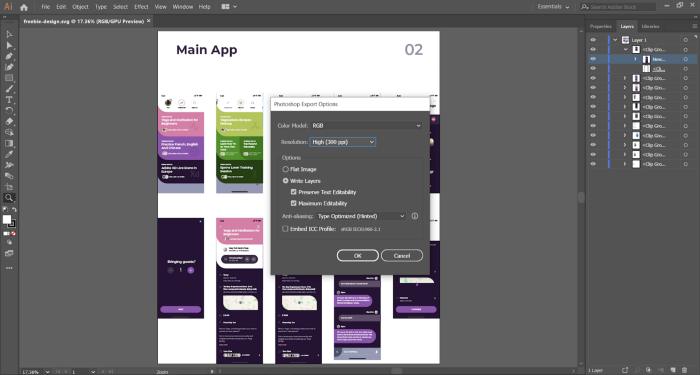
- Make sure you check to Write Layers in the Photoshop export settings. It doesn't take a long time to export at a high quality. 300 PPI is acceptable. You also want to keep Text Editability and Maximum Editability.
- You can then open the converted file in Photoshop. You'll need to devote some substantial work to polishing this design as it decimates your layer structure and flatters most forms.
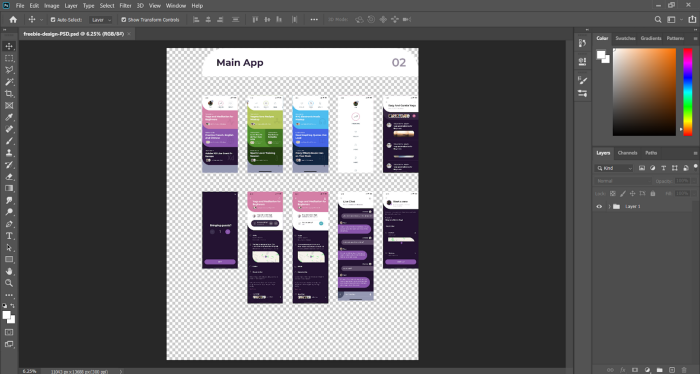
The conversion is workable for some files; this route may require Illustrator and any applicable license.
Convert XD to PSD via Photopea
Photopea is an internet application that's capable of all types of conversion. XD to PSD is one of its several alternatives.
Photopea provides a free editor and paid options. The statement that it can only be used free for 15 minutes every two hours should not be treated as a current restriction. Check Photopea for current access and test the XD file before relying on the conversion.
- Go to the website and open the editor.
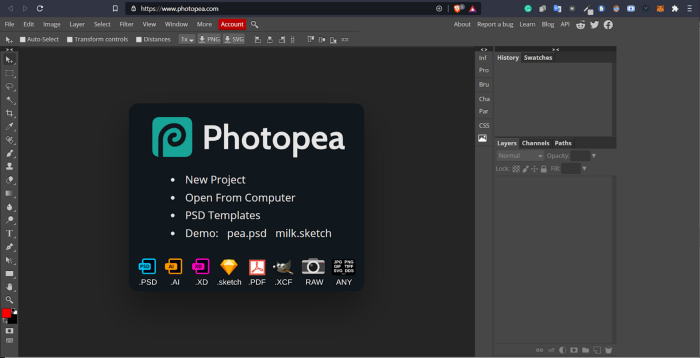
- Click File > Menu > Open. Then select the XD file you wish to convert
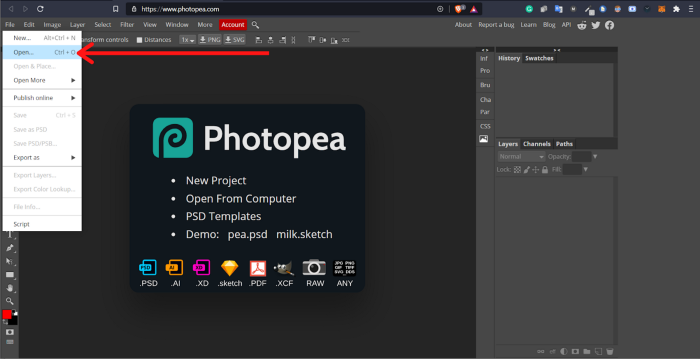
- When your file is on the canvas, Click File > Menu > Save as PSD.
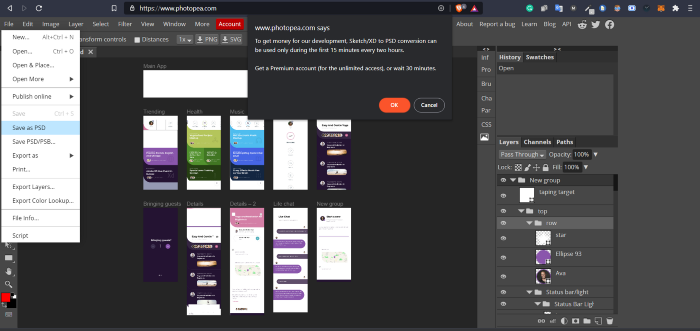
And that's it! You have successfully converted your file. Pretty plain forward; however, you may notice, particularly with bigger files, that the result isn't lovely. Graphics, as well as symbols, may be lost, as even some borders and colors. Alignments are frequently very wrong.
It may take you over 2 to 3 hours attempting to re-edit the converted file and have it look ideally like the XD version. This task is not ideal when you want ease; everyone does!
Convert XD to PSD via Magicul
Magicul is a quick and more precise converting tool. The only shortcoming is it's pretty expensive.
It vomits out a PSD file that is "close" to ready and only requires some little revision before I could send it out.
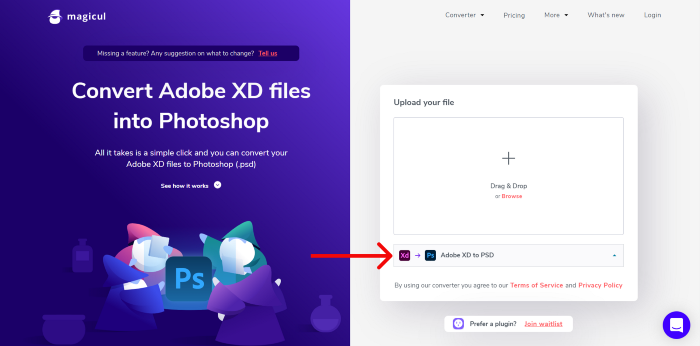
- Go to the Magicul website and pick the Adobe XD to PSD option, as you can see on this page.
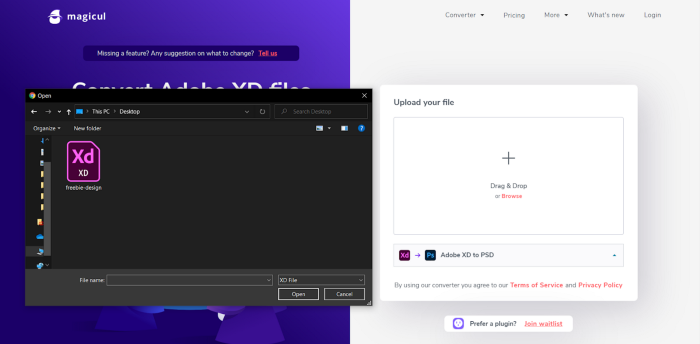
- Upload your XD file to Magicul.
- Pay money. It isn't cheap.

- And that's it. You can now save the file and open it in Photoshop.
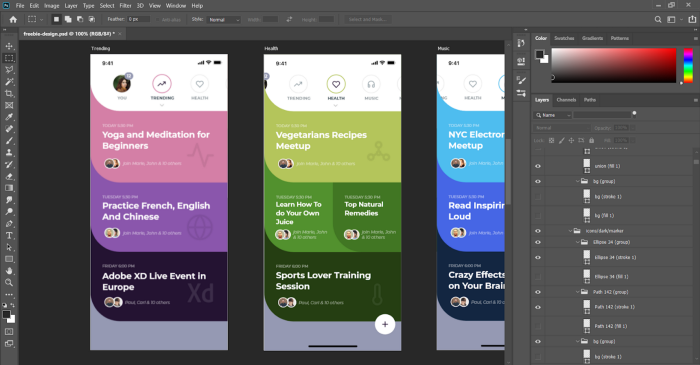
After conversion, compare artboards, layers, text, effects and images with the original XD file. Different files may produce different results. This article does not provide a reproducible conversion test or a guarantee of retained editability.
Check Magicul’s current quote, billing unit and supported input before uploading a file. Include the effort needed to review and repair the converted PSD when comparing costs.
Is there a cheaper option that gives equivalent value? Yes, there is. Keep reading, and you'll discover the ideal tool for you.
Convert XD to PSD via Filestar
Filestar is another file conversion program that promises to convert over 806 kinds of files! Can you name them all? I bet you can't. That illustrates the incredible flexibility this tool affords. XD and PSD are standard file formats and can be converted using Filestar easily.
Check Filestar’s current plan, supported conversion and file limits. This article does not establish that it is cheaper than another tool for your particular file.
- Download and install the newest version of Filestar.
- Right-click on one or more XD file(s) on your desktop and choose to convert with Filestar.
- Type convert to PSD in the search box and locate the option.
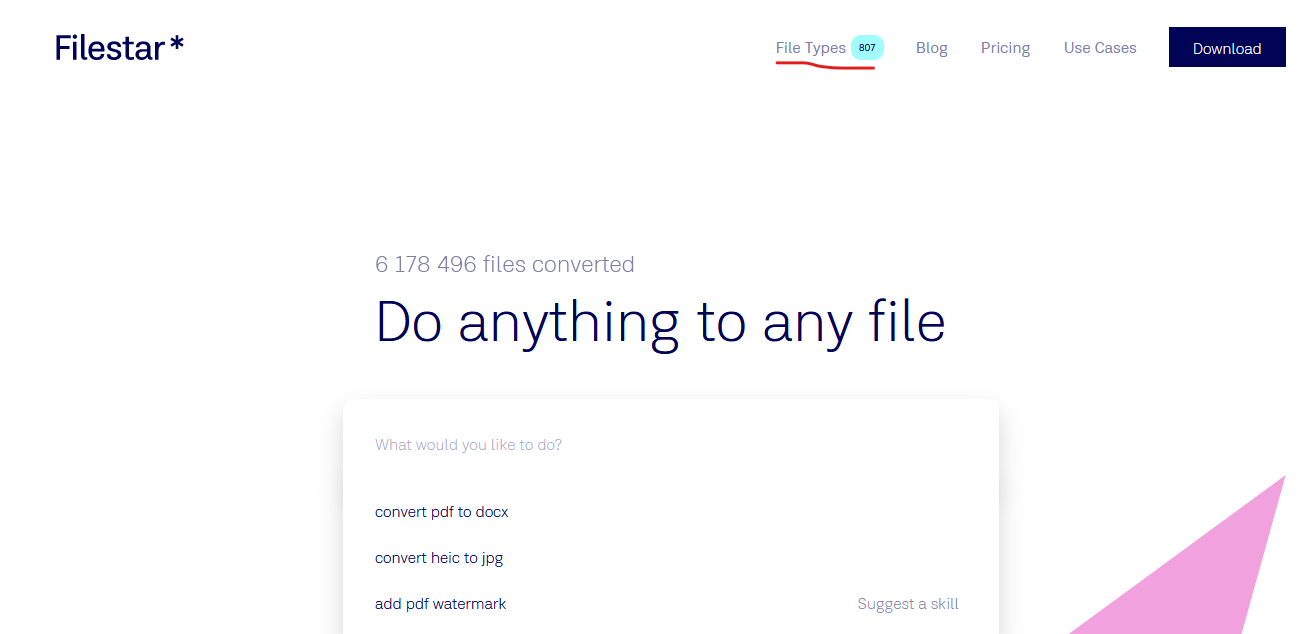
- Click on Convert.
Filestar is versatile and straightforward to use. The converted files are pretty decent but not as impressive as Magicul.
Why Do Designers Have to Shift from Adobe XD to Photoshop?
It's incredibly stressful having to shift from one tool to another only to gain the necessary functionality you want for your project. If only there could be an all-in-one instrument that would do the job, right? Oh wait, there is! Pixso.
Edit Your XD File in Pixso
If your goal is continued UI editing rather than a PSD deliverable, test importing the XD file into Pixso. Verify the layers, fonts, components and interactions after import; check supported export formats separately.
Why Is Pixso the Finest Tool for Editing XD File
Pixso may be useful when the team wants to continue design work in a shared workspace. It does not promise identical XD-to-PSD output. Keep the source file and verify the properties needed for the project.
Review current Pixso pricing for individual and team access, file limits and paid features. A free entry point does not imply unrestricted access to every function.

Pixso helps you save time and money and makes things simpler. There is no reason Pixso shouldn't be the number one tool in your stack! Just give it a try now!