Scott
Scott

Published on May 07, 2026, updated on May 13, 2026

We have all seen the hype online. You type a sentence into a text box, and seconds later, out pops a gorgeous, futuristic mobile app interface. But if you actually work in product design, you already know the dirty secret: most of those generated images are completely useless for real work. You cannot click them, you cannot edit the text, and developers will literally laugh you out of the room if you try to hand them a flattened JPEG. Let's look past the viral hype and talk about reality. We are going to explore how modern tech is finally solving this, allowing you to use a true ai ui generator to turn simple text commands into native, structured screens you can actually ship.

Part 1: The Trap of First-Generation Generators

Let's be honest about how the initial wave of artificial intelligence impacted the design industry. When things first kicked off, product managers and creative directors rushed to general-purpose image generators hoping to cut their design sprints in half. The visual outputs looked amazing in pitch decks, but operationally, they were a nightmare.

A flat PNG of a dashboard doesn't help a UI team build a product. It lacks the fundamental anatomy of software. You cannot extract the CSS for a specific gradient. You cannot separate a headline from the hero image behind it. You cannot export the navigation icons as SVGs. To turn that AI-generated concept into a functioning web page, a designer still has to sit down at their desk, open their software, and manually trace over the image. They have to rebuild every single rectangle, text node, and container from scratch.

That isn't automation; that is just creating a high-fidelity mood board that creates more manual labor down the line. What teams desperately needed was an ai ui generator that understood how the Document Object Model (DOM) works. We needed a system that output real digital components, not just a painting of a website. Generic tools failed because they didn't speak the language of interface design.

Part 2: Real Interfaces from Text with Pixso and Paico

This exact industry frustration is why the market is aggressively shifting toward specialized platforms. If you want to speed up your workflow without creating a mess for your developers, you have to use technology built specifically for interface architecture. This is where the ecosystem surrounding Pixso completely changes the game. To solve the flat-image trap, the platform introduced pixso ai and its dedicated creative engine, paico.

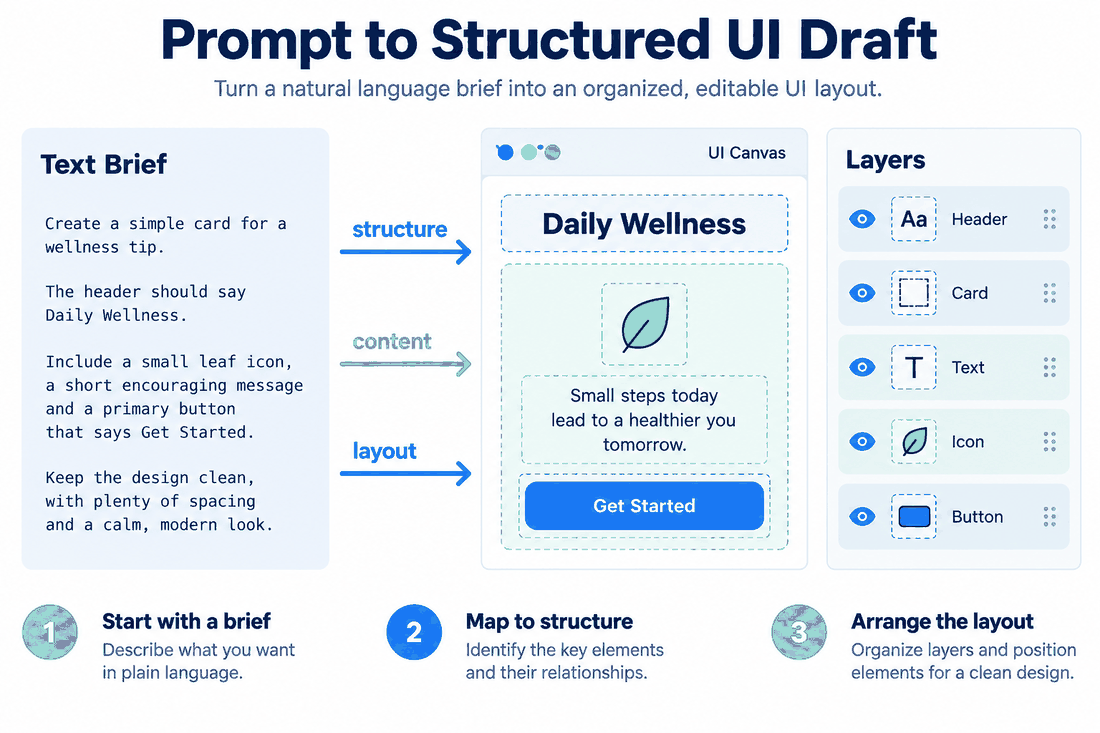
When you type a command into paico, it doesn't spit out a flat picture. It outputs a fully structured, editable layer hierarchy. This changes everything. Suddenly, every single button is a distinct, clickable element. The paragraphs are actual text layers you can retype. The containers utilize proper auto-layout constraints. You don't have to spend hours drawing grey wireframe boxes and snapping them to a 12-column grid. You describe the e-commerce page you want, and the system builds the native architecture for you.

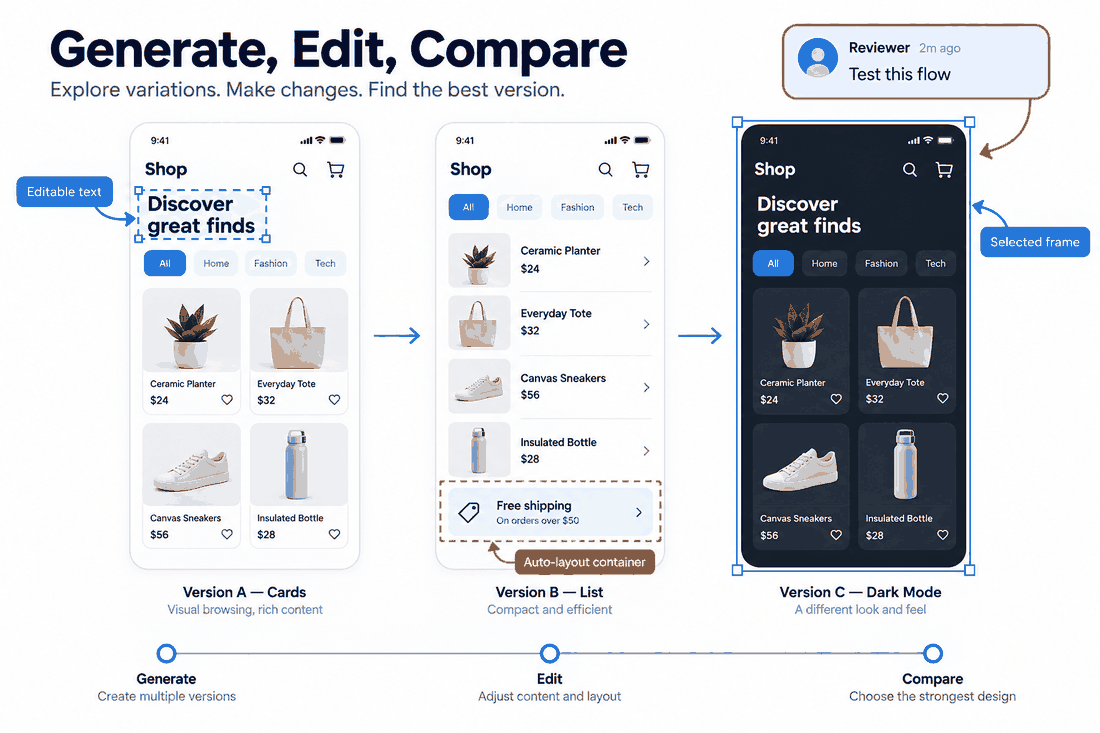
And it goes way beyond just the first draft. The system includes a Smart Design Edit feature that understands layout logic. Say the AI generates a beautiful grid of product cards for your mobile shop, but your product manager decides a vertical list view would convert better. In the past, you would have to manually ungroup everything, resize the thumbnails, and realign the text. Now, you just use the smart edit command to toggle the layout from cards to a list. The software instantly reflows the flexbox directions and padding. You can even adapt an entire complex dashboard to dark mode with one click, and the system will intelligently invert the colors while maintaining WCAG contrast standards.

Part 3: Beating the Blank Canvas Syndrome

Writing good prompts is hard. It is a completely new skill set, and staring at an empty text input box can kill a team's momentum just as fast as staring at a blank design canvas. When you are looking for a reliable free prompt to ui designs workflow, you usually don't want to spend thirty minutes tweaking adjectives just to get a usable layout.

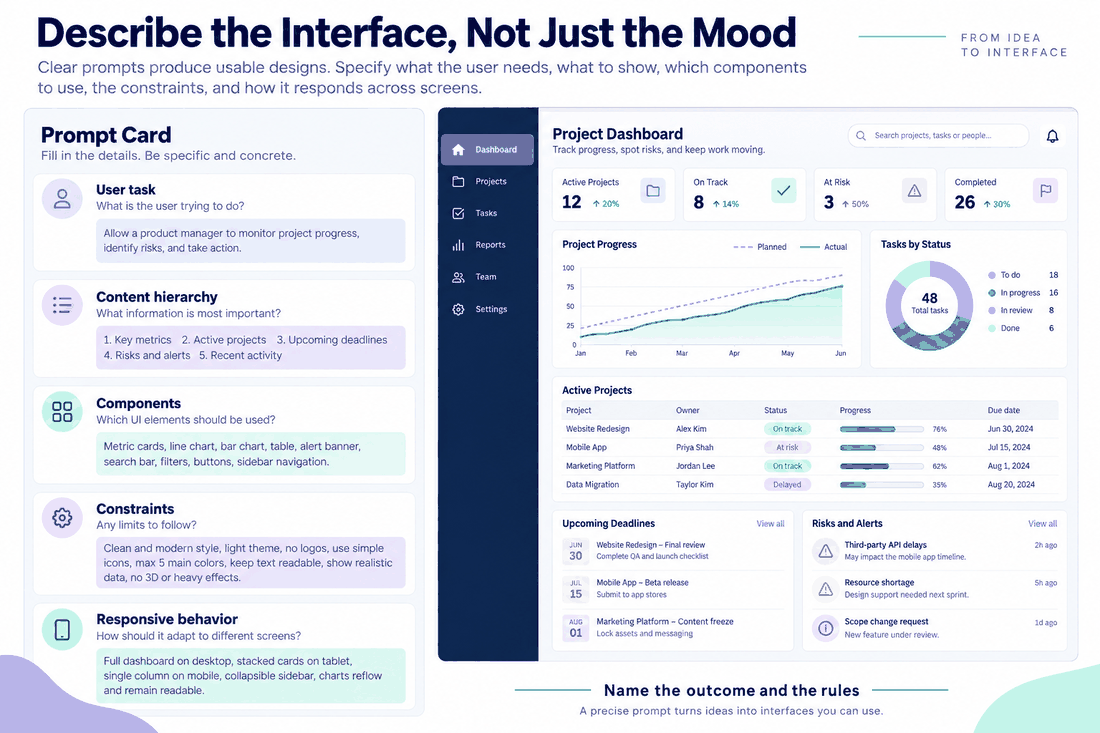
Modern ai wireframing tools handle this friction by basically writing the prompts for you. Platforms like pixso ai come loaded with industry-standard, built-in prompt templates. You don't need to be a machine learning expert to get high-quality results. If you need to build a SaaS analytics dashboard, you select that specific template, fill in a few variables about your specific brand or data requirements, and hit generate.

Because the system relies on structured inputs rather than wild guesses, it knows exactly how to establish visual hierarchy. It takes the pain out of translating a free prompt to ui designs that actually make logical sense for your business. This dramatically lowers the barrier to entry. Now, a founder with zero design experience or a junior designer stuck on a wireframing task can quickly spin up structurally sound layouts in seconds without drawing a single shape.

Part 4: Interactive Canvases and the Power of Iteration

Generating a single, static screen is a good start, but nobody ships a product with just one screen. You have to test the user flow. How does the user actually navigate from the login page to the main feed? Most older ai wireframing tools stop at the static layout, forcing you to spend the rest of the afternoon manually wiring screens together and setting up prototype triggers.

We are finally moving past that. When you run a generation through paico, you aren't just getting static layers; you are generating an interactive canvas. The AI is smart enough to bake in standard user experience patterns. It can automatically generate page transitions, button hover states, and clickable hotspots right out of the gate. You type a prompt, and you get a prototype that you can immediately pull up on your phone for a stakeholder demo or a quick usability test.

Crucially, this entire process is built around human control. AI almost never gets a complex layout perfectly right on the very first try. Instead of throwing the whole design in the trash and starting over, you iterate. You can generate three or four versions side-by-side to compare different navigational concepts. If the layout is 90% perfect but the hero banner feels completely off-brand, you just highlight that specific section and ask the AI to perform a local redraw. You can even dial the "creative strength" up or down. If you want a standard, safe login screen, you keep the creativity low. If you want something highly experimental for a marketing site, you crank it up. The designer remains the director.

Part 5: Playing by the Rules of Your Design System

If you talk to any design system manager at a large company, their biggest fear regarding artificial intelligence is visual chaos. If every designer on the team starts using a free prompt to ui designs generator, how do you stop the final product from looking like a Frankenstein monster of random styles? An interface is only valuable if it feels like it belongs to your brand.

This is why integrating generation directly into your primary workspace is so vital. When you trigger pixso ai, it doesn't operate in a vacuum. You can constrain the AI to follow your team's established design system. Instead of the AI inventing a random shade of blue for a primary button, it automatically pulls the exact hex code from your global variables.

It applies your specific typography scales, snaps elements to your defined spacing grid, and utilizes your standardized UI components. It builds the layout using the visual language your team has already spent months perfecting. This ensures that the output isn't just a fun concept; it is immediately compliant with your brand guidelines and won't break the visual consistency of your larger application.

Part 6: Surviving the Developer Handoff

The ultimate test for any design workflow happens when you hand the file over to engineering. It doesn't matter how fast an ai ui generator works if the front-end developers can't understand the file. Early ai wireframing tools were notorious for churning out absolute garbage in the layers panel—hundreds of grouped, unnamed rectangles that made developers want to quit their jobs.

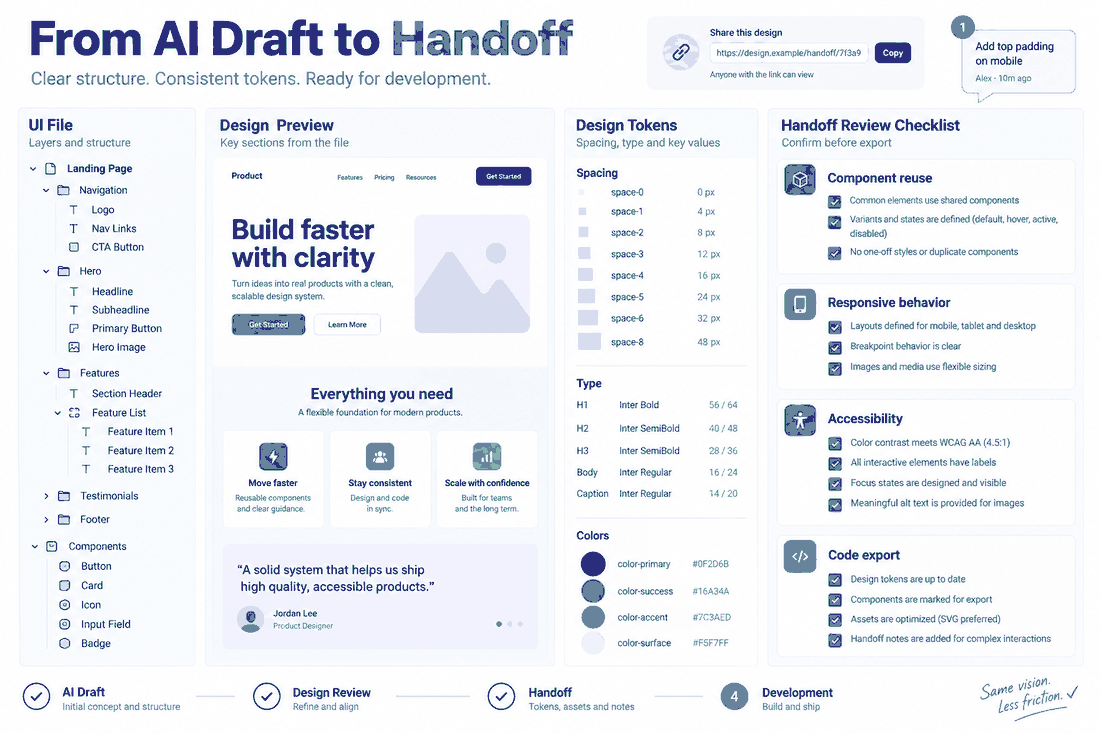
Because a native ai ui generator outputs actual vector elements and structured frames, the resulting files are completely production-ready. The layer structures generated by paico are surprisingly clean, logically nested, and properly named. Because it uses standard auto-layout principles, the designs respond predictably when developers inspect the CSS, iOS Swift, or Android XML code.

The devs can click on a generated input field and instantly copy the exact padding, border radius, and shadow values. They can mark specific generated assets, like custom icons, and export them as SVGs without ever having to ping the designer on Slack. Best of all, because this happens inside a collaborative platform, the entire team stays in sync. You can save those AI-generated elements directly into your shared component library, invite copywriters to edit the text in real-time, and run your entire review process without ever changing your core team habits.

Conclusion

The days of manually dragging grey boxes around a screen just to block out a basic wireframe are fading fast. But trying to replace that workflow with generic image generators that spit out uneditable, flat graphics is a massive step backward. To actually speed up how your team builds digital products, you need tools that speak the language of code and DOM structure.

By bringing a native ai ui generator into your workflow, you bridge the gap between rapid ideation and actual product development. Whether you are using paico to brainstorm complex interactive flows or relying on Pixso AI to ensure those generated screens match your strict brand guidelines, the goal is the same. You stop wasting time on manual pixel-pushing and start focusing on the actual user experience, all while handing developers clean, structured files they can actually use.

go to back
twitter share
facebook share