
Scott
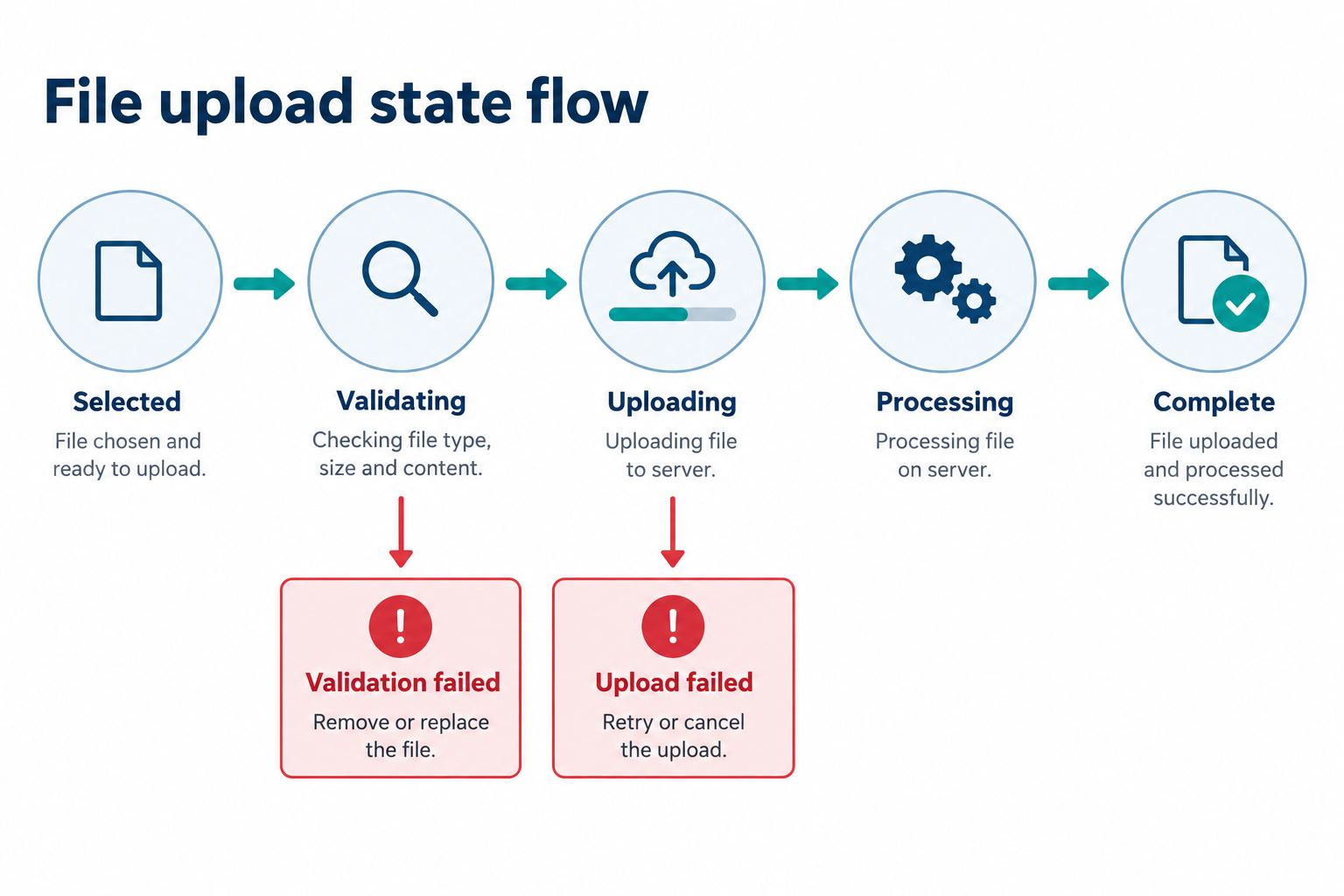
Good file upload UI design makes a multi-stage system understandable: the file is selected, validated, transferred, processed, and finally accepted. Those stages are not interchangeable. A progress bar does not prove completion, and an error should tell the user whether to retry, replace the file, change its format, or contact support.
Part 1. Define the upload contract before the drop zone
Begin with rules, not decoration. Write down the allowed file types, maximum size, number of files, security checks, processing time, retention policy, and final destination. Identify which validation can happen in the browser and which decisions require the server.
This tutorial uses a portfolio uploader with these example rules: up to five files, PDF or PNG, 20 MB per file, duplicate names allowed, uploads can be removed before submission, and server processing creates a final portfolio entry. These rules are hypothetical; your product needs its own approved limits.
- Selection limit: five files in one queue.
- Local checks: extension, MIME type where available, size, and queue count.
- Server checks: malware scan, content policy, account quota, and processing.
- Completion evidence: a file record with name, status, and uploaded timestamp.
- Recovery: retry transfer failures, replace invalid files, and remove unwanted files.
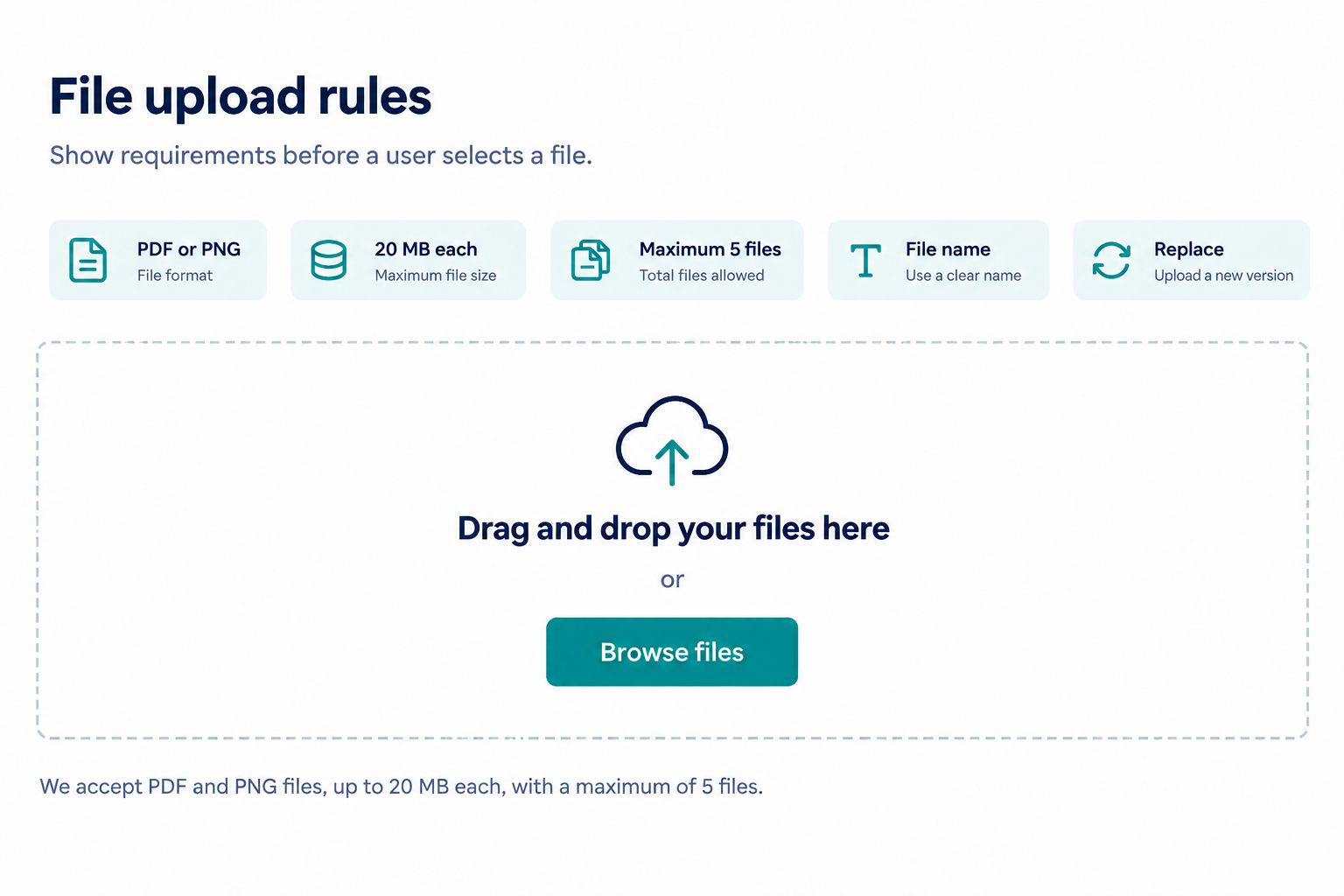
Part 2. Support browse, drag-and-drop, and paste deliberately
A drop zone should not be the only entry method. Include a visible “Choose files” control backed by a native file input in implementation. Drag-and-drop is a convenience for pointer users; paste may be useful for screenshots if the product supports it.
Place the core rule beside the control: “PDF or PNG, up to 20 MB each, maximum five files.” Do not hide limits in a tooltip that appears only after failure. Keep the drop target large enough to discover without making the entire page accept a file accidentally.
During a drag, change the target to show that the file will be accepted there. Do not claim the file type is valid until the product has actually inspected it. If a user drags six files, preserve the valid selection context and explain which rule blocked the action.
Part 3. Design a queue that stays readable
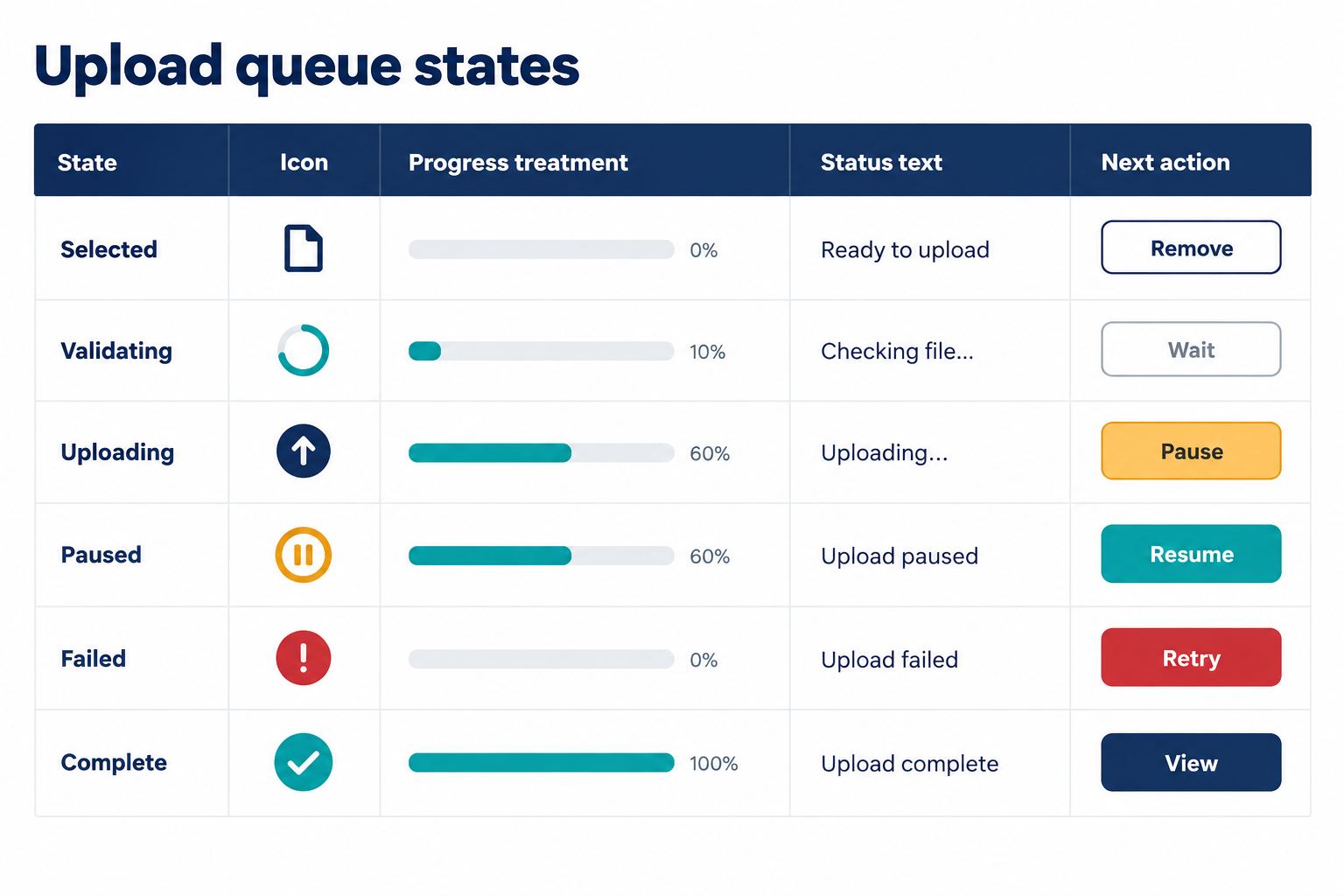
Each file row needs enough information to answer four questions: what is this file, what is happening, can I act, and what proves completion? A useful row can contain file name, type or thumbnail, size, status, progress, and context-specific actions.
This file upload UI design keeps those answers in stable row positions so mixed queues remain scannable.
| State | Visible feedback | Available action |
|---|---|---|
| Selected | Name, size, type, waiting status | Remove |
| Validating | “Checking file…” without fake transfer progress | Cancel if the system supports it |
| Uploading | Transferred amount or percentage with file name | Pause or cancel only when technically supported |
| Processing | “Upload complete; preparing file” | Usually wait; allow safe navigation if processing continues |
| Failed | Specific failure reason and retained file context | Retry, replace, or remove |
| Complete | Final record status and timestamp | View or remove according to product rules |
For multiple files, keep rows stable rather than replacing the entire queue with a spinner. The summary can say “2 of 4 uploaded,” but each row still needs its own status. If the queue can be reordered, explain whether order affects the final portfolio.
Part 4. Separate local validation from server decisions
Client-side checks give fast feedback, but they are not a security boundary. The server must enforce the authoritative rules. The UI should distinguish failures the user can fix from failures the service must resolve.
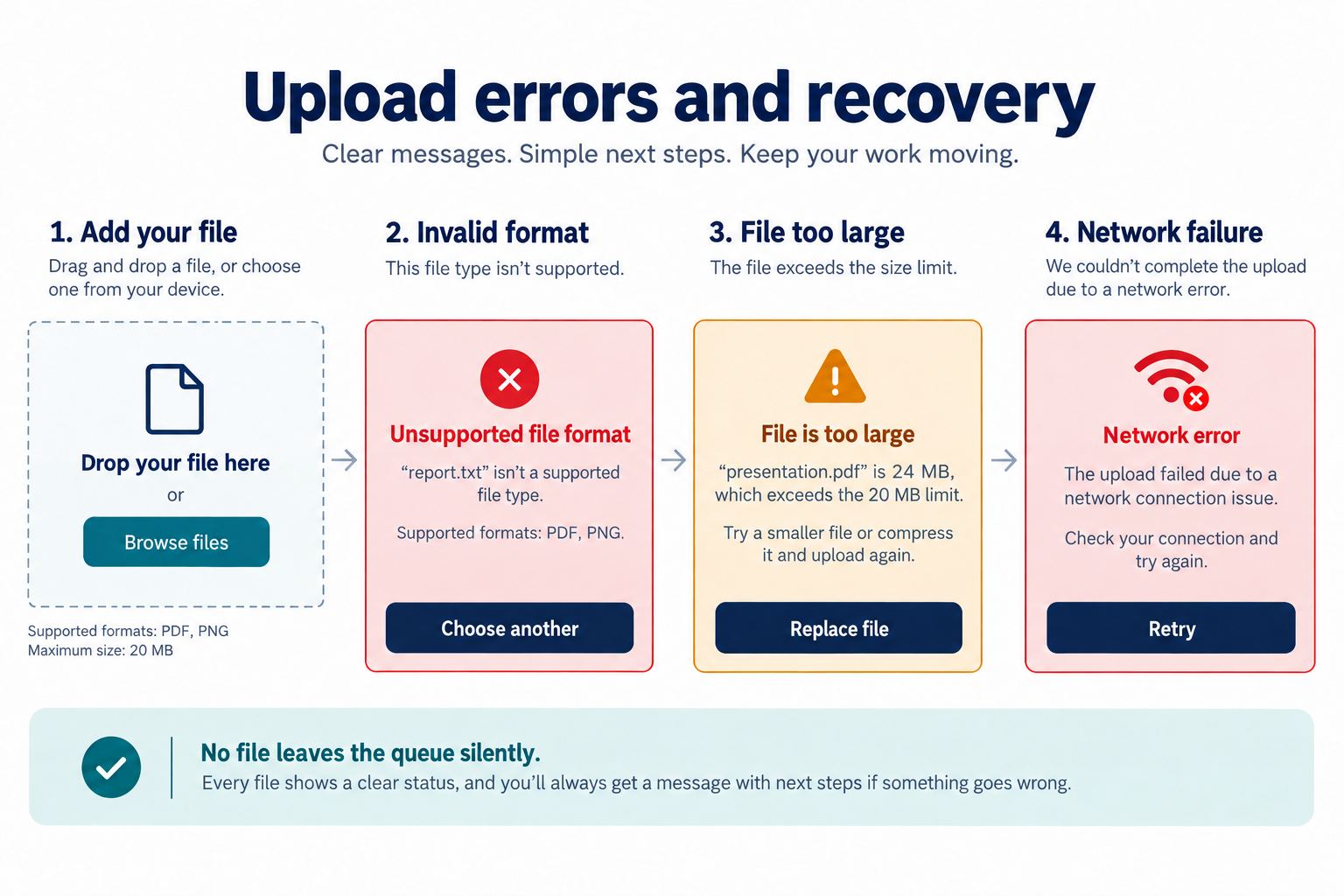
Useful validation messages name the file and the rule:
- “annual-report.zip is not supported. Choose a PDF or PNG file.”
- “portfolio-final.pdf is 27 MB. Choose a file smaller than 20 MB.”
- “You can upload five files. Remove one file before adding another.”
- “image.png could not be accepted after security checks. Replace the file or contact support.”
Do not encourage users to rename an extension as a workaround. If the product validates file content, say which supported format to create instead. For security-sensitive rejection, disclose enough to recover without exposing detection details that create risk.
Part 5. Use progress only for what can be measured
A determinate progress bar is appropriate when the client knows bytes transferred or another measurable total. Use an indeterminate indicator when duration is unknown. Never animate a percentage that is not tied to real progress.
Transfer reaching 100 percent means the bytes reached the server; it may not mean the file is safe, processed, or attached to the user’s record. Follow it with a processing state when needed, then show a clear completion state backed by the final record.
If the connection slows, keep the file name, current progress, and available actions stable. A speed or time estimate is optional and should not be presented as exact. If the user navigates away, state whether uploads stop, continue in the background, or can be resumed later.
Part 6. Design failure and retry around data safety
Not every error can be retried. A temporary network failure may support retry from the last confirmed chunk or from the beginning. A quota failure needs account action. An unsupported file needs replacement. A server-processing failure may require support while preserving the uploaded file record.
| Failure | Preserve | Primary recovery |
|---|---|---|
| Temporary network loss | File row and confirmed progress when resumable | Retry or resume |
| Expired session | Non-sensitive queue context; follow security policy for local file handles | Sign in and reselect if required |
| Unsupported type | File name and rule explanation | Replace |
| Storage quota reached | Other completed files | Manage storage or change plan |
| Processing failed | Uploaded record and failure reference | Retry processing or contact support |
Prevent duplicate submissions while a retry is running. If retry may create another server record, the implementation needs an idempotency strategy. The design should name the intended behavior but cannot guarantee it without engineering support.
Part 7. Model the upload states in Pixso
In Pixso, create components for the drop zone, file row, progress bar, status badge, and queue summary. Build file-row states for selected, validating, uploading, paused, failed, processing, and complete. Use shared styles or variables for status colors, but also include icons and text so meaning does not depend on color.
Review the file upload UI design as one state system rather than approving each attractive frame in isolation.
Use layout settings to let long names wrap or truncate according to an explicit rule while actions remain visible. Test a 3 KB file, a 19.9 MB file, a long localized file name, duplicate names, five rows, and a mixed queue containing both success and failure.
Place annotations next to the frame for authoritative limits, server-only checks, navigation behavior, and completion evidence. Pixso’s real-time editing, comments, and link sharing let product, content, engineering, and security review the same editable design. For reusable patterns, connect the queue to the Pixso design system workflow. Pixso helps document the interface; it does not perform upload security or storage processing.

Part 8. Specify accessible status communication
Every action needs a clear accessible name that includes the file where ambiguity is possible, such as “Retry portfolio-final.pdf.” In implementation, announce meaningful status changes without flooding the user with every percentage update. Keyboard users must be able to choose files, reach queue actions, cancel, retry, and continue.
Keep errors close to the file row and include a summary when several files fail. Ensure progress and status remain understandable at high zoom and in high-contrast settings. Thumbnails need alt text only when their visual content conveys information; otherwise the file name may be the better accessible label.
When the queue changes dynamically, preserve a logical focus position. Removing one row should not send keyboard focus to the top of the page, and retry completion should not steal focus from another file action. These details need browser-level testing with the actual queue implementation.
The W3C form notification guidance is a useful reference for implemented feedback. Final behavior still requires testing with the product’s supported browsers and assistive technologies.
Part 9. Define what “done” means
After all transfers finish, the overall form may still require a Save or Submit action. Clarify whether uploaded files are already attached, temporarily staged, or discarded if the user leaves. Do not show “Portfolio submitted” when only the files have uploaded.
For the worked example, each completed row shows the accepted file record and timestamp. The page-level action remains “Submit portfolio.” After that separate transaction succeeds, the interface shows a portfolio confirmation number. This distinction prevents users from assuming a broader task is complete.
Part 10. File upload UI design checklist
- Accepted formats, file size, queue limit, and retention are visible.
- Browse works without drag-and-drop.
- Selected, validating, uploading, processing, failed, and complete are separate states.
- Progress is tied to measurable work.
- Every failure points to retry, replace, remove, account action, or support.
- Retry cannot silently create a duplicate transaction.
- Long names, duplicates, mixed queues, and narrow layouts are tested.
- Status changes and actions are keyboard and assistive-technology accessible.
- File completion is distinct from completion of the surrounding business task.
Conclusion
File upload UI design succeeds when users always know what the system has accepted, what is still happening, and how to recover. Define the upload contract, separate validation from transfer and processing, preserve safe context after failure, and provide real completion evidence. Model those states as reusable Pixso components, then test the implemented security, network, and accessibility behavior.

![[Must-know] 8 UX Design Principles](https://pixso.net/assets/media/ux-design-principles-1-05fa3776c794be16.webp)


