Scott
An icon can be mathematically centered and still look off-center. A play triangle, for example, has more visible area near its flat edge than near its point. Start with geometric alignment, then judge the visible shape at the size and on the background where people will use it. Keep the icon's outer frame stable while adjusting the artwork inside.
This is a specific part of alignment in interface design. The goal is not to abandon the grid: it is to make different shapes feel balanced without changing button spacing, touch targets or component dimensions every time an icon changes.
1. Geometric alignment and optical alignment solve different problems
Geometric centering aligns the center of an object's bounds with the center of its container. Those bounds are useful for repeatable layout, but they do not describe how dark, dense or asymmetrical the visible shape appears.
Optical alignment is a visual adjustment to that starting position. A right-pointing play triangle may need a small shift toward its point; a circular shape may need a different apparent size from a square. The result depends on the drawing, stroke, surrounding text and display size. There is no universal one-pixel correction that fixes every icon.
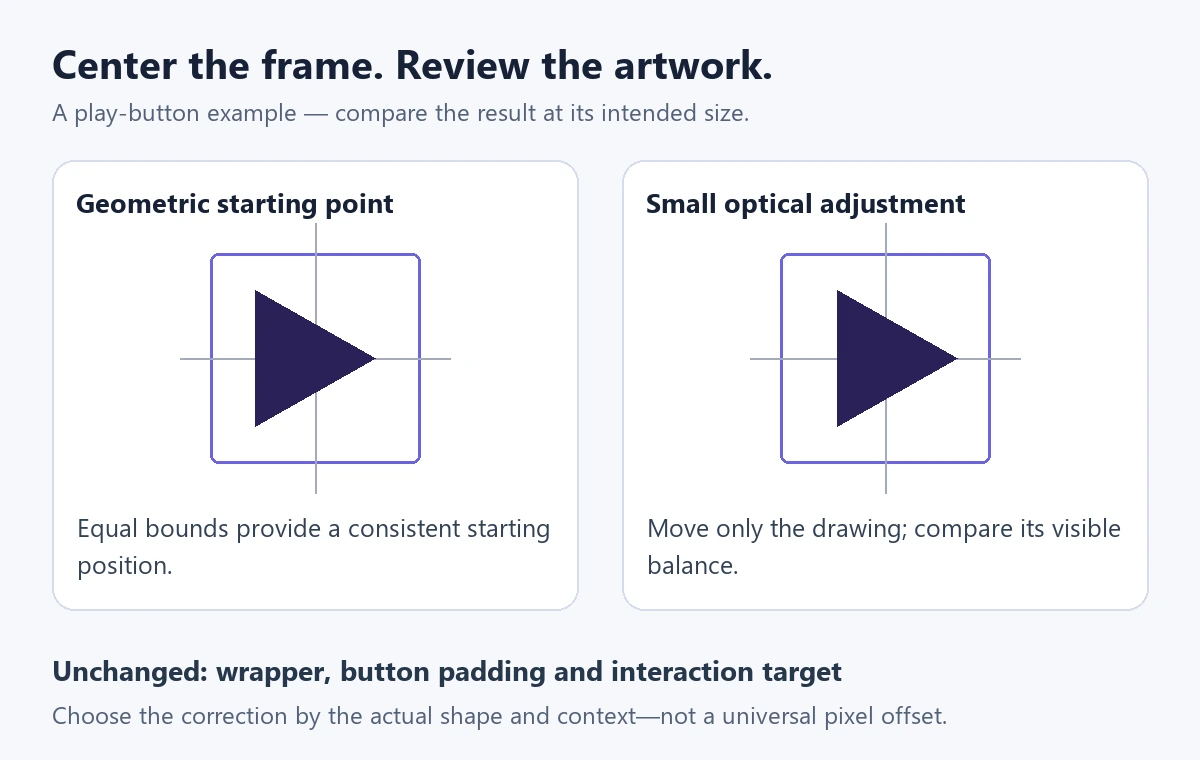
Check the surrounding alignment first. If every icon and label is displaced in the same direction, the parent layout may be wrong. If only one asymmetrical shape looks off while its neighbors sit correctly, adjust that shape rather than compensating with different padding on every button.
2. Build one stable icon wrapper in Pixso
Use a 24 × 24 px frame as an example icon wrapper. Place the vector artwork inside it and center it geometrically. Keep the wrapper at 24 × 24 px throughout the exercise; that is the space the button layout will reserve, not a rule that the artwork must fill every pixel.
For a button labelled “Play preview,” place the wrapper and text in a horizontal layout with a consistent gap. Duplicate the button and swap the play triangle for a square or another familiar icon from the same set. With the label, wrapper and padding unchanged, it becomes much easier to see whether the triangle itself needs a correction.
- View the buttons at their intended display size, not only at a large canvas zoom.
- Keep a geometrically centered version beside the candidate. Move only the triangle within its wrapper by a small amount toward the point.
- Compare both versions against the neighboring icon and the complete button. Stop when the shape looks balanced; do not aim for an arbitrary numeric offset.
- Try the same wrapper without a text label. The surrounding circle or square may reveal a different imbalance.
- Record the chosen correction in the icon component so each consuming button does not need its own manual nudge.
The wrapper protects layout consistency. It is separate from the interactive target, which may be larger, and separate from the visible focus treatment. Moving the drawing should not move the target or reduce the space available for interaction.
3. Use shape rules as comparisons, not automatic fixes
| Shape | What to compare | A useful adjustment to try |
|---|---|---|
| Triangle or play icon | The dense flat side against the empty space near the point | A small shift toward the point, while leaving the wrapper unchanged |
| Circle beside a square | Apparent size and weight, not just equal bounding-box dimensions | A modest change in the circle's artwork size, checked within the same icon family |
| Arrow or chevron | The whole silhouette, including the stem, head and angle | A position or drawing adjustment; do not align the head while ignoring the rest of the arrow |
| Outline beside filled icon | Stroke weight, filled area and the role of the two states | Use a coordinated pair from the same family, or adjust the drawing deliberately rather than scaling every outline icon |
| Magnifier, pencil or microphone | Diagonal details and empty areas inside the bounds | A small position adjustment after comparing it with neighboring icons at the real size |
Do not automatically enlarge every circle to 26 px or offset every triangle by 1 px. A large filled triangle and a small outline triangle can need different treatment. If a correction makes one icon look better in isolation but disrupts the set, revise the artwork or choose a more compatible icon.
4. Align icons with text, groups and exported assets
Icon beside a label
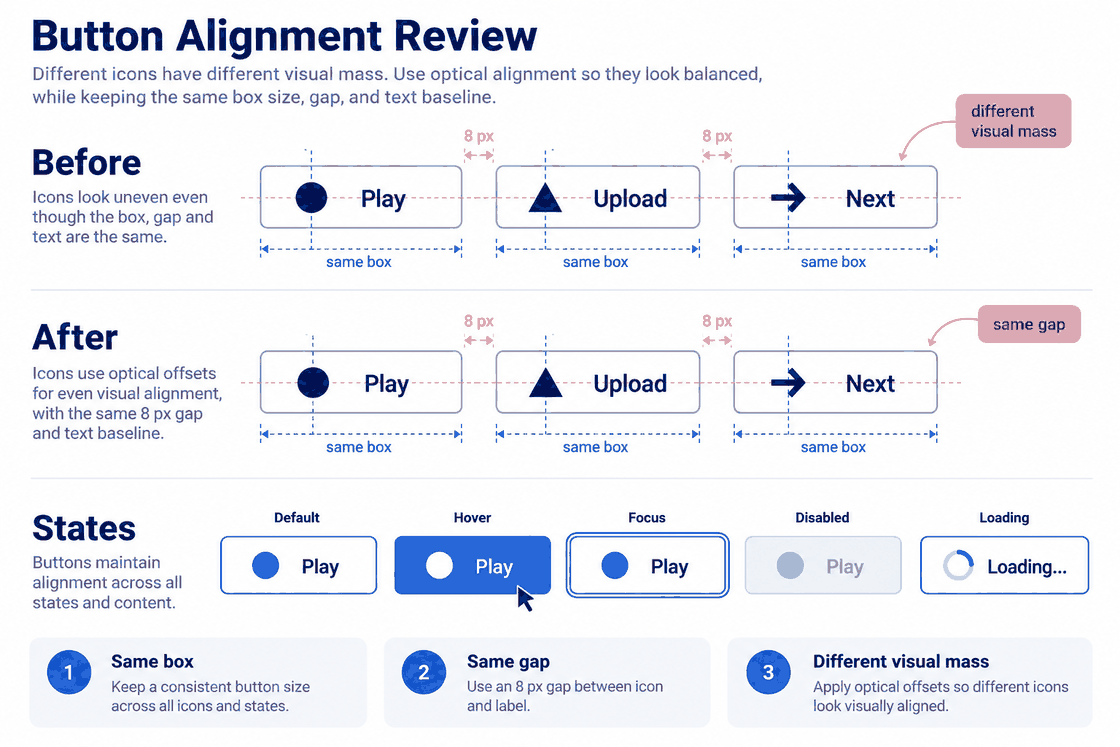
Use the text's line box as a stable layout reference, then compare the visible icon with the actual label. An all-caps word, a lowercase word and a mixed-script label have different visual shapes. The x-height is a useful reference for some lowercase labels, not a universal baseline for every icon and typeface.
Test “Play,” “Play preview” and a longer translated label. If the button can wrap, decide whether the icon remains aligned with the first line or with the complete text block. That is a component behavior decision; a vertical nudge should not hide it.
Icon groups and navigation
Place each icon in an equal-sized wrapper, then distribute the wrappers with the layout system. Review the drawings inside those wrappers for apparent size and weight. A wide icon should not make one navigation item consume more space unless that is an intentional part of the design.
SVG handoff
Export the agreed wrapper or asset bounds consistently. If one SVG is tightly cropped to its path and another includes the 24 px wrapper, a developer can give both the same CSS size and still get different apparent dimensions. Compare the exported file's dimensions and viewBox with the design before changing the implementation's margins.
The SVG viewBox defines the coordinate rectangle mapped into the viewport. Keep intentional empty space when it forms part of the icon's alignment. Remove genuinely stray objects, but do not flatten every path as a blanket export rule: it can remove useful editability without fixing the actual bounds problem.
5. Find the cause when a correction does not hold
The icon moves when its state changes. Compare the paths and bounds in default, active and disabled states. A thicker stroke or a filled replacement can change visual weight. Hold the wrapper and position steady, then adjust the state drawings as a coordinated pair.
The icon looks correct when enlarged, but blurred at its real size. Inspect the rasterized result at the intended size and pixel density. A fractional shift changes how an edge falls on the pixel grid. Use the position that produces the best result in context rather than assuming every subpixel correction is an improvement.
The same component differs between screens. Check for local overrides, detached copies, inconsistent wrapper dimensions or a different icon version. Fix the shared source where possible instead of adding unrelated compensating margins.
The export differs from the canvas. Compare the file actually delivered to the browser, not a new export from another selection. Check clipping, effects, dimensions and viewBox. An unwanted point outside the visible shape can change bounds; intentional padding can also explain the difference.
Review other output sizes separately. A correction selected for a compact control is not automatically appropriate for a large illustration. Preserve the design rationale, not just a numeric offset.
6. Share the correction through the component, not each screen
Save the wrapper and its adjusted artwork as a reusable icon component. Give different states the same layout contract and note any intentional exception. Designers can then place instances inside buttons, fields or navigation without recreating the alignment by hand.
In Pixso, changes to a published component do not silently propagate to every file. The components guide explains that changes in the current file must be published to update the team library. Review the available update in consuming files and inspect representative buttons after applying it, especially where instances have overrides.
Keep a small comparison board beside the component source: one text button, one icon-only button, a navigation row and the important states. This gives the team a concrete reference when a future change in stroke or typography makes an icon seem off-center again.
Keep the layout stable and adjust the visible shape
Geometric alignment provides a repeatable starting point. Optical review refines the drawing within it. A successful correction stays consistent across the icon's intended sizes, states and exports without forcing every screen to compensate for it.

![[Full Guide] Expand Collapse UI Design](https://pixso.net/assets/editorial/20261006/refresh-6665/refresh-6665-en-accordion-shipping-hero-8f07cac4a9ce.webp)