Scott
Every UI designer has experienced the dread of a lagging canvas. When your file takes minutes to load and every click feels delayed, the culprit is usually a bloated design system. The debate between using a variant and using a simple toggle switch sits at the absolute center of this performance issue. Understanding how to structure your component properties correctly is the secret to building scalable, fast-loading interfaces. If you want to stop the endless spinning wheel of death, you need to know exactly when to use boolean properties and when to rely on variant properties to keep your overarching component library lightweight and efficient. Let’s break down the ultimate strategy for modern UI design and put an end to sluggish files.
Part 1. Defining the core concepts of UI architecture
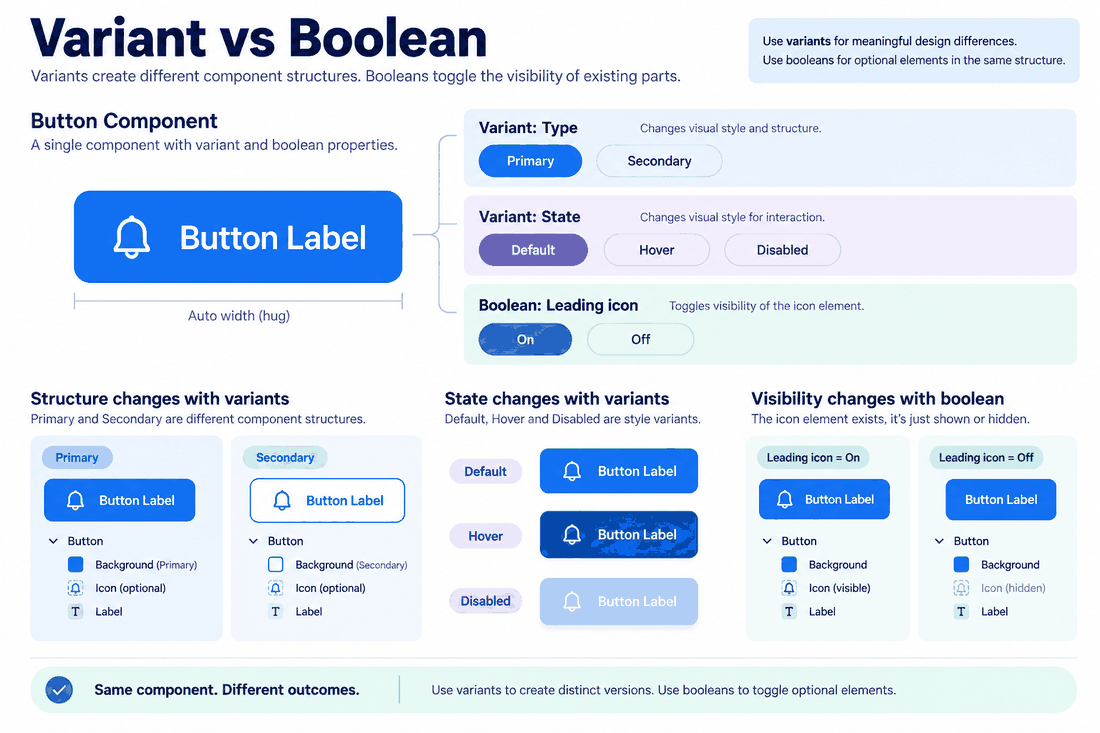
To build a lightweight system, you must first clear up the conceptual differences between the two main methods of component state management. Many junior designers treat them interchangeably, which is a recipe for file bloat.
A variant represents a distinct, physical iteration of a design. When you create multiple variations of a button (like primary, secondary, and tertiary), the design tool actually renders separate graphical nodes for each version. Every time you add a new state, you are adding physical mass to your file.
On the other hand, a boolean is a binary switch, a simple true or false. It does not create a new version of your component. Instead, it merely dictates whether a specific layer inside the existing component is visible or hidden.
The performance difference here is massive. Relying strictly on variant properties means drawing dozens of individual buttons on your master canvas. Relying heavily on boolean properties means drawing one master button that contains several hidden layers. Understanding this underlying logic is the first step to optimizing your workflow.
Part 2. Pixso: The ultimate tool for lightweight design systems
Before diving into complex component architecture, we need to talk about the environment where you build it. If you are using legacy tools that lack advanced property management, your files will always be heavy. To execute a modern, lightweight strategy, you need a next-generation UI design tool.
Pixso is specifically engineered to handle complex property logic without degrading file performance. Unlike older platforms where managing thousands of assets causes severe lag, Pixso operates on a highly optimized cloud-native rendering engine.
Here is how Pixso directly solves the pain points of building a component library:
- Advanced Property Management: Pixso allows you to seamlessly combine multiple property types on a single master component, giving you total control over what is rendered and what is hidden.
- Team Standardization: You can codify your "variant plus boolean" rules directly into Pixso templates. When a new designer joins the team, they don't have to guess how to build a button; they just pull the pre-configured asset from the shared cloud library.
- Developer Alignment: Pixso’s dev mode maps your design properties perfectly to frontend code. A boolean toggle in Pixso translates directly to a boolean prop in React or Vue, drastically reducing handoff friction.
By migrating your heavy, legacy files into Pixso, you instantly gain the infrastructure needed to trim the fat from your design system.
Part 3. Scenario-based selection: When to use which?
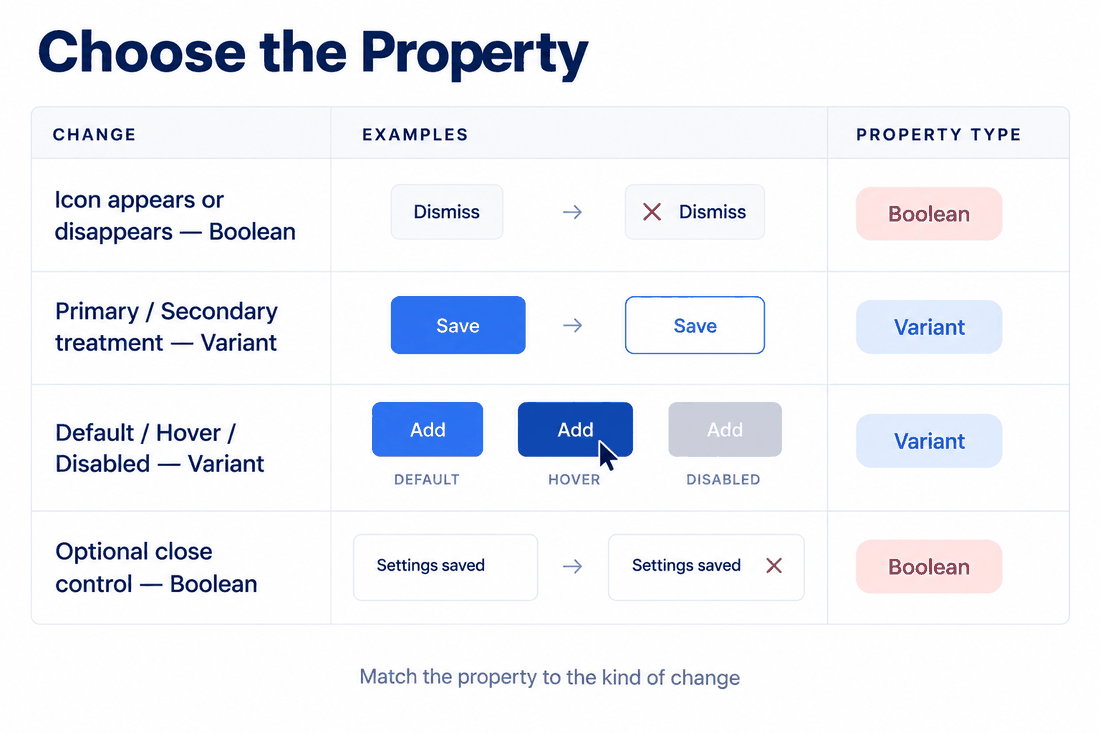
The secret to a highly optimized file is knowing exactly which property type to deploy in specific scenarios. You should never guess; you should follow a strict set of rules based on the visual changes required.
As a general rule, if an element has two states or fewer, use a boolean toggle. If an element has three or more states, or requires fundamental structural changes, use a variant.
Let's break this down into clear scenarios:
| Design Requirement | Recommended Property | Explanation |
| Adding an Icon to a Button | Boolean | The icon is either there (True) or not there (False). This is an accessory element. |
| Button Hierarchy (Primary, Secondary, Ghost) | Variant | These represent entirely different visual treatments, background colors, and border styles. |
| Button States (Default, Hover, Disabled) | Variant | These require distinct CSS values and multi-dimensional visual changes. |
| Showing/Hiding a Modal Close Button | Boolean | It is a simple binary visibility toggle that doesn't change the modal's core layout. |
When you are dealing with core dimensions, like size, color theme, and interaction state, you must create physical variations. However, for accessory items, like trailing icons, text labels, or notification dots, you should always use boolean toggles. Mixing these correctly is how you achieve balance.
Part 4. Optimizing performance to prevent the explosion
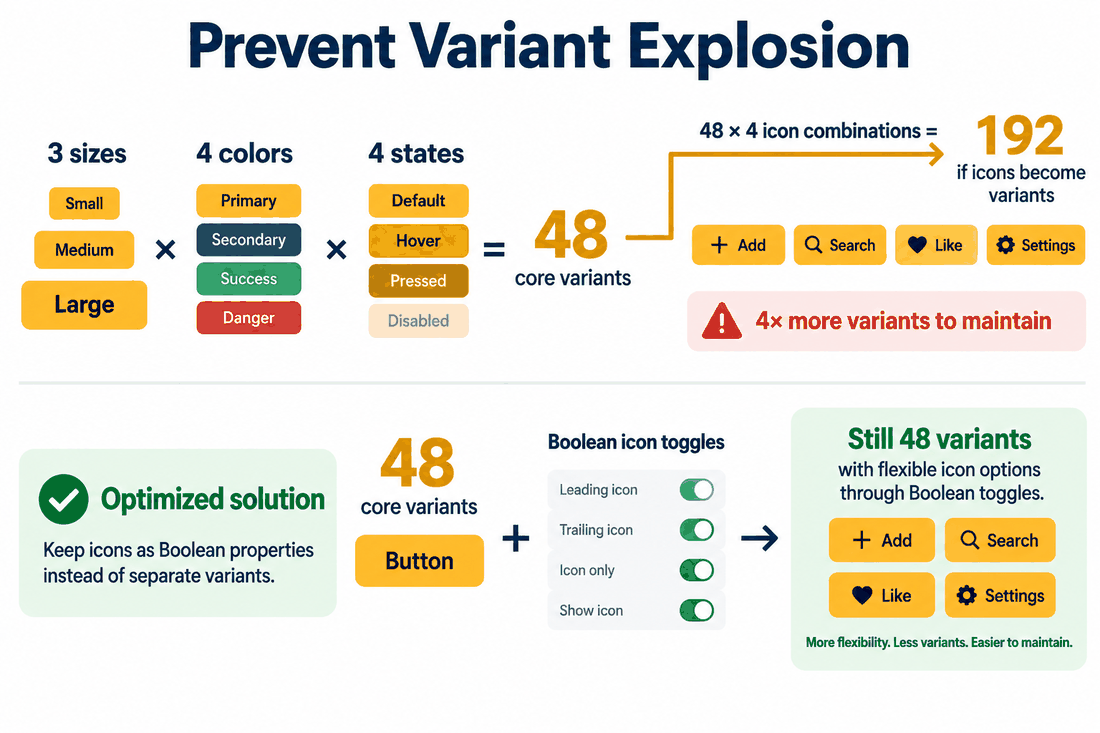
The biggest threat to your component library is a phenomenon known as "variant explosion." This happens when designers use a variant for every single conceivable combination of a component.
Imagine a button. It has 3 sizes (Small, Medium, Large), 4 colors (Blue, Red, Green, Gray), and 4 states (Default, Hover, Active, Disabled). That is 48 variations. Now, imagine you want versions with a left icon, a right icon, both icons, and no icons. If you build this using only variant properties, you multiply 48 by 4, resulting in 192 individual buttons rendered on your canvas. Your file will become incredibly sluggish.
To optimize this, you must use boolean properties to cut the math down. You only build the core 48 buttons. Inside those 48 buttons, you add the left and right icons, but you set their visibility to a boolean toggle. You have just reduced your component size from 192 physical nodes down to 48, slashing the file weight drastically while retaining the exact same functionality for your design team.
However, you must also be careful of boolean bloat. If you take one master card component and stuff it with 50 hidden layers (different avatars, badges, text blocks, and dividers) just so you can toggle them on and off, that single node becomes incredibly heavy to compute. The key to a lightweight system is finding the threshold: reduce nodes with booleans, but don't pack a single node with too many hidden layers.
Part 5. Aligning your design model with frontend code
One of the greatest benefits of structuring your component properties correctly is how it bridges the gap between design and engineering. In the past, designers built static pictures, and developers had to translate those pictures into logical code. Today, the way you structure your assets in Pixso should exactly mirror the code structure in the frontend repository.
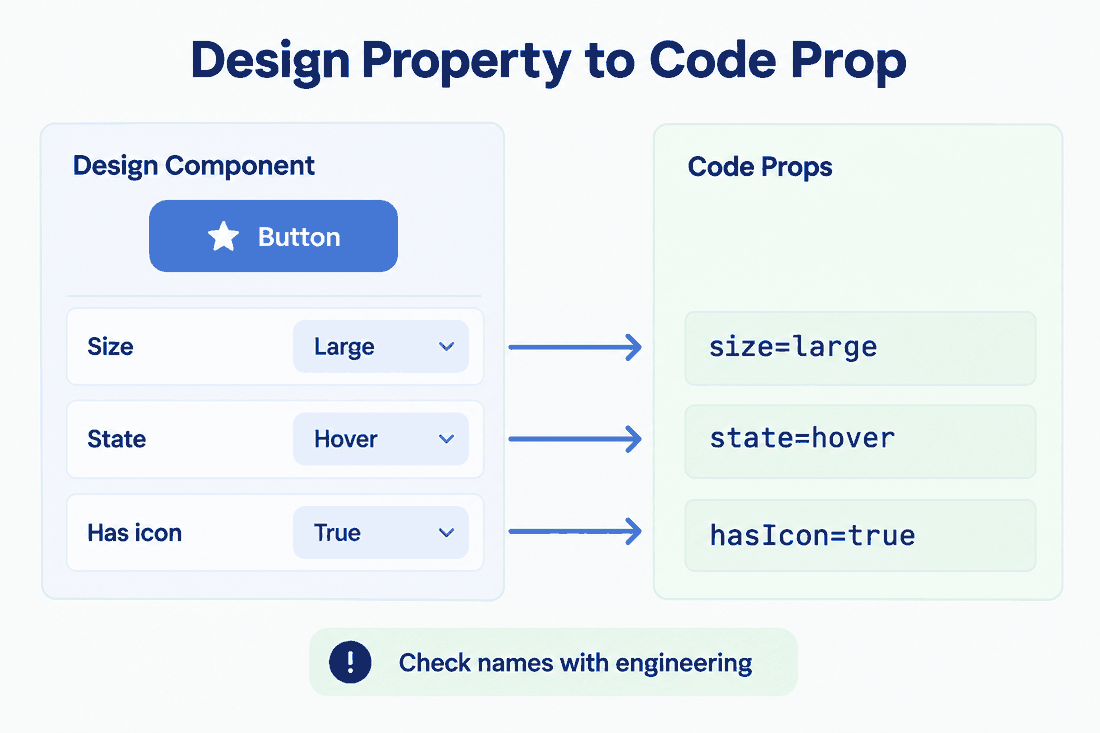
Developers do not code 192 separate buttons. They code one base button component and pass properties (Props) to it. They use a string prop for the size (size="large"), which maps perfectly to your variant logic. They use a boolean prop for the icon (hasIcon={true}), which maps perfectly to your boolean logic.
When you establish this "Variant + Boolean" mixed usage rule across your team, you are essentially speaking the developer's language. Because Pixso is designed with code translation in mind, structuring your assets this way allows for pristine, one-click code generation. The property mapping is clear, there is no redundant code, and the conversion cost during the developer handoff drops to near zero.
Part 6. Common mistakes and how to avoid them
Even with a solid understanding of the theory, teams often fall into traps that bloat their files and ruin collaboration. To make a component library lighter, you must actively audit your files for these common errors.
1. The Abuse of Booleans (The Frankenstein Component)
Do not try to build one master component that serves every purpose. If you have a "Card" component where you use toggles to turn it into a user profile, a product listing, and a blog post preview, you have nested too deeply. This creates a massive, hidden layer tree that slows down rendering. Break these into separate core variants instead.
2. The Abuse of Variants (The Endless Matrix)
Never use a variant for a simple visibility toggle. If you have a row of master components that are completely identical except one has a tiny red notification dot and the other doesn't, you are wasting memory. Delete the extra node and apply a visibility toggle to the dot.
3. Inconsistent Naming Conventions
Mixing up naming structures creates chaos when a team tries to use the system. If one designer names a toggle "Show Icon" and another names it "Icon=True," the component panel becomes unreadable. Establish strict naming conventions, document them in your Pixso style guide, and ensure everyone adheres to the same terminology.
Balancing file volume, computing performance, maintenance cost, and collaboration efficiency is the hallmark of a senior designer. By diligently managing your property types, you ensure your design system remains lean, fast, and infinitely scalable.
Conclusion
Keeping your design files fast and manageable shouldn't be a daily struggle. The choice between creating a new variant and using a boolean switch fundamentally dictates the health of your component library. By reserving variants for major structural or state changes and utilizing booleans for simple visibility toggles, you can completely eliminate file bloat and variant explosion. This logical approach not only speeds up your canvas but also perfectly aligns your designs with frontend developer workflows. Don't let heavy, poorly constructed components slow down your creative process. Migrate your systems to Pixso, leverage its advanced property management features, and start building truly lightweight, modern user interfaces today.