Scott
A wireframe helps a team decide what belongs on a screen and how people will move through a task. Keep the first version simple enough to change quickly, but include realistic labels and essential states. The five steps below use a mobile shopping flow to show how a rough layout becomes something useful to review.
What is a wireframe?
A wireframe represents the structure of a screen: its content areas, navigation, controls, and information hierarchy. It usually leaves detailed visual styling for later so the team can discuss the layout without getting distracted by color or decoration.

For a shopping app, a product-page wireframe might show the image, price, options, delivery information, and Add to cart action. It describes what the interface needs to communicate. It does not, by itself, specify the database or prove that the flow will meet users' needs.
Why use a wireframe?
1. Make the proposed structure concrete
A wireframe gives designers, developers, and stakeholders a shared screen to discuss. Instead of asking for an “easy checkout,” the team can examine where the delivery address appears, when shipping costs are shown, and how a user returns to the cart. Annotate behavior that the drawing alone cannot explain.
2. Compare alternatives before polishing them
Keep alternative layouts beside one another. You might compare a product page with options above the purchase button against one with options farther down. Rough versions make structural differences easier to discuss before the team spends time on detailed imagery and styling.
3. Identify missing content and states early
Review the task beyond its ideal path. What happens when an item is unavailable, a field is empty, or the cart contains a long product name? Finding these gaps in a wireframe lets the team agree on the required screens and behavior before implementation.
How to create a wireframe in five steps
You can begin on paper or in a digital design tool. In Pixso, use frames, simple shapes, text, and reusable components to make the structure easy to edit and share. Choose the level of detail that helps the team answer the current design question.
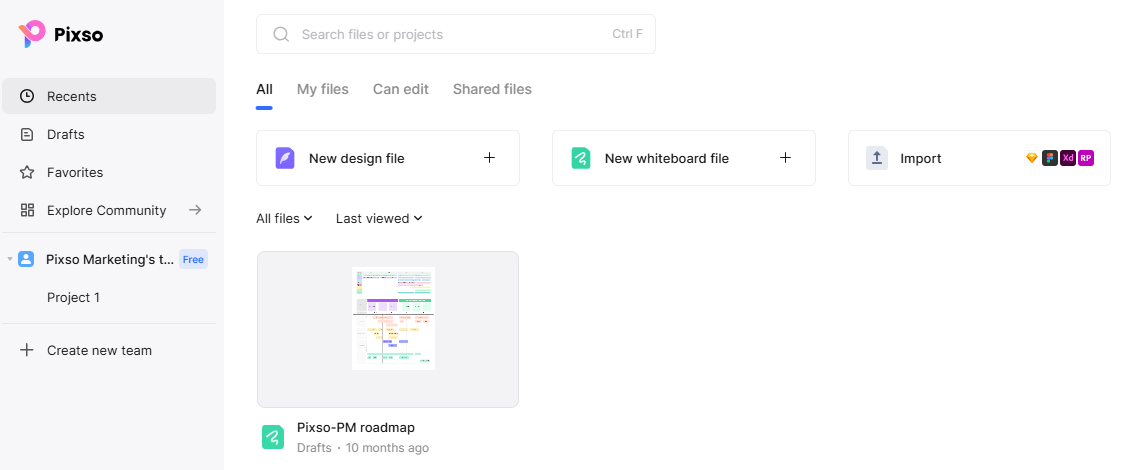

For this example, the task is to choose a product, add it to the cart, and review the order. Write that task above the frames so each screen has a clear purpose.
Step 1: Set up the screen and task
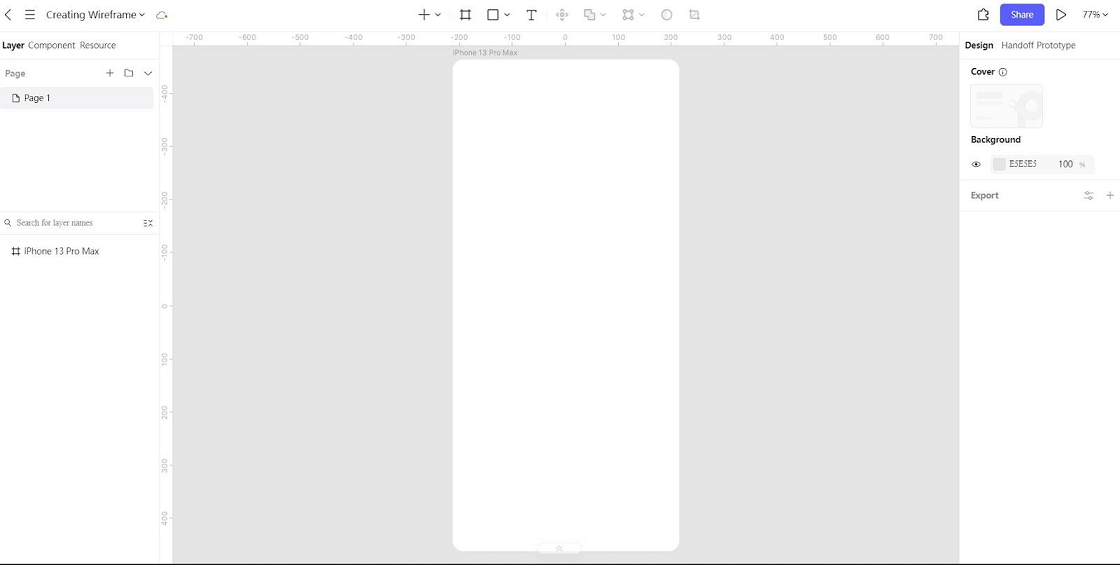
Create a frame for a representative mobile viewport and name it by screen, such as Product details. Note the task's starting point and completion point. Leave room for system UI and plan how the layout should adapt to other widths; a device preset is a starting size, not a complete responsive strategy.
Step 2: Arrange the main content areas
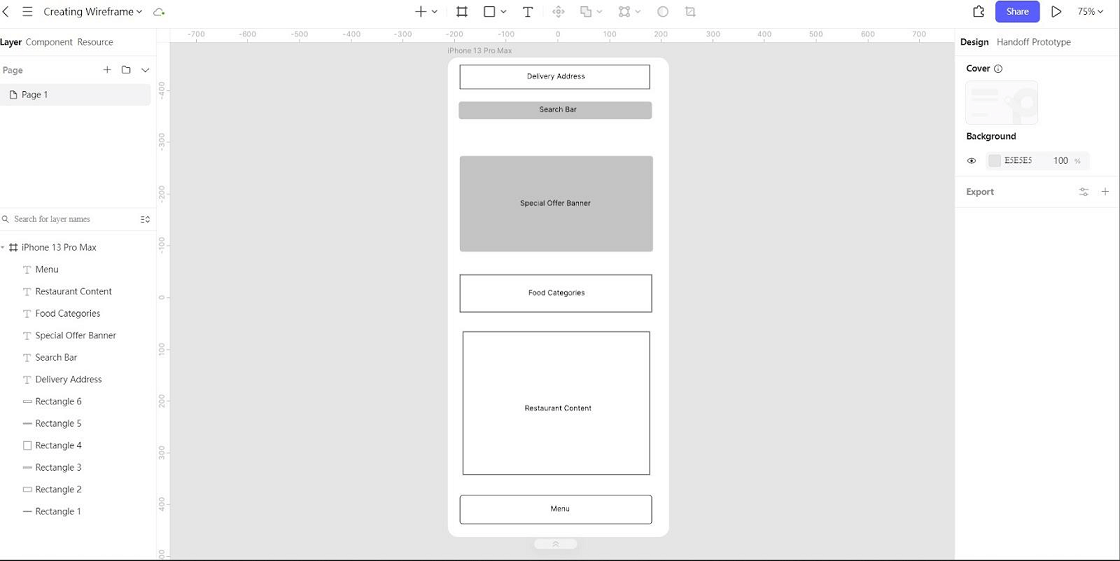
Use simple rectangles and text blocks to place the navigation, product image, title, price, options, and main action. Give the information needed for the purchase decision enough prominence. Keep related details together and use spacing to separate groups before adding decorative borders or backgrounds.
Step 3: Add controls and their states
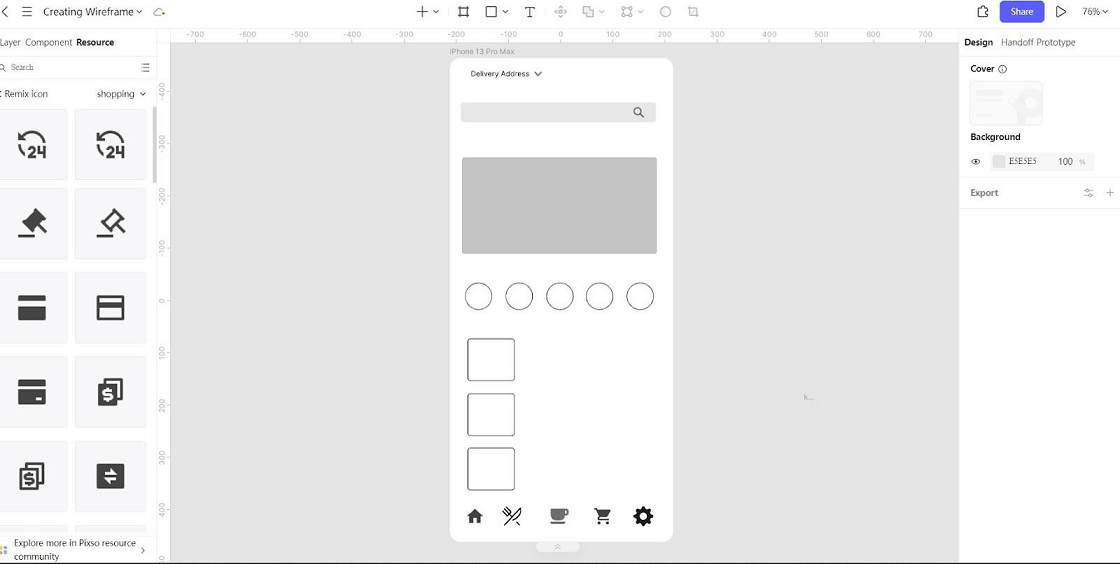
Replace vague boxes with recognizable buttons, fields, selectors, and navigation items. Add labels where an icon alone could be ambiguous. Include the states needed for the task, such as an unavailable size, an empty cart, or a quantity limit, and leave enough space for comfortable touch interaction.
Step 4: Write realistic interface copy
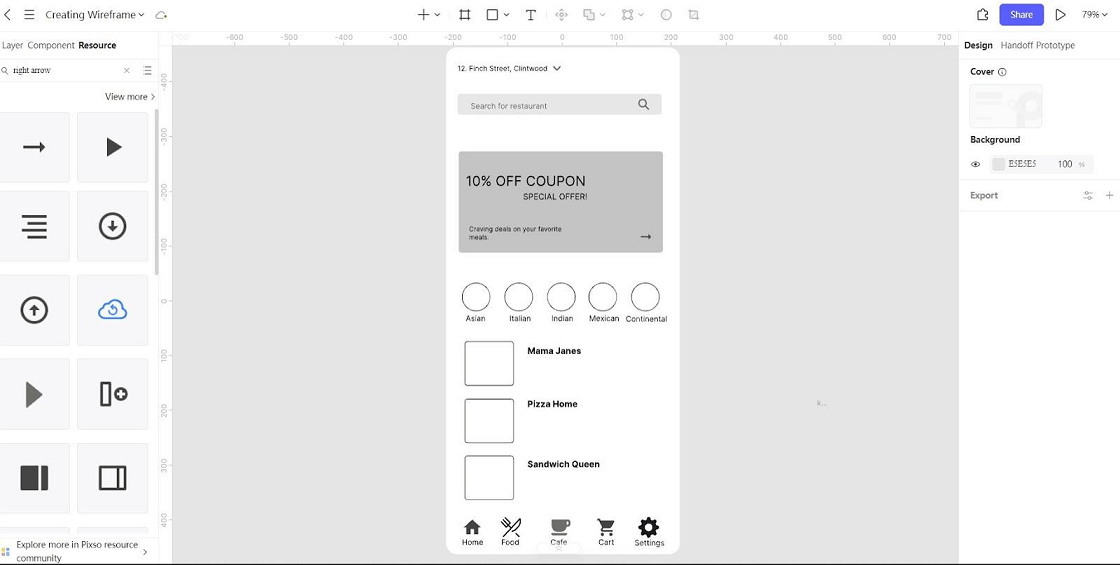
Use meaningful product names, prices, field labels, and action text. “Add to cart” explains the result more clearly than a generic “Submit.” Try a long product title and a helpful error message so the layout reflects real content. Temporary copy is useful for an early sketch, but important layout decisions need realistic text.
Step 5: Map the transitions and review the flow
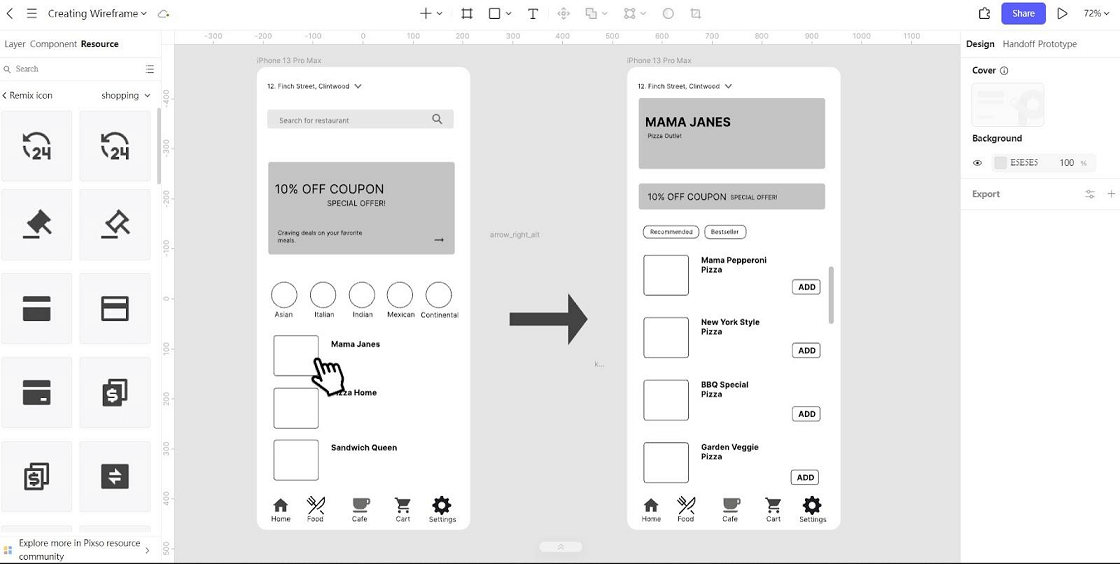
Connect the screens needed for the task with arrows or prototype links. Label the action that causes each transition and show a way back where appropriate. Ask someone to find a product and review the cart while you observe where they hesitate. You do not need to connect unrelated screens simply because they are in the same file.
You can create wireframes with Pixso to develop the shared layout and discuss the structure before adding visual detail.
Move on when the structure answers the task
Before refining the visuals in Pixso, agree on the essential content, actions, and unresolved behavior. If the review exposes a structural problem, revise the wireframe while it is still easy to change. The aim is a clear design decision, not a polished drawing of an untested flow.