Scott
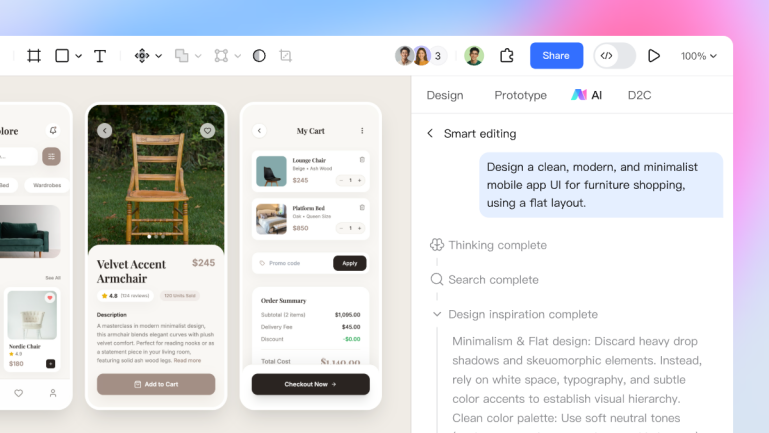
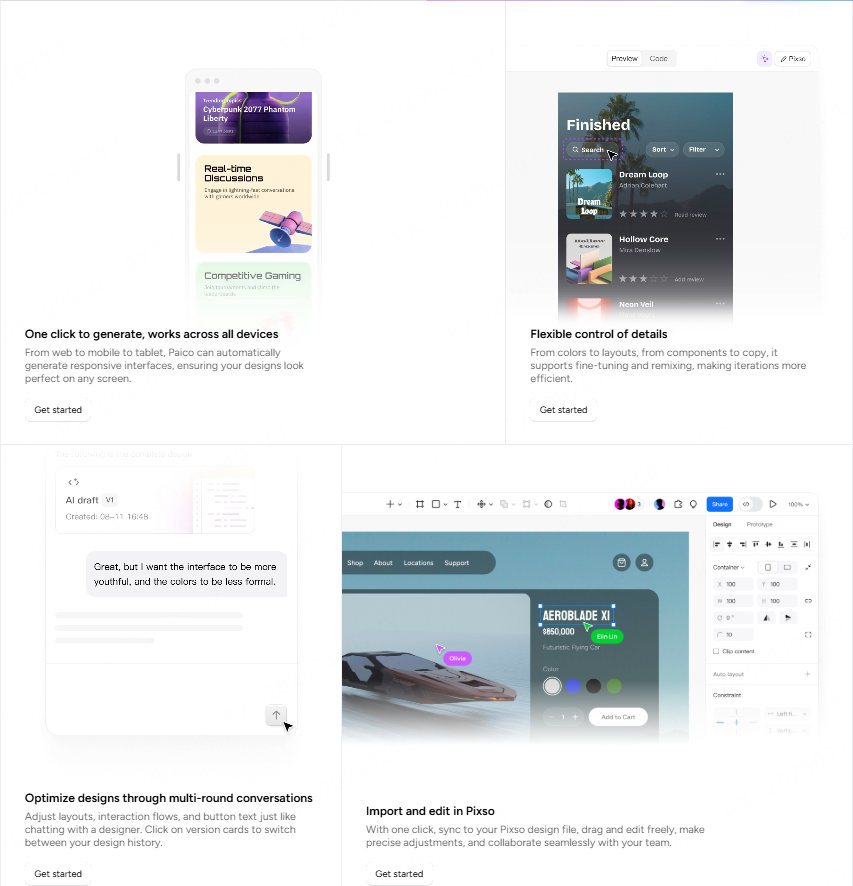
Pixso Smart Design brings generative AI directly into your vector workspace, turning simple text prompts into high-fidelity, fully editable UI designs. It tackles the headache of slow prototyping head-on and smooths out the entire workflow from that first spark of an idea all the way to developer handoff. With features like semantic layer naming and instant multi-page generation, it’s a must-have tool for teams looking to cut costs, save time, and seriously boost productivity.
Part 1. What exactly is Pixso Smart Design?
Before we get into how you can use it, let's break down what Pixso Smart Design actually does. This isn't just another flashy plugin or a basic filter. It's a smart assistant built right into your design process to handle the heavy lifting:
- Text-to-UI Prototyping: Just type out what you need, and the system builds a complete UI page with logical layouts, color palettes, and real-sounding copy.
- Multi-Page Flow Generation: It actually understands user journeys. It can generate a connected set of screens, like signup, login, and a user dashboard, all at once.
- True Vector Assets: A lot of AI tools just spit out flat images. Pixso generates 100% editable vector files, meaning you can tweak every single pixel later.
- Smart Semantic Assistance: Say goodbye to "Lorem Ipsum" and layers named "Rectangle 324." It automatically names your layers, fills in realistic copy, and pulls the right icons from your library.
Part 2. Traditional workflows vs. Pixso smart creation
Wondering how it stacks up against doing things the old-fashioned way? Here’s a quick look at how the smart design engine changes the game compared to manual drafting:
| Traditional Manual Design vs. Pixso Smart Design | ||
| Aspect | Traditional Manual Design | Pixso AI Smart Design |
| Initial Setup | Building shapes and layouts entirely from scratch. | Quickly generating complete UI screens via text prompts. |
| Iteration Cost | Manually tweaking individual vector anchor points and layer hierarchies. | 100% editable vector assets, supporting smart post-generation edits. |
| User Flows | Drafting screens independently with disconnected UX logic. | Generating connected multi-page flows with perfectly consistent logic. |
| File Organization | Manually renaming layers, leading to messy and cluttered files. | Automated semantic layer naming that aligns with coding conventions. |
| Developer Handoff | Requires tedious manual redlining and asset preparation. | Auto-generated specs with a seamless one-click design-to-code workflow. |
Part 3. How to actually use Pixso smart design
3.1 Rapid Prototyping & Market Testing
When you're just starting a project, you can type in a basic requirement and instantly get high-fidelity mockups for core flows, like homepages and login screens. If you're at a startup, this is a game-changer. It saves weeks of polishing prototypes and lets you put visual assets in front of users for testing almost immediately. The result? Cheaper, faster market validation.
3.2 Iterating on Existing Designs
We all know the struggle of building new features that need to match an existing brand style. With Pixso, you can use your current design system as a baseline. The AI uses it as a guide to generate new pages that look perfectly on-brand. And since everything it outputs is vector-based, you can jump in and refine the details, keeping total creative control while working way faster.
3.3 Smoother Designer-Developer Handoffs
Let’s be real: messy layer names are a nightmare for developers. Pixso fixes this right out of the gate by automatically naming elements based on their actual function and visual hierarchy. Because the file is logically organized from the start, handing it off to developers requires way less back-and-forth explaining. Your design file actually becomes a clear, readable source of truth.
Part 4. Why it works for enterprise teams
4.1 Real Vector Output, Not Just Pixels
Most AI design tools out there just generate flat images. Pixso is different because it’s built on a powerful vector engine. Every button, card, and layout is structured data with actual coordinates, dimensions, and properties. Your designs stay crisp at any resolution and are infinitely editable.
4.2 Logic-Driven Multi-Page Generation
Pixso doesn't just throw random templates together; it actually understands business logic. For example, if you ask for a telehealth app, it knows you'll need a logical flow connecting medical records, booking screens, and doctor consults. It generates a cohesive set of screens that make actual sense for the user experience.
4.3 Staying On-Brand Automatically
Keeping designs consistent across a big company is tough. Pixso Smart Design lets you hook up your team’s existing component libraries. This means every icon, font, and color the AI uses follows your brand guidelines perfectly. It's exactly the kind of reliable, constraint-based output that enterprise teams need.
Part 5. FAQ
Q1: Can I actually use these AI-generated designs in a real project?
Absolutely. They aren't flat images you can't touch. They are standard, fully editable design files made of vector paths, text layers, and auto-layouts. You can jump in and adjust any detail, making them totally ready for production and developer handoff.
Q2: Can I bring in files from other design tools?
Yes, Pixso plays nice with others. You can easily import files from Figma, Sketch, or Adobe XD, and then use Pixso's smart features to optimize, restyle, or turn those older assets into fresh components.
Q3: Do I need to be a pro designer to use this?
Not at all. That’s the beauty of it. Product managers, founders, and marketers can generate professional-looking UI screens just by typing out what they need. It really lowers the barrier to entry for creating solid UI designs.
Q4: What about copyright and collaboration?
You own all the graphic assets you generate. Plus, Pixso is cloud-based, so your whole team can jump into the same file, leave comments, and edit in real time. No more confusing file versions floating around.
Conclusion
Smart design tools aren't here to replace human creativity or aesthetic judgment. They're here to handle the grunt work. When an AI takes care of drawing repetitive rectangles and renaming hundreds of layers, designers actually have the time to focus on what matters: user research, experience logic, and high-level brand strategy.
👉 Sign up today and try Pixso Smart Design for free!