On this page

Scott
AI image-generation tools help designers explore an illustration, background or visual direction before building the final layout. In Pixso AI, start with the image’s role in the design, describe the composition and compare the result on the canvas with real content.
What to Plan Before Generating an Image
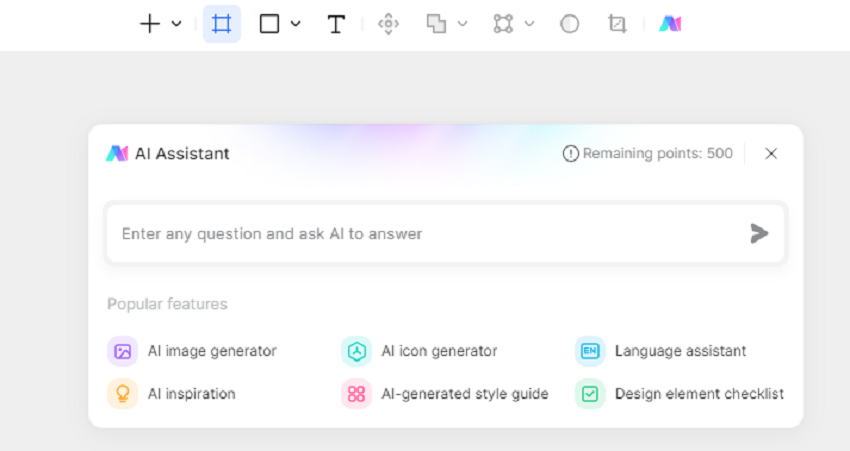

For an article cover, leave space for the headline. For a product card, make the object easy to identify at a small size. For a background, choose a composition that supports the interface instead of competing with its controls.
Use the image-generation options available in Pixso AI to explore that direction. Select a model or style that fits the task, and use a reference image when the current tool supports it. Keep the same brief while comparing results so you can see which change helps.
How to Generate an Image in Pixso AI
Step 1: Sign In and Check Your Workspace
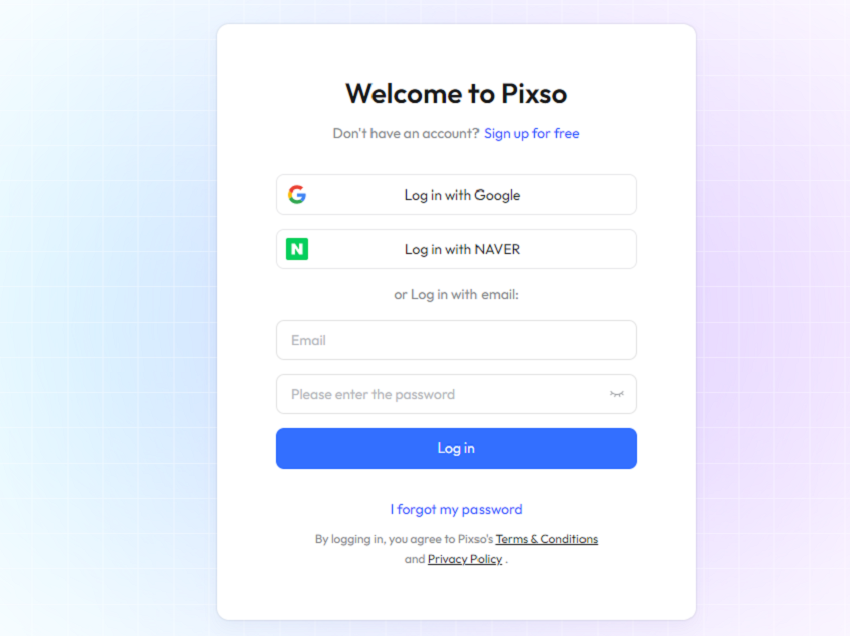
Create a Pixso account or sign in, then open the workspace where you will use the image. Check the available AI tools and credit balance before starting a series of generations.
Step 2: Open the Image-Generation Tool
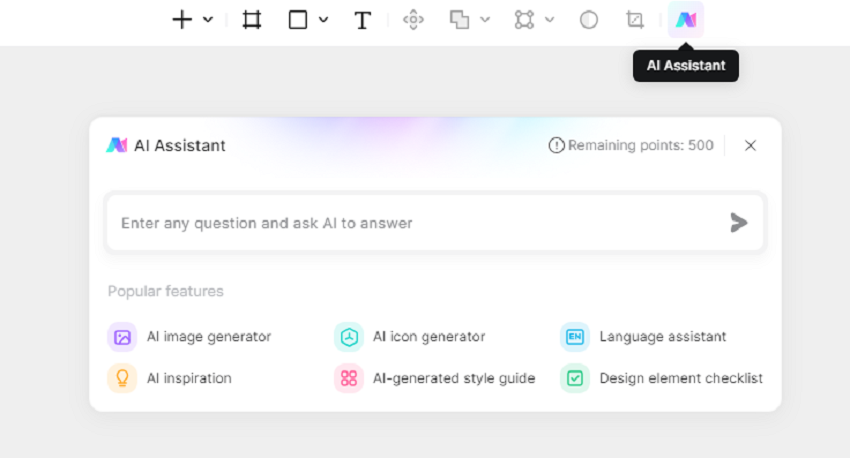
Open a design file and select the Pixso AI tools. Choose image generation from the available options. Keep the intended image size and surrounding text in view while preparing the request.
Step 3: Choose Settings for the Design
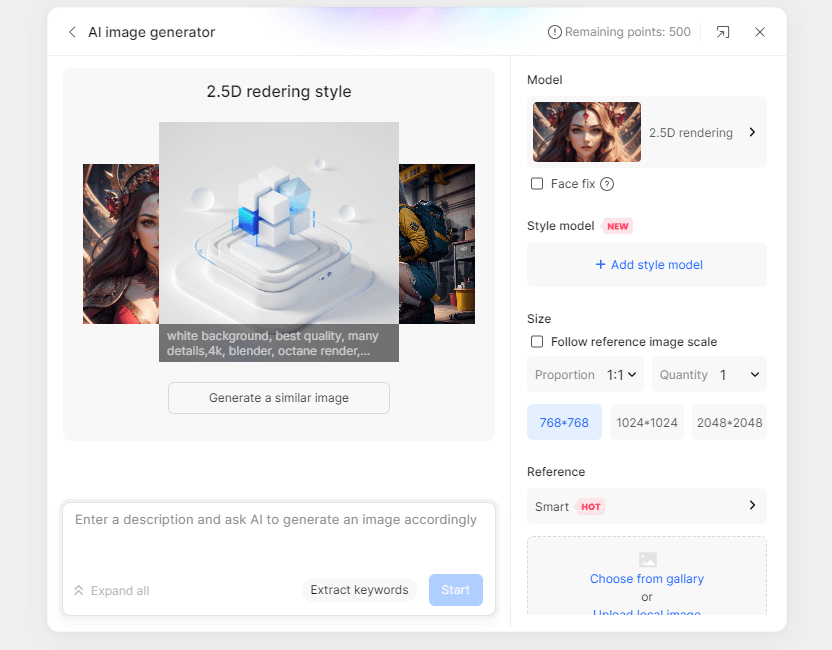
Set the controls that affect the image’s role in your design. Start with a clear composition and adjust the available settings one at a time.
Composition: decide where the subject should sit and where the layout needs empty space. A banner often needs a different crop from a square card.
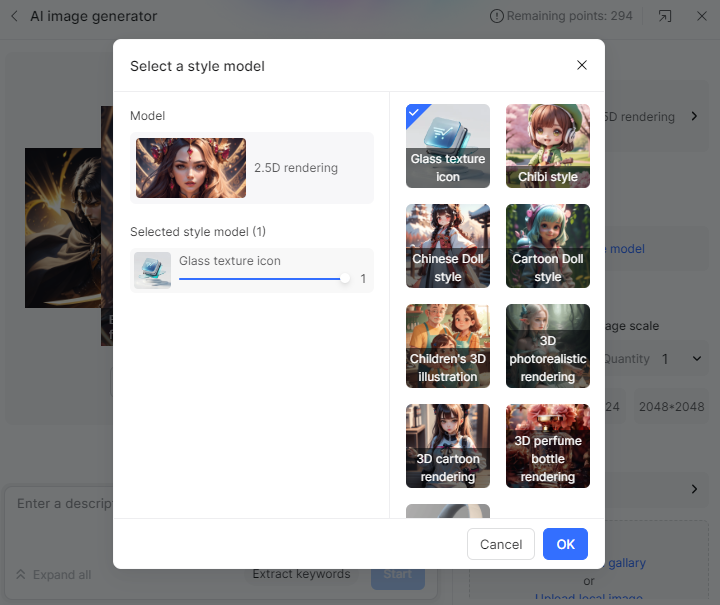
Model or style: choose from the options shown in the current panel. Compare how each handles the subject, lighting and amount of detail.
Visual direction: describe the colors, materials and mood that fit the project. Use a consistent direction when several images will appear together.
Size and aspect ratio: match the intended placement, then inspect the result at the size readers will see. Small icons need a clear silhouette; large illustrations need enough detail to survive the crop.
Reference image: when supported, add an image to communicate composition or style. Explain which elements matter, such as the object’s position or the space reserved for a headline.
AI credits: check the balance and usage details for the workspace you are using. Personal, team and enterprise credits are separate; Pixso editor credits and Paico text-to-design credits are also separate.
Step 4: Write a Specific Image Prompt
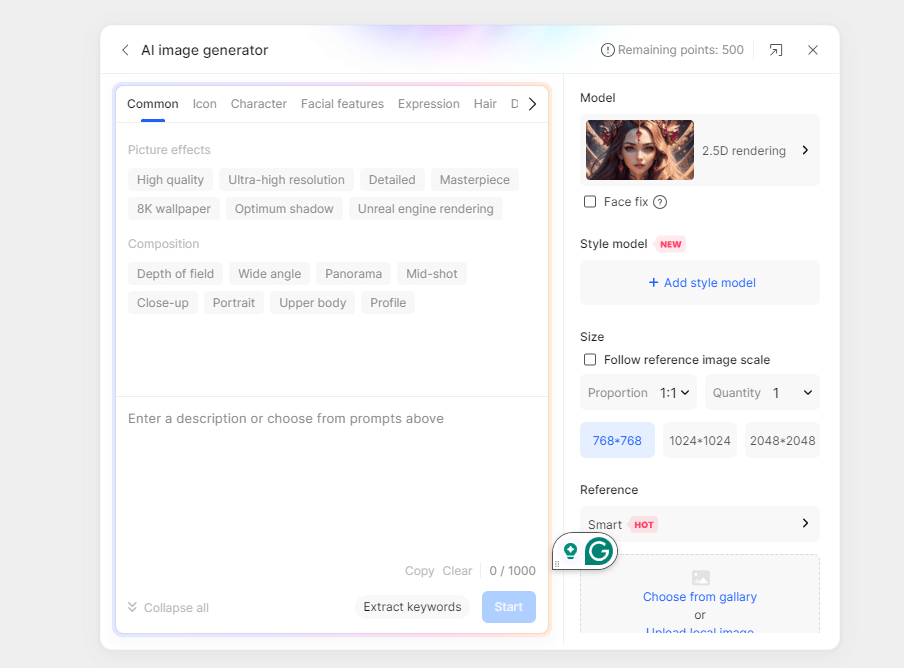
A useful prompt names the subject, composition, environment and visual treatment. For an article cover, include where the title will go and what should remain easy to recognize at thumbnail size.
For example: “A small desk with a sketchbook and a green plant, soft side lighting, warm neutral background, subject on the right, clear space on the left for a headline.” This gives the generator a visual task rather than a list of unrelated style words.
Refine one visible problem at a time. If the subject is too close to the edge, ask for more space around it. If the background competes with the text, request a simpler background and compare the next result in the same layout.
Step 5: Place and Export the Image
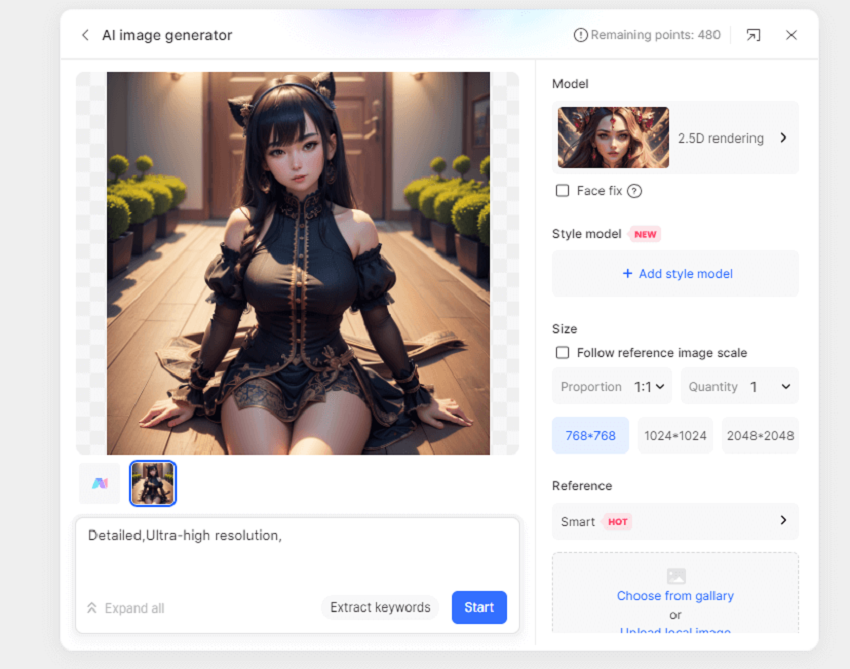
Choose the strongest result and use the available insert or save action to bring it into your design. Adjust the crop, position and scale on the canvas, then add the headline and supporting text as editable layers.
Select the image or frame you want to export, choose the available format and dimensions, and inspect the saved result. The exported image should preserve the composition and remain readable at its intended display size.
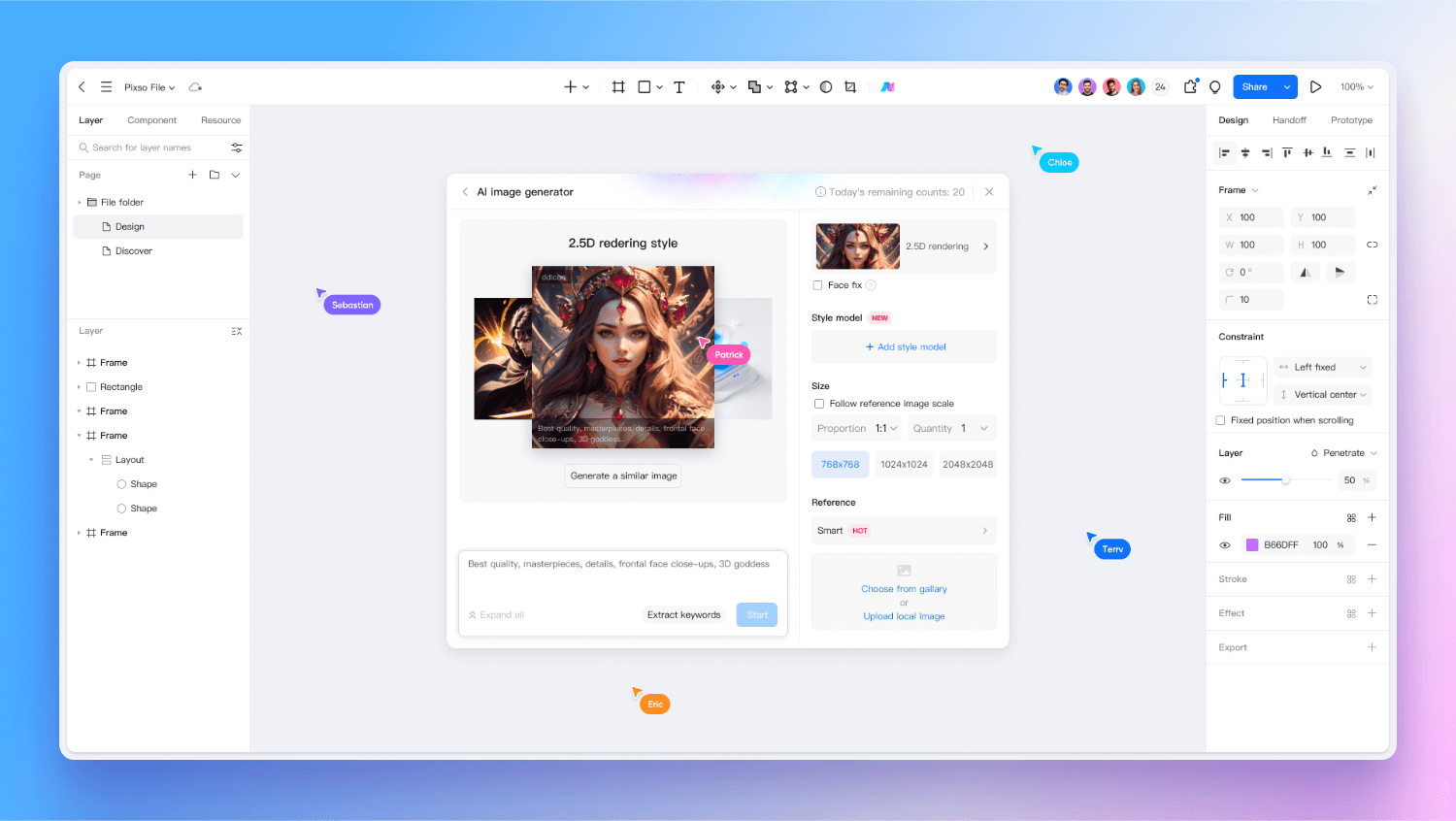
For a set of article images or product backgrounds, keep a record of the visual direction and prompts that worked. Reuse those decisions while adjusting the subject and crop for each placement.
Judge the result in context. An image that looks impressive on its own may overwhelm a small card or leave no room for a headline. Comparing it with real text is a faster way to decide what to keep.
Start with one clear visual task in Pixso AI, generate a few alternatives within your available credits and refine the most useful result on the canvas. The goal is an image that supports the message and fits the design.