On this page

Scott
Permission UX explains who can view a resource, who can change it and what happens when access changes. Start with the action a person wants to take: read a project, comment on a file, invite a teammate or publish an update. A role label becomes useful only when its consequences are clear.
A useful permission flow covers the whole task: choose an audience, understand the role, confirm the change and see the resulting access. Requesting access also needs an honest pending state. The interface should reflect the application’s authorization decision; hiding a control cannot enforce that decision on its own.
This guide focuses on sharing, access requests, inherited roles and recovery during collaboration. For the wider team workflow, see UI design collaboration tools for remote teams.
Begin with actions, not role names
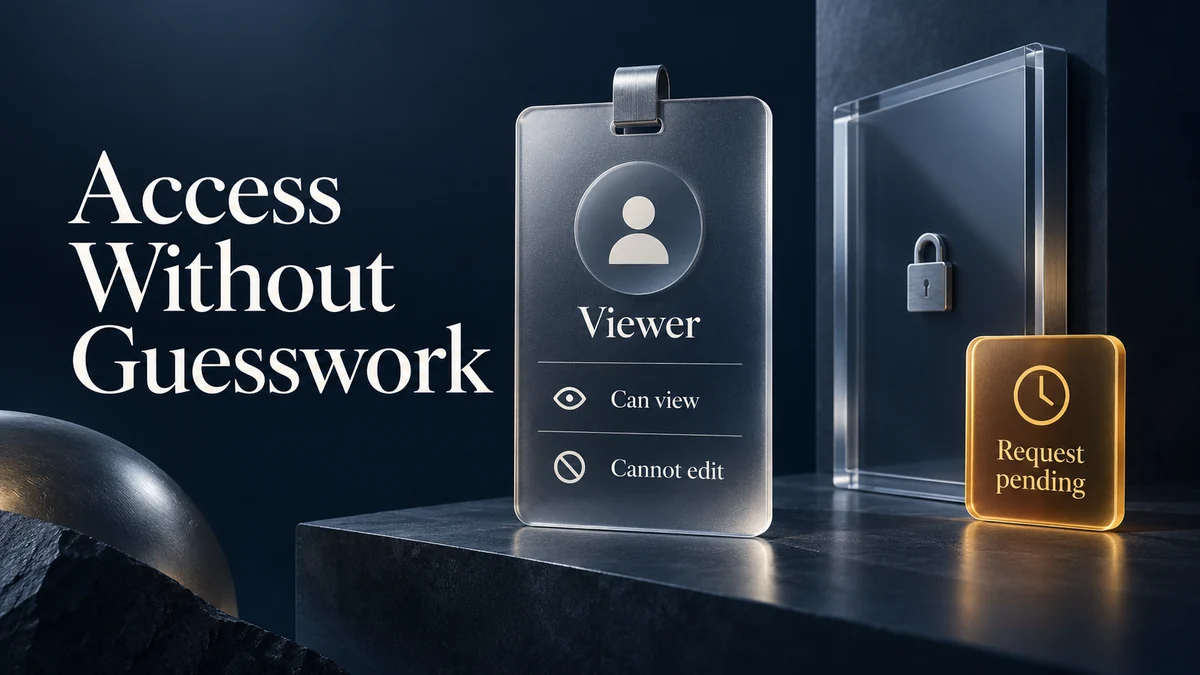
“Editor,” “viewer,” and “admin” are implementation labels, not always user goals. A person wants to know whether they can change a prototype, invite a teammate, export a file, or publish a link. Start the design with the actions that matter in the current resource, then map those actions to roles and policies.
Create a permission matrix that includes the object, action, audience, and result:
| Object | Action | Audience | Result |
|---|---|---|---|
| Project | View drafts | Team members | Can open files in the project |
| File | Comment | Reviewers | Can add comments but not change layers |
| Library | Publish update | Maintainers | Makes the selected version available to consumers |
| Workspace | Invite member | Owners | Adds a person after policy checks |
The matrix is a design input, not the user-facing copy. It reveals where one role name hides several different capabilities and where a destructive action needs a confirmation or an audit record.
Show the current boundary before the user reaches it
Explain restrictions where people encounter them. “Only project owners can publish” answers more than an unexplained disabled button. Make the explanation visible or reachable by keyboard; a tooltip available only on mouse hover is not enough. Offer a request or contact route only when it exists. If the action will never be available in this context and has no useful explanatory value, hiding it may be clearer than displaying a wall of disabled controls.
Do not show private resource names to people who are not allowed to know that the resource exists. A safe message can say “You don’t have access to this project” without confirming a hidden project’s title or members. Work with the security owner to define what the interface is allowed to reveal.
Role summaries should be concise and action-oriented. Instead of a paragraph of policy text, show the most important capabilities first and offer details on demand. Keep the same order across the member list, share dialog, and settings so users do not need to relearn the model.
Design the share flow as a preview of consequences
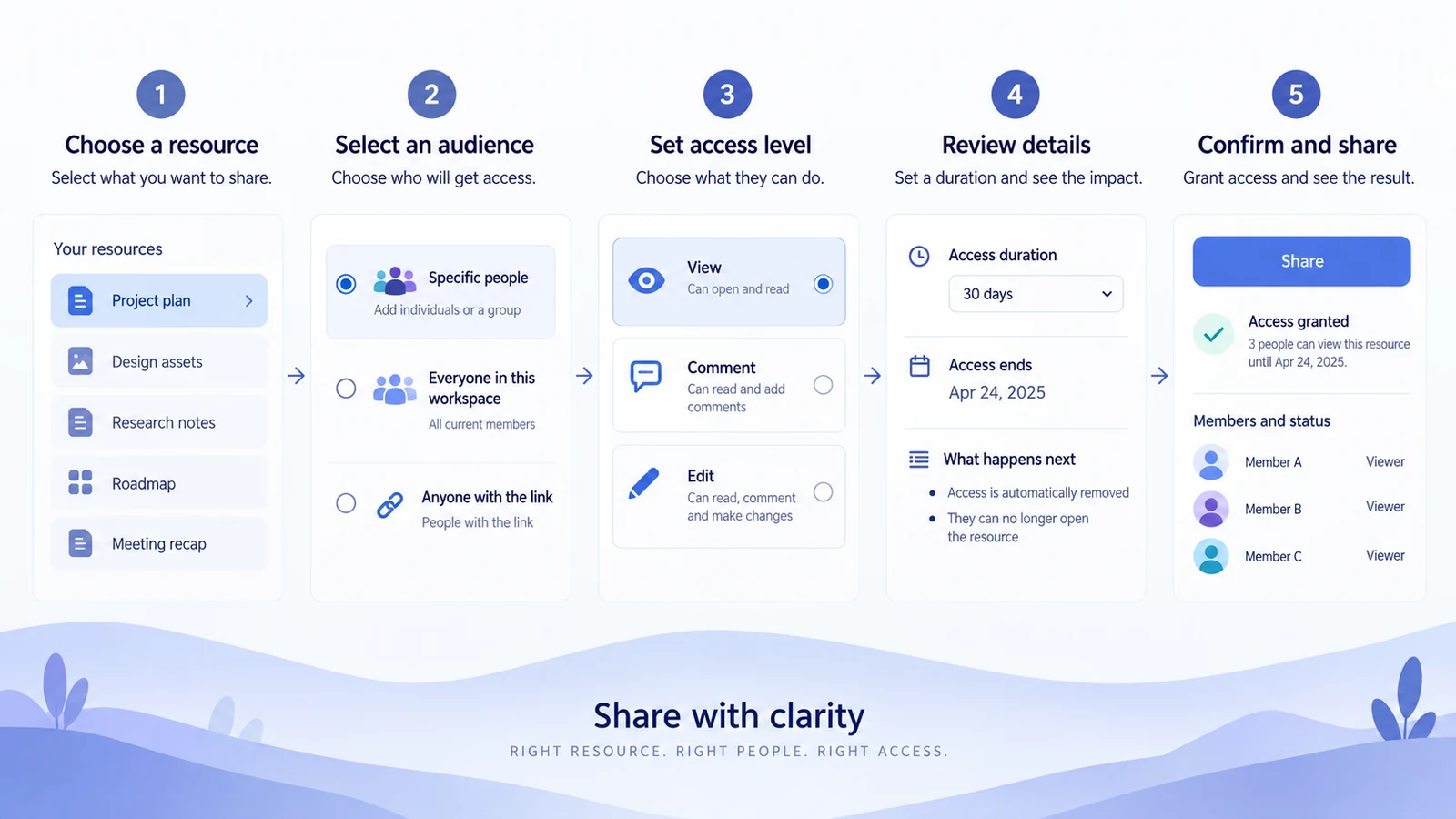
Sharing changes another person’s future actions. Show the resource, intended audience, access level, expiration if applicable, and notification behaviour before the user confirms. If a link can be forwarded, say so. If a role includes download or duplication, make that consequence visible rather than hiding it in a tooltip.
A useful confirmation has three parts:
- Who: person, team, group, or anyone with a link.
- Can do: view, comment, edit, publish, or manage access.
- For how long: permanent, scheduled expiry, or until manually removed.
A “Share” button can remain the final action if the selected audience and role are explicit beside it. Changing from named teammates to “Anyone with the link” should update the summary before confirmation, including whether signed-out visitors can open the resource. Record that transition and its failure state in the design-to-code handoff.
Make role changes reversible and observable
Role changes may take effect immediately, but the person who made the change needs feedback. After confirmation, show what changed and where the member appears in the list. If the change is pending policy review or invitation acceptance, say that rather than presenting it as complete.
Provide a way to undo or restore the previous role when the policy allows it. The undo message should name the affected person and resource, not just say “Action undone.” If an administrator must approve restoration, explain the next step and preserve the change history for authorised viewers.
If access is removed during editing, stop actions the new policy no longer permits and explain what happened. Preserve unsaved work only through an authorized recovery route. For example, the product may retain a recoverable draft for the owner without allowing the removed member to download restricted material. Agree on that behavior before designing a “Save a copy” button.
Design request-access as a small, purposeful form
A request-access flow should collect only what the approver needs: the resource, requested action or role, optional reason, and relevant deadline. The requester should know who will receive the request and what happens after submission. Avoid asking the user to describe the entire project when the system already knows the file and team.
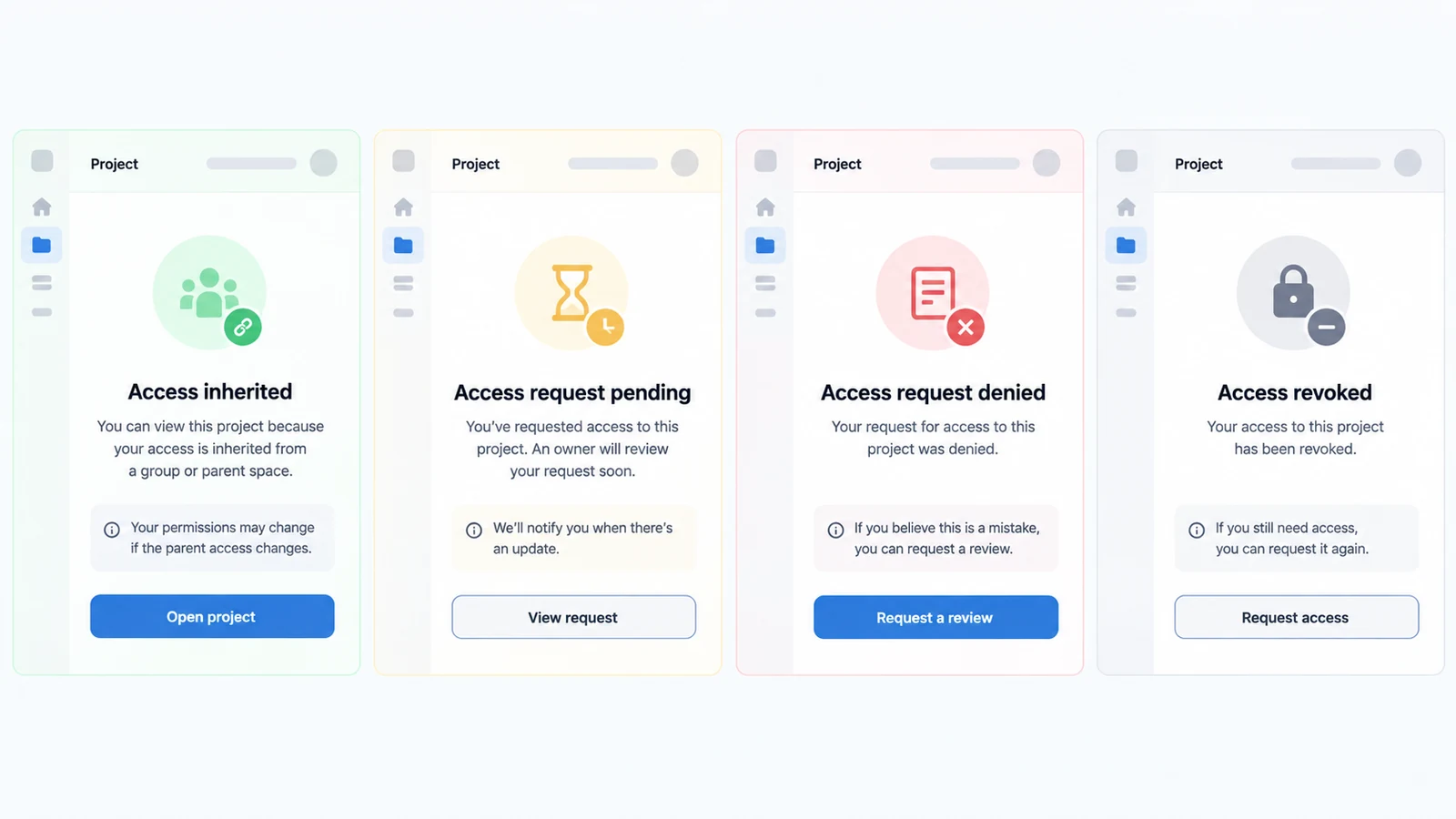
After submission, distinguish pending, approved, denied, expired and canceled. Pending means the request is recorded, not that access is granted. Keep a persistent status on the resource page so the person can return through the same link. If cancellation or a new request is allowed, show that action; do not require every status to offer another action.
Keep the access boundary visible after a request is sent. A “Request sent” toast alone disappears too quickly and does not answer whether the user can start work now. The resource page can show a compact status panel with the same context and a link to the request details.
Handle submission failure separately from a pending request. If the response is uncertain, check whether the request already exists before inviting another submission. At handoff, specify the request identifier, how the status refreshes, who can decide it and what happens if the resource or approver changes. These details prevent a polished form from creating duplicate or untraceable requests.
Handle inherited and direct permissions separately
Team tools often combine access inherited from a workspace, project, folder, or group with direct access on one file. The UI should show the source of the effective permission. “Viewer via Design team” is more useful than a single “Viewer” label because it explains where a change needs to happen.
When a user tries to change an inherited role, explain the boundary and offer the valid path: “This access comes from the project. Change the project member role to update it.” Do not display a control that appears editable but has no effect.
When several sources affect access, show the effective permission calculated by the product’s policy and explain the relevant source. Do not assume that the broadest grant always wins: an explicit restriction, organization policy or resource rule may change the result. For example, removing a direct Viewer grant may leave access through a project group intact. Preview the actual result before describing the change as “Remove access.”
Treat guests, external links, and groups as distinct audiences
An external guest and an internal team member may have the same current action but different lifecycle and risk. Label the audience clearly and expose expiration, domain restrictions, or download rules when they apply. A link shared with “anyone” should not look identical to a link restricted to an organisation.
Groups need a way to understand membership without revealing information the viewer cannot access. Show the group name and effective role, then provide an authorised path for membership details. If a member receives access through several groups, explain the result without exposing hidden group names.
These distinctions are especially important for teams working across regions or regulated environments. The on-premise UI design tools for regulated industries discussion provides context for deployment constraints; the permission interface still needs plain language at the individual action level.
Recover when access changes during a task
A person can lose access because a project moved, an invitation expired, an owner changed a role, or a policy update took effect. Do not replace the entire screen with a generic error. Preserve the last known context, explain what is no longer possible, and offer the safest next action.
Possible recovery actions include saving a local draft where policy allows it, returning to an accessible parent, requesting access again, or contacting the responsible owner. If the system cannot preserve content, say so before the user closes the page. The interface should not imply that retrying will restore access when the underlying role has changed.
For collaboration sessions, distinguish “read-only because another version is being published” from “read-only because your role changed.” The same disabled controls may need different explanations and support paths. Link to the workspace’s collaboration guidance, such as team collaboration tools, without replacing the local state message.
Make audit and notification behaviour understandable
Permission changes can affect people who are not looking at the settings page. State who will be notified, what the notification says, and whether the change appears in an activity log. Avoid promising an email or alert unless the product actually sends one. If notifications are suppressed for bulk changes, explain that in the confirmation details.
An activity entry should include actor, action, resource, audience, and time. Use a link to the resource only when the viewer has permission to open it. For high-impact actions, a confirmation or re-authentication step may be appropriate, but it should be explained as a safety check rather than an unexplained interruption.
Test permissions as tasks, not isolated screens
Create end-to-end scenarios for an owner, editor, commenter, viewer, guest, and unauthorised visitor. Include the moments when access is inherited, requested, changed, revoked, and restored. Test direct links and shared links separately from in-product navigation.
Ask reviewers to complete tasks such as:
- Share a file with a teammate who should comment but not edit.
- Find out why publishing is unavailable.
- Request access to a restricted project and check the request status.
- Remove a guest and confirm what happens to their open session.
- Change a group role and identify which files inherit the change.
Record where the user learns the boundary and where the design makes them guess. A polished share dialog cannot compensate for a confusing post-change state.
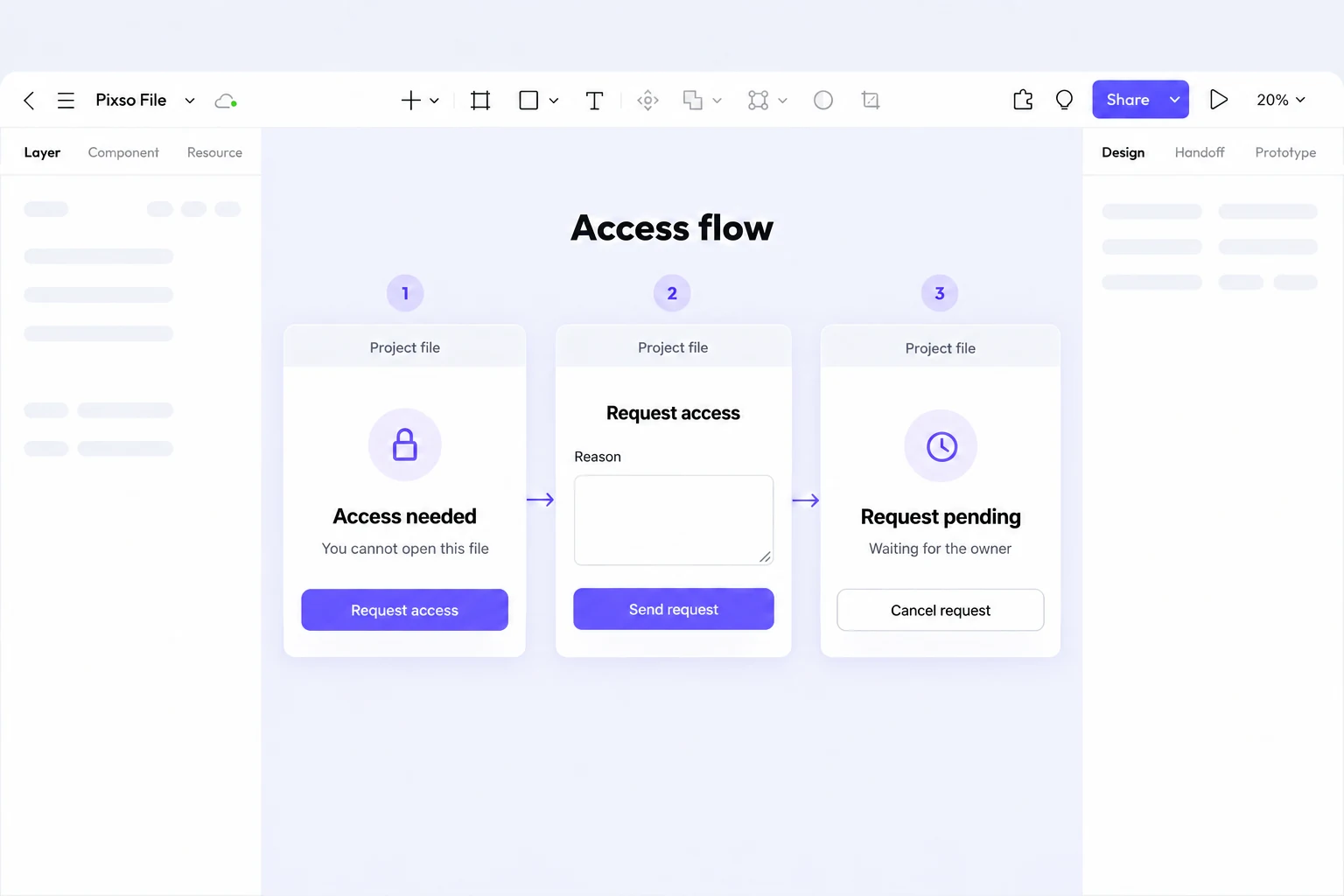
Build the access journey in Pixso as three connected screens: the restriction, the request form and the persistent pending state. Keep the resource context visible as the person moves through the flow. In the prototype review, ask whether submitting a request grants access immediately and where its status can be checked. The third screen should make the answer clear without relying on a disappearing toast. Choose suitable viewer or editor access when sharing the design file itself.
Verify the result from both sides
Review an access request as the requester and as the approver. Before approval, the requester should see a persistent pending state and remain unable to open restricted content. After approval, confirm that the granted role matches the decision. Then remove a direct grant while an inherited grant still applies and check that the interface reports the remaining access correctly. The final screen should describe the effective result, not merely repeat the button that was clicked.