Mobile banking home
Design a mobile banking home screen with balance, recent activity, and a clear transfer action. Use a calm light theme, make the next action obvious, and include loading and empty states.
PIXSO AI
From a product idea to a UI you can shape.
Describe a screen, start from a reference, and get an editable interface on the canvas. Refine the structure, connect the flow, and keep the design decisions in one workspace.
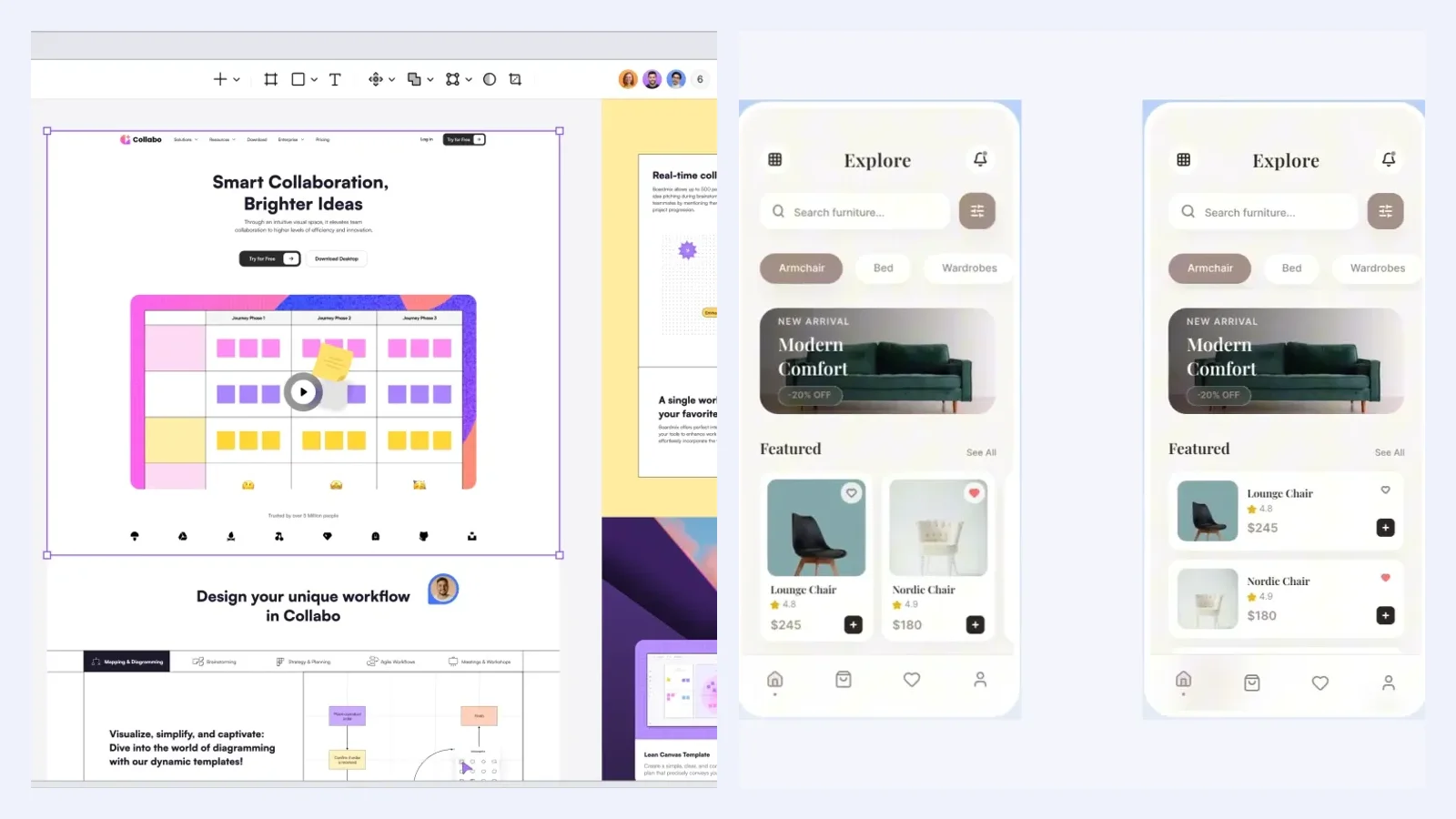
START WITH THE TASK
A good UI prompt names the user, the task, and the information the screen must carry. Pixso AI turns that brief into an editable starting point, so you can judge hierarchy and interaction before polishing every detail.
Describe the screen and the action it should support.
Include content, states, and brand cues that matter to the decision.
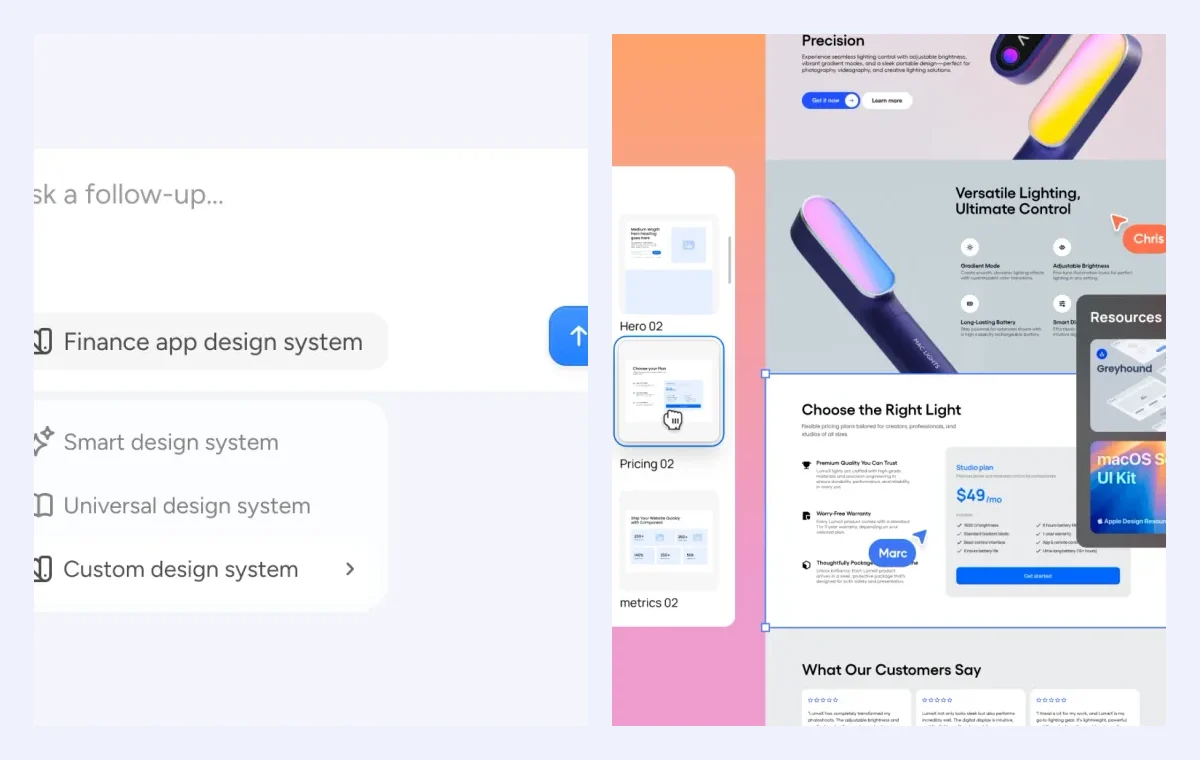
REFINE WHAT MATTERS
Select the part that needs work and explain the change. You can combine a focused AI instruction with direct canvas editing, keeping type, spacing, components, and content under your control.
Rework navigation, cards, forms, or empty states around the user’s next decision.
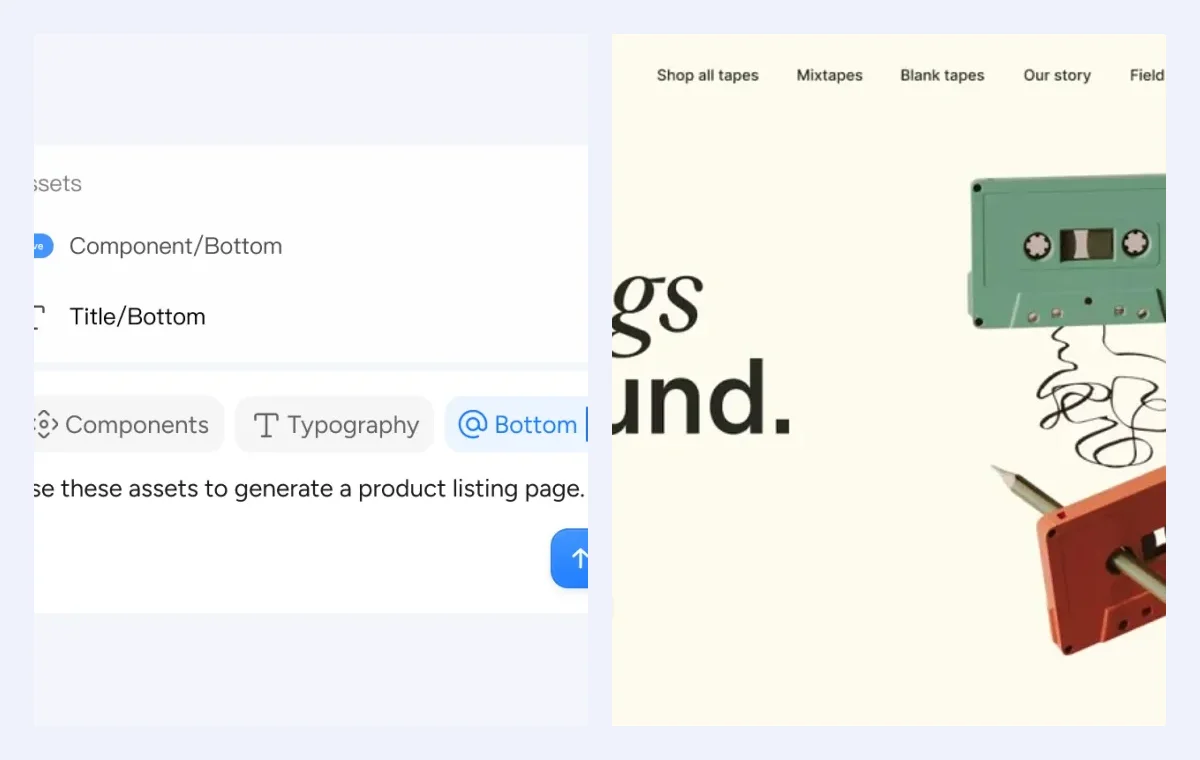
Bring your team’s components and styles into the screen instead of starting from a blank canvas.
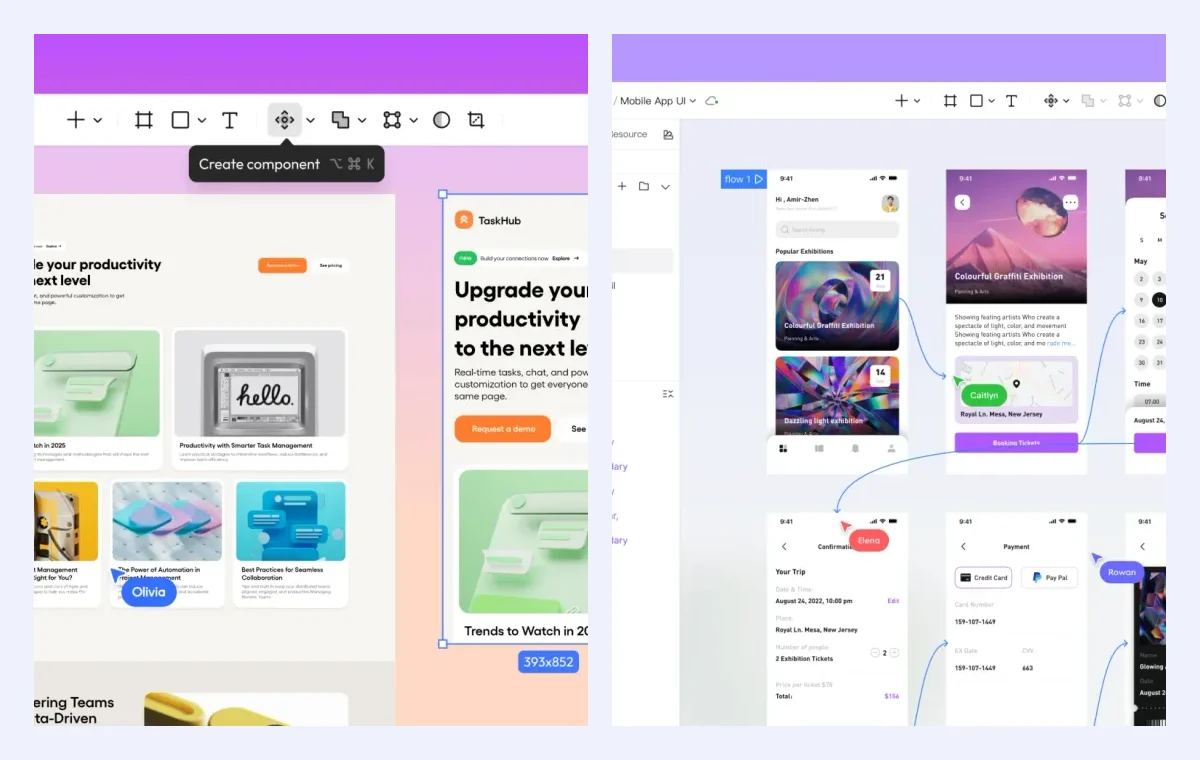
MAKE THE FLOW TESTABLE
A UI only becomes useful when people can move through it. Link the important screens, add realistic states, and review the path with your team before handing the design to development.
Connect the screens around a real task rather than decorating isolated frames.
Collect feedback on the same file and keep the chosen direction visible.
KEEP CONTEXT THROUGH HANDOFF
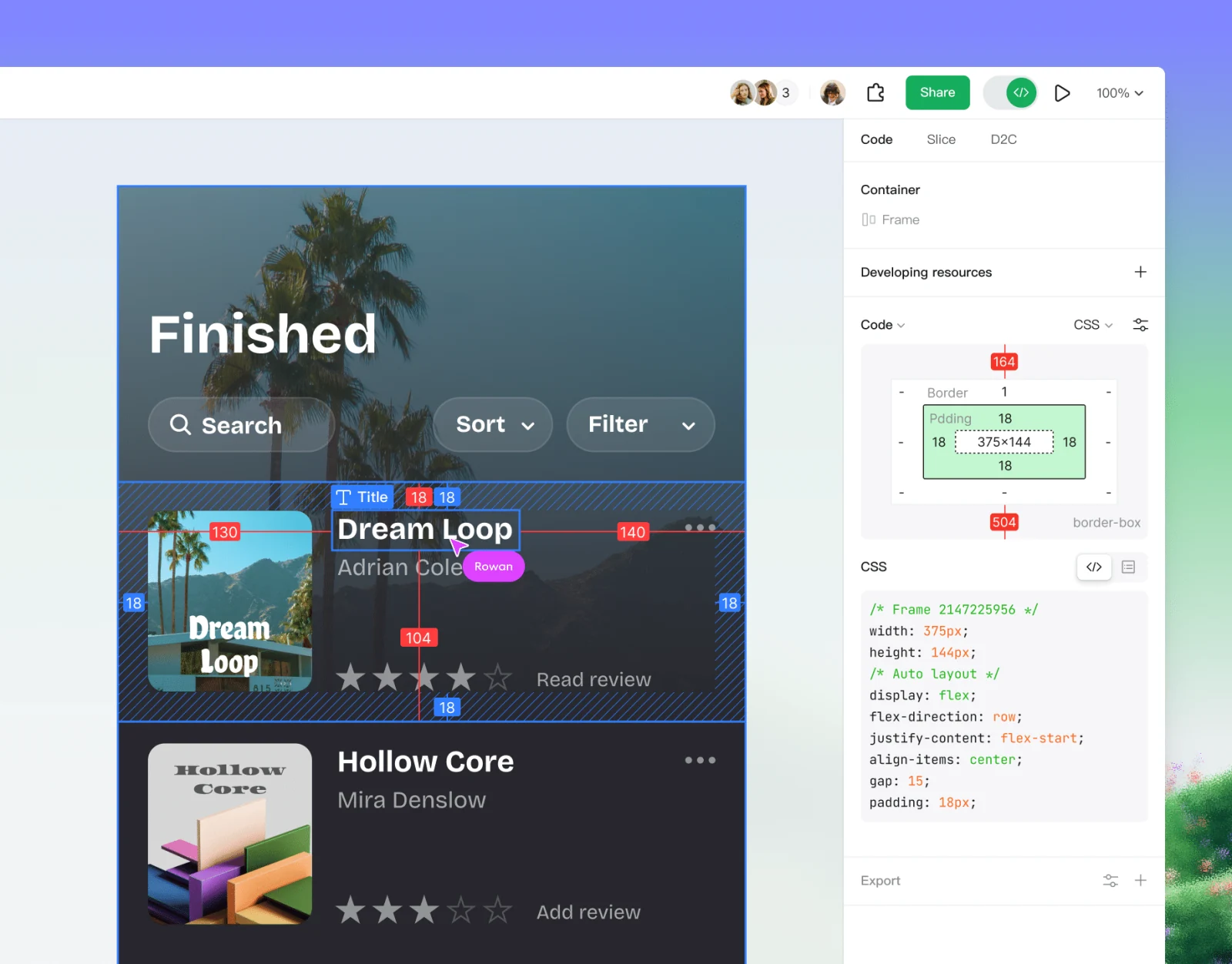
Keep the interface, component context, feedback, and handoff in one shared workspace. When your team uses Pixso MCP with a supported coding client, selected design information can be provided in the developer workflow.
Share the file instead of passing around disconnected screenshots.
Use comments, component names, and selected layers to explain what should be built.
Use these prompts as starting points, then adapt the content and constraints to your product.
Design a mobile banking home screen with balance, recent activity, and a clear transfer action. Use a calm light theme, make the next action obvious, and include loading and empty states.
Create a SaaS analytics dashboard wireframe with a summary row, a trend chart, filters, and a recent activity table. Prioritize scanability over decoration.
Design a three-step checkout flow for a small online store. Show delivery, payment, confirmation, and the validation state for an incomplete form.
An AI UI generator turns a written brief or reference into a user interface direction. In Pixso, the result is an editable design that you can refine on the canvas.
Yes. Design mode creates an editable interface with layers, text, and elements you can continue to change. Image mode creates raster visuals for a design.
You can provide a reference when describing the direction you want to explore. Treat the result as a starting point and check hierarchy, content, and states in the editor.
You can select a published library with AI access enabled and use its components and conventions as a design foundation.
This page covers UI design and prototyping. Implementation, services, and hosting remain part of your development workflow.
Start with the user task, refine the important screen, and keep the whole flow connected as your product develops.