Understand the design structure
Read structured layer data, find nodes and frames, and inspect the parts of a design that matter to your task.
Explore design dataRemote MCP · Connect through the cloud
Give your AI assistant a Pixso layer link. Read the design, make focused edits, and turn it into code—without keeping the desktop app open.
Your AI workspace
Describe a task in your preferred tool
https://pixso.net/mcpCloud connection · Authorized accessYour Pixso design file
Work with the actual design context
Connect an MCP client that supports Streamable HTTP. Tool access depends on your seat and file permissions.
FROM DESIGN CONTEXT TO ACTION
Bring structure, components, styles, and feedback into the conversation. Your assistant can work on a specific part of the design and show you the result.
Read structured layer data, find nodes and frames, and inspect the parts of a design that matter to your task.
Explore design dataCreate or edit nodes within a defined scope. Apply a spacing change or update a set of properties directly in the design file.
Explore design editingGenerate frontend code from a design, or turn HTML and a web-project ZIP into an editable Pixso design.
See the two-way workflowRead reusable components, styles, and variables. Update styles and variables while keeping the team's existing rules in view.
Explore components and stylesCapture the target area, inspect properties, and check alignment, nesting, and layout structure after a change.
Explore layout checksExport assets in formats including PNG, JPEG, SVG, PDF, and WebP. Read comment threads to bring review context into the task.
Explore asset exportREMOTE MCP
Connect your AI tool, copy a layer link, then describe the task. Remote MCP does not require the desktop app or a design tab to stay open.
https://pixso.net/mcpAdd the server URL in your client's MCP settings and complete OAuth 2.1 authorization. You can also use a personal access token as described in the docs.
In Pixso, select the target frame or layer and use Copy link. Its item-id identifies the design area your assistant should work with.
See where to copy the linkUse a layer link, not just a file-sharing or page link.
Send your AI assistant the link, your goal, and the area it may change. Start by reading the structure, then generate code or edit the selected design.
Read the setup guideReading requires view access. Changes also require edit access.
START WITH A SPECIFIC TASK
The layer link identifies the design. Your prompt tells the assistant what to do with it.
Understand firstRead this layer link and summarize the page sections, components, and key variables. Do not change the design yet.
Then make a changeFor the card group at this layer link, set the spacing to 24px. Keep the text and component relationships intact, then take a screenshot so I can review the result.
DESIGN ↔ CODE
Start implementation from a design, or bring a web page back into an editable canvas for the next round of discussion and changes.
DESIGN TO CODE
Use design_to_code to generate HTML, React, Vue, ArkUI, or Flutter code. Then choose refinements such as responsive layout, CSS variables, Tailwind, code cleanup, or alignment with your project design system.
Explore design to codeDesign-to-code requires an enterprise Full-function or Developer seat and a file in an enterprise space.
CODE TO DESIGN
Use code_to_design to turn HTML or a web-project ZIP into an editable Pixso design. Inspect the layout, adjust styles, and discuss the next version with your team.
Explore code to designConversion runs as a task. Later changes to the design and project code do not automatically sync in real time.
CHOOSE YOUR CONNECTION
Use a cloud connection for link-based tasks. Choose Local MCP when you want to work with the file and selection open in your desktop app.
Connect through Pixso's cloud service using authorization and a layer link.
Connect to the running Pixso desktop app and work with the active file.
START WITH THE RIGHT LAYER
Copy a link to the frame or layer you want to work on. This gives the assistant a precise target for reading, editing, or generating code.
See layer-link instructionsSkills help an agent organize design tasks and choose tools. MCP provides the connection to the file. Use the official installation guide for your agent and Pixso version.
Explore Pixso Skills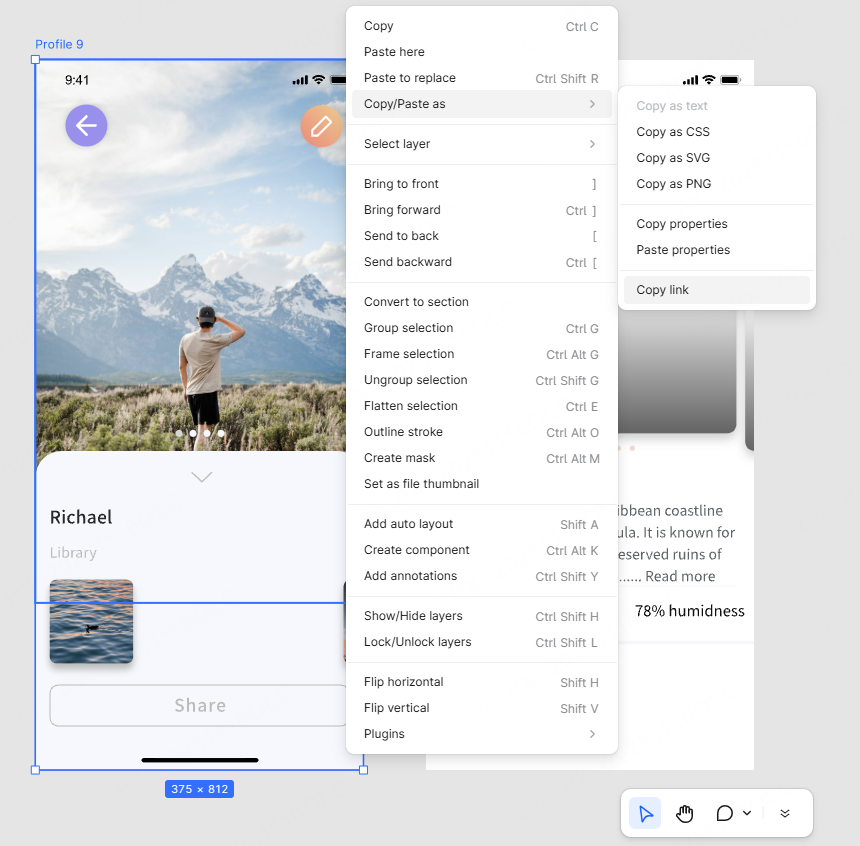
No. The remote service runs in the cloud. Once authorized, it uses a valid layer link without requiring Pixso Web or the desktop app to stay open. You still need a working network connection and valid authorization.
MCP capabilities require a Full-function or Developer seat. Design-to-code requires an enterprise seat of one of those types and a file in an enterprise space. Read operations need view access; design changes also need edit access.
Browse all toolsUse the same Remote MCP server URL, but follow the setup steps for your client. Configuration fields differ between clients; use the linked developer guide rather than copying another editor's configuration.
Set up the connectionCheck that your account can view the file and that the layer link contains the correct item-id. A page-id or general sharing link does not identify the target layer. Reauthorize if the session has expired. For Local MCP, also check the desktop app and active file.
Yes. The current Remote MCP supports design edits, style and variable updates, and property changes. Specify the layers and scope, use a file you can edit, and review the result with screenshots and layout checks.
Contact your account manager before enabling Remote MCP for a private deployment. Use the server address and connection settings for your own environment, not the public-cloud URL.