A fitness progress screen
Design a mobile fitness progress screen with this week's activity, a seven-day chart, and a recent workouts list. Use a calm light theme with green accents. Make the weekly total the first thing people notice.
Pixso AI
From a first idea to a design you can edit.
Turn a brief or reference into an editable interface, create visuals for your layout, and refine the details on the canvas. Bring AI into the design work you already do.
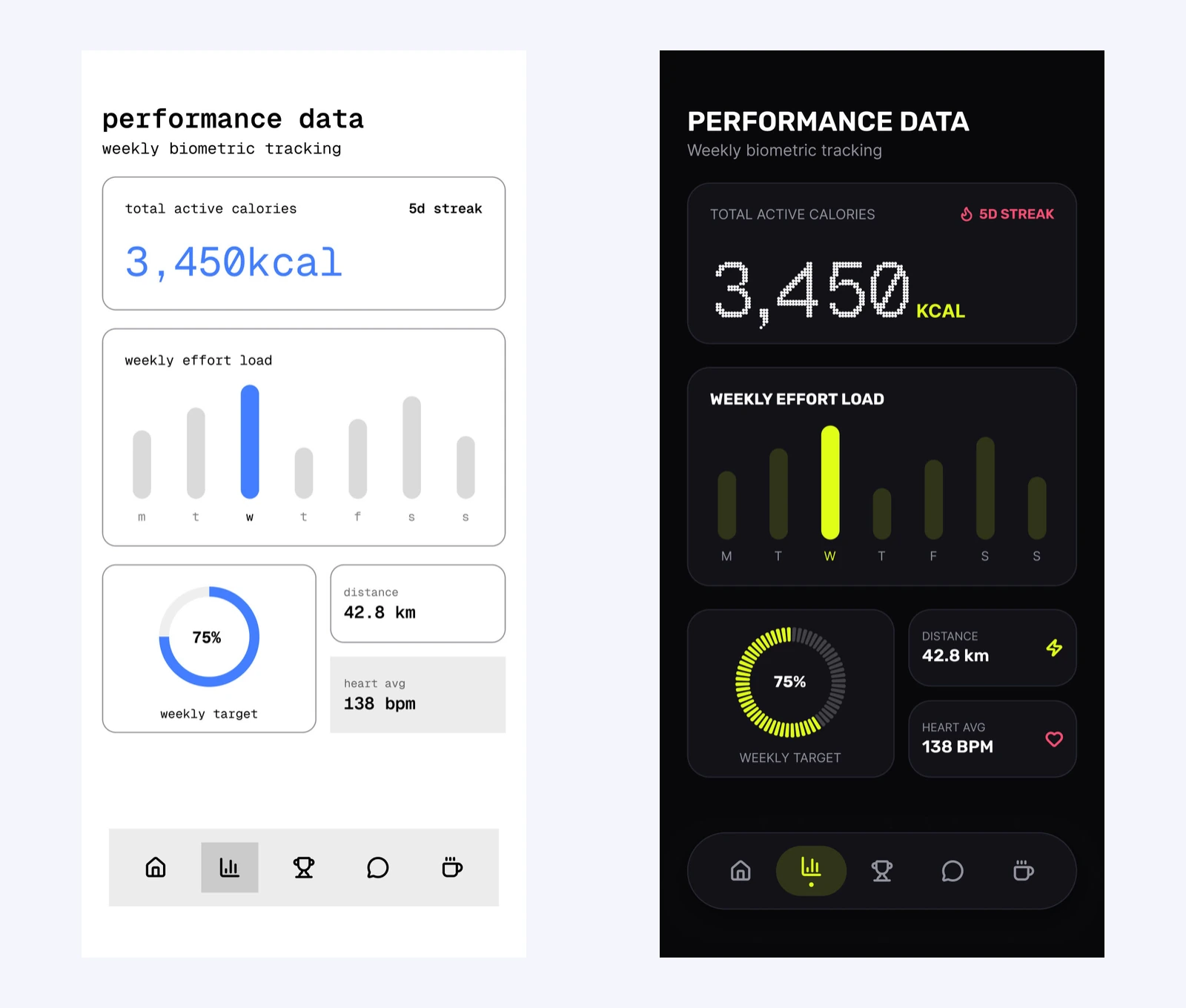
From brief to interface
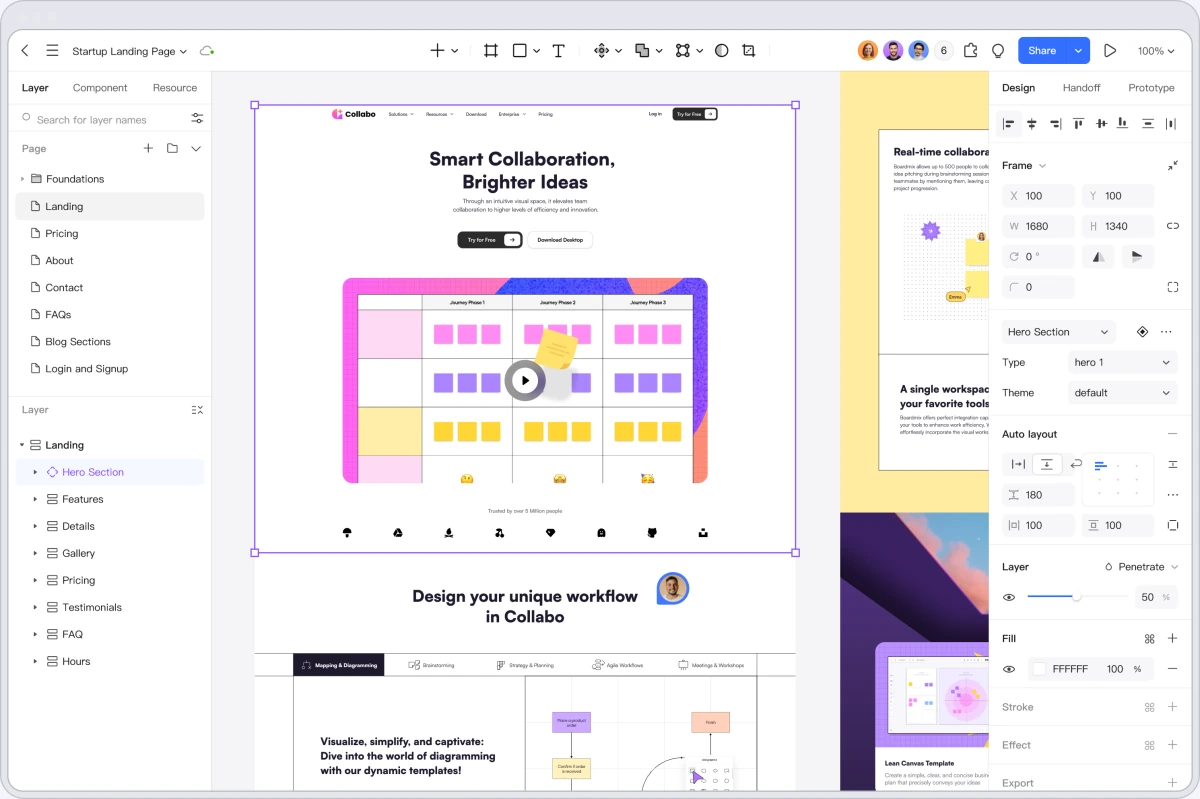
Describe the screen, its content, and the visual direction. Pixso AI's design mode creates an interface on your canvas, where you can edit its layers, text, and layout. Explore an idea without giving up control of the result.
Use a written brief or add a reference image to guide the structure and visual style.
Adjust the generated interface with the editor, or continue the conversation to refine it.
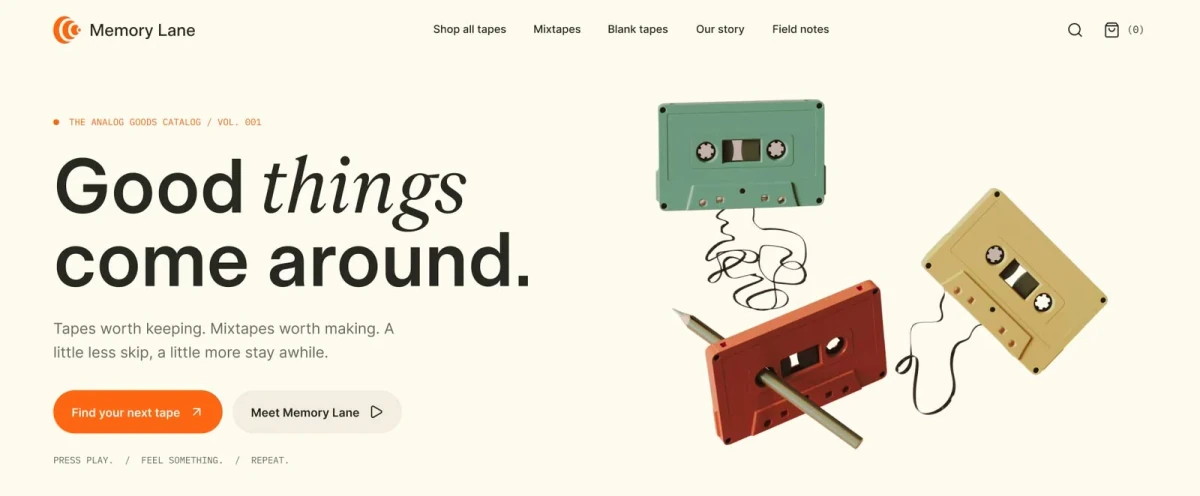
Keep the work you like
A better card layout or a clearer call to action should not require a new starting point. Select the part you want to improve, then describe the change. Work through the details with focused AI requests and direct edits.
Focus a request on selected text, a component, or a section of your design.
Ask for a change in spacing, content, color, or layout, and specify what you want to retain.
Images for your composition
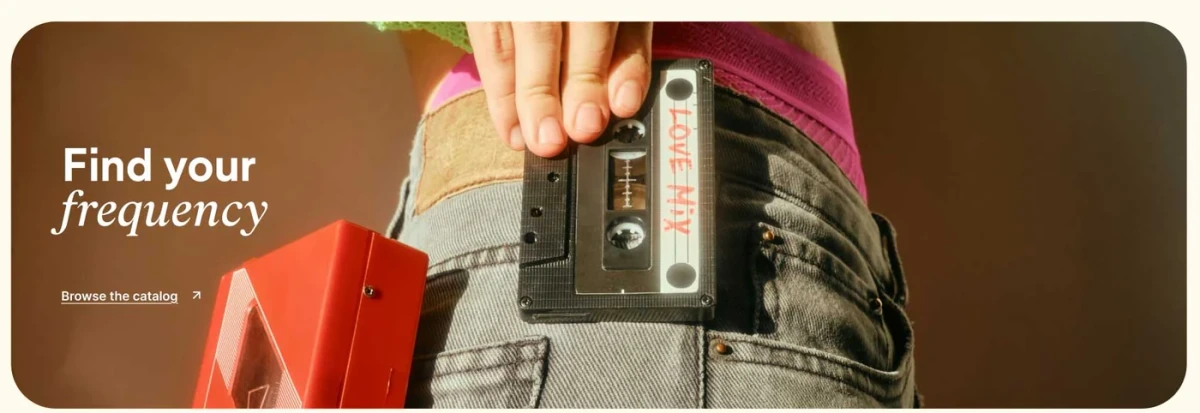
Use image mode to explore illustrations, backgrounds, and other visual assets. Describe the subject, composition, and style, then bring the image into your design. Keep headlines and calls to action as separate text layers when they need to stay editable.
Give the subject room to breathe, choose an aspect ratio, and explain where the composition needs open space.
Combine the generated image with your own typography, controls, and brand elements on the canvas.
A familiar starting point
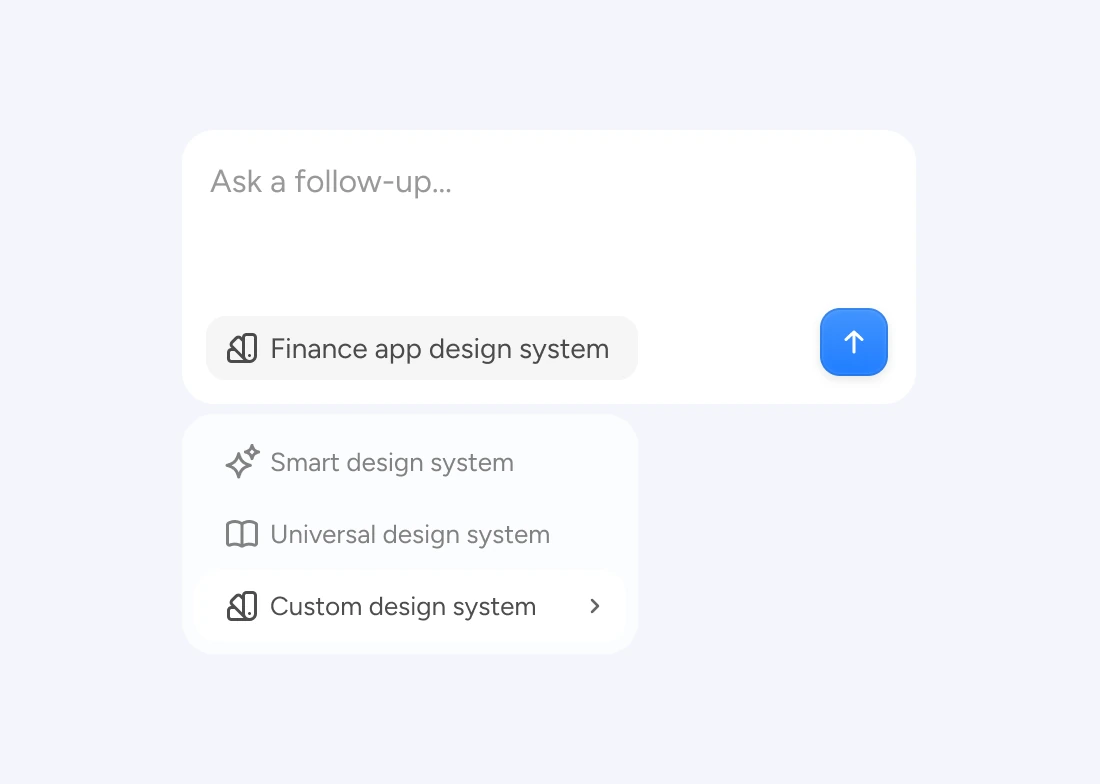
Choose an AI-enabled published library as your custom design system. Its components and design conventions give new work a foundation that belongs to your team. Use a library that fits the screen you are making, then refine the result in context.
Guide generation with a custom library instead of describing every visual convention from scratch.
Keep the interface, reusable resources, feedback, and developer handoff connected in Pixso.
A useful prompt names the result and the details that matter. Adapt these starting points to your own project.
Design a mobile fitness progress screen with this week's activity, a seven-day chart, and a recent workouts list. Use a calm light theme with green accents. Make the weekly total the first thing people notice.
Create an image of a portable speaker on a warm, softly lit surface. Use a restrained retro color palette and leave open space on the left for a headline that I will add separately. Do not include text in the image.
Refine the selected pricing cards. Make the plan names and prices easier to scan, align the feature lists, and give the main action more emphasis. Retain the existing plan content and brand colors.
Both, through different modes. Design mode creates an editable interface on the canvas. Image mode creates a raster visual asset, such as an illustration or background. Choose the mode that matches what you need to produce.
Yes. You can describe your requirements, attach a document, or add a reference image. Explain which parts of the reference should guide the result. A reference informs the design; it does not guarantee an exact reproduction of every detail.
Yes. Enable AI access for a published component library, then select it as a custom design system. A library suited to your task gives AI relevant components and visual conventions to work with; areas outside that library may require further design work.
AI use depends on the credits available in your workspace and the relevant seat and file-editing permissions. Check the current pricing and workspace settings for your access and credit allowance.
Start with a brief, explore a direction, and keep the result in your hands.