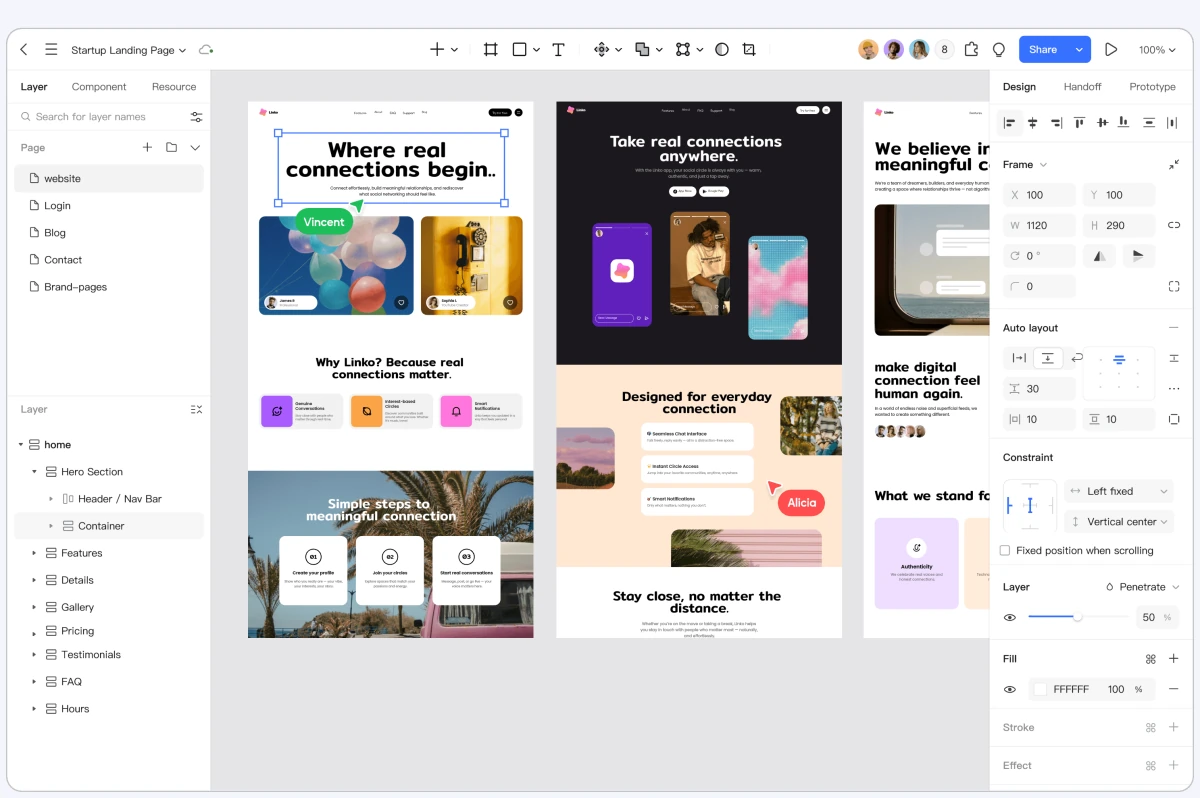
Describe the page you need. Explore its structure, content, and visual style in an editable design, then refine the sections that make your website distinctive.
A homepage needs more than an attractive opening. Give Pixso AI the audience, key message, content, and main action. Use the resulting page design to explore how those elements fit together, from the first screen to the final call to action.
Put your content first
Describe the sections your page needs, such as product categories, a feature story, or a contact area.
Show the visual direction
Add a reference image and identify the layout, colors, or typography you want it to inform.
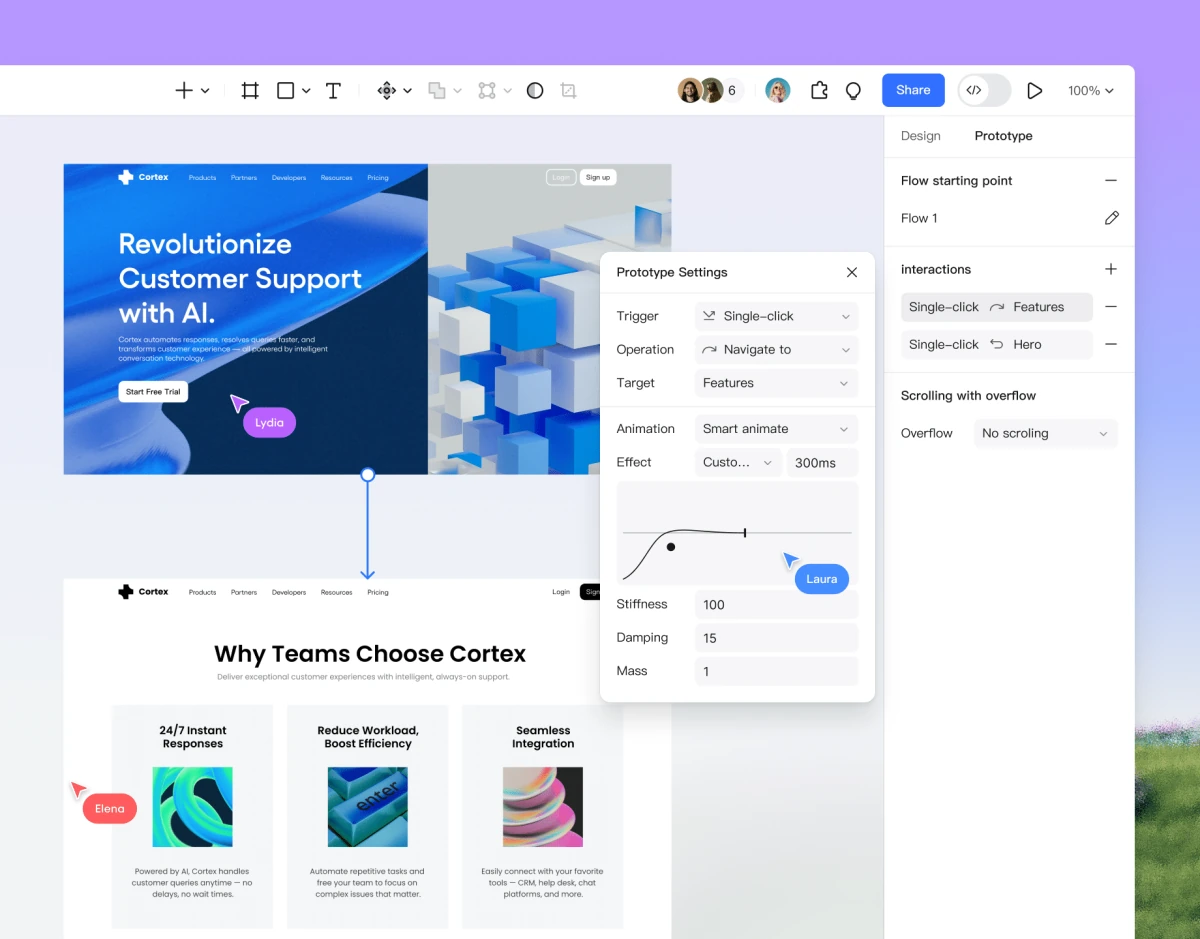
This Cortex website example brings page structure and navigation into one design file.
Work on the part that matters
Improve a section without starting over
Give a hero message more space, reorganize product cards, or simplify a busy content block. Select the area you want to change and describe the result. Combine focused AI requests with direct canvas edits as the page takes shape.
Refine the hierarchy
Adjust headings, supporting text, spacing, and actions around the content people need to notice.
Keep the brief in view
Use approved copy and reference material to guide changes to the selected section.
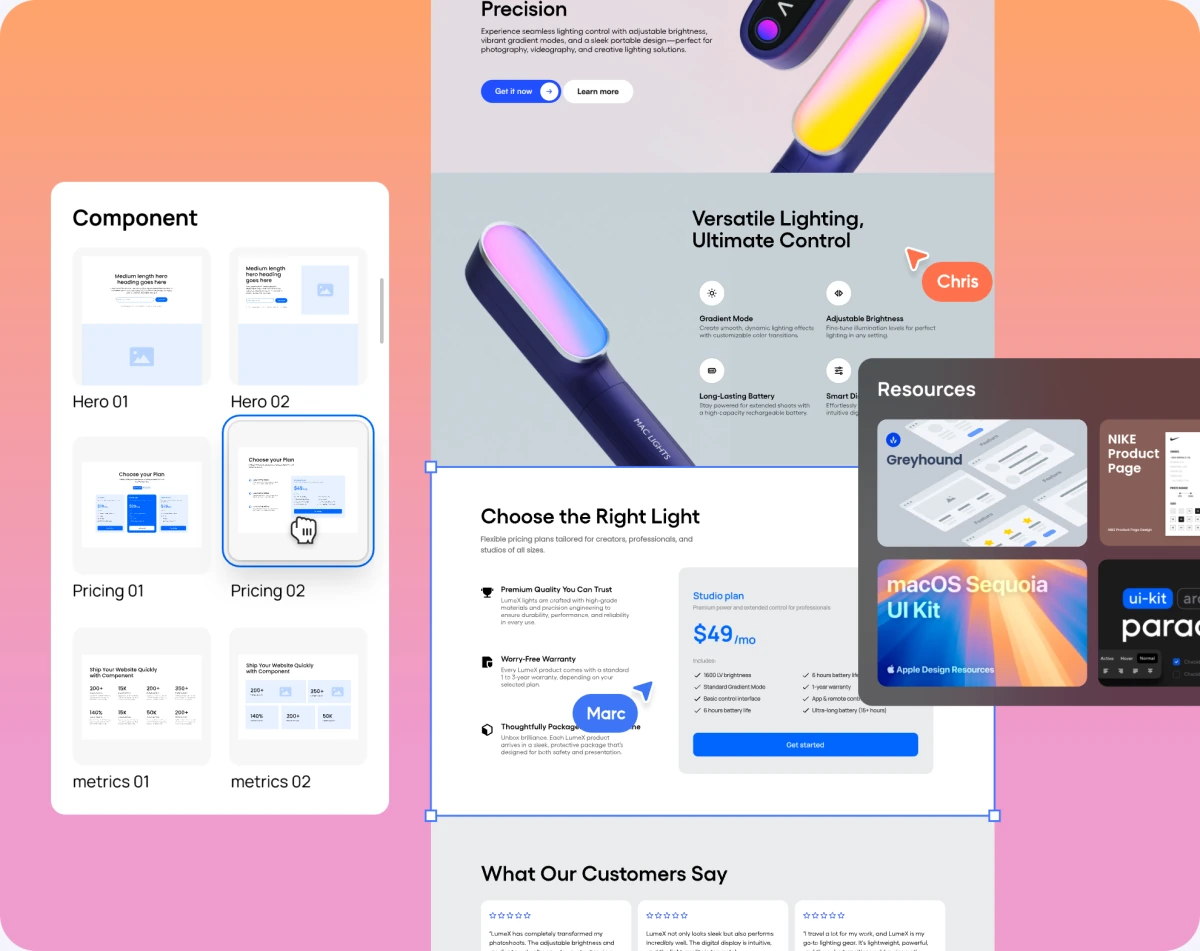
Work with page components and resources as you refine the website design.
Think beyond one screen
Shape the experience for desktop and mobile
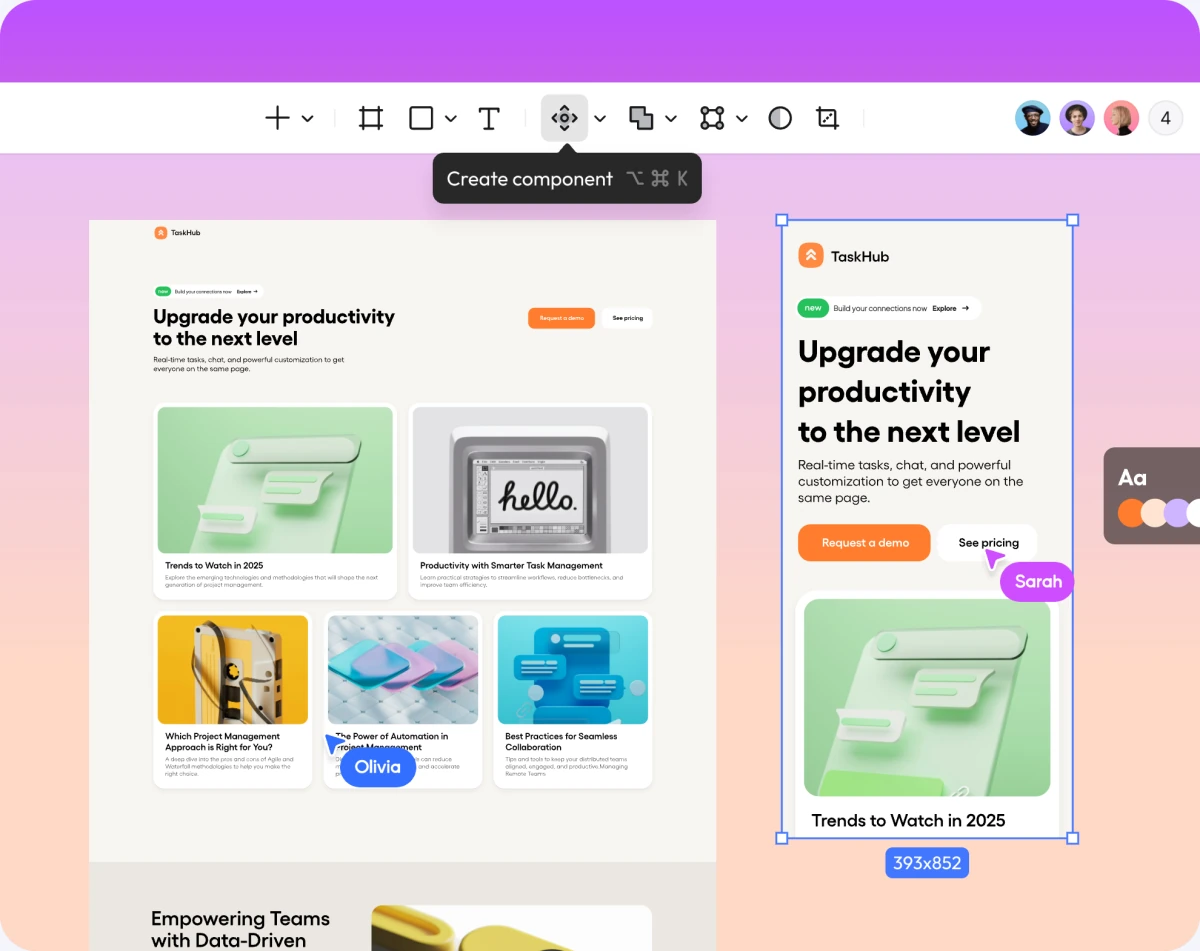
A mobile page has different priorities from a wide desktop layout. Explore both in the same design file. Rework navigation, card arrangements, and content order for the available space, with editable frames and reusable components to support the work.
Compare layouts together
Keep desktop and mobile designs side by side so your team can discuss what changes and what stays consistent.
Work with real content
Adjust layouts around your actual headings, images, and product information before development begins.
Design the layouts for different screen sizes before implementing responsive behavior.
Take a clear design into development
Give developers more than a screenshot
Share the design file for review and handoff. When your team works with a compatible AI coding tool, Pixso MCP can provide design context from a linked layer. The interface decisions stay connected to the work that follows in the codebase.
Discuss the same design
Keep feedback attached to the file your team is reviewing.
Bring context into coding tools
Connect an authorized coding client to Pixso MCP and reference the design layer you want to implement.
Bring the page designs together as a shared reference for implementation.
Start with the page you actually need
Use these briefs as starting points, then replace the details with your own content and brand direction.
A home-furnishings brand
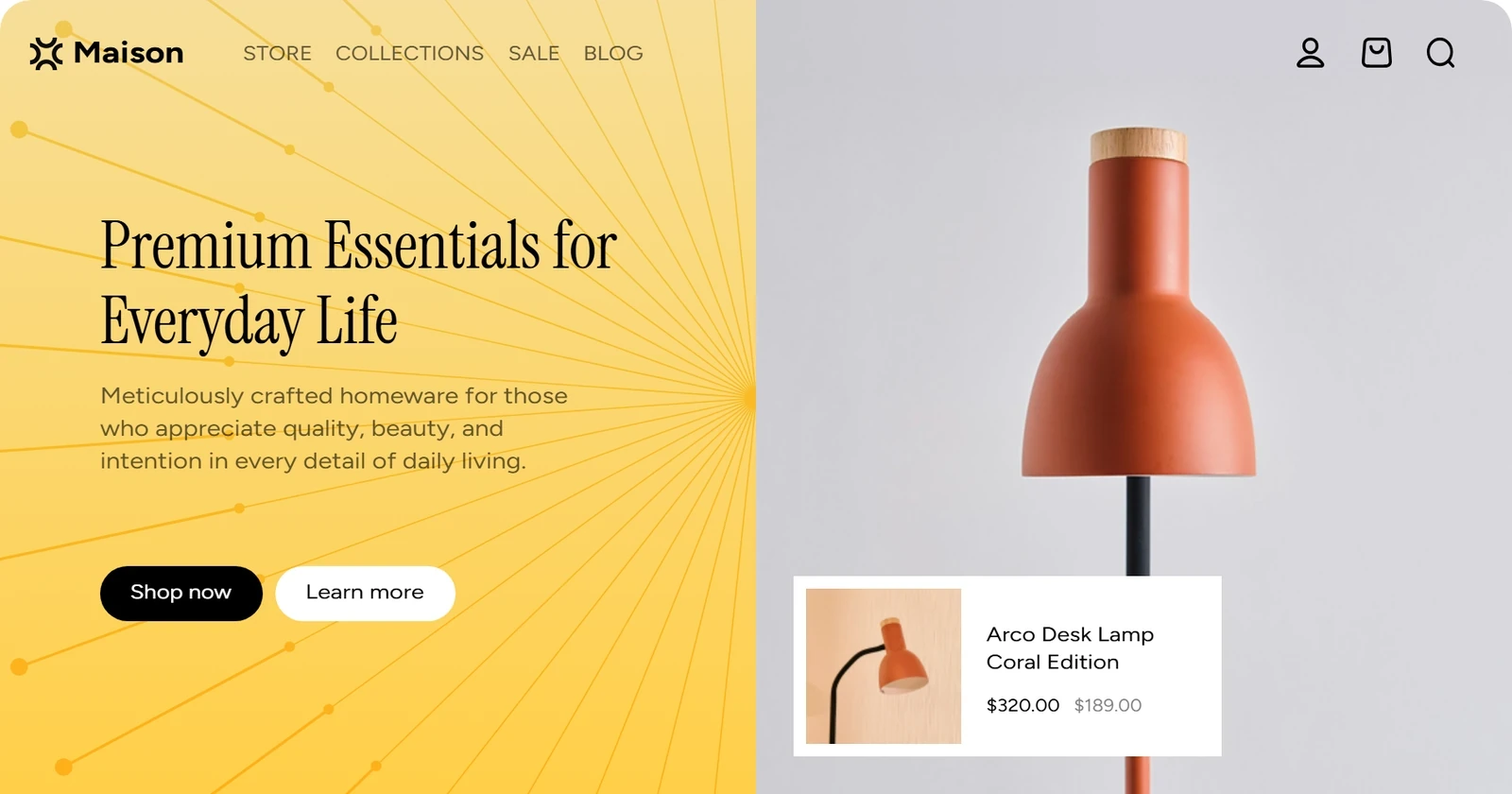
Design a desktop homepage for a home-furnishings brand. Lead with a room photograph and a short brand message, then show furniture categories, a featured collection, and a material story. Use warm neutrals, generous spacing, and a clear Shop collection action. Use the product names and prices supplied in the brief.
A team knowledge-base product
Design a SaaS homepage for a team knowledge-base product. Explain how people can find, maintain, and share company knowledge. Include a product preview, three capability sections, a short use-case area, and a request-demo action. Use a clean light theme and concise, descriptive headings.
An independent designer's portfolio
Design a portfolio homepage for an independent product designer. Put a short introduction above three selected projects, followed by a brief about section and a contact area. Use strong typography and let project imagery carry the page. Use the project names, images, and client details supplied in the brief.
Keep your design moving
Keep the site visually consistent
Build reusable components and shared styles for work beyond the first page.
Pixso AI creates an editable website design. You can refine the layout and share it with developers or connect a compatible coding tool through Pixso MCP. Implementing the site, connecting services, and hosting it happen in your development workflow.
Can I redesign an existing page from a screenshot?
You can use a screenshot as a visual reference and explain which parts to retain or change. Add your own requirements and page content so the new design serves your project. The reference guides generation rather than guaranteeing a pixel-for-pixel copy.
Can I make desktop and mobile versions?
Yes. Create and refine layouts for different screen sizes in the design file. You can adjust the mobile content order, navigation, and card layout separately. Developers still need to implement and test the responsive behavior in the website itself.
Can I change just one section of the generated page?
Yes. Select the section or element and ask Pixso AI for a focused change, or edit it directly on the canvas. This is useful when the overall direction works and you want to improve a particular part of the page.
Put your next website idea on the canvas
Start with a page brief. Leave with a design direction your team can keep developing.