On this page

Elodia
AI design tools can help with several different jobs: generating an interface draft, finding an asset, editing an image, or adapting content. Choose by the result you need to edit and deliver. A tool that produces a striking image may do little for a screen that needs reusable components and multiple states.
This guide compares the roles of Pixso, Figma, Adobe’s AI-assisted tools, and Sketch in a design workflow. It also explains how to handle older InVision Studio material. The aim is to find a suitable working process for UI/UX design, not to treat every automated feature as generative AI.

1. What AI design tools can help you do
Begin with the input and output. A prompt-to-UI workflow starts with a brief and produces a screen to refine. Image generation produces visual material. Asset search helps you locate an existing resource. These tasks have different requirements even when they appear in the same editor.
For example, a travel app may need a new search screen and a destination image. The screen needs editable text, layout, and component states. The image needs an appropriate crop and enough empty space around any overlaid text. Evaluate each output against its own job.
UI/UX designers can use AI tools to explore alternatives and reduce repetitive work. A shared component library, clear brief, and review process remain useful whether a screen begins with a prompt or an empty canvas.
2. What to compare before choosing a workflow
Try the same small task in each candidate. A search screen with a long label, an empty result, and an error state reveals more than an attractive landing-page image.
Editable output
Inspect the layers, text, and component structure. Can you change the content without redrawing the screen? Can you apply the team’s styles? A draft is easier to develop when the structure remains usable after the first generation.
Fit with existing files
Use a copy of a real file to test import and export. Compare fonts, layout, components, and interactions with the source. Include the work needed to correct differences when judging whether a new tool fits the team.
Review and collaboration
Check how designers, reviewers, and developers access the same work. Co-editing, comments, and shared libraries help coordinate decisions, but they are collaboration capabilities rather than evidence that an editor’s layout features use AI.
Data handling and access
Before using confidential designs, confirm who can access the file and AI inputs, where they are processed, and which retention terms apply. Use the requirements of your organization to choose a plan and workflow.
3. Four current workflows and one legacy tool
Each option below supports a different starting point. Compare the work you need to complete rather than assuming that every tool provides the same generation, image, or collaboration features.
1. Pixso: interface drafts in a collaborative design workspace
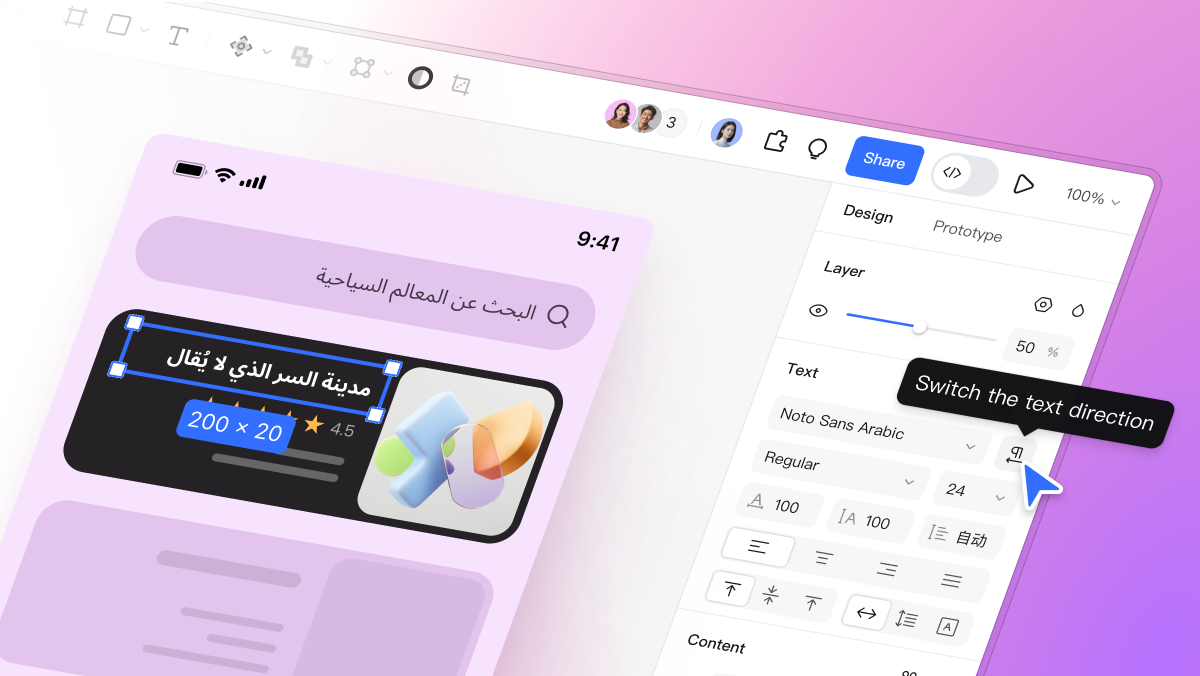
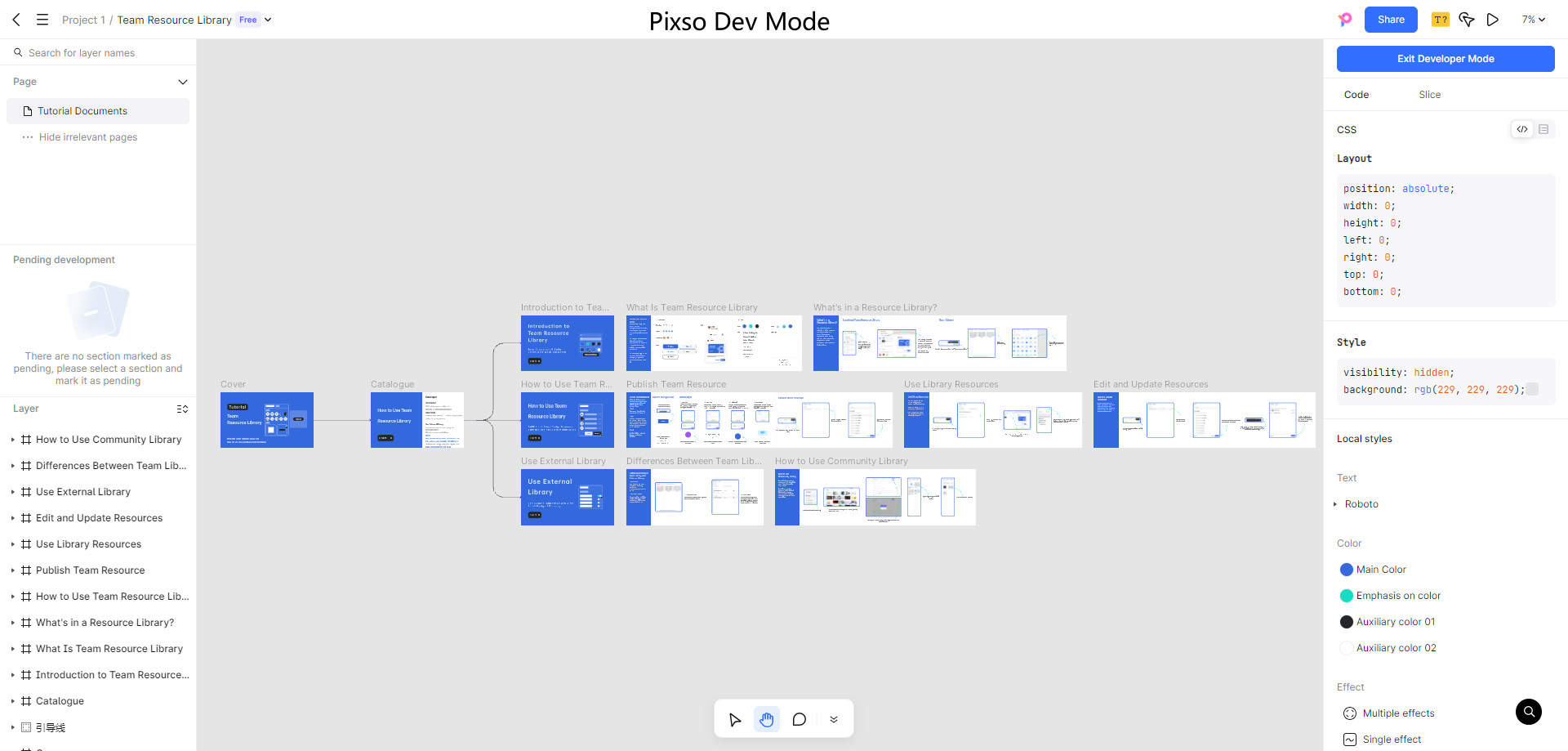
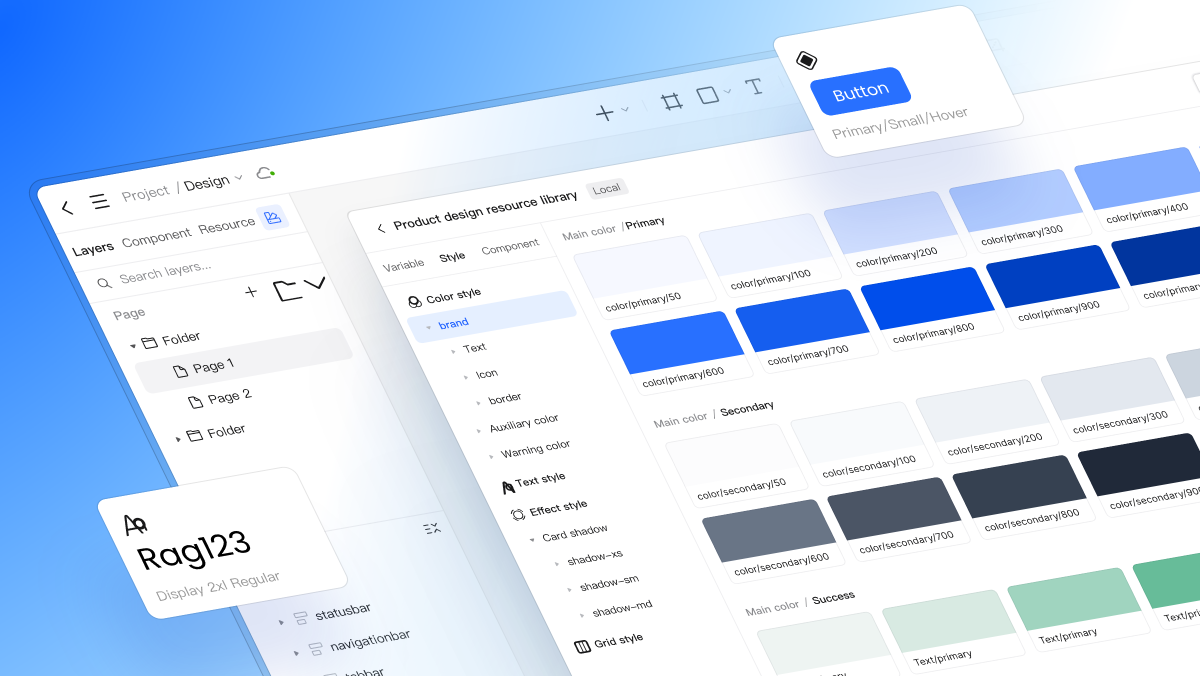
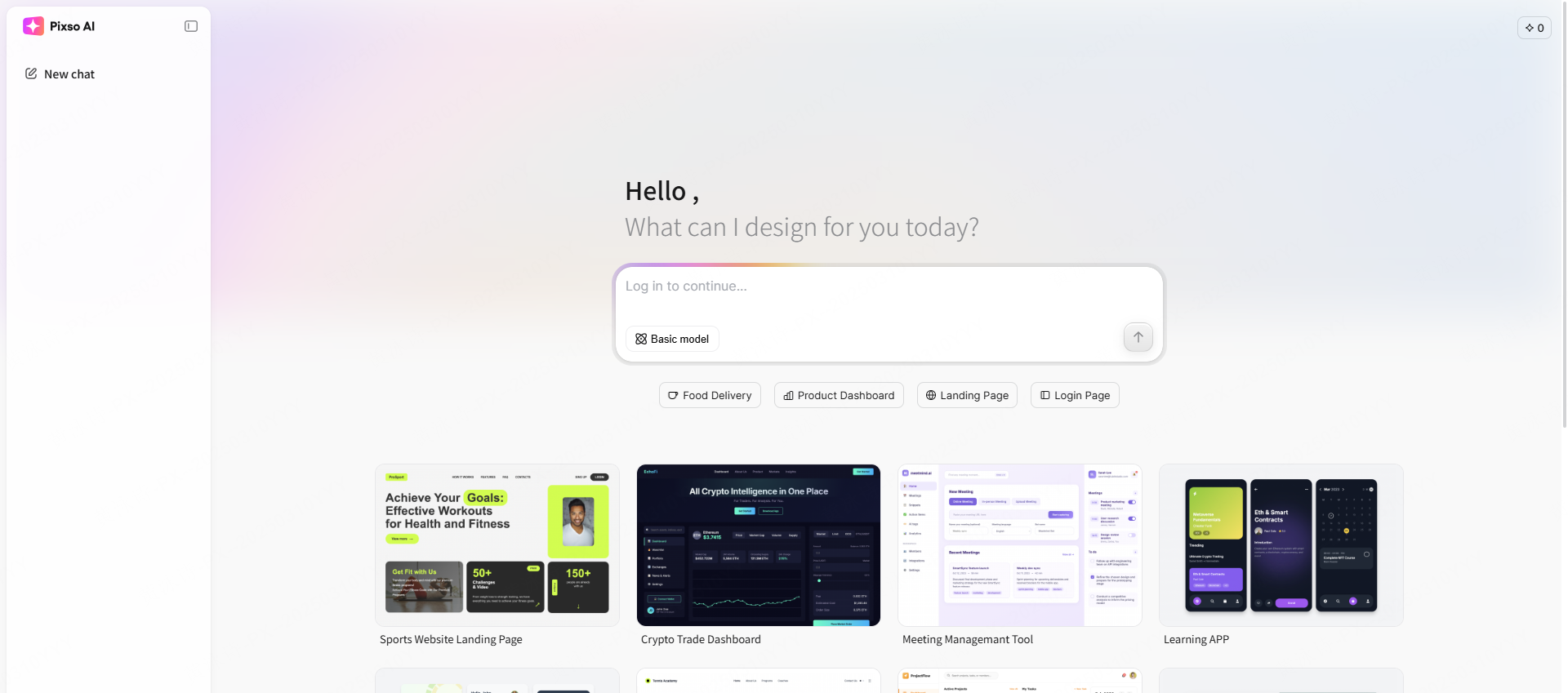
Pixso combines interface design, prototypes, and team review with available AI tools. Use an AI-generated draft as the start of a design file, then refine the content, spacing, and components in the editor.
Where it fits:
- Draft exploration: describe the screen and required content, then compare the result with your brief and missing states.
- Existing projects: import a supported file and check fonts, components, and layout before continuing design work.
- Team review: discuss a draft in the shared file and keep comments beside the elements that need a decision.
- Access planning: check the AI tools, credits, and sharing permissions available to the account and workspace you will use.
A useful trial is a small flow rather than an isolated screen. Build a search state, an empty result, and a selected item, then see how much manual work is needed to make the three screens consistent.
2. Figma: design work in an existing Figma workflow
For a team already using Figma, evaluate the AI capabilities available in its current account alongside the libraries, prototypes, and review process it already maintains. Avoid comparing an unfamiliar draft with a mature team file without accounting for the setup work.
What to compare:
- Task support: try the specific generation or content operation you need. Native capabilities and third-party plugins have different access and data-handling requirements.
- Collaboration: invite the roles that will actually review and develop the file, and check what each can inspect or edit.
- File continuity: confirm that the result can use the team’s components and survive ordinary changes to labels, layout, and states.
3. Adobe: image and visual-asset workflows
Adobe offers AI-assisted features across several creative products. Choose the application and feature for the task, such as preparing imagery for an interface, rather than treating Adobe Sensei as one interchangeable UI-generation editor.
Where to focus:
- Image preparation: test the crop, background, and composition you need for the actual screen size.
- Editing control: check whether you can refine the selected region and retain the parts of the image that already work.
- Delivery: export the required format and dimensions, then inspect the asset in the interface with its final text and colors.
4. Sketch: reusable layouts and an extensible design workflow
Sketch is a design tool with components, layout features, and an extension ecosystem. Layout automation and generative AI are different capabilities. If your workflow depends on an AI plugin, evaluate that specific plugin rather than attributing the feature to every Sketch file.
What to compare:
- Layout behavior: change a label or component size and inspect the resulting arrangement. Predictable layout rules can be useful without generating a new design.
- Plugin fit: check the input, output, maintenance, and permissions of any extension you plan to use.
- Team access: test how designers and reviewers on the team’s devices open, review, and hand off the work.
5. InVision Studio: working with legacy material
InVision’s design collaboration services ended in 2024. Treat Studio tutorials and files as historical material and use a supported tool for new design work.
For an existing project, start with the material you still have:
- Collect local source files, exported screens, and any documentation of interactions.
- Rebuild important transitions in the destination tool and compare them with the original flow.
- Keep review decisions and known gaps alongside the migrated file so the team can continue work without relying on old service links.
4. Compare tools on a real design task
Write a short brief with a primary action and two non-default states. Use the same content in each trial. Judge whether a reviewer can follow the intended task and whether a designer can modify the result without rebuilding it.
Measure correction work
Note missing content, broken component structure, and layout adjustments. A quick first draft may still require substantial editing; include that work in the comparison.
Test the review process
Ask a teammate to inspect the file, comment on one decision, and find the state intended for handoff. This reveals whether the workflow keeps feedback and design changes together.
Match access to the project
Use a non-confidential trial file while checking seats, AI usage, sharing, and data requirements. Resolve those details before bringing a production project into the workflow.
Choose the tool for the output you need
For UI work, prioritize editable structure, required states, and continuity with the team’s components. For visual assets, prioritize composition and editing control. Keep the workflow that reduces repetitive work on your actual project and makes the result easier to review and deliver.