On this page
Elodia
An AI painter turns a written description or reference image into visual material you can develop further. For designers, the useful question is where it fits in the project: exploring a composition, refining an existing image, or producing assets for a layout. These ten options cover different workflows, from browser tools to a Python experiment.
What to Look for in an AI Painting Tool
Choose around the kind of control you need. A prompt-based generator is useful for exploring several visual directions; an editor matters when you need to preserve a subject while changing the background or composition. Compare results using the same brief, intended crop, and output size, rather than judging a tool only by its gallery.
1. Pixso
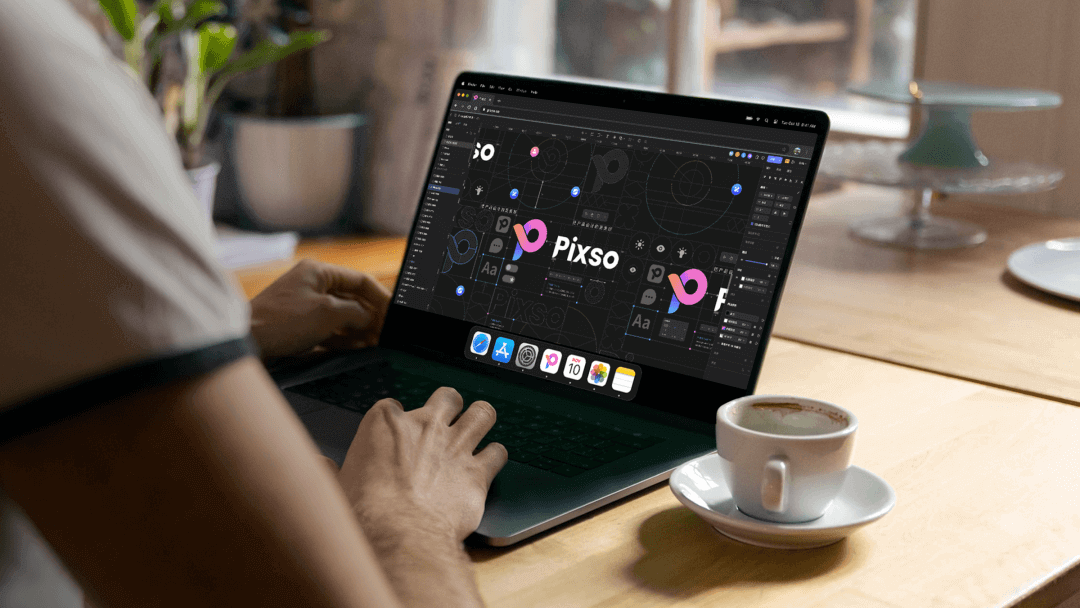
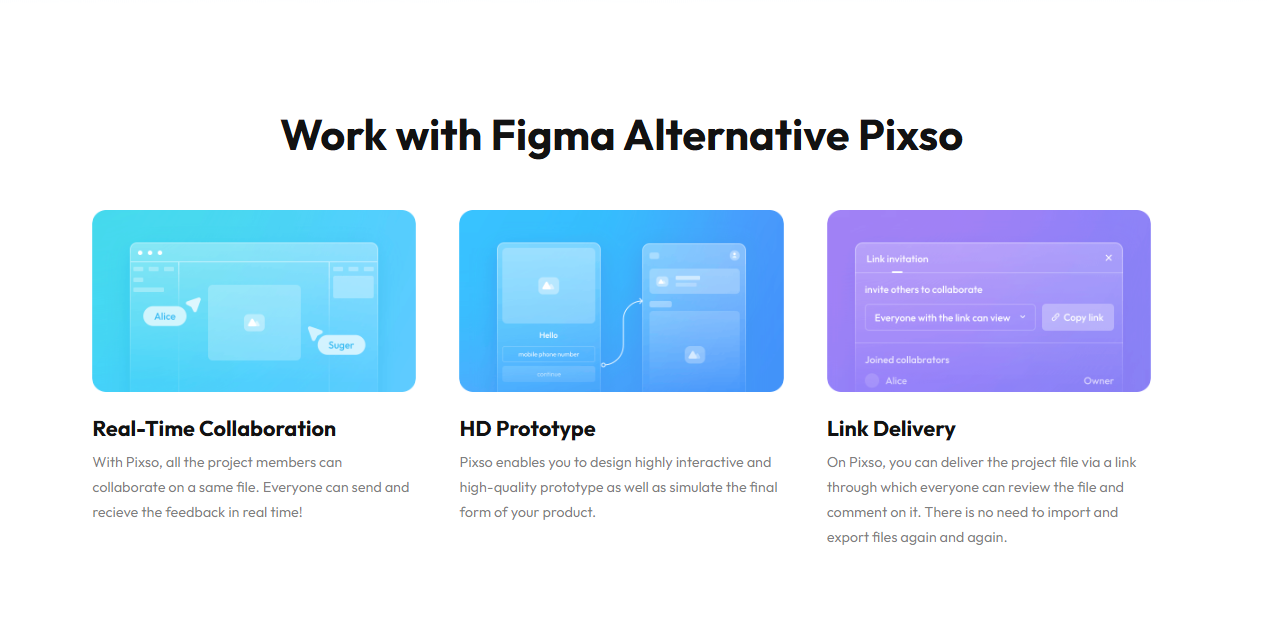
Pixso combines interface design, prototyping, and collaboration with AI features in the design workspace. Its text-to-image capability is useful when you want to explore imagery alongside the layout that will use it. Check the AI options available in your workspace and the credits shown for the task before generating.
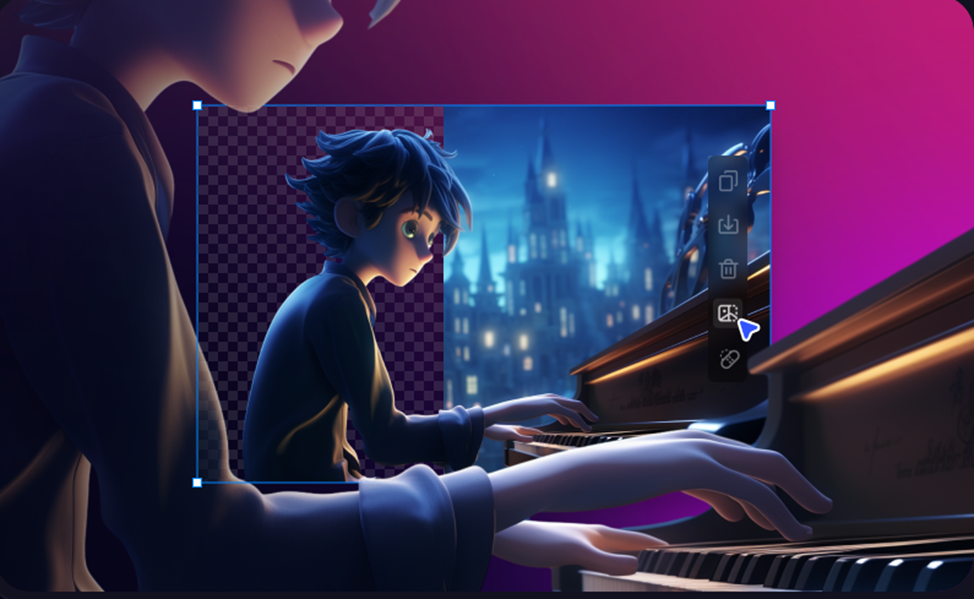
Start with a specific use: a hero image for a travel page, an illustration for onboarding, or a background for a campaign. Describe the subject, composition, lighting, and palette. Include where the image needs empty space so it can sit beside a heading or button.
Place a promising result in the actual design and adjust the crop and scale. An image can look strong on its own yet compete with the page headline or lose its focal point in a mobile frame. Discuss those choices with collaborators while the image and layout are visible together.
For a travel banner, try a brief such as “Wide coastal scene with a small sailboat on the right, soft morning light, muted blue and sand tones, open sky on the left for a headline.” If the subject takes up too much space, revise its position and scale before adding more stylistic detail.
2. NightCafe
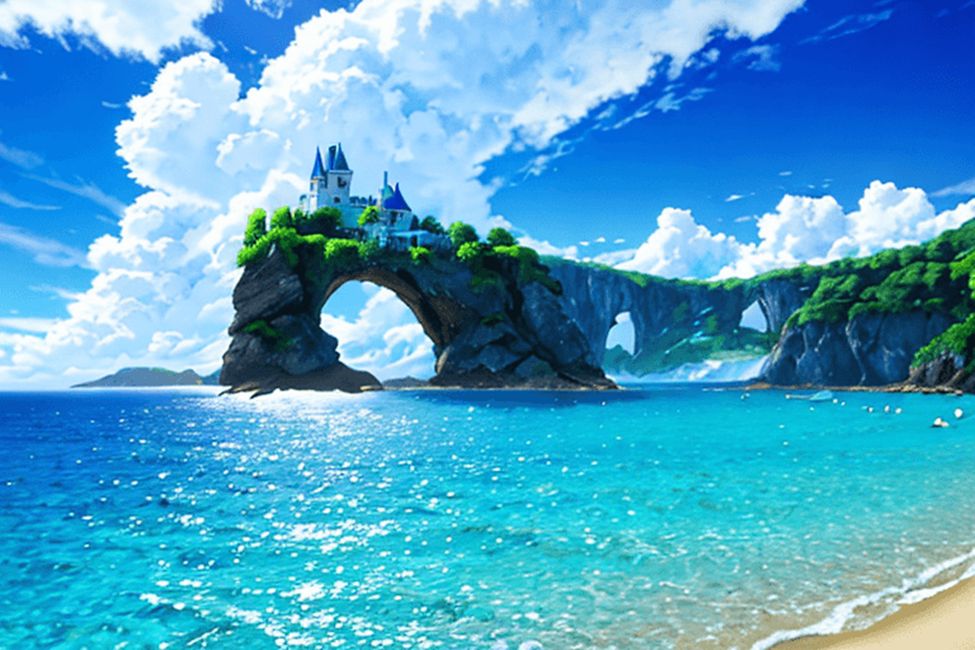
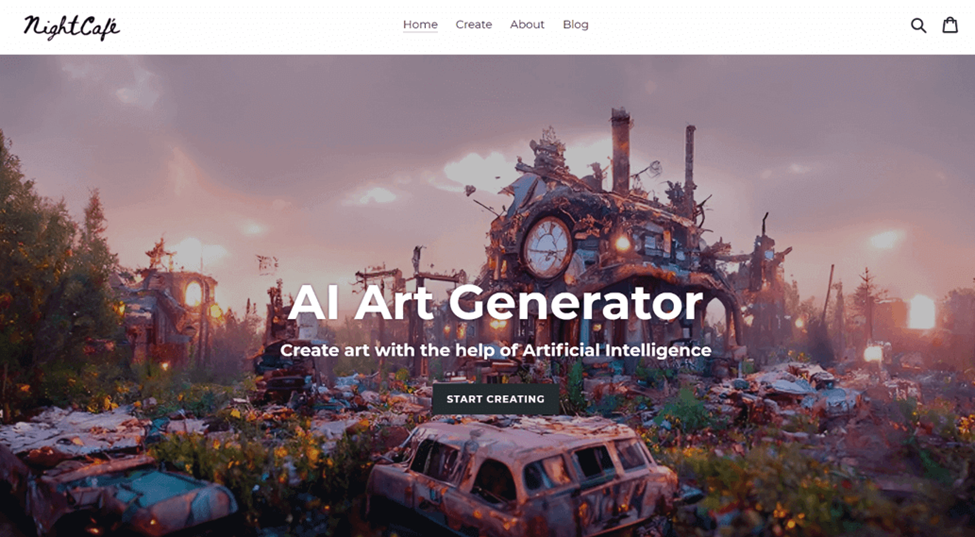
NightCafe is a browser-based option for exploring AI artwork from prompts. It is a useful candidate when you want to compare visual directions rather than build a complete interface. Start with one clear subject and composition, then vary the style or settings one at a time so you can tell what changed the result.
3. DALL·E 2 and OpenAI Image Generation
DALL·E 2 was an early OpenAI image model, but it has been retired from the API. For a new workflow, use the image generation and editing options in OpenAI’s current image tools or API. Describe the composition and requested changes explicitly; a longer prompt is only useful when the additional details help resolve the design task.
4. Deep Dream Generator
Deep Dream Generator offers browser-based image generation and editing. It can be useful for exploring illustrative or painterly treatments. Choose the available generation mode that fits your task, then compare how it handles the focal subject, background, and texture. Keep the crop consistent when comparing versions so a change in framing does not disguise a weaker composition.
5. Artbreeder
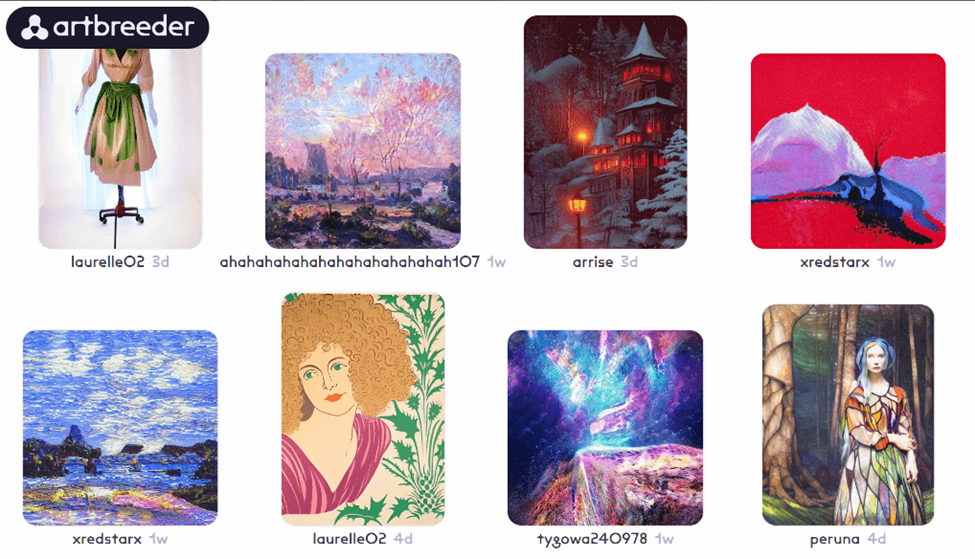
Artbreeder is an option for exploring related visual variations, including portraits and landscapes. It suits the stage where you are still deciding the direction of an image. Compare a small group of alternatives and keep track of which attributes you want to preserve. For a finished campaign, judge the selected image against the layout and subject requirements.
6. Big Sleep: a Python Experiment
Big Sleep is an open-source command-line project that combines CLIP and BigGAN for text-to-image generation. It requires a Python environment and technical setup, so it is better suited to experimentation than to a quick browser-based design task. Consider it if you want to explore how the generation process works and can manage the project dependencies.
7. DeepAI
DeepAI provides an online text-to-image generator. It is a candidate for testing prompts and developing an initial visual direction. Compare the available style and output options with the requirements of your project, and check the usage allowance for your account before planning a large batch of images.
8. StarryAI
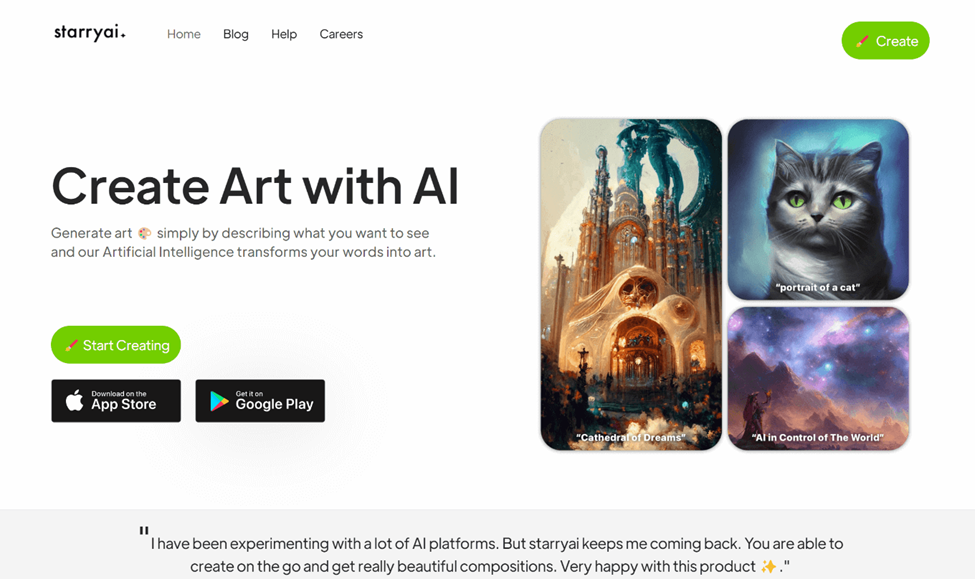
StarryAI accepts prompts and reference inputs for image creation. Use it to explore subjects, moods, and styles, then refine the version that best fits the brief. Give the tool a clear starting direction: the subject, its position, the environment, and the intended format all affect whether the result will work in your design.
9. Fotor
Fotor combines image generation with editing tools. It is useful to consider when you expect to revise a generated image, such as replacing part of a scene or changing its background. Evaluate both stages: first the composition you can generate, then how well the editor preserves the parts you want to keep.
10. Runway
Runway supports image generation with reference media as part of a broader visual production workflow. It is a useful candidate when a character, object, or visual style needs to carry across several scenes. Start with a clear reference and describe the requested change; inspect whether the subject remains recognizable as the setting or composition changes.
Choose the Tool Around the Design Task
For interface work, try an image directly in the layout before producing more variations. Pixso lets you bring that visual exploration into a shared design workspace. For reference-led image work, compare the editing controls of tools such as Fotor or Runway. Keep the option that gives you useful control over the composition and fits the way your team reviews and delivers the work.