Scott
Converting raster graphics into scalable vector formats is an essential workflow for UI and UX designers, front end developers, and digital creators. Whether you need to restore a low resolution logo, prepare responsive icons for multiple screen densities, or extract clean paths for further digital styling, knowing how to convert to svg can dramatically accelerate your design process.
In this guide, we explore why vector conversion is crucial for modern digital workflows, evaluate the best online tools to vectorize image assets, and share practical techniques to get pixel perfect results every time.
1. Why You Should Convert Raster Graphics to SVG
Scalable Vector Graphics have become the standard format across modern digital design and web development because they solve several critical production challenges:
- Brand Asset Scalability: Transforming pixelated raster logos into vectors ensures pristine clarity across large print materials, high density displays, and responsive web layouts.
- Seamless Cross Device Responsiveness: When you perform an image to svg conversion for marketing graphics or interface icons, the graphics render crisply across mobile phones, tablets, and desktop viewports without blurriness or pixelation.
- Efficient Developer Collaboration: Front end engineers can embed SVG code directly into applications, eliminating the need to export multiple asset resolutions and significantly streamlining implementation.
2. Top 6 Online Tools to Convert Images to SVG
Vector conversion is widely used for logo tracing, custom illustration cleanup, and icon production. Choosing an efficient image to svg tool can save hours of manual pen tool tracing. Below are six tested solutions, followed by recommendations to help you choose the right fit.
(1) Pixso
👉 Convert Images to Vector Graphics for Free
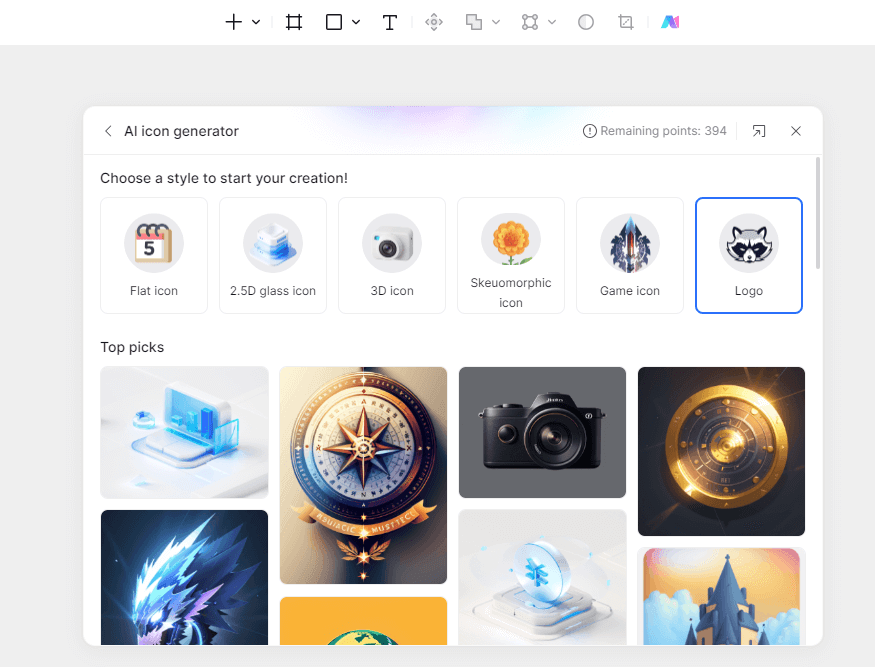
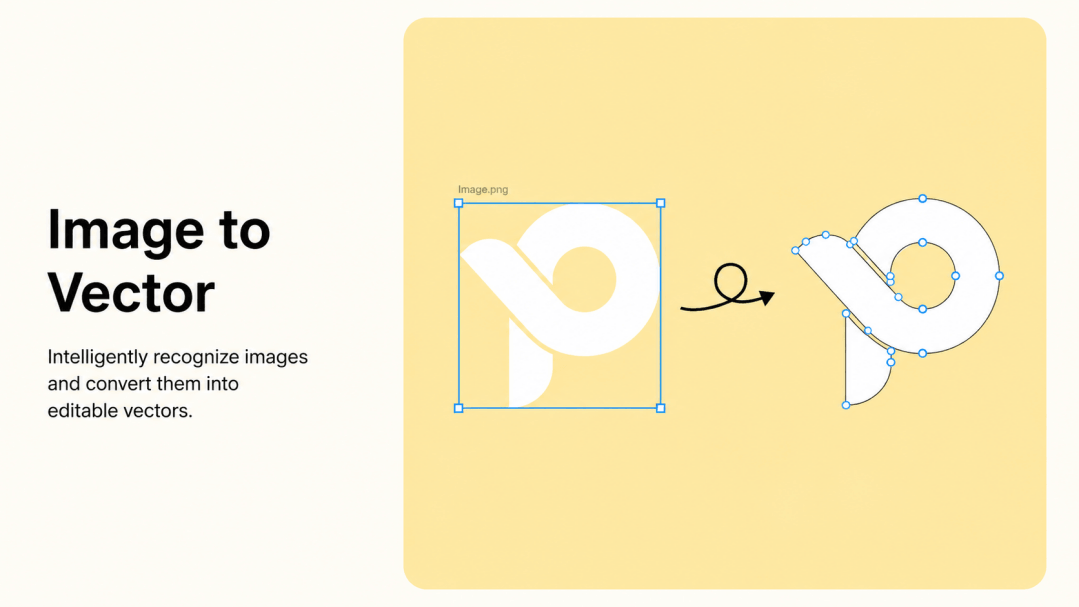
Pixso is a collaborative UI and UX design platform featuring a built-in image vectorizer plugin that allows teams to convert png to svg and transform JPG files into clean, editable vector paths in seconds. The platform connects bitmap tracing, vector editing, and developer code inspection inside a single cloud environment, eliminating the hassle of switching between standalone conversion utilities.
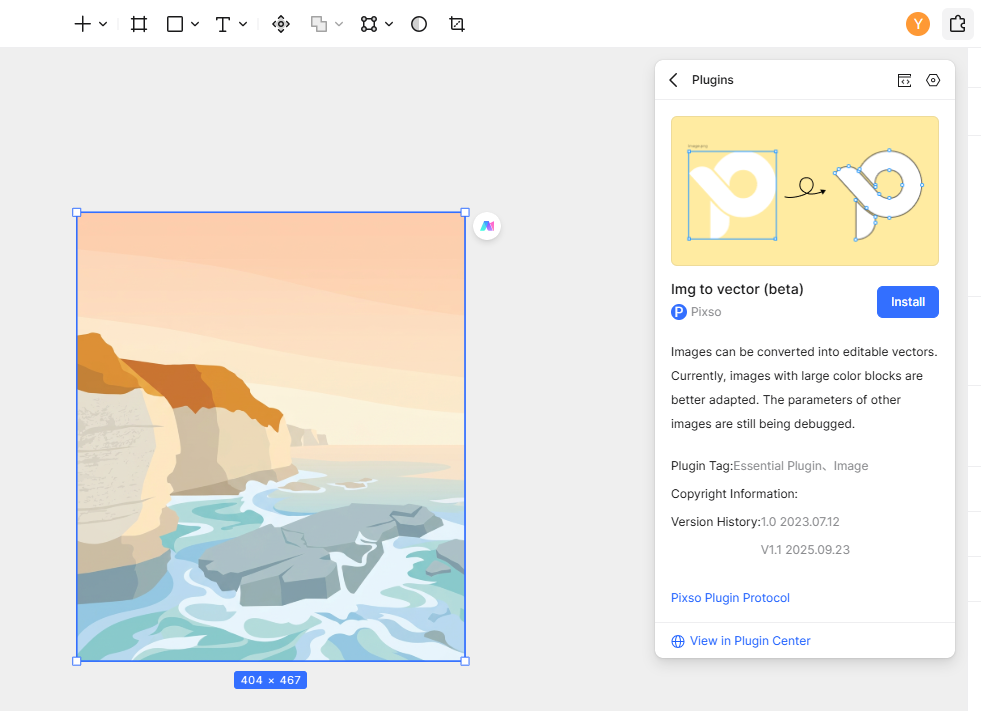
How to Use Pixso for Vector Conversion:
- Open your workspace in Pixso, create a new design canvas, and launch the built in image vectorizer plugin.
- Import your raster graphic and run the plugin to instantly convert to svg format.
- Use the integrated vector network tools to refine shapes, adjust color fills, and fine tune anchor points.
(2) Vector Magic
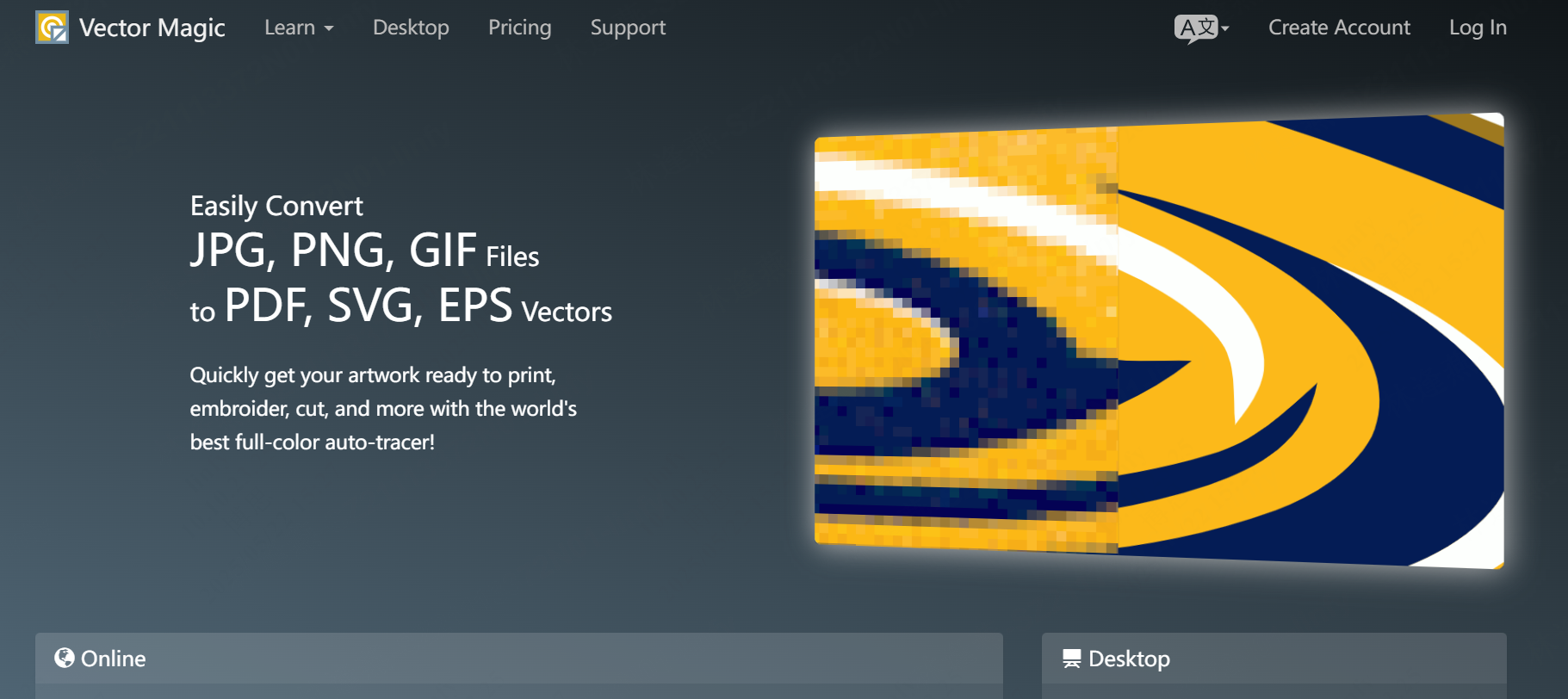
Vector Magic is an automated tracing solution designed to convert complex illustrations and logos into production ready vector assets. It works reliably as a dedicated jpg to svg converter and png to svg converter, generating precise geometric paths that are ready for commercial use without extensive manual correction.
How to Use Vector Magic:
- Upload your JPG or PNG image to the online tool.
- Use the interactive controls to adjust tracing detail and color palette settings.
- Preview the vector result and download the clean SVG file.
(3) Adobe Capture
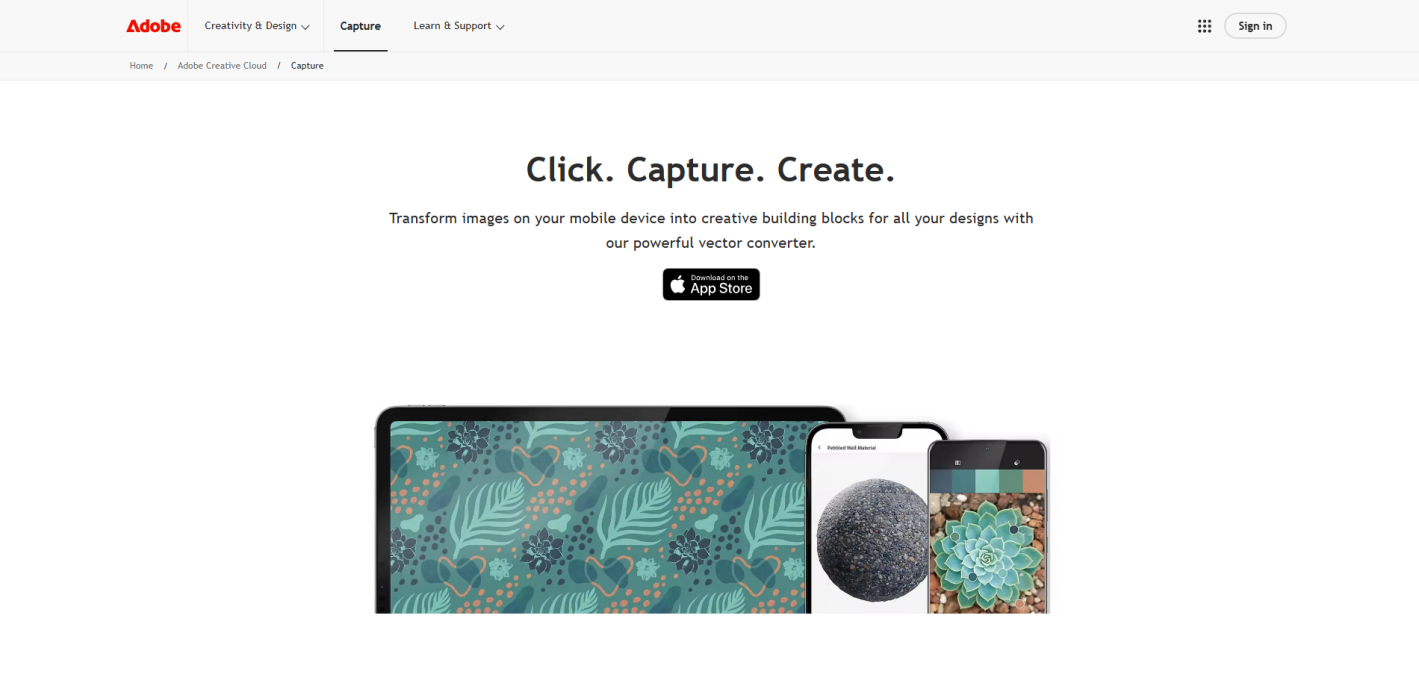
Adobe Capture enables designers to turn sketches, photos, and digital graphics into clean vector curves on desktop or mobile devices. It connects directly with creative tools like Adobe Illustrator and Photoshop, while also extracting color schemes and typographic patterns from imported images.
How to Use Adobe Capture:
- Open the application and import your source bitmap or take a photo.
- Select the Shapes module to automatically detect and trace outlines.
- Refine the vector paths and export the asset directly to your design library.
(4) Inkscape
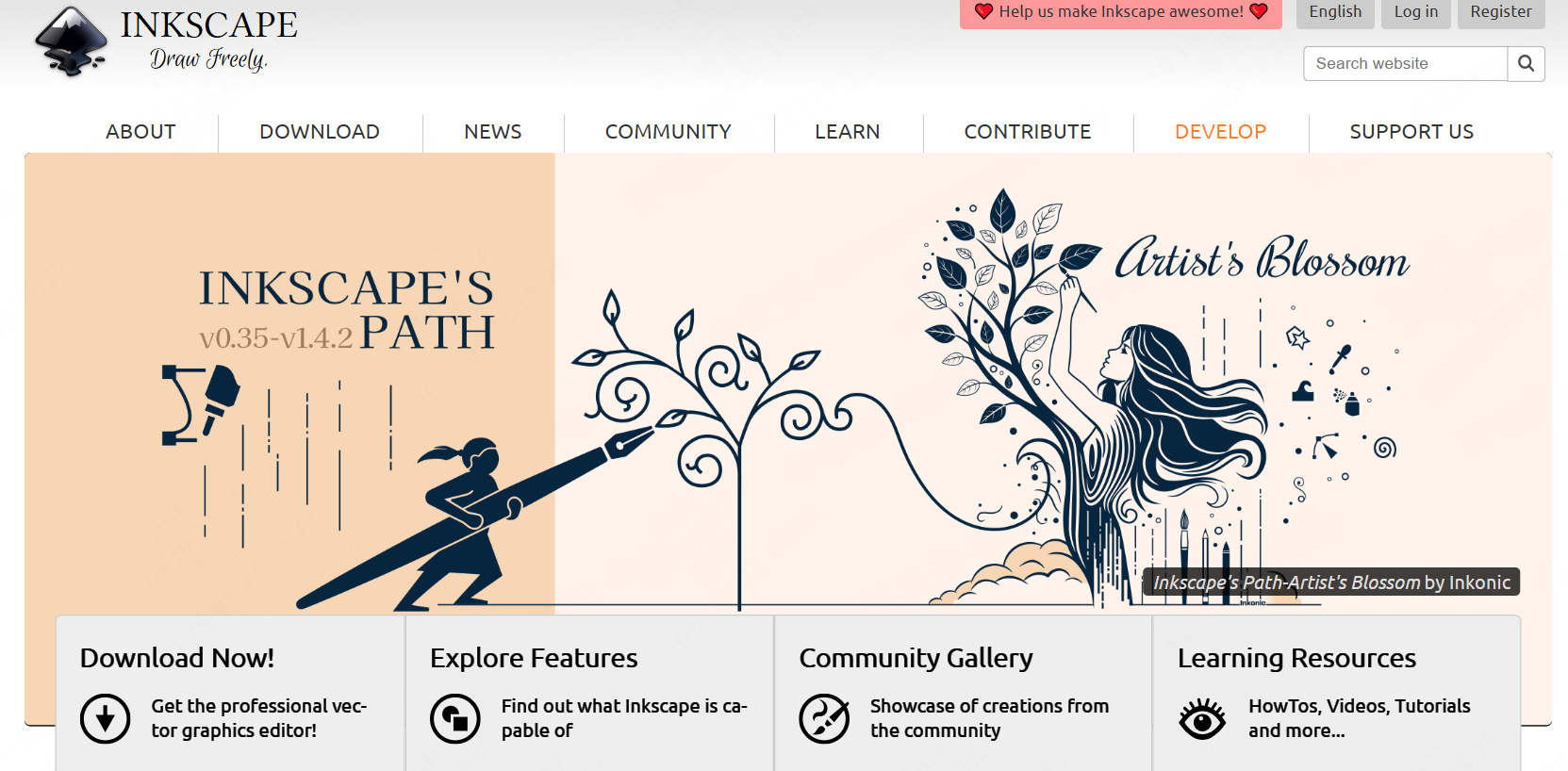
Inkscape is a free, open source vector graphics editor for Windows, macOS, and Linux. Powered by the Potrace engine, it offers robust manual controls over path tracing thresholds, making it a dependable choice for designers and developers who want fine control over their vector node density.
How to Use Inkscape:
- Import your bitmap graphic into the Inkscape canvas and select the element.
- Navigate to the Path menu and select Trace Bitmap.
- Adjust the brightness cutoff or edge detection settings, generate the vector paths, and save the file in SVG format.
(5) Convertio
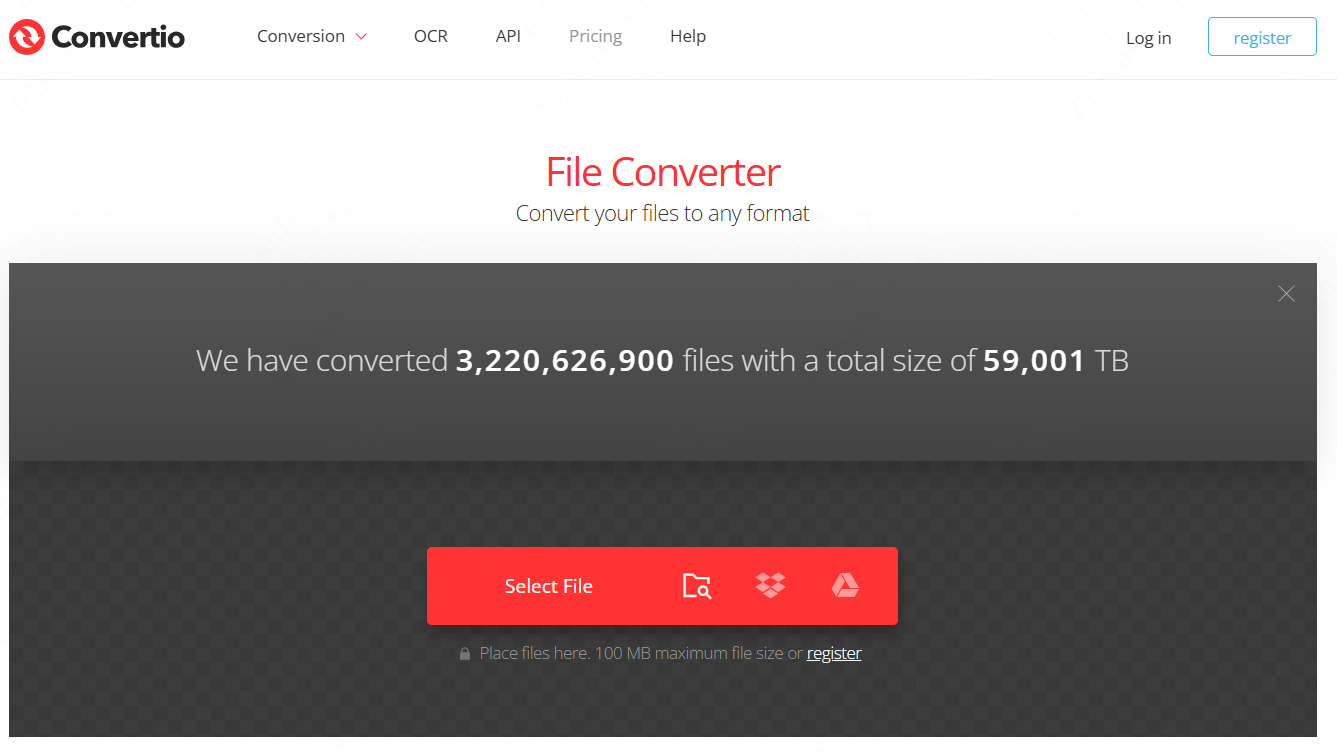
Convertio is a browser based file transformation platform that supports hundreds of formats. It functions as a lightweight jpg to svg and png to svg utility, making it ideal for quick conversions without installing desktop software. It also supports concurrent batch uploads to speed up repetitive tasks.
How to Use Convertio:
- Drag and drop your raster files into the upload area.
- Select SVG from the format dropdown list.
- Click convert and download your processed vector files individually or as a batch.
(6) SVGOMG
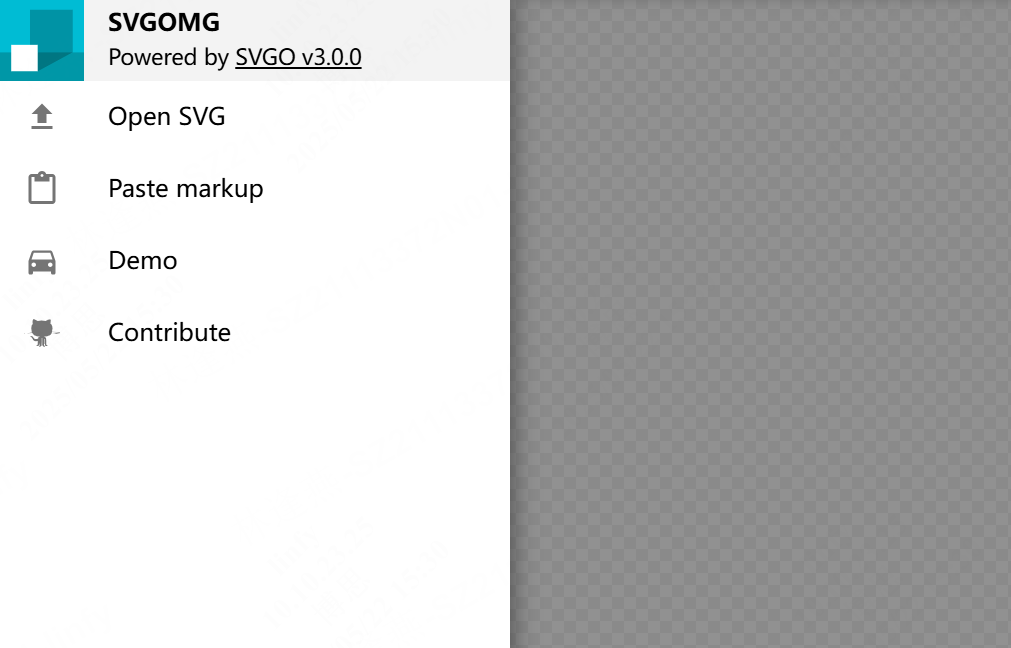
SVGOMG is a web-based optimization tool dedicated to cleaning and minifying SVG files. By stripping redundant metadata, hidden XML elements, and unnecessary precision points, it helps web creators significantly reduce asset weight while preserving visual fidelity.
How to Use SVGOMG:
- Upload your SVG file or paste raw vector code directly into the editor.
- Adjust optimization sliders to balance file size reduction with visual quality.
- Download the optimized SVG file for production web deployment.
How to Choose the Right Tool
- For UI and UX Design Teams: Pixso is the recommended solution because it combines instant vectorization with cloud collaboration and vector editing in a single workspace.
- For High Precision Tracing: Vector Magic provides superior automatic edge detection for complex logos and artwork.
- For Creative Cloud Users: Adobe Capture offers fast mobile capture with direct desktop synchronization.
- For Quick Batch Processing: Convertio provides an accessible browser based solution for multi format conversion.
- For Open Source Workflows and File Optimization: Inkscape gives deep technical control, while SVGOMG ensures lightweight web assets.
3. Best Practices to Improve Vector Conversion Quality
Improper input images can lead to jagged edges or bloated vector files. Following these three practical guidelines will help you achieve clean, professional results:
- Maximize Source Contrast Before Tracing: High contrast between subjects and backgrounds produces clearer vector boundaries. Use image adjustment controls to increase contrast and remove color noise before converting your graphic.
- Isolate Typography from Complex Artwork: Automated tracing tools can distort intricate font glyphs when processed alongside complex graphics. Separate your text elements from illustrations before conversion, or replace raster text with native digital typography inside your design editor.
- Simplify Redundant Vector Nodes: Auto tracing can generate excessive anchor points that increase file size and complicate manual edits. After conversion, enter vector edit mode, select unnecessary nodes, and delete them to create cleaner, more efficient vector paths.
FAQ
Q1. Can photographic gradients and complex textures convert cleanly into SVG vectors?
Vectorizing continuous tone photographs or complex texture gradients is generally not recommended because auto tracing algorithms break down color gradients into thousands of tiny vector polygons. This dramatically inflates the final SVG file size and degrades browser rendering performance. For rich photographic imagery, modern compressed raster formats like WebP or AVIF are superior, whereas vector conversion is optimal for flat shapes, iconography, brand marks, and line art.
Q2. Is it safe to use public web converters for proprietary brand logos and confidential assets?
Many standalone online converters temporarily store uploaded graphics on public third-party servers, which creates intellectual property and data confidentiality concerns for enterprise organizations. When handling sensitive corporate assets or unreleased product designs, design teams should prioritize secure design workspaces like Pixso or local desktop utilities that process graphics within authenticated environments without exposing files to external servers.
Q3. When should designers choose automated vectorization over manual pen tool tracing?
Automated conversion is ideal for rapid prototyping, digitizing hand drawn sketch ideas, processing high volume icon batches, and restoring vintage graphic assets quickly. Manual vector recreation with the pen tool is preferred for primary brand logos and design system icons where absolute geometric symmetry, precise bezier curve alignment, and the lowest possible anchor point count are essential.
Q4. Can converted SVG graphics be animated with CSS or manipulated through JavaScript?
Yes, once an image is converted into vector paths and exported as clean markup, developers can target individual path elements using CSS classes and JavaScript DOM manipulation. This enables dynamic hover effects, stroke dash animations, color morphing, and interactive UI states in modern web applications, provided the underlying SVG code is optimized and free from unnecessary group wrappers.
Summary
Mastering vector conversion tools allows you to turn low resolution bitmaps into crisp, infinitely scalable vector graphics for interfaces, logos, and responsive web assets. By leveraging Pixso as an integrated solution, you can complete vector tracing, asset refinement, and collaborative handoff in minutes.
👉 Start vectorizing your images and building scalable designs for free on Pixso!