Scott
The best accessibility testing tools for UI designers form a stack, not a single winner. Use a contrast tool while defining colors, a design-stage annotation method for focus and states, a browser scanner for implemented markup, and manual keyboard and assistive-technology review for behavior automation cannot judge. This comparison focuses on contrast, focus order, component states, reports, and handoff evidence.

Choose tools by the question you need answered
Accessibility reviews fail when teams run one automated scan at the end and interpret a low issue count as approval. A scanner can find many detectable markup problems, but it cannot decide whether a workflow makes sense, whether focus moves logically after an action, or whether an error message helps someone recover.
For UI designers, divide the work into four questions:
- Do color and non-text contrast choices meet the team's target criteria across states?
- Does the design define visible focus, logical order, labels, errors, zoom, and responsive behavior?
- Does the implemented page expose correct names, roles, states, relationships, and detectable contrast?
- Can a person complete the representative task with keyboard and assistive technology?
The accessibility testing tools for UI designers below are evaluated by which questions they support, what evidence they produce, and where human judgment remains necessary. Feature and plan details can change; this review reflects official product information checked on September 21, 2026.
Comparison at a glance
| Tool | Best use | Runs on | Useful evidence | Key limit |
|---|---|---|---|---|
| WebAIM Contrast Checker | Check a foreground/background color pair | Web page | Contrast ratio and WCAG results | Does not review component behavior or image backgrounds |
| WAVE | Visual page-level issue review | Public URL or browser extension | In-page icons, structure, contrast, and issue details | Cannot certify accessibility; manual evaluation remains necessary |
| axe DevTools | Automated browser checks and remediation guidance | Chrome, Edge, Firefox | Rule failures, affected elements, guidance | Free extension is automated, one page at a time |
| Accessibility Insights for Web | Fast automated check plus assisted tab-stop review | Chrome or Edge extension | Failures, tab sequence visualization, exportable results | FastPass is not a complete assessment |
| Chrome Lighthouse | Repeatable development audit alongside other quality checks | Chrome DevTools or automation | Accessibility audit findings and documentation links | Automated coverage only; results vary with page state |
No row is a universal ranking. A designer checking a color palette needs a different tool from a QA engineer testing a private application. The right outcome is a small workflow that catches design defects early and preserves testable requirements through implementation.
Evaluate accessibility testing tools for UI designers with one representative screen rather than a vendor feature list. Use the same checkout form, the same error state, and the same browser state so differences in findings and evidence are meaningful.
Use a contrast checker while colors are still editable
A dedicated color contrast checker is the fastest tool for evaluating text and surface pairs before a component library spreads them across the product. Enter the foreground and background colors, record the ratio, and test every meaningful state: default, hover, focus, selected, disabled when applicable, error, and high-contrast theme.
The important design habit is to test semantic pairs, not isolated brand colors. “Blue 600 passes on white” does not prove that placeholder text, text on a tinted badge, icon boundaries, or focus indicators work. Gradients, images, transparency, and layered effects need review at their weakest visible point and often require manual judgment.
Keep the contrast evidence beside the component specification. In Pixso, styles, variables, components, and shared libraries can keep approved color relationships consistent in editable design files. Pixso does not replace browser-based accessibility testing; it gives the team a place to define and review the intended states before code exists.
Use WAVE for visual page context
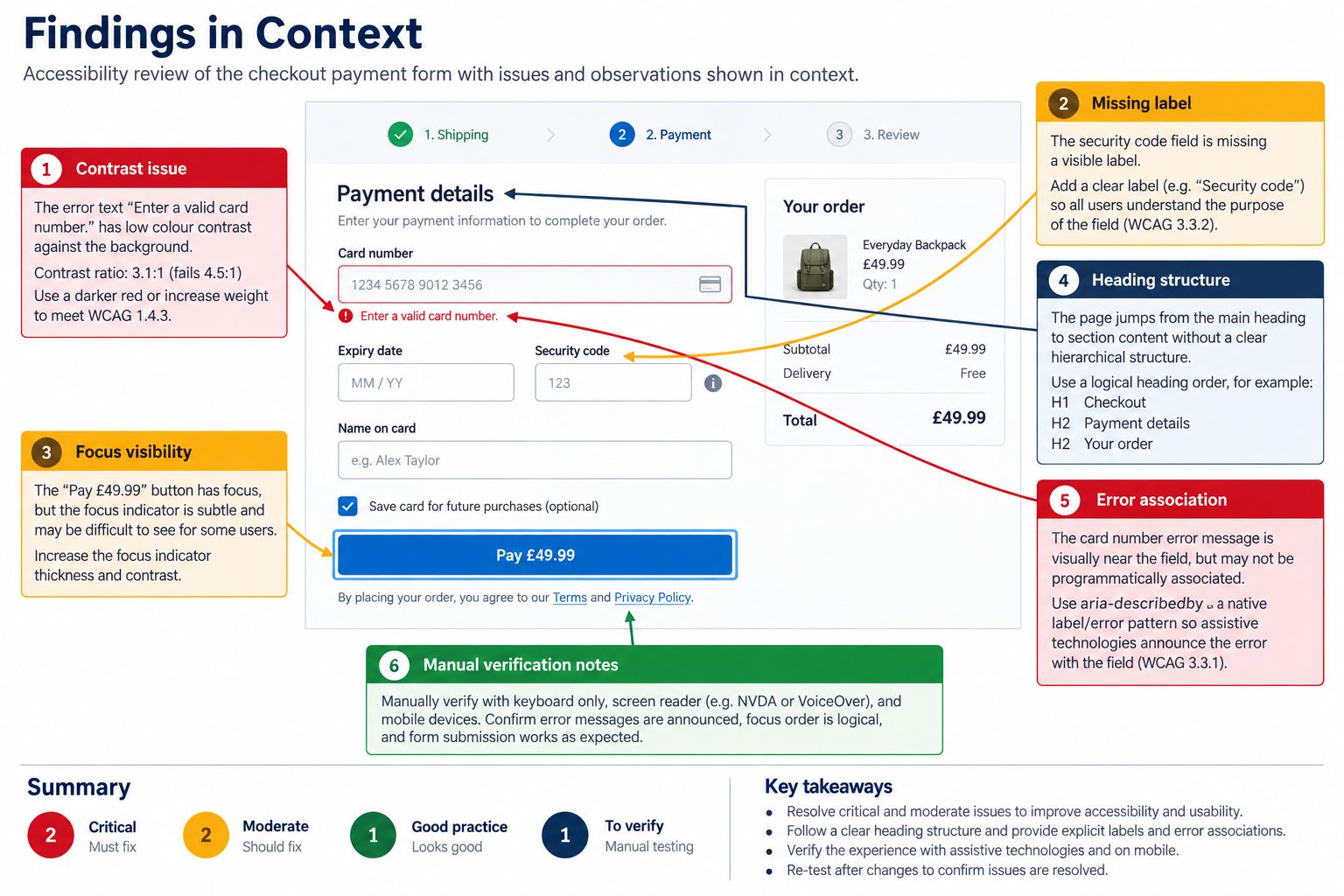
WAVE is useful when designers want findings shown in the context of the rendered page. The online tool accepts a public URL, while its browser extensions can evaluate local, password-protected, and dynamic pages inside the browser. WAVE highlights errors, alerts, structural elements, ARIA, and contrast information without reducing the page to a detached spreadsheet.
That visual context helps a designer connect an issue to the screen and discuss it with engineering. It is especially useful for headings, labels, alternative text, landmarks, and page structure. WAVE's own documentation is explicit that no automated tool can determine whether a page is accessible. Treat findings as evidence to investigate, not as a pass badge.
Use axe DevTools for targeted automated checks
axe DevTools runs accessibility rules in Chrome, Edge, and Firefox and provides guidance for affected elements. The free extension focuses on automated, one-page testing; paid capabilities may add guided tests, reporting, integrations, and broader workflows. Confirm the current plan before standardizing a team process.
For designers working with developers, axe findings can turn a vague comment such as “make this accessible” into a specific issue with a rule, element, impact, and remediation discussion. It is valuable after implementation, especially for form labels, ARIA attributes, contrast, and other machine-detectable conditions.
Do not expect an automated rule to judge whether focus lands in the most useful place after a modal opens, whether link text makes sense in context, or whether a screen-reader announcement arrives at the correct moment in a complex workflow. Pair automated output with a representative manual task.
Use Accessibility Insights for focus-order evidence
Accessibility Insights for Web FastPass combines automated checks with an assisted tab-stop test. Its visual helper can expose missing tab stops, keyboard traps, and an illogical tab sequence. That makes it particularly relevant to designers who need to compare the implemented focus order with the intended interface order.
Use the tool on a concrete task, such as updating a shipping address. Start at the first meaningful control, tab through the page, open any dialog, complete or cancel it, and verify where focus returns. Record any mismatch with the screen, component, expected behavior, actual behavior, severity, owner, and retest evidence.
FastPass is intentionally lightweight. Its documentation recommends a fuller assessment for accessibility compliance. It is a strong bridge between automated scanning and manual keyboard review, not a replacement for the latter.
Use Lighthouse for repeatable development feedback
Chrome Lighthouse is convenient when a team already audits performance and quality in browser development tools or continuous integration. Its accessibility category can flag detectable problems and link to explanatory guidance. It is most useful as a repeatable checkpoint across representative pages and states.
Run it on the state users actually encounter. A logged-out landing page, open account dialog, validation-error form, and authenticated dashboard may expose different markup. Document the tested URL, viewport, authentication state, and date. A score alone is poor evidence because it hides which user task and state were reviewed.
Use Lighthouse to prevent regressions, then investigate findings with the browser accessibility tree, keyboard, zoom, and a screen reader. Like the other accessibility testing tools for UI designers, it supports a process; it does not certify the product.
Build a design-to-browser testing workflow
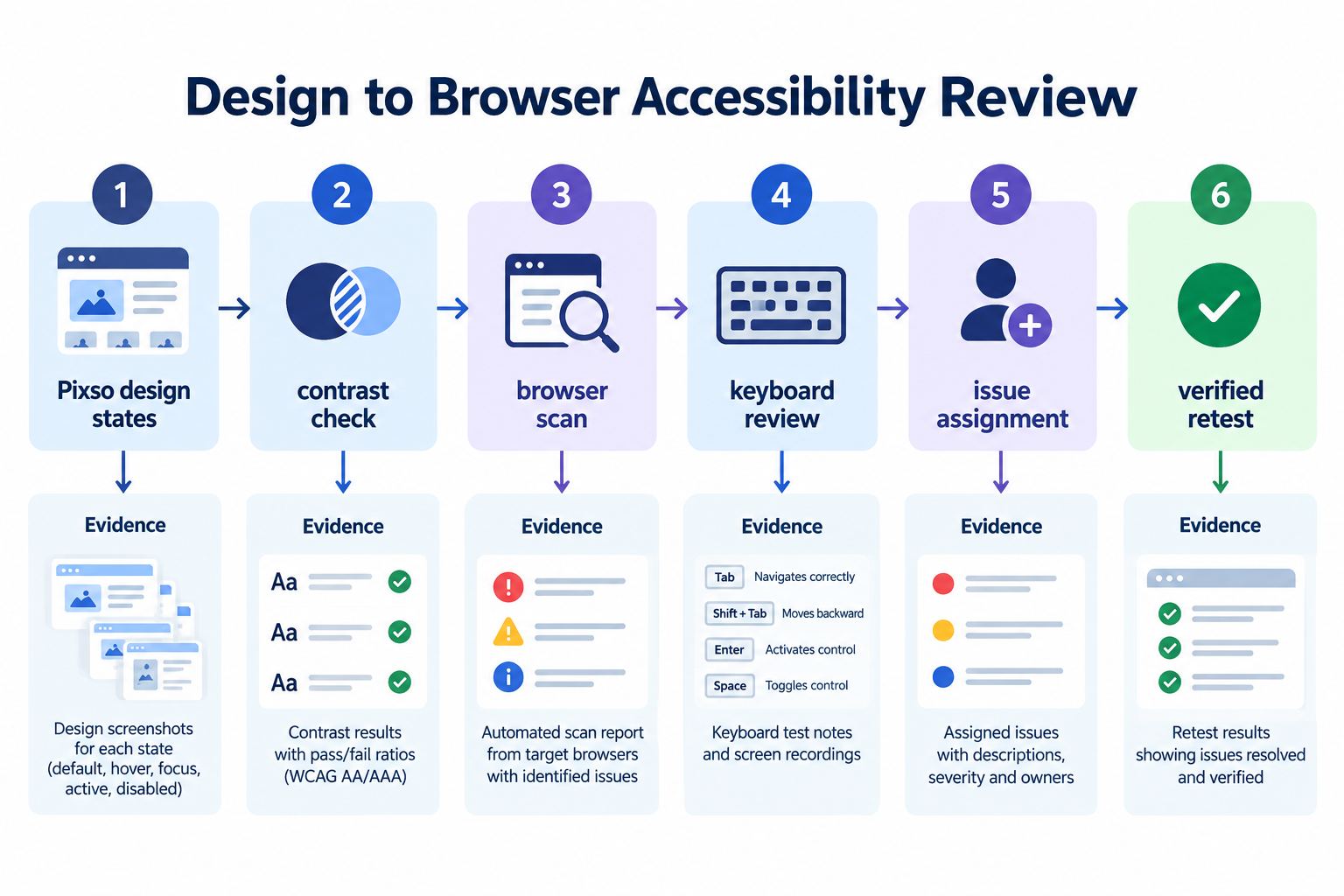
Begin in the editable design. Define default, hover, focus, active, selected, disabled, loading, error, empty, and success states where the component needs them. Add annotations for reading order, keyboard order, accessible name intent, error association, and responsive behavior. Use Pixso comments to resolve questions with engineering instead of assuming that visual proximity defines semantics.
After implementation, run one automated scanner, not three scanners just to collect a longer list. Then complete manual keyboard, zoom, responsive, and screen-reader checks for the primary task. Different scanners may be useful for independent confirmation, but duplicate findings require triage rather than double counting.
Close an issue only when the fix is present in the named build and the original failure can no longer be reproduced. Keep design acceptance and implementation verification separate: the design may be approved while browser testing remains pending.
Record issues so teams can act on them
An accessibility finding should contain location, user impact, severity rationale, evidence, owner, expected result, and retest status. “Contrast issue on button” is weak. “Checkout / Payment / disabled coupon link: 2.8:1 against the surface; low-vision users may not distinguish it; update the semantic text color token; verify in design and staging” is actionable.
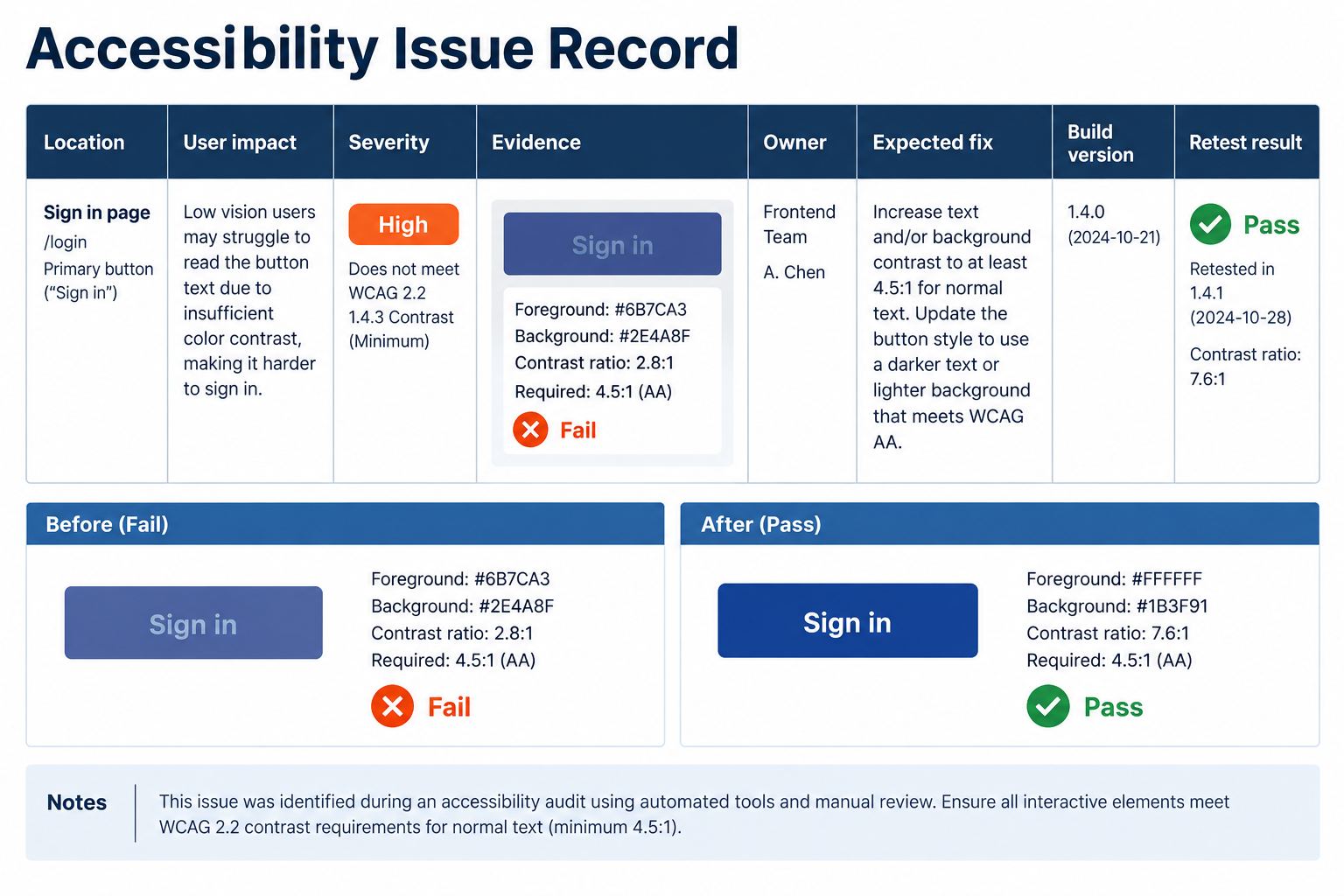
Use severity consistently. A keyboard trap that blocks checkout is more urgent than a redundant heading warning. Base priority on task impact, affected users, frequency, reach, and availability of a workaround. Tool labels can inform the decision, but product teams remain responsible for prioritization.
Recommended stack by team stage
A small UI team can start with a contrast checker, WAVE or axe DevTools, and a documented keyboard checklist. A growing product team benefits from Accessibility Insights for focus evidence, shared issue templates, and automated checks in pull requests. A mature organization should add representative manual testing, disabled-user research, governance, training, and monitoring appropriate to its products.
Whatever the stack, test real workflows and states. Include authentication, errors, overlays, responsive layouts, dynamic updates, and completion evidence. Avoid promising conformance based only on automated results, and seek qualified accessibility and legal guidance when the decision carries regulatory risk.
Revisit accessibility testing tools for UI designers when the product adds a new platform, a team needs shareable reports, or manual findings repeatedly escape the current process. Tool changes should solve an observed gap rather than create more duplicate output.
Run one representative task from design to retest
Use the same screen and user task when comparing accessibility testing tools. Start with the editable design, then test the implemented state and keep the evidence together. This avoids treating a tool’s issue count as a proxy for usability.
- Define the state. Record the component, viewport, focus target, accessible name, error relationship, and expected keyboard order.
- Check the design. Test semantic color pairs and state changes in Pixso, then attach the acceptance note to the component or screen.
- Check the build. Run one automated browser check, complete the task with keyboard and zoom, and verify the same state with assistive technology when needed.
- Close the loop. Assign the issue, capture the build and browser, and retest the original failure after the fix.
| Evidence | What to record | Why it matters |
|---|---|---|
| Design state | Component, state, token pair, focus and error intent | Engineering can implement the intended behavior rather than infer it |
| Browser result | URL, viewport, authentication state, rule and affected element | The finding can be reproduced in the named build |
| Manual task | Task steps, keyboard path, announcement, outcome and retest date | Automation does not prove that a person can complete the workflow |
Keep the design decision and implementation result separate. A screen can pass design review while the browser check remains open; that distinction makes the next action visible without overstating compliance.
Conclusion
Accessibility testing tools for UI designers work best as a connected workflow. Check contrast while tokens are editable, annotate focus and states in the design, scan the implemented page, manually complete the task with keyboard and assistive technology, and record evidence through retest. Choose tools for the question they answer, and never treat an automated score as proof that people can use the product.