Scott
Choose an AI art tool by the output you need: a campaign image, an illustration, a product photo or a visual direction for a layout. This guide covers image generators alongside drawing, editing and adjacent design resources, with a practical task for each. Start from the intended placement so composition, crop and detail serve the design.
Pixso AI

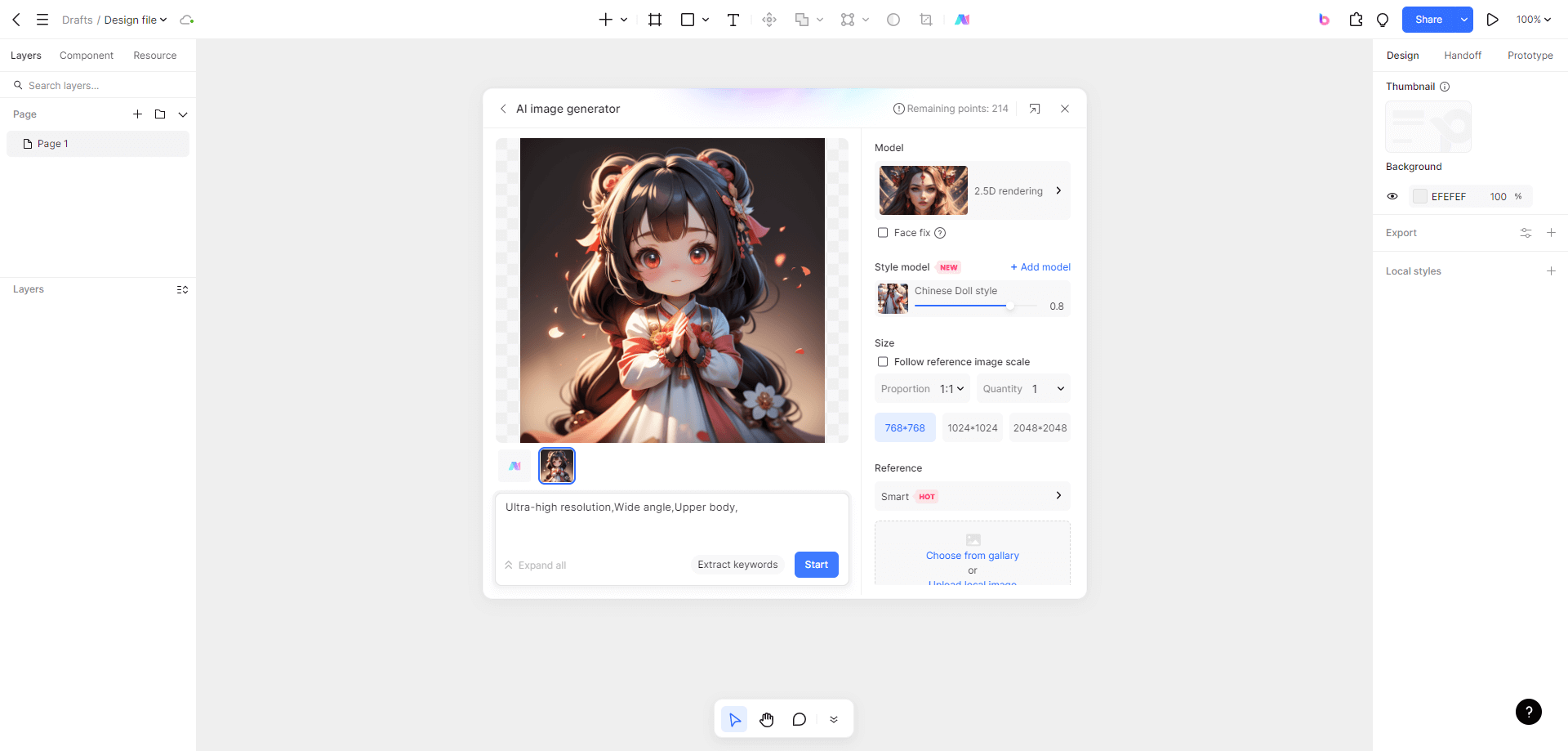
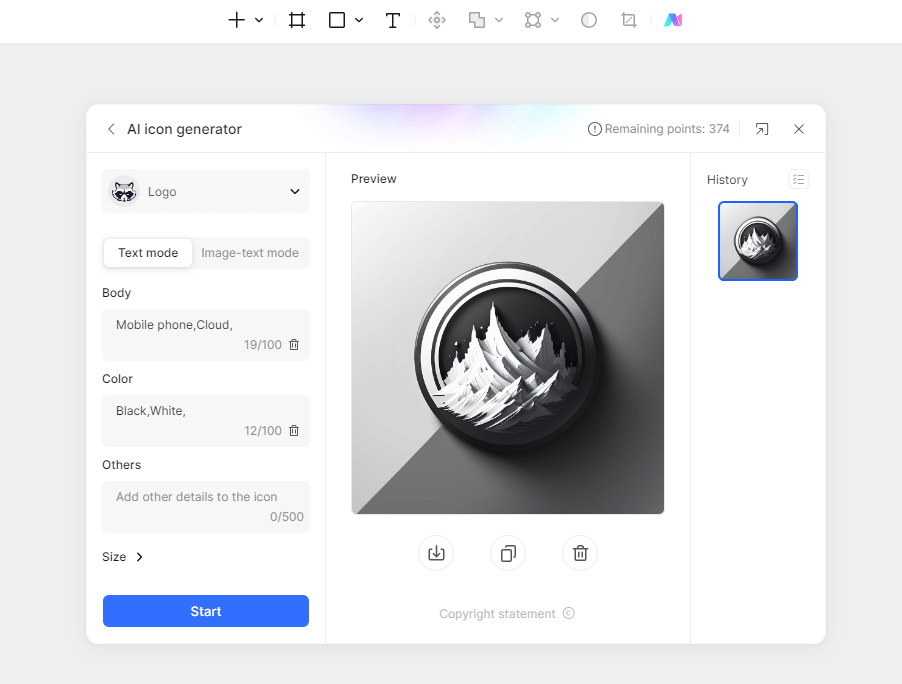
Pixso AI brings image generation into the design workspace. Use it to explore a cover image, background or illustration, then place the result beside real interface content and continue refining the layout.
For a product page, describe the subject, composition, lighting and space needed for a headline. Generate a few alternatives, compare them at the intended display size and keep the one that supports the message.
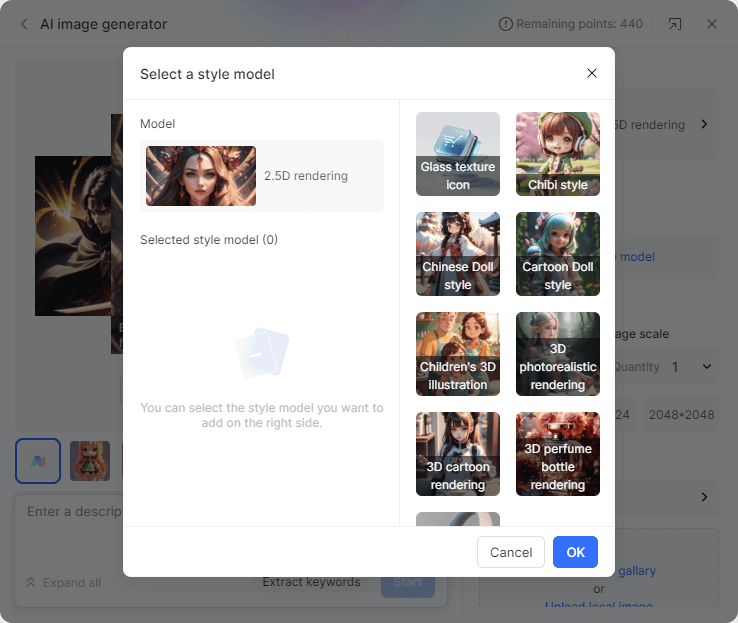
Visual direction: describe the colors, materials and atmosphere that fit the project. A consistent brief makes it easier to compare alternatives or develop a related set of images.
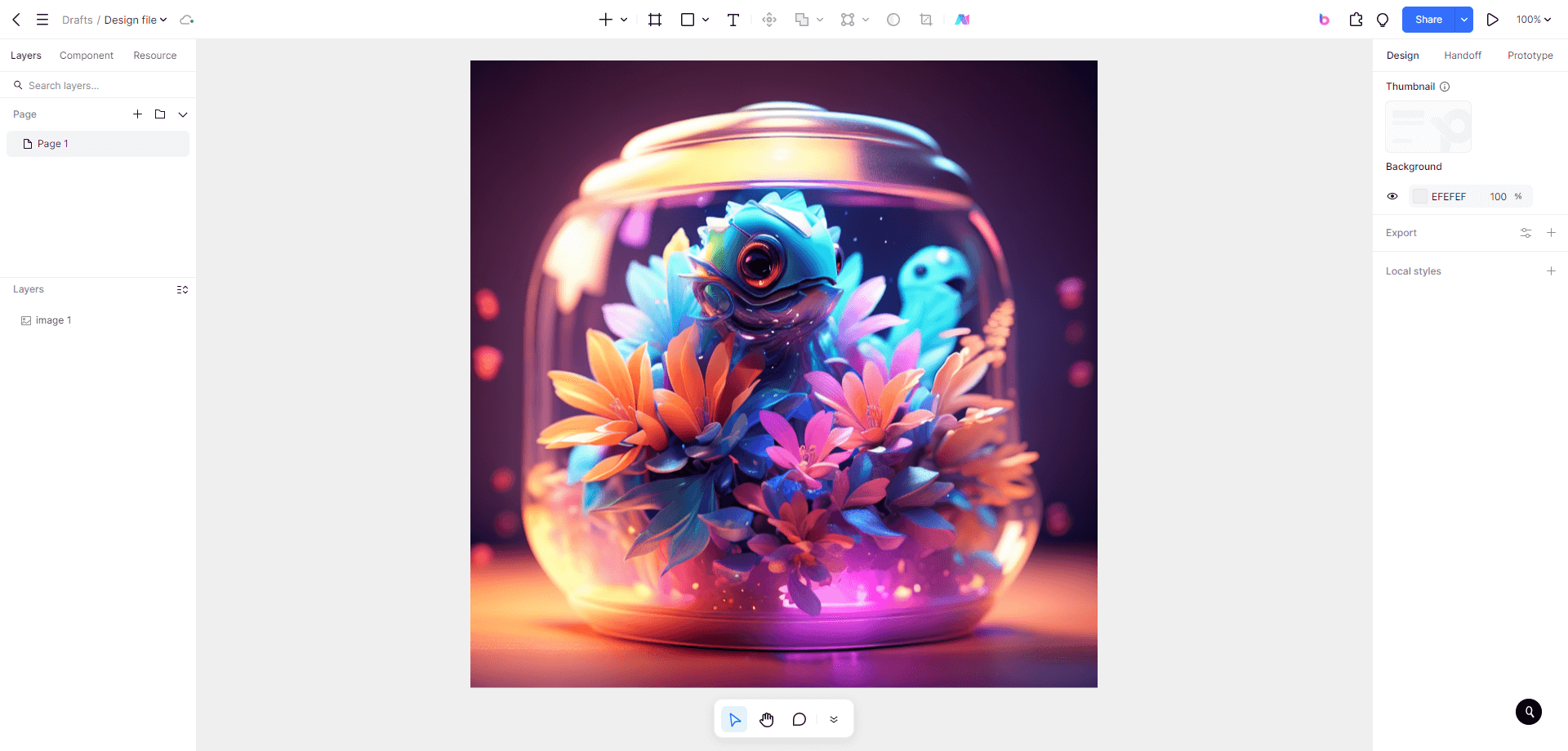
Size and placement: choose an aspect ratio for the design and inspect the result inside the actual frame. Crop and position it with the surrounding text visible, then export at the required dimensions.
Prompt structure: name the subject, scene and treatment, followed by the details that matter to the layout. For example, ask for a product on the right with a calm background and clear space for text on the left.
Midjourney
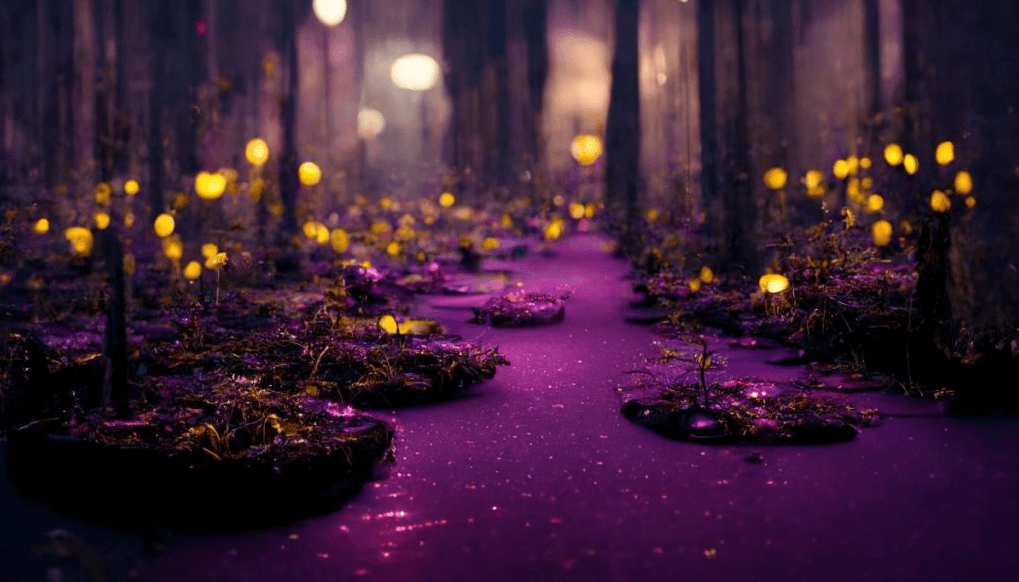
Midjourney generates images from prompts and can use image references to guide content, composition and color. It is useful for comparing visual directions before committing to a layout. Use its editing workflow when you need to change a region, extend the composition or revise a prompt while preserving useful parts of an image.
Stable Diffusion
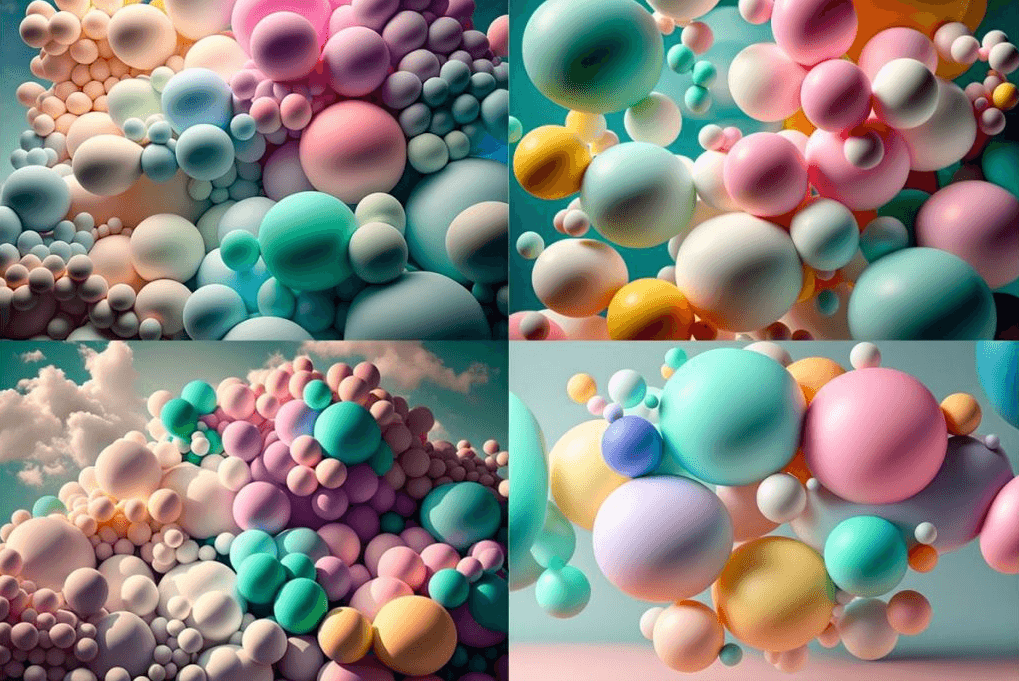
Stable Diffusion is a family of image-generation models used through different applications and workflows. It is a useful option when you need control over the model and generation settings. Start with a clear prompt, compare a small set of results and change one setting at a time so you can identify what improves the image.
Flair.ai: Product Photography
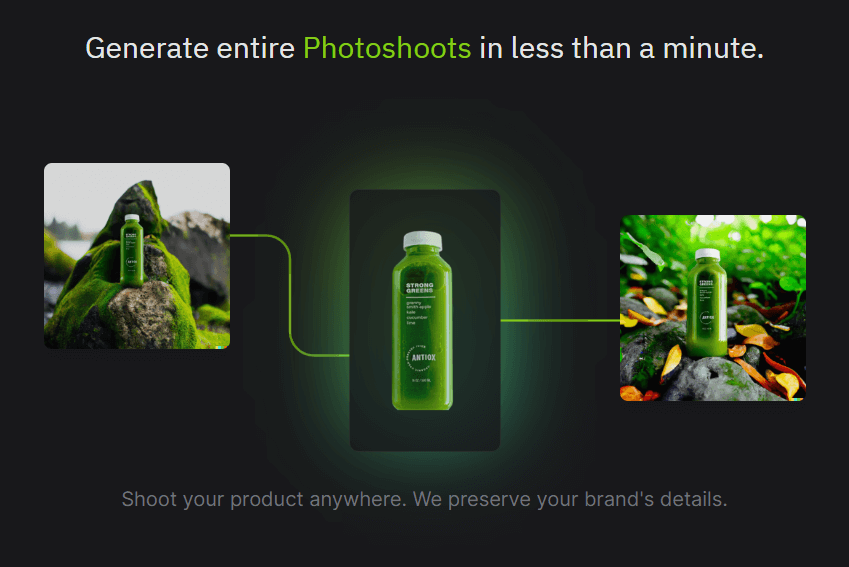
Flair.ai is a product-photography creation and editing tool. Arrange a product with props and a background on its visual canvas, then use AI tools to develop the scene. For a product campaign, keep the packaging and proportions recognizable while exploring lighting, surfaces and composition.
Adobe Firefly
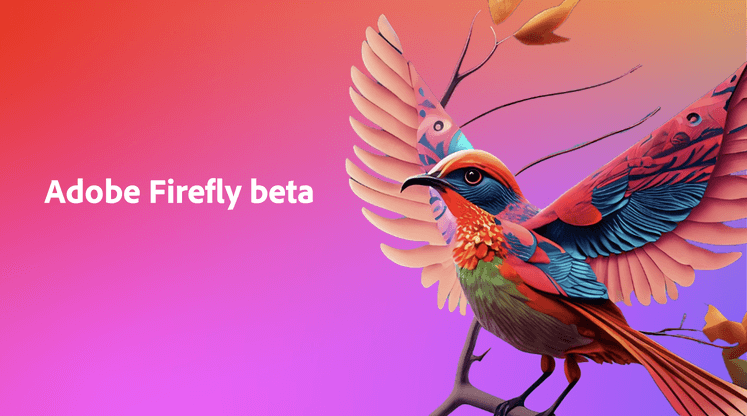
Adobe Firefly provides image generation and editing tools on the web and within Adobe workflows. Use a text prompt to explore a visual, then refine the result for its placement. It fits projects where generated imagery will continue into image editing, page layout or other Adobe production work.
Dora AI: Earlier Website-Generation Workflows
Dora announced that its service would close on May 1, 2026. Its earlier website-generation examples combined imagery, copy and visual style. They illustrate a different task from producing a standalone image: visuals must work with navigation, readable text and page structure. Develop those elements together when planning a website, then test the finished page at the intended screen sizes.
OpenArt
OpenArt provides tools for generating and editing images, including workflows for developing consistent characters and visual content. Use a small set of reference images and a clear brief when several outputs need to share the same subject or style. Compare the results together before placing them in a series.
AutoDraw

AutoDraw suggests finished drawings as you sketch. It is useful for quickly turning a rough idea into a recognizable symbol or simple graphic. Use it to explore the content of a visual explanation, then adjust the surrounding labels, hierarchy and layout in your design tool.
Fy!: Artwork References and Prints
Fy! is an artwork and prints marketplace featuring independent artists. Browse its collections to study color, composition and how an image works in a physical setting. It serves a different purpose from a prompt-based generator: selecting an existing print or developing a visual reference for a brief.
Craiyon
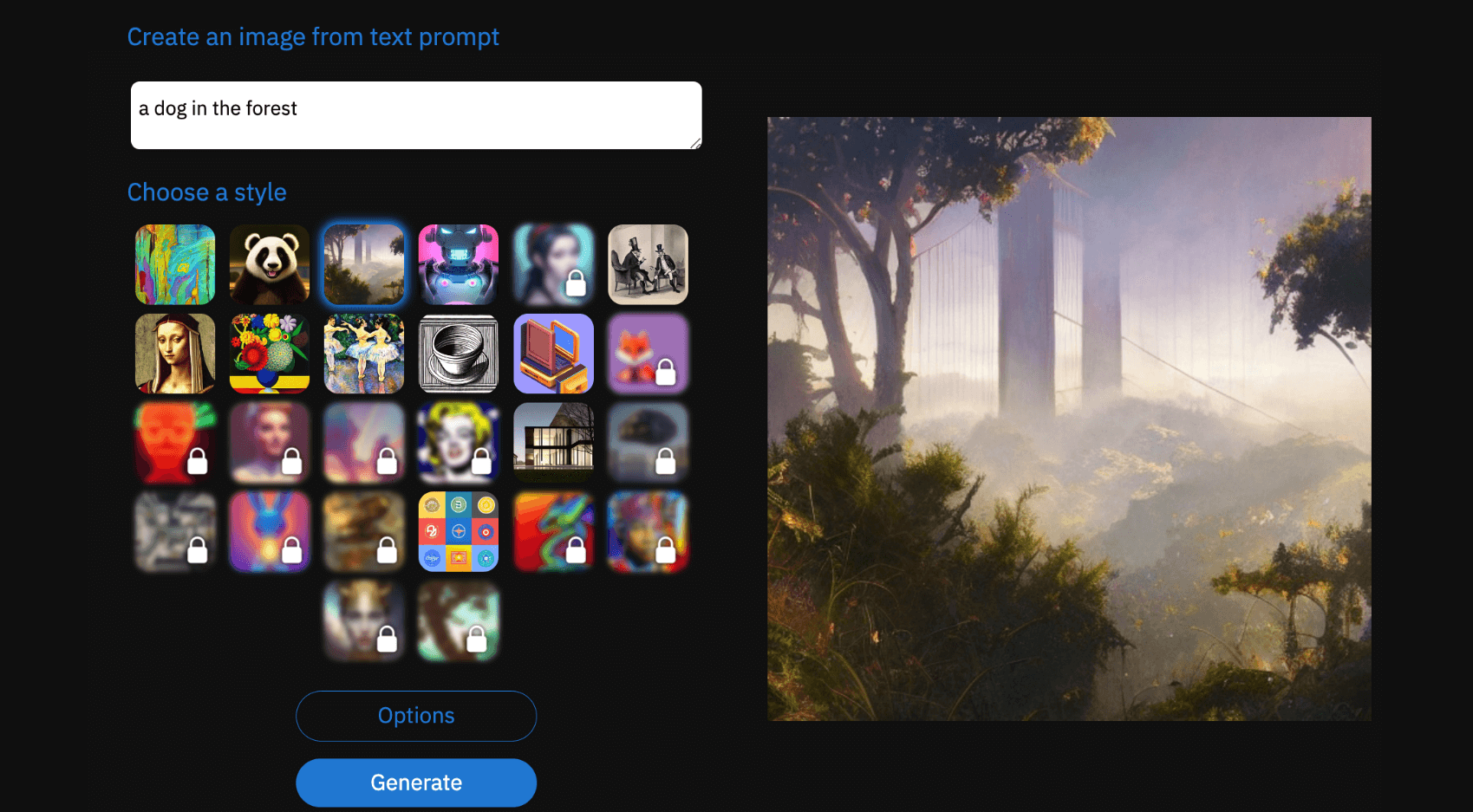
Craiyon generates images from text prompts. Use it to explore a subject, mood or composition, then refine the prompt around the most useful result. For a banner or card, compare the output at thumbnail size and leave room for the text that will accompany it.
starryai
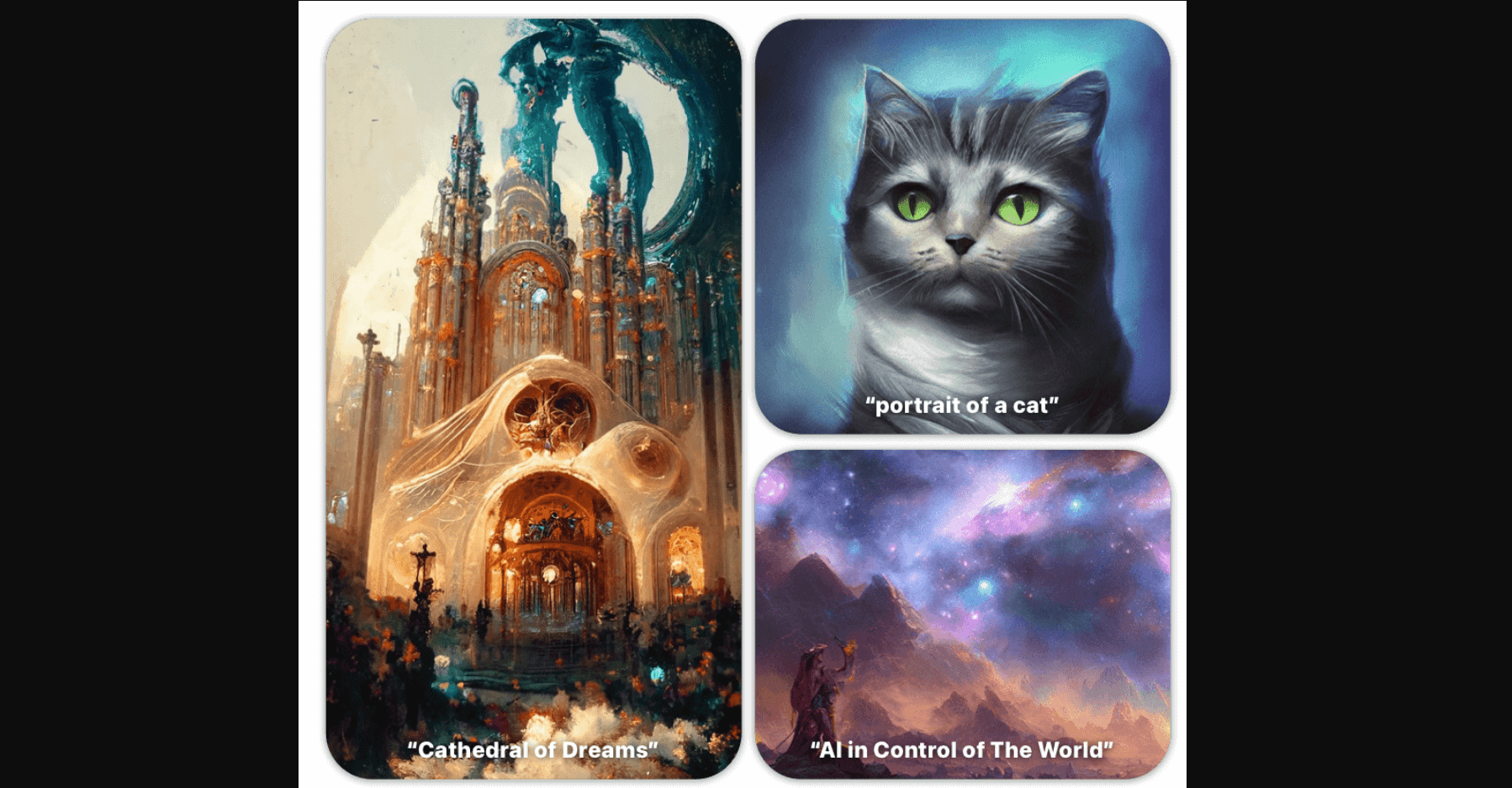
starryai offers image-generation and editing workflows for turning prompts into visuals. It can help explore several treatments of the same idea. Keep the subject and intended use consistent while varying the style, then inspect the result at the resolution and crop your design needs.
NightCafe
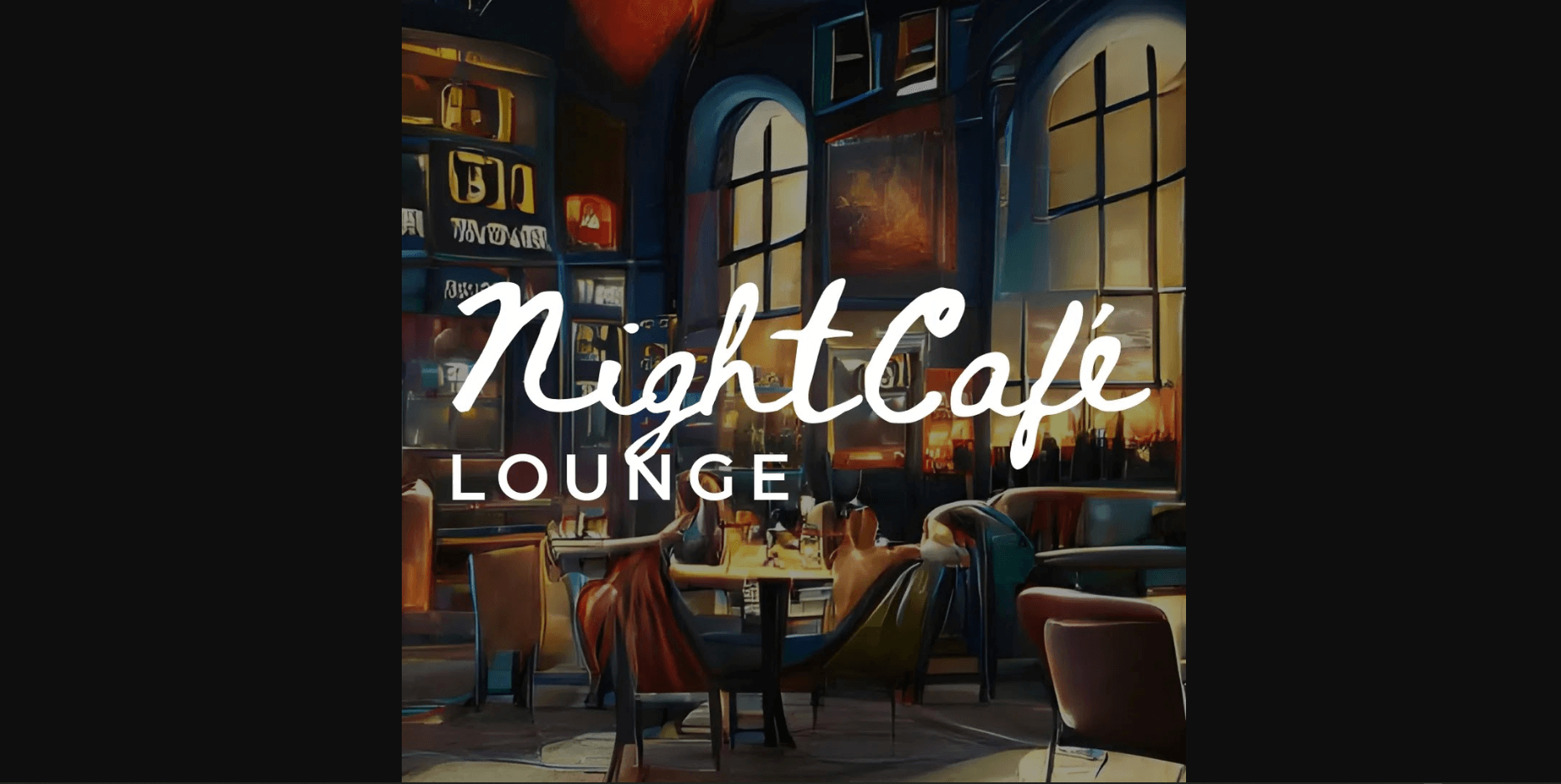
NightCafe combines image generation with a community for sharing work and exploring prompts. Its challenges and galleries can help you discover different visual approaches. When adapting an idea to a project, write your own brief and judge the output against the intended audience and placement.
Pixso Background Remover
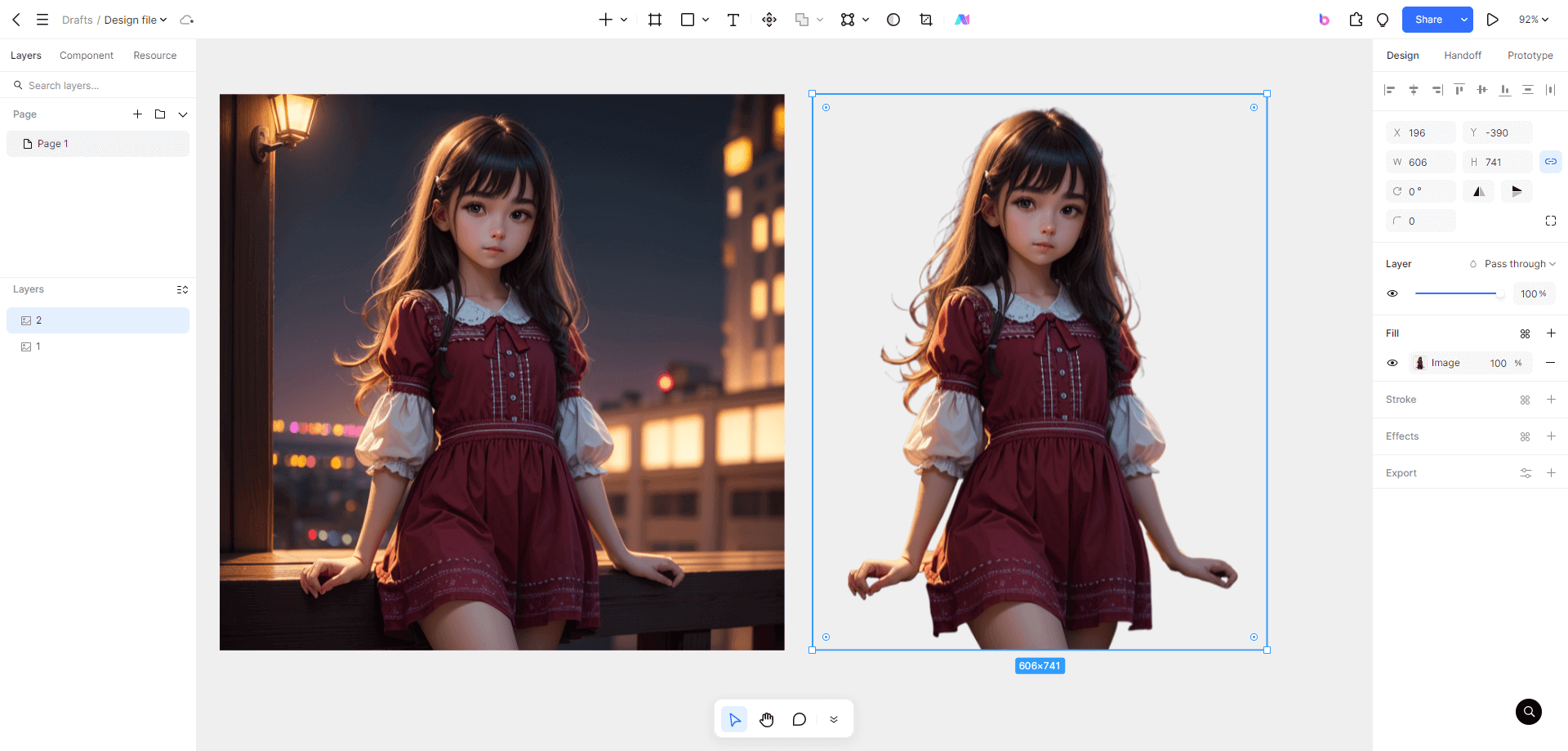
Use Pixso’s background-removal workflow to separate an image’s subject from its surroundings before placing it in a design. It is useful for arranging a product, portrait or object on a new background.
A practical editing sequence:
Start with a source image where the main subject is easy to distinguish.
Inspect the cutout edge, especially around hair, transparent materials and small details.
Place the subject on its new background and adjust scale, spacing and contrast within the layout.
Deep Dream Generator
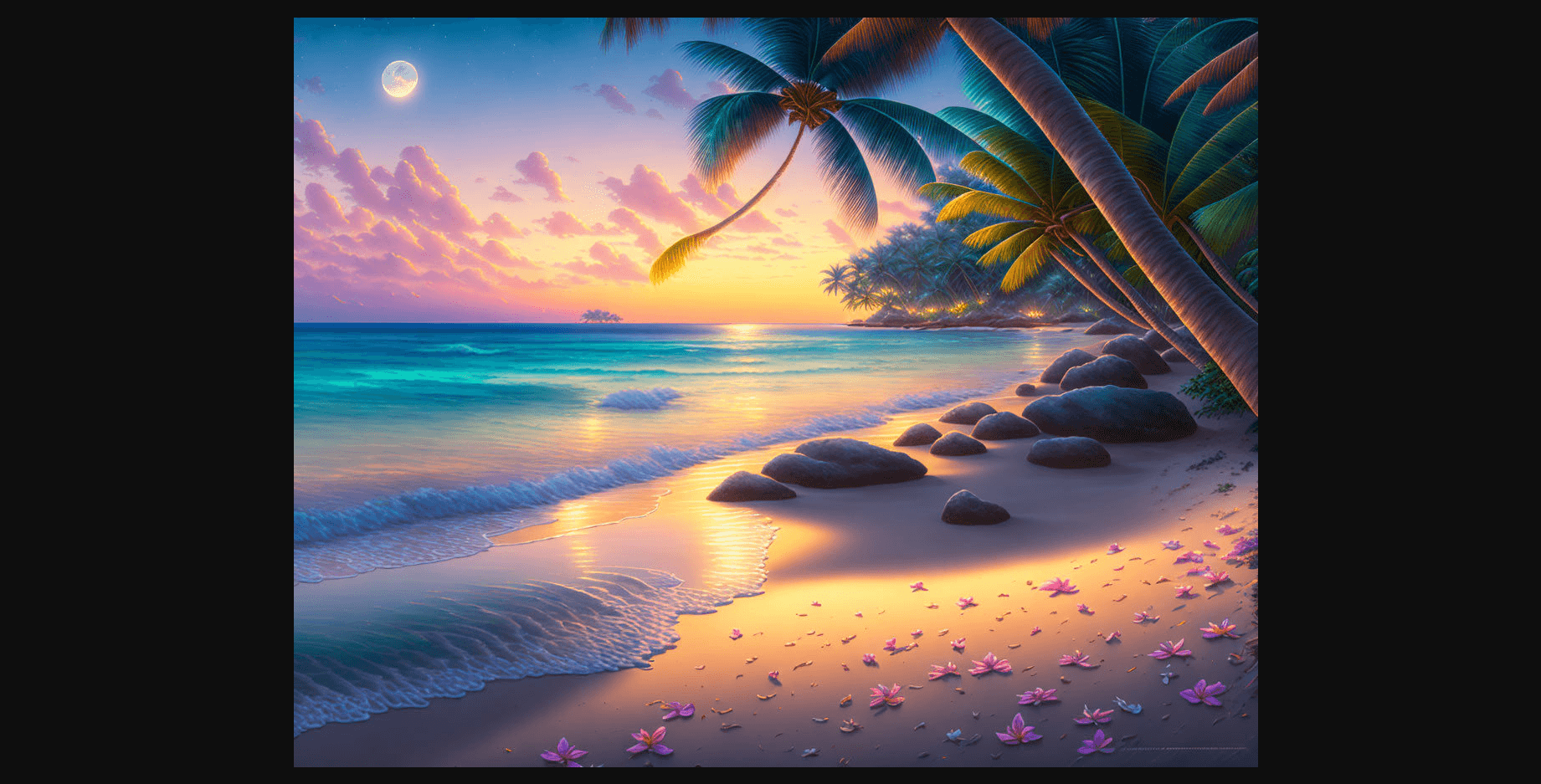
Deep Dream Generator provides image creation and editing tools for exploring visual styles. Start with a prompt or a suitable source image, then compare the result with the mood and composition needed for the project. Keep the strongest direction and refine the details that affect its use in the layout.
DeepAI
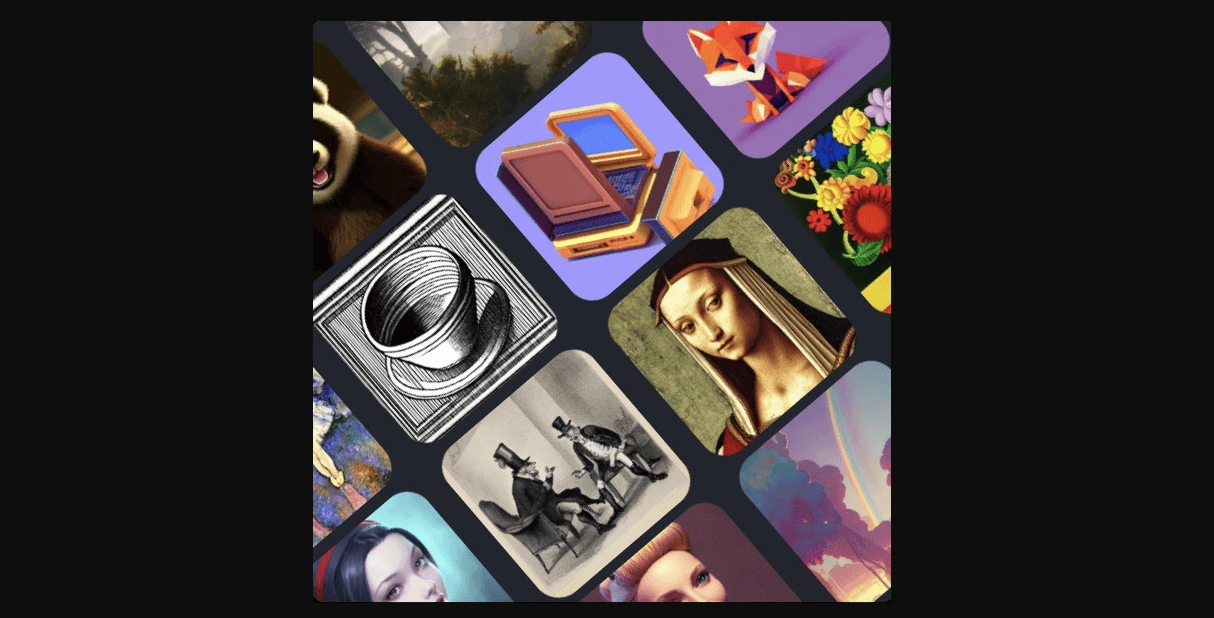
DeepAI generates images from text descriptions and offers different visual styles. It suits quick exploration of a subject or art direction. Describe the composition as well as the subject so the result has a clear role in a card, article cover or background.
To compare styles fairly, reuse one brief and the same intended crop. Look for clear silhouettes, useful negative space and details that remain legible when the image is reduced.
Choose a tool that fits the task, then evaluate the image in the design where it will appear. A strong result leaves room for real content, keeps the subject clear and supports the surrounding hierarchy. Save the brief and the editing decisions so related visuals can follow the same direction.
![[Detailed Guide] Map UI Design](https://pixso.net/assets/editorial/20261007/map-ui-design/hero-en-b33ffdb59caa5913.webp)