Scott
Choosing an AI model for UI design should not be driven by brand hype. The right option depends on the nature of the screen, the project stage, and the structural depth the layout requires.
Within Pixso AI, designers can select either DeepSeek-V4-Flash or Claude Sonnet 4.6 directly from the in-editor model selector in Design mode. This allows teams to align their generative drafting with specific interface challenges without leaving the workspace.
Part 1: DeepSeek-V4-Flash vs. Claude Sonnet 4.6: Quick Routing Guide
Because neither model is universally superior across every design challenge, use the following practical heuristics when starting a task:
- Choose DeepSeek-V4-Flash for Rapid, Bounded Iterations: It is well-suited for landing page concepts, familiar mobile screens, layout alternatives, copy variations, and rapid visual sanity checks. In Pixso's selector, it is labeled for "stable performance, best for daily/simple tasks". Its low latency allows designers to maintain creative flow through quick prompt-and-adjust cycles.
- Choose Claude Sonnet 4.6 for Complex, Multi-State Screens: It is better positioned for dense dashboards, role-based admin consoles, multi-step configuration flows, and forms with interconnected validation rules. Pixso designates this model as "best for complex tasks, detailed & complete", helping organize multi-module layouts that require balanced hierarchy and extensive state coverage.
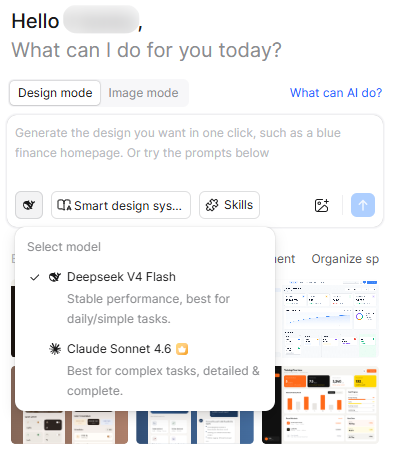
These recommendations represent working guidelines based on in-product model positioning rather than an absolute ranking of external APIs. Always assess the structural demands of your screen before deciding which model to invoke.
Part 2: Comparing the Models by Design Workflow
Both models generate editable vector UI in Pixso, but they support different creative rhythms:
Workflow Comparison Table
| Decision Factor | DeepSeek-V4-Flash | Claude Sonnet 4.6 |
| In-App Designation | Stable performance, best for daily/simple tasks | Best for complex tasks, detailed & complete (VIP badge) |
| Recommended Workflow | Rapid iterations exploring multiple layout directions | Fewer iterations with more comprehensive prompt specifications |
| Optimal Prompt Scope | Single components, isolated screens, or focused modifications | Multi-module dashboards, complex forms, or rule-heavy flows |
| Representative Scenarios | Marketing hero sections, profile cards, content feeds | Analytics consoles, permission managers, audit logs |
| Primary Strength | Rapid turnaround that keeps designers in flow | More detailed layout structures and comprehensive state coverage |
| Design Risk to Monitor | May overlook edge cases or secondary states if unprompted | Plausible surface detail may mask unverified business logic |
A Caution on External Benchmarks: While Anthropic documents extensive context windows for Claude in raw API environments and DeepSeek publishes general agent benchmarks, these figures do not dictate in-tool performance. Evaluate both models based on the concrete layer structures and layouts they produce inside the Pixso canvas.
Part 3: What Pixso AI Adds to Both Models
Using standalone chatbots creates operational friction: designers must manually rebuild suggested layouts or copy raw code into design tools. Pixso AI integrates generation directly into a collaborative product design environment:
- Editable Vector Layers Over Flat Bitmaps: Pixso AI does not output flattened screenshots. It generates nested vector shapes, editable text layers, and auto-layout frames directly onto the canvas. Designers can immediately adjust margins, update typography, and recolor fills.
- Integrated Product Pipeline: Prompts do not live in isolation. Teams can outline user journeys on the Pixso Whiteboard, generate preliminary screens, link interactive prototypes, and manage team tokens in a unified workspace.
Part 4: A Task-Based Selection Framework
Before opening the model selector, evaluate your task across four criteria:
- Scope: Is this an isolated, familiar screen or a multi-step journey?
- Dependencies: Do different modules on the screen affect one another through shared data or conditional rules?
- States: Does the task require explicit empty, loading, error, success, and permission-restricted states?
- Consequence: How costly would a plausible but structurally inaccurate layout be at this stage?
Task Routing Matrix
| Task Example | Suggested Starting Model | Primary Rationale | Essential Designer Verification |
| Explore 3 Landing Page Concepts | DeepSeek-V4-Flash | Fast variation supports rapid visual comparison | Value proposition hierarchy and brand tone |
| Standard User Profile Card | DeepSeek-V4-Flash | Familiar structural pattern with bounded scope | Data privacy, editing states, and responsive layout |
| Logistics Operations Dashboard | Claude Sonnet 4.6 | KPI cards, alert feeds, and data tables must align | Metric definitions, chart types, and action priority |
| Role-Based Permissions Matrix | Claude Sonnet 4.6 | Conditional actions require clear visual segregation | Security boundaries and destructive action confirmations |
| Microcopy Variations for CTAs | DeepSeek-V4-Flash | Lightweight, rapid exploration | Tone, character length, and translation expansion |
| Multi-Step Account Setup Flow | Claude Sonnet 4.6 | Layout continuity must hold across stages | Error recovery, step progression, and mobile stacking |
Practical Routing Rule: If DeepSeek-V4-Flash misses critical secondary states despite a detailed prompt, switch to Claude Sonnet 4.6. Conversely, if Claude produces an overly elaborate response for a straightforward visual question, narrow your prompt scope or switch to DeepSeek.
Part 5: How to Select and Run a Model in Pixso AI
The generation path inside Pixso is identical for both models:
- Sign in to Pixso and open your target design file.
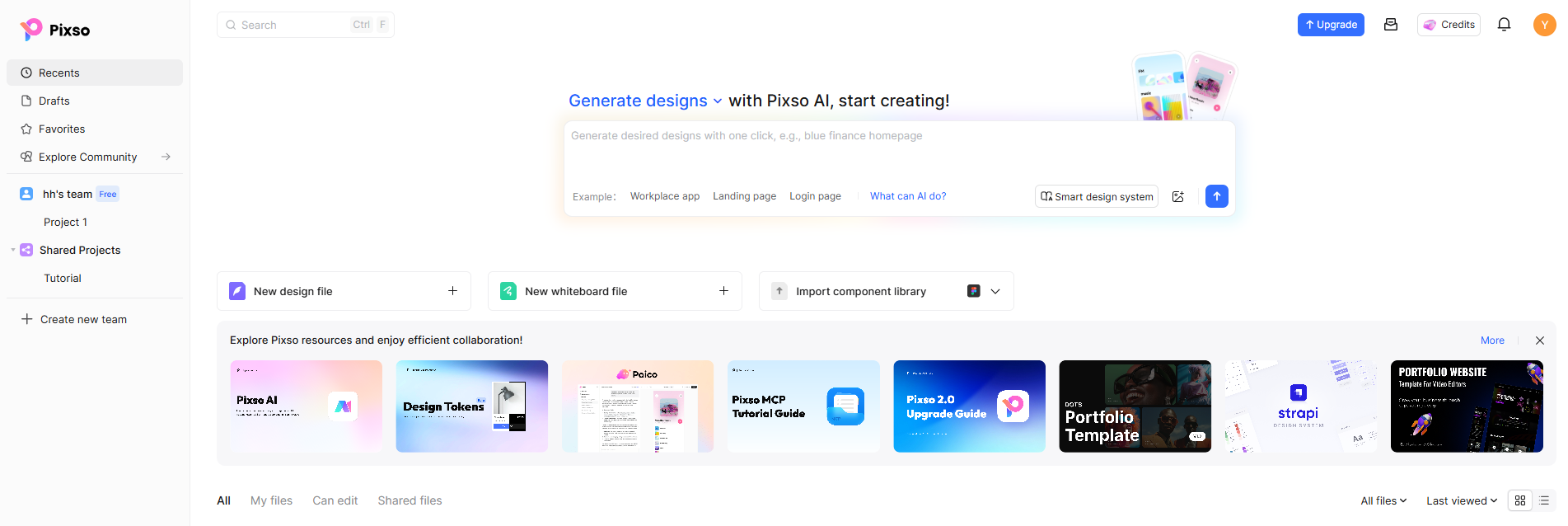
- Launch the AI assistant by clicking the AI icon in the top navigation bar.
- Keep the toggle on Design mode (Image mode produces raster illustrations; Design mode generates vector UI).
- Click the model selector button located next to the Smart design system and Skills buttons below the prompt field.
- In the Select model dropdown, choose Deepseek V4 Flash for daily tasks or Claude Sonnet 4.6 for complex flows.
- Enter your structured prompt and click Generate (the upward arrow).
- Pixso AI generates the screen directly onto the active canvas as an organized parent frame. Inspect the output and refine specific elements rather than replacing the entire layout.
Part 6: Prompt Examples for Each Model
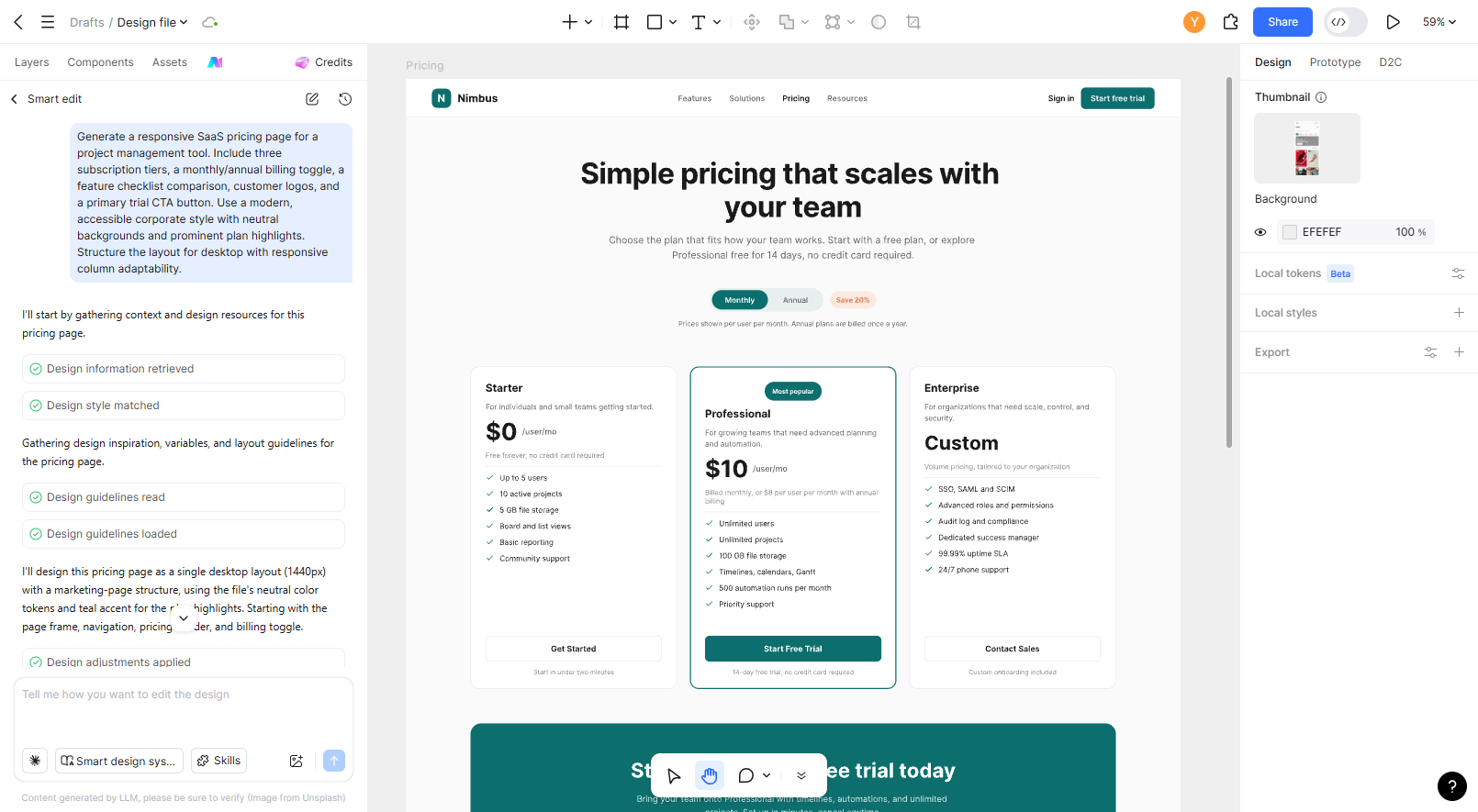
Prompt for DeepSeek-V4-Flash: Fast Layout Exploration
Focus on clear content blocks, visual style, and responsiveness without overloading the prompt with edge-case rules:
"Generate a responsive SaaS pricing page for a project management tool. Include three subscription tiers, a monthly/annual billing toggle, a feature checklist comparison, customer logos, and a primary trial CTA button. Use a modern, accessible corporate style with neutral backgrounds and prominent plan highlights. Structure the layout for desktop with responsive column adaptability."
Prompt for Claude Sonnet 4.6: Multi-State Enterprise Workflow
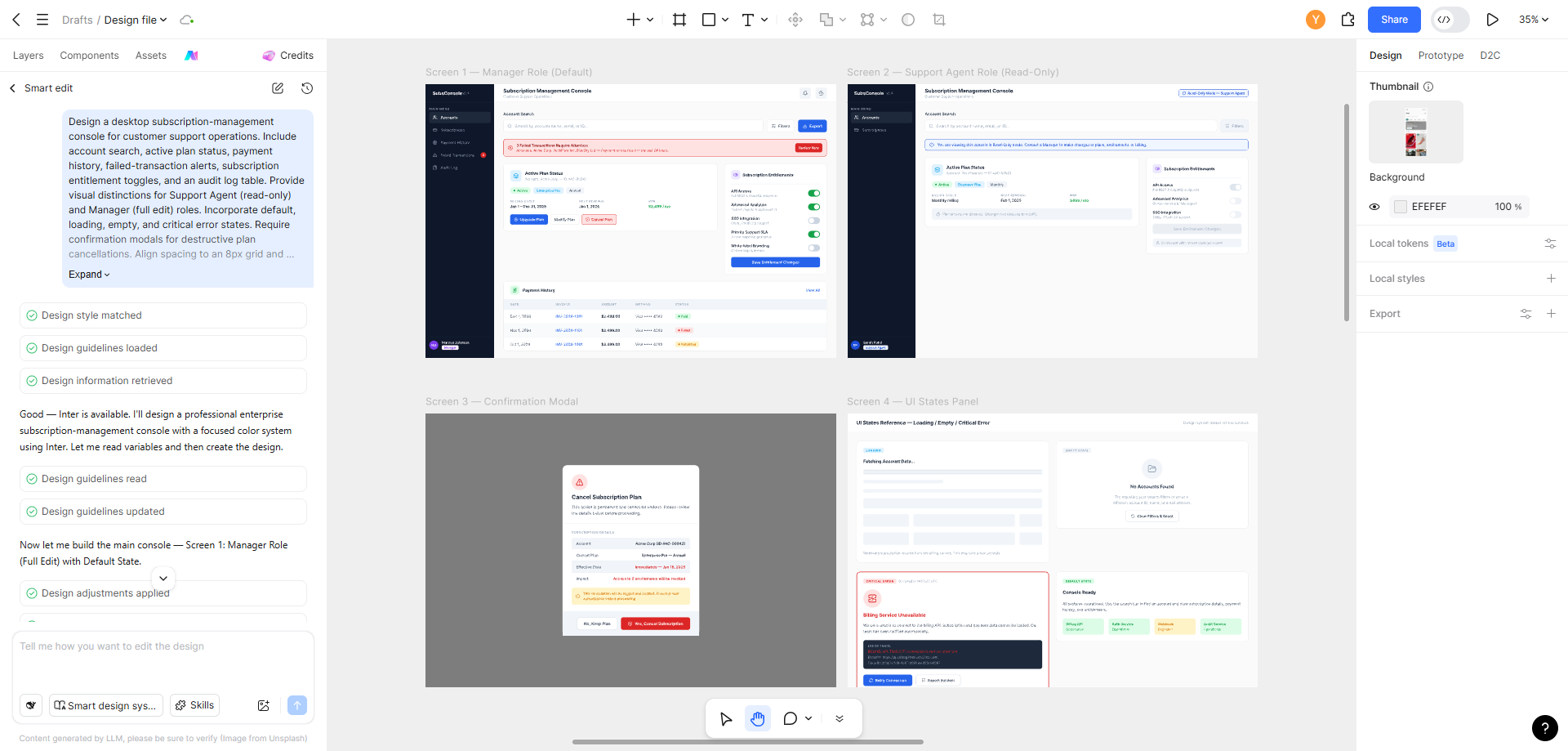
Provide Claude with explicit structural relationships, permissions, and state behaviors to resolve:
"Design a desktop subscription-management console for customer support operations. Include account search, active plan status, payment history, failed-transaction alerts, subscription entitlement toggles, and an audit log table. Provide visual distinctions for Support Agent (read-only) and Manager (full edit) roles. Incorporate default, loading, empty, and critical error states. Require confirmation modals for destructive plan cancellations. Align spacing to an 8px grid and ensure high contrast across all data indicators."
Part 7: Refine and Clean Up the Generated Layout
Generating a draft removes initial canvas hesitation, but systematic refinement determines whether a screen is ready for team review. Pixso AI provides dedicated tools for post-generation cleanup:
- Smart Editing: Update selected layout properties, colors, or sizing using conversational text instructions.
- Smart Layout: Apply Auto Layout consistently to related layers, standardizing gaps and alignment.
- Smart Rename: Replace generic layer names with semantic labels (e.g., converting "Rectangle 24" to "Button_Primary_Submit").
- Smart Text: Translate UI strings, generate contextual placeholder data, or shorten copy directly on canvas.
- AI Smart Search: Quickly find verified team components or community assets using natural-language queries.
- AI Design Checklist: Generate screen-specific quality checks covering touch targets, text contrast, and missing states.
Operational Boundaries of Smart Tools
- Smart Layout Limitations: Smart Layout operates effectively on standard rectangular frames, adjacent sibling elements, and card groups. It does not apply to single isolated layers or canvas Sections, and it automatically skips layers that already have Auto Layout applied.
- Smart Rename Limitations: Smart Rename targets structural frames (headers, cards, tables, buttons). It will not rename primitive vectors, standalone text blocks, component instances, locked layers, or hidden elements.
Part 8: Evaluate Output Across the Full Product Lifecycle
True design efficiency is not measured by the initial layout generation alone, but by how smoothly that layout progresses through review and development.
- Prototyping & Review: Connect generated screens in Pixso's Prototype mode to validate click flows and transitions. Share a review link with product managers and developers to collect pinned contextual comments. For client meetings in variable network conditions, Pixso supports local prototype caching for smooth presentation.
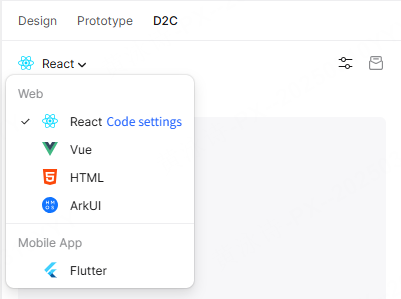
- Engineering Review & D2C Handoff: In Dev View, engineers can inspect layout metrics, copy CSS tokens, and generate structural starter code in React, Vue, HTML, ArkUI, and Flutter. While D2C code accelerates frontend scaffolding, development teams must still review data bindings, state management, security boundaries, and accessibility compliance.
- Version Baseline Management: When sharing review links, establish version milestones or frozen design checkpoints to ensure engineering references an approved baseline rather than an in-progress draft.
Part 9: Combining Both Models Across a Project
DeepSeek-V4-Flash and Claude Sonnet 4.6 need not be mutually exclusive within a single design initiative:
- Macro Architecture with Claude: Use Claude Sonnet 4.6 to generate the initial structural framework for an enterprise portal, establishing master navigation, data table hierarchies, and permission drawers.
- Micro Iteration with DeepSeek: Once the overarching structure is approved, switch to DeepSeek-V4-Flash to rapidly draft variations of empty-state cards, metric badges, or marketing banners.
- Preserve System Standards: Ground both models in your centralized Pixso Design System. Swapping placeholder components for approved team library assets ensures cohesive brand alignment regardless of which model generated the draft.
Conclusion
The practical choice between DeepSeek-V4-Flash and Claude Sonnet 4.6 in Pixso comes down to matching model characteristics with task requirements:
- Use DeepSeek-V4-Flash for rapid, lightweight layout alternatives where quick iteration keeps your creative exploration moving.
- Use Claude Sonnet 4.6 for dense, multi-state enterprise interfaces that demand structured reasoning across interconnected components.
By combining in-canvas model generation with Pixso's integrated whiteboard, design systems, interactive prototypes, and D2C code export, product teams can turn generative drafts into structured, reviewable, and implementable designs while reducing avoidable rework.