On this page
On this page
Choose the edit boundary before drawing the fieldDesign six states, not one attractive inputSeparate immediate validation from server rejectionMake save and conflict recovery honestKeep the row usable with a keyboardPrototype the decision in PixsoDecide what the implementation must preserve
Scott
An editable table row needs a clear boundary between a draft and a saved record. Keep the row in place, label the field being edited, validate the new value, and show whether the save is pending, complete, or blocked by a newer version. In this guide, a purchasing team changes one supplier price from $24.00. That single row is enough to expose the decisions a polished table often hides.
If the table's columns, density, sorting, and empty states are not settled yet, start with the data table component tutorial. Here the table already exists; the task is to make one record safe to change without opening a separate full-page form.
Choose the edit boundary before drawing the field
The row contains a supplier name, item code, unit price, currency, and last-updated time. A purchaser needs to correct the unit price while comparing neighboring suppliers. Opening a full-page form would remove that context. Editing the price in place keeps the comparison visible, but it also raises a question: does leaving the field save it, or does the row have an explicit Save action?
Choose one contract and make it visible. For a consequential value such as price, an explicit row-level Save and Cancel pair makes the commit point easier to understand. The original $24.00 remains a saved value until Save succeeds. A draft value is not reflected in totals, downstream status, or another viewer's row until the server accepts it. If a product uses autosave instead, it needs an equally explicit saved/pending/error state; a disappearing input is not proof of persistence.
Keep the row's identity visible while editing. If the table can be sorted or filtered, do not let the edited row jump to another position before the user has finished. Either hold its position until save or warn that the current filter will remove it after commit. A sticky action bar is useful only if it still identifies the row it will change.
Design six states, not one attractive input
Draw the normal row and then the transitions it can actually enter. This state table is a compact specification for the same supplier record throughout the flow:
| State | Visible feedback and next step |
|---|---|
| Read | Show $24.00 and a discoverable Edit action. Enter edit mode without losing the row's identity. |
| Edit | Show the price input, currency, Save, and Cancel. Change the draft or discard it. |
| Invalid | Keep the draft and show the field-level reason beside it. Correct the value; disable Save when the local rule is known. |
| Saving | Keep the draft visible and show a clear pending state. Wait for the response and prevent duplicate submission. |
| Saved | Show the accepted value and brief confirmation, then return to the stable read row. |
| Conflict or failure | Keep the unsaved draft and explain what blocked the commit. Compare, retry if safe, keep editing, or cancel. |
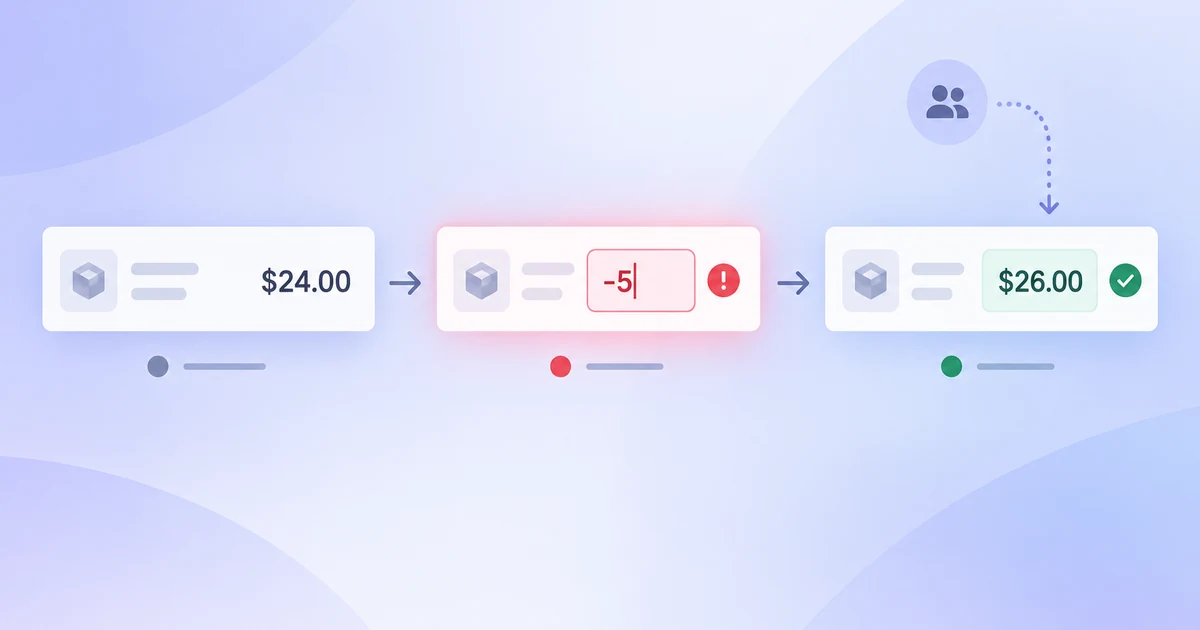
For the worked example, entering -5 is invalid because this price list does not allow a negative unit price. The message should say “Enter a price of $0.00 or more,” not merely “Invalid input.” Keep the typed value so it can be corrected; clearing it forces the purchaser to reconstruct their work. This is a rule of the example price list, not a claim that every pricing system permits zero.
Atlassian's inline edit guidance separates read and edit views and makes save, cancel, and validation legible. Use that separation as a design reference, then adapt the exact control to the row's risk and the product's data contract.
Separate immediate validation from server rejection
Validation has two layers. A local rule can catch an empty field, malformed amount, or negative value before a request is sent. The server must still enforce the authoritative rule: perhaps this purchaser cannot edit that supplier, the currency is locked, or a new policy changed the allowed range. The interface should not call an unverified local check “saved.”
Place a local error next to the price field and connect it to the input for assistive technology. Do not rely on a red outline alone. If the response rejects the change after Save, keep the row open with the draft intact and explain the specific cause when the server supplies one. A generic “Something went wrong” can be a fallback, but it should not hide an actionable permission or version problem.
Be deliberate about formatting. A purchaser may type 24, 24.0, or 24.00, but the product should normalize display consistently only after acceptance. Show the currency separately or in the field label so a bare “24” cannot be confused with a count. If a locale uses a comma decimal separator, parse and display amounts according to that locale; do not silently reinterpret “24,50” as 2,450 or 24,500.
Make save and conflict recovery honest
Suppose the purchaser changes the draft to $25.00 while another teammate has already saved $26.00 to the same record. A version check can prevent the first editor from silently overwriting the newer value. The recovery view should identify the row, show “Your draft: $25.00” and “Current saved value: $26.00,” and let the purchaser review the difference before choosing what to do. Do not label the draft “saved” just because it still appears in the input.
The exact resolution options depend on the system's rules. If overwriting is allowed, make it an explicit choice with the consequence named. If it is not allowed, offer a path to keep editing against the current value or cancel without losing the draft until the user decides. Never add an Undo promise to a mockup unless the underlying operation can be reversed. A network timeout is different from a confirmed version conflict: after a timeout, the client may not know whether the server committed. The interface should check the record's current value or request status before inviting a blind retry.
For an application with multiple editors, write the concurrency rule into the handoff: which version identifier travels with the save, which fields are compared, and what response indicates a conflict. The screen can then distinguish a rejected stale edit from a general outage. A nice-looking toast cannot supply that contract after implementation.
Keep the row usable with a keyboard
The edit action must be reachable without a mouse. After activation, focus should move to the price input. Escape should cancel only if the application explicitly adopts that behavior; Enter should not unexpectedly submit a partial price in a multi-field row. Save and Cancel need clear labels, visible focus, and a predictable focus destination after the row returns to read mode. On a validation error, focus or an announcement should direct attention to the field and its reason.
Interactive data tables may use a grid keyboard model, but a grid is not just a table with clickable cells. The W3C grid pattern explains focus movement within a grid; its examples are teaching material, not a substitute for testing the implemented widget. Decide whether this product needs grid behavior at all. A simpler semantic table with a well-labeled Edit button in each row may be easier to operate and maintain.
On narrow screens, keep the supplier name, edited price, currency, error, and save controls together. Secondary columns may move behind a row detail disclosure, but the visible edited value must not disappear. Test at increased zoom as well as mobile width: a row action that fits at 100% may become an unlabeled icon or horizontal overflow at 200%.
Prototype the decision in Pixso
In Pixso, make a price-list row component with read, edit, invalid, saving, saved, and conflict variants. Use the same supplier and item code across the frames so reviewers follow one record rather than six unrelated samples. Connect the edit and save paths as a prototype. The price list is the application being designed on the canvas; Pixso is where the team draws and reviews it, not the database that commits the price.
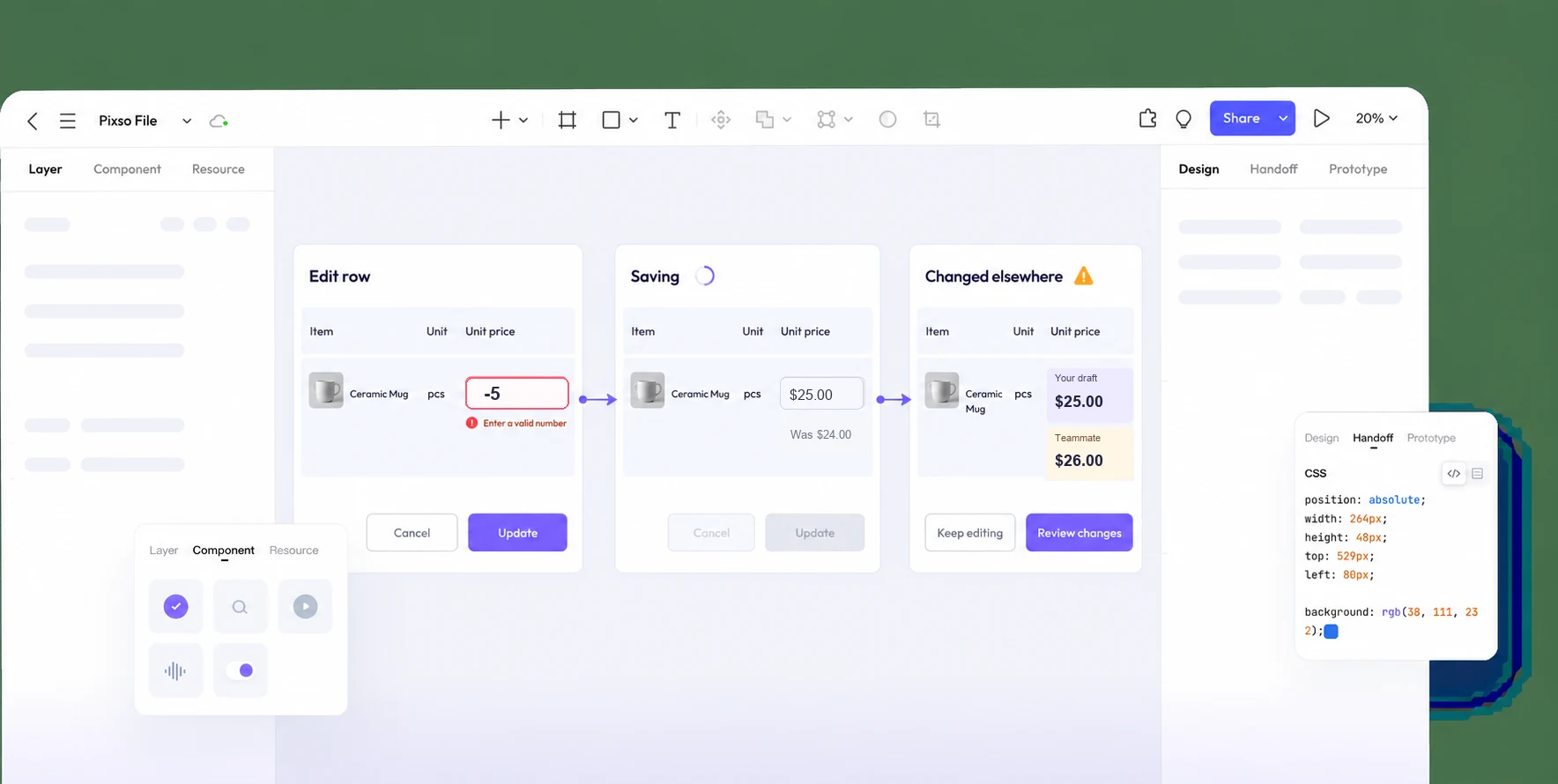
Ask a reviewer to find the saved value while a draft is open, correct the negative input, and decide what to do when a teammate's $26.00 value appears. If they cannot tell whether $25.00 was committed, change the state label or comparison before polishing the visual design. Then use the prototype and a short written state contract to hand off validation, version checking, focus movement, and error responses. Open Pixso to build the row states.
Decide what the implementation must preserve
The essential result is not a new price field. It is a dependable distinction between a value being typed, a save in progress, a value the server accepted, and an edit the server rejected. For the supplier row, the team should agree on the commit trigger, local and server rules, treatment of sorting and filtering, version-conflict response, timeout recovery, and where focus moves after each outcome. With those decisions visible, designers can review the experience and developers can implement the same behavior rather than guessing from a static screenshot.