Scott
Turning a product concept into a credible, structured interface requires more than entering a clever prompt. The resulting output must be fully editable, aligned with your design system, reviewable across teams, and ready for engineering evaluation.
For teams exploring specialized AI models, DeepSeek-V4-Flash offers low latency and lightweight token consumption, making it an efficient candidate for fast-paced, iterative UI drafting. Within Pixso AI, designers can leverage in-canvas model selection to generate editable vector screens directly in their workspace, bridging early conceptualization with design systems and design-to-code (D2C) delivery.
Part 1: When DeepSeek-V4-Flash Fits Everyday UI Work
No single AI model is ideal for every product design scenario. Everyday UI design revolves around rapid iteration loops: exploring layout directions for a SaaS dashboard, drafting empty-state variations, organizing component cards, or structuring mobile onboarding screens. In these bounded scenarios, waiting for extended reasoning cycles can disrupt a designer's creative momentum.
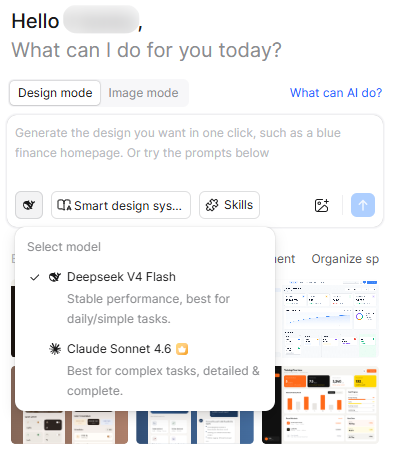
In Pixso's model selector, DeepSeek-V4-Flash is explicitly designated for "stable performance, best for daily/simple tasks". Its primary advantage in interface design is responsiveness: designers can generate a preliminary layout, evaluate visual hierarchy on the canvas, refine constraints, and re-prompt within seconds. For multi-layered enterprise workflows that demand deeper reasoning, Pixso also provides Claude Sonnet 4.6 (designated for "complex tasks, detailed & complete").
However, speed does not replace critical product thinking. To determine when to use DeepSeek-V4-Flash, apply the operational guidelines below:
Decision Framework: Matching UI Tasks to DeepSeek-V4-Flash
| Design Task | Why a Fast Model Helps | What Still Requires Human Design Review |
| Landing Page & Hero Screen Concepts | Rapidly visualizes alternative block arrangements and visual weight. | Brand tone, typographic hierarchy, contrast ratios, and conversion paths. |
| Standard Cards, Lists, and Form Layouts | Accelerates the initial layout of repeating UI patterns. | State variations (hover, active, disabled), error validation, and responsive wrap behavior. |
| Layout and Content Exploration | Reduces the time and effort required to evaluate multiple layout variations. | Visual clarity, real copy suitability, and UX heuristic validation. |
| Complex Enterprise Workflows | Produces a structural starting frame for navigation and data tables. | Permission matrices, multi-tenant rules, edge cases, and business logic. |
DeepSeek-V4-Flash is a practical fit for structured, repetitive, and early-stage design tasks where rapid drafting supports human decision-making. It is not designed to replace comprehensive usability research or architectural planning.
Part 2: Working with Generative UI on the Pixso Canvas
Generating UI within an all-in-one product design platform like Pixso solves a persistent industry pain point: the disconnect between external text generators and production design files.
When utilizing text-to-design capabilities in Pixso AI, the output is not a static bitmap screenshot. Instead, the model outputs structured vector groups, editable text blocks, standard layout frames, and reconfigurable shapes directly into the workspace.
- Static AI Images vs. Vector UI Generation: While consumer image generators produce flat raster files that cannot be edited or handed off, Pixso AI generates structured layers that designers can adjust, restyle, and incorporate into Pixso Design Systems.
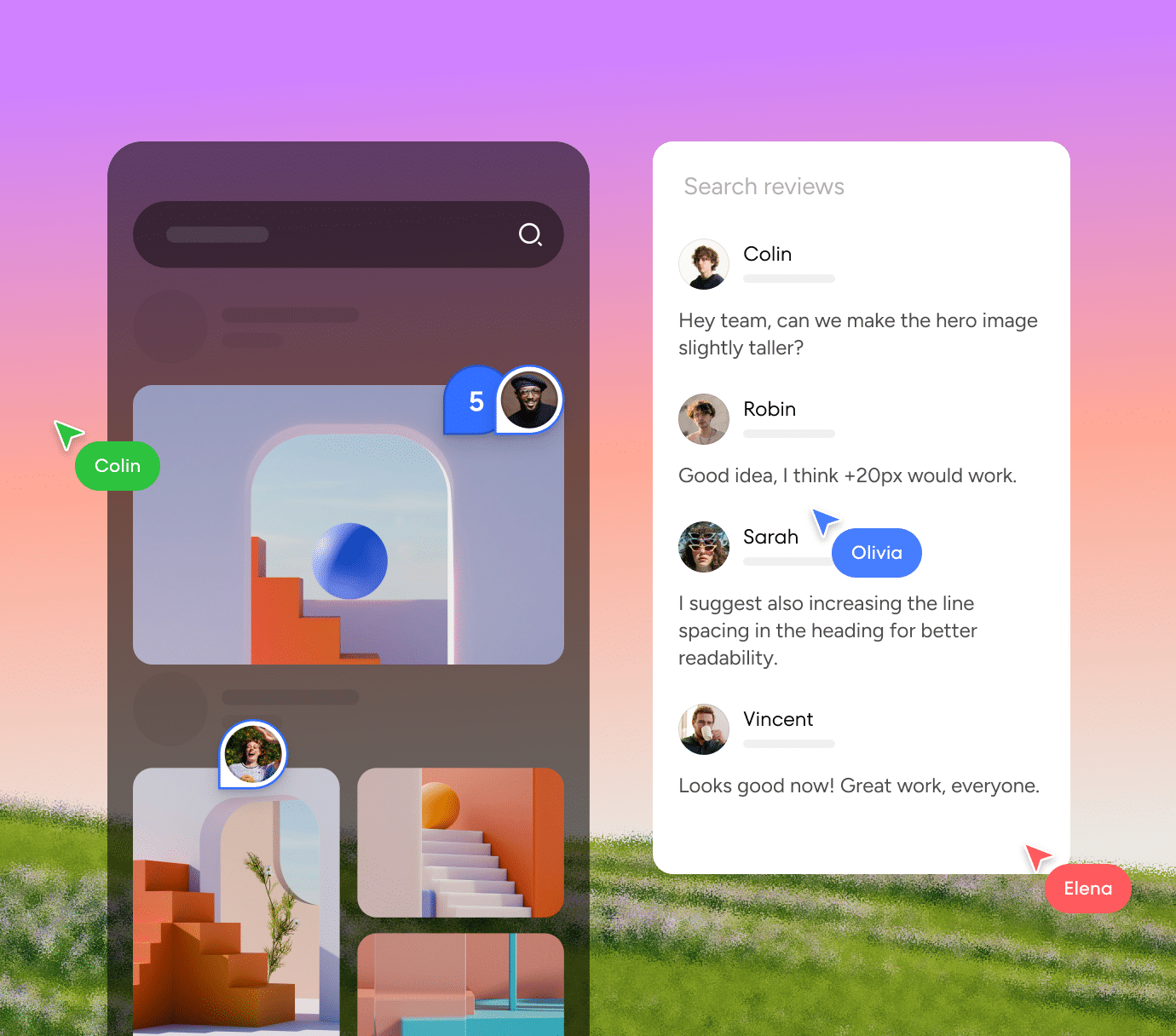
- Connected Workspace Pipeline: Product managers can outline user flows on the Pixso Whiteboard, designers can generate and refine screens, and stakeholders can leave contextual comments on the same canvas without exporting static mockups.
Part 3: Step-by-Step Guide: Generating UI with DeepSeek-V4-Flash in Pixso
To generate meaningful UI drafts, avoid vague prompts such as "create a modern dashboard." High-quality generation requires clear structural boundaries, defined user roles, explicit content blocks, and design constraints.
Operational Steps
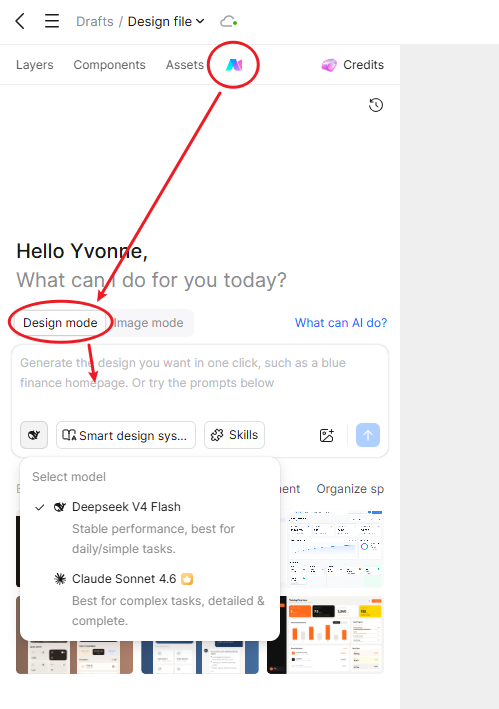
Step 1: Open Pixso AI
Click the Pixso AI icon in the top toolbar or press the canvas shortcut to open the AI assistant dialog.
Step 2: Switch to Design Mode
In the modal header, ensure you are in Design mode (selected by default). Image mode is reserved for visual illustrations, whereas Design mode produces editable vector UI screens.
Step 3: Select DeepSeek-V4-Flash
Click the model selector button located next to the skills bar below the prompt input field. In the Select model dropdown menu, choose Deepseek V4 Flash (labeled "Stable performance, best for daily/simple tasks").
Step 4: Enter a Structured UI Prompt
Construct your prompt covering six dimensions: product type, target persona, screen purpose, core metrics/components, visual tone, and edge constraints.
Realistic Sample Prompt:
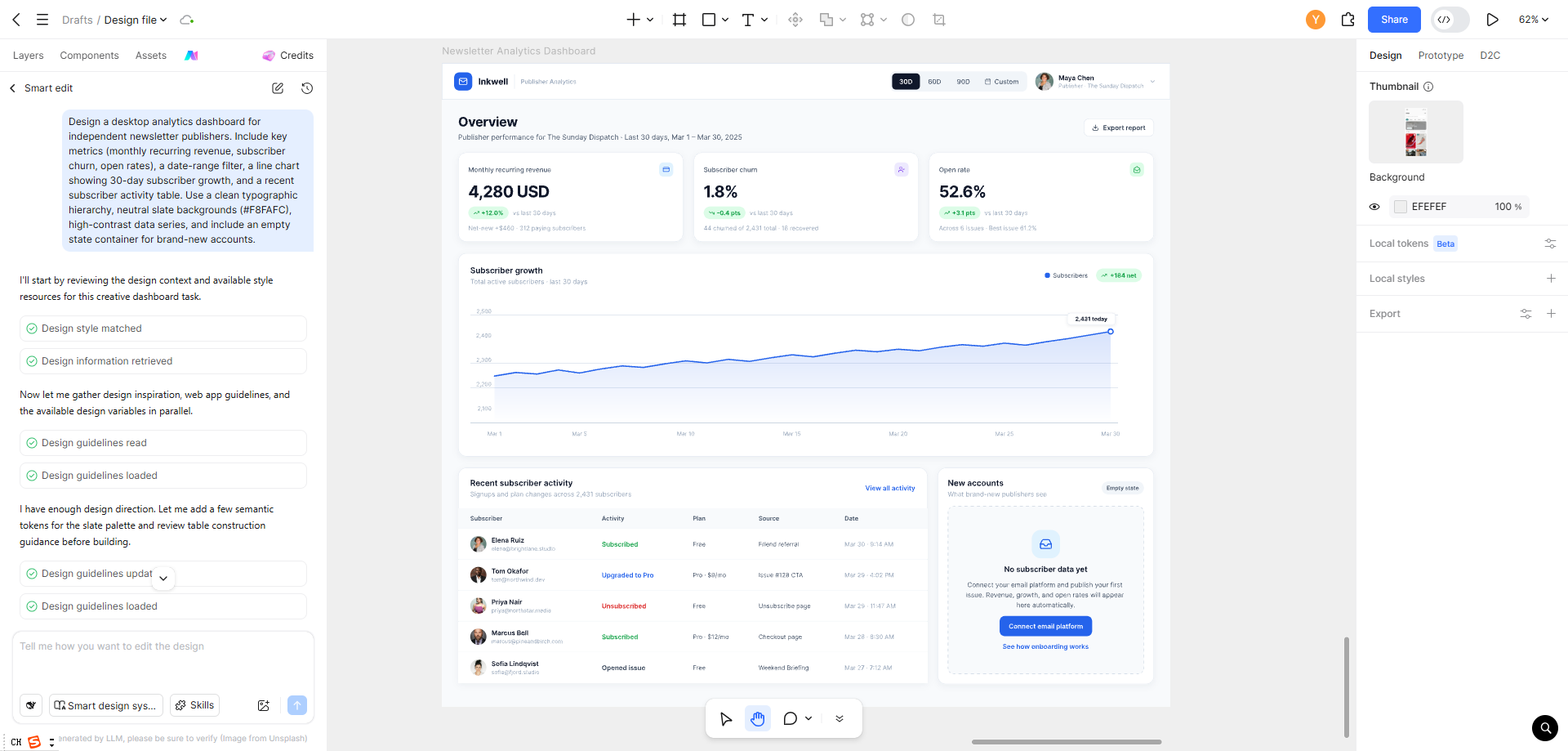
"Design a desktop analytics dashboard for independent newsletter publishers. Include key metrics (monthly recurring revenue, subscriber churn, open rates), a date-range filter, a line chart showing 30-day subscriber growth, and a recent subscriber activity table. Use a clean typographic hierarchy, neutral slate backgrounds (#F8FAFC), high-contrast data series, and include an empty state frame for brand-new accounts."
Step 5: Execute Generation and Direct Canvas Placement
Click the Generate button and wait for the result. Generation time varies with the model, prompt, service load and network.
Once processing completes, the generated screen frame is instantiated directly onto your active Pixso canvas as an organized parent frame containing nested layout groups, vector lines, and text elements. No manual file downloading or secondary import step is required.
Step 6: Targeted Canvas Refinement
If specific sections need refinement, select that exact frame and prompt Pixso AI for a single, controlled adjustment:
"Keep navigation and metrics unchanged; make the activity table rows more compact and increase the visual contrast between the column headers and row text."
Part 4: Refining the Draft Without Leaving the Canvas
Generating a draft removes blank-canvas hesitation, but rigorous refinement determines whether an interface is viable for user testing and engineering review. Pixso provides integrated AI utilities to refine layouts after the initial screen is created:
Post-Generation AI Toolkit
Smart Layout
- Primary Use Case: Organizes scattered elements into structured auto-layout frames with standardized padding, alignment, and gaps.
- Repetitive Work Reduced: Eliminates manual layer-by-layer pixel nudging and coordinate alignment.
Smart Rename
- Primary Use Case: Analyzes selected UI layers and replaces generic labels (such as "Frame 482" or "Rectangle 12") with semantic names (e.g., "Metric_Card_Revenue", "Table_Row_Header").
- Repetitive Work Reduced: Removes tedious layer-tree sanitization before team handoff.
Smart Text
- Primary Use Case: Translates UI labels, generates realistic localized placeholder copy, or shortens descriptive text blocks directly on canvas.
- Repetitive Work Reduced: Avoids copying and pasting back and forth between external copywriting tools.
AI Smart Search
- Primary Use Case: Locates verified team components or community UI assets using natural-language search queries.
- Repetitive Work Reduced: Saves time hunting through large, nested design libraries.
Image Editing & Text-to-Image
- Primary Use Case: Removes image backgrounds, upscales assets, or generates supporting illustrations inside the canvas.
- Repetitive Work Reduced: Eliminates switching to external raster editing software.
Operational Limitations to Keep in Mind
- Smart Layout Constraints: Smart Layout functions effectively on standard rectangular frames, adjacent sibling elements, and card structures. It does not apply to single isolated layers, canvas Sections, or layers that already have Auto Layout configured.
- Smart Rename Constraints: Smart Rename prioritizes standard structural components (buttons, cards, headers, inputs). It will not alter single primitive shapes, raw vectors, text strings, component instances, locked layers, or hidden elements.
Part 5: From Initial Draft to Interactive Prototype
A static layout only demonstrates visual intent. To validate information architecture and interaction logic, teams must test responsive behavior and transition states.
Pixso allows designers to convert generated UI frames into interactive prototypes on the same platform:
- Information Architecture Mapping: Connect user flows on Pixso Whiteboard before starting high-fidelity screen drafting.
- Interactive Wiring: Switch to Pixso's Prototype mode to define click, hover, drag, and delay triggers between generated screens and modal overlays.
- Collaborative Review: Share a secure web preview link with product managers, QA testers, and developers. Reviewers can leave pin-point contextual comments directly on interactive frames.
- Presentation readiness: test the prototype on the intended device and network. Confirm whether offline export or caching is available and which interactions it supports; prepare a fallback for connectivity problems.
Part 6: Applying Design Systems to Control AI Output
Unchecked AI generation can introduce design debt if every prompt invents novel color values, arbitrary padding, and non-standard typography. Maintaining brand coherence requires grounding AI drafts in an established design system.
- Generating Foundational Token Sets: For greenfield projects, designers can use Pixso AI to generate an initial design system based on a core brand color, defining typography scales, corner radiuses, and shadow elevations.
- Aligning with Existing Component Libraries: In established enterprise environments, teams should replace generated placeholder buttons and cards with approved components from their centralized Pixso Team Library.
- Automated Design Checklists: Before submitting a layout for review, run the Pixso AI Design Checklist. Tailor checks to your specific screen type to evaluate accessibility compliance, minimum touch-target sizing (44x44 pt), loading states, and error recovery banners.
Part 7: Developer Handoff and D2C Code Export
The ultimate value of UI drafting is realized when an approved design enters engineering implementation without miscommunication.
Pixso bridges the design-to-development divide through its native Dev View and Pixso D2C (Design-to-Code) Engine:
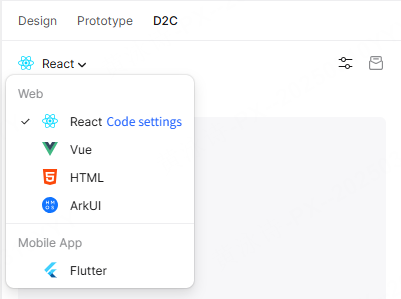
- Multi-Framework Code Inspection: Engineers can inspect typography tokens, layout coordinates, CSS properties, and export structural starter code in React, Vue, HTML, ArkUI, and Flutter.
- Direct Asset Extraction: Developers can download SVG icons, WebP imagery, and clean CSS snippets directly from the inspection panel.
- Realistic Engineering Boundaries: While D2C code significantly accelerates frontend component scaffolding, it represents an architectural baseline. Development teams must still integrate actual backend API routes, state management architectures, secure authentication, keyboard navigation hooks, and performance monitoring.
Part 8: Adopting Pixso Without Rebuilding Existing Assets
Adopting a new AI workflow does not require teams to discard existing design investments. Product teams transitioning from legacy tooling can leverage Pixso's File Migration Tools:
- Multi-Tool Batch Import: Pixso supports batch importing files from Figma (.fig), Sketch (.sketch), and Axure (.rp), alongside Adobe XD and SVG graphics.
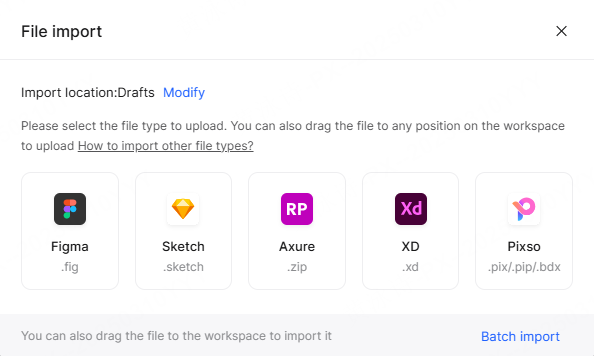
- Migration checks: compare imported vector shapes, artboards and styles with the source, then inspect component variants, fonts, prototype triggers and Auto Layout.
- Recommended Pilot Workflow: Select one non-critical feature flow. Import the existing file into Pixso, use DeepSeek-V4-Flash to draft two alternative layouts, refine them using Smart Layout, and conduct a structured handoff review with your engineering counterparts to evaluate efficiency gains.
Part 9: Refine the First Draft
For a daily task such as a settings page, focus the next edit on the part that is wrong: a missing option, cramped label or unclear save action. A specific follow-up is easier to assess than asking the model to improve the whole screen.
Conclusion
DeepSeek-V4-Flash is an option for drafting everyday screens in Pixso. Begin with a focused brief and use the editable result to explore the next layout change.