On this page

Sherry
When a teammate sends a .sketch file, first decide whether you need to review the design or edit its layers on Windows. Sketch’s design editor is a Mac application; browser review and developer inspection are separate workflows. For Windows editing, you can import a copy into another design tool. Keep the original file and any linked libraries so you can check what the conversion preserves.
1. Open and edit the file in Pixso
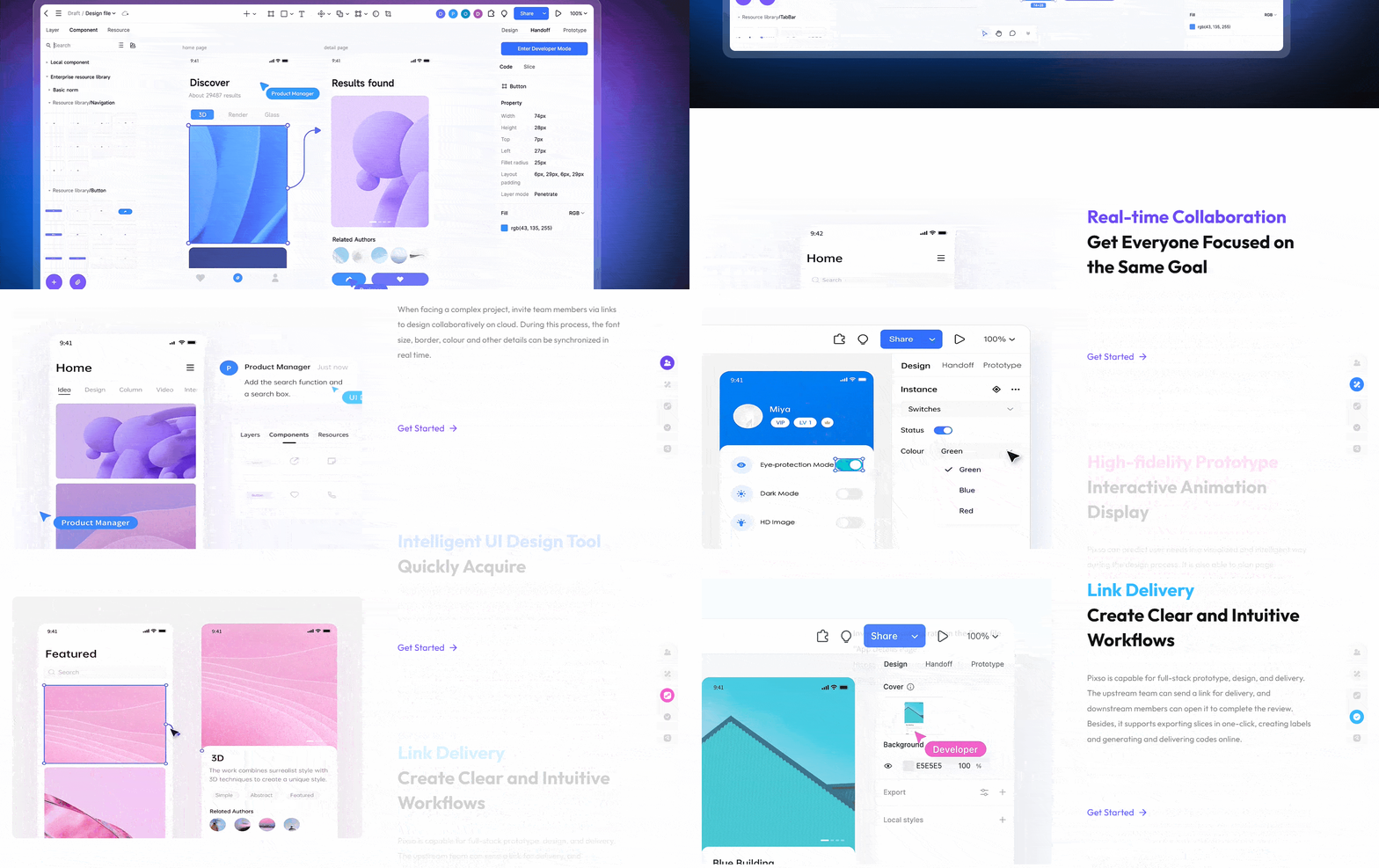

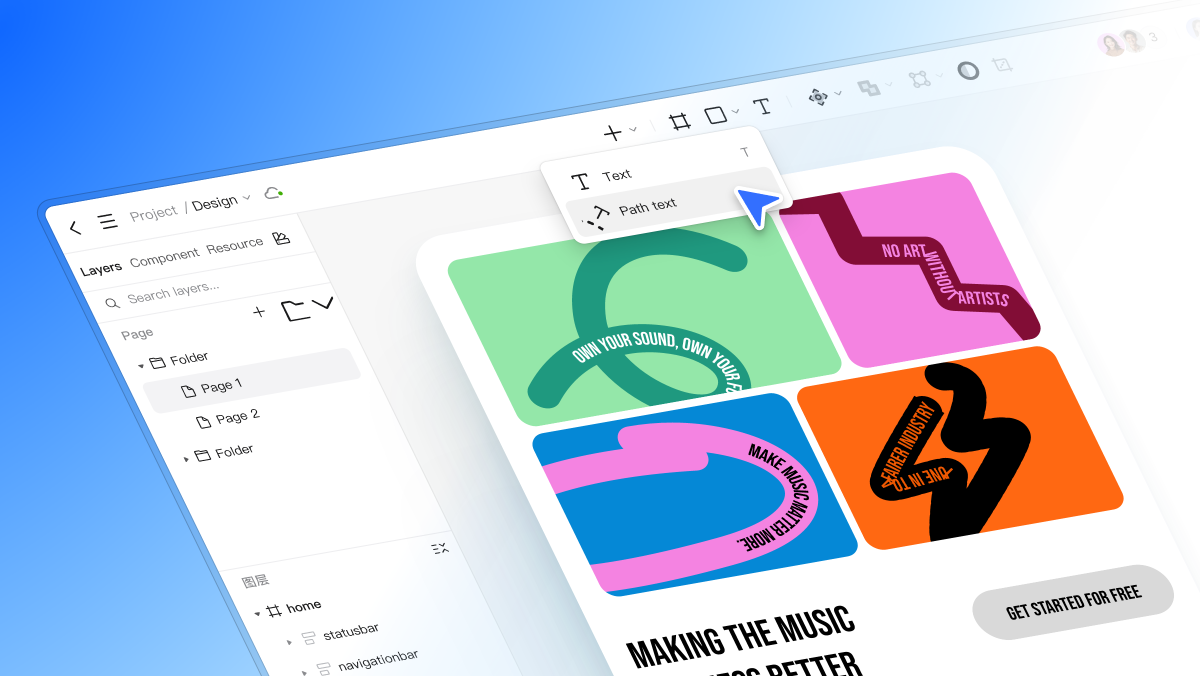
Pixso provides a browser-based UI workspace with Sketch import and team collaboration. The imported file becomes a Pixso design: this gives a Windows team a place to edit and review it, but does not make Pixso an identical implementation of Sketch. Check the parts of the design that your project depends on before moving the whole library.
1.1 Import a Sketch design on Windows
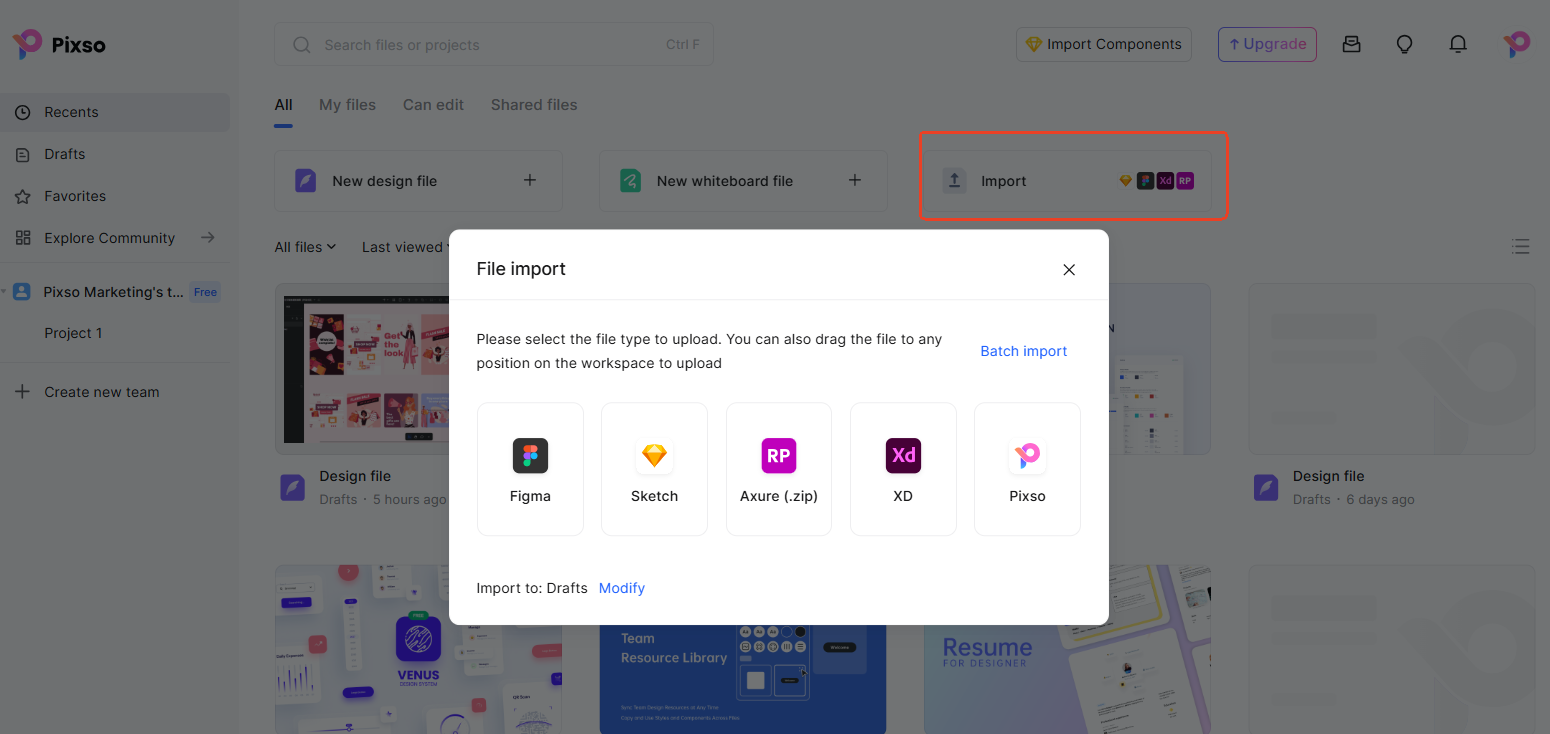
Sign in to Pixso in your browser and choose Import file in the workspace. Select Sketch and upload the local .sketch file, or use the supported drag-and-drop route in the file browser. Open the imported design and compare its pages, text and images with the original. The official import guide describes file import separately from dropping image assets onto a canvas.
1.2 Bring the Sketch component library into the same team
If the design uses a shared Sketch library, import that library as well as the design file. Pixso’s component-library import guide requires a team administrator to import the library; team editors can import design files. Use the same destination team and the actual library version used by the design.
Step 1: Import the library and its design files
Open Component Library Import, select the destination team and choose the Sketch component library. Import the intended library once rather than several branches or duplicate copies into that team.
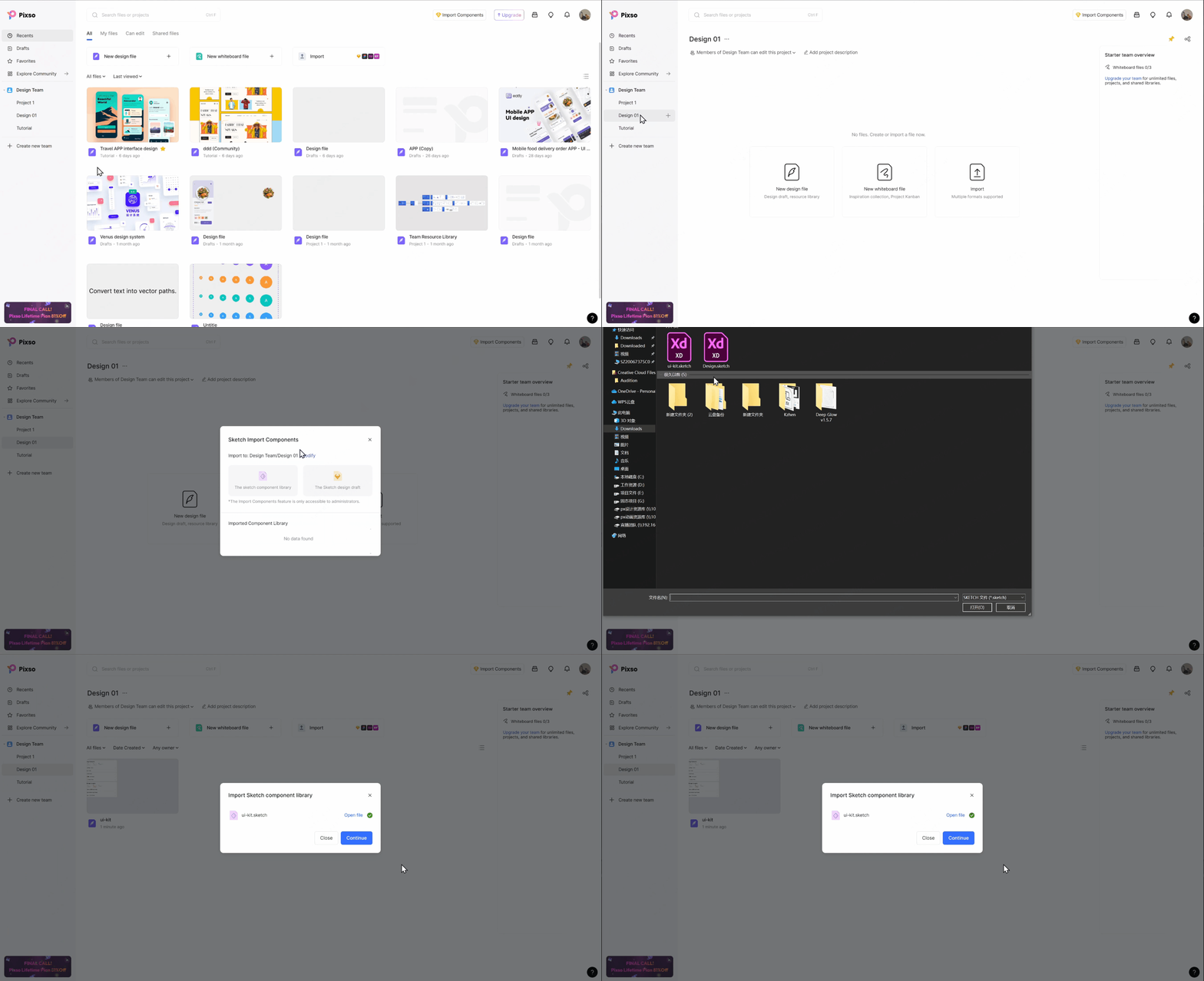
Import the Sketch design file into the same team. You may import the library or design first: the official workflow does not require a fixed order. The important requirements are the correct library, destination and access permissions.
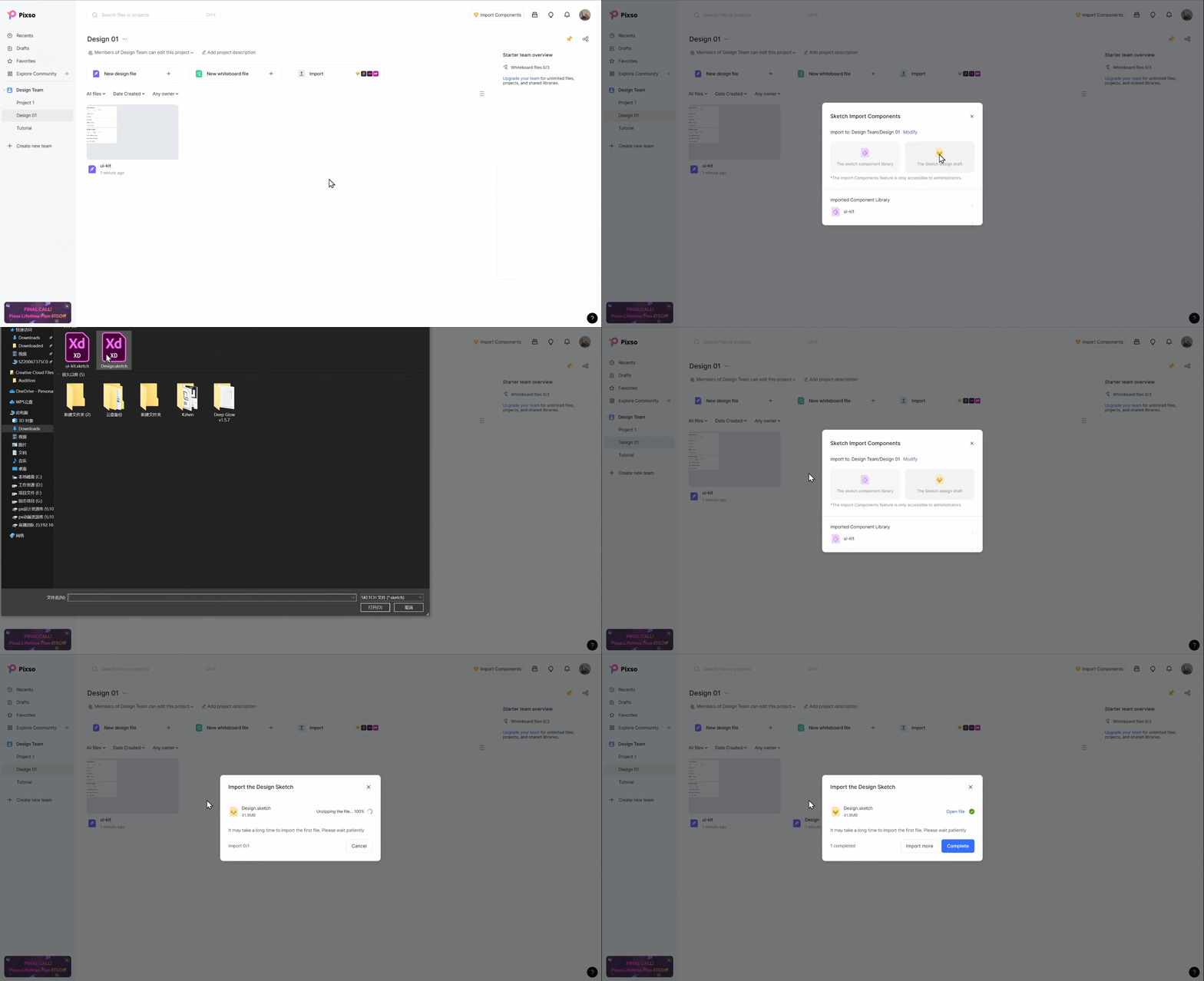
Step 2: Check the component links before editing
Pixso documents that an imported library is published as a team resource library and linked to designs that use it. Verify that connection on a real instance, especially if the source uses nested components or overrides. The following three operations demonstrate how the library is maintained after import.
2.1 Jump from an instance to its main component. Select a reused component and open its main component. This still requires permission to access the library; an inaccessible source is not proof that every instance has been detached.
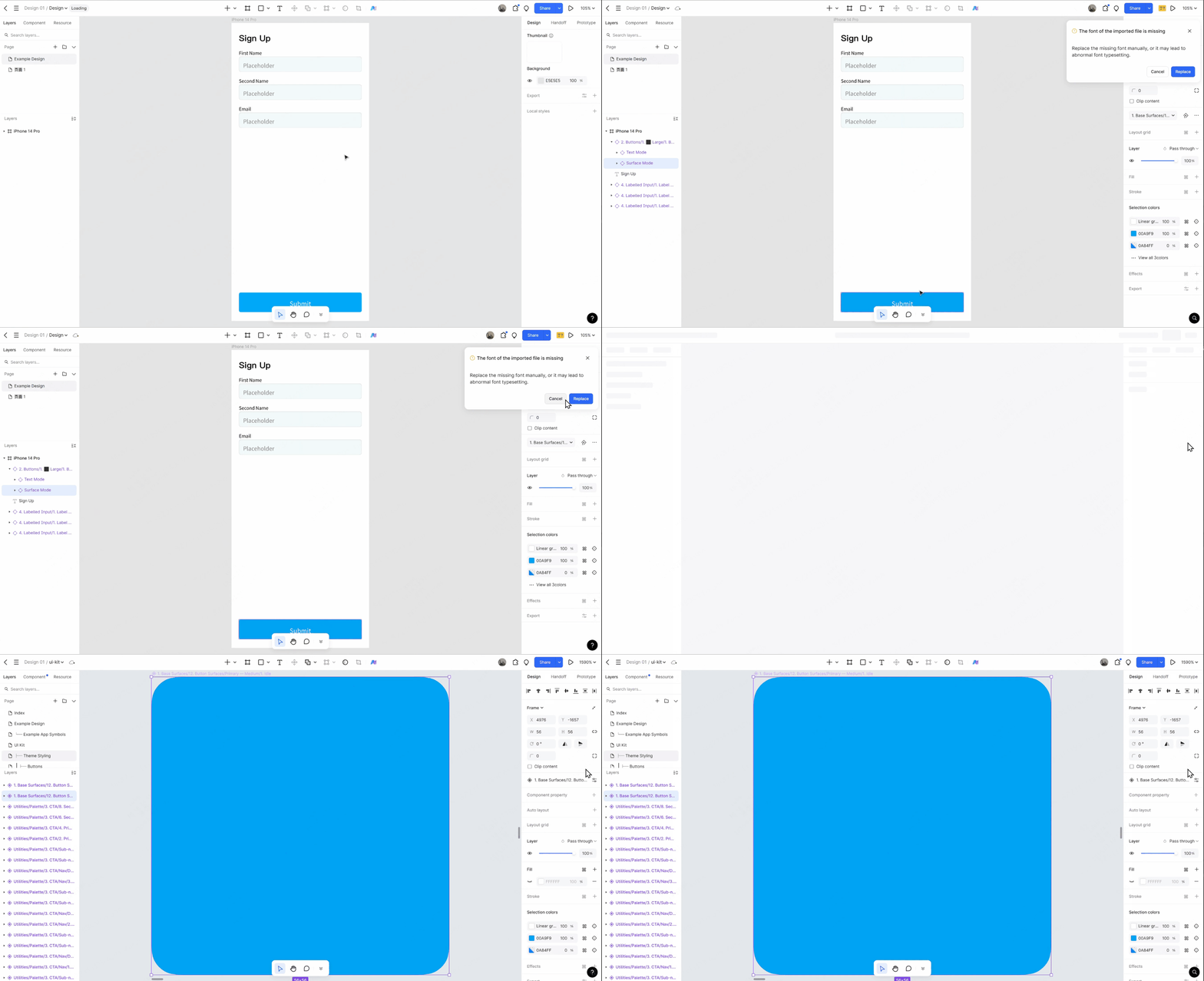
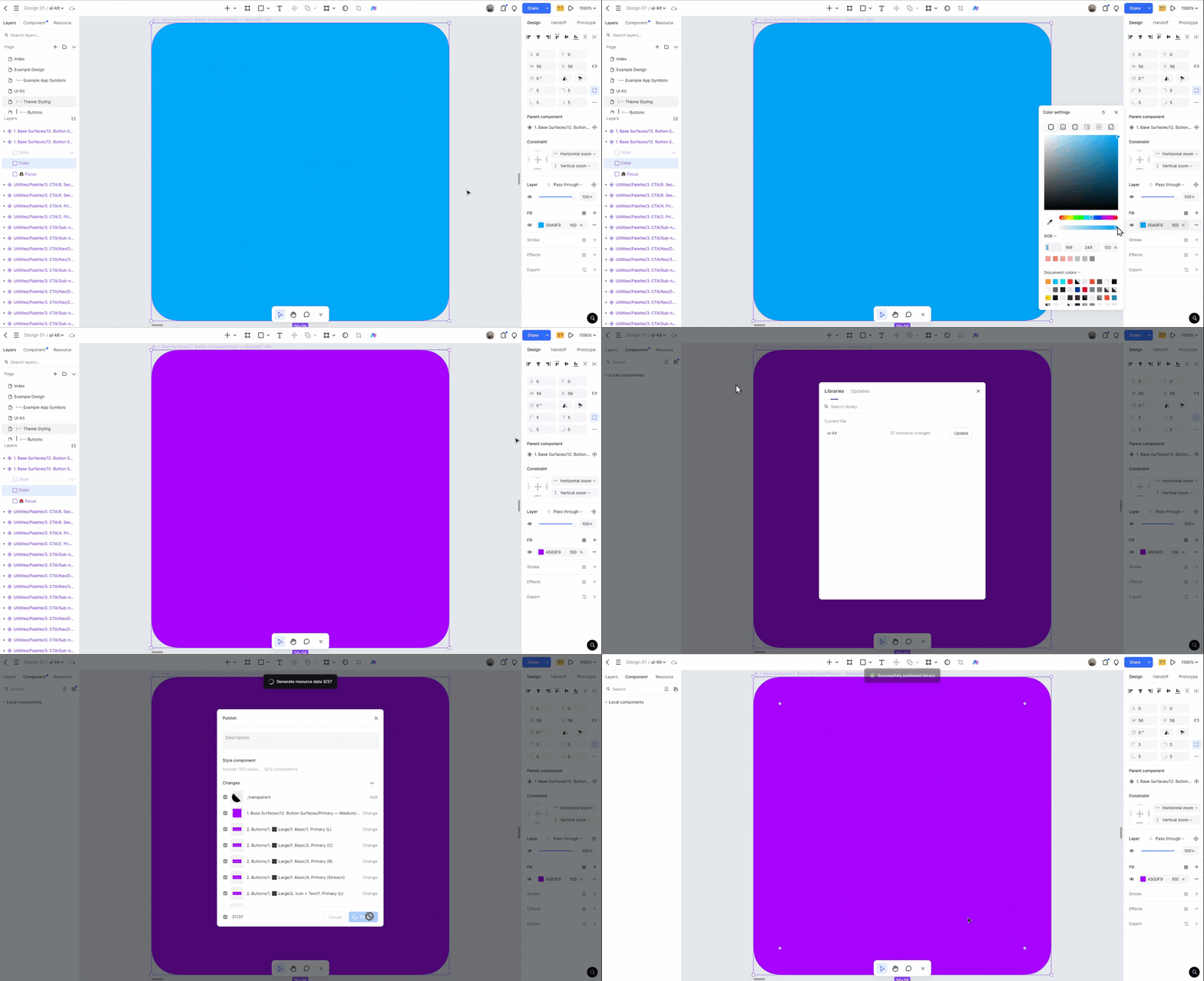
2.2 Edit the main component and publish an update. Make a small, reversible change in a test copy, such as adjusting the button’s padding. Review the change before publishing it to the shared library.
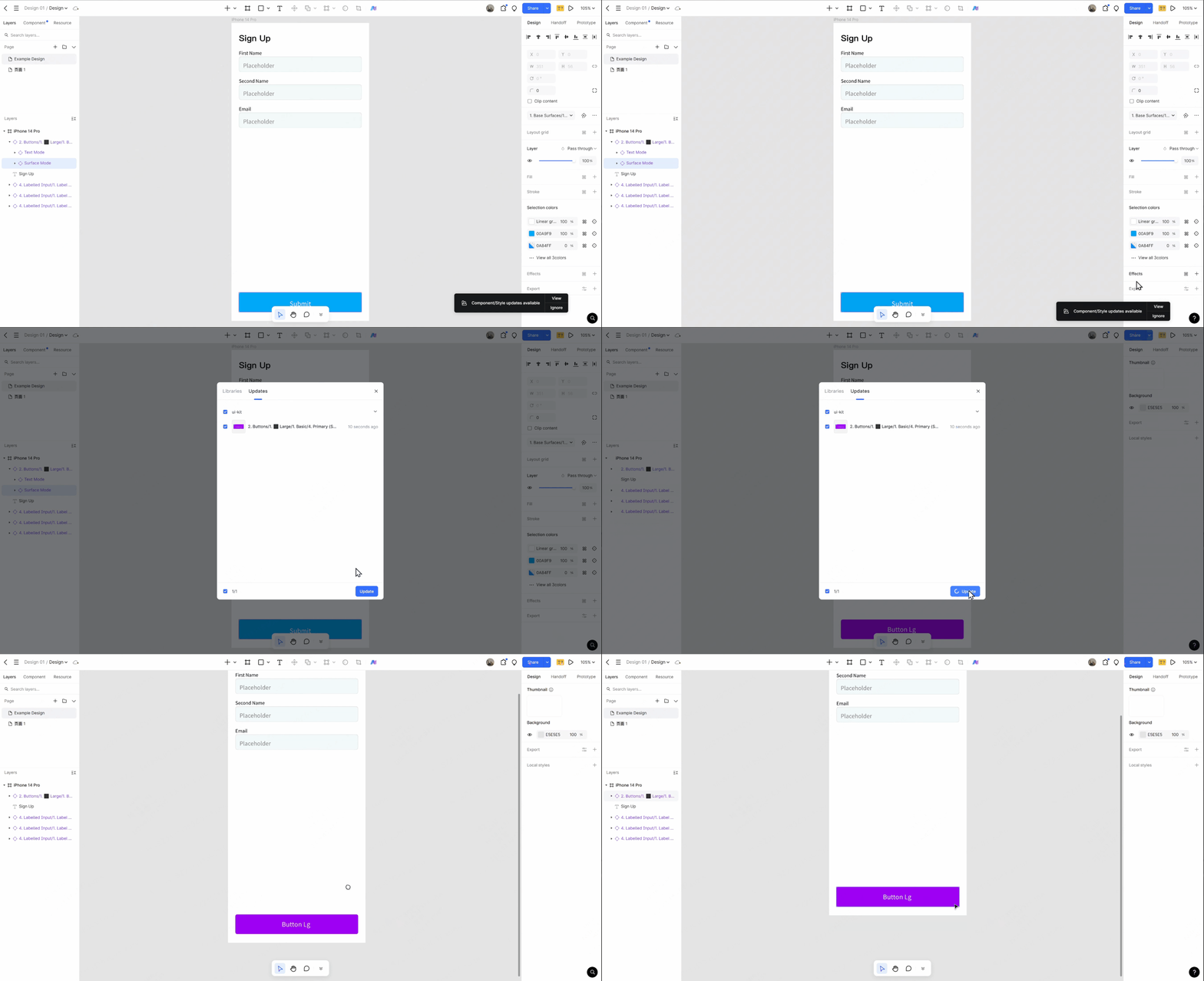
2.3 Review and receive the update. In the consuming design, use View to inspect the pending change, then Update to accept it. Check that intentional instance overrides still behave as expected; a library edit should not be treated as an unchecked update to every screen.
Pixso has a free entry plan, while team libraries, roles and other capabilities depend on the selected plan. The current pricing page lists unlimited drafts and limited shared design files for the free plan. Choose a workspace with the library access needed for this workflow rather than assuming all features, storage and collaborators have identical rights at no cost.
2. Use Adobe XD when the project already has XD access
Adobe XD can open Sketch files, so an existing Windows XD installation can be useful for a legacy project. Open a copy and inspect the imported design before continuing. Adobe states that XD is in maintenance mode, with support for existing customers but no ongoing new-feature development. Confirm the receiving team can access XD; do not plan this workflow around an old trial offer or a historical monthly price. If the team needs a new shared workspace, compare that requirement separately from the immediate file-opening task.
3. Evaluate Lunacy for Windows editing
Lunacy provides native applications for Windows, macOS and Linux, and its current site also offers browser access. Its Sketch-oriented workflow is another option for opening and editing a .sketch file. Test the same source file you use in Pixso so any compatibility differences are tied to your actual components, typography and effects.
Installation and offline work: choose the native Windows application when local/offline editing matters. Browser availability means that installing a client is no longer the only access option advertised by Lunacy.
Language: Lunacy lists English, Chinese, Japanese, Korean and other interface languages. Choose the language your team can work in; the location of the vendor is not a useful compatibility criterion.
Collaboration: Lunacy supports real-time collaboration. Compare who can edit, review and manage a library in the actual plan and workspace, rather than assuming it is only a single-user desktop tool.
4. Decide whether Pixso fits the continuing workflow
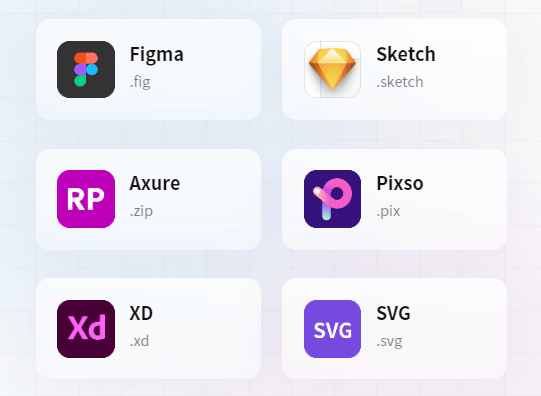
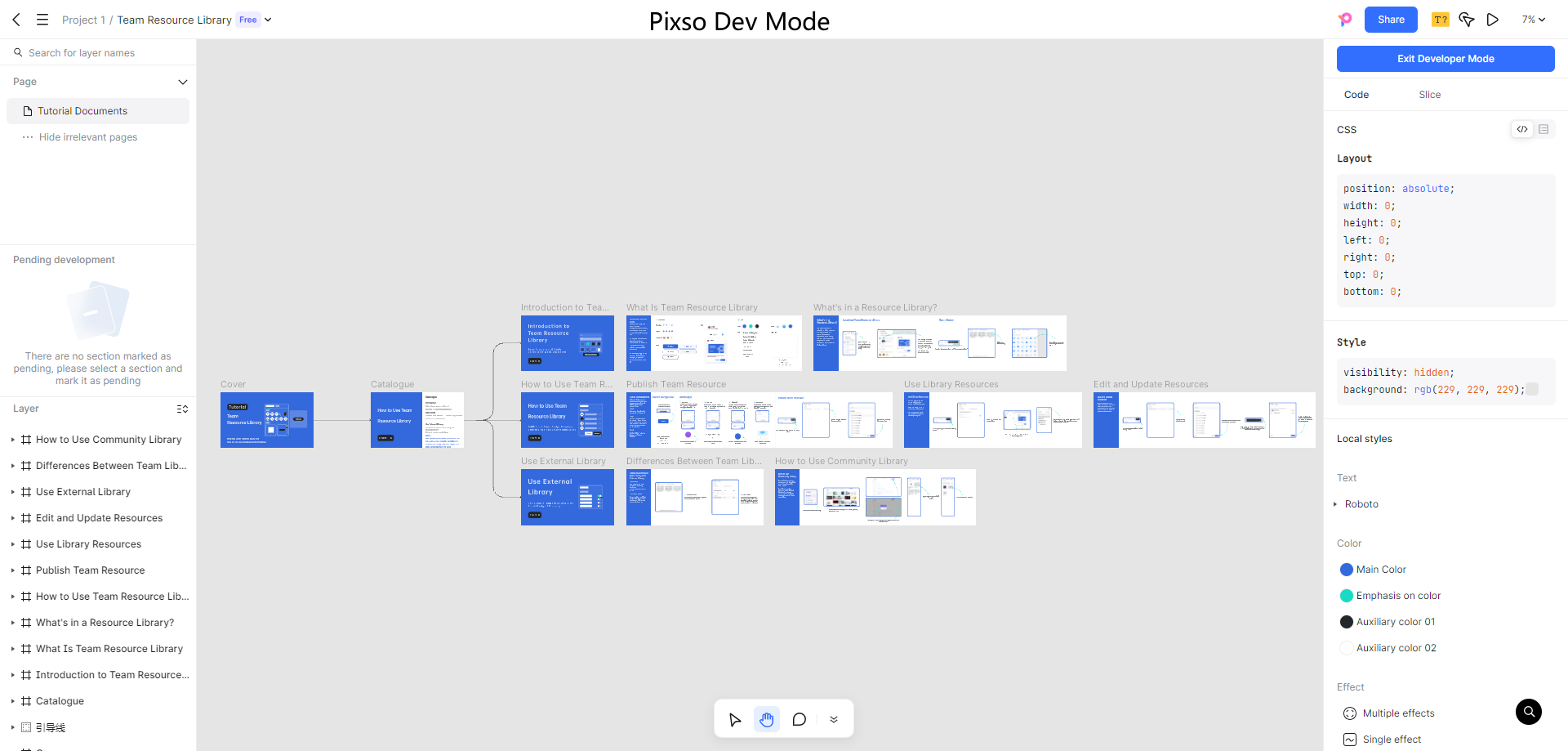
Once the Sketch file is open, Pixso’s UI workspace lets the team continue vector editing, prototyping, component reuse and developer handoff around the imported design. Its documented import routes also include Figma, Adobe XD and Axure files. Each format has its own conversion boundaries: importing several formats into one workspace does not guarantee that all source features or relationships are reproduced.
For a team maintaining a product over time, evaluate the work after import: can a designer update a shared control, a reviewer understand the changed state and a developer inspect the approved screen? Community resources and plugins can help with further design work, but confirm their suitability and permissions before adding them to a shared library.
A small migration check: one card and one shared button
Choose a screen containing a card with a long title, an image and a button instance. Include both a default button and an instance with a changed label. Use this proposed check before moving a complete product library.
| Check | Action in the imported copy | Accept when |
|---|---|---|
| Fonts and text | Compare the typeface, weight, line height and long-title wrapping. | The intended font is available and the text fits without hidden lines. |
| Images and effects | Inspect the crop, mask, shadow and corner radius. | The image and visible effects match the intended design, or the difference is deliberately corrected. |
| Components and overrides | Open the button’s main component, then inspect the changed-label instance. | The component relationship and intentional label override are usable. |
| Library update | Publish the test padding change and review it in the consuming file. | The team can accept the update without overwriting unrelated decisions. |
| Prototype and handoff | Play the important transition and inspect the approved layer. | The reviewer reaches the expected screen and the developer can find the needed details. |
If one feature does not translate, keep the source as evidence and rebuild that part explicitly in the destination. Do not flatten every screen into an image merely to make the import appear successful; that removes the editing workflow this task is meant to preserve.
Choose a workflow after checking one representative file
For browser-based editing and team review on Windows, start with a copy in Pixso and test the linked-library workflow if the design uses one. Use an existing XD installation for a project that already depends on XD. Evaluate Lunacy when native Windows and offline editing are priorities.
Compare the results using the same file and the same changes. Opening a screen successfully is only the first check; fonts, overrides and library updates determine whether the file remains useful when somebody edits it.
Open your first Sketch file in Pixso, keep the source alongside it and ask the intended reviewer and developer to inspect the result. Expand the migration after those roles can complete their tasks without losing the design’s meaning.