On this page

Scott
Translating a UI changes more than its words. A longer label can widen a button, a different script can change line spacing, and right-to-left content can change how a screen is read. Use AI to draft translated copy, then work on the wording and layout together.
Part 1: The bottlenecks of traditional UI localization workflows
For years, product design teams have approached global expansion with fragmented workflows. Many organizations treat UI localization as an afterthought, sending design screenshots to external translators. Once the translated text is returned, designers must manually copy the translated strings back into their workspace.
This process is slow, expensive, and highly prone to human error. Manual UI translation involves copying and pasting strings from a spreadsheet into design layers, which quickly leads to broken layouts and misplaced copy.
THE DISCONNECTED LOCALIZATION LOOP
- Export: Static screenshots or text lists sent to agencies
- Translate: Copy translated in isolation without design context
- Import: Manual pasting of strings, breaking layouts and alignments
- Fix: Designers manually resize components to fit text expansions
These localization activities, often referred to as l10n, must be planned from the very beginning of a product cycle. While internationalization or i18n ensures your software's codebase can handle multiple regional settings, the design file must also adapt visually.
If your design workspace remains isolated from your translation assets, you will lose hours fixing overlapping text and misaligned buttons. Instead of using a generic web browser translation tool, teams are turning to a specialized AI translator built directly into their layout workspaces to manage these adjustments dynamically.
Part 2: Enter Pixso AI: Canvas-native translation and intelligent UI generation
To solve these layout bottlenecks, Pixso integrates smart translation and automated design capabilities directly into its collaborative vector canvas. Operating as a canvas-native AI translator, Pixso allows designers to run localized edits without leaving the artboard. This native integration shifts UI localization from a slow administrative task into an agile development stage.
PIXSO SMART TEXT CONTROLS
Select Text/Frame ➔ Floating Toolbar ➔ Smart Text Option
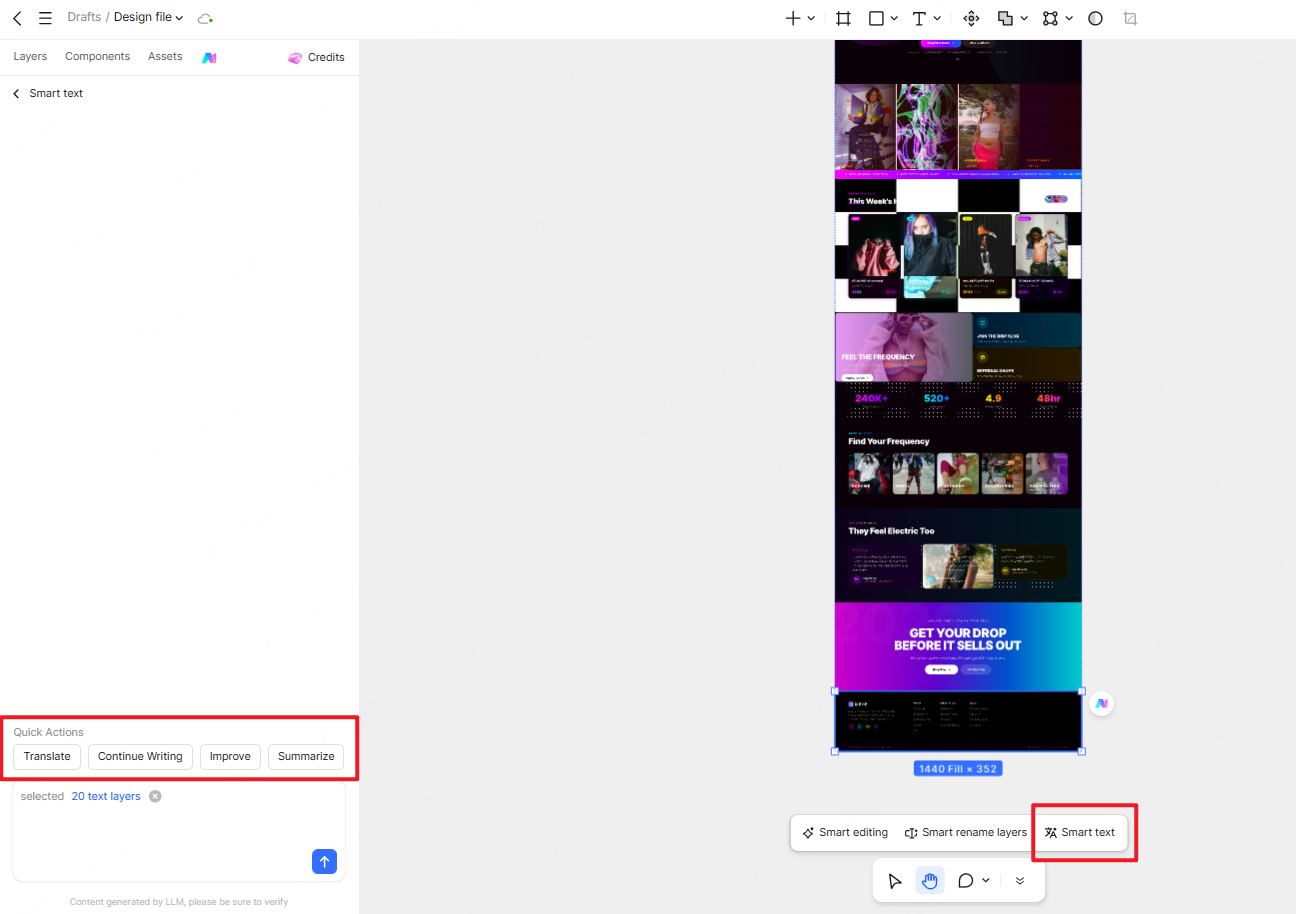
Quick Actions Available:
- Translate: Instant, context-aware translation
- Continue Writing: AI-assisted text generation
- Improve: Copy refinement and tone adjustments
- Summarize: Shortens long text
Canvas-Native Translation
To translate an element in Pixso, you select your design frame, view the floating toolbar at the bottom of the screen, click the Smart text option, and choose Translate from the Quick Actions menu. The system lets you choose between translating a single text block or executing a batch AI translation across dozens of frames.
Keep language versions side by side so you can compare their layout. Reused components can help maintain common styling, while each language still needs room for its own content.
Intelligent UI Generation
Beyond translation, Pixso's AI panel allows you to generate new layouts, design systems, and custom mockups directly from simple prompts. If your translated text requires a completely different layout style, you can use the AI assistant to generate alternative card structures, form patterns, or landing page layouts in seconds.
By keeping copy adjustments and layout generation inside the same vector workspace, Pixso eliminates the need to switch between external translation software and your core design editor.
Part 3: Solving the layout stretching and RTL mirroring nightmare
One of the most frustrating aspects of translating an interface is that text length varies dramatically across languages. German and Spanish translations can be up to 30% longer than their English equivalents, while Asian languages require adjusted vertical line heights to remain readable.
Handling script variation is one of the most resource-intensive challenges of l10n for mobile and web apps. Without automated layout rules, standard UI translation inevitably breaks margins and forces tedious manual resizing.
Auto-Layout Adaptation
Use auto layout so a button or container can grow with its content. Choose wrapping and size settings deliberately; translation alone does not define how the component should resize.
If a label does not fit, consider more space or a shorter translation that keeps the meaning. Shrinking every label to fit the original box can make the interface harder to read.
Bidirectional Text and RTL Mirroring
For Arabic or Hebrew, distinguish text direction from component layout. Navigation and directional controls may need to change, while an image, number or product name may not.
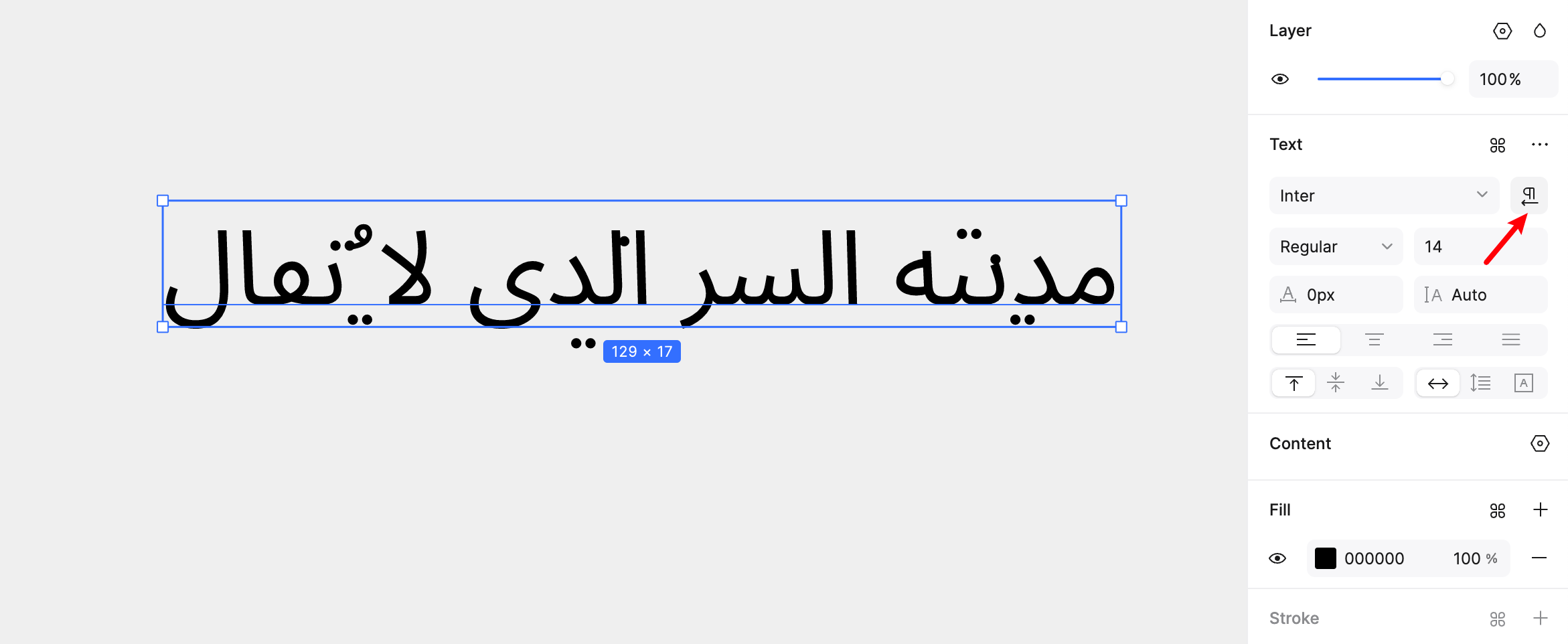
Pixso’s bidirectional text control helps with mixed RTL and LTR text. Decide separately which components should be mirrored; changing text direction is not the same as flipping an entire interface.
Part 4: Industry glossaries, version control, and multilingual collaboration
Integrating AI translation into your daily pipeline requires more than just translating vocabulary; it requires context. A literal word-for-word translation can often sound awkward or incorrect, especially when dealing with industry-specific terminology in fintech, medical software, or complex B2B dashboards.
Successful UI localization relies on building a consistent voice across languages. Rather than relying on rigid algorithms, a design-focused AI translator should support custom team memories and specialized glossaries to maintain brand accuracy.
KEEP THE TEAM’S TRANSLATIONS TOGETHER
- Shared terminology: keep product names and repeated actions consistent
- Shared screen context: let translators see where each label appears
- Revision notes: record which wording has been approved
- Shared terminology: Keep a glossary for product names, technical terms and repeated actions. Give translators the screen context as well as the source text.
- Revision tracking: Keep a clear record of approved wording and later changes so the design and implementation do not use different translations.
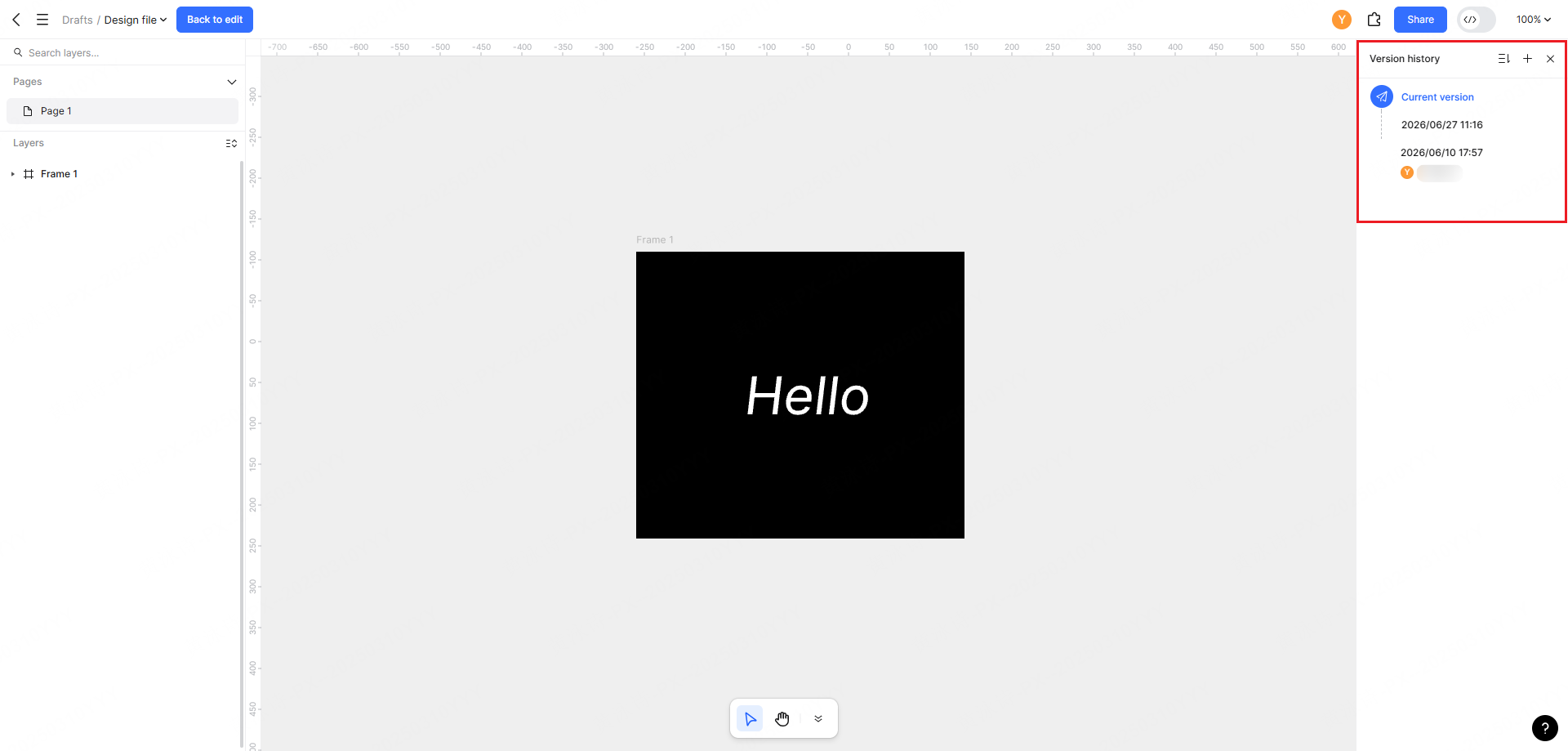
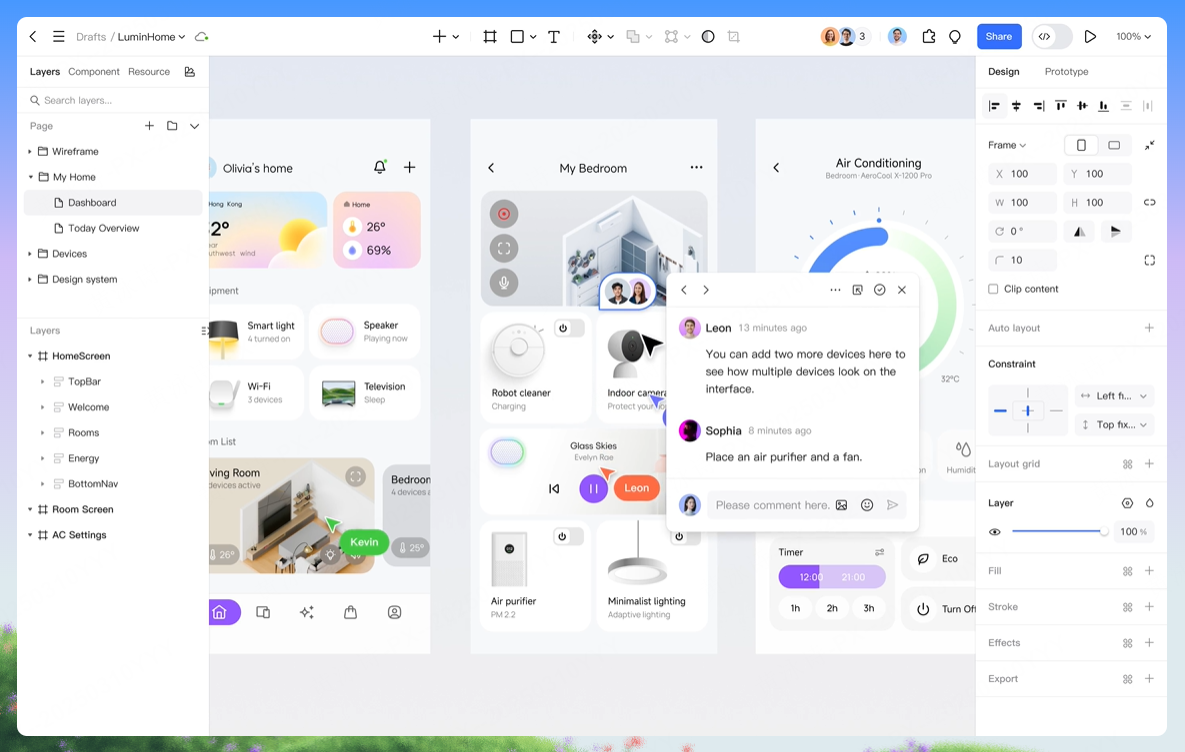
- Real-time Multilingual Review: Pixso’s collaborative cloud workspace allows your local copywriters, designers, and regional managers to review translated mockups simultaneously. Team members can leave sticky comments directly on the canvas, pointing out regional styling issues or tweaking translations in real time.
Part 5: Hand translated copy to developers
Once your designs are translated and approved, the next challenge is handing them off to developers. If your engineering team has to manually copy-paste translated strings from a static PDF or PNG mockup into their code, the process breaks down immediately.
Agree on resource files and string keys
Agree with developers on the resource-file format and string keys used by the application. Match each approved translation to its key and screen, rather than passing a screenshot with no reference to the underlying text.
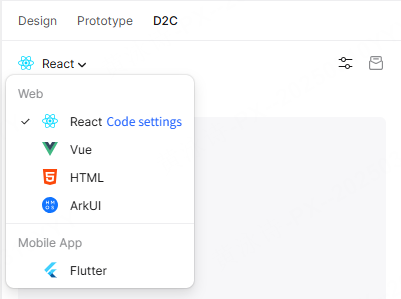
When copy changes, update the resource file and the design together. This avoids shipping a translation that differs from the one the team reviewed.
TRANSLATION DATA FLOW
Project Copy → Configured Translation Service → Translated Copy
Identify where the configured translation service processes the copy
Where translation data is processed
When you run translation queries on a standard cloud-based AI translator, your copy is sent to external servers. For healthcare apps, financial platforms, or government portals, uploading sensitive text or private user screens to public clouds is a massive security risk.
For sensitive copy, the important question is where the translation request and its data are processed. Confirm the AI service’s data path as part of the deployment decision; hosting the design workspace privately does not, by itself, establish that every connected AI request stays inside the network.
Part 6: A simple example — a translated button
Take a button whose translated label needs two lines. Keep the wording visible, allow the button to grow and check its spacing beside the other controls. If the result crowds the screen, discuss a shorter label with the translator instead of cutting the text off.
The useful outcome is a label that means the right thing and fits the interaction. Apply the same reasoning to navigation, validation messages and empty states, rather than forcing every language into the English layout.
Conclusion
AI translation is a starting point for the copy, not a shortcut around layout decisions. In Pixso, keep translated text visible in context and resolve the screens where length or direction changes the interaction. Clear wording and a workable layout matter more than automating every step.