On this page

Scott
Pixso 2.0 introduced bidirectional text support for designs that combine RTL and LTR writing. This release reference records the scope and the controls illustrated in the original announcement. For a step-by-step mixed-text review, use the RTL and LTR editing checklist.
1. What the feature adds
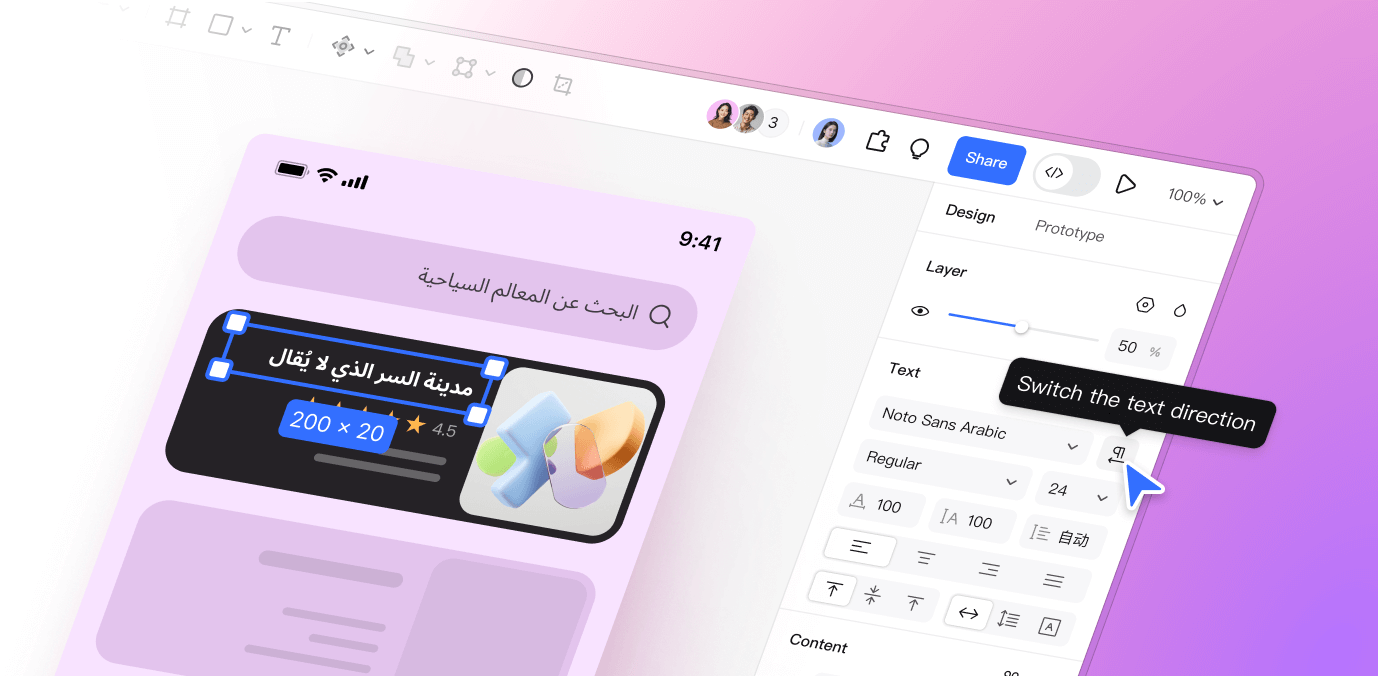
The text panel provides a direction control for working with RTL and LTR text, including mixed-direction text in one text box. The feature is relevant to multilingual labels, descriptions and lists. The original screenshots below illustrate its editing controls; their appearance may differ from the current editor.
Text direction controls the order of mixed-script text. Text alignment and the placement of surrounding components are separate settings.
2. Scope and verification boundaries
- Text editing: choose the appropriate direction and review mixed-script content.
- Localization: use reviewed wording and fonts that cover the needed scripts.
- Layout: decide component placement and directional icons separately; this control does not automatically mirror an entire interface.
- File transfer: test Sketch import or export with a copy in the current app versions. Check text, fonts and formatting instead of assuming lossless conversion.
3. Controls illustrated in the original release
Text direction control
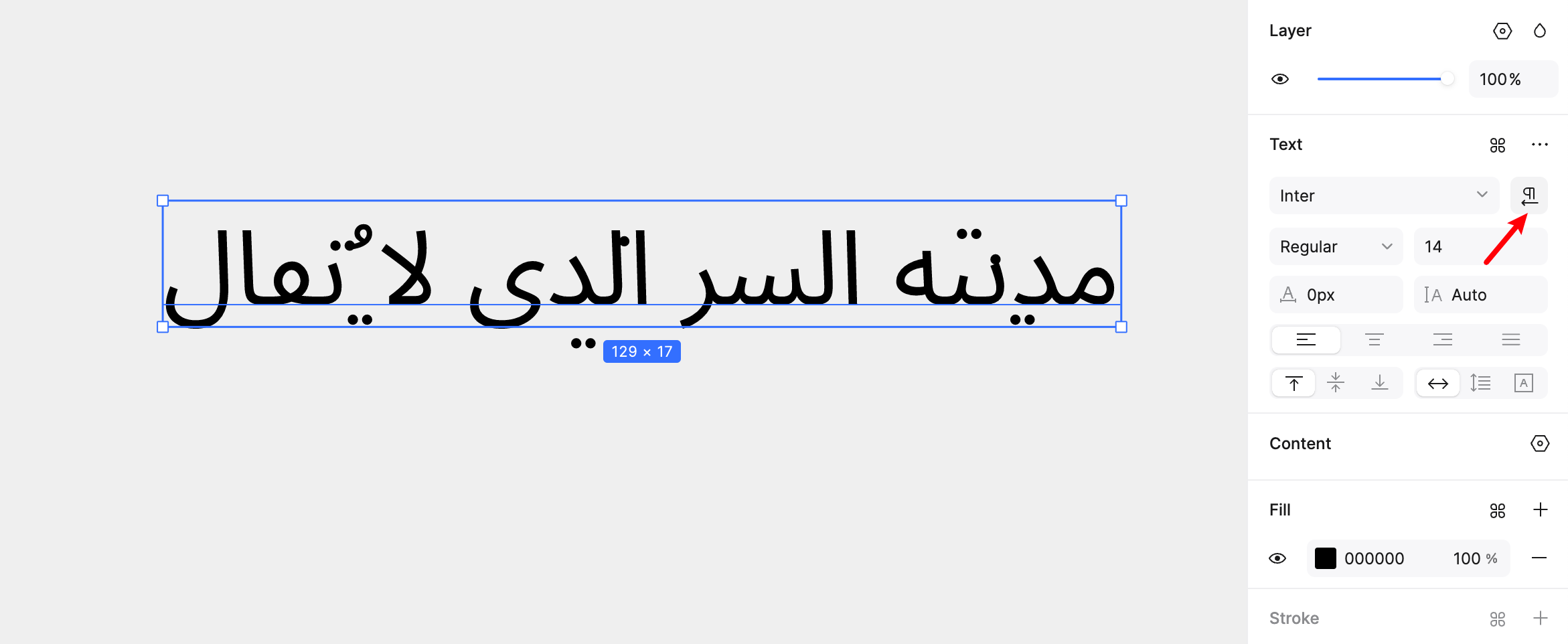
Select a text box to find the direction control in the text panel. The illustration shows the location used in the original announcement.
Cursor and selection
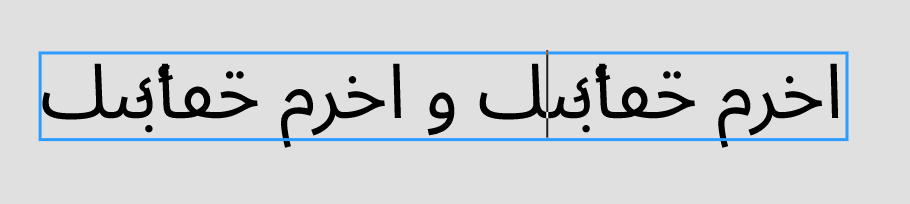
This illustration concerns caret placement within RTL text. Cursor and selection behavior should also be checked where the text changes direction; one directional rule does not describe every mixed-text boundary.
Text insertion
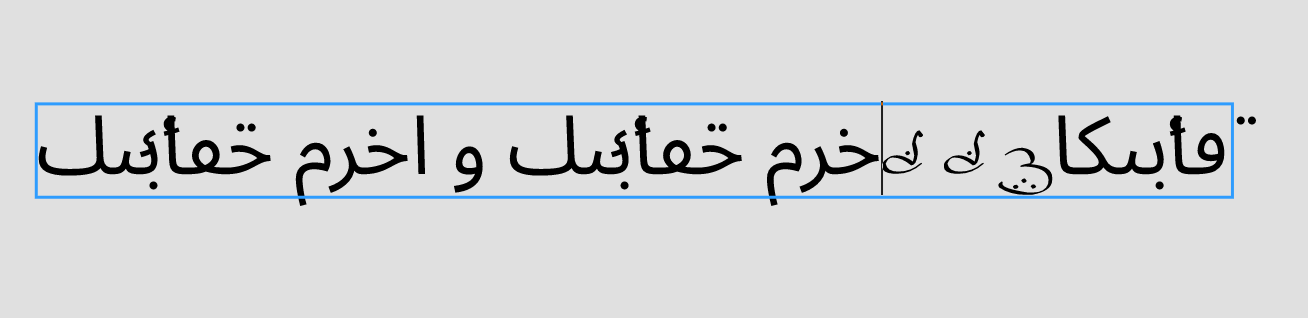
The insertion example illustrates editing within a text box. Verify the intended reading order after inserting a name, number or punctuation.
Line breaks
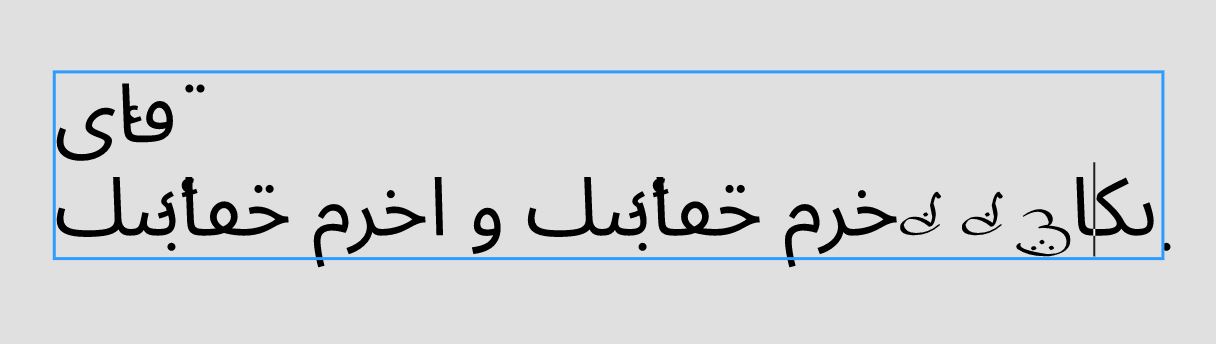
The line-break example shows a multiline text case. Compare the current editor and intended export at the widths used by the design.
Lists
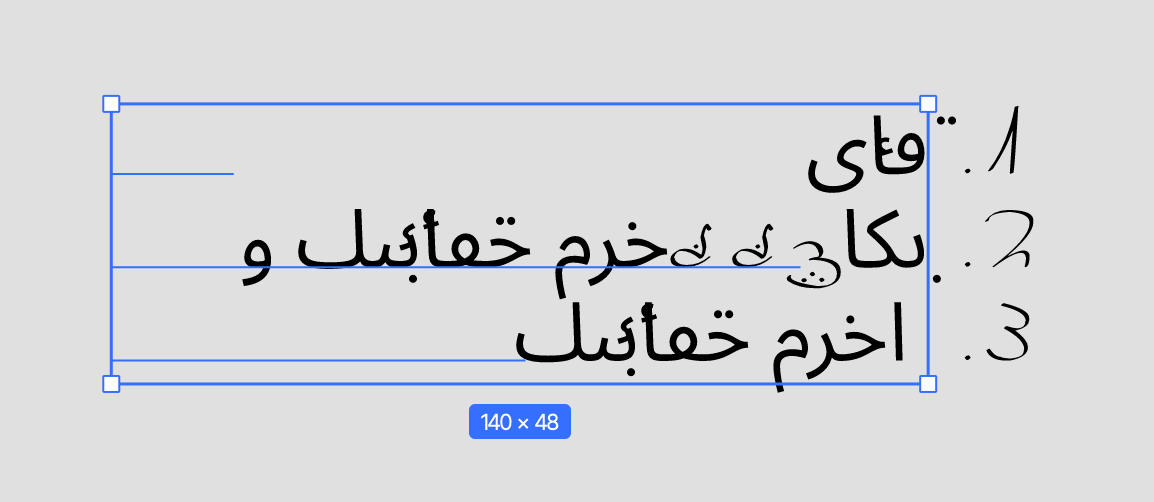
The list illustration shows marker placement with different directions. Review indentation and wrapping as well as the marker itself.
4. Next step: review one real localized screen
Take a copy of a screen that includes an RTL sentence, a product name, numbers and a list. Set the direction, then compare the editor, shared view and exported result. Ask a proficient language reviewer to confirm the reading order. Keep any file-transfer adjustments with the source file.
The full BiDi tutorial includes a reusable preparation, editing and handoff checklist.