On this page

Scott
Use bidirectional text when a design combines right-to-left scripts, such as Arabic or Hebrew, with left-to-right text such as English. Pixso’s direction control helps you set the text context. It does not replace language review, component layout decisions or export checks. This tutorial is a practical editing procedure; the Pixso 2.0 release reference describes the feature introduction.
1. Separate text direction, alignment and layout
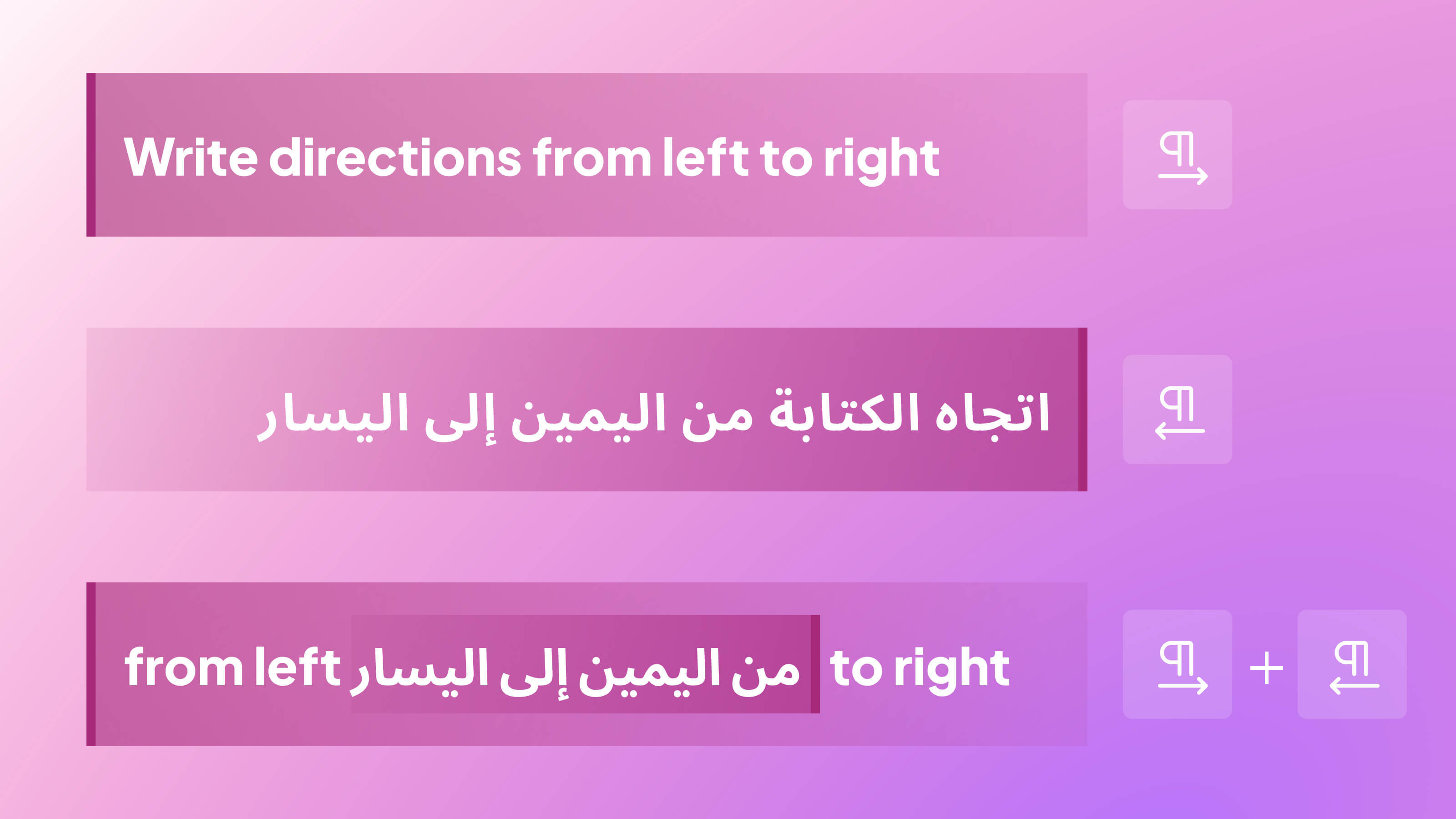
Paragraph direction helps determine the ordering of mixed-direction text. Alignment places text against an edge or other alignment point. Interface layout determines where navigation, controls and content appear. Setting text direction is not the same operation as right-aligning a label or mirroring an entire screen.
For web implementation, see W3C guidance on inline bidirectional text. Direction-aware markup and isolation help keep embedded phrases and surrounding punctuation in their intended context; a design preview does not automatically provide that implementation.
2. Prepare a small mixed-text test
- Duplicate a text box so the original is available for comparison. Choose a font that supports the scripts used.
- Include a normal sentence, an English product name, numbers, punctuation and a line break from your real content. Use authorized localized copy and a proficient language reviewer.
- Keep a separate note of the intended reading order. Do not manually reverse characters to force a visual result.
- Define the target contexts: editor, shared review, export and the application where the text will appear.
For a quick practice input, combine a localized label with the literal product name Pixso and the digits 123. Replace the practice text with reviewed product copy before delivery; its purpose is to expose mixed-direction boundaries, not to certify a translation.
3. Decide which parts of the interface need layout changes
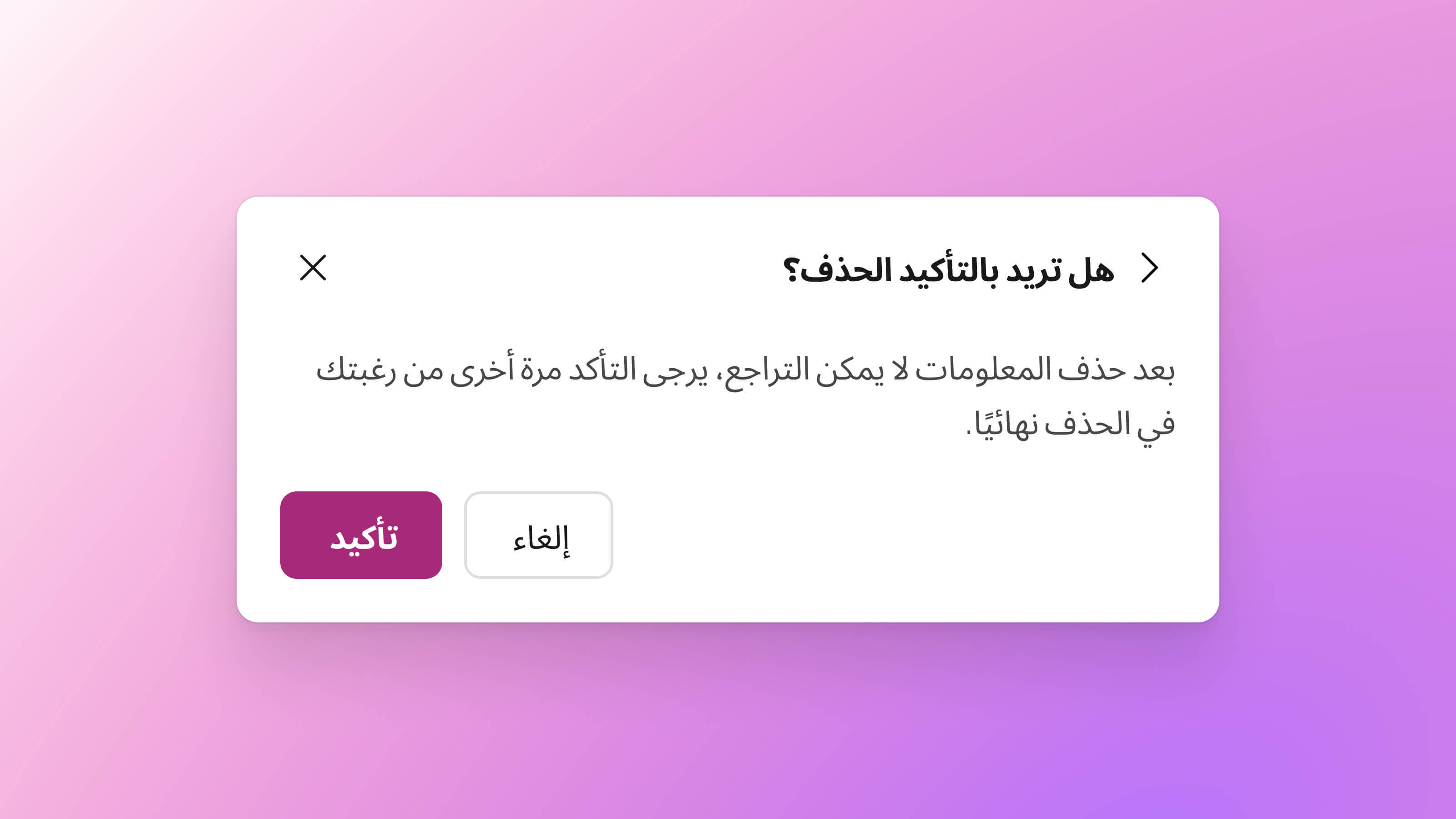
Review text boxes, lists, navigation and directional icons separately. A reading direction may affect component placement, but not every icon, number, media control or piece of content should be mirrored. Record component-specific decisions with the product’s localization guidance.
- Text: intended base direction, alignment, embedded names and punctuation.
- Lists: marker placement, indentation and wrapping.
- Controls: sequence, icons and focus order in the implemented interface.
- Handoff: which rules need to be implemented in code rather than inferred from a screenshot.
4. Set direction and check editing behavior
Switch the text direction
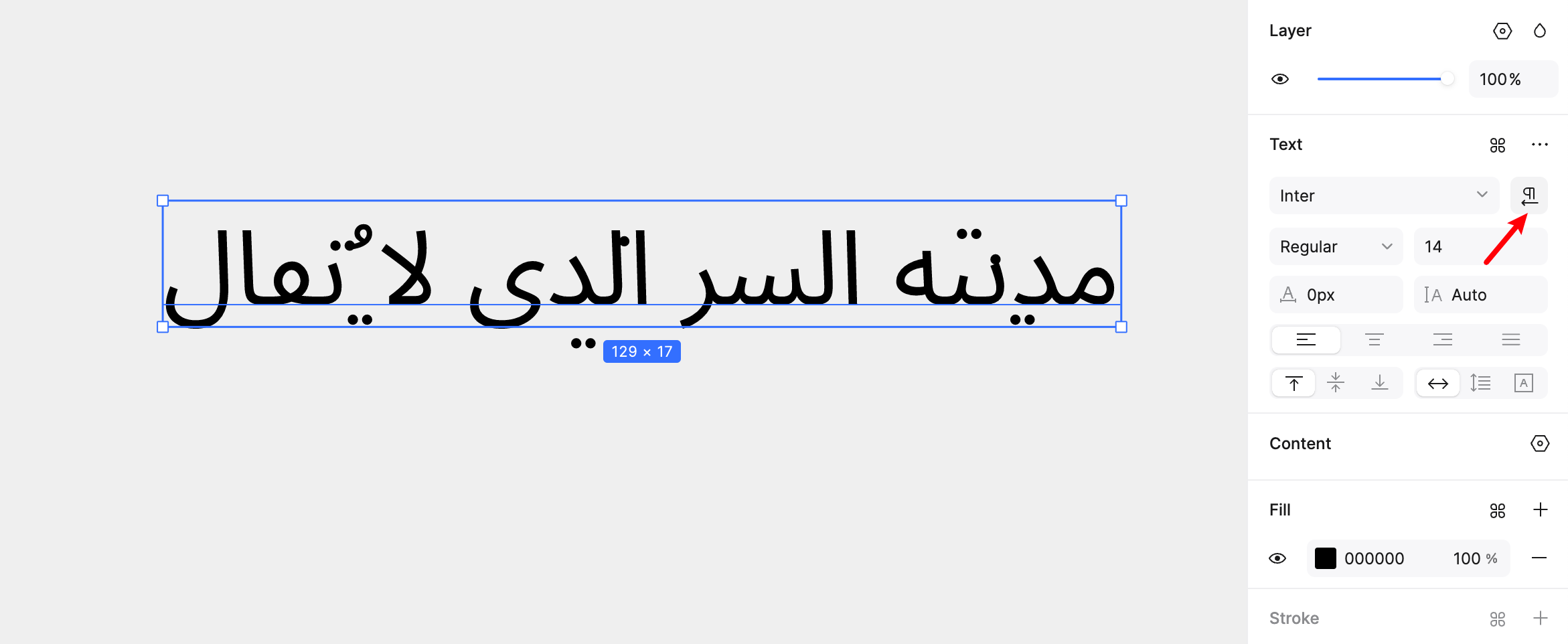
Select the text box and use the direction control in the text panel to choose LTR or RTL, as shown in the existing interface illustration. Check the current editor if the control placement differs. Compare punctuation and embedded English or numbers before and after the change.
Check cursor movement at a direction boundary
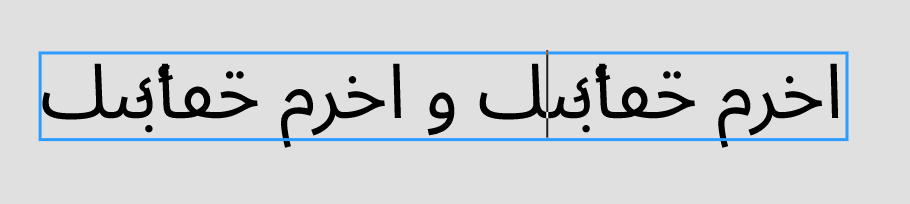
Place the cursor before and after an embedded English word, then use the arrow keys and select a short range. Confirm which text is selected. Mixed-direction runs can make visual cursor movement different from the character order; avoid a universal rule that every key acts in the opposite direction.
Insert and delete a known character
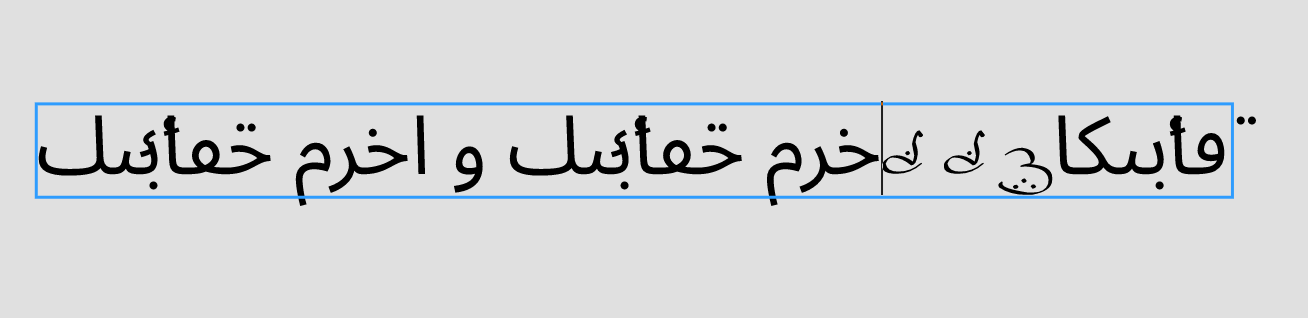
Insert a short word at the boundary, then undo it. Separately test Backspace and Delete on the copied text and verify what was removed. Record the actual behavior in the editor and target platform rather than assuming the removed character is always visually to the right or left.
Check wrapping and line breaks
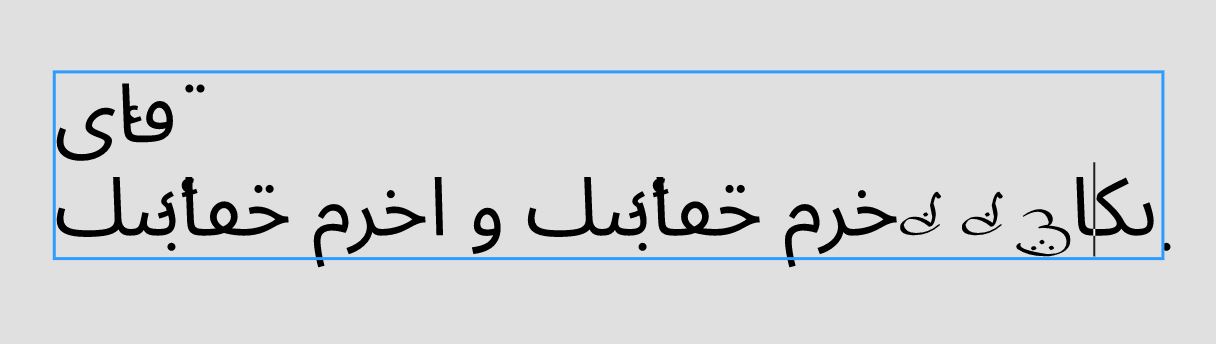
Narrow and widen the text box, add a line break and inspect where each line begins. Confirm that a number, label and punctuation still belong together. Review font fallback and clipping as well as direction.
Check ordered and unordered lists
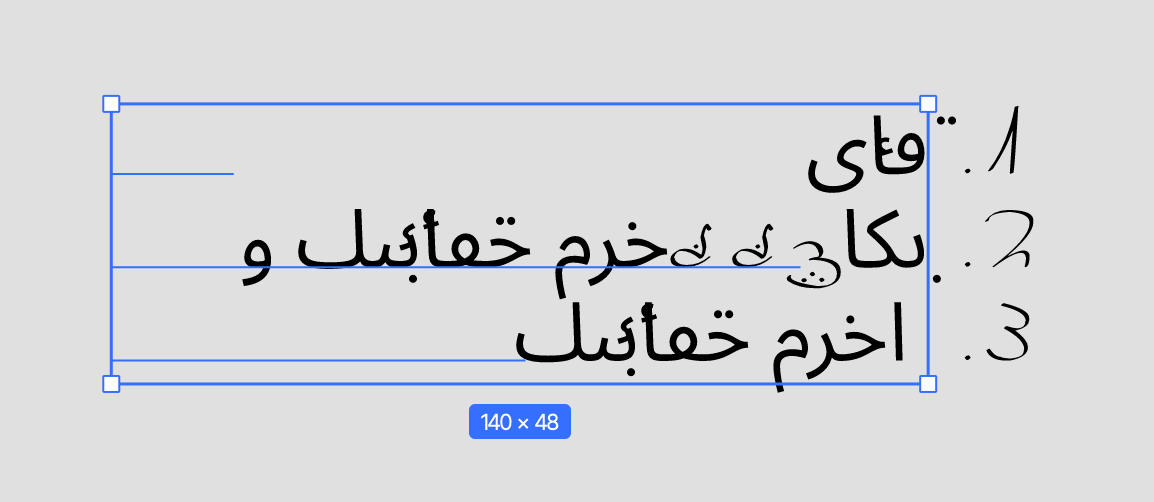
Create a short list with mixed-direction content. Inspect marker position, numbering, indentation and wrapped lines. Verify that copying, sharing or exporting the list retains the meaning of each item.
5. Verify the shared file and exported result
- Ask a reviewer to open the same file and compare the intended reading order and line wrapping.
- Export the formats your team actually uses. Compare the output with the editor, including punctuation, fonts, lists and numbers.
- For Sketch file transfer, test a representative copy in the current versions of both tools. Record unsupported properties and manual adjustments.
- Give developers the intended text direction and component layout rules. Validate the implemented page with realistic localized content.
A successful import is not evidence that all text formatting or interactions transferred unchanged. Keep the source, reviewed output and any required corrections together.
6. Complete the localization review
- Reading order and wording reviewed by someone proficient in the language.
- Mixed names, numbers, punctuation, selection and wrapping checked.
- Component mirroring decisions documented separately from text direction.
- Relevant share and export formats compared with the source.
Use the checklist on a representative screen before applying the pattern across a product. The feature supports an editing workflow; the final localization quality depends on the content, fonts, implementation and review.