Scott
Figma AI can assist with tasks such as finding assets, editing text and processing images. This guide explains how to check access and evaluate those features. Availability, credits and administrator settings vary by feature and plan; neither Figma AI nor Pixso AI should be assumed unrestricted or permanently free.
Part 1. Figma AI release timeline and how to activate It
Figma introduced AI features at Config 2024. That initial beta does not describe the status of every feature today. Check the current Figma Design documentation for the specific feature, seat, plan and administrator requirements.
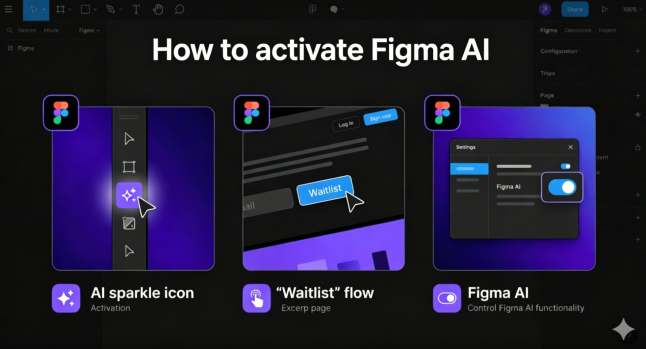
How to activate Figma AI
Want to use Figma AI but can't find the menu? Don't panic. Here is how to activate it:
- Check the feature: identify the AI action you need and open its current Figma help article. Follow the documented entry point in the interface available to your account.
- Check access: confirm that your plan and seat include the feature and that your administrator has enabled it. If it is a beta feature, follow that feature’s own eligibility process.
- Troubleshoot availability: update the application where relevant, check remaining credits and account permissions, and ask the workspace administrator about feature settings. There is no single waitlist rule that applies to every Figma AI feature.
Part 2. Scope of Figma AI features – maximizing design productivity
Figma AI goes far beyond just drawing pictures; it focuses on drastically reducing repetitive manual tasks for designers. Here are the specific ways you can utilize Figma AI in your workflow:
- Find assets: Instantly locate the specific icons or components you need within massive design systems using keyword searches or visual searches.
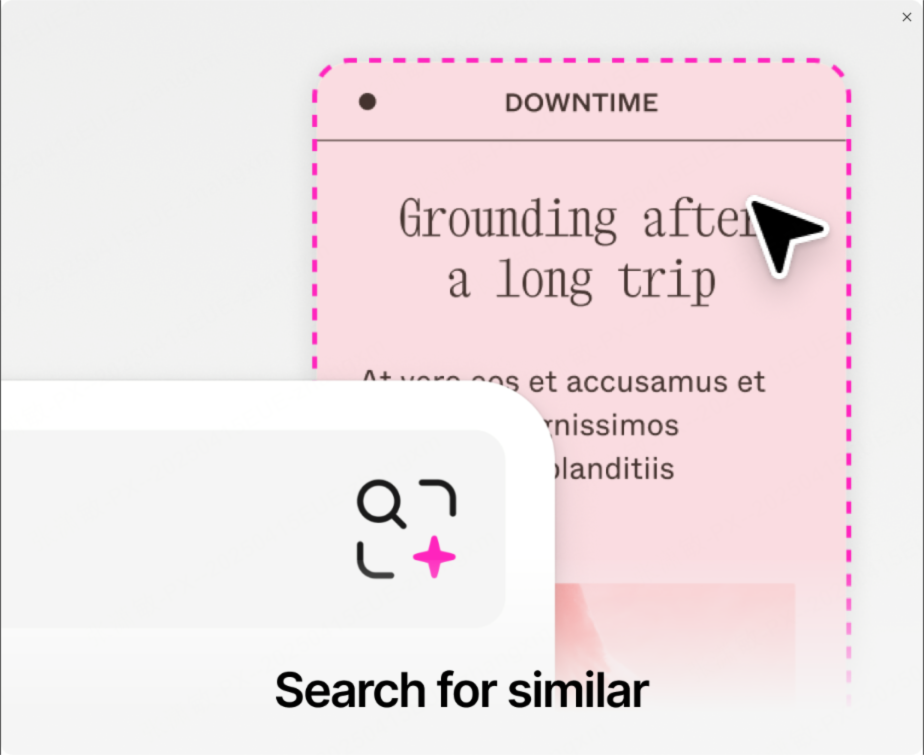
Source: Figma official website
- Rename layers: AI analyzes the context of your content to automatically rename and organize messy layer stacks in a single click.
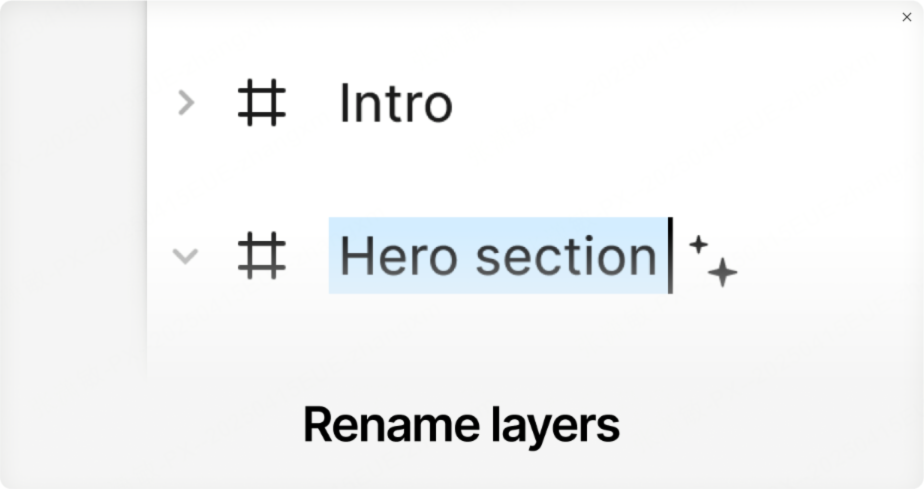
Source: Figma official website
- Rewrite and translate text: Rewrite your design copy in a more professional tone, shorten the text length, or translate it instantly into multiple languages.
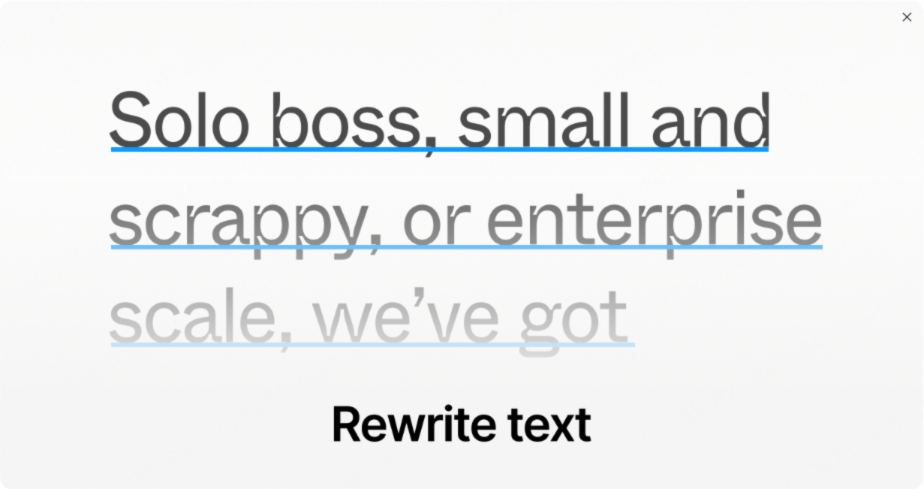
Source: Figma official website
- Remove backgrounds: Cleanly remove image backgrounds with a single click, without the need for any third-party plugins.

Source: Figma official website
- Upscale images: AI analyzes low-resolution images and converts them into crisp, high-resolution visuals.
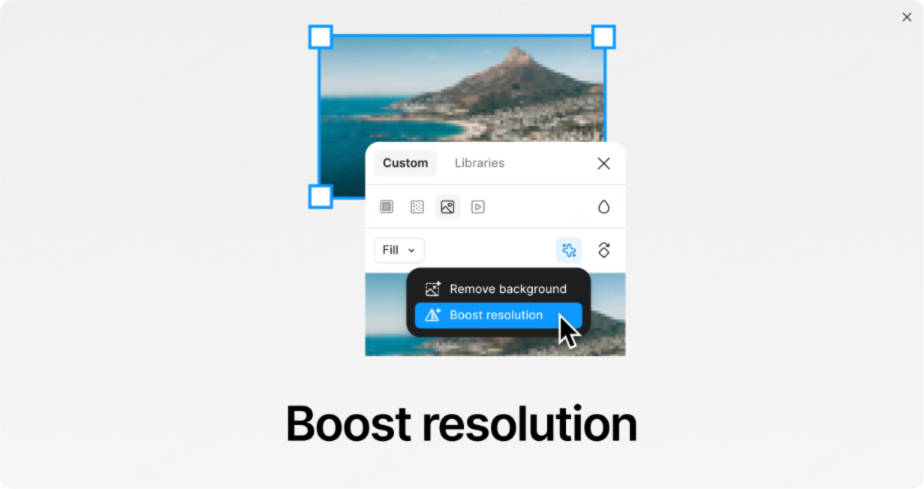
Source: Figma official website
As you can see, Figma AI is a powerful tool designed to eliminate bottlenecks in your design workflow.
Part 3. Compare Pixso AI features and access
Compare Figma AI and Pixso AI by the task you need to complete. Check available features, credits, input handling and plan costs in each product before deciding which workflow fits your team.
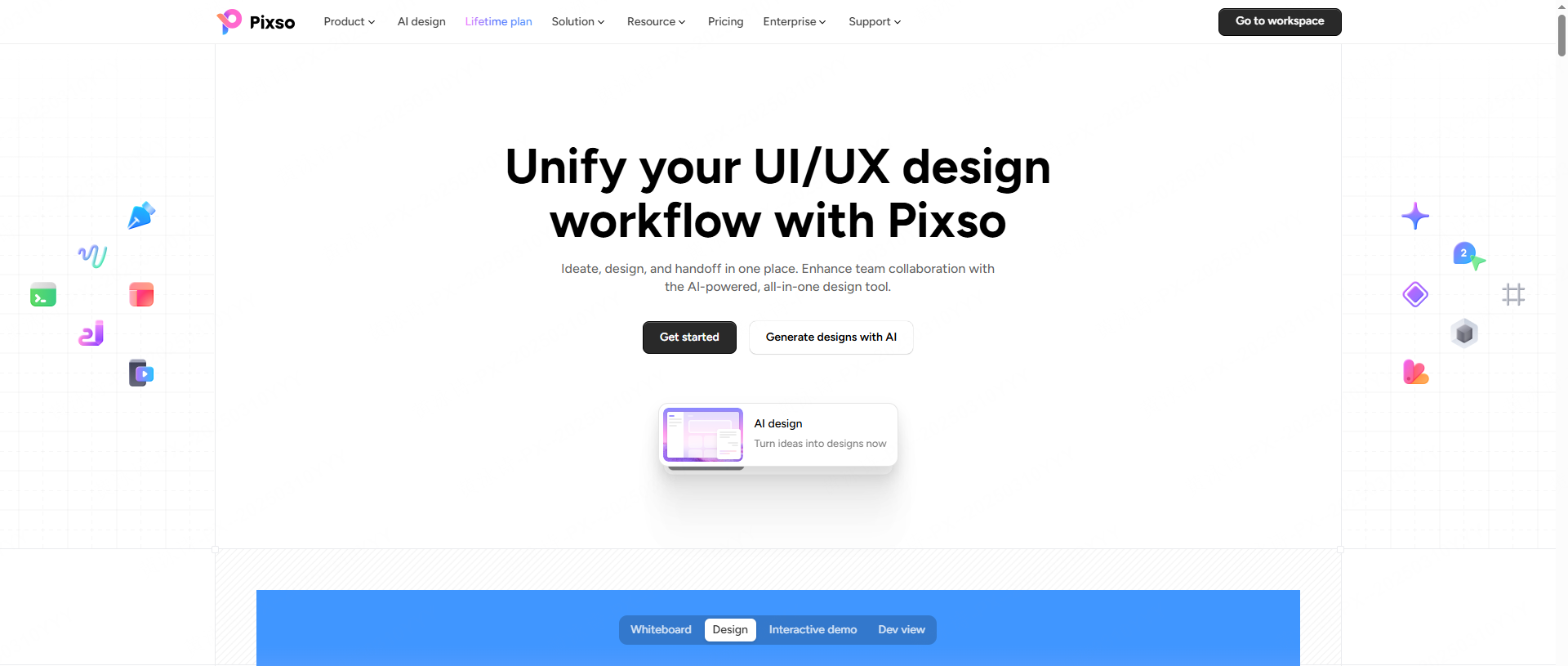
What to evaluate in Pixso AI
Pixso combines UI design and collaboration with AI-assisted workflows. It is a separate product from Figma; feature names, outputs and limits can differ. Check current Pixso pricing and the functions available in your workspace.
- Compare individual tasks: test layer naming, text rewriting, translation or image editing using the functions available to your account. Review the output rather than assuming identical results across products.
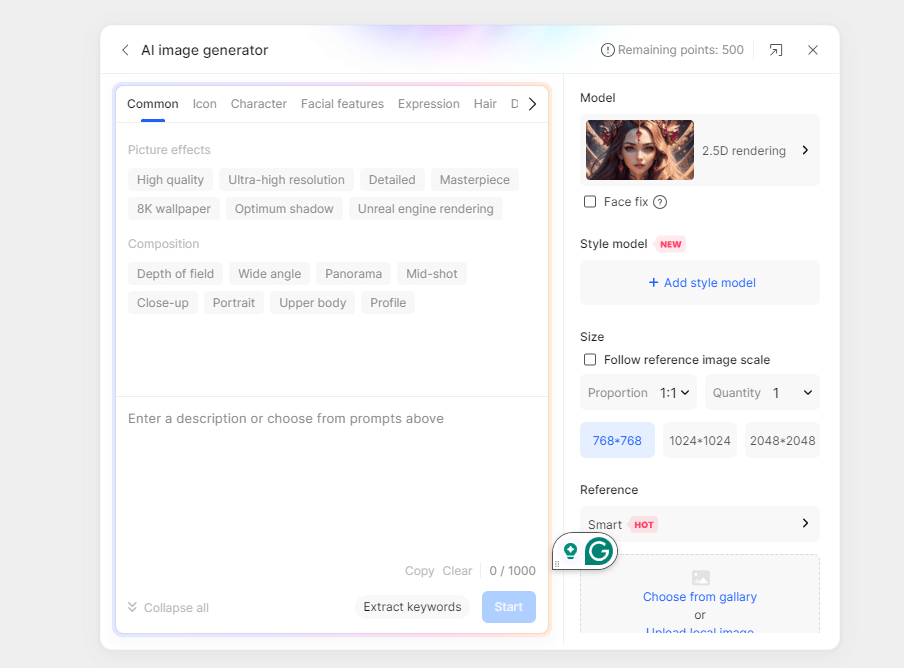
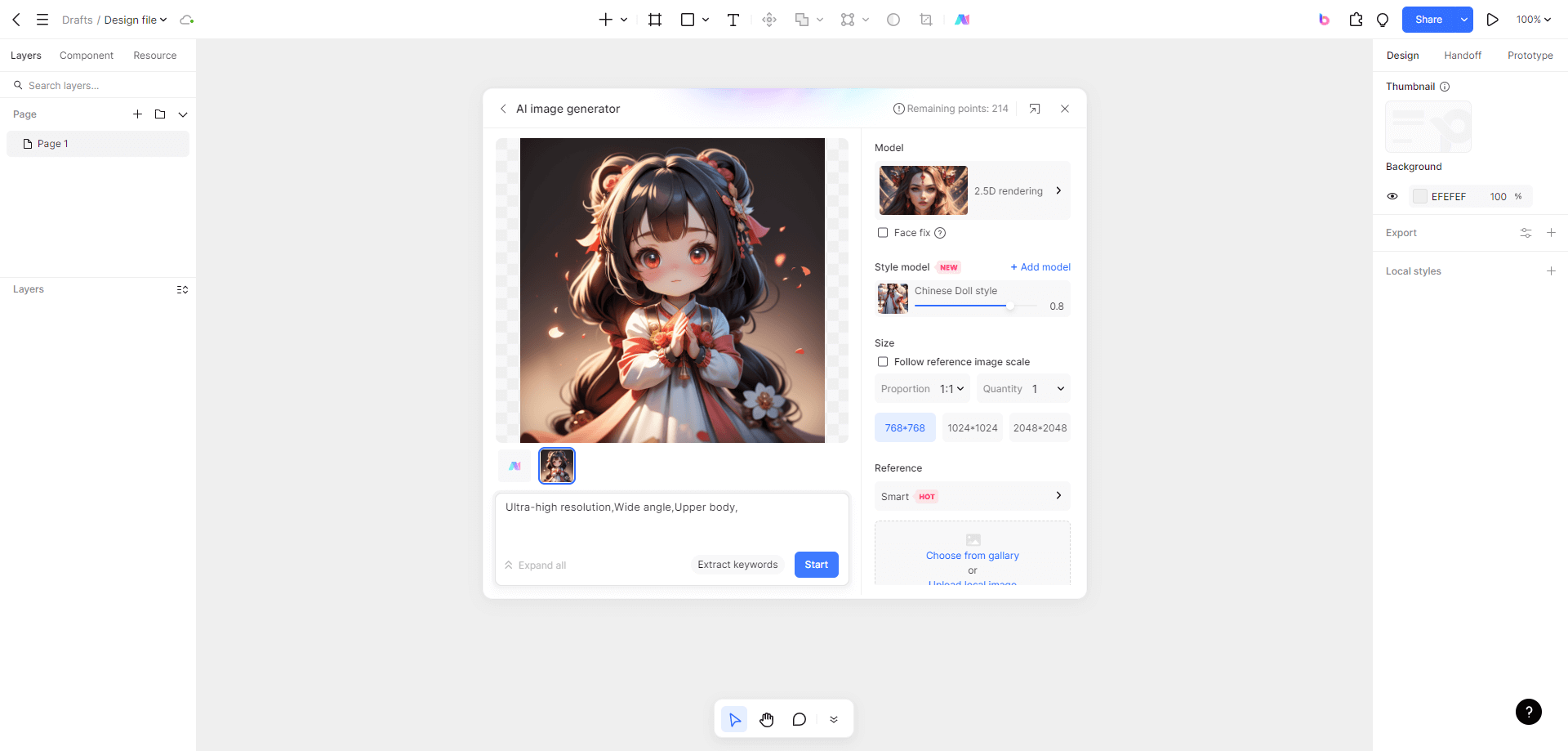
- Design generation: start with a concrete prompt and inspect the resulting layout, text and component structure. Generated drafts require review for brand consistency, accessibility and implementation needs.
- Whiteboard & Collaboration: It fully supports AI whiteboard features for real-time collaboration and brainstorming.
Check AI access before starting
Promotional offers, eligibility and credit amounts can change. Review the offer shown in your account and its terms before planning a trial.
AI credits: Promotional AI credits and eligibility can change; check the current account terms before testing AI features.
- Try before choosing a plan: if your account has trial credits, use a bounded task to evaluate the output. Check expiry, consumption rules and paid options before generating further work.
👇 Check out the detailed Pixso AI tutorial below to see how to utilize it

FAQ
Q1. Is Figma AI completely free? Access and usage depend on the feature, plan, seat and available credits. Check current Figma pricing and documentation. Pixso has separate plan and credit rules; switching products does not mean AI use is free or uncapped.
Q2. I cannot find a Figma AI feature. What should I check? Confirm its documented entry point, plan and seat eligibility, remaining credits and administrator settings. Follow beta instructions only when that particular feature is identified as a beta.
Q3. Can AI translate interface text accurately? AI-assisted translation needs review for meaning, terminology, tone, text length and language coverage. Have a fluent reviewer check the output in its interface context before publication.
Conclusion
Mastering how to use Figma AI has now become an essential requirement for modern designers. However, if you are stuck waiting for the feature to be activated or find the pricing burdensome, Pixso is an excellent solution.
These tasks range from finding assets and organizing layers to removing backgrounds and generating AI design drafts. Sign up for Pixso right now, check current AI access and credits, and experience a whole new world of design.