Scott
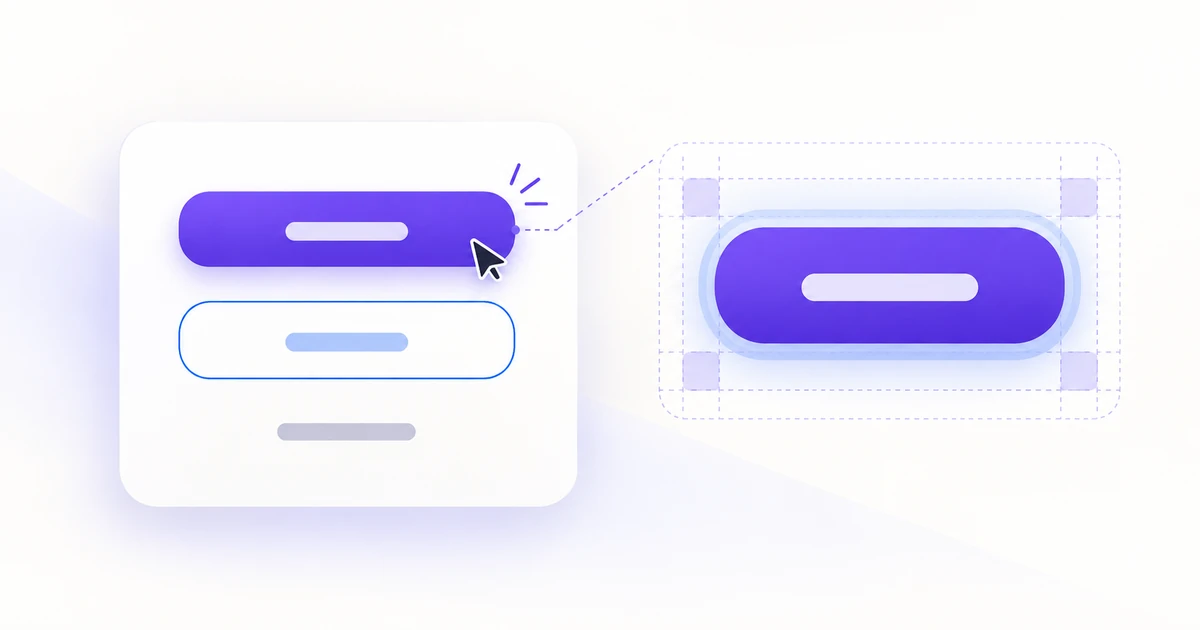
Good button UI design makes three things clear: what will happen, which action matters now, and whether the action is available. Start with the action and its label, give it the right visual emphasis, then design a target people can comfortably reach with a pointer or keyboard. A bright fill is not enough if the button says “Continue” when it actually places an order.
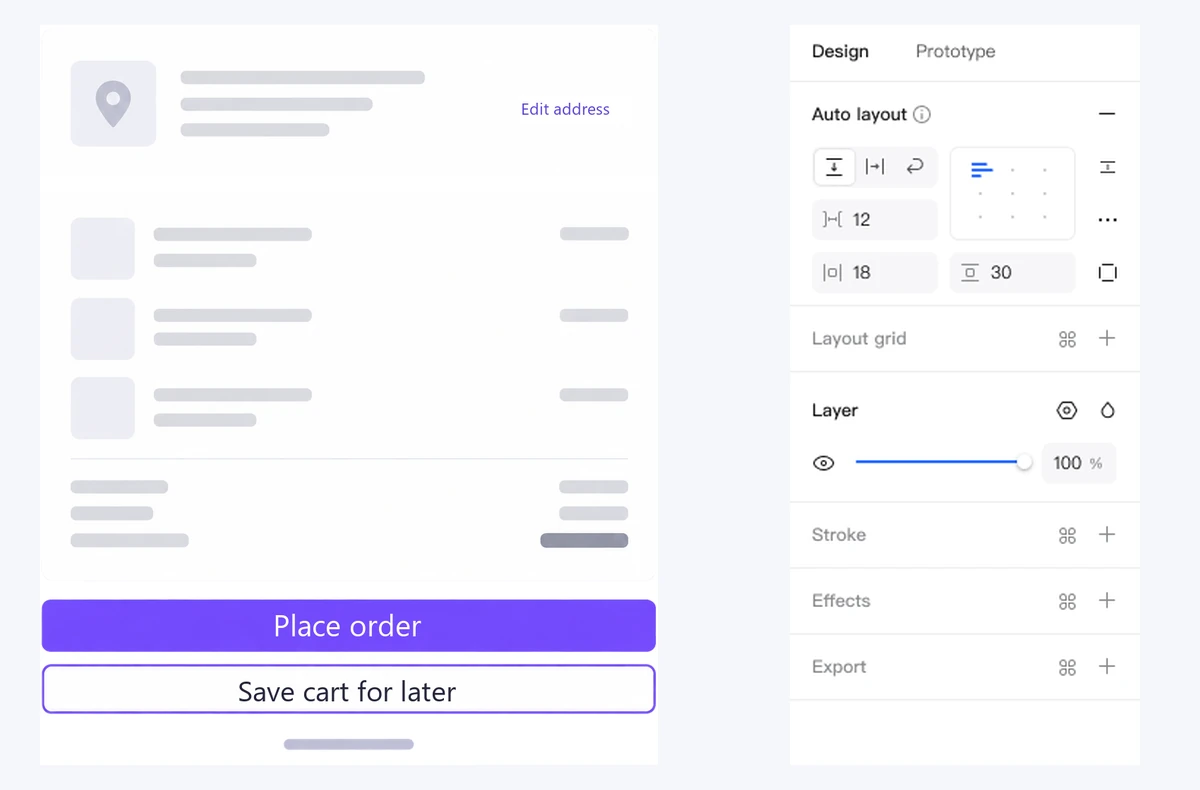
Consider a checkout page with three actions: place the order, save the cart for later, and edit the delivery address. They should not all compete for attention. In Pixso’s UI design workspace, you can develop these controls as reusable components and compare them in the actual page—not only on an isolated button sheet.
Choose the hierarchy before the color
Visual hierarchy should reflect the user’s current task, not how many actions the product team wants to promote. At the final review step, “Place order” completes checkout. “Save cart for later” preserves a different intention. “Edit address” changes one part of the order. Give each a distinct role.
| Action in this checkout | Visual treatment | Reason |
|---|---|---|
| Place order | A prominent filled button beside the order total | It completes the task after the customer reviews the details. |
| Save cart for later | A quieter outlined or low-emphasis button | It offers a valid alternative without looking like the required next step. |
| Edit address | A compact text-style control within the delivery section | Its scope is local; it should remain close to the information it changes. |
“One primary button” is a useful rule within a decision area, not a ban on having two emphasized actions anywhere on a long page. A product page may have an independent purchase area and a separate configuration task. The question is whether the actions compete at the moment someone must choose.
A destructive action is different again. Removing an address should not inherit the checkout’s main brand treatment merely because it is important. Explain the consequence, use the product’s established destructive styling, and provide a sensible way back. Do not make every negative-sounding action red: “Cancel editing” is normally a safe escape.
Write a label that predicts the result
Use an action and an object when the outcome could otherwise be unclear. “Save address” tells the customer what changes. “Done” might mean save, close, or leave without saving. “Place order” tells them they are making a commitment; “Continue” is appropriate only when another step really follows.
The checkout’s secondary label also needs precision. “Save cart for later” is useful if the cart will actually be retained. If the destination simply returns to the catalog, label it “Continue shopping.” A reassuring label cannot make up for a different underlying action.
Choose between a link and a button by behavior. Moving to an order-history page is navigation and belongs to a link, even if the visual design gives it emphasis. Submitting the checkout or opening an address editor is an action. The WAI-ARIA button pattern distinguishes these roles and describes the expected keyboard behavior.
Use an icon only when it adds meaning or recognition. A small arrow can reinforce movement to another step, but it does not explain an ambiguous “Go.” For an icon-only edit control, specify a meaningful accessible name such as “Edit delivery address,” and make its purpose understandable without depending on hover.
Size the target, not just the rectangle
A button has both a visible shape and an interactive target. Designers need to specify both. A narrow pencil icon can sit inside a larger target, but that target must not overlap the neighboring “Remove address” action. Extra invisible padding is only helpful when it creates a predictable area to activate.
WCAG 2.2’s minimum target-size criterion uses 24 × 24 CSS pixels for pointer targets, with defined exceptions including spacing and inline text. This is a minimum criterion, not a recommendation to make the checkout’s main button that small. Choose a larger, comfortable target for a prominent touch action and evaluate it with the surrounding controls.
For this example, begin with a 48-pixel-high primary button, readable text, and enough horizontal padding that the label does not look squeezed. Treat 48 pixels as a starting design choice, not a universal accessibility requirement. The compact address control can have a different visual treatment while still providing an adequate target.
Keep related actions together, but give them enough separation to avoid accidental activation. If “Place order” and “Save cart for later” look equally prominent, increasing the gap will not solve their hierarchy. Fix emphasis first, then spacing.
Let width follow the content and the layout
On a desktop checkout, a content-sized button can fit neatly beneath the order summary. On a narrow screen, a full-width primary action may be easier to locate and reach. Neither rule should cause a three-word label to become a huge empty banner or a longer translation to be clipped.
Build the button around its label, optional icon, padding, and minimum height. Avoid giving every button a fixed width based on the English text. Test the same component with “Place order,” “Save cart for later,” and a longer localized label. If space becomes tight, move secondary actions below the primary action instead of shrinking the type until it fits.
Set a deliberate policy for unusually long labels. First remove unnecessary wording without losing meaning; then allow the container to grow or the action group to stack. A two-line label can work when the component is designed for it, but an accidental line break inside a fixed-height pill does not.
Keep the ordering logical in both the visual layout and the keyboard sequence. A mobile rearrangement should not put focus on the quieter action first simply because the desktop version used a different position. If a fixed checkout bar is used, it must leave room for the final content and for the focused control to remain visible.
Give interaction states different jobs
Hover, focus, pressed, and loading are not interchangeable color variations. Each answers a different question. In the checkout, the customer needs to recognize the action, know which control will respond to the keyboard, feel that an activation occurred, and understand whether the order is still being processed.
- Default: shows the action and its priority before interaction.
- Hover: provides pointer feedback without carrying information that touch users need to discover.
- Keyboard focus: visibly identifies the current control. It can appear together with hover, so do not treat the two as mutually exclusive.
- Pressed: provides brief activation feedback. It does not mean that a purchase has succeeded.
- Loading: communicates pending work, such as “Placing order…,” while preventing unintended repeat submission.
- Unavailable: indicates that the action cannot currently be taken, with an explanation where the reason would otherwise be unclear.
Keep the button’s width steady when the label changes to “Placing order…” or a progress indicator appears. Otherwise the target can move under the pointer or pull neighboring actions out of place. A spinner without a label may be harder to interpret than a clear description of the pending action.
Do not replace the button with a success checkmark as soon as it is clicked. An order confirmation belongs to the confirmed result. If the payment system cannot confirm the outcome, the page should explain the uncertainty and offer the appropriate next step rather than immediately inviting a second payment. This behavior needs agreement with the implementation team, not just another visual variant.
Disabled buttons need care in forms. Graying out “Place order” without saying what is missing forces customers to hunt. When reasonable, keep a submission action available so that it can identify incomplete fields. When the action must remain unavailable, place the reason close by—for example, a clear explanation that no delivery method is selected.
Make emphasis work without losing readability
A brand color may work well as a border and poorly behind white text. Check the actual foreground and background combination in each state, including hover and focus. For ordinary-size button text, WCAG’s text contrast criterion calls for a ratio of at least 4.5:1. The criterion has separate provisions for large text and inactive controls; those exceptions are not a reason to make secondary actions hard to read.
A visible focus treatment is essential for someone using a keyboard. WCAG’s Focus Visible criterion requires a visible indicator for keyboard-operable interfaces. Show that treatment in the design file instead of leaving developers to infer it from the hover color.
For the address editor, document the focus destination when “Edit address” opens it and where focus returns after closing. For “Place order,” specify what happens after a validation error and after confirmation. A button that looks right but sends focus somewhere unexpected still interrupts the task.
Build a small button family in Pixso
Start with the three checkout actions on the actual page. Draw the label and optional icon inside an Auto Layout container, then set consistent padding, alignment, and spacing. Compare the result with a longer label before turning it into a reusable component.
Create related component variants for the visual treatments the page really needs: primary, secondary, and contextual. Add the relevant interaction states. Use shared text and color styles where appropriate so connected controls use the same design decisions. Pixso supports Auto Layout, component variants, and shared styles; the useful result here is a coherent set of controls, not the largest possible collection of combinations.
Keep component appearance separate from the page’s response. A loading button can be reused, but the checkout decides whether an order is pending, failed, or confirmed. Likewise, a reusable “Edit” treatment does not decide whether the address opens in a dialog or a separate page. Record those decisions beside the checkout frames.
Then place instances in desktop and mobile versions of the same page. Compare short and long labels, keyboard focus, pending submission, and a recoverable error. Review the component in context: does the customer still know which action completes the order and which actions only change the details?
A useful handoff contains the button’s visual roles, target dimensions, sizing behavior, state treatments, and the action each instance performs. Engineers should implement and test the keyboard and submission behavior in the running interface. The design file makes those requirements explicit; it does not execute the purchase.
Build your button components in Pixso and compare them on the page where people will actually use them.
![[Detailed Guide] Map UI Design](https://pixso.net/assets/editorial/20261007/map-ui-design/hero-en-b33ffdb59caa5913.webp)