On this page

Scott
Choose a tool for the next task in your visual design process. Brainstorming, creating an image and removing its background produce different outputs, so they should not be ranked as if they were the same function. This guide organizes the original ten examples by their role; it does not claim that all ten are free or equally suitable.
Start with a task and a handoff requirement
- Write the goal: organize an idea, generate a visual or edit an existing asset.
- Specify the result: diagram, raster image, transparent asset or editable design element.
- Check access, allowed inputs, output rights and the cost of revisions.
- Review the final file in its actual layout before handing it over.
1. Pixso AI
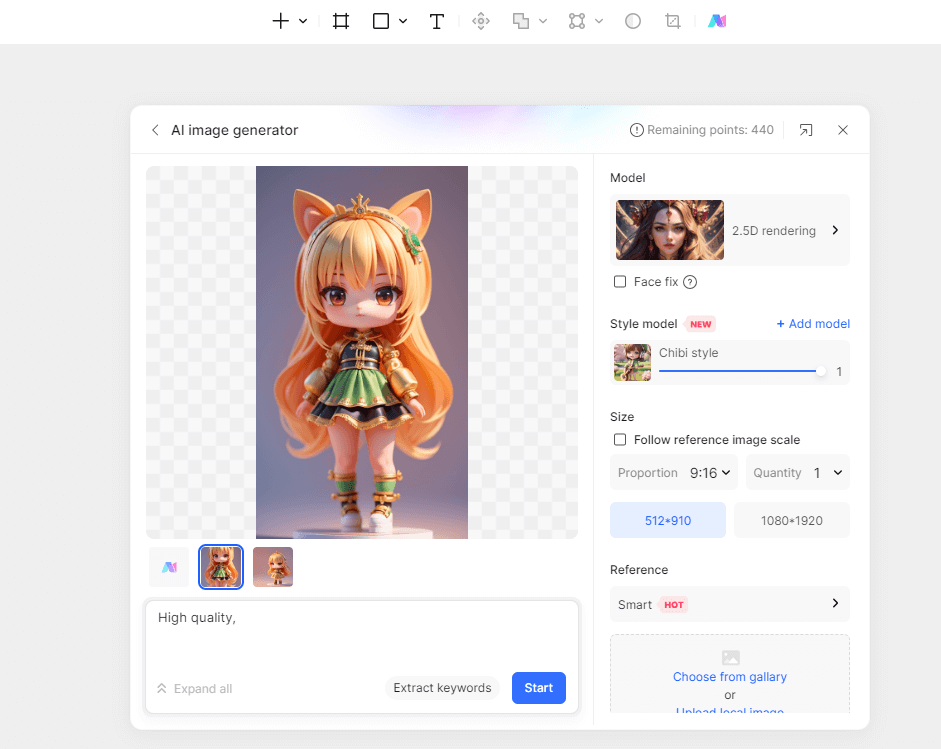

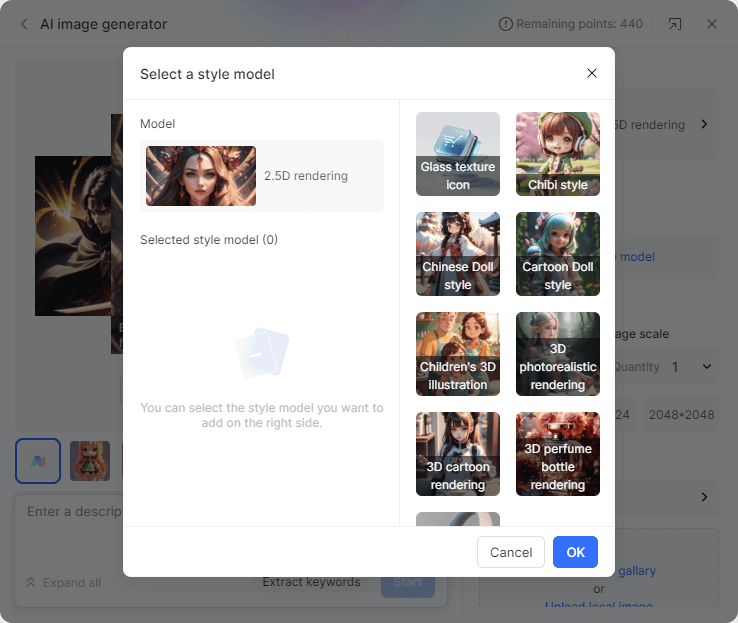
Use Pixso AI to explore a visual inside a design workflow. Define its position and purpose in the interface first, then check the current operation and allowance in Pixso plans and AI credit guidance. A generated illustration is separate from an editable component or finished screen.
2. Boardmix
Use Boardmix when the task is organizing ideas or a visual plan. A mind map is an ideation output, not a generated illustration. Convert the selected idea into a brief before moving to an image tool.
3. Fotor
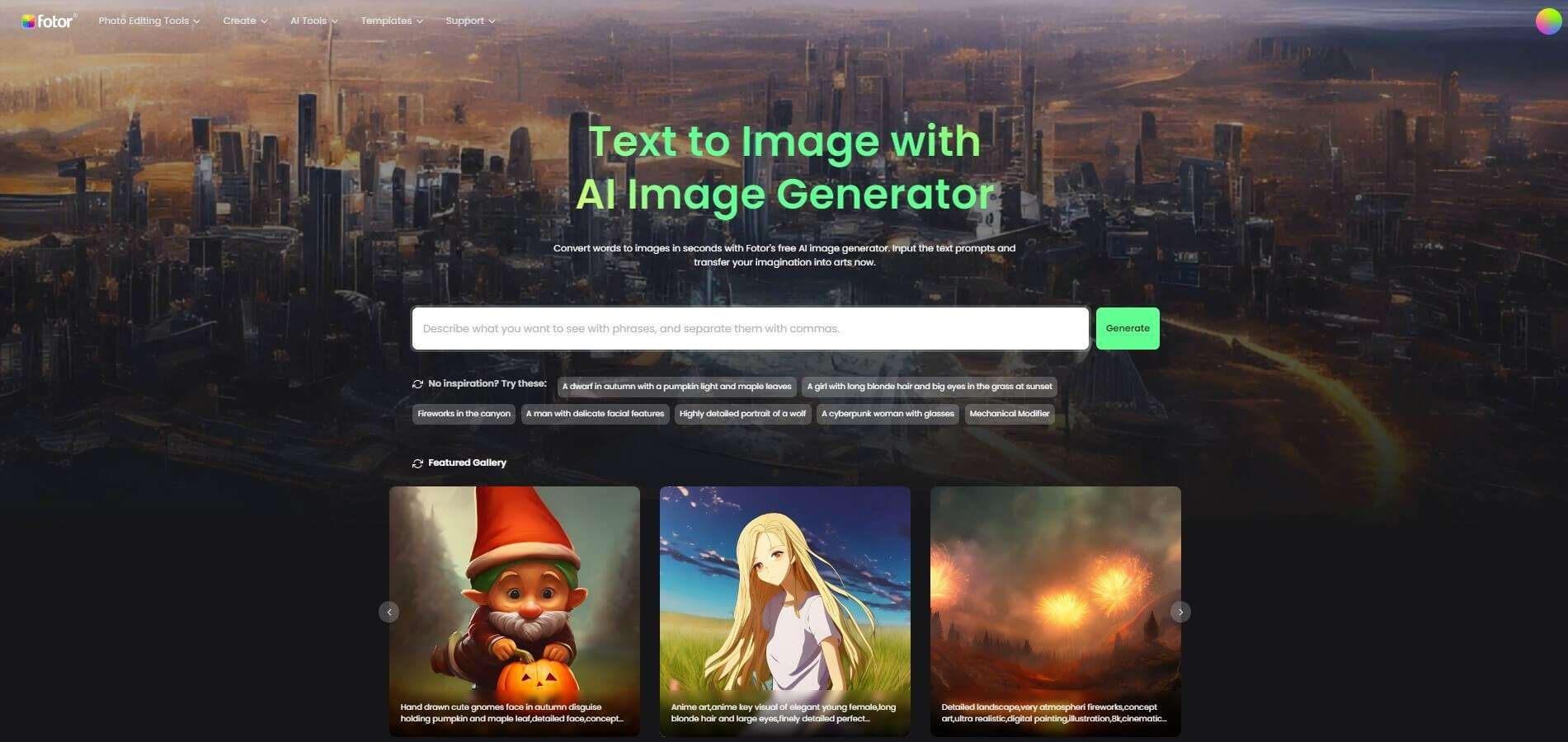
In Fotor, choose a specific editing or generation task. If a simple crop or tonal change solves the problem, preserve the source image rather than regenerate details unnecessarily.
4. Pixso Background Remover
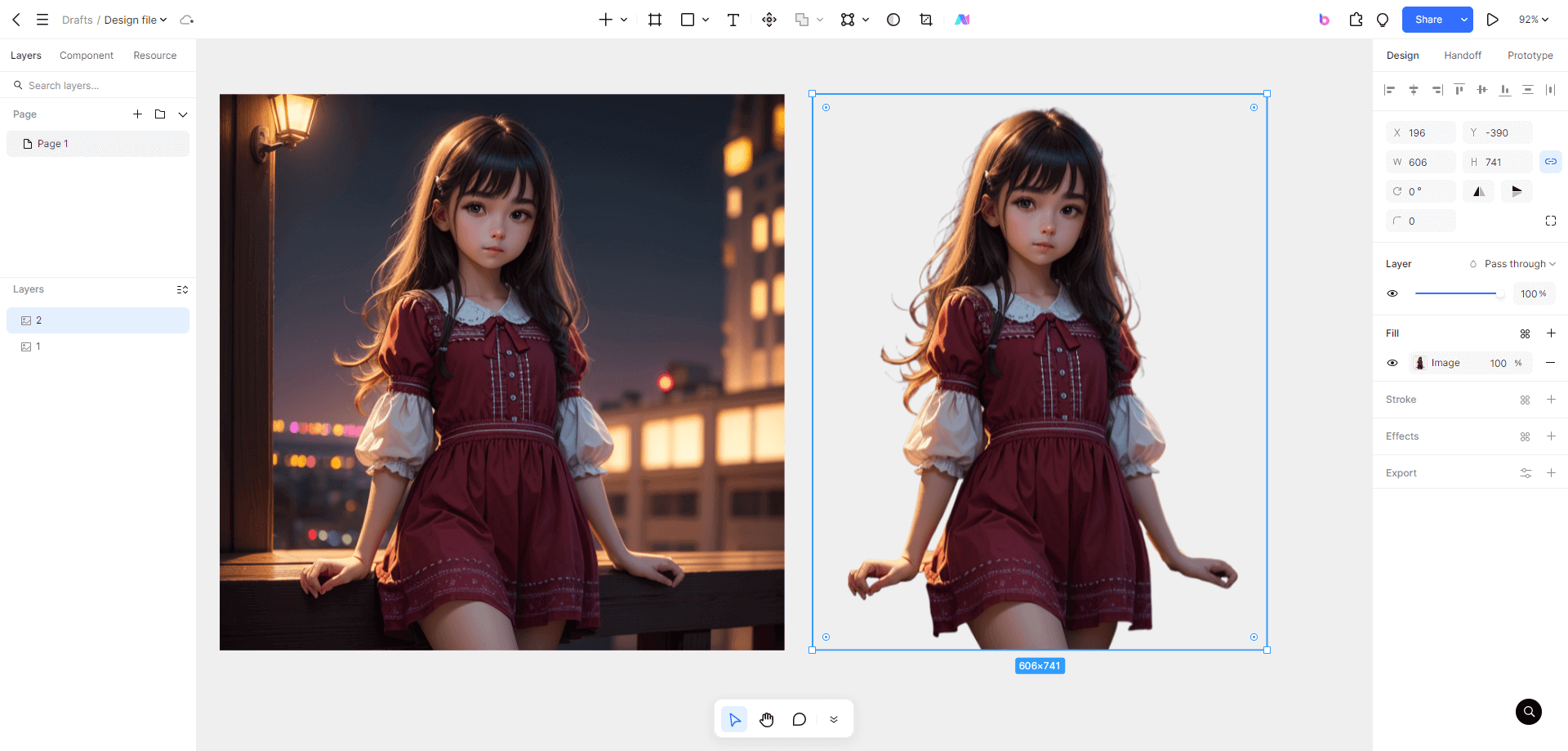
Background removal prepares an existing asset. Inspect hair, translucent areas and product edges against both light and dark backgrounds; keep a copy of the source. Confirm the current feature access in the editor instead of assuming every extraction is exact.
5. Hotpot AI
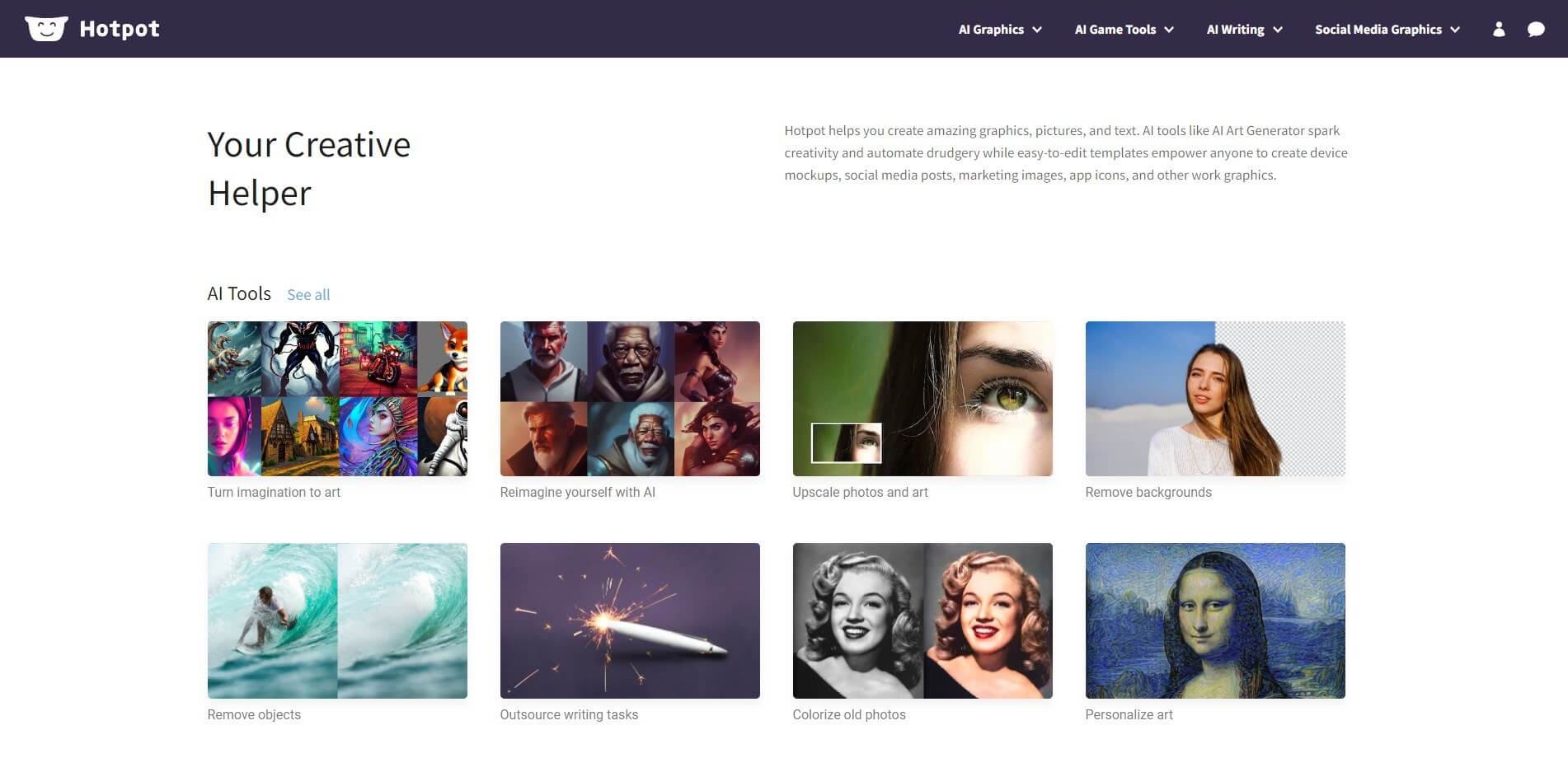
Check Hotpot for the relevant generation or editing tool and its current allowance. Treat image generation, templates and other operations as separate choices with potentially different access and usage conditions.
6. NightCafe
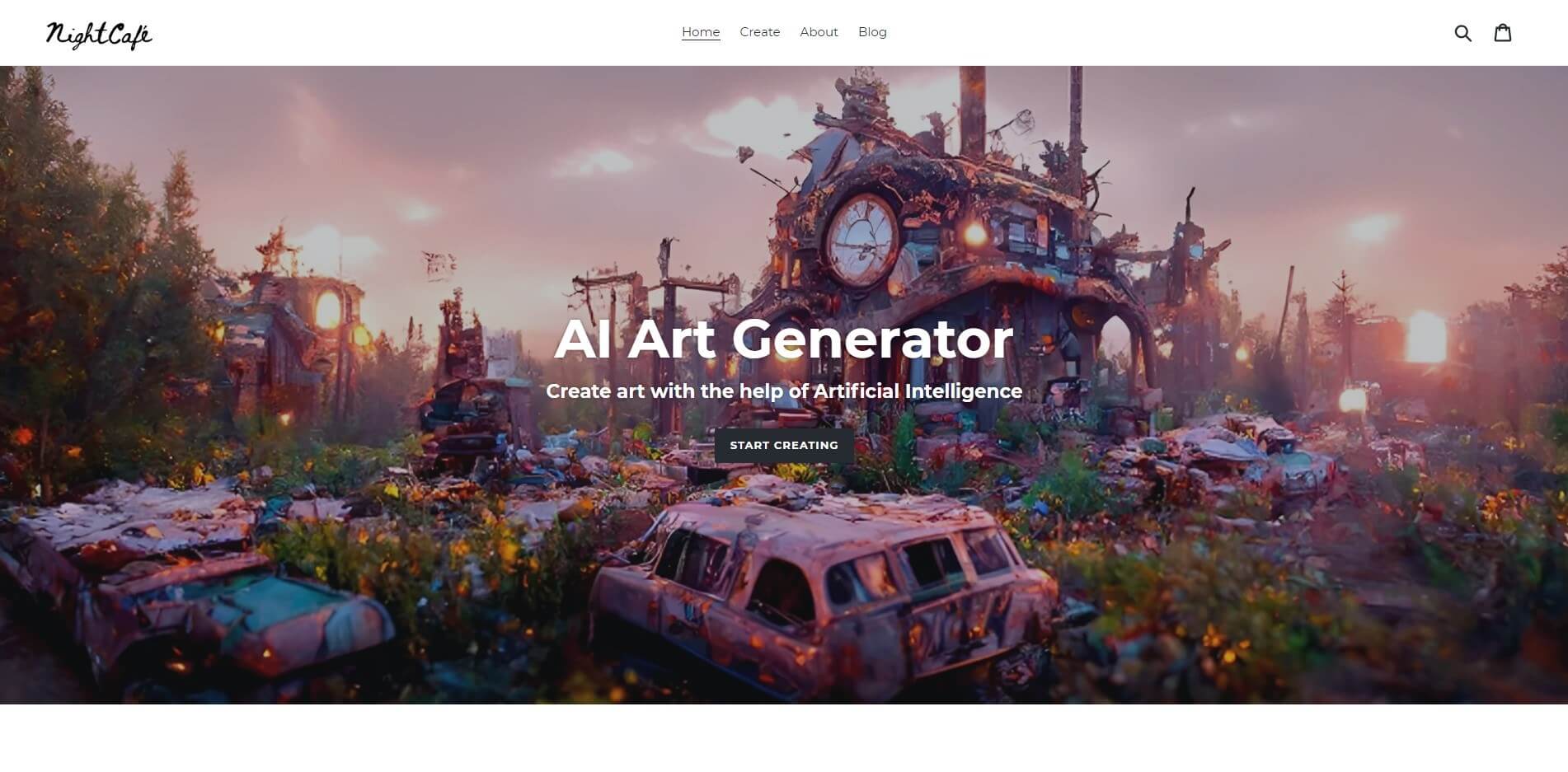
In NightCafe, record the model or mode and input used. Compare results against a single brief rather than assuming a universal generation time or quality level.
7. DeepAI
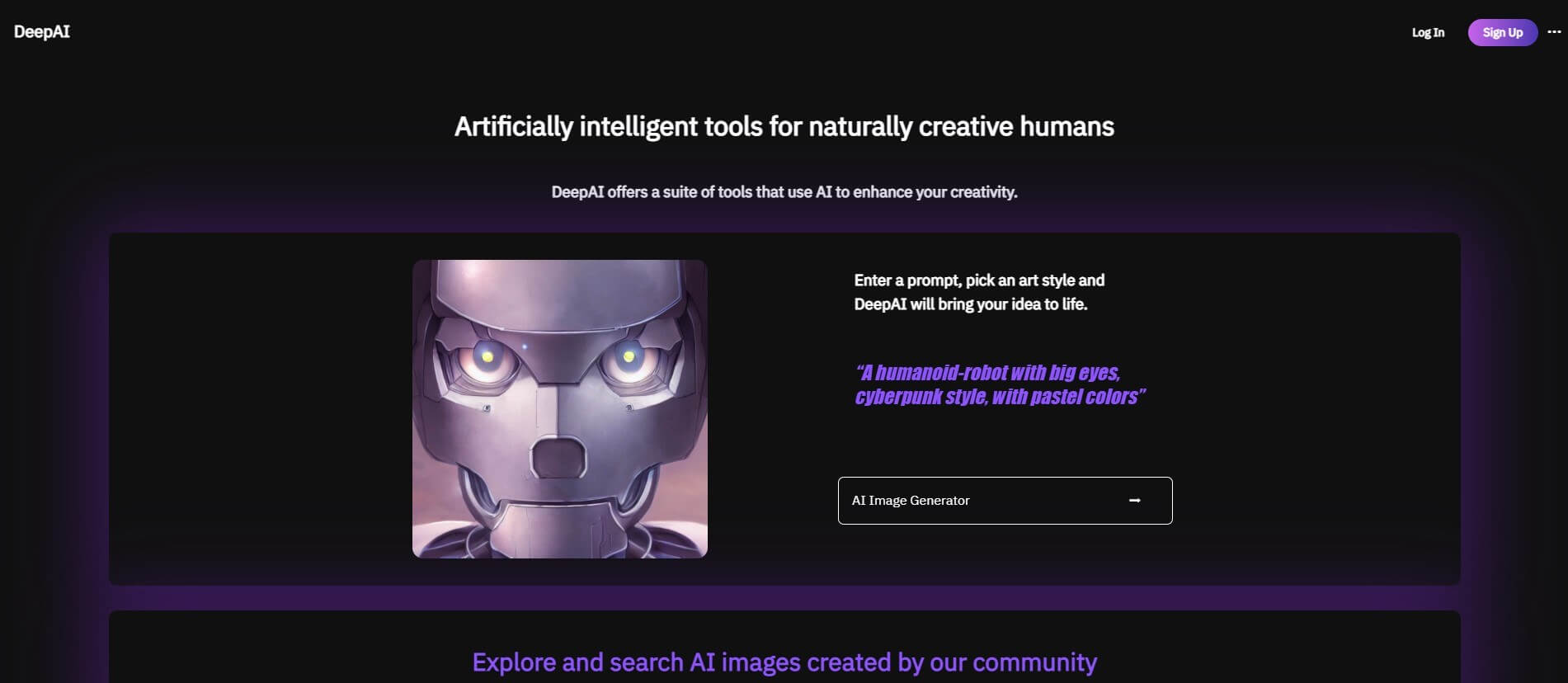
Check the current DeepAI operation and download format. An image resembling an icon is not necessarily a vector asset; inspect the file type and edge quality before using it at larger sizes.
8. Deep Dream Generator
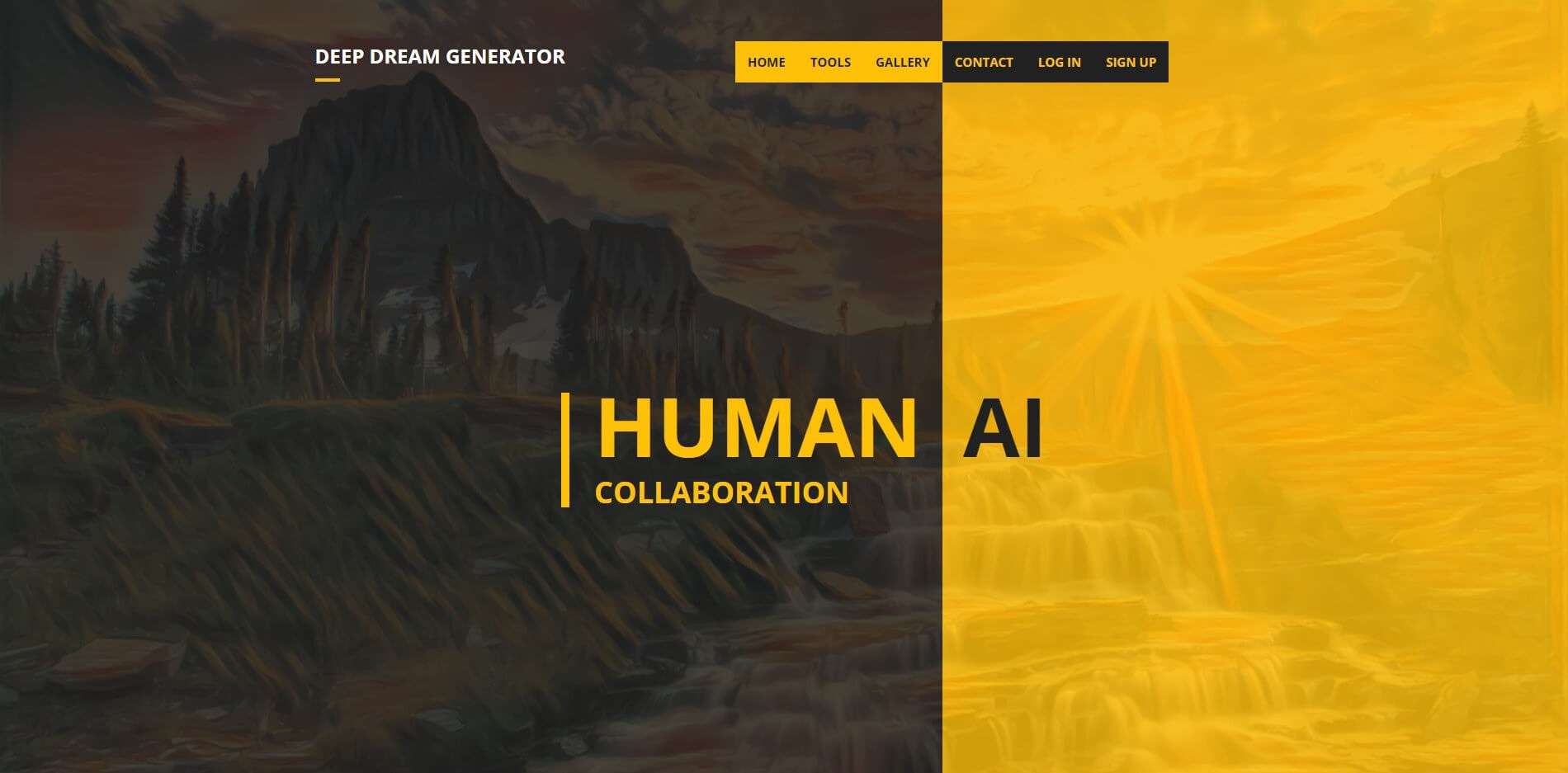
Deep Dream Generator can be considered for image creation or transformation. Review whether a style effect preserves the source’s meaning and necessary detail; do not confuse the hosted service with the original DeepDream research.
9. Craiyon
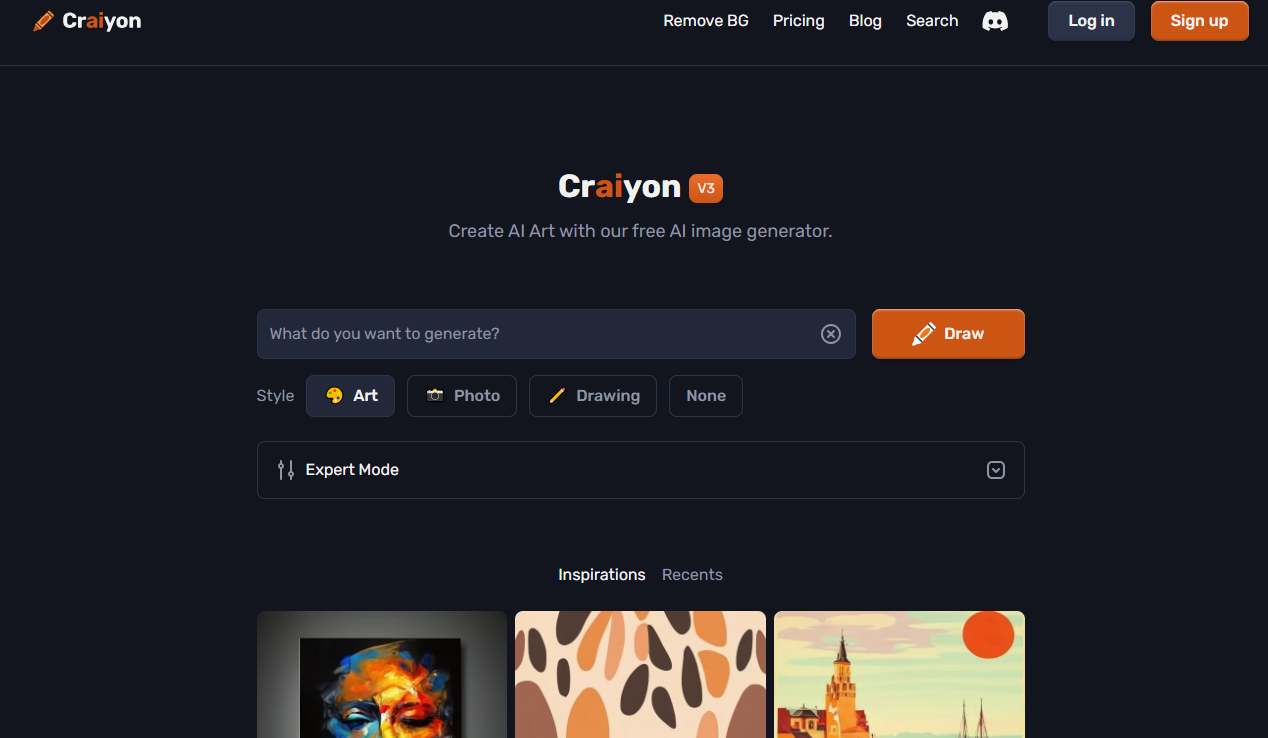
Craiyon offers free and paid access with limits and differing output options. Check the current image allowance, download quality, watermark and attribution conditions. It originated as DALL·E mini, a separate project from OpenAI’s DALL·E.
10. StarryAI
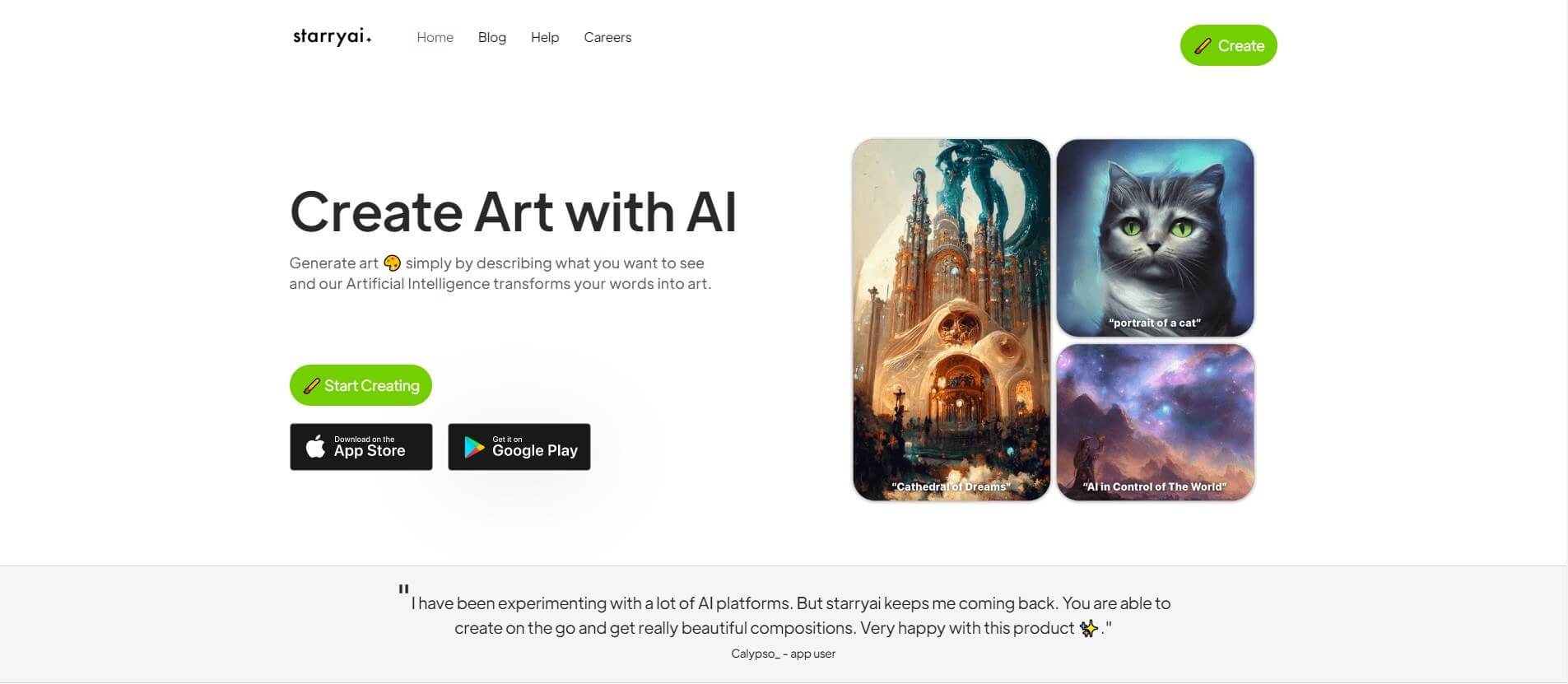
Review StarryAI for current controls and allowances. Keep prompts and output dimensions consistent when comparing ideas. A free starting option does not mean every mode, export or commercial-use condition is unrestricted.
Check the visual before handing it over
- Can a teammate understand the intended use without reconstructing the prompt?
- Are dimensions, contrast, cropping and transparent edges appropriate for the layout?
- Have source permissions, output conditions and any required attribution been recorded?
- Are the original, selected output and editable design file kept together?
For a controlled image-generation comparison, use one prompt and the comparison worksheet. For source-image revisions, follow the prepare–transform–review workflow.