Scott
A card is useful when a person needs to scan a set of related items and then decide whether to open, save, compare, or act on one of them. It is not a license to put every piece of content into a rounded rectangle. A strong card gives each item a clear identity, a predictable reading order, and one obvious next step.
When you design card components in Pixso, define the content hierarchy and the responsive states before polishing shadows or corner radii. The same card should still explain itself when its image is missing, its title wraps, or its action is unavailable.
Start with the decision the card supports
Write the card’s job in one sentence: “Help a reader compare templates,” “let a teammate open a file,” or “show whether a task needs attention.” If the sentence contains several unrelated jobs, split the pattern. A content card, a selectable result, and an actionable dashboard tile may share a surface, but they do not share the same interaction contract.

Build a readable hierarchy
Give the eye a stable path: identity first, useful context second, action last. A typical card can contain an image or icon, a short title, one supporting line, metadata such as owner or date, and one primary action. Do not make every line bold. Weight and spacing should show which information is needed to choose and which is merely helpful.
- Identity: use a title that distinguishes this item from its neighbors.
- Context: add only the metadata that changes the decision, such as status, format, or last update.
- Action: make the next step explicit; avoid a card where the entire surface is clickable but no focus or hover state explains that behavior.
Choose the right card pattern
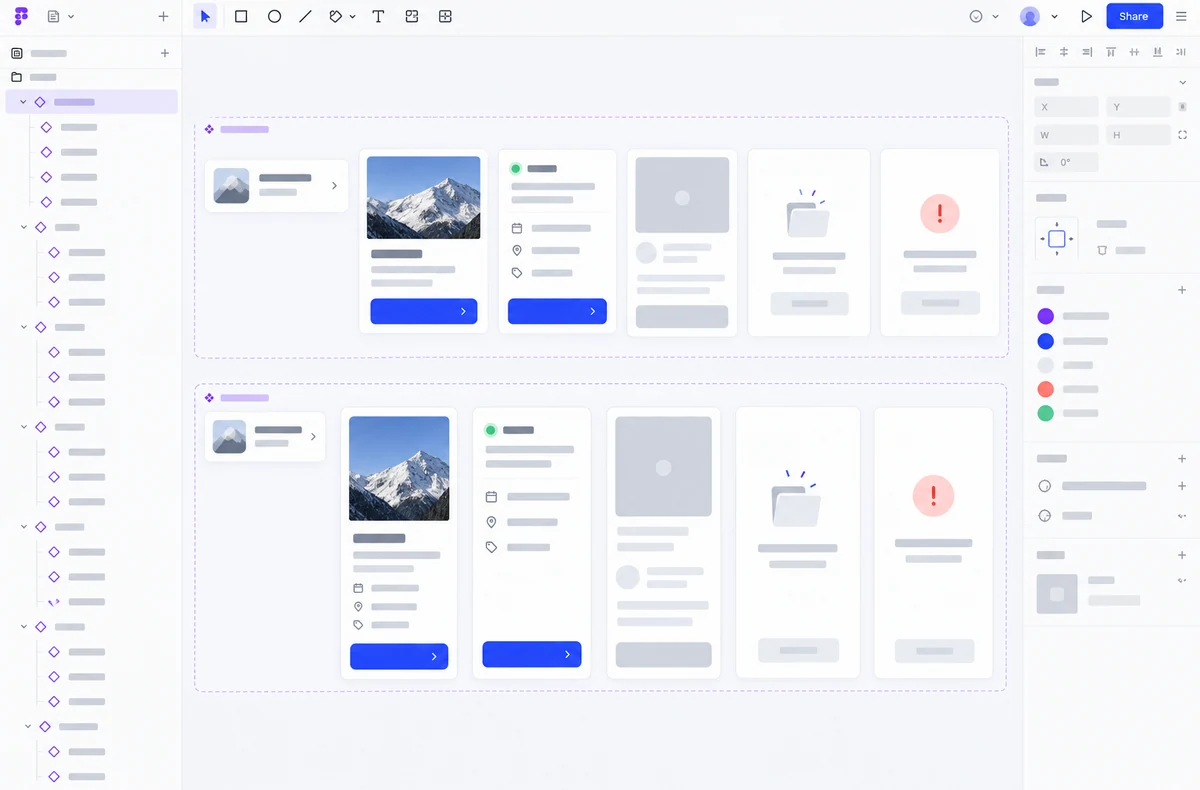
Use a compact row when people compare many items quickly. Use a media card when the image carries meaning, not as decoration that pushes the title below the fold. Use a status card when a state or trend is the main answer. Use an action card only when the action is the reason the item exists. If the content needs a long explanation, link to a detail view instead of shrinking the type until the card becomes a paragraph.
| Pattern | Best for | Watch for |
|---|---|---|
| Compact row | Scanning and comparison | Dense metadata that hides the title |
| Media card | Visual examples and templates | Images with no useful alt text or fixed-height crops |
| Status card | Progress, ownership, and risk | Color-only status and stale values |
| Action card | A focused next step | Multiple competing buttons |
Design for real content variation
Test at least one short title, a title that wraps to two lines, missing metadata, a long localized label, and a failed image. Set a sensible maximum for the title only when truncation preserves meaning; otherwise let the card grow or move the full text to the detail view. Keep action labels specific enough to make sense outside the card: “Open project” is safer than “View.”
Make responsive states explicit
On wide screens, a grid can show several cards at once. On a narrow screen, reduce columns before reducing legibility. Preserve the identity and primary action, then hide or move secondary metadata. If a card becomes a horizontal row, keep the hit area and reading order consistent. Check keyboard focus, touch targets, and screen-reader names at each breakpoint; a visual grid is not a responsive specification by itself.
Model loading, empty, and error states
A card that appears only after a request succeeds still needs a plan for the other outcomes. A loading state should preserve the approximate shape without pretending that content is ready. An empty state should explain what is absent and offer the next useful step. An error state should identify what failed and how to retry without losing the surrounding context. Keep these states in the same component set so they are reviewed as part of the pattern rather than added at the end.
Use one primary action
Cards often become cluttered because every possible operation is exposed at once. Choose one primary action and move infrequent operations into a clearly labeled overflow menu. If the card itself is a link, do not nest several links inside it without a strong reason; nested targets make keyboard and touch behavior harder to predict. Confirm destructive actions with a consequence and provide recovery when the operation can be undone.
Review the pattern before reuse
Before adding a card to a new page, compare its task, content density, states, and responsive behavior with the existing component. A shared component should make a repeated decision easier, not force unrelated content into one template. Capture the chosen anatomy and interaction states in Pixso, connect the key screens into a prototype, and share the review with the team before implementation.