Scott
Use ChatGPT to explore a visual idea, and use an editable UI file when you need control over text, components and spacing. An image of a dashboard is useful as a reference; it is not the dashboard’s interface. This guide explains that distinction and shows how to bring an image concept into Pixso.
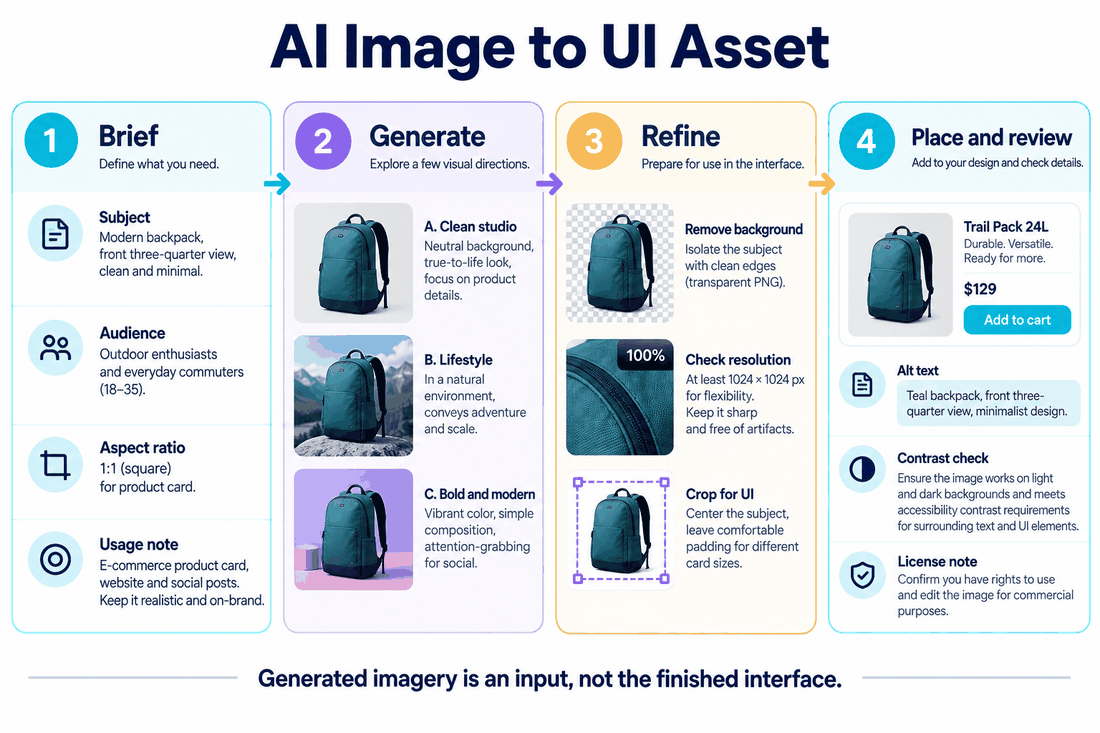
Part 1. What ChatGPT images are useful for
You can ask ChatGPT to create an image, or upload an existing one and describe an edit. For the current controls, see OpenAI’s image creation guide.
Describe the visual direction you need: the subject, composition, colors and intended use. A mood board or hero illustration can help a team discuss a direction before investing in detailed UI work.
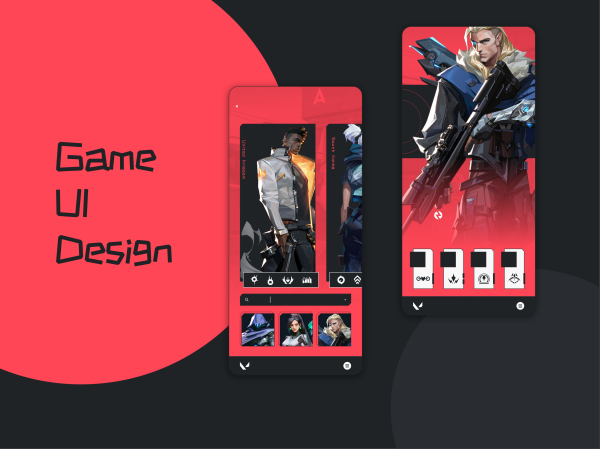
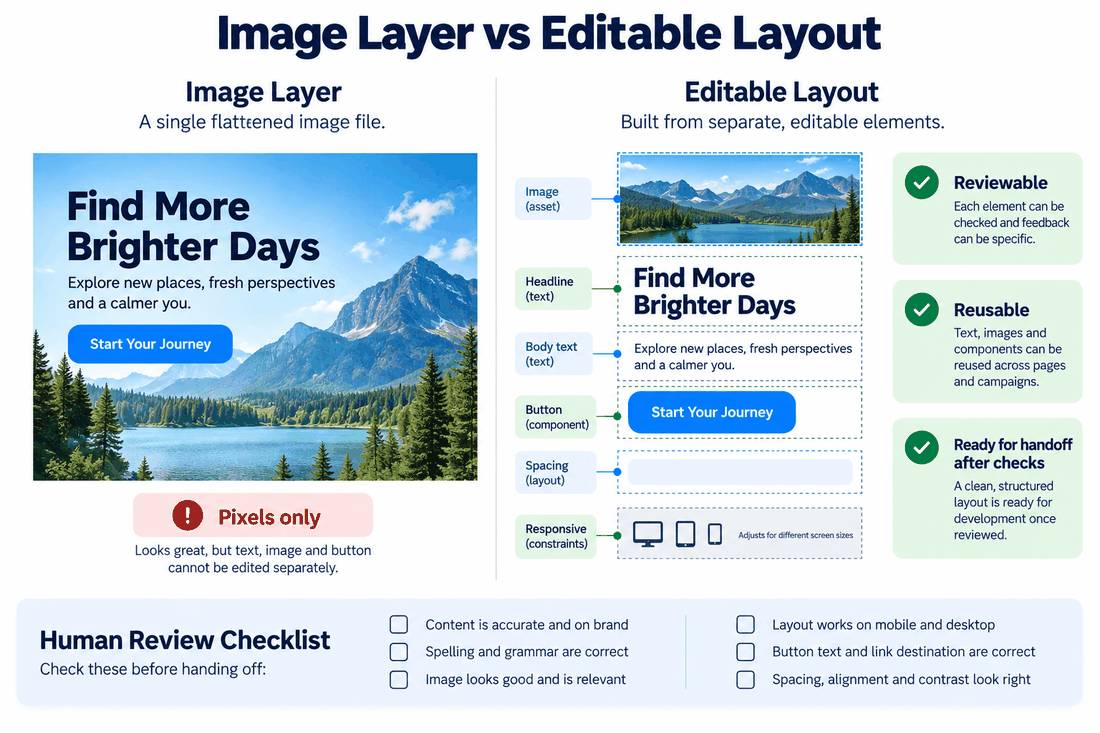
A generated layout image can help explain a concept, but its buttons and labels are part of the picture. To change individual elements reliably, rebuild the relevant UI in an editable design file.
Part 2. Turn an image concept into an editable UI
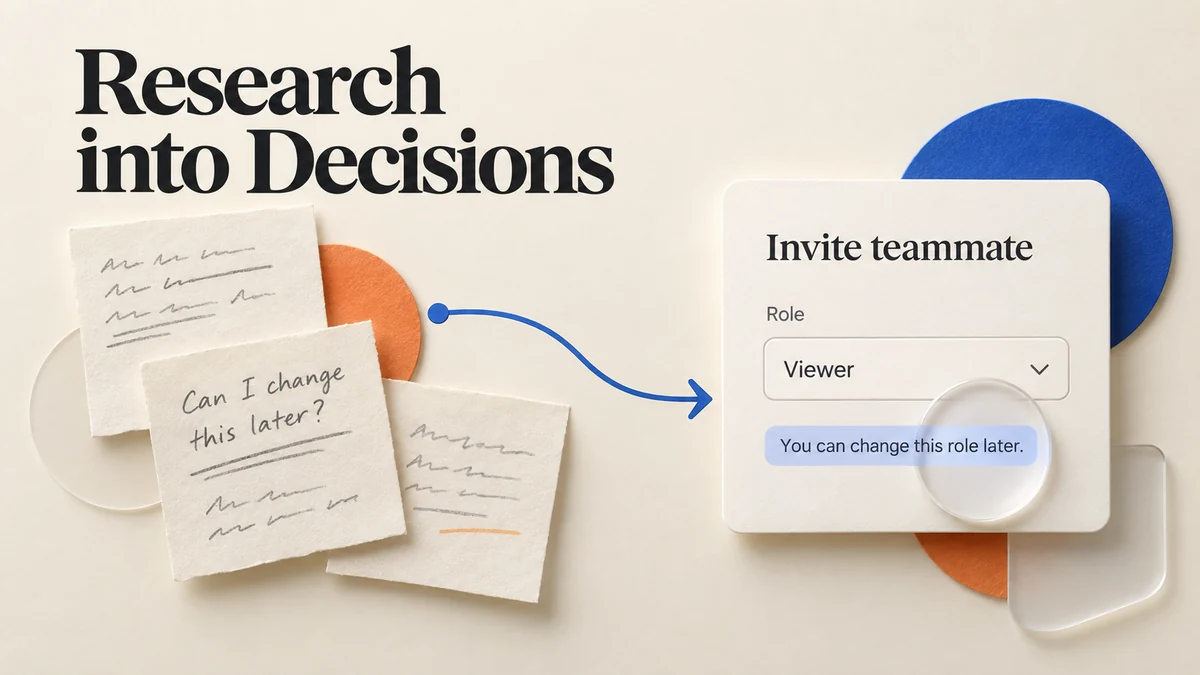
Image generation and UI editing solve different problems. Generate alternatives when you are exploring a style; edit components directly when you already know which label, spacing or interaction needs to change.
In Pixso, use the image as a reference alongside separate text, shapes and components. You can then change the interface without regenerating the whole picture.
The useful distinction is control over individual elements:
- Layout: Rebuild the parts that need to resize or change, such as cards, buttons and navigation. Keep a generated illustration as an image where that is all the design requires.
- Text: Use editable text layers for interface labels and paragraphs. This lets you correct spelling, change the font and adjust wrapping without regenerating the image.
- Consistency: Reuse components and text styles across screens instead of treating every generated image as a separate design system.
- Assets: Import the image into the design file and keep it separate from interface controls. Rebuild vector elements only when they need to scale or remain editable.
- Asset rights: Keep track of the source and permission for images, fonts and other assets. Moving an image into a design tool does not change its usage rights.
- Prompts: Specify the visual direction before generating. Use direct editing for a small correction, such as a button label or a spacing change.
- Tool choice: Choose image generation for visual exploration and a UI editor for component-level design. Some tasks need both; others do not.
Part 3. Navigating the limits: How many images does ChatGPT allow?
Image generation has its own usage limits. If your account reaches a limit, use the availability or reset information shown in ChatGPT.
Reserve generation for changes that benefit from a new image. Once you have a direction, adjust labels and layout in your design file instead of generating a new picture for every small change.
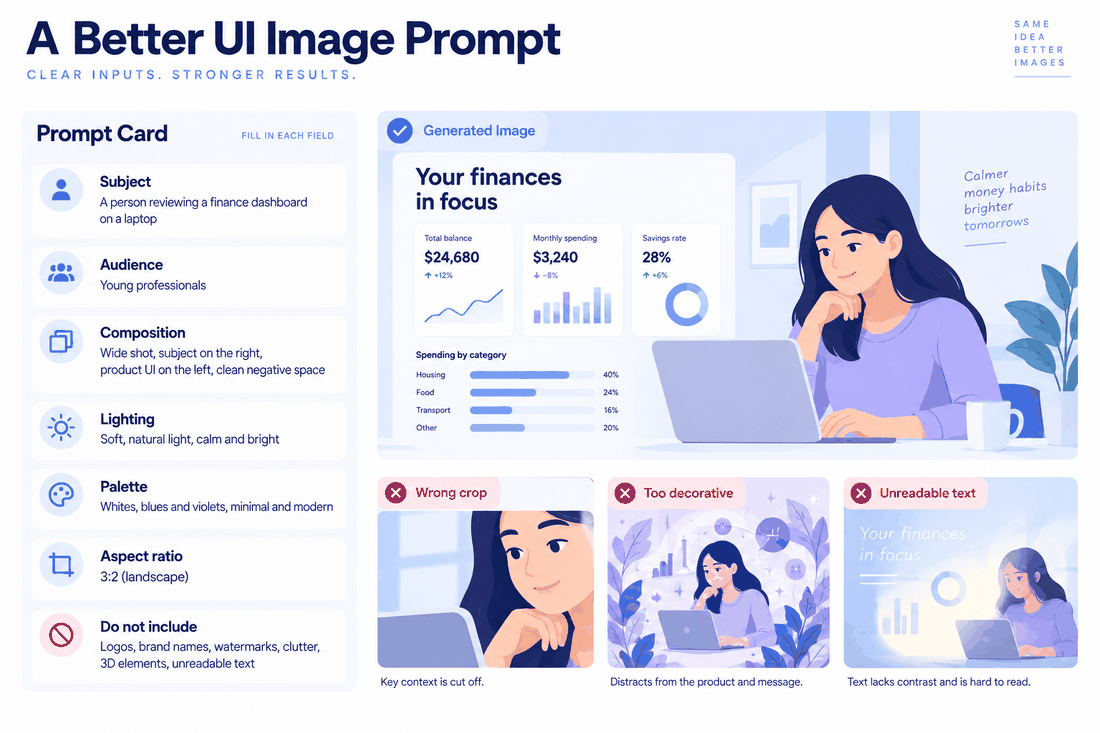
Part 4. Prompt Engineering for UI and UX Design
Getting good results from the ChatGPT image generator requires a shift in how you write prompts. You aren't asking for a painting; you are asking for digital product inspiration.
A prompt such as “design a cool weather app” leaves most of the decisions open. Specify the screen, important content and visual direction so the result is closer to the idea you want to explore.
A useful prompt includes the subject, platform or format, color palette, visual style and important details.
- Bad Prompt: Make a dashboard for a hospital.
- Good Prompt: A high-fidelity UI mockup of a medical SaaS dashboard, desktop web layout. Clean, minimalist aesthetic with a lot of white space. Color palette consisting of trust-blue and soft gray. The layout should feature a sidebar navigation, a central patient data chart, and a top row of metric cards. Flat design style, highly detailed.
A prompt gives the generator a direction; it does not specify every interaction or state. Keep the useful parts of the concept and design the actual controls around the task the user needs to complete.
Part 5. Choose the tool by the output you need
If you are trying to figure out which tool deserves your time, you need to understand where the boundaries lie. ChatGPT isn't the only player in town, and understanding when to use what is crucial for a smooth workflow.
| Task | Useful output | Where to work |
|---|---|---|
| Explore a visual direction | Mood boards, illustrations and composition ideas | An image generator, such as ChatGPT Images |
| Adjust labels, spacing and components | Separate, editable UI elements | A UI editor, such as Pixso |
| Explain how a screen behaves | States, interactions and transitions | A prototype and the implementation |
You do not have to route every image through a UI tool. A finished illustration may be used as an asset. A picture of an interface, however, still needs editable controls and defined behavior.
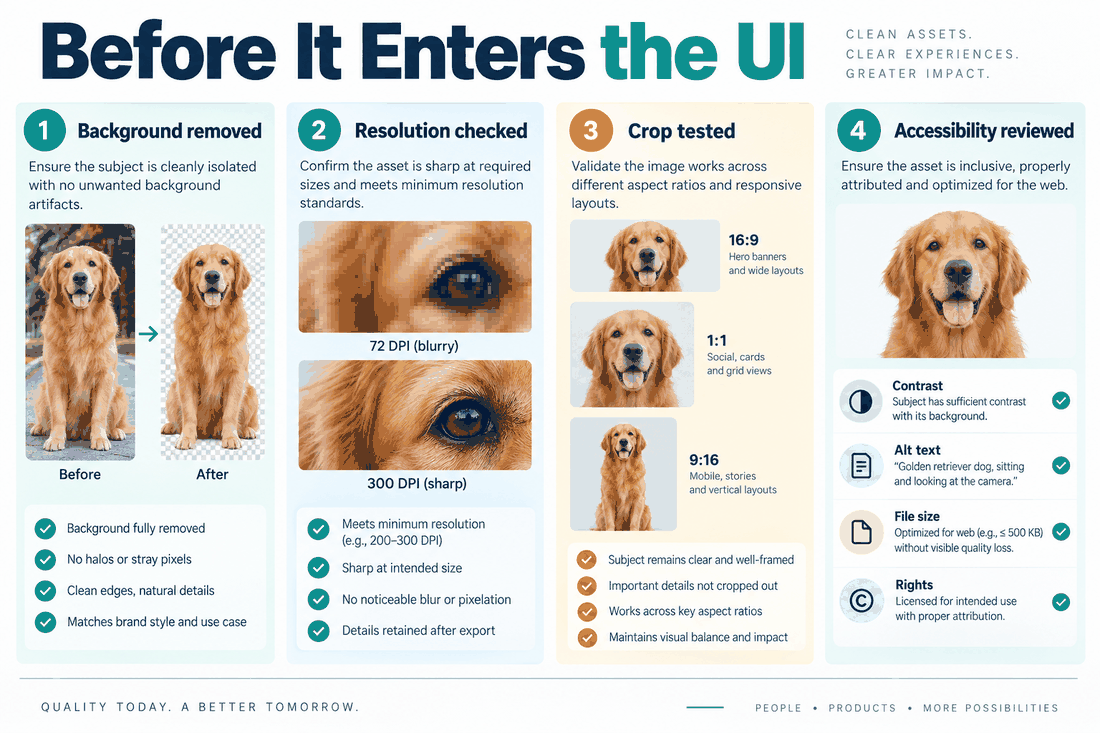
Part 6. Integrating AI into your daily design workflow
Let's look at what a modern, highly efficient workflow actually looks like when you combine these technologies. If you are starting a new project, say a mobile e-commerce app, here is how you should proceed.
First, ask ChatGPT for a few visual directions for the project, such as different palettes for a mobile shop. Compare the results and describe what you want to keep or change.
Second, once you have a concept you like, do not try to fix the minor details using AI prompts. If the AI misspelled "Checkout" as "Chckout", leave it. Save the generated image and drag it directly into your Pixso workspace.
Third, keep the image on a reference layer and build the necessary UI elements separately. Type the real labels, set text styles and choose suitable component sizes. Use auto layout for the elements that should respond together when the content changes.
The result is an editable design rather than a flattened reference image. Developers can work from the components and behavior you have defined, not guess them from a picture.
Conclusion
ChatGPT is useful when you want to see a visual idea before committing to it. For UI work, the important next decision is which parts should stay images and which need to become editable elements.
Use Pixso when you need to control labels, components and layout. Keep image generation for exploration and direct editing for the details you already know you want.