Scott
To create a website with AI, first decide what the page needs to explain and what visitors should do next. This guide introduces five AI website tools and walks through building a first personal site.
Part 1. Why building a great website matters
Let's look at the numbers. In 2026, roughly seven out of ten consumers discover new brands or local services through a quick search engine query. If someone looks up your brand, your homepage is essentially your first handshake. It is your online storefront, office, and reputation rolled into one.
A great website is far more than a static online business card. A solid online presence actually moves the needle for your business:
🏆 Instant Credibility
First impressions happen fast—specifically, in about 0.05 seconds. That is all the time a visitor needs to judge your site. If they see broken graphics, an outdated layout, or text that takes forever to load, they are going to hit the back button.
🕐 An Extra, Tireless Salesperson
Unlike your human team, a webpage doesn't sleep. Well-planned landing pages and strategic, clear call-to-action buttons bring in leads on autopilot without blowing your daily ad budget.
🔍 Free Traffic Via SEO
Ranking high on search pages gets you noticed. It means prospective clients find you organically every single day, completely free of charge.
⚡ Breaking a Tie with Competitors
If you and your main competitor offer similar services, your website is often the deciding factor. People instinctively trust a business with a clean, modern online presence over one that looks like an afterthought.
📊 Better Business Data
Once you plug in Google Analytics, you can see where people drop off, which pages they actually read, and where they live. This is incredibly useful for improving your marketing and products.
The Shift in Web Development Driven by AI
Think back a few years. Getting a custom site meant spending thousands on designers and devs. Now, an ai website generator lets you build something respectable in a few minutes. From a quick portfolio to a corporate landing page, these tools have lowered the barrier to entry significantly.
But let’s be real. Just because you can generate a site in thirty seconds doesn't mean it's actually good. A generic page from a random ai website creator won't convert visitors if it doesn't reflect your actual brand or speak to what your customers need.
Part 2. Comparing 5 free AI website makers
We tested several tools in early 2026 to see what actually works. Here is an objective, no-hype breakdown of how they stack up so you can pick the right one for your setup.
| Platform | Free Plan | Localized Support | Design Freedom | Local Payments | Collaboration | Starting Price |
| Pixso | ✅ Yes | ✅ Full | ✅ High | ✅ Yes | ✅ Seamless | Affordable |
| Wix AI Website Builder | ⚠️ Limited | ⚠️ Partial | ⚠️ Average | ❌ No | ❌ None | From $17/mo |
| Framer AI | ⚠️ Limited | ❌ Poor | ✅ High | ❌ No | ⚠️ Basic | From $10/mo |
① Pixso — The Fluid, All-in-One Alternative
Pixso is a collaborative design platform (similar to Figma) that has built in some highly flexible ai website design capabilities. It is a bit different from your standard, rigid site builder. Pixso lets you go from initial brainstorming and collaborative design to prototyping and code generation in a single workspace.
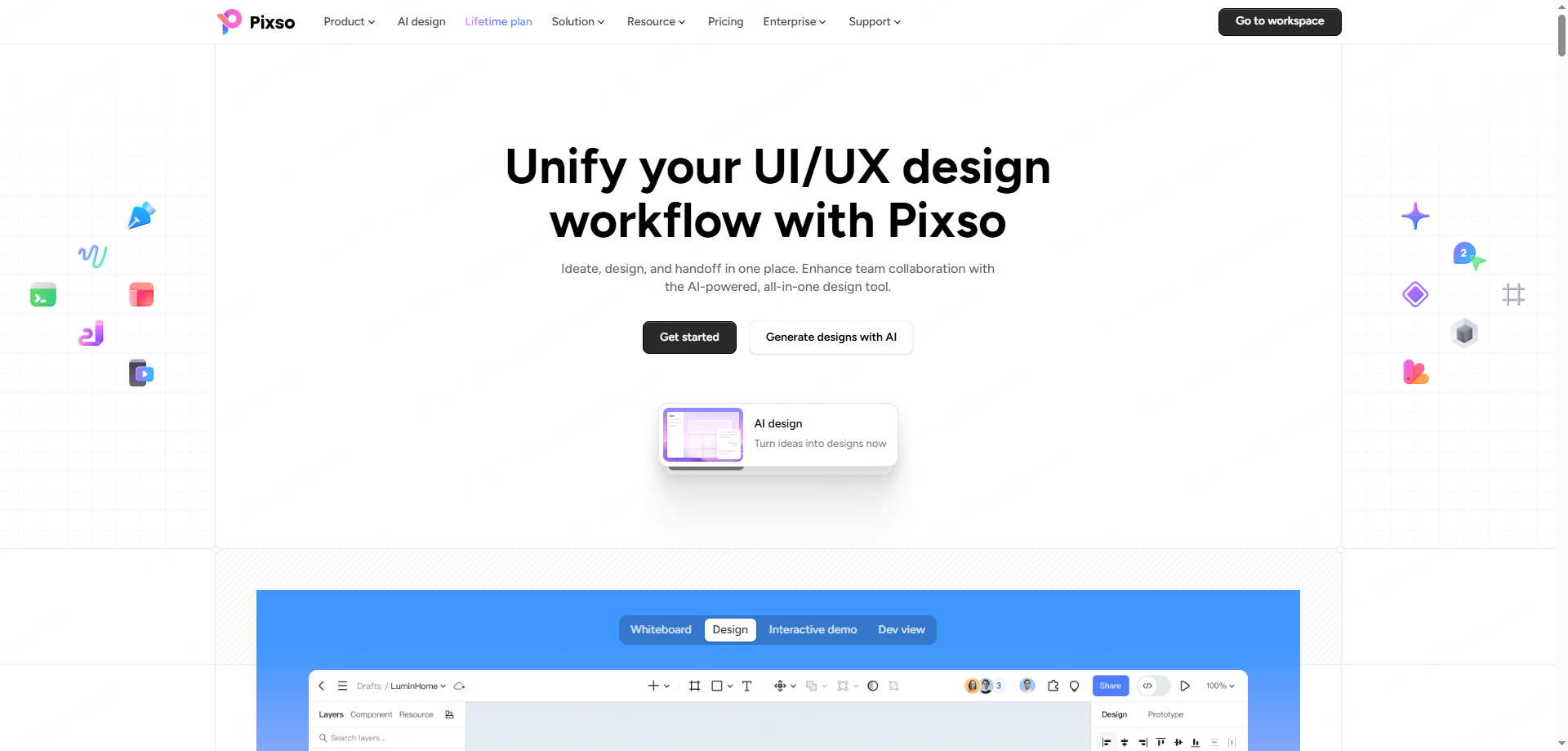
What you get:
- Smart layout drafts: Type in what you need, and the AI sets up a clean, structured starting layout.
- True collaboration: Tweak layouts with clients or team members in real time, and leave comments right on the canvas.
- Regional template options: Tons of pre-made templates customized for local business styles.
- No-friction handoff: Export CSS code directly, saving your developers from having to guess measurements.
- A genuine free tier: The base tool is free, and the team plans won't break the bank.
✅ Best for: Startups, design-led teams, and product managers who need to spin up rapid, brand-accurate prototypes.
② Wix AI Website Builder — The Automated Standard
Wix AI Website Builder is an old-school option for trying to create a website with ai. It uses a simple wizard to ask what you need, then puts together a layout using pre-made blocks. It is very easy to use, but the free plan comes with Wix branding and a clunky subdomain. To get rid of the ads and use your own domain, plan on spending at least $17 a month.
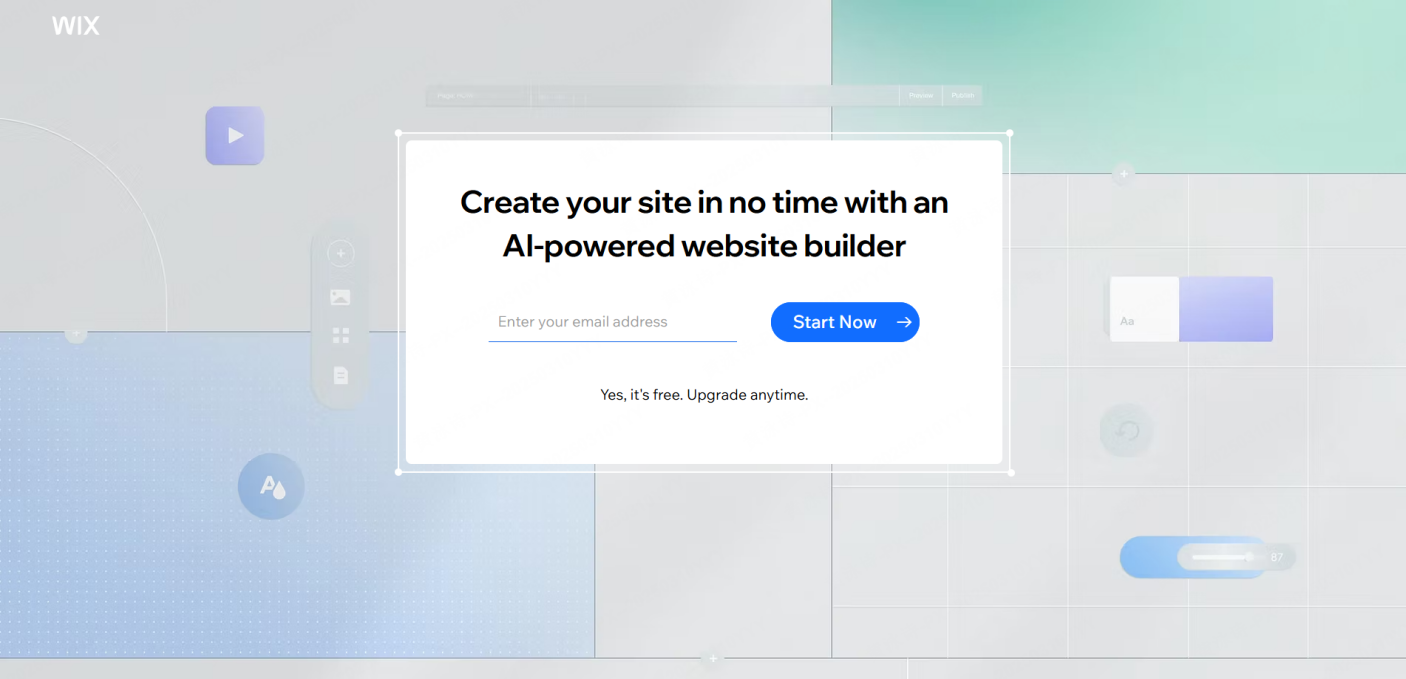
⚠️ Regional Hurdles: It isn't fully optimized for specific regional markets. If you are targeting Asian audiences, you might run into issues with font styling, a lack of local payment options (like Kakao Pay), and zero local search engine integration.
③ Framer AI — For the Visual Perfectionists
If you want gorgeous animations and clean transitions, Framer AI is excellent. You write a prompt, and it builds a highly visual, modern page. It loads incredibly fast, too, thanks to AWS CloudFront integration.
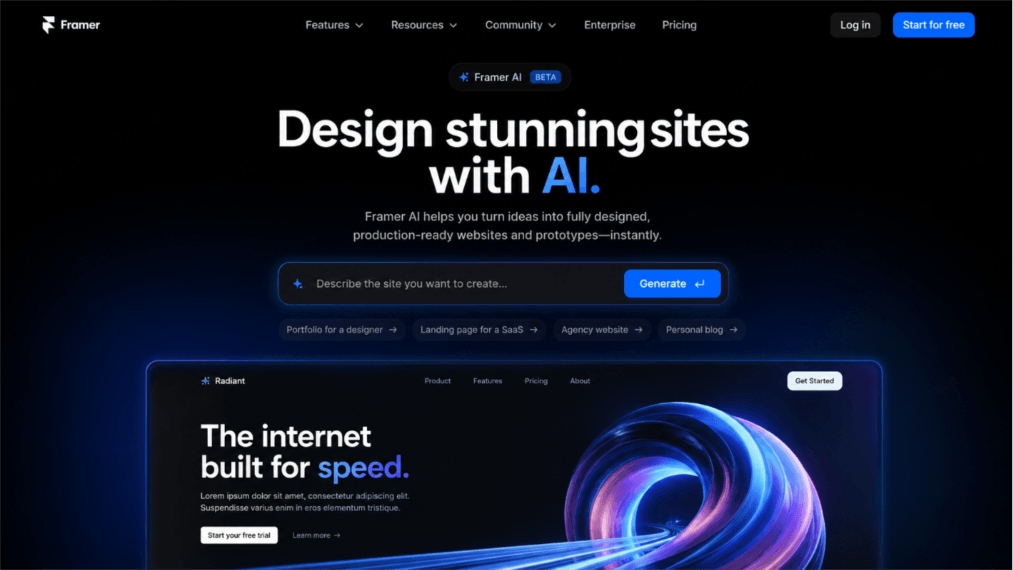
⚠️ The Downsides: Non-designers will face a pretty steep learning curve. Also, non-English text formatting can occasionally break its strict layout containers. Plus, their 2026 price hike pushed the Pro plan to $30 a month, which is a bit steep for casual creators.
Part 3. Build your first site in 5 minutes (Using Pixso)
You don't need years of design experience to get a clean layout up and running. Here is a quick, practical guide to using Pixso's toolset.
Step 1. Create Your Account
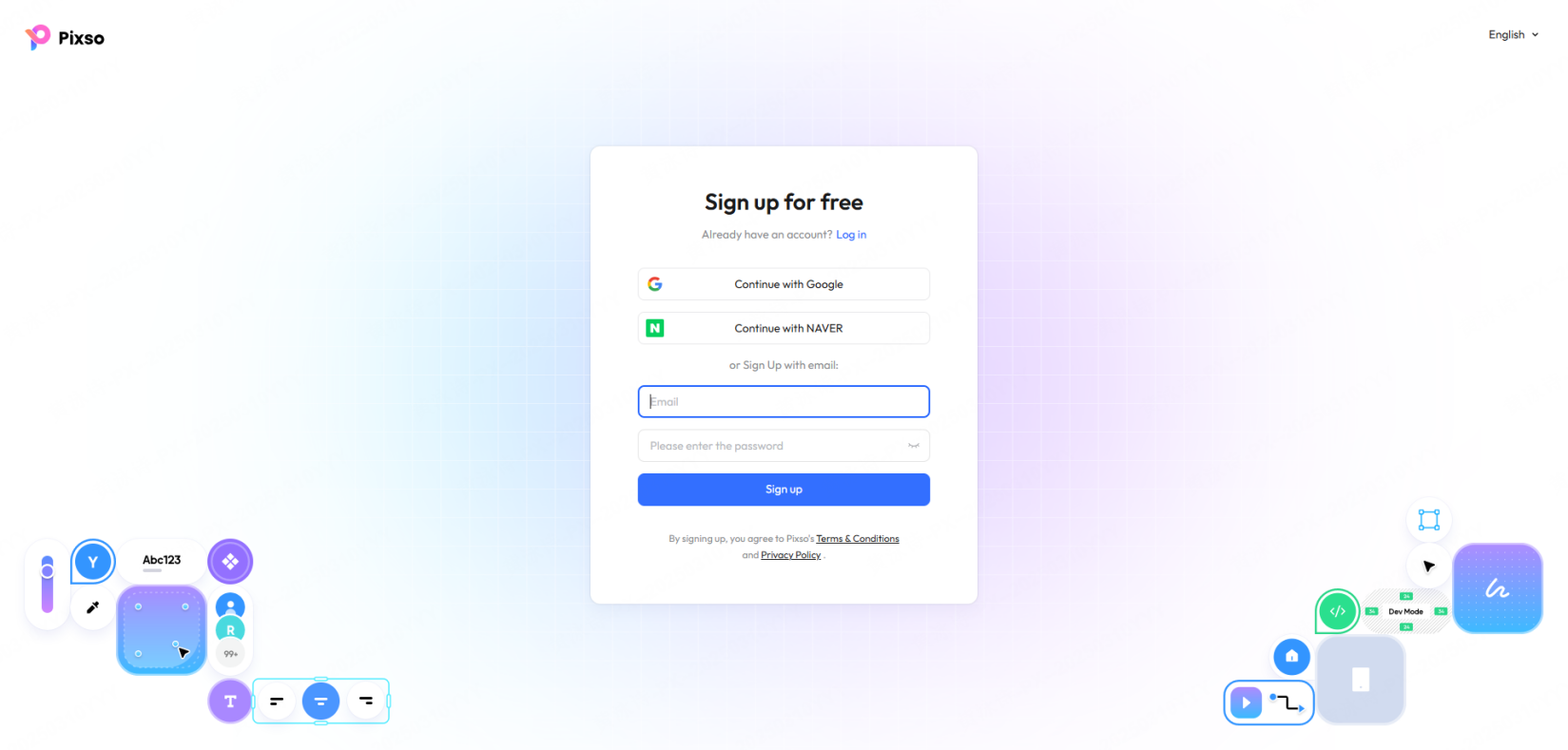
Building a personal site with a free AI website maker:
- First, head over to Pixso and sign up using your email or Google account.
- Create a workspace for yourself or invite your team.
💡 Quick Tip: You don't need a credit card to get started—the free plan lets you test all the basic tools immediately.
Step 2. Let the AI Draft the Layout
- Once you are in your dashboard, look for the text bar at the top: "Generate designs."
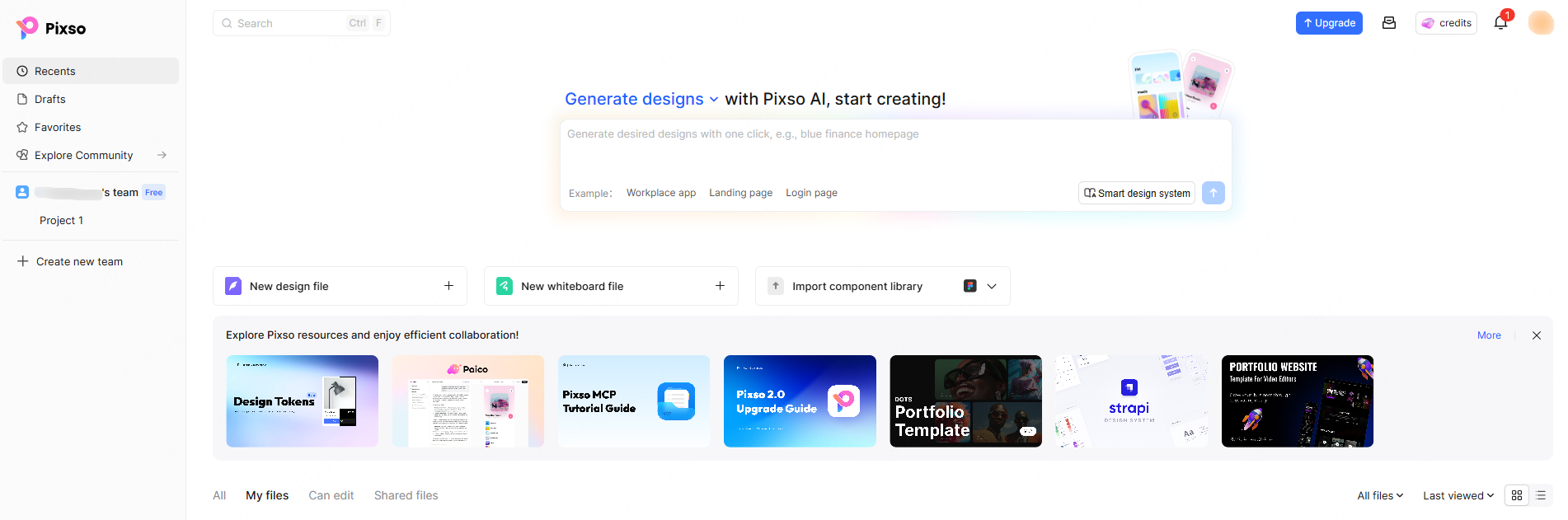
- Type in what you want your ai website design to look like. If you aren't sure what to write, click on the examples underneath, like "portfolio page" or "SaaS landing page."
- Hit the send button, and the AI will generate a few different structural options.
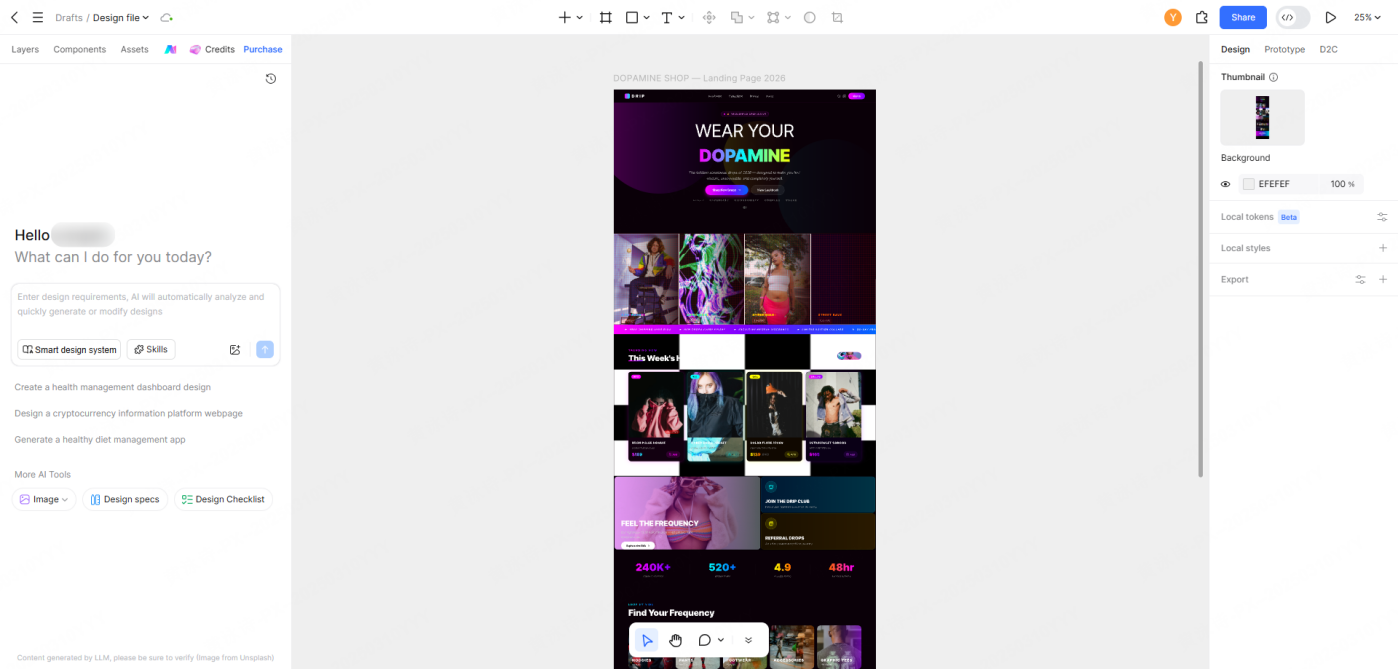
💡 Quick Tip: Be descriptive. Instead of typing "coffee shop site," try: "A modern coffee shop page with warm brown tones, a large hero image of coffee beans, and a clean section showing the menu."
Step 3. Personalize Your Layout
Now, customize the draft to make it match your brand.
- Update the copy: Double-click any text box to rewrite it. Swap out the generic headlines and body copy with your actual brand messaging.
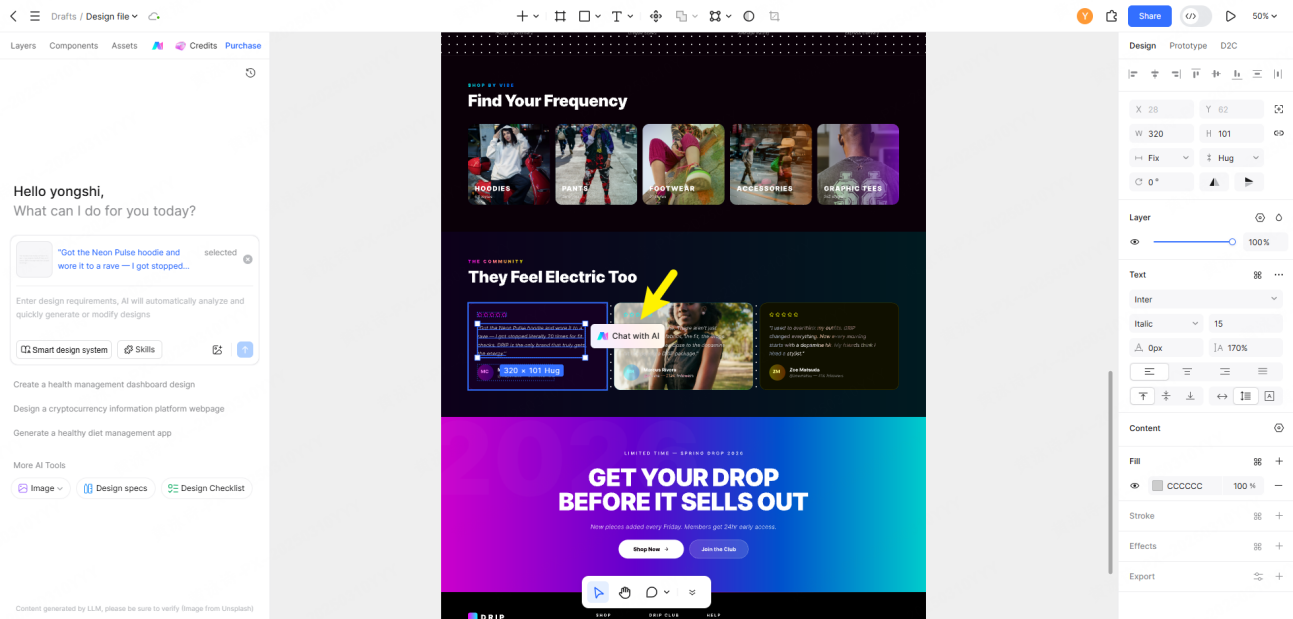
- Change the images: Click on any image box and hit "Replace Image." You can upload your own photos or choose from Pixso's built-in stock library of free assets.
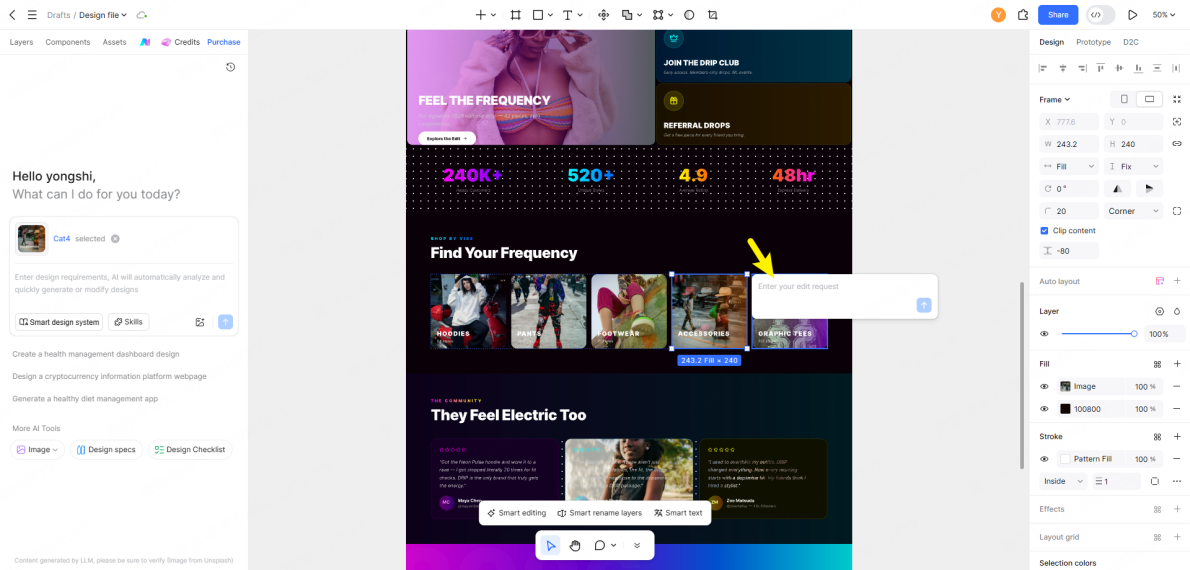
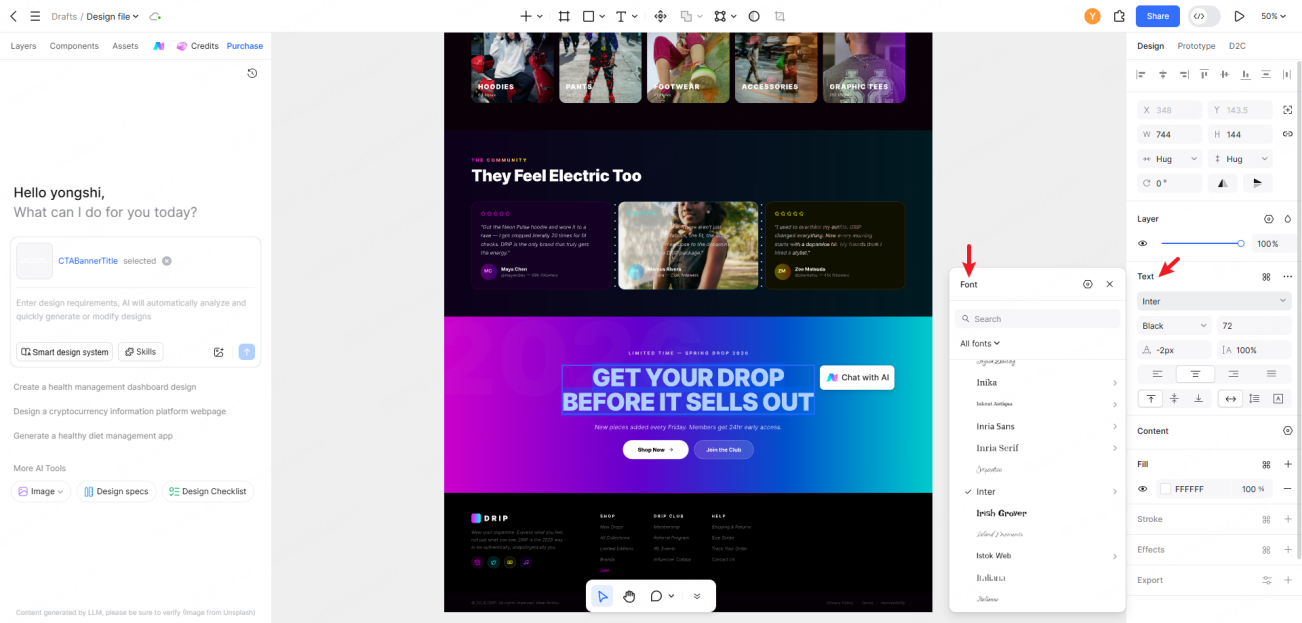
- Set your brand colors: Paste your brand's hex codes into the right-hand panel to apply your color palette across the entire project. You can also pick clean, web-safe fonts like Noto Sans or Inter in seconds.
Step 4. Set Up the Mobile Viewport and Export Code
After finalizing your desktop view, you need a mobile version. In Pixso, you don't have to rebuild it from scratch—the AI chat assistant can handle it.
- Select your main design frame to open the AI assistant on the right.
- Just type: "Make a mobile version of this design." The system will output a clean, stacked layout that matches your desktop style.
- If a button looks too small or an image is cut off, type a quick instruction to fix it (e.g., "Make the menu button larger on mobile" or "Scale the header image to fit").
Designing an ai website:
When you are happy with the layout, click "Developer Mode" in the top right. It instantly converts your design into ready-to-use CSS and HTML, making it incredibly easy to publish or send to a developer.
Applying free ai website design principles:
💡 Pro Tip: Skip the Development Bottleneck
This pipeline—prompt to desktop draft, then to mobile view, then directly to code—saves hours of manual work. Pixso's Developer Mode lets solo creators inspect and copy production-ready CSS and HTML straight from their visual canvas. This direct-to-code approach cuts out the usual back-and-forth handoff, letting you go from an idea to a working layout on your own.
🔗 Check out the detailed D2C code conversion tutorial for solo creators.
FAQ
Q1: How do I build a site that actually fits my industry?
The biggest mistake people make is using a generic template for everything. Different businesses require completely different layouts and features to work.
1. E-Commerce (Online Stores)
Online retail is entirely built on customer trust.
- Images are everything: Avoid generic placeholders or blurry photos. Replace all AI-generated images with actual, high-resolution photos of what you are selling.
- Use local checkouts: If you are selling to a specific regional market, you need payment options your customers actually use. If your checkout doesn't support local options like Kakao Pay or regional transfers, people will abandon their carts. This is where global design systems that don't support local plugins can get tricky.
- Put policies in the footer: Shoppers want to see clear shipping and return policies before they buy.
- Mobile-first design: Most online shopping happens on phones. Make sure your checkout page is easy to navigate on a small screen.
2. SaaS (Software and Digital Tools)
SaaS pages need to explain what they do instantly and drive trials.
- Pass the 3-second test: Don't use confusing industry jargon. Your headline should clearly explain the benefit of your software (e.g., "We automate your meeting notes so you can save two hours every day").
- Make signup obvious: Put a high-contrast "Start Free Trial" or "Request Demo" button in the hero section and your top navigation bar.
- Show real social proof: Put partner logos, customer quotes, and quick case studies right under your main banner to build immediate credibility.
- Keep pricing simple: Be upfront about your subscription costs. People hate having to click "Contact Sales" just to see a basic price sheet.
3. Local & Brick-and-Mortar Businesses
For physical shops, clinics, or services, your website's job is to get people to visit your physical location.
- Optimize for local search: Claim your Google Business Profile. Make sure the name, address, and phone number on your site match your profile exactly, helping you show up when locals search for services "near me."
- Put contact info upfront: Show your address, hours, and phone number clearly. On mobile, make sure your phone number is clickable.
- Use real photos: Skip the generic stock photography. Show your actual storefront, real staff, and your actual workspace to build trust with local customers.
- Make booking easy: Embed maps for quick directions and use scheduling widgets so customers can book appointments directly.
Q2: Will search engines index an AI-designed site?
Yes. Google and other search engines index sites based on page speed, mobile responsiveness, and high-quality content—not whether the code came from an AI. Just make sure to write custom meta titles, use proper header structures, and submit your XML sitemap.
Q3: Can I run a retail store using only a free AI tool?
You can certainly design a basic storefront for free, but actually managing orders, inventory, and secure payments usually means upgrading to a dedicated platform that supports secure local payment integrations.
Conclusion
Start with one page that explains your offer and makes the next action clear. Use Pixso to develop the layout, replace placeholder content with your own and prepare the page for implementation. Add the remaining pages once that first page works for your business.