Scott
A dropdown is useful when people need to choose a value but do not need to compare every option at once. Use a simple select for a manageable list of familiar values, a searchable combobox when finding an option is difficult, and visible radio buttons when the differences deserve attention. A menu of commands such as “Duplicate” or “Delete” serves a different purpose from a field that stores a choice.
The right control depends on the decision, not just the length of the list. Imagine an employee ordering equipment: they choose a delivery method, a region, and an office. You can compare those controls in Pixso’s interface design workspace before committing to one dropdown style for the whole form.
Select, radio buttons, or a searchable combobox?
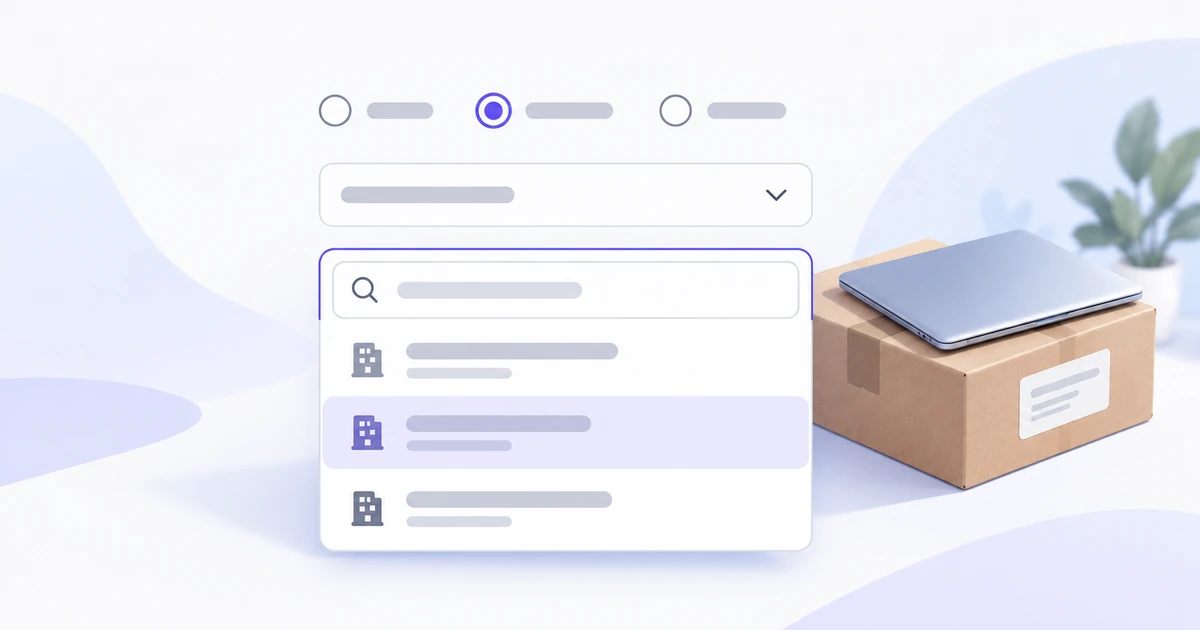
Start by writing what someone must understand before choosing. In the equipment form, the delivery method changes when and where the order arrives. The region is a familiar category. The office list contains many similar names. Those three decisions should not automatically use the same component.
| Decision | Useful starting pattern | What the design gains |
|---|---|---|
| Choose office delivery, home delivery, or pickup | Radio buttons with short explanations | People can compare the consequences without opening a list. |
| Choose one of the organization’s regions | A simple select | The field stays compact while showing the selected value. |
| Find a particular office in a large directory | A searchable combobox | Typing narrows the choices instead of requiring a long visual scan. |
| Duplicate or cancel a saved equipment request | An action menu | The control performs a command rather than collecting a form value. |
There is no universal option count at which a dropdown becomes correct. Six cryptic plan names may need explanation; a longer list of familiar locations may be easy to search. Consider familiarity, label length, comparison needs, and the cost of opening the control every time.
The WAI-ARIA radio-group pattern represents a choice in which at most one option is selected. It is a useful match for the delivery method because the alternatives should remain visible. Do not hide a meaningful cost or timing difference merely to save vertical space.
Keep the label separate from the selected value
“Region” is the field label. “Northern region” is a possible value. “Select a region” is an instruction before selection. Keeping these separate helps people understand the field after a choice has been made and when they return to review the form.
Do not make the placeholder the only label: it disappears as soon as the field contains a value. A selected office name such as “Riverside” does not explain whether the field refers to an office, a collection point, or an account location.
Use defaults only when they are appropriate. If a verified employee profile supplies a usual office, showing it can save effort, but people should be able to recognize and change it. Selecting the first office in the list just to make the form look complete can send equipment to the wrong place.
Write options in parallel. Use “Office delivery,” “Home delivery,” and “Pickup” instead of mixing an action, a place, and a vague adjective. When two offices share a name, add a distinguishing location in each option. A short secondary line is more useful than making people infer the difference from an icon.
Add search when it makes finding an option easier
A search field adds its own decisions: what can be typed, what gets matched, how results are ordered, and whether arbitrary text is accepted. For the equipment form, the office field accepts only an office in the directory. Typing “River” narrows the choices; it does not create a new delivery destination.
The WAI-ARIA combobox pattern distinguishes editable and select-only controls, as well as different autocomplete behaviors. Choose the behavior deliberately. The presence of a down arrow alone does not tell someone whether they can type or must select from a fixed list.
For this example, match office names and their visible city labels. Keep the result wording consistent with what is displayed: if the office is listed as “Riverside — Bristol,” typing Bristol should not appear to produce an unrelated result. Decide whether aliases are supported instead of silently assuming that every abbreviation will work.
Show the most useful detail in the option, not every field in the directory. An office name and city may be enough to distinguish choices; an entire address can make each row difficult to scan. Once an office is selected, show the delivery address below the field so the employee can confirm the destination.
For a completed search with no matches, keep the query available and explain how to broaden it. Do not label an unavailable directory as “No offices found.” If the control obtains live results, the separate remote lookup-field guide covers delayed responses and the difference between typed text and a committed record. Those concerns do not change the first decision here: whether the task benefits from search at all.
Do not confuse choosing a value with running a command
A closed region field should continue to display the selected region. An “Actions” button instead opens commands that affect an existing request. Keeping those patterns visually related is fine; treating them as the same interaction is not.
For example, choosing “Northern region” sets a field value. Choosing “Cancel request” from an actions menu starts a workflow with consequences. Do not put “Cancel request” at the bottom of a location list, where someone might treat it as another harmless option.
The WAI-ARIA menu-button pattern describes a button that opens a menu, including its expanded state and keyboard entry. Use the appropriate pattern for the actual behavior rather than copying menu semantics onto a required form field.
Multi-selection also changes the problem. If employees may choose several accessories, a checkbox group is often clearer than forcing a single-choice dropdown to behave like a basket. When a multi-select is needed for a long list, make selected items, removal, and the total understandable. Do not assume that a single-select design can become multi-select merely by adding checkmarks.
Design the open list as carefully as the closed field
A polished closed field can hide an unusable popup. Test the office picker near the bottom of the viewport, with a long office name, and on a narrow screen. The list should remain visually connected to the field without running beyond the available space.
Use a deliberate maximum height with scrolling when the list is long. Keep enough of the next item visible, or provide another clear cue, so the list does not appear to end after the first few results. Avoid tiny scroll regions that reveal only one option at a time.
Distinguish the current value from the option being explored. A person should be able to open the list, inspect another office, and understand what will happen when they close it. The chosen selection model should define whether moving through options changes the value or whether an explicit acceptance is required.
Long labels should remain distinguishable. “North Building — Service…” and “North Building — Service…” are not useful alternatives even if their hidden endings differ. Allow wrapping or expose the distinguishing part in a second line. Do not place the only difference behind a hover tooltip, especially on touch devices.
On mobile, a native select may provide a familiar platform picker. A custom searchable picker may need more space for the keyboard and results. Compare the actual implementation options with engineering before designing a tiny desktop popup that cannot fit above the on-screen keyboard.
Make dependent choices explain themselves
In the equipment form, Region limits the offices available for delivery. Changing the region can therefore affect the selected office. The interface should explain that relationship rather than silently leaving an impossible combination or deleting the choice without context.
Suppose “Riverside — Bristol” is selected and the employee changes to a region that does not contain that office. Keep the new region, clear the incompatible office, and show a brief message such as “Choose an office in the selected region.” Move attention to that field when the user tries to continue; do not announce a successful complete delivery address.
If the organization permits a different-region delivery, the field should not be restricted in the first place. Component behavior follows the real business rule. Designers should not invent a location restriction to make a cascading-dropdown demonstration look tidy.
Changing from office delivery to pickup is a separate dependency. Decide which fields remain relevant, which values can be retained if the person changes back, and which delivery summary must update. Show the resulting summary before submission so the employee can check the choice in plain language.
Compare the choices in a Pixso form
Build the equipment form with three different controls: visible delivery-method choices, the region select, and the searchable office picker. Use the same field labels, typography, spacing, and supporting text so differences in behavior do not become unnecessary visual inconsistency.
In Pixso, reusable components and Auto Layout can keep the field structure consistent while you explore closed, open, selected, and invalid appearances. Keep the popup options in the same task-specific example. Replacing realistic office names with “Option 1” and “Option 2” hides the exact wrapping and disambiguation problems the design needs to solve.
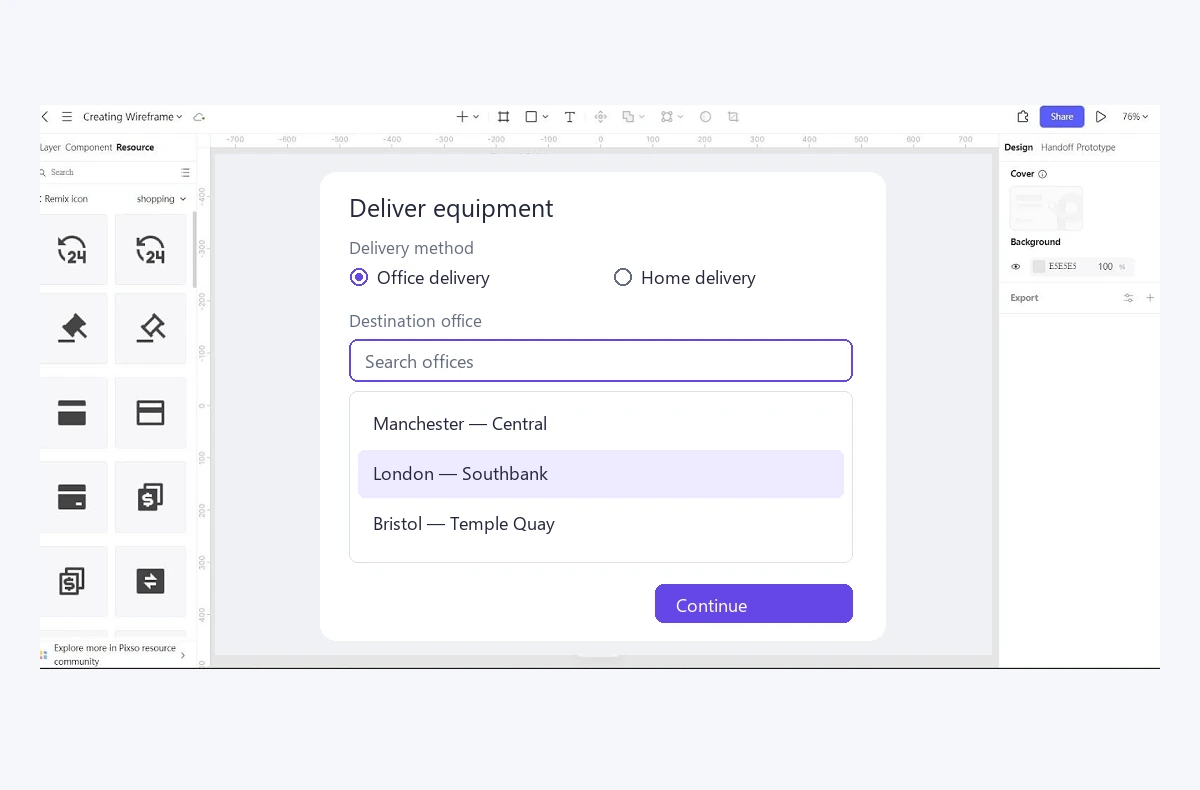
Review the flow by asking someone to send a laptop to a particular office, change to pickup, then return to office delivery. Observe whether the control choice helps them find the destination and understand what was retained. The task tests the form’s clarity more effectively than asking whether the dropdown looks modern.
Write the chosen keyboard behavior and acceptance rule beside the relevant component. A native select, an editable combobox, and an action menu should not share one invented keyboard specification. The prototype can show the intended result; the implemented controls still need browser, keyboard, and assistive-technology testing.
Compare your form controls in Pixso using the real choices people will need to make.