On this page

Scott
Can Claude build a website? In the modern design and development ecosystem, the answer is a resounding "Yes." As generative AI models evolve to convert natural language prompts into clean, functional code, a phenomenon known as "Vibe Coding" is rapidly spreading among developers, UI/UX designers, and solo entrepreneurs.
At the forefront of this movement is Anthropic's Claude. While many creators treat Claude as a conversational assistant, it also functions as an impressive claude ai website builder. Moving from a rough AI-generated code snippet to a production-ready web platform requires structured prompting, consistent design systems, and dedicated visual design tools. This guide explores how to make a website with Claude step by step and explains how pairing it with Pixso elevates your workflow.
Part 1. The Rise of Vibe Coding in AI-Driven Web Development
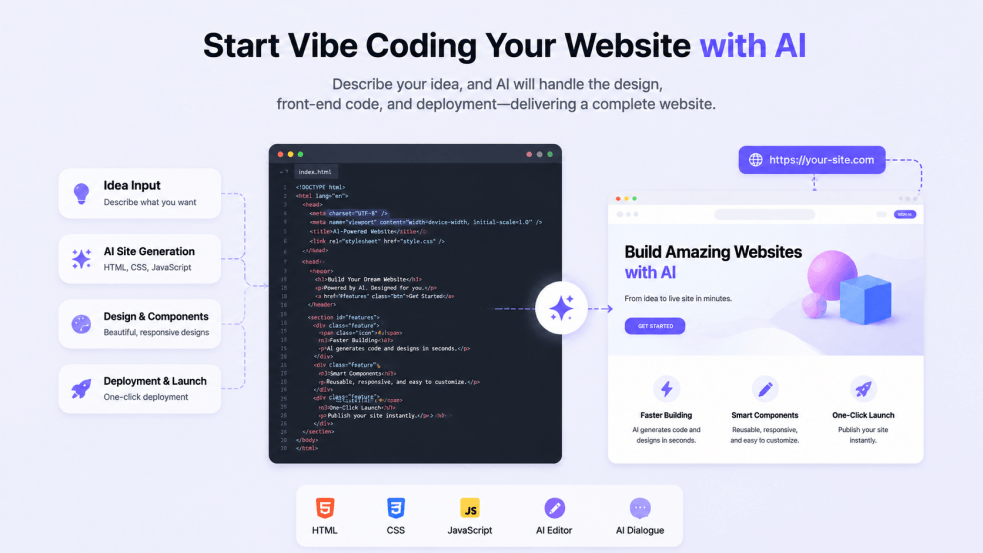
A few years ago, building a responsive website required writing HTML, CSS, and JavaScript line by line. Today, advanced generative AI models can interpret complex visual descriptions and instantly output executable web code. In the tech industry, describing desired layouts in natural language and letting AI handle the code generation is called "Vibe Coding."
Vibe coding is reshaping digital product development because it democratizes creation. Anyone with a clear vision can generate landing pages or marketing sites in minutes without deep programming experience. Dedicated AI code editors like Cursor, alongside conversational AI assistants, are accelerating this shift.
Using Claude for web page generation appeals to creators who want clean code paired with logical layout structures. However, AI output should be treated as an initial draft. Transforming an AI draft into a polished, production-ready website requires a clear understanding of the design-to-code pipeline.
Part 2. How to Make a Website with Claude: Prompting and Design Systems
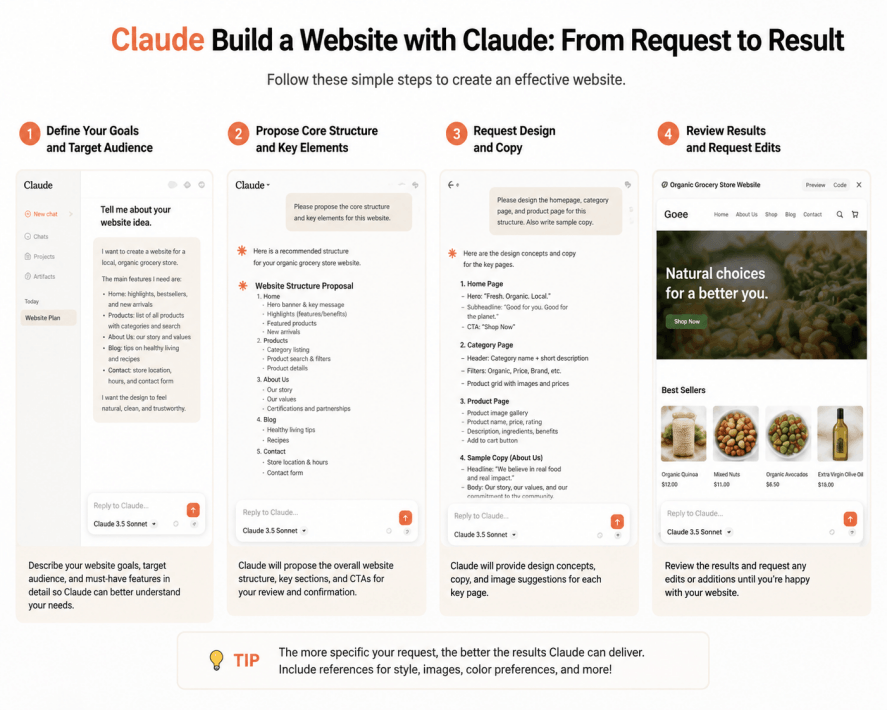
When learning how to make a website with Claude, the most critical factor is how you structure your prompts. Simply asking "Build me a homepage" yields generic, uninspired layouts. To achieve professional quality, structure your requests systematically using the following approach:
1. Define Purpose and Target Audience First
State the exact goal of the website and the primary call-to-action, such as form inquiries, account signups, or product purchases. Claude uses this context to arrange headers, hero sections, and CTA buttons logically.
2. Establish a Claude Design System Early
To maintain visual consistency, define styling rules during initial prompts. Establish color palettes, typography, button corner radii, and spacing rules. Specifying "Main color navy, rounded buttons, clean whitespace" ensures cohesive brand aesthetics across generated pages. Building a structured claude design system keeps visual elements unified as your project grows.
3. Build Iteratively Section by Section
Rather than attempting to generate an entire multi-page site in a single prompt, build section by section: Hero → Features → Testimonials → Footer. Preview and refine each section before assembling the full page.
4. Verify Responsiveness and Deployment Requirements
Ensure generated layouts adapt cleanly across mobile, tablet, and desktop viewports. Because Claude does not provide web hosting or domain servers, copy the generated code to external deployment platforms like GitHub Pages, Vercel, or Netlify.
While Claude excels at rapid code generation, managing multi-page consistency, micro-interactions, and detailed UI assets remains challenging in a pure text chat interface. This is where dedicated UI design platforms become indispensable.
Part 3. Refining Your Website with Pixso and Paico
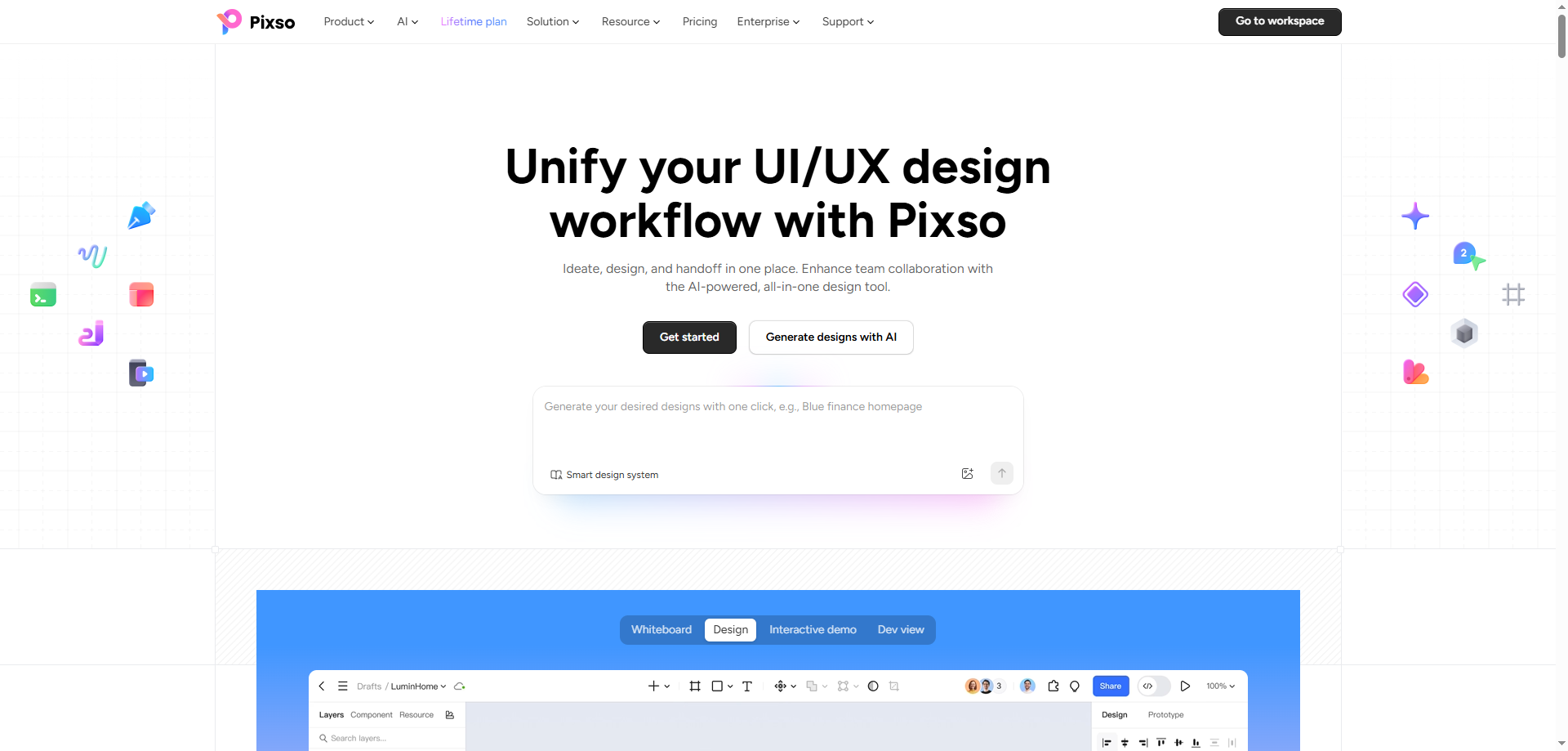
Pixso is a collaborative, browser-based UI/UX design tool equipped with Paico, an advanced AI design assistant. Paico bridges the gap between text-based code generation and visual canvas editing.
The 4-Step Pixso Paico Workflow
Step 1. Access Pixso and Launch Paico
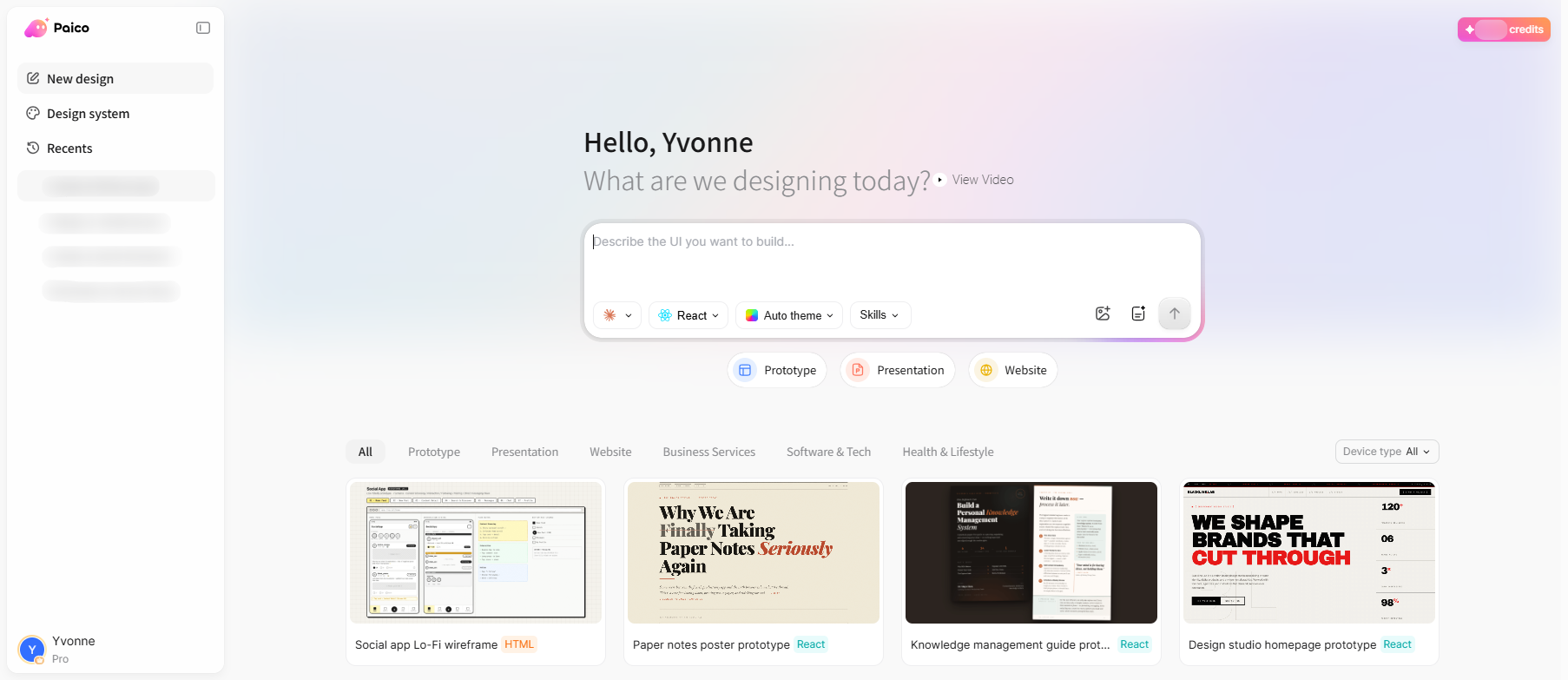
Visit the official Pixso website at pixso.net and navigate to AI Design to launch Paico. Click "Start Creating with AI" to log in or create a free account.
Step 2. Input Prompts and Generate Web UI Designs
Enter your UI design requirements into the prompt window. Select your preferred base framework (HTML or React) and page mode. The more specific your prompt regarding purpose, color palette, and section hierarchy, the higher the visual quality of the output.
Step 3. Preview via Live URL and Export Clean Code
Review live responsive HTML/React code in the Code tab, or click the generated preview URL to inspect the live web page directly in your browser. Download the code to integrate with AI editors like Cursor or paste it back into Claude for further logic refinements.
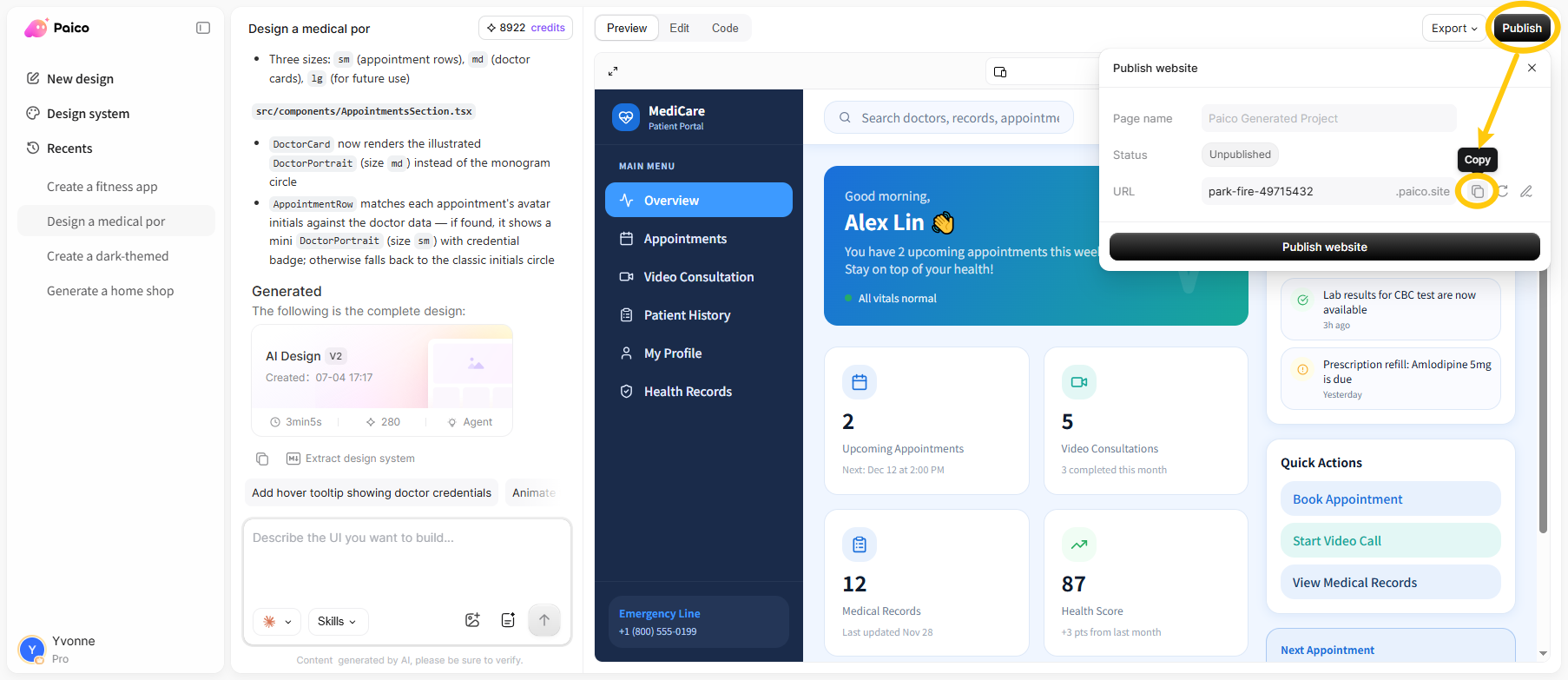
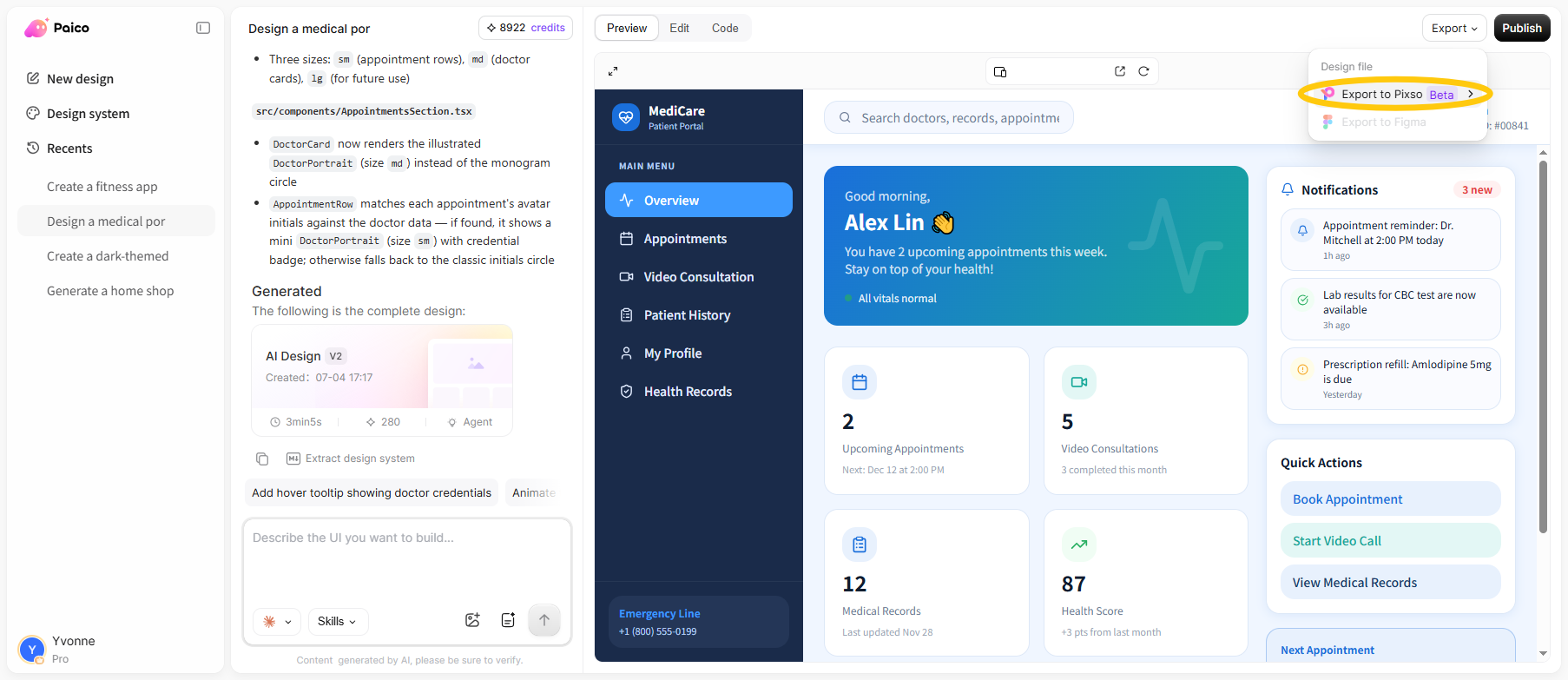
Step 4. Import to Pixso Canvas for Granular Visual Editing
Click the Pixso button in the top right corner to convert your AI-generated layout into an editable Pixso vector file (fully compatible with .fig formats). On the Pixso canvas, you can drag components, adjust typography, fine-tune spacing, manage design tokens, and collaborate with team members in real time.
📘 Claude Website Building & Design Guide
For practical instructions on web pages and design systems, read How to use Claude Design: Complete your AI design workflow with a single prompt.
FAQ
Q1. Can Claude build a website if I have zero coding experience?
Yes. Claude understands natural language prompts and generates clean HTML, CSS, and JavaScript code. Beginners can easily create functional landing page drafts without writing code manually.
Q2. Can a website built with Claude go live on the internet immediately?
Claude generates raw source code but does not provide web hosting or domain registration. You must upload the generated code to hosting platforms like GitHub Pages, Vercel, or Netlify to make your website publicly accessible.
Q3. How should I manage a claude design system effectively?
You can define brand colors, button styles, and layout rules directly in your chat prompts. However, for complex multi-page projects, managing design components in a dedicated UI design tool like Pixso provides superior visual control and component reusability.
Q4. How do Claude and Pixso Paico complement each other?
Claude excels at generating functional code and underlying logic through natural conversation, while Pixso Paico provides a visual vector canvas for fine-tuning UI layouts, organizing design systems, and collaborating with design teams. Using both tools together delivers the ultimate vibe coding workflow.
Q5. Are there copyright restrictions when using a claude ai website builder workflow?
Code generated by Claude belongs to you. However, you should review any external image URLs, icons, or third-party assets included in the code to ensure compliance with licensing terms.
Conclusion
Knowing how to make a website with Claude empowers creators to turn ideas into functional digital products faster than ever before. By structuring your prompts, establishing a clear design system, and building iteratively, anyone can generate impressive web prototypes without deep programming experience.
To bridge the gap between AI code generation and professional UI/UX design systems, pairing Claude with Pixso Paico offers the complete solution. Pixso enables visual layout editing, component management, and seamless developer handoff on an interactive vector canvas. Combine the strengths of Claude and Pixso today to build stunning, production-ready websites in the vibe coding era.

![[Full Review] Ant Design VS Material UI](https://pixso.net/assets/media/ant-design-vs-material-ui-e85acb360e96ca74.webp)


