On this page

Scott
From early hardware constraints to the modern renaissance of Web3 and digital collectibles, pixel art has evolved into a sophisticated medium for anime art. The distinct granular feel and 8 bit aesthetic offer a stylish alternative to traditional digital illustration.
If you want to learn how to make a pixel avatar with refined details and clean lighting, this guide covers the entire creative process. Using the layout grid system and color shifting capabilities in Pixso, we will walk through canvas setup, line work, color theory, and shading. Whether you want to make your own avatar for social profiles or create unique digital artwork, Pixso provides everything you need to craft sharp pixel creations.
1. Configuring Your Pixso Pixel Canvas
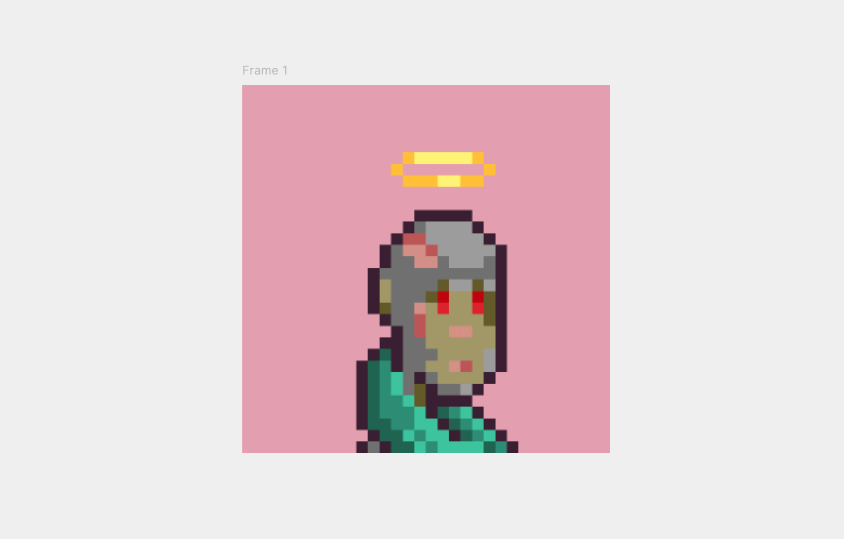
Unlike vector design with infinite scaling, pixel creation depends heavily on canvas dimensions and grid precision. Before you start drawing avatar outlines, set up your canvas correctly in Pixso. A canvas that is too large makes detail control difficult, while one that is too small restricts creative expression.
Follow these steps to configure your layout grid in Pixso:
- Open a new design file in Pixso. Click the Frame icon on the top toolbar to create a square canvas, such as 1120 by 1120 pixels.
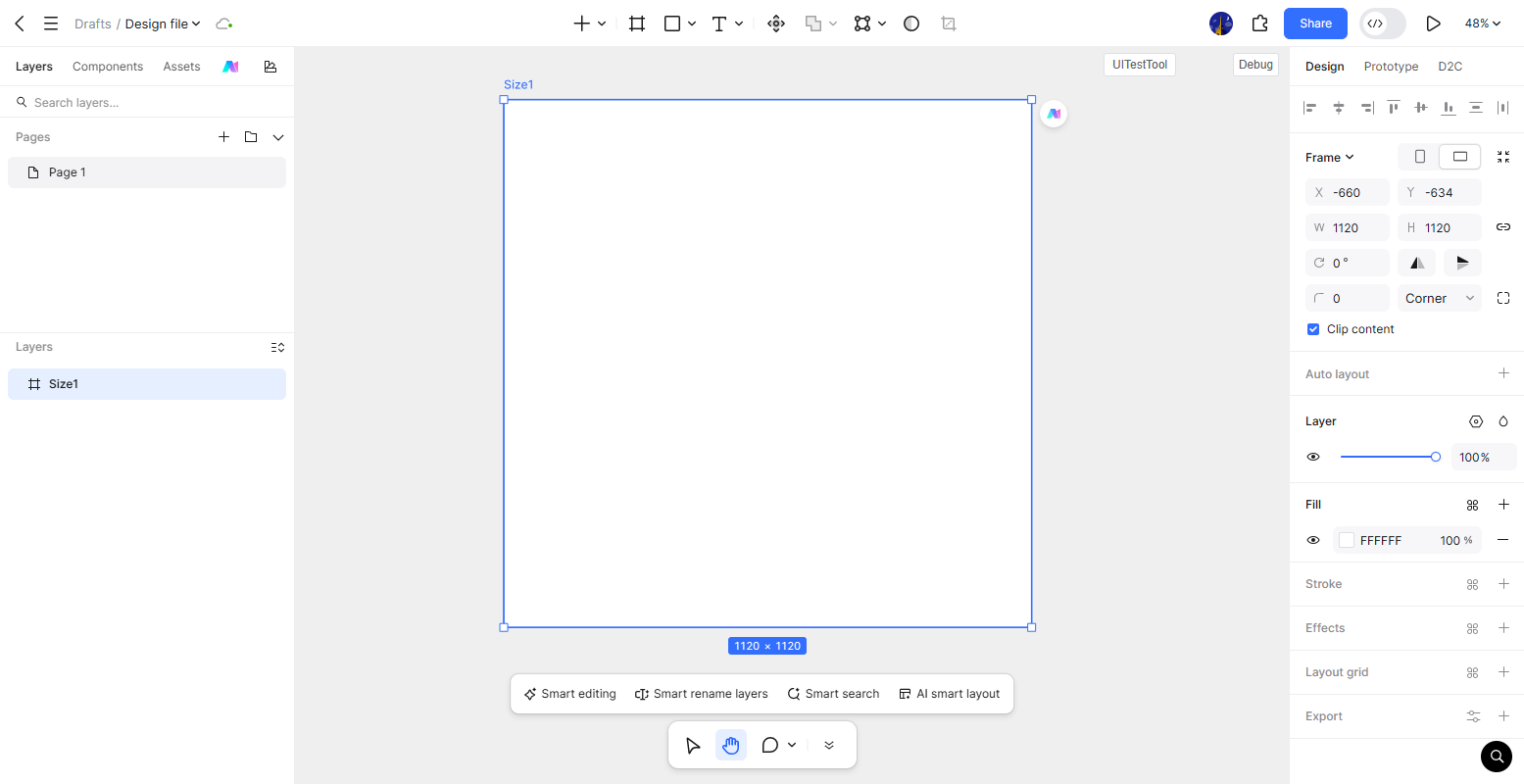
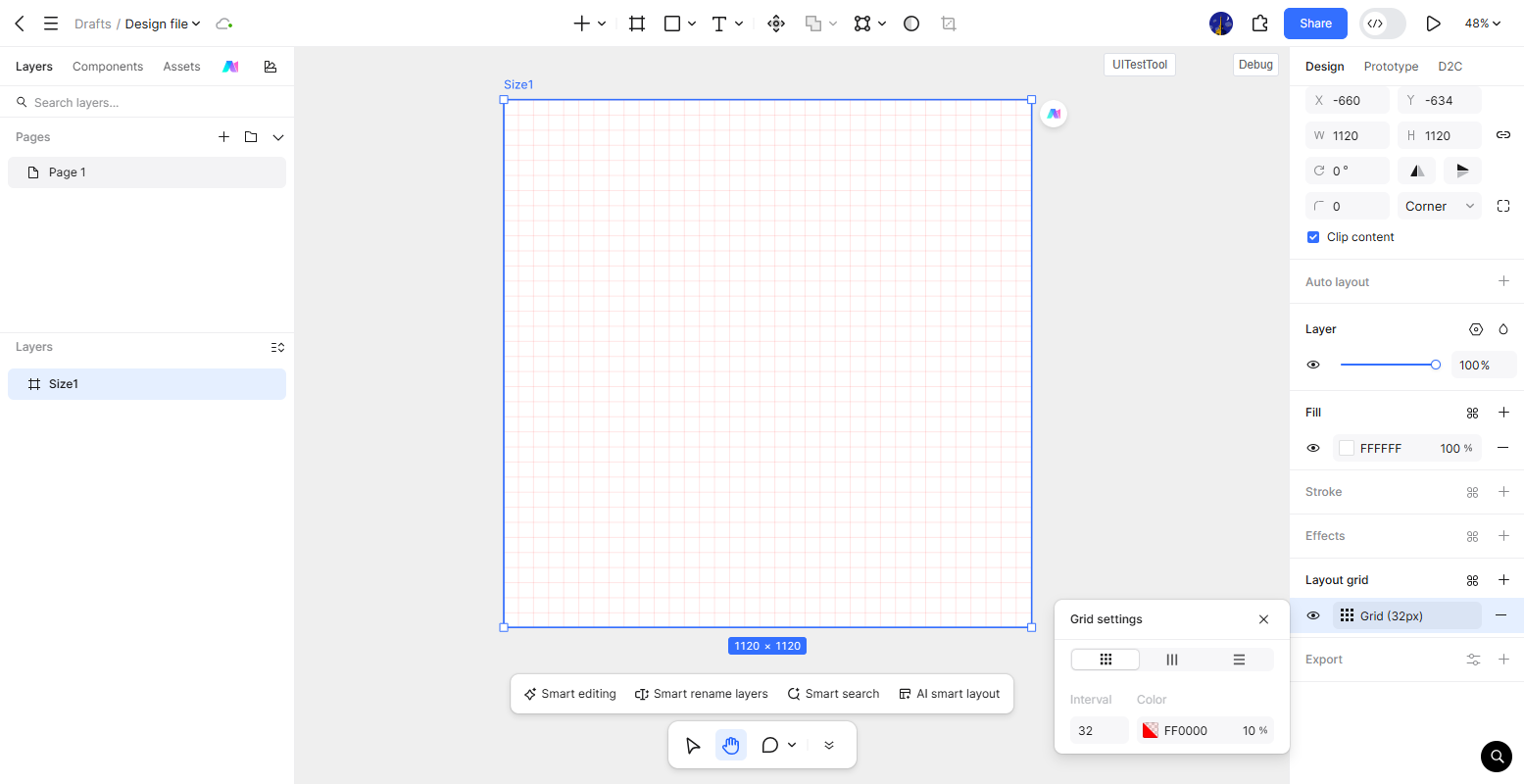
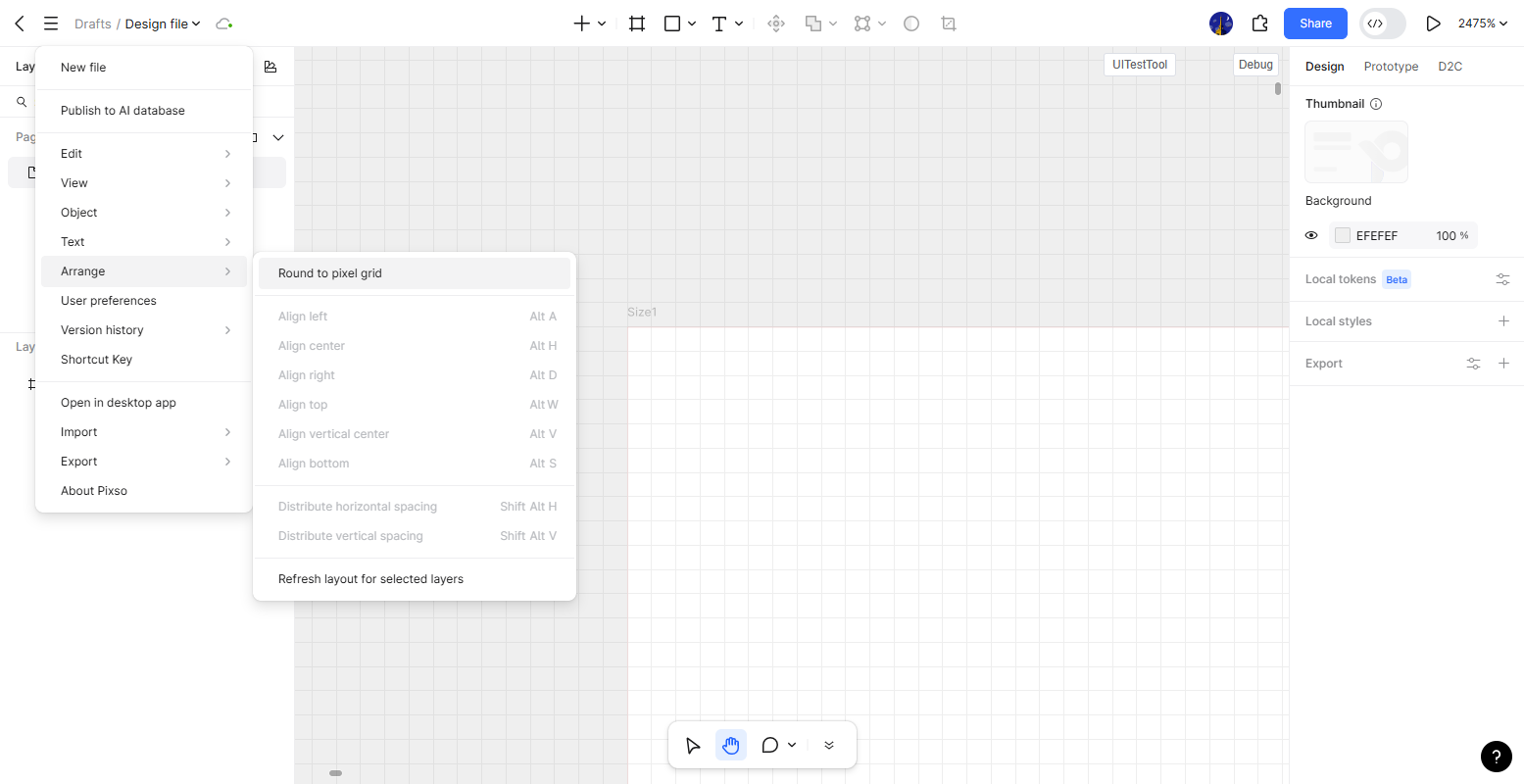
- Select the frame, navigate to the right properties panel, and click the plus icon next to Layout Grid. Choose Grid and set the grid spacing according to your desired detail level, such as 32 by 32 or 64 by 64.
- Go to the top menu, navigate to Preferences or Arrange, and enable Snap to Pixel Grid. This ensures that every drawn square lands precisely on whole pixel coordinates without fractional alignment issues.
2. Crafting Clear and Vibrant Pixel Color Schemes
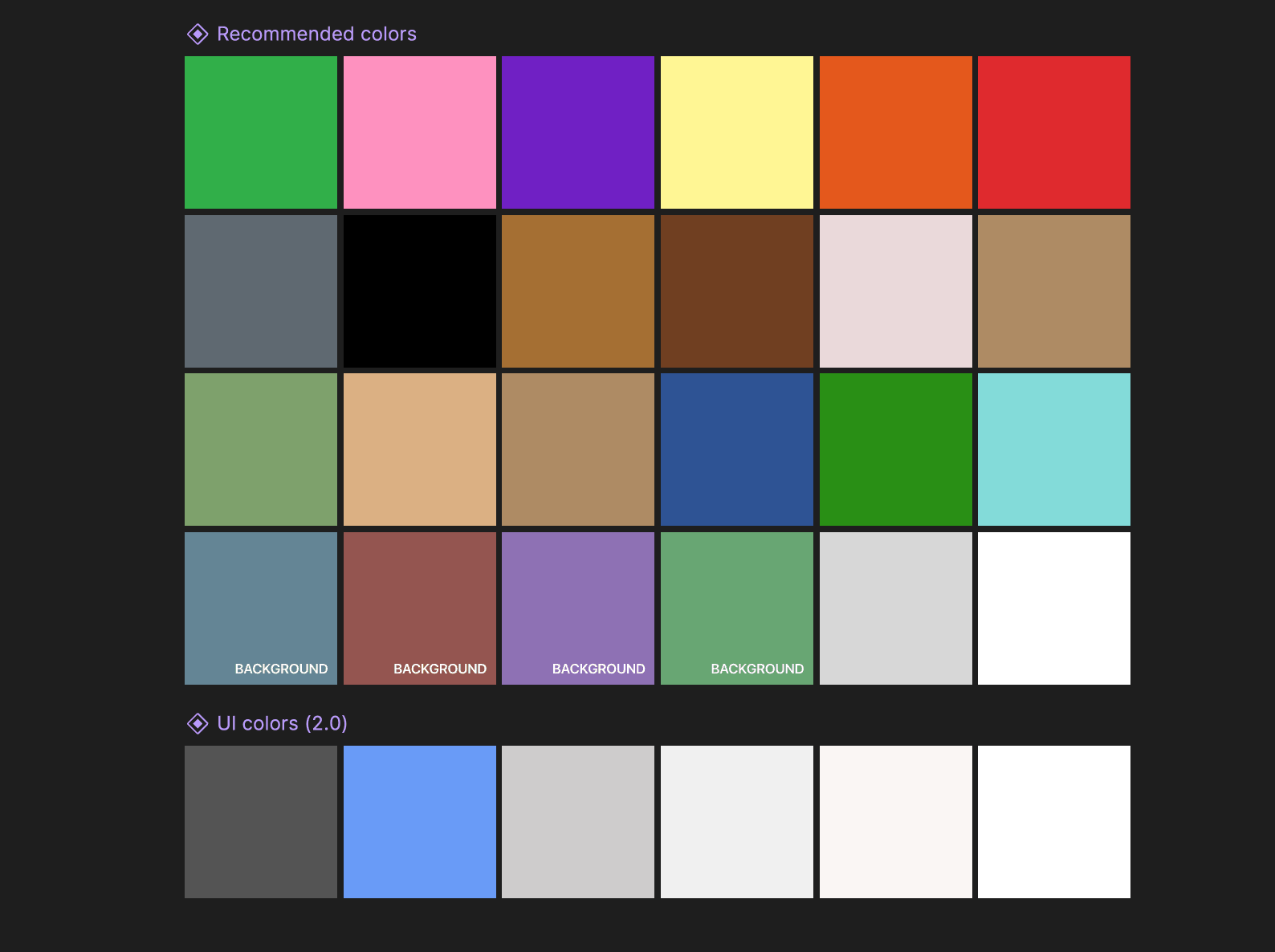
Color management determines whether a pixel avatar looks clean or muddy. Uncoordinated hues and harsh shading transitions can ruin the crispness of your art. Use these principles when building your palette to make pixel avatar artwork pop:
- Limit your palette: Restrict your design to 8 to 16 colors total. A limited palette enforces color harmony and vintage appeal.
- Apply color wheel relationships: Use warm and cool contrast to define skin tones and accessories in anime art. For instance, pairing cool green scarves with warm yellow skin creates clear visual separation and depth.
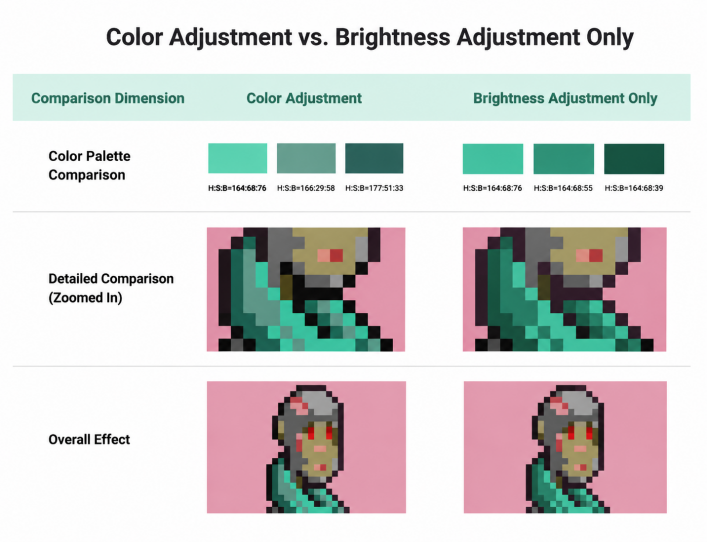
- Utilize brightness color shifting: Adjust color brightness while keeping saturation and hue consistent to generate clean highlights and shadows. Adjusting brightness alone produces clearer, fresher shading compared to changing saturation randomly.
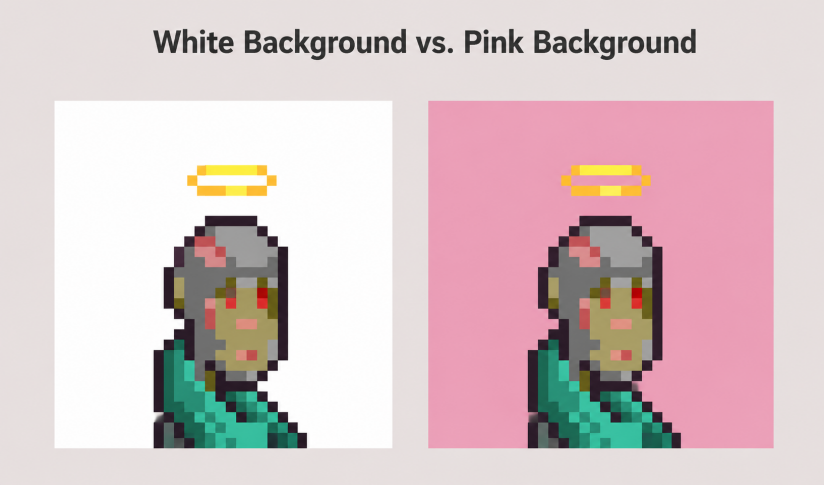
- Leverage background contrast: Ensure the background color complements the character silhouette. A soft pink or contrasting background frames an anime avatar far better than a plain white canvas.
To help you get started quickly, the Pixso Resource Community provides prebuilt pixel color palettes, icon libraries, and anime art templates that you can duplicate for free.
3. Drawing Clean and Smooth Pixel Line Work
Once your color palette is set, press shortcut R to activate the Rectangle tool in Pixso and start building shapes.
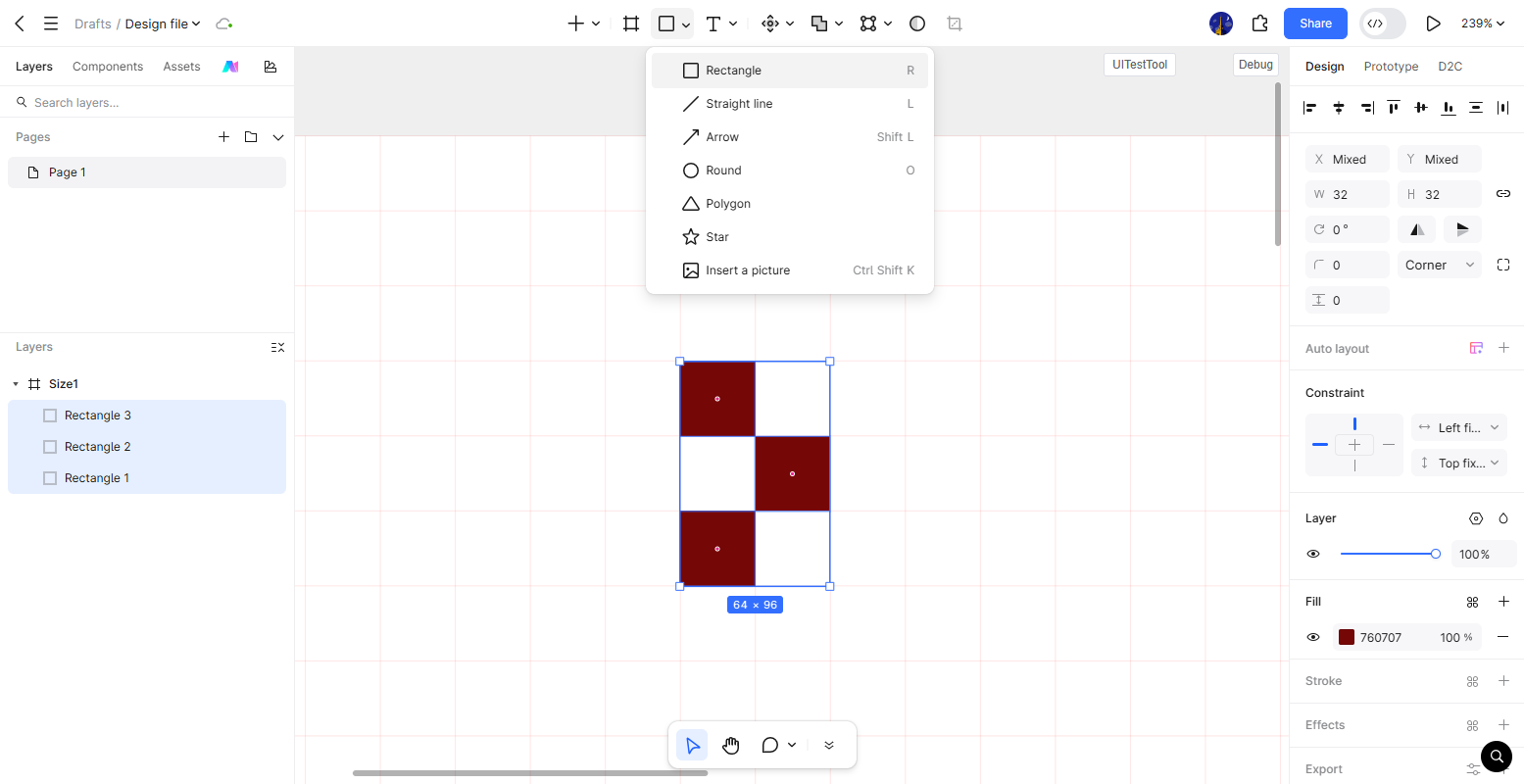
When drawing pixel outlines, maintaining smooth curves and clean edges is crucial. Keep these guidelines in mind:
- Avoid jagged pixel staircases: Arrange pixel blocks in consistent step ratios, such as 1 by 1, 2 by 2, or 3 by 3, to simulate smooth curves without stray pixels.
- Eliminate half pixels: Keep every vector rectangle aligned strictly to whole pixel grid coordinates to avoid blurry anti aliased edges.
- Simplify facial features: In anime art, less is more. Define hair bangs through general shape blocks rather than individual strands. Use 1 or 2 pixels for subtle mouth curves, and arrange pixels in an L shape to define the nose bridge.
4. Refining Lighting and Shading for Depth
While line work forms the structure of your avatar, shading and highlights bring the character to life. Apply these shading techniques in Pixso to elevate your artwork:
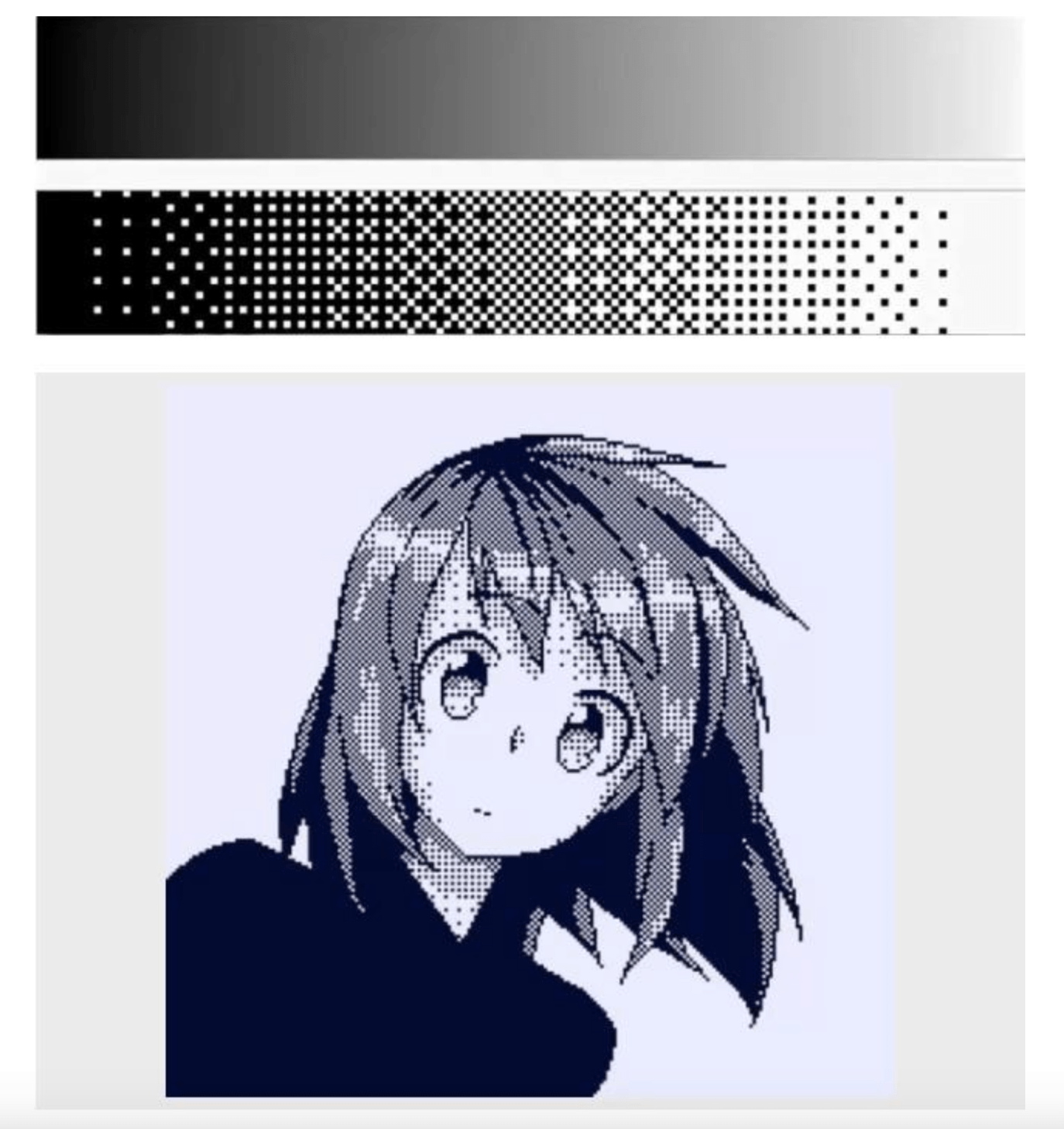
- Apply dithering for subtle gradients: Dithering uses alternating checkerboard or grid patterns of two adjacent colors to simulate smooth shading within a limited palette. Adding dithered pixel clusters across clothing or hair adds rich texture and retro character.
- Add eye catchlights: Placing 1 or 2 bright white pixel dots inside the eyes adds immediate expression and vitality to your anime character.
5. Exporting Lossless Crisp Pixel Artwork
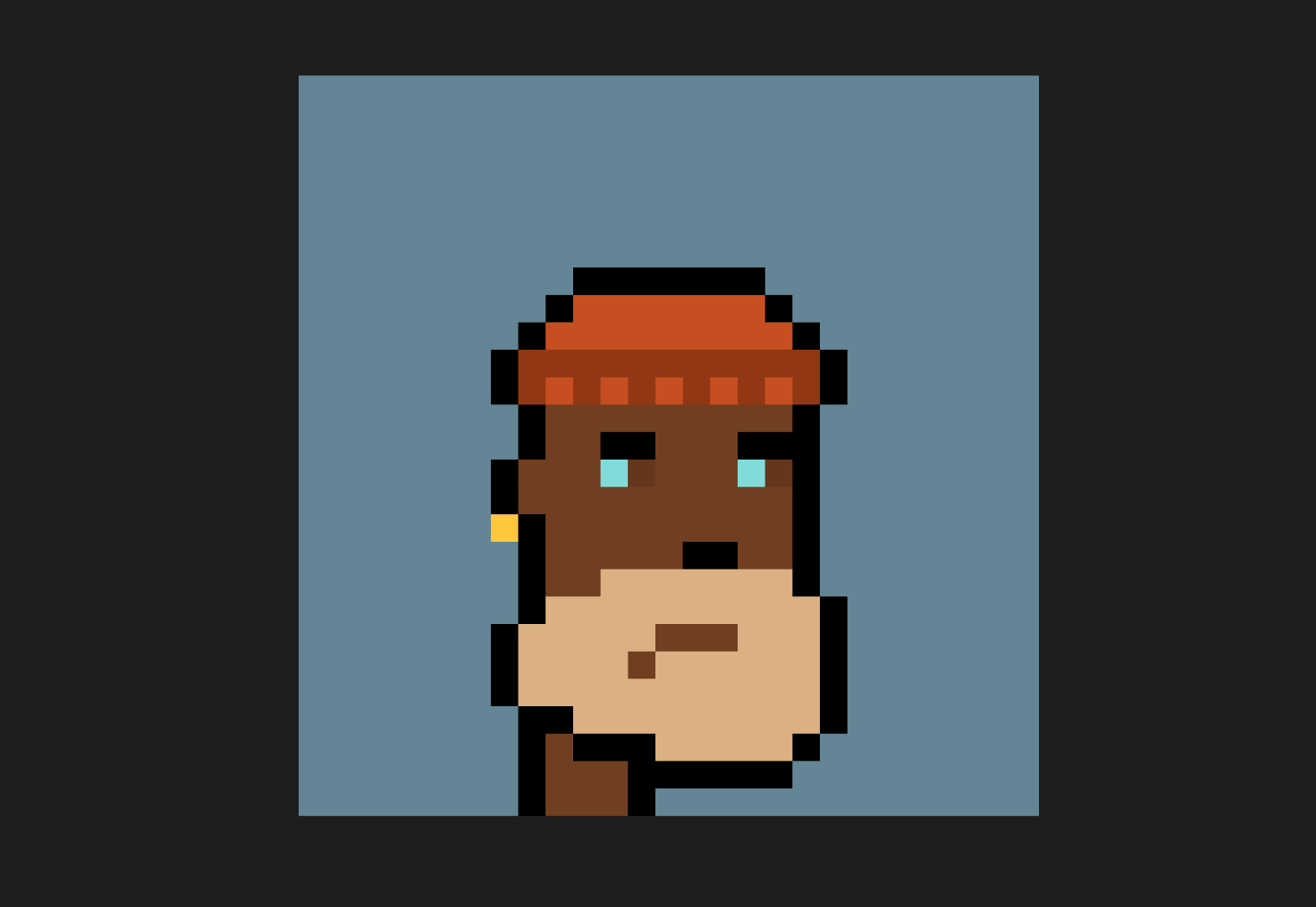
After completing your pixel avatar in Pixso, exporting it at the proper scale preserves its sharp pixel geometry.
Follow these export steps:
- Select your completed avatar frame, go to the Export section in the right panel, and click the plus icon.
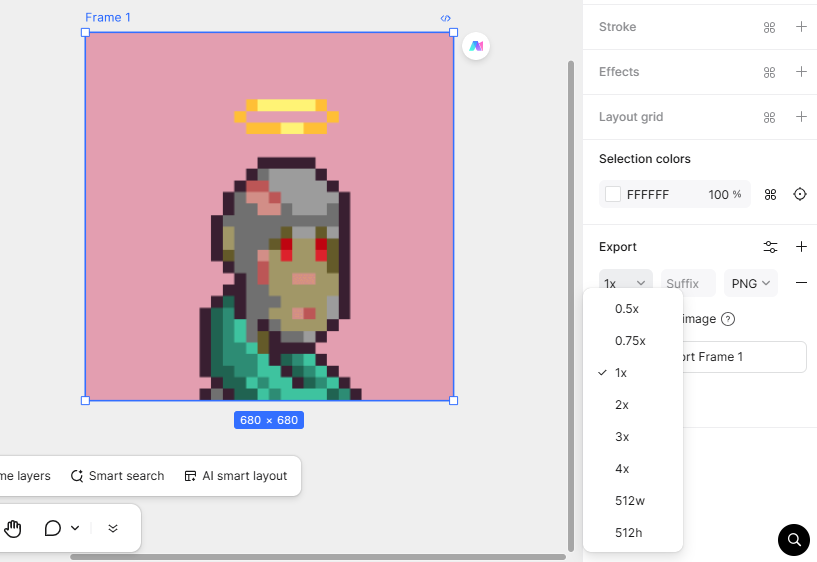
- Set the export scale to an integer multiplier, such as 1x, 2x, 4x, or 8x. Integer scaling prevents blurring and keeps pixel edges crisp across high resolution displays.
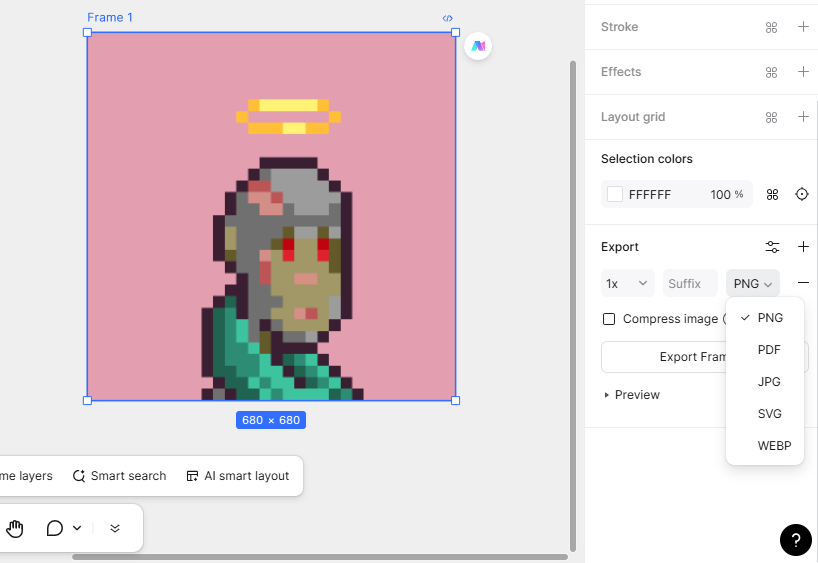
- Select your preferred file format, such as PNG, JPG, or PDF. PNG is recommended for preserving transparent backgrounds.
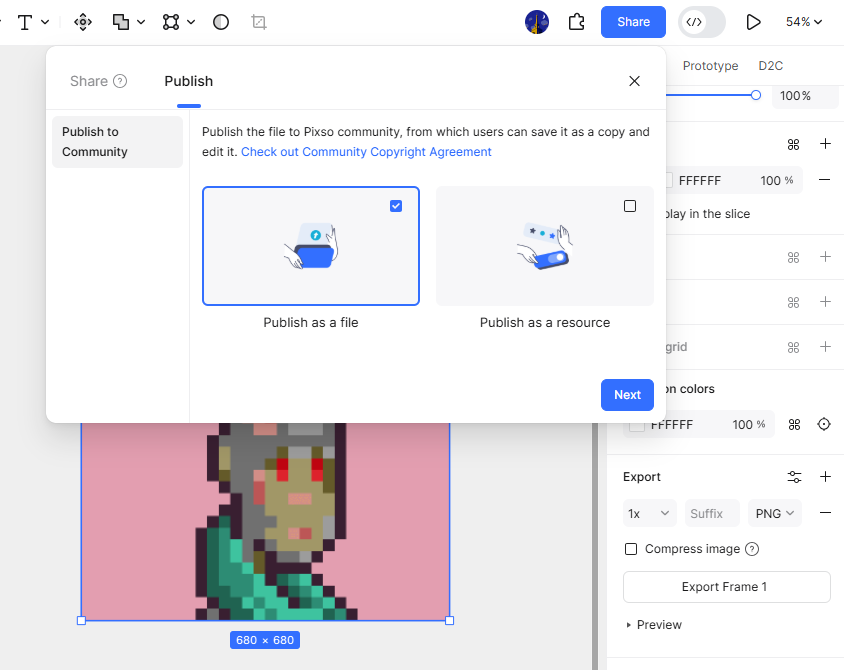
In addition to exporting local files, you can click the Share button in the top right corner of Pixso to publish your work directly to the Pixso Resource Community. Sharing your files allows other creators to view, remix, and collaborate on your designs, building your personal brand in the creative community.
FAQ
Q1: What is the best starting canvas resolution when you make pixel avatar graphics for social media or NFTs?
Common base resolutions for pixel art avatars range from 32 by 32 pixels for retro 8-bit aesthetics to 64 by 64 or 128 by 128 pixels for detailed anime art styles. Designing on a small canvas ensures authentic pixel placement, which can then be exported at integer scale multipliers like 8x or 16x so the artwork renders crisply across high resolution platforms like Discord, Twitter, or NFT marketplaces.
Q2: Why should anti aliasing be avoided when learning how to make a pixel avatar?
Anti aliasing automatically generates semi transparent blurred pixels along vector edges to smooth curves. In pixel art, this creates muddy outlines and destroys sharp 8 bit aesthetics. Turning off anti aliasing and snapping elements directly to whole grid coordinates ensures every single pixel maintains a solid, distinct color value.
Q3: Can I convert a photographic portrait into a pixel avatar automatically using AI or filters?
While automated pixelation filters can downsample a photograph, they frequently produce noisy color palettes and messy edge staircases. Manual pixel placement produces cleaner silhouettes, deliberate facial highlights, and stylized anime art features that automated filters cannot match.
Q4: Is it better to create a pixel avatar in a vector design tool like Pixso or a raster painting app?
Vector tools like Pixso offer significant workflow advantages because every pixel square remains a non destructive vector object. This allows creators to modify color palettes globally, reuse component layers, and scale exports infinitely without raster quality degradation.
Conclusion
Every pixel counts when building retro digital art. By combining controlled color palettes, clean line work, and dithered shading, you can create a unique pixel avatar that stands out across Web3 platforms and social media.
With its intuitive interface, precision layout grid, and collaborative features, Pixso makes it easy for beginners and experienced artists alike to make their own avatars. Try Pixso for free today and start creating your own anime art!