Scott
A notification settings screen should answer three questions before anyone touches a toggle: what event will I hear about, where will it reach me, and when? A single “Notifications on” switch cannot explain the difference between an urgent review request, a routine comment and a weekly summary. People need to predict the outcome of a choice before saving it.
This guide designs preferences for a fictional design-review service. It focuses on future delivery, not on clearing an inbox item that already exists. For the latter task, see the notification inbox UX guide. To test the settings flow with realistic states, connect the screens in a Pixso prototype and ask a reviewer to make one concrete change without guidance.
Start with events, not channels
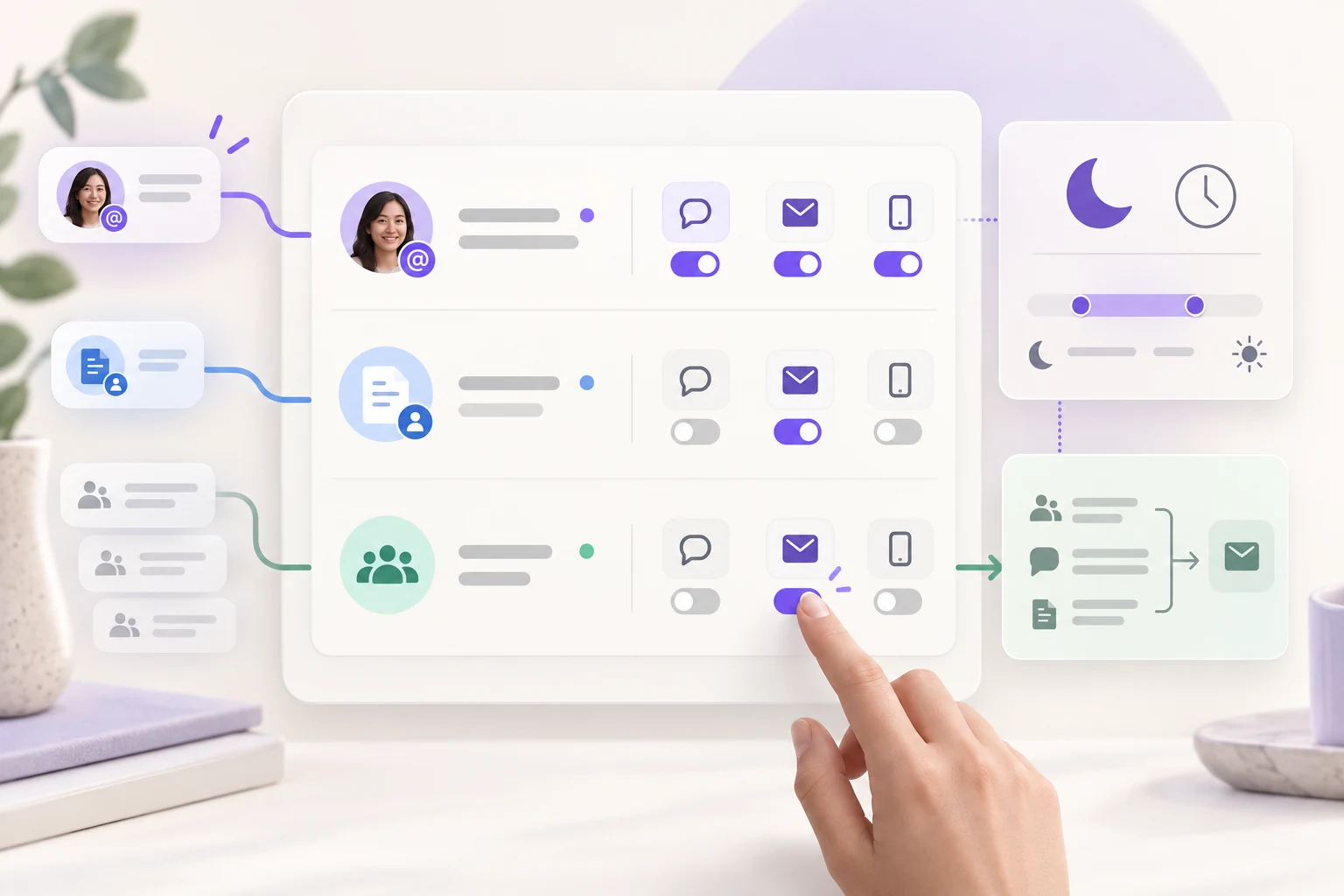
“Email”, “push” and “in-app” are delivery channels. They say where a message appears, not why it was sent. First list the event types the service actually produces. For this design-review example, they are a direct mention in a comment, a review assigned to the person, and ordinary activity on a followed file. These should not inherit one blanket urgency level.
| Event | Why the person may care | Reasonable default to test | What the setting must explain |
|---|---|---|---|
| Direct mention | Someone addressed the person and may need a response | In-app plus an optional timely channel | Turning off email does not remove the mention from the app |
| Assigned review | A task has been handed to the person | In-app and a timely channel where permitted | How the person changes or withdraws that channel |
| Activity on a followed file | Context may be useful, but each change is not urgent | In-app or a digest | A digest can delay delivery; it does not delay the underlying file change |
These are proposed defaults for the example, not universal rules or a claim about Pixso’s own notification policy. Interview or observe the intended users before adopting them. If the product has legal or security messages that cannot be disabled, keep them out of an “all notifications” switch that appears to promise silence. Name the exception and its reason next to the relevant control.
Make each row describe the outcome
One row per event type is easier to scan than three separate pages that repeat the same event names. A row can carry a short description and channel choices: “Direct mentions — when someone tags you in a comment.” Do not let an unlabeled bell, envelope or phone icon stand in for the whole explanation. Labels such as “In app”, “Email” and “Push” remain understandable after the screen is translated or used with assistive technology.
When a channel is unavailable, explain why. A disabled push checkbox might mean browser or operating-system permission is off; a disabled email checkbox might mean the address has not been verified. Those causes demand different next actions. “Turn on notifications” is not enough if the actual next step is to open system settings. Apple’s notification guidance calls for an in-app place to change choices, while Android lets people modify notification-channel behavior in system settings. The app should reflect that boundary instead of pretending its own switch overrides the operating system.
The compact row should show the current selection without forcing the person to open an accordion merely to learn whether email is active. Use a disclosure panel only when the event has meaningful subtypes or scheduling options. If every row expands into a page of controls, the information architecture probably needs another level.
Separate permission, preference and delivery state
Three different conditions can produce “no push notification”: the person turned push off inside the product, the device denied permission, or the event never met the delivery rule. Treating them as one boolean makes support and UX confusing. The interface may show a small, truthful status: “Push selected · blocked in system settings.” Offer a link to the relevant settings where the platform permits it. Do not silently flip the person’s in-app preference when permission changes; their choice may still matter after they re-enable permission.
On Android, a notification channel’s sound and importance can be changed by the user in system settings, and the app cannot simply change those behaviors afterward. On Apple platforms, people can also manage notification permission and delivery timing through system controls. Keep product-level event preferences and platform-level delivery permissions conceptually separate in the design and in implementation notes.
This distinction also protects the wording of a save confirmation. “Preferences saved” is accurate when the server accepted the chosen event rules. “You will now receive push alerts” is not accurate when the device has denied push permission or is currently silencing delivery.
Give digests and quiet hours a precise scope
“Send less often” leaves too much open. A digest setting needs a frequency, a delivery channel and a clear definition of what gets grouped. For example: “Email one summary at 09:00 each weekday for routine activity on files you follow.” State the time zone shown in the interface. If a direct mention bypasses the digest, say so in the mention row; do not hide the exception in a footnote below the Save button.
Quiet hours answer a different question: which interruptions should wait during a time window? They do not automatically stop the activity from occurring or remove its in-app record. In the example, the person chooses 22:00–08:00 in their local time zone. Ordinary activity waits until morning; direct mentions remain visible in the app and follow the explicit exception rule that the product has chosen. A person changing time zone should see which local times will apply after the change.
Avoid portraying “urgent” as a magical override. Platform interruption levels and Focus behavior have their own rules. Apple’s guidance recommends assigning urgency honestly and warns against treating marketing messages as time-sensitive. The product’s settings should not promise to break through an operating-system mode that it does not control.
Decide how saving works before drawing the button
Immediate-save toggles can feel fast, but several related choices may need to change together. Suppose someone selects a weekly digest, turns off routine push and sets quiet hours. If each control saves independently and the second request fails, the screen can show a combination the server never accepted. A single explicit Save action may be safer for this grouped form; if so, show unsaved changes and make leaving the page predictable.
For this example, Save sends the whole preference set. While it is pending, the controls remain visible and a status message says “Saving preferences…” rather than claiming success. On confirmation, the interface repeats the important result: “Routine file updates: weekday email digest at 09:00. Direct mentions: in-app; push is blocked in system settings.” The summary helps the person catch an unintended choice without reading every checkbox again.
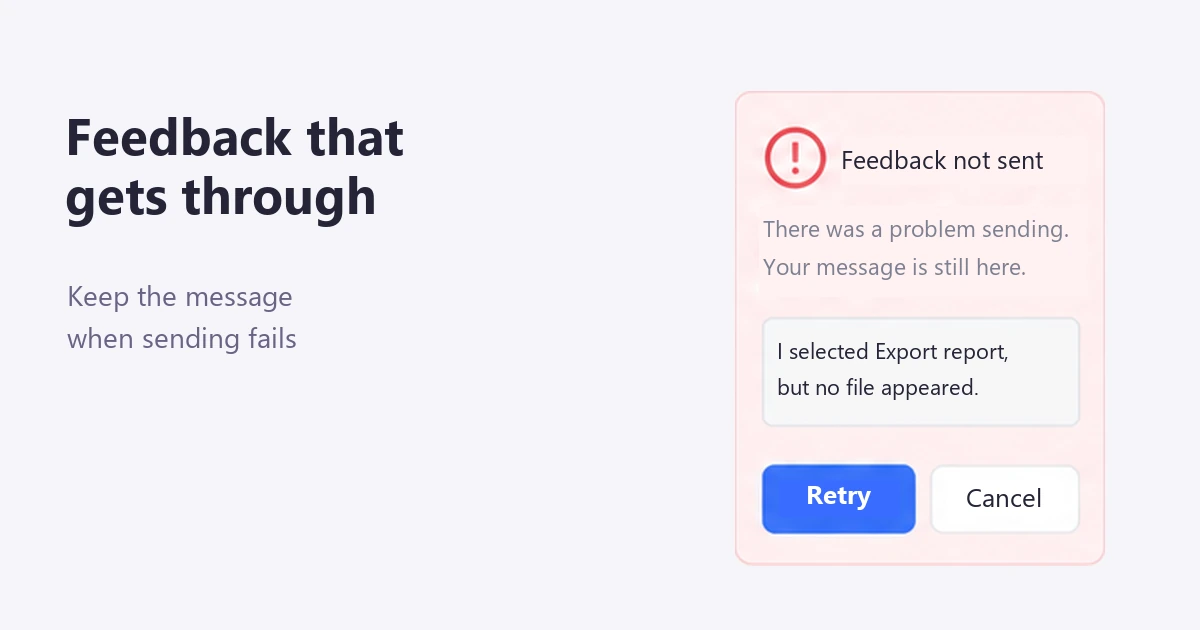
If the request fails, preserve the attempted values and show a retry action. Do not reset the form to the old state without explanation or display a success toast merely because the button was pressed. If another device changed the preferences during editing, show the conflict and the current saved values before overwriting them. The exact conflict policy is a product decision; the interface should not conceal it.
Follow one person through the screen
Consider Maya, who reviews mobile checkout designs and follows a busy component library. Her goal is to keep direct mentions timely but stop separate emails for every library edit.
- Maya opens notification settings. The current state shows direct mentions by in-app and email, and followed-file activity by in-app and email.
- She changes followed-file activity to a weekday email digest at 09:00. The direct-mention row does not change.
- She sets quiet hours from 22:00 to 08:00. The interface explains which selected channels wait and what remains visible in-app.
- She saves. A result summary names both the digest and the direct-mention exception. If push is unavailable, its system-permission status is shown separately.
- The next day, Maya can reopen settings and see the same saved choices. She does not need to infer them from which emails happened to arrive.
This scenario is a design exercise, not a claim that Pixso itself sends these exact alerts. It tests the important promise: a person can change one noisy event without accidentally silencing another.
Test the edges, not just the happy path
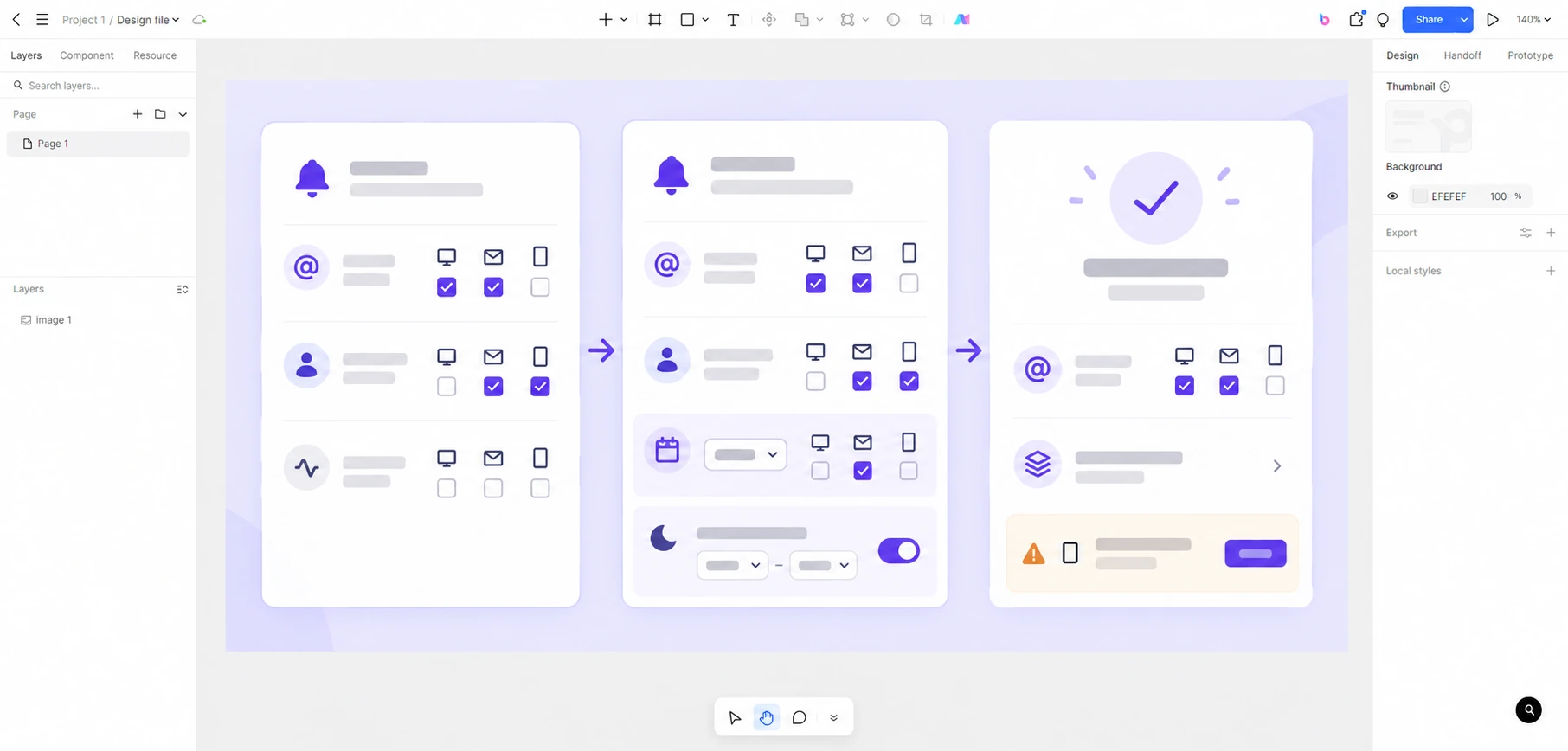
Draw at least four states: current saved values, unsaved edits, save failure and saved confirmation. Add the system-permission mismatch if push is offered. A small-screen layout should keep event names and channel labels together; horizontal scrolling across a matrix of checkboxes is difficult to review. For keyboard users, each control needs an accessible name that combines the event and channel, and the save result needs a perceivable status message.
Put the scenario into Pixso as a set of preference screens and connect Save, retry and return paths. Ask a colleague to “keep direct mentions but stop individual emails about followed files.” After the task, ask what they expect to receive tonight and tomorrow morning. If they cannot answer from the interface, the wording or grouping still needs work. The prototype communicates intended behavior; implementation must separately enforce permissions, time zones and delivery rules.
Notification settings earn trust when every control has a predictable scope. Event, channel and timing should be visible without turning the screen into a wall of toggles, and a saved choice should match what the system can actually deliver.