On this page

Scott
An impressive prototype is only useful if the people who need to review it can actually see it. A product team may have a polished flow ready for a customer interview, a sales demo, or a steering meeting, then discover that the venue has unreliable Wi-Fi. The presenter starts apologizing, the review becomes a slideshow, and the team loses the chance to learn from real reactions. A reliable offline prototype presentation plan removes that risk without turning the demo into a static export.
Pixso supports an offline presentation mode inside its prototype experience, while still keeping the prototype connected to a collaborative design workflow when the connection returns. That combination is valuable for field research, trade shows, regulated environments, and travel. This guide explains how to prepare an offline prototype presentation, what to test before leaving the office, and how to use Pixso comments and shared links to keep the design review productive.
Part 1. Why an offline prototype presentation needs its own plan
An offline prototype is not simply an online prototype with the network cable removed. Online behavior often hides dependencies: remote fonts, embedded media, analytics calls, authentication redirects, or a live API that supplies realistic content. When those dependencies fail, the audience sees blank states or a frozen interaction. The first step is to decide what the presentation must prove and remove everything that does not support that purpose.
Write a short demo contract. It might say: “Show how a new customer creates a workspace, invites a teammate, and recovers from an invalid payment.” That contract tells you which screens, states, and transitions belong in the prototype presentation. It also prevents a common failure mode: building a broad tour with too many branches and no clear learning goal.
| Presentation goal | Prototype scope | Offline risk to check | Evidence to collect |
|---|---|---|---|
| Validate navigation | One primary task with two alternate paths | Back, reload, and deep-link behavior | Time to completion and confusion points |
| Test copy and states | Success, empty, loading, and error screens | Fonts, images, and fallback content | Questions and misread labels |
| Sell a concept | Short visual story with key interactions | Media and device performance | Objections and moments of interest |
Part 2. Build the story before polishing every screen
A strong prototype presentation has a beginning, a task, and a consequence. Introduce the person and situation, let the audience take the important action, and show what changes as a result. The story can be short, but it should feel like a real decision rather than a tour of frames.
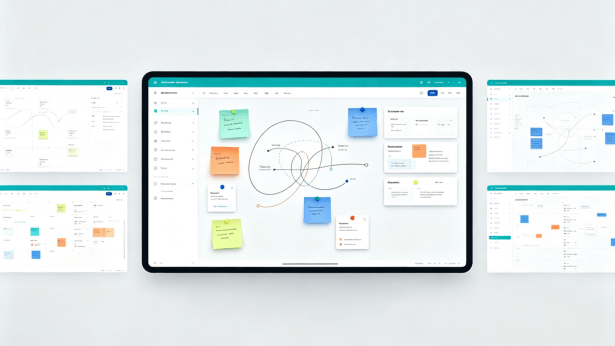
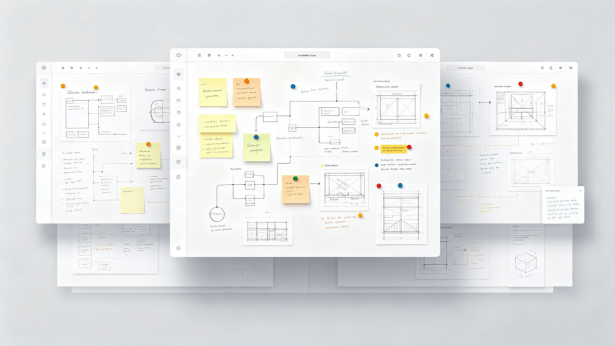
Use Pixso Whiteboard to outline the story with a flowchart or PRD table before you connect interactions. The whiteboard’s structured tables make it easy to list the actor, trigger, user intent, screen, decision, and expected outcome. Invite product and engineering to add edge cases directly. Early comments are cheaper than discovering a missing recovery path when everyone is already in the meeting room.
Once the flow is agreed, mark three kinds of frames: must-show, useful-if-asked, and deliberately out of scope. This keeps the prototype presentation focused and gives the presenter a graceful answer when someone asks about a future branch.
Part 3. Design for a predictable offline path
For an offline prototype presentation, predictability is more important than visual novelty. Avoid interactions that depend on a remote service unless the prototype already contains a local fallback. Replace live search with a prepared result state. Replace a real checkout with a realistic confirmation screen. Use local images that are sized for the target device rather than enormous source files.
Check every transition from the first frame to the final outcome. Tap targets should be large enough for a trackpad, touchscreen, or remote clicker. Provide a visible way back to the main story. If the audience can get lost, add a discreet home or reset action that the presenter can reach without exposing production-only controls.
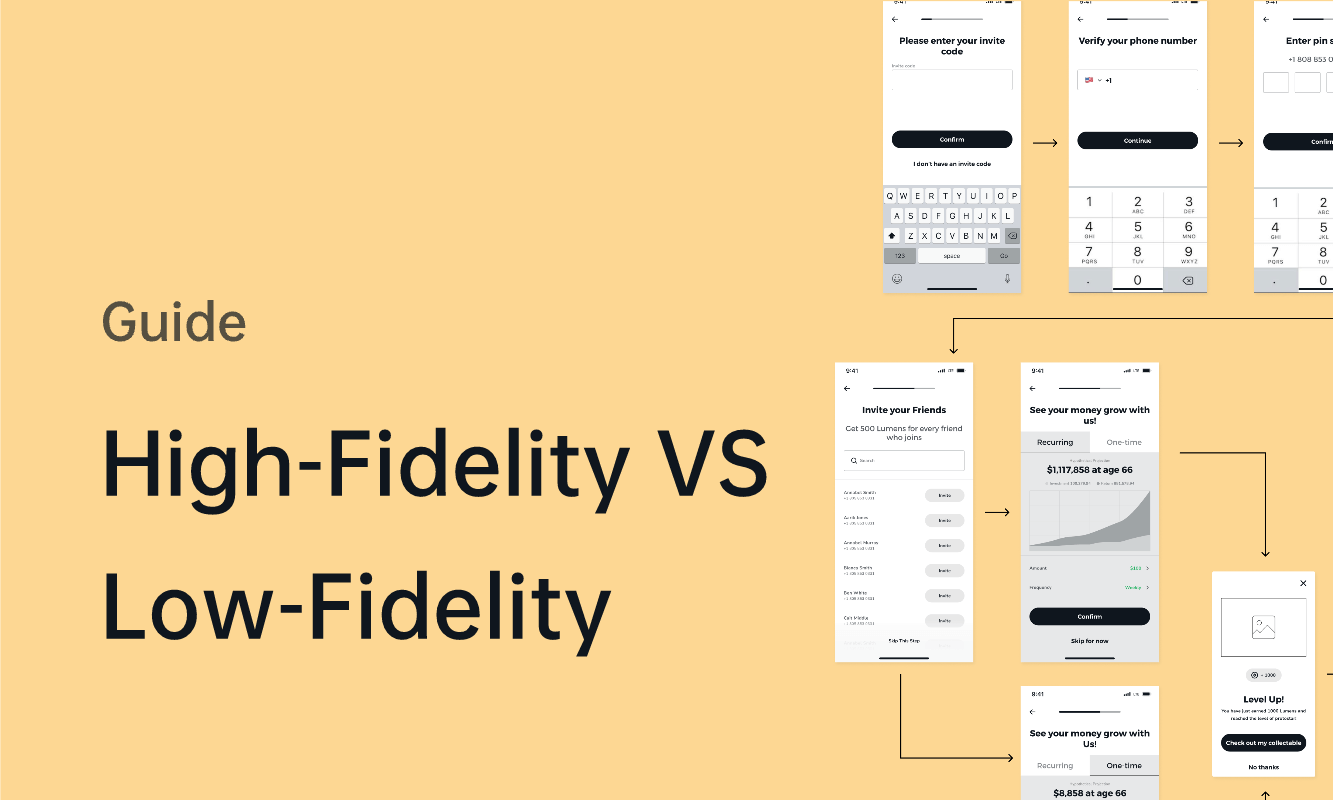
Pixso’s prototype presentation mode is designed for demonstrating interactions, and it supports offline or weak-network presentation. Treat that as a capability to verify, not a reason to skip rehearsal. Run the prototype on the exact laptop, tablet, or display adapter you will use. Battery-saving modes, screen scaling, and browser memory can change the feel of a transition.
Part 4. Prepare the visual and content assets
Images, icons, and type are often the first things to break in a disconnected demo. Keep a small asset checklist: logo variants, empty-state illustrations, avatars, product screenshots, and any video or audio used in the story. Confirm that each asset has a clear purpose. If an image is decorative, compress it; if it communicates product evidence, preserve enough detail to inspect it.
Pixso AI can help with preparation without taking over the design decision. AI image editing can remove a background or improve resolution when a product photo is distracting. AI text can translate, polish, or summarize interface copy so the language is readable before you export or present. Use those tools while the design is still editable, then review the result at the size it will appear on the presentation device.
Do not use AI-generated imagery to imply that a real customer, metric, or product state exists. Label concept imagery clearly in the frame or speaker notes. Honest context builds more trust than a polished but misleading mockup.
Part 5. Rehearse the prototype presentation like a product test
Run three rehearsals with different goals. The first is a happy-path rehearsal: complete the story without pausing. The second is a failure rehearsal: intentionally open an error, go back, rotate the device if relevant, and recover. The third is an audience rehearsal: ask a colleague to interrupt with realistic questions while you keep the flow moving.
Record a small checklist for every rehearsal:
- Does the prototype open at the correct starting frame?
- Are the essential transitions responsive without a network?
- Can the presenter reset the story in less than ten seconds?
- Do long labels, error messages, and empty states remain legible?
- Can the audience understand what is real, proposed, or simulated?
A rehearsal is also a design review. If a presenter repeatedly hesitates, the interaction may be too complex or the frame may lack a clear affordance. Fix the source design instead of asking the presenter to memorize a workaround.
Part 6. Use comments to turn the demo into a design review
A prototype presentation should produce decisions, not just compliments. Before the meeting, create a short review agenda with the questions the team needs answered. During the walkthrough, record comments next to the frame where the question occurred. “The flow is confusing” is not actionable; “When the invite fails, should the user keep the email address?” points to a specific state.
Pixso supports multiplayer collaboration and comments while a prototype is being previewed. Reviewers can leave an optimization comment in context instead of maintaining a separate document full of timestamps. After the session, group comments by severity: blocks the task, creates uncertainty, improves clarity, or is a later idea. Assign an owner and a next step while the decision is still fresh.
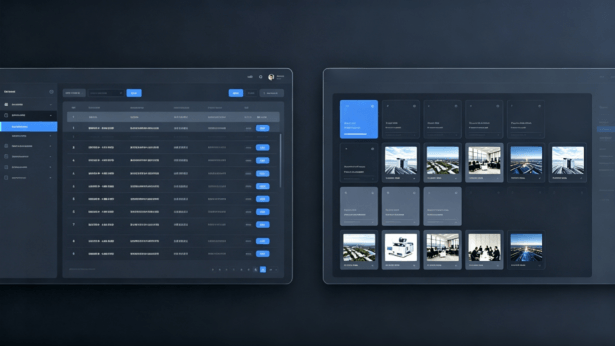
For remote or hybrid sessions, share a link that gives each reviewer the right permission: preview for customers, comment for stakeholders, and edit only for people who need to change the design. Keep the prototype link stable so comments do not scatter across exported files.
Part 7. Make the handoff clear after the meeting
The most useful outcome of a prototype presentation is a short list of changes that can be implemented and tested. Update the prototype first, then document the accepted behavior in the relevant component or flow. Include the states that were not demonstrated live, such as slow loading, validation failure, and a first-time user with no data.
Pixso’s share links support preview, editing, comments, and annotations, which makes it easier to give product and engineering one source of truth. When a flow is ready for implementation, the team can also generate React, Vue, HTML, ArkUI, or Flutter code as a starting point. Engineers should refine the generated code, connect it to real data, and verify responsive behavior; the code output is a bridge, not an automatic production release.
Part 8. A field checklist for the day of the demo
Pack the prototype presentation with the same care you would give a research kit. Download or cache the working file according to your team’s process. Open it once while connected, then switch to airplane mode and repeat the full story. Carry a local copy of the meeting agenda, the scenario text, and a contact method for reporting a blocking issue. Bring a second display adapter if the venue is unfamiliar.
At the start of the meeting, explain the scope in one sentence and state which parts are simulated. If the audience knows what to watch for, their feedback becomes more specific. Keep a visible timer for longer research sessions, but do not rush the moment where a participant explains their expectation.
Part 9. Turn offline learning into the next iteration
When the connection returns, sync comments and reconcile any notes captured on paper. Do not immediately implement every suggestion. Compare feedback against the original demo contract and the product risk you were testing. A request that sounds small may affect navigation, accessibility, or data architecture.
Use a change log with three columns: observation, decision, and follow-up test. This protects the team from “feedback fog,” where a polished presentation creates many opinions but no clear learning. Keep the prototype version that was tested so you can explain which evidence led to a change.
FAQ
Q1. Is an offline prototype the same as a video?
No. A video shows a fixed sequence, while an offline prototype presentation lets the audience explore selected interactions and states. Use a video as a backup, not as a replacement when you need behavioral feedback.
Q2. Can reviewers comment during an offline presentation?
They can leave comments in the collaborative review workflow when connected. If the venue has no network, capture the comment with its frame reference, then add it to the Pixso prototype or design file when the connection returns.
Q3. How much of a product should an offline prototype include?
Include the smallest slice that proves the decision you need to make. A clear task with realistic edge cases is more valuable than a broad tour with shallow interactions.
Conclusion
A reliable offline prototype presentation is a design of its own. Define the story, remove fragile dependencies, rehearse recovery, and capture feedback in context. Pixso helps teams connect offline prototype demos with whiteboard planning, collaborative comments, shareable review links, and a practical handoff to code, so a weak network does not have to become a weak research session.