Scott
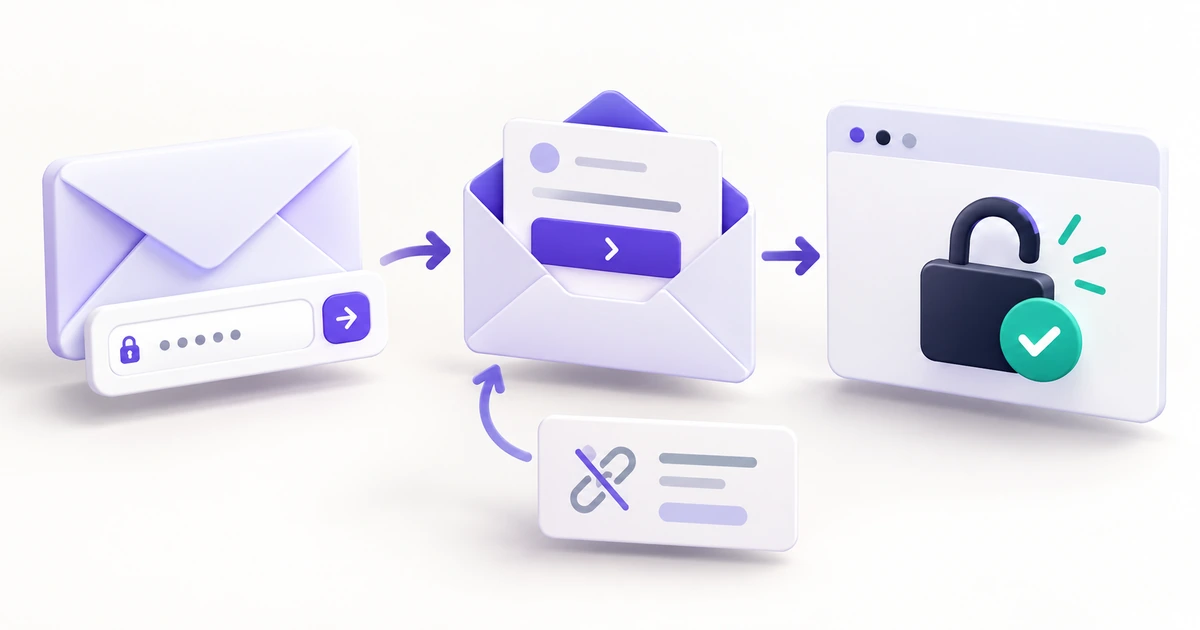
A password reset flow should help someone regain access without making them guess whether a request was sent, which link still works, or what to do after choosing a new password. Design it as a short journey across two places—the product and the inbox—with a clear next action at every return.
Consider a project manager who opens a workspace to review a delivery schedule but cannot remember the password. They do not want to manage credentials; they want to get back to that schedule. The example below follows that task from the first recovery request to ordinary sign-in, including an expired link and a second attempt.
Plan the recovery route alongside the rest of the login page and its access states. A clear reset page cannot compensate for an invisible “Forgot password?” link or a sign-in screen that loses the destination the person was trying to reach.
Make the recovery route easy to recognize
Place “Forgot password?” beside the password field, where someone is likely to look when sign-in fails. Keep it available before an error occurs; requiring an unsuccessful attempt just to reveal help adds an unnecessary step. Use a text link that looks different from the primary “Sign in” action without making it faint or difficult to target.
The recovery page needs a specific heading, a persistent email label and one primary action. For the project workspace, the first screen can be this simple:
Reset your password
Enter the email address you use for this workspace.
Email address
Send reset link
Back to sign in
If the person has already entered an email on the sign-in page, carrying it into this field can save retyping. Keep it editable: a mistaken address may be the reason access failed. For an empty or malformed value, explain the input problem beside the field. Do not use “Account not found” as an email-format error.
Some teams use a company identity provider rather than a workspace password. The sign-in entry should distinguish that route. Where the product supports it, a brief “Use company sign-in” link is more useful than inviting someone to reset a password this service does not manage. Do not add alternative routes that lead to another unsupported dead end.
Confirm the request without claiming too much
After submission, the page must acknowledge the action. However, “We sent a link to your account” may claim more than the service can safely reveal. The OWASP Forgot Password guidance recommends consistent responses for existing and nonexistent accounts, expiring single-use reset tokens, and ordinary login after a reset rather than automatic sign-in. These constraints shape the visible journey; they do not require vague instructions.
Use the same confirmation wording for both account cases:
Check your inbox
If an account uses this email address, you’ll receive a password reset link.
Keep this page open while you check your inbox.
Use a different email
Back to sign in
That response tells the person what to do next without confirming that a particular account exists. The recovery page can still show the address they just entered so they can spot a typo; it should not imply that the address has been matched to an account. Treat the display of that address according to the product’s privacy context.
“Email sent” and “Password changed” are different outcomes. Do not show a completion checkmark with “You’re all set” at the request stage. The person has not yet opened the email or chosen a password, and the original task is still blocked.
Make retry guidance concrete. “Check your spam folder” can be useful, but it should not be the only path. Keep a way to correct the address, request another link when permitted, or return to the appropriate sign-in method. If resending has a waiting period, display the real remaining wait and the reason; do not invent a countdown in the design simply because other products use one.
Make the email and the destination feel connected
The person now leaves the product for an inbox that may contain old recovery messages. Design the email as part of the flow, not as an engineering afterthought. Its subject, product identity and action should make the relevant message recognizable without requiring someone to inspect a long link.
For the example workspace, a subject such as “Reset your workspace password” and an action labeled “Choose a new password” describe the task. The message should identify the service and explain what to do if the recipient did not request the reset. Keep promotional offers out of this message; they compete with an access task that already interrupts work.
If an expiry period is shown, it must match the actual policy. “This link expires soon” is less useful than an accurate duration or time, but a precise-looking value is worse when it is wrong. The browser destination should use the same service name and visual identity as the email so the transition does not look like an unrelated sign-in request.
Consider a person who requests a second message because the first is delayed. Specify which links remain usable under the real reset policy. The confirmation page and email instructions must agree. Do not casually write “Use the latest email” if requesting another link does not actually invalidate the earlier one.
Give expired and already-used links a way forward
A recovery link may be opened much later or opened again after the password has changed. These are predictable parts of the journey. Sending every unsuccessful link to a generic error page leaves the person unsure whether they lost access permanently.
| What the service confirms | Useful message | Next action |
|---|---|---|
| The link is valid. | “Choose a new password.” | Continue to the password fields. |
| The link has expired. | “This reset link has expired. Request a new link to continue.” | Request another reset link. |
| The link was already used. | “This reset link has already been used.” | Sign in, with another reset available if needed. |
| The link cannot be verified. | “We couldn’t verify this reset link.” | Retry when appropriate or request a new link. |
Only distinguish expiry from prior use when the service can reliably support that distinction. If it returns one general invalid-link outcome, use a truthful combined message such as “This reset link is no longer available.” The essential improvement is an understandable next step, not an elaborate explanation of a condition the application does not know.
Keep the primary action specific. “Request a new link” is clearer than “Try again” when pressing the button starts another email request rather than reopening the same link. For an already-used link, “Sign in” is often the useful route: the password may have been changed successfully in another tab.
Help people choose a password once
The new-password screen should explain the actual password requirements before submission. Place them beside the field and keep them visible while the person types. Requirements should describe the product’s real policy, not a designer’s preferred mixture of numbers, capitals and symbols.
Use “New password” as the label. If a confirmation field is required, label it “Confirm new password” and explain a mismatch without clearing both fields. A show/hide control can help someone inspect an entry; give it a clear accessible name and keep its state understandable. Support password-manager entry in the implementation rather than designing a flow that requires manual transcription.
The primary action should say “Save new password,” not “Continue” if that action performs the change. While the request is pending, retain the form’s dimensions, show a clear saving state and prevent accidental repeated submission. If the response is a confirmed rejection, identify the correctable issue rather than presenting the same generic error for every failure.
An uncertain result deserves different wording. A connection interruption after submission does not establish that the password stayed unchanged. Avoid “Nothing was saved—try again” unless that is known. A message such as “We couldn’t confirm the password change” can offer ordinary sign-in and another recovery attempt, according to the service’s available status and recovery behavior.
Do not add an automatic login solely to make the sequence feel shorter. A visible confirmation followed by the usual sign-in route makes the boundary clear: the password changed, and account access is the next step.
End with sign-in and a recognizable return
Use a concise completion screen:
Your password has been changed
Sign in with your new password to return to your workspace.
Sign in
Account-session behavior must be consistent with this message. If the recovery flow offers a choice about other signed-in sessions, label the scope clearly. “Sign out other sessions” means something different from “Sign out everywhere.” If the service always ends those sessions, state the actual result rather than displaying a switch that cannot change it.
After ordinary sign-in, return the project manager to the delivery schedule when that destination is still available and permitted. If it is no longer accessible, explain the destination problem separately. Successful password recovery should not be blamed for a missing project or changed permission.
Include the case where the email opens on a different device. The reset may finish there while the original browser still shows “Check your inbox.” That page should retain a usable “Back to sign in” route; it must not depend on the person watching a countdown or waiting for a tab to detect the other device.
Review the whole route in Pixso
Create the recovery screens together in a Pixso design file: request, inbox confirmation, valid-link password form, expired link, already-used link and password-changed confirmation. Add the email as another frame between the request and link destination. Use the same workspace name and action wording throughout so the review follows one coherent service.
Build the email field, password field and action as reusable components where appropriate. Use Auto Layout to compare a short confirmation with a longer translated message, keeping the action below the explanation instead of fixing it to a position that overlaps text. Include a narrow screen with the on-screen keyboard area considered in the layout.
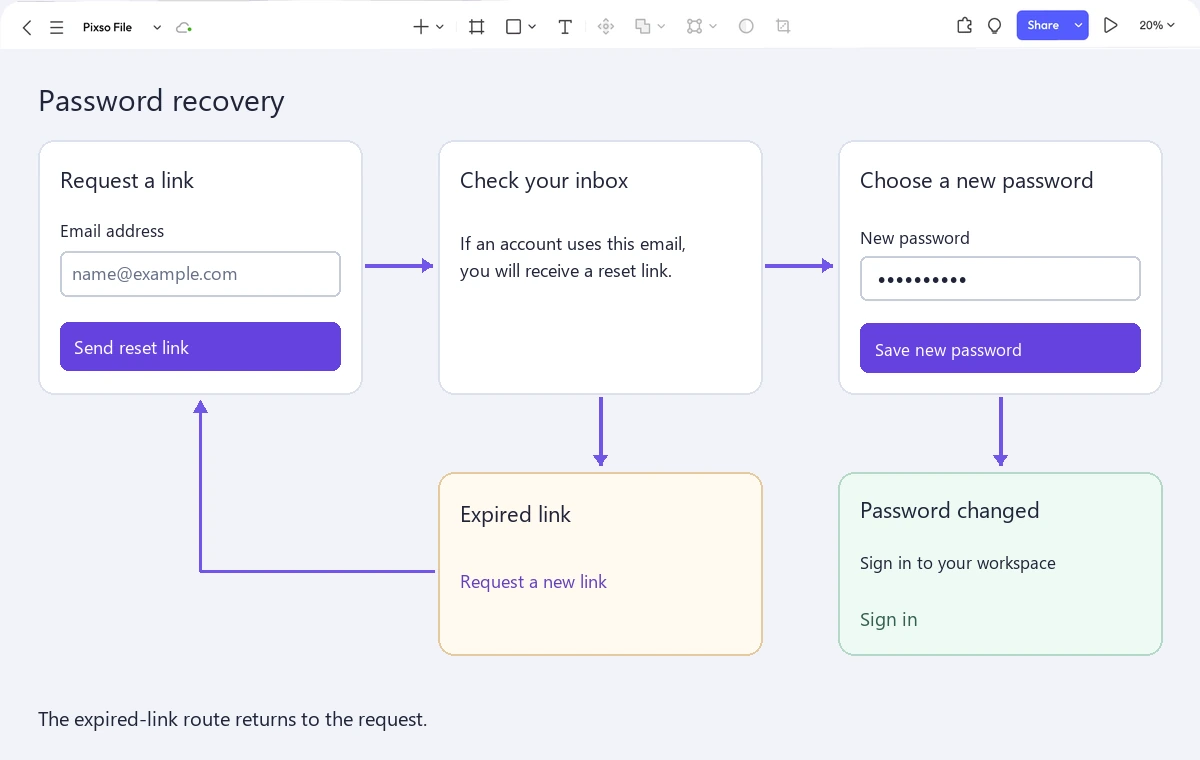
Connect the intended routes in a prototype. For the first review, ask a teammate to recover access and return to the schedule. For the second, give them an expired link. For the third, ask what they would do after opening the link again following a successful change. Listen for uncertainty about the next action, not just comments about the visual style.
The useful handoff explains which service outcome produces each screen, what action each control performs, and which destination follows sign-in. Keep keyboard focus and announcements beside the relevant state. The prototype communicates those requirements; the implemented service must enforce the recovery rules.
A good password reset flow does not need to celebrate every step. It needs to acknowledge the request accurately, explain an unusable link, confirm a completed change and give the person a reliable way back to work.