Scott
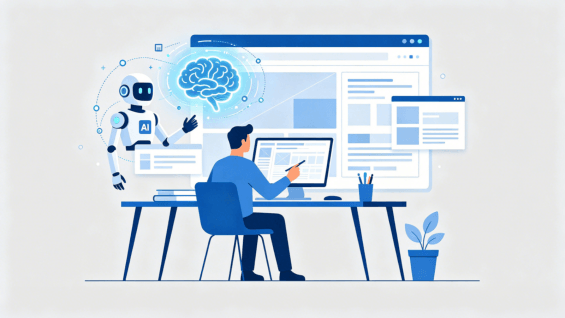
As artificial intelligence continues to reshape the product development landscape, design teams are looking for smarter ways to streamline their workflows without losing creative control. Enter Pixso AI, an all-in-one design assistant integrated directly into the Pixso editor.
Pixso AI brings design, image, layout, and text features into the collaborative canvas. Whether you are looking to conquer "blank canvas" paralysis, auto-generate structured UI layouts from natural language, or instantly spin up professional design systems, Pixso AI serves as your advanced starting point. Below, we’ll guide you through how to set up effective prompts and explore how these intelligent features can help you focus on the creative and strategic core of your design work.
Introduction to Pixso AI
Pixso AI is an all-in-one AI design assistant integrated directly into the Pixso editor. The features covered below support design generation, image editing, layout, layer naming, design systems, checklists, and text.
- Open any design file, and you will see the newly added "AI" button at the top of the left toolbar.
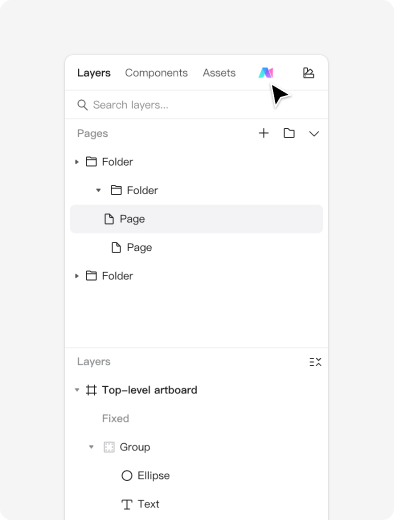
- Click the "AI" button to reveal the AI chat dialog.
- Select a desired feature to start the conversation.
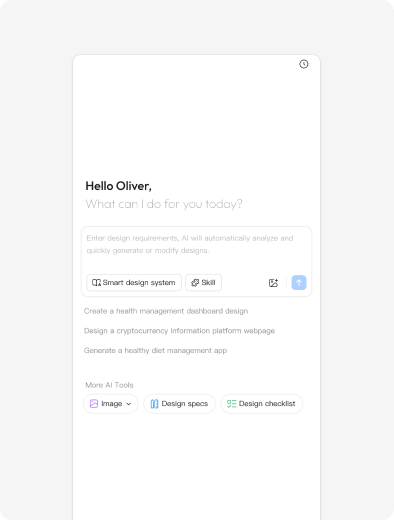
Usage Guidelines
Thank you for using Pixso AI! To protect your rights and ensure the best experience, please read the following guidelines carefully before starting:
Before starting, review the current AI features and usage conditions in Pixso and check which options are available in your workspace. Treat generated output as a draft to verify and refine.
- 1. AI-generated content is subject to uncertainty and may contain inaccuracies or biases. Please verify the content independently and use it appropriately.
- 2. Do not use AI to generate content that is infringing, illegal, harmful, or violates others' privacy. The user bears sole responsibility for the final use of the generated content.
1. What is a Prompt?
A prompt is the instruction you provide to the AI. It can range from a single sentence or a detailed description to a specific set of rules.
The AI cannot read your mind. It relies entirely on the details you provide to understand and generate what you need.
Therefore, learning how to craft effective prompts is key to ensuring the AI delivers results that align with your expectations.
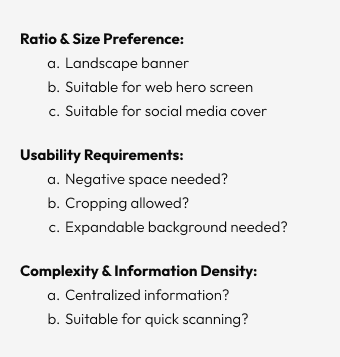
To keep it simple, we can break a prompt down into three parts:
- What do you want to achieve ( The Goal)
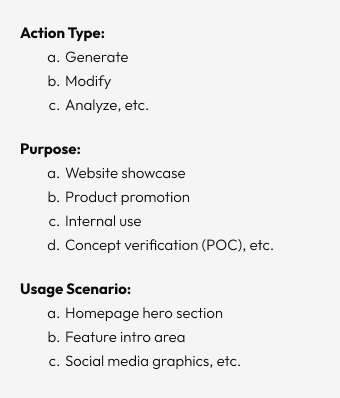
- How should the AI approach it (Context & Constraints)
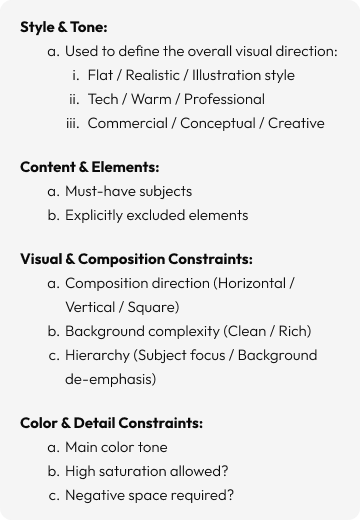
- How should the result be presented (Output Format). The above is just an example. Feel free to expand or adapt it to fit your specific needs.
2. AI Design
What is it?
AI Design is the ability to transform your natural language descriptions directly into structured, editable UI prototypes (such as websites or mobile app interfaces) using artificial intelligence.
Unlike generating a single flat image, it creates a fully layered "design file" complete with components, layers, and basic layouts. You can edit, refine, and collaborate on this file immediately.
How does it differ from "Text-to-Image"?
AI Text-to-Image: Focuses on generating static visuals (like banners, illustrations, or icons) where the priority is artistic style and aesthetics.
AI Design: Focuses on creating functional user interfaces containing UI elements like buttons, lists, and cards. The priority is layout, structure, and interaction logic.
How does it work?
You describe a scenario, and the AI "assembles" a preliminary draft based on its training on vast design systems and UI patterns, ensuring adherence to standard design principles.
Example: If you enter "Generate a 'Now Playing' screen for a music app," the AI understands that this typically requires album art, a progress bar, playback controls, and song details. It then arranges these elements with a logical visual hierarchy.
How It Transforms Your Workflow
Overcome "Blank Canvas" Paralysis: Get a high-quality head start on any new idea. Shift your creative process from "starting from scratch" to "refining and editing."
Accelerate Alignment & Communication: Instantly generate visual solutions during requirement discussions to validate ideas and eliminate misunderstanding.
Spark Layout Inspiration: Hit a creative block? Quickly generate multiple layout variations to explore new possibilities and open up your thinking.
Empower Non-Designers: Enable Product Managers and Marketers to visualize ideas rapidly, facilitating efficient collaboration with designers based on concrete visuals rather than abstract descriptions.
Its Role: The "Advanced Starting Point"
Where AI Excels: Speed, structural generation, and adherence to design patterns. It delivers logical, usable first drafts in seconds.
Where Designers are Irreplaceable: Deep UX thinking, brand alignment, detailed refinement, and emotional connection. Think of AI as providing the "bricks and mortar"—you are the Architect who gives the structure its soul.
"AI Design" acts as a translator and assembly assistant, converting "product requirements" into "interface design language." It handles the repetitive, rule-based tasks, freeing you to focus on the creative and strategic core of your work.
Getting Started
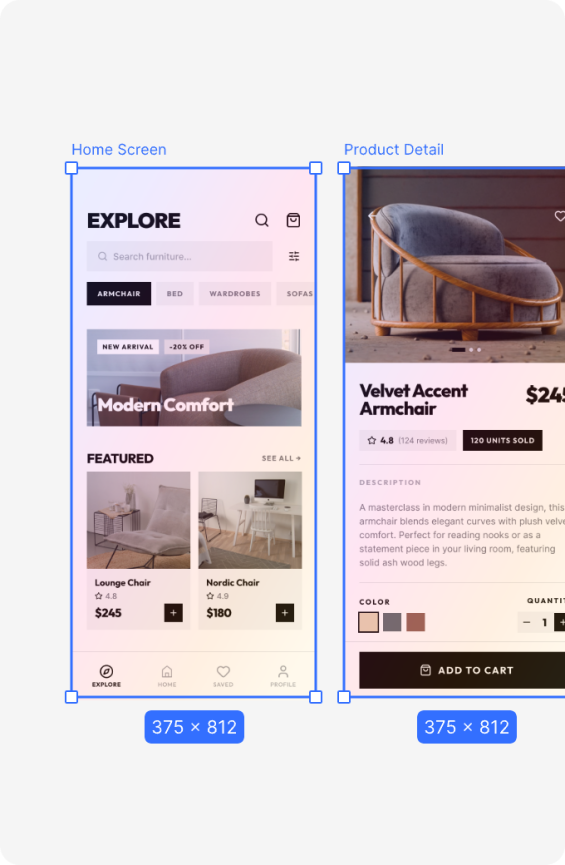
Users can select "AI Design" from the right AI panel to complete page generation and multiple rounds of iterations. The generated results will be displayed directly within Pixso and can be manually edited in detail.
- Select the "AI" feature.
- In the left panel, submit a request to the AI to generate a design draft.
Core 4 Elements: Type, Style, Key Content, and Mood. - Generate, Edit, and Refine
You can command the AI to modify specific sections (such as the navigation bar) and regenerate them. - Import the AI output results into Pixso for further manual editing.
- Click the AI edit input field.
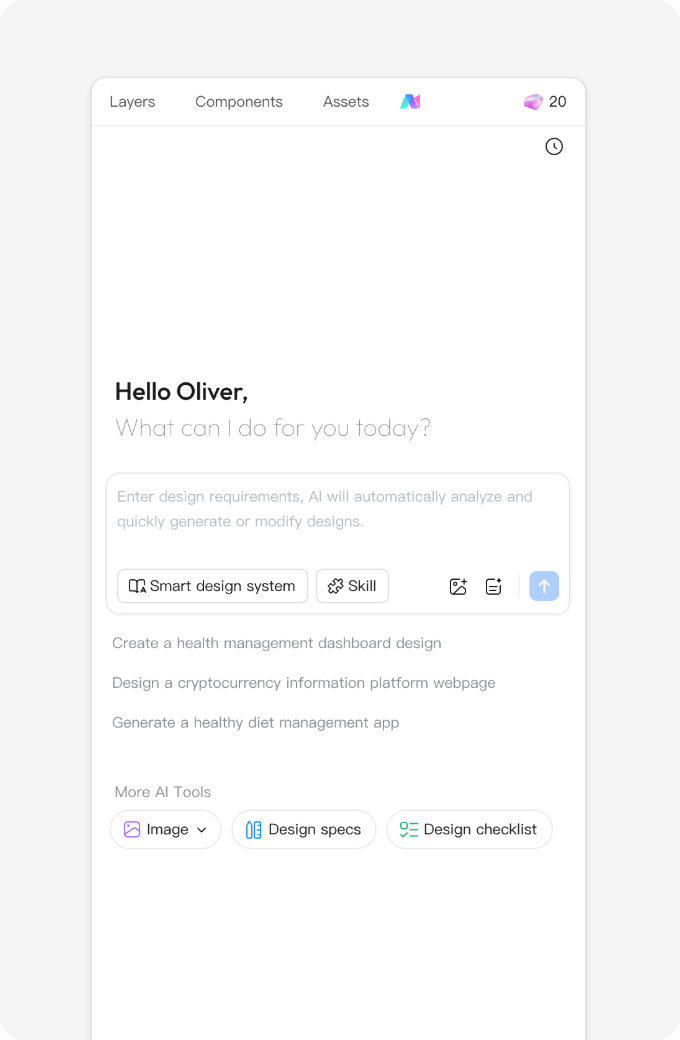
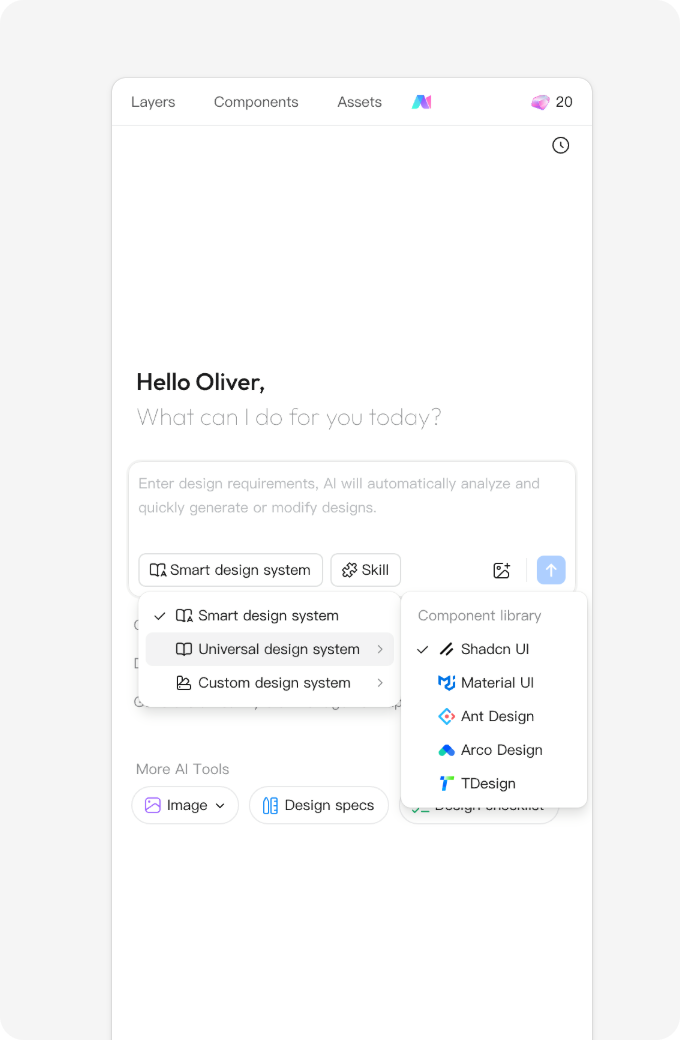
- Enter your prompt and select a design system.
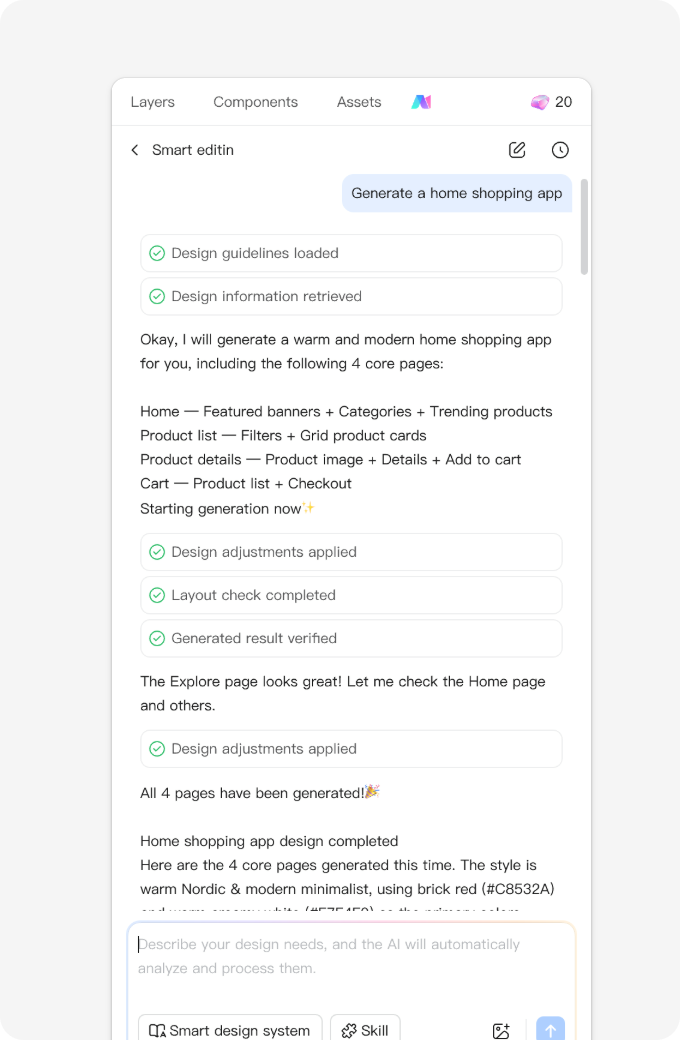
- During generation, the AI processes your request in depth, followed by automatic self-checking and refinement.
- Preview results on the canvas in real time, with full editing capabilities.
3. AI Text-to-Image
"AI Text-to-Image" is a breakthrough technology that automatically transforms text descriptions into visual images. Think of it as an intelligent assistant capable of "understanding text and drawing visuals." You articulate the idea, and it translates your abstract concepts into concrete reality.
How does it work?
Simply put, by analyzing vast datasets of images and their corresponding text descriptions, the AI understands the complex relationships between words and visual elements (such as objects, styles, composition, and color). When you input a prompt, the AI applies this "knowledge" to generate a brand-new image that matches your description.
"AI Text-to-Image" acts as a powerful converter, turning "language" into "visual prototypes." It lowers the barrier to visual exploration and liberates designers from repetitive drafting, allowing you to focus on the core, high-value aspects of creativity.
How to Use
Transform your text descriptions directly into design assets. Whether you need UI inspiration, marketing materials, or icon concepts, simply input your ideas to generate a variety of visual solutions. It is your intelligent partner for creative exploration and efficient drafting.
- Select the AI feature in the Pixso editor's right panel and click the Text-to-Image button.
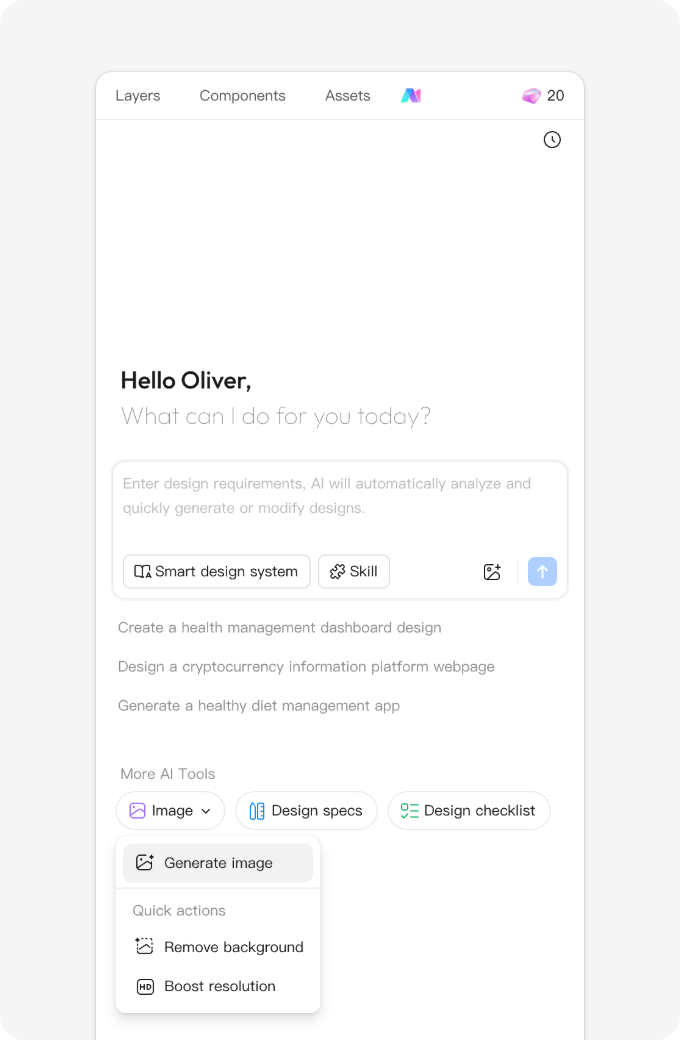
- Describe the image you want to generate in the input box using concise language.
Tip: You can use the Prompt Library on the left to assist with generation.
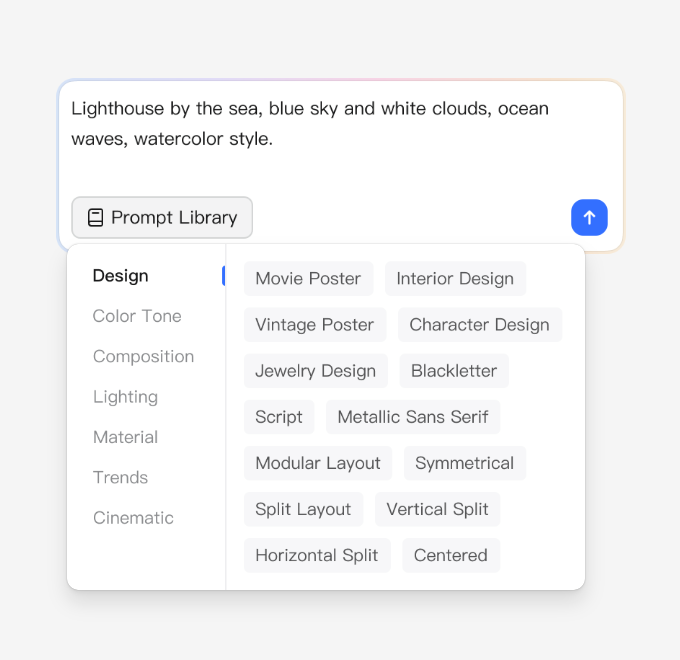
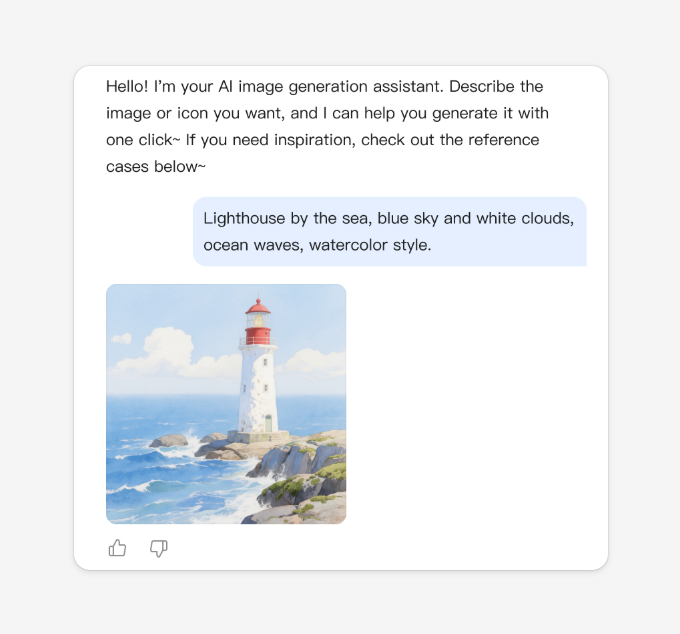
- Click the "Generate" button, and the AI will return your images in a few seconds.
4. AI Image Editing
Select an image on the canvas to apply processes like "Remove Background" or "Upscale Image." The AI will analyze the image, automatically complete your request, and apply the changes directly to your design with real-time preview support.
Usage:
- Select the object, then open the AI panel > "Remove Background"
- Select the object, right-click "Image Editing" > "Remove Background"
Typical use cases:
- Remove Background: Quickly isolate elements by removing the background in an instant.
- Upscale Image: Convert low-resolution images into high-resolution images.
- After selecting an image, you can choose the desired function within "Image Editing" in the right-side AI panel.
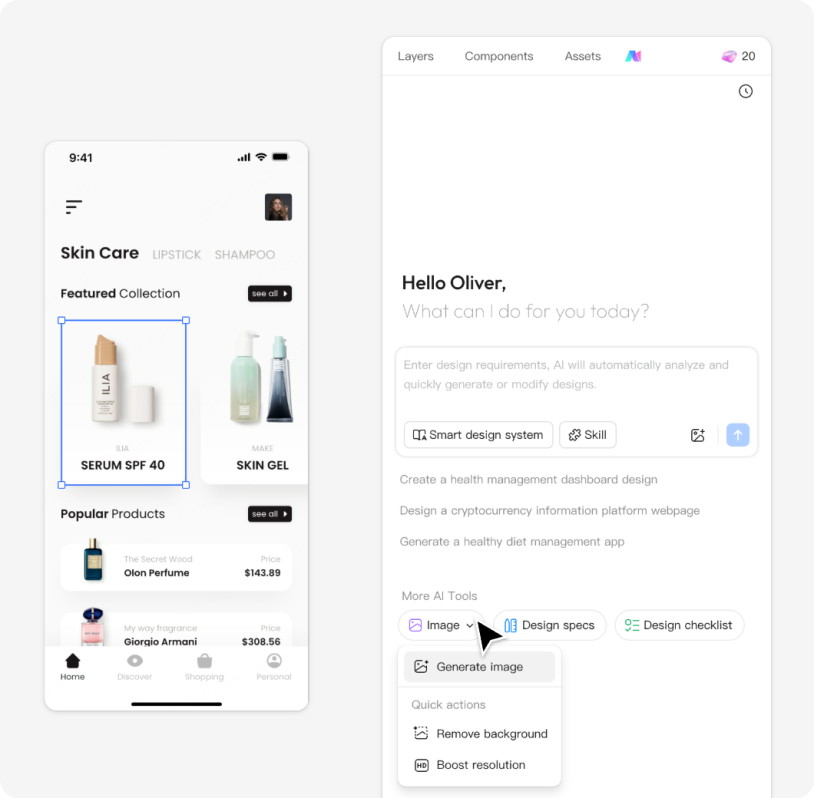
- Select the object, then right-click and choose "Image Editing."
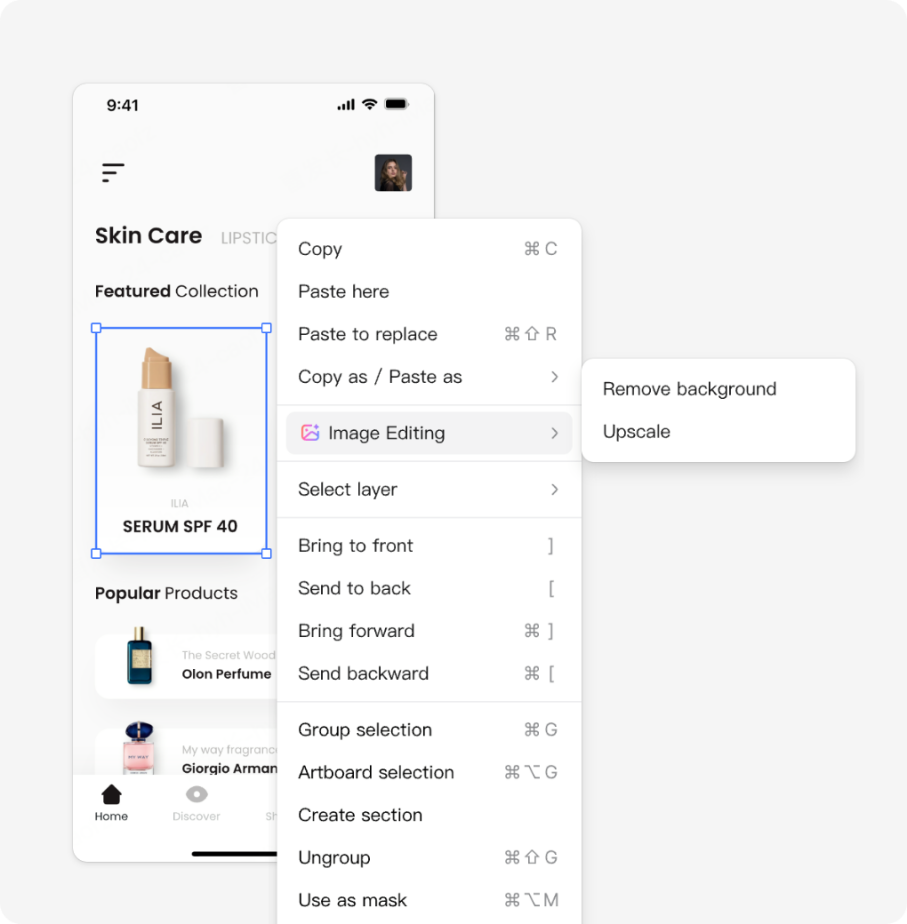
- Select an object, then click "Remove background" on the bottom toolbar.
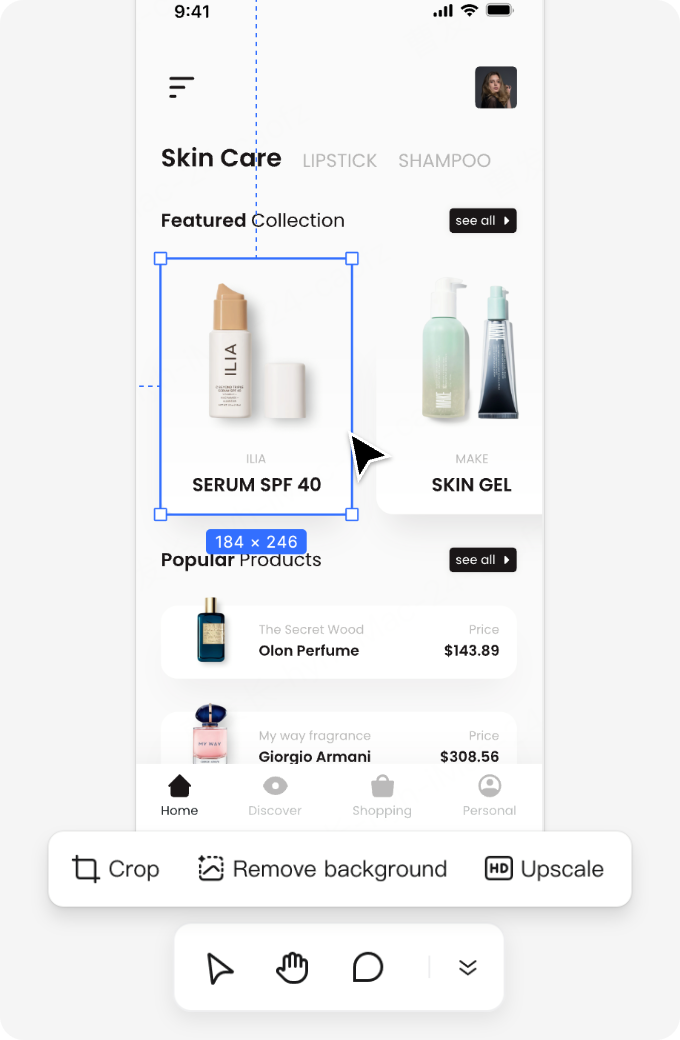
5. AI Smart Layout
When the layout of your design content is "finalized," you typically need to apply Auto Layout. Smart Layout offers the capability to intelligently add Auto Layout, helping you generate it quickly.
Access (After selecting layers):
- Right-click "Smart Layout"
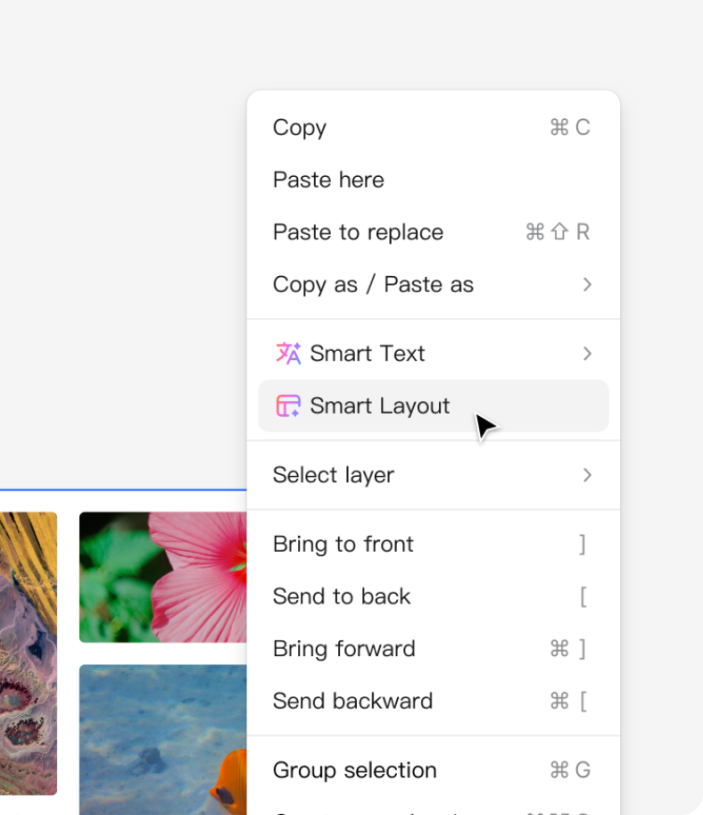
- Right panel "Smart Layout"
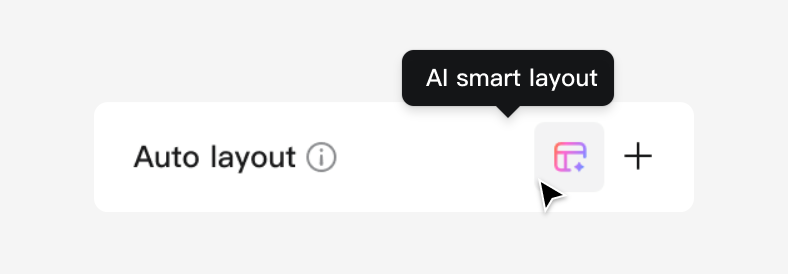
Scope:
Once Smart Layout is applied to the selection, it will structure all layers within that scope. Layers that already have Auto Layout applied will not be affected.
⚠ Smart Layout cannot be used on a single selected layer or a selected Section.
6. AI Smart Rename
Automatically renames ambiguous layer names to meaningful ones based on context, making it easier to locate specific layers. Custom layer names previously set by the user will not be overwritten.
After selecting a layer, you can access this feature in three ways:
- Right-click and select "Smart rename layer".
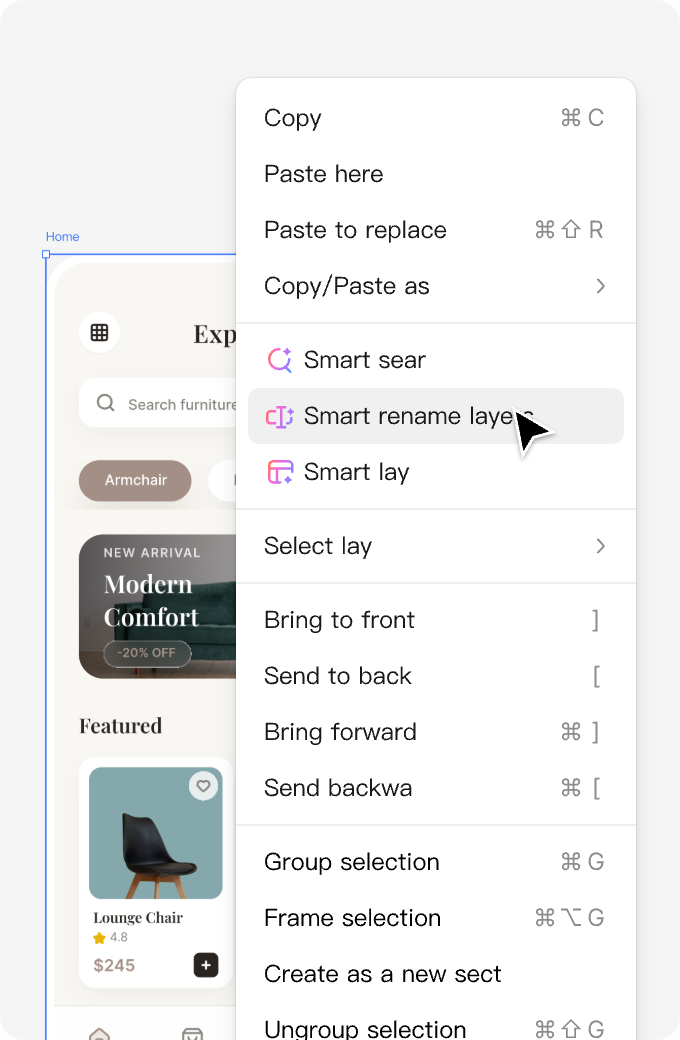
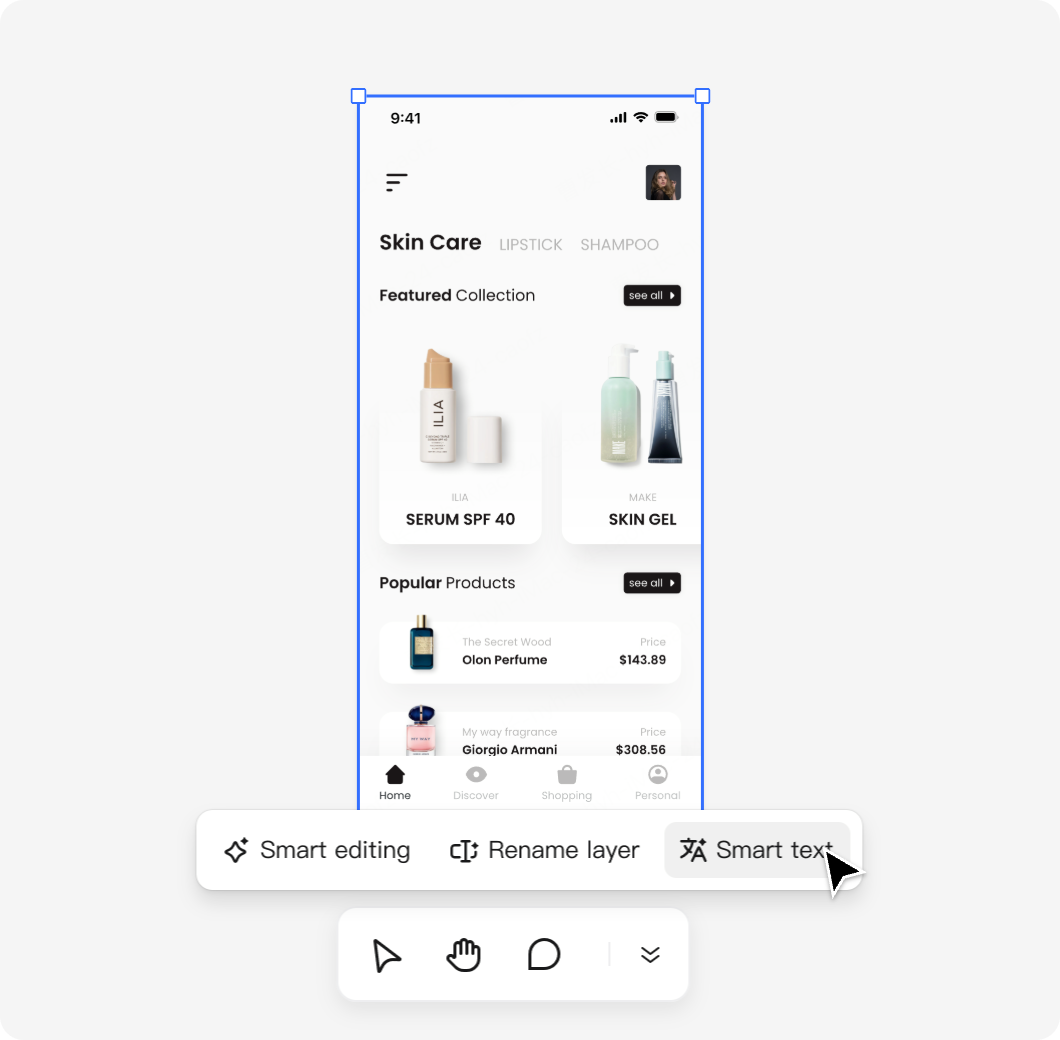
- Click "Rename layer" on the bottom toolbar.
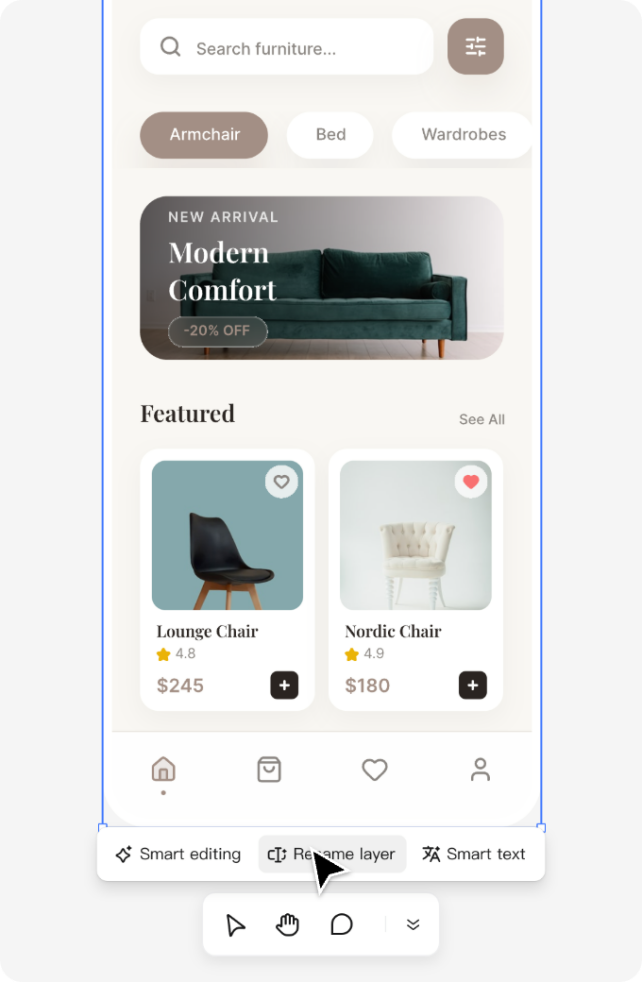
- Open the AI panel, click the "Smart editing" input field, and enter your renaming prompt.
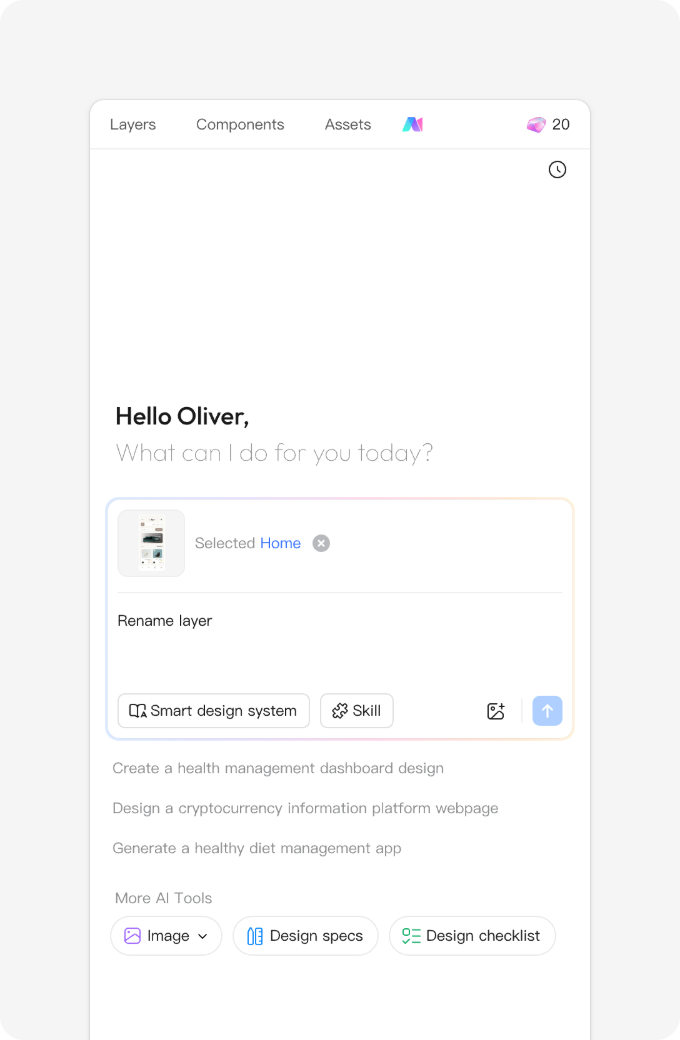
Exceptions:
⚠ Single shapes, vectors, text layers, instances and their nested layers, as well as hidden or locked layers, will not be renamed.
7. AI Design System
Design System: Simply select a theme color, and the AI will generate a complete, ready-to-use, and professional design system for you in seconds.
- In the editor, click the AI button located at the top of the right toolbar. In the pop-up menu, select Design System to start the generation process.
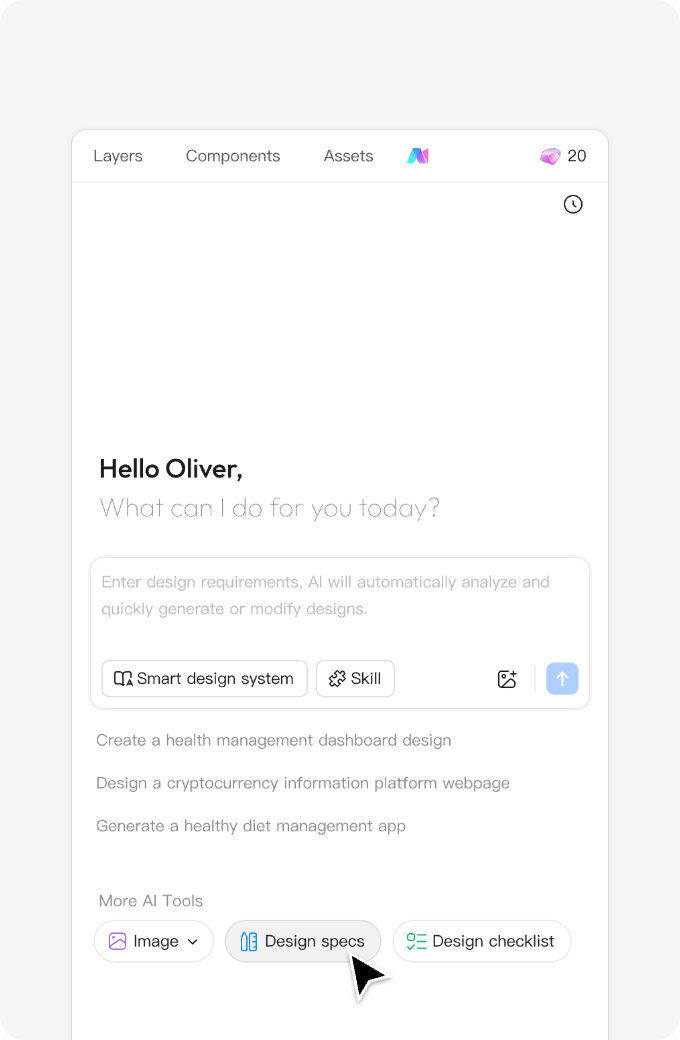
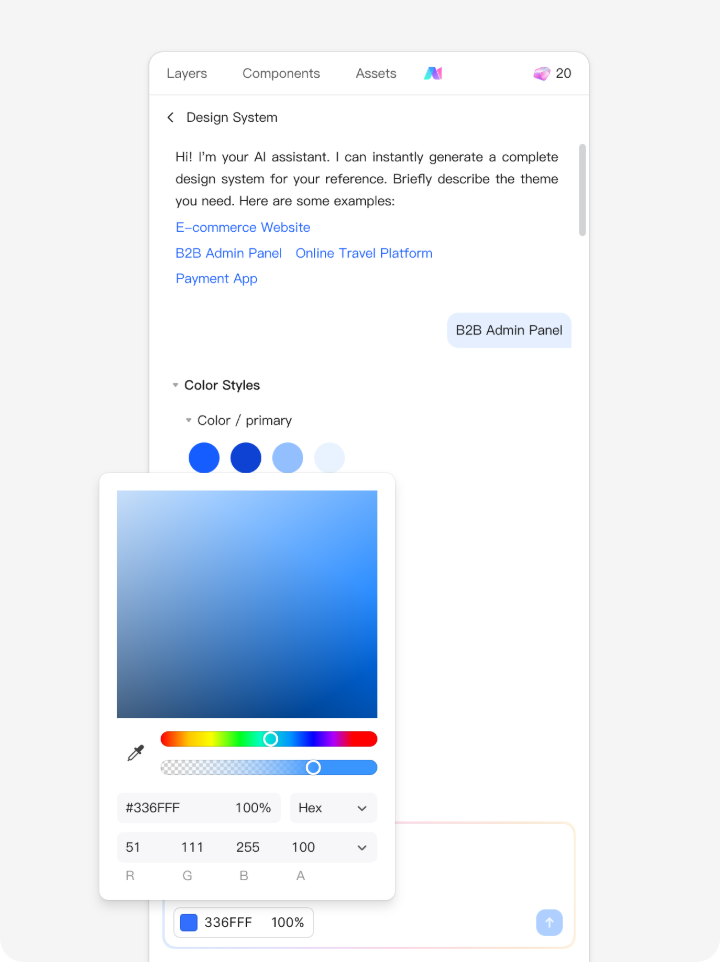
- In the AI chat window, briefly describe the style or purpose of your system and select a base color. Using color theory, the AI will automatically generate a complete color palette and a set of matching styles based on it.
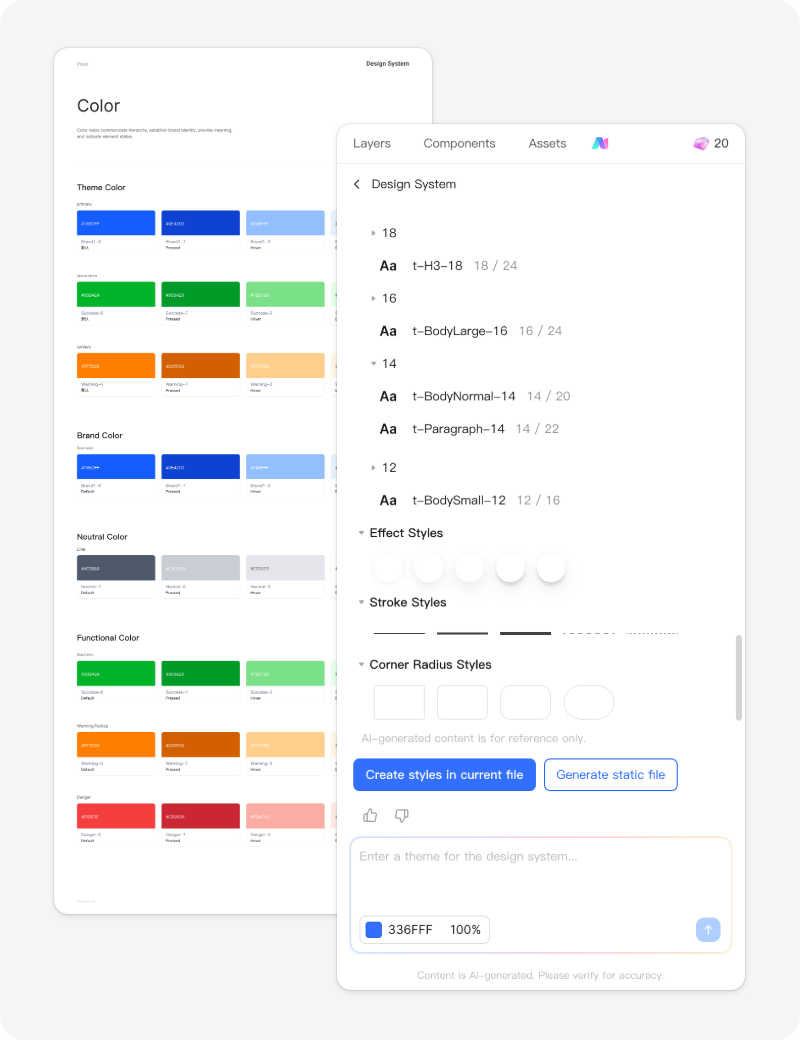
- The AI will generate a complete design system in real time, including colors, typography, effects, spacing, and more. You can choose to: Import to Current File or Generate Static Spec Doc.
8. AI Design Checklist
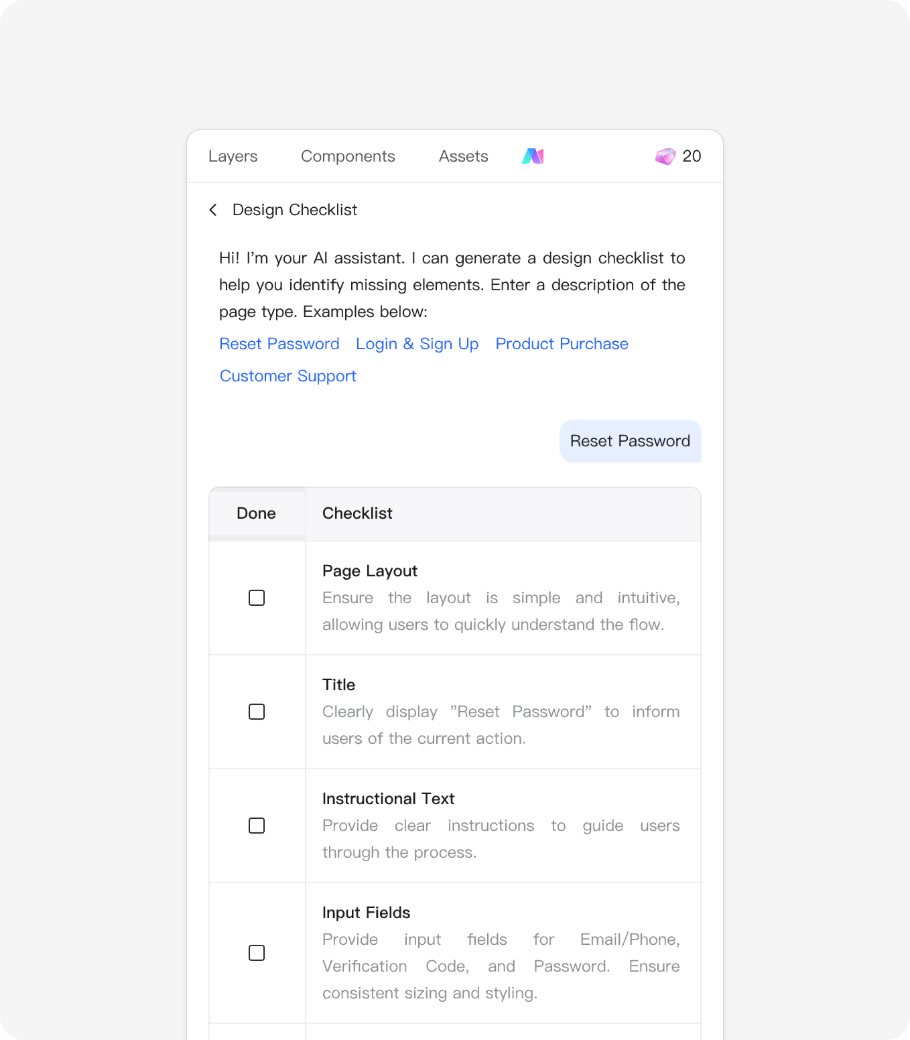
The AI Design Checklist generates a tailored design specification list based on your requirements. You can use this checklist to verify your design draft item by item, covering elements such as colors, text, and functionality.
- In the Pixso editor interface, locate and click the AI button at the top of the right sidebar. From the pop-up menu, select "Design Checklist" to launch the feature.
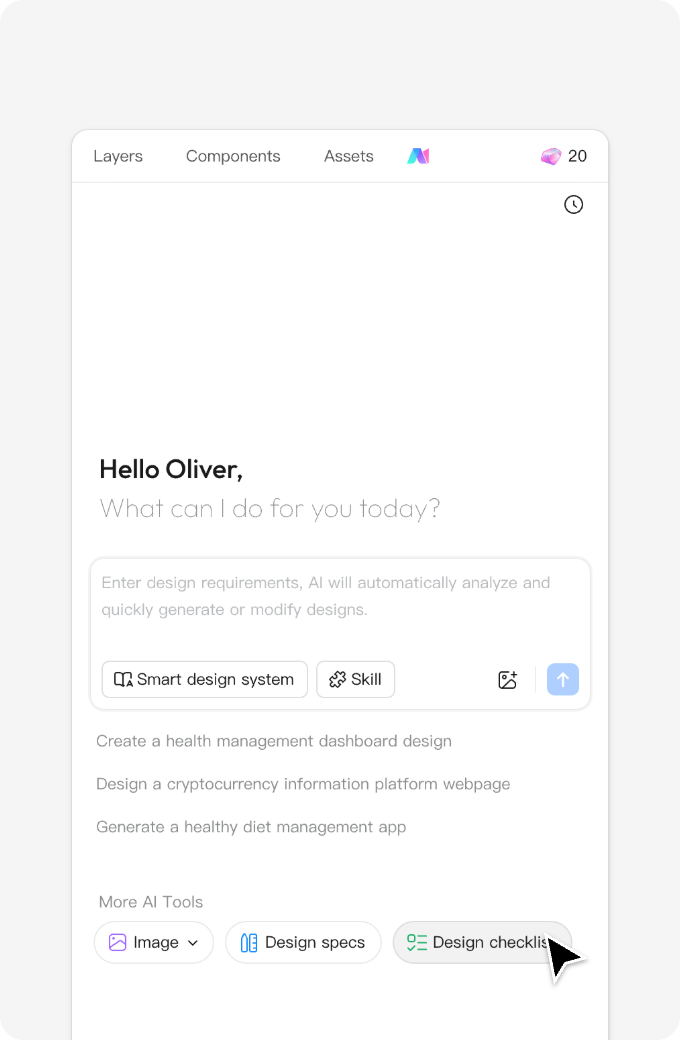
- Once launched, the AI chat window will appear. Simply describe the design theme or page type you need to verify.
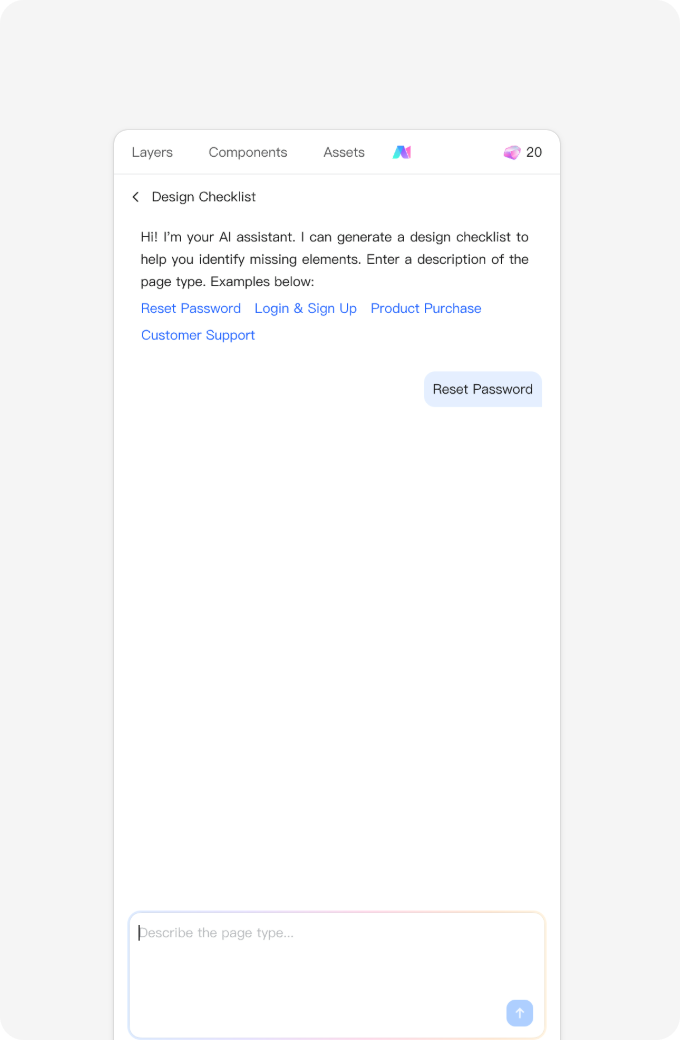
- Based on your description, the AI will generate a well-organized design checklist. Next, verify your design draft against this list item by item. As you complete each check, manually tick the checkbox on the left to mark it as done; the system will automatically save your progress.
9. AI Smart Text
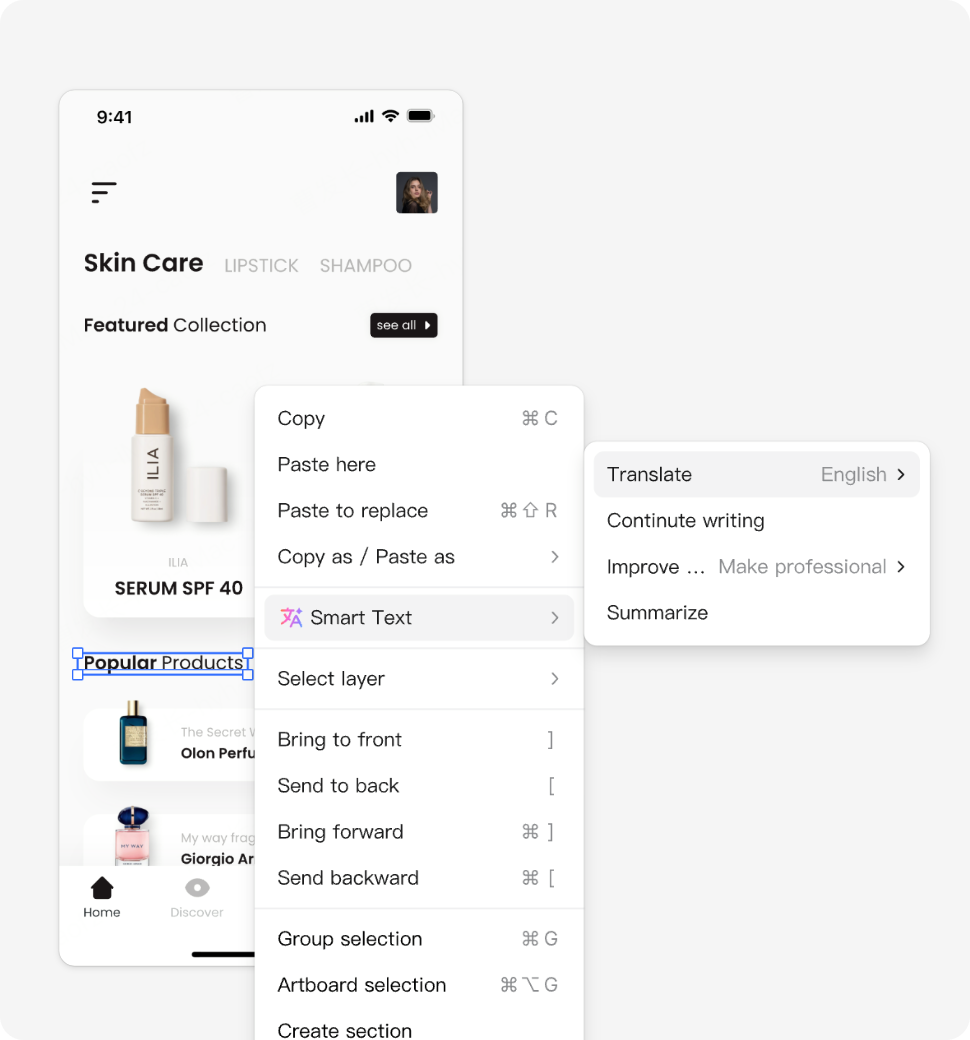
Select text or frames on the canvas to perform actions such as Translate, Continue Writing, Polish, or Summarize. The AI identifies the text layers, automatically processes your request, and updates the design directly with a real-time preview.
How to use:
- Select an object, then open the AI Panel > Smart Text.
- Select an object, then right-click and choose Smart Text.
- Select an object, then enter your copy editing prompt directly in the AI dialog.
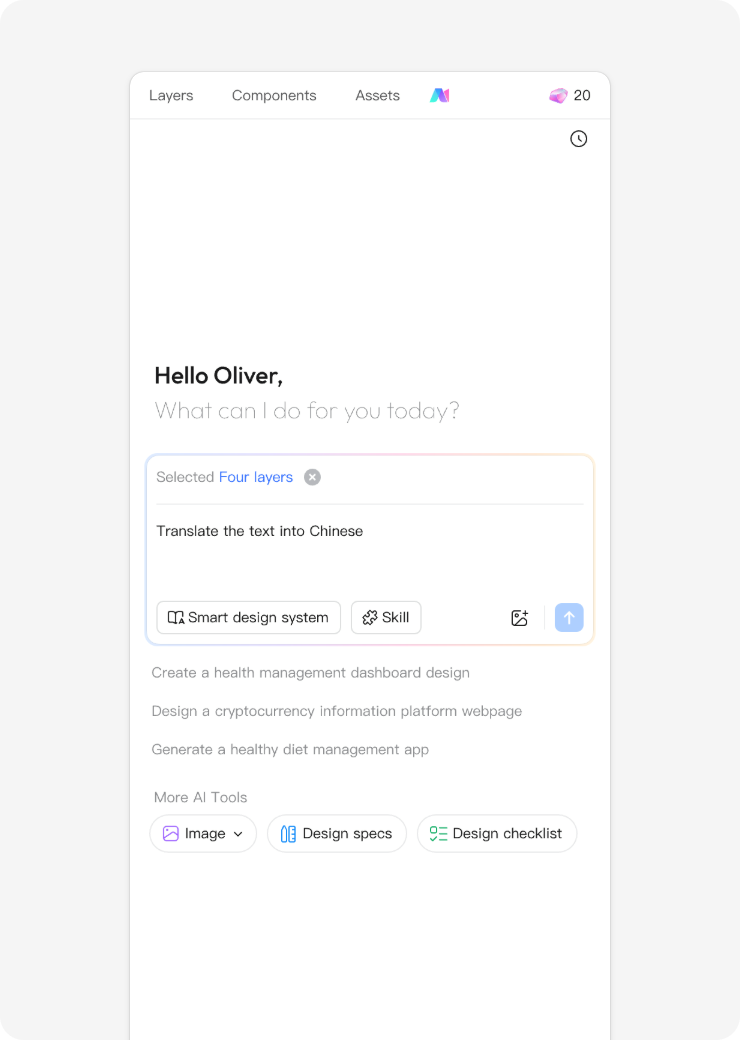
Typical Use Cases:
- Translate: Instantly switch between languages (e.g., Chinese, English, Japanese) while maintaining layout alignment.
- Continue Writing: Expand on a specific topic to generate additional content.
- Polish: Refine rigid instructions into more conversational or natural language.
- Summarize: Condense long paragraphs into concise copy that fits the design.
Conclusion
Choose the Pixso AI feature that matches the job: draft a screen, rename layers, adjust a layout or revise text. For an existing design, select the relevant objects and describe the change you want to make.