Scott
A pricing page should help visitors answer three questions: which plan fits their work, what they will be charged for, and what happens when they choose it. Attractive cards cannot compensate for a missing billing unit or a comparison table whose rows mean different things in each column. Put those decisions ahead of the visual emphasis on a preferred plan.
When you design a pricing page in Pixso, compare the complete choice: the plan card, its supporting details and the next screen. A visitor should not have to reinterpret the offer after selecting it.

Start with the purchasing decision
Consider Northstar, a scheduling product used here as a design example. Alex is choosing a plan for four colleagues who edit schedules and two who only view them. The question is not which column has the longest feature list. It is whether the team can coordinate its schedules, who needs a paid seat and which administrative requirements affect the choice.
Northstar has Solo, Team and Business plans. Solo supports an individual editor. Team adds shared schedules and view-only participation. Business addresses organization-wide administration and a sales-assisted purchasing process. These distinctions give the page a useful structure: independent work, shared work and organization-level requirements.
Describe each audience in a short line beneath the plan name. “For teams coordinating shared schedules” is more useful than “Unlock your potential.” Keep decorative badges secondary. A “Recommended” label needs a stated reason, such as shared editing, rather than implying that the highest highlighted price fits everyone.
Make the price unit visible
A price without its unit leaves the visitor to guess. Is it per person, per editor, per workspace or per month for the entire account? Put the unit next to the amount, not in a tooltip or a distant footnote. Explain any minimum purchase where it changes the apparent cost.
In Northstar's example, Team is priced per editor. Alex therefore needs four paid editor seats; the two view-only participants do not add editor seats under this example's rules. The selected-plan summary should repeat that distinction. Calling every participant a “user” would make the offer harder to interpret.
If a visitor can change the seat count, update the relevant total and keep the unit visible. A field labelled “Team size” is ambiguous when some teammates are viewers. “Editor seats” expresses the quantity being purchased. Explain separately what happens when an invited viewer later becomes an editor; do not hide a billing consequence inside a role label.
Separate the displayed rate from the billing commitment
A monthly equivalent and a monthly payment are not the same offer. When an annual option displays a monthly equivalent, place “Billed annually” beside it and show the annual amount the visitor is agreeing to pay. A small “/month” suffix should not carry the whole explanation.
Keep the period control near the plan comparison and make its selected state explicit. Switching from Monthly to Annual should update every affected price and billing explanation together. It must not silently change the number of seats or select a different plan. If the next screen has additional applicable charges, show them before payment rather than implying that a marketing estimate is the final bill.
Use a savings claim only when its comparison is defined. State which monthly and annual offers are being compared and use the same quantity. An unexplained percentage can distract from a more important question: how much is due, and for what period?
Compare the same capability across every plan
The comparison table should resolve questions that the cards cannot answer briefly. Start with the capabilities that actually divide the plans. Give each row one meaning and use the same terminology in every column.
| Northstar comparison | Solo | Team | Business |
|---|---|---|---|
| Primary use | One person's schedule | Schedules shared by a working team | Schedules managed across an organization |
| Editing | Individual editor | Purchased editor seats | Editor access agreed with the organization |
| View-only colleagues | Not part of a shared workspace | Included without editor access | Managed under the agreed access arrangement |
| Administration | Personal settings | Workspace administration | Organization-wide administration |
| Next step | Start an individual workspace | Review seats and billing | Discuss organizational requirements |
Alex can rule out Solo because the team needs shared schedules. Team meets the stated editing and viewing requirements. Business becomes relevant only if the organization needs the additional administration or purchasing arrangement. That is a reasoned choice, not a contest to collect the most checkmarks.
A dash should not have to mean both “not included” and “not applicable.” Write the distinction when it matters. Likewise, “Advanced support” is not a comparable row value unless the page explains what changes. If every plan has the same basic capability, group it once as a shared inclusion instead of repeating it across a long table.
Give each action a clear result
Button labels should describe the next step. Northstar's Team card can say “Choose Team” when it opens a seat and billing review. Its Business card can say “Contact sales” when it opens an enquiry. Making both say “Get started” conceals a difference the visitor needs to understand.
A trial action should explain the conditions that affect the decision, including whether payment details are required and what happens at the end, using the product's actual terms. Do not borrow another company's trial promise. If a free plan exists, distinguish starting that plan from starting a time-limited trial of a paid one.
Carry the selected plan, billing period and seat count into the next screen. Let visitors correct those choices before committing. A return to the pricing page should not quietly switch Annual back to Monthly or discard the quantity they just entered.
Make mobile comparison usable
Stacked plan cards are easy to read individually but harder to compare. Keep the plan name and price unit close to every decision-making section. When a visitor reaches the shared-schedules row, they should still know which plan they are reading.
Choose the narrow-screen structure around the comparison task. A compact table may work when a few short rows distinguish the plans. A longer comparison can let visitors choose which plans to compare, provided the selected names remain clear. Do not squeeze three desktop columns until the text becomes unreadable.
Keep material conditions visible when details collapse. A feature explanation can sit behind a disclosure; the billing period or a required seat minimum should not disappear there. Test long plan names and translated labels before fixing card heights. Equal-looking cards are less important than a complete, readable offer.
Keep selection and focus distinct
The billing-period control needs a readable selected state, and keyboard focus must remain visible on either option. A visitor should be able to tell “Annual is selected” from “Monthly will change if I activate this control.” Color alone is a weak way to communicate that difference.
Plan headings, table headers and links also need meaningful structure in the implementation. Give repeated actions enough context to identify their plan. If a seat change updates the total, agree with development how that result will be communicated without moving focus away from the quantity field after every keystroke.
Review the page with enlarged text and a narrow viewport. A fixed action bar must not cover a price explanation, and a comparison table must not trap someone who uses the keyboard. These behaviors need testing in the built page as well as review in the design file.
Review the whole choice in Pixso
Create Northstar's plan comparison and selected-Team summary beside each other in Pixso. Keep the same plan names, editor-seat rule and billing period across the frames. Add a narrow version that preserves the information Alex needs rather than merely shrinking the desktop cards.
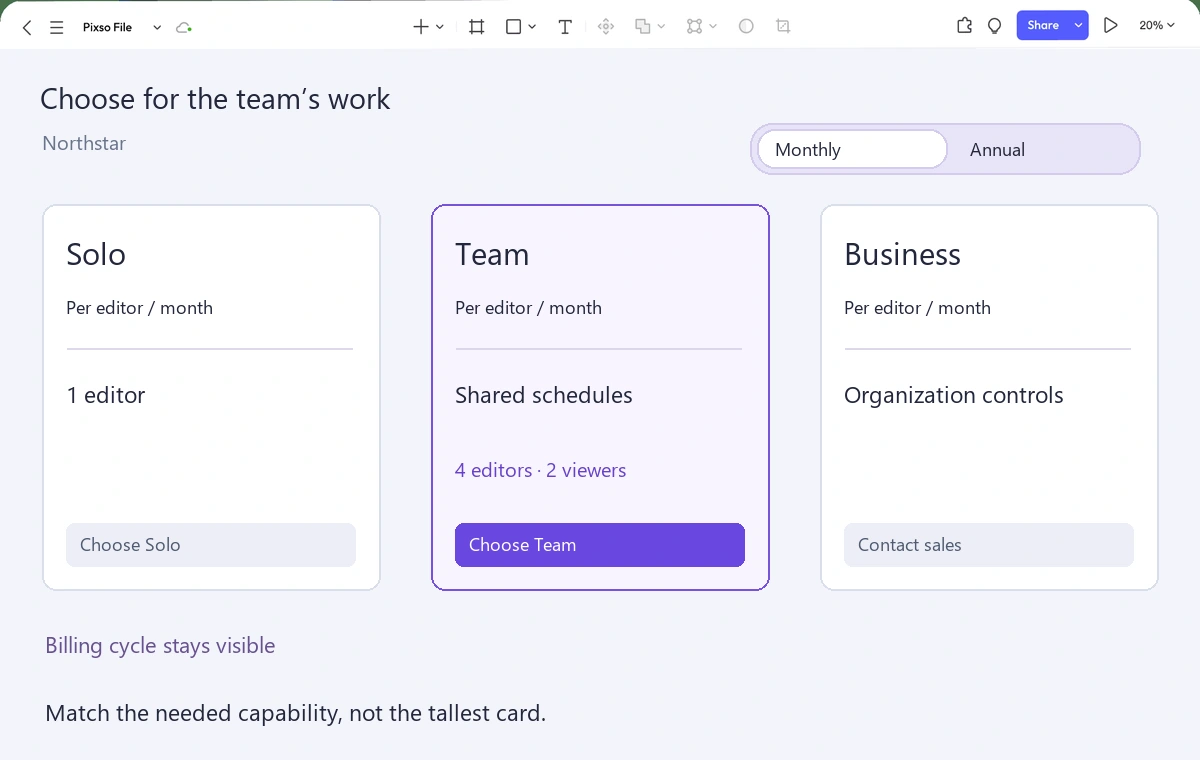
Ask a reviewer to choose for Alex's four editors and two viewers without first explaining the plans. Listen for the reason behind the selection. Then ask what quantity is being purchased, which period applies and what the button will do. If the reviewer chooses Team but believes all six participants need paid editor seats, the page still has an important clarity problem.
Repeat with an individual scheduler and an organization that needs centralized administration. The goal is not to funnel all three toward the highlighted card. It is to make the appropriate path understandable, then carry that understanding into the actual signup or purchasing flow.