Scott
A rating UI asks someone to choose a position on a defined scale. To make that answer useful, state what is being rated, explain what the scale means, and distinguish a tentative choice from a submitted response. A row of stars without that context may look familiar while collecting an answer to the wrong question.
Consider a help center asking, “How helpful was this answer?” after a support exchange. The person can choose one of five values, add an optional comment and submit. A public summary elsewhere shows previous responses. Design those two experiences separately in Pixso’s UI design workspace: collecting one person’s score is not the same task as reading an aggregate rating.

Define the question before choosing stars
“Rate your experience” leaves the object unclear. The person might judge the support agent, the speed of the reply, the product itself or whether the original problem was solved. In this example, the question is specifically about the helpfulness of one answer.
Use scale labels that match that question. Our five choices are 1 Not helpful, 2 Slightly helpful, 3 Moderately helpful, 4 Helpful and 5 Very helpful. They form an ordered scale without changing the subject halfway through. Do not mix “Slow,” “Okay” and “Friendly” as if they were consecutive amounts of the same quality.
A five-point scale is a choice for this example, not a requirement for every feedback task. If the only useful distinction is whether an answer helped, “Yes” and “No” may be enough. If a team already uses a defined research measure, retain its wording and scale rather than modifying it for visual symmetry.
Ask at a relevant moment and make participation optional. A rating request should not block the next support action or appear before the person has had a chance to read the answer. Someone who still needs help should have a support route separate from the feedback form.
Choose a visual scale that keeps its meaning visible
Stars are compact and familiar in many product-review contexts. Numbers expose the order clearly. Faces can feel approachable but may introduce another interpretation: is the person rating emotion, satisfaction or the helpfulness of an answer?
For the support example, a labeled five-choice row makes the meaning explicit. Stars can accompany the values, but the words must remain available on touch devices and to assistive technology. A label revealed only on hover leaves mobile readers guessing.
If space allows only endpoint labels, make the chosen value’s meaning visible after selection. A person who selects four should see “4 — Helpful,” not only four colored stars. Keep the question above the scale so the response still makes sense after scrolling or returning to the form.
Do not assume that a decorative star conveys whether the control is editable. An input needs a recognizable interactive appearance and focus treatment. A read-only rating should not look like a control that invites an accidental replacement.
Start without an answer and make selection deliberate
Leave all options unselected initially. Preselecting five may create a response the person never intended to give. Preselecting the midpoint is not neutral either: “3” is still an answer, not the absence of one.
Show the unselected state clearly. Empty star outlines can mean “not yet rated” in an input, but they should not be interpreted as a score of zero. In this five-point scale, zero is not a permitted response. A person who skips the question has not submitted a low rating.
For a pointer interaction, hovering over four stars can preview four while the committed value remains unchanged. On leaving the control, restore the selected value or the empty state. A click or tap commits the selection locally. Keep hover, keyboard focus and selected appearance distinguishable so the person knows what will be submitted.
For this example, selection does not send the response. The person chooses 4 — Helpful, optionally explains what helped, then presses “Submit feedback.” They can change the selection before submitting. An immediate-save pattern is possible, but it should acknowledge the saved value and provide a clear correction route rather than hiding the commitment inside a star click.
Make a single choice operable without a mouse
A one-to-five rating is one choice among ordered alternatives. The W3C rating radio-group example demonstrates accessible naming, keyboard selection and visible focus for that pattern. It is a reference for behavior, not proof that a particular implementation is ready for production.
Give the whole group the question as its accessible name and each option its value and meaning. Hearing “4, Helpful” is more useful than hearing “star” five times. A visual fill across the first four stars should not imply four independent selections; the submitted value remains one score.
Use a visible focus indicator that survives the selected color. Do not depend on yellow versus gray alone. Filled shapes, outlines, text and focus treatment can work together, including in high-contrast presentation.
On narrow screens, avoid squeezing five tiny targets into a decorative strip. Increase their usable areas or use a layout that keeps labels readable. If the row wraps, maintain an obvious order; putting 1–3 on one line and 4–5 far away makes a simple question harder to understand.
Let a short response remain short
After selecting a rating, the person may have nothing else to add. Keep a comment optional unless the research task truly requires more information. “What would have made the answer more useful?” is a clearer prompt than an unexplained empty box.
Do not require only people with low ratings to write an essay before their response counts. That changes the effort associated with different answers. If follow-up questions vary by score, keep their purpose clear and avoid using them to obstruct negative feedback.
During submission, retain the chosen value and comment. If the service confirms a failure, say “Your feedback wasn’t sent. Try again” and preserve the draft. If the outcome is uncertain, do not confidently claim that it was saved or lost; use the recovery behavior supported by the service.
After confirmation, a concise “Feedback received” is enough. Show the submitted personal value if editing is available, and label the action “Edit feedback.” A response should not turn into a different public review without explaining that destination and the applicable visibility.
For open-ended reports about a broken task, a score may not be the most useful starting point. The website feedback-button guide covers asking what someone expected and what happened instead. Use the method that captures the information the team can act on.
Display a rating summary without hiding its context
A read-only summary should identify the scale and the response count. In this design example, 4.2 out of 5 · 128 ratings communicates more than four partly filled stars. The number is an illustrative historical summary, not a result inferred from the one response above.
Keep “ratings” distinct from “written reviews.” A service can have 128 scores and far fewer comments. Labeling the count as reviews when it includes score-only responses gives the reader the wrong expectation when they open the detail view.
Show “No ratings yet” for an unrated item. Displaying 0.0/5 makes absence look like a poor score. Likewise, avoid converting a single five-star response into an oversized badge that visually implies a broad consensus.
If people need to judge the evidence behind an average, show a distribution or a route to the individual responses. An average alone can conceal very different patterns. Keep the aggregation method consistent with the visible labels; do not introduce weighting, exclusions or a time window without explaining the relevant scope.
Separate the personal score from the aggregate. A user’s “Your rating: 4 — Helpful” can sit near a summary, but use distinct labels. Updating one response should not make the UI pretend that the entire historical average is now four.
Design input and summary side by side in Pixso
Create two frames: the optional support-feedback form and a read-only answer-summary panel. In the form, place the question above five ordered choices, an optional comment below them and “Submit feedback” last. In the summary, show 4.2/5 and 128 ratings with no input-like hover treatment.
Build reusable appearances for an unselected choice, a focused choice and the selected value. Use Auto Layout to compare short labels with longer translations. Keep a version with 4 — Helpful selected and another with no response, so the empty state cannot accidentally become a default score.
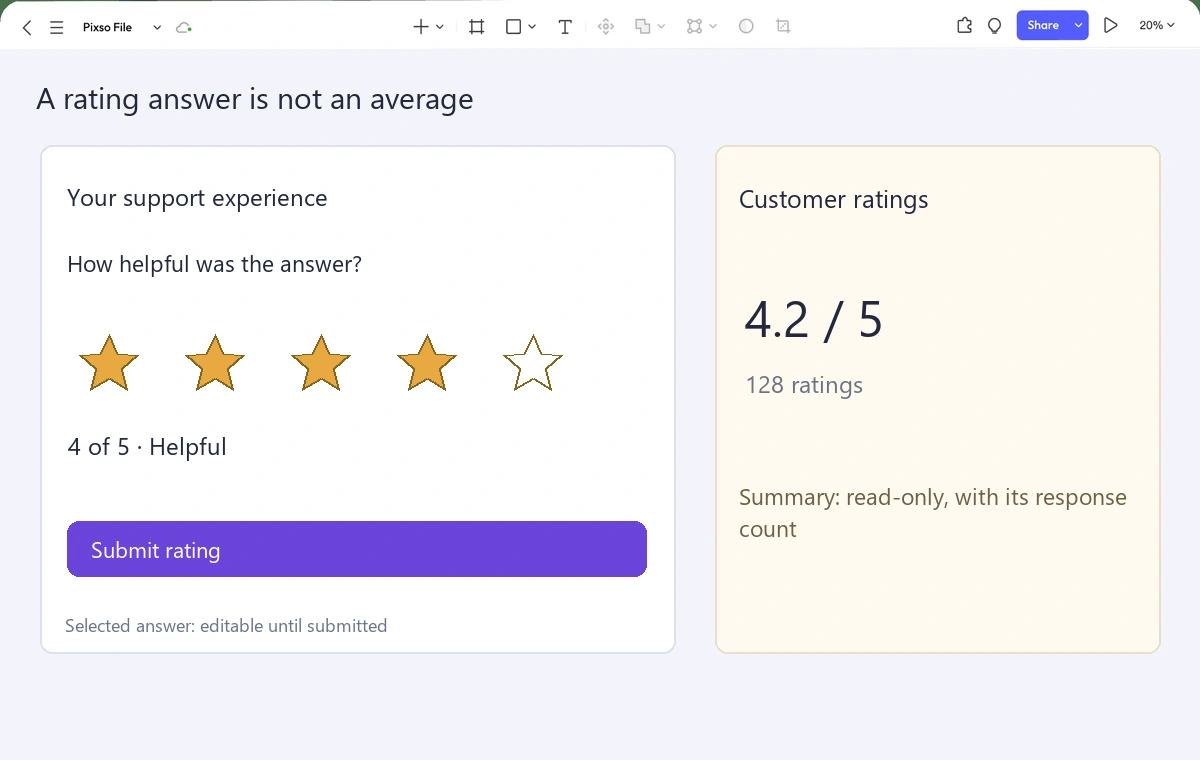
Review the design with three tasks: give an answer a rating of four, change it to three before sending, and find out how many people contributed to the public summary. Ask what the question measures. If the answer is “the support agent” when the intended object is “this answer,” revise the question before polishing the stars.
The component specification should carry the scale labels, selection and submission rules, editable state and summary wording into development. A useful rating UI makes the question easy to answer and the result hard to misread. The visual treatment serves that distinction—not the other way around.